The whole job takes one screen: open the Google Play Store, tap your profile icon, tap Settings, expand Network preferences, tap Auto-update apps, and choose Don’t auto-update apps. That switch stops every Play Store app from pulling a new version on its own, and it applies to the whole device at once.
It takes roughly twenty seconds, and nothing breaks. Installed apps keep working exactly as they did the day before. What changes is that security patches, bug fixes and compatibility updates now wait for you instead of arriving quietly at two in the morning on mobile data.
Below is the exact path for the Play Store version most people run today, the paths for Samsung, Pixel and other brands where the menus moved, how to update manually once the switch is off, and what to try when apps keep updating anyway.
Table of Contents›
- What You Need
- Step-by-Step: How to Turn Off Automatic App Updates on Android
- How to Turn Off Automatic App Updates on Samsung, Pixel, and Other Android Phones
- How to Turn Off Automatic App Updates for a Single App
- How to Update Apps Manually After Disabling Automatic Updates
- What Happens When You Turn Off Automatic App Updates?
- Common Mistakes
- Frequently Asked Questions
- Can I turn off automatic app updates on every Android phone?
- Why are my Android apps still updating after I disable automatic updates?
- Will turning off automatic updates leave my apps vulnerable?
- Does disabling automatic app updates also stop system updates?
- How do I turn automatic app updates back on?
- Is Wi-Fi-only updating better than turning updates off completely?
- Conclusion
What You Need
Just the phone and about twenty seconds. No computer, no cable, no third-party app.
Two things worth knowing before you start:
- The wording moves around between brands. Samsung calls it Network preferences inside Play Store, and Google Pixel phones use almost the same words. Older guides point at a hamburger icon that most current Play Store versions no longer have.
- Play Store access is your manual alternative. Even with auto-updates off, you open the Play Store to check for updates yourself, so it needs to be signed in to your Google account.
If you are on a phone where Play Store is missing or disabled, the fix is to install or update Google Play services, and the process is different. More on that in the mistakes section.
Step-by-Step: How to Turn Off Automatic App Updates on Android
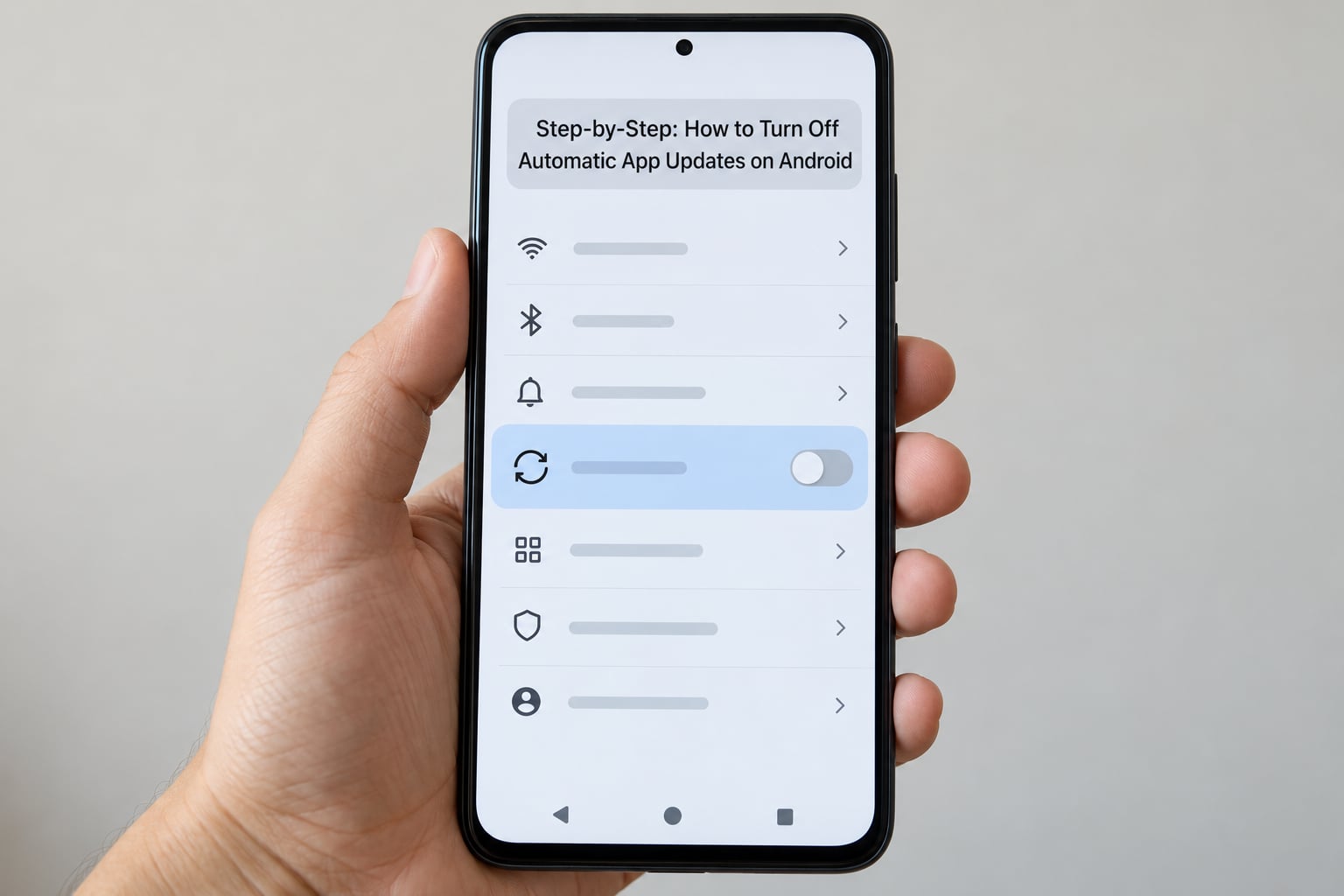
This is the path that works on stock Android, Google Pixel and most current Play Store versions, including 2026.
- Open the Google Play Store from your app drawer.
- Tap your profile icon in the top-right corner. On older versions this is the three-line hamburger icon on the left instead.
- Tap Settings, the first item in the menu that opens.
- Tap Network preferences, then tap Auto-update apps.
- Choose Don’t auto-update apps, then confirm. Some versions close the screen on their own, others show a Done button.
To verify it worked, reopen Play Store, tap your profile icon, tap Settings, and expand Network preferences. The radio button next to Don’t auto-update apps should still be filled in. That is the only confirmation that matters, and it survives restarts.
If you ever want updates back, reopen the same screen and choose Update over Wi-Fi only or Over any network. Switching back takes about five seconds and nothing else needs changing.
How to Turn Off Automatic App Updates on Samsung, Pixel, and Other Android Phones
Samsung’s One UI does not change the Play Store path, but it adds a second update system on top of it, and that is where most confusion starts.
On a Samsung Galaxy, app updates go through Google Play exactly as above. System updates go through Settings, then Software update and Galaxy Store, and those are separate toggles. If what you want is to stop Samsung’s own system and One UI updates, open Settings, tap Software update, and use Auto download off plus the switch for downloading updates over Wi-Fi only.
Google Pixel keeps everything in the same Play Store location. Samsung Galaxy Store is a different store entirely, so apps installed from it follow their own update rules.
On Xiaomi and Redmi phones running MIUI or HyperOS, the Play Store path still works for Google Play apps. Add Settings, Apps, Manage apps, and the three-dot menu on an individual app for a per-app control.
OnePlus and Oppo devices on OxygenOS behave like stock Android for the Play Store setting. Motorola is the same. Where you will notice differences is in the settings app itself, not in the Play Store.
How to Turn Off Automatic App Updates for a Single App
This is the option most people actually want: keep automatic updates on everywhere, and stop updates for the one app that misbehaves or drains your data.
- Open the Google Play Store and search for the app.
- Tap the app name to open its listing page.
- Tap the three-dot overflow icon in the top-right corner.
- Tap Enable auto update to switch it off. The label disappears when it is off.
- Tap back. The app is now excluded while everything else keeps updating.
This is the middle ground that works best in practice. Bank and payment apps, launchers, games that break on update, and apps you are paying for are the usual candidates.
How to Update Apps Manually After Disabling Automatic Updates
Turning the switch off means updates come to you, so give yourself a rhythm rather than a one-off check.
- Open the Google Play Store and tap your profile icon.
- Tap Manage apps & device, then the Updates tab. On some versions this reads Updates directly in the menu.
- Tap Update all, or tap Update next to a single app.
- Read what you are installing. Some apps list permission changes and the reason for the update in the description.
Once a week is enough for most people. Monthly is fine if you are careful about security. Once every few months is how apps start breaking.
What Happens When You Turn Off Automatic App Updates?
Here is what actually changes on the device.
- Apps stop downloading new versions in the background, including at night on mobile data.
- Security patches and bug fixes arrive on your schedule instead of immediately.
- Installed apps keep working. Nothing is uninstalled, nothing is reset, and your data is untouched.
- You stop spending mobile data on background downloads you did not ask for.
- Some apps lose features, or stop working with the services they talk to, after a long stretch on an old version.
The Play Store choice decides how Play Store apps update. It does not control everything else on the phone.
| Update channel | What it covers | Affected by the Play Store switch |
|---|---|---|
| Google Play Store | Apps you installed from the Play Store | Yes |
| Android system update | Android version and security patches for the OS | No |
| Play Store self-update | The Play Store app updating itself | No |
| Samsung Galaxy Store | Samsung apps and One UI components | No |
That third row explains a lot of forum confusion. People switch off app updates, then watch the Play Store update itself and assume the setting failed.
Common Mistakes
The toggle is greyed out or missing. On work and school phones, an administrator policy can lock update behaviour. Managed devices use a Play Store admin console setting, and the option is not available to you. Check with whoever manages the device.
You turned off the wrong setting. There are two similar switches on some devices. The one that stops updates is Auto-update apps under Network preferences. Turning off mobile data downloads for apps stops background data use but leaves automatic updates on Wi-Fi running.
The change does not stick. Some apps are already mid-download when you change the setting, and that download finishes. Restart the phone, check again in Network preferences, and if the switch has reset itself, something with device management permission has re-applied policy.
You followed an old guide with a hamburger icon. Current Play Store versions use the profile avatar in the top-right. Very old articles also point at Settings, then General, then Auto-update apps, which is no longer the route.
Apps still update after you switched it off. Force-close the Play Store from the recent apps screen and restart the phone. Then check whether the update you saw was actually an Android system update, a Galaxy Store update, or a re-install of the same version rather than a new one.
Google Play services is missing or outdated. If the Play Store will not open or crashes on the Settings screen, update Google Play services from its own Play Store listing, or from the Play Store tab in Android settings. Without it the manual update route is gone too.
You switched everything off and forgot. This is the most common long-term mistake. Set a repeating reminder on your own calendar to open Play Store and check the Updates tab, because nothing will prompt you anymore.
Frequently Asked Questions
Can I turn off automatic app updates on every Android phone?
Yes. Most Android phones use the Google Play Store to control app updates, including Samsung, Pixel, OnePlus, Motorola and Xiaomi. The wording may differ slightly, but look for the Auto-update apps option under Network preferences in Play Store settings. Phones managed by a work or school administrator may have the option locked, and apps from a manufacturer’s own store follow separate rules.
Why are my Android apps still updating after I disable automatic updates?
Most often the update had already started downloading before you changed the setting, and it finishes anyway. Other causes are an Android system update, a Play Store self-update, or an update from a manufacturer store such as Samsung Galaxy Store. Force-close the Play Store, restart the phone, and re-check Network preferences to confirm the setting is still off.
Will turning off automatic updates leave my apps vulnerable?
It can, because security fixes only arrive when you install them. Apps that sit on an old version for months miss bug fixes and can develop compatibility problems with the services they connect to. Check the Play Store every few weeks, install security updates as soon as you see them, and leave automatic updates on for banking and payment apps.
Does disabling automatic app updates also stop system updates?
No. Android system updates are controlled separately, usually under Settings then System update or Software update, depending on the manufacturer. Turning off Play Store app updates stops only apps installed from the Play Store. System updates, Play Store self-updates and manufacturer store updates continue on their own schedule.
How do I turn automatic app updates back on?
Open the Google Play Store, tap your profile icon, tap Settings, then Network preferences, then Auto-update apps. Choose Update over Wi-Fi only to update on home Wi-Fi without using mobile data, or Over any network to update whenever the phone has a connection. The change applies immediately with no restart needed.
Is Wi-Fi-only updating better than turning updates off completely?
For most people, yes. Update over Wi-Fi only stops apps from quietly downloading on mobile data while still delivering security patches on home Wi-Fi. Turning updates off entirely makes more sense when you have limited data, travel regularly, or want to keep one specific app on a version that already works.
Conclusion
Start in the Play Store: tap your profile icon, then Settings, then Network preferences, then Auto-update apps, then Don’t auto-update apps. That single switch is the one that controls automatic app updates, and it applies to everything you installed from the Play Store.
If the real problem is one stubborn app, skip the global switch and turn off Enable auto update on that app’s page instead. If the real problem is mobile data, Update over Wi-Fi usually solves it without giving up security patches.
Either way, put a weekly reminder on your calendar to open the Play Store and check the Updates tab, because once automatic updates are off, nothing will chase you.