A slow mobile browser is usually fixable in about ten minutes. How to speed up a slow mobile browser comes down to three things: telling a network problem apart from a browser problem, closing the tabs you left open, and updating the app. Start there, then clear cached data. If the whole phone feels sluggish, storage and background apps are the next suspects.
This guide covers Chrome on Android, Chrome on iPhone, Safari on iPhone and Firefox on Android, with the exact menu paths for each. Updated for 2026.
Most people jump straight to clearing the cache because it is the fix they have heard about most. It works often enough to keep the advice going, but it is step three, not step one. Clearing data on a phone with a weak signal will not make a single page load faster, and the two problems get confused constantly.
Table of Contents›
- What You Need
- Step-by-Step: How to Speed Up a Slow Mobile Browser
- 1. Check Your Connection and Close Unused Tabs
- 2. Update the Browser and Operating System
- 3. Clear Browser Cache and Site Data
- 4. Disable Extensions and Reduce Background Activity
- 5. Reset Browser Settings and Check Storage
- 6. Common Mistakes When You Speed Up a Slow Mobile Browser
- Frequently Asked Questions
- Why is my mobile browser suddenly slow?
- Should I clear my browser cache on my phone?
- Is Chrome or Safari faster on a phone?
- Does clearing browser data delete my passwords?
- Can a slow mobile browser be caused by low phone storage?
- What should I do if my browser is still slow after these fixes?
- Conclusion
What You Need
Before you start, you need three things: a phone with at least 30 percent battery, a connection you trust, and about ten minutes where you can restart the phone twice. Nothing here needs a computer, an account, or a paid tool.
A second phone or tablet on the same network makes the diagnosis far easier, but it is optional. If a colleague or your own older device loads the same page quickly, the problem is on your phone rather than with the site or your provider.
Know which browser and which system you are running, because menu names move around. Samsung’s stock browser, Chrome, Edge, Firefox and Safari all expose similar settings under different labels. On Android, the path usually starts in Settings > Apps; on iPhone, most of it sits inside the browser’s own settings or under Settings > Safari.
Take a quick note of your browser version before you change anything. It makes it easy to tell later whether an update actually landed, and it helps when you ask for help on a forum.
Step-by-Step: How to Speed Up a Slow Mobile Browser
Work through these in order. The first three take a couple of minutes and solve the problem for most people. Steps four and six matter more on older or budget Android phones, where the hardware is the real limit. How you tell whether a step worked is written into each one, so stop as soon as pages feel normal again.
1. Check Your Connection and Close Unused Tabs
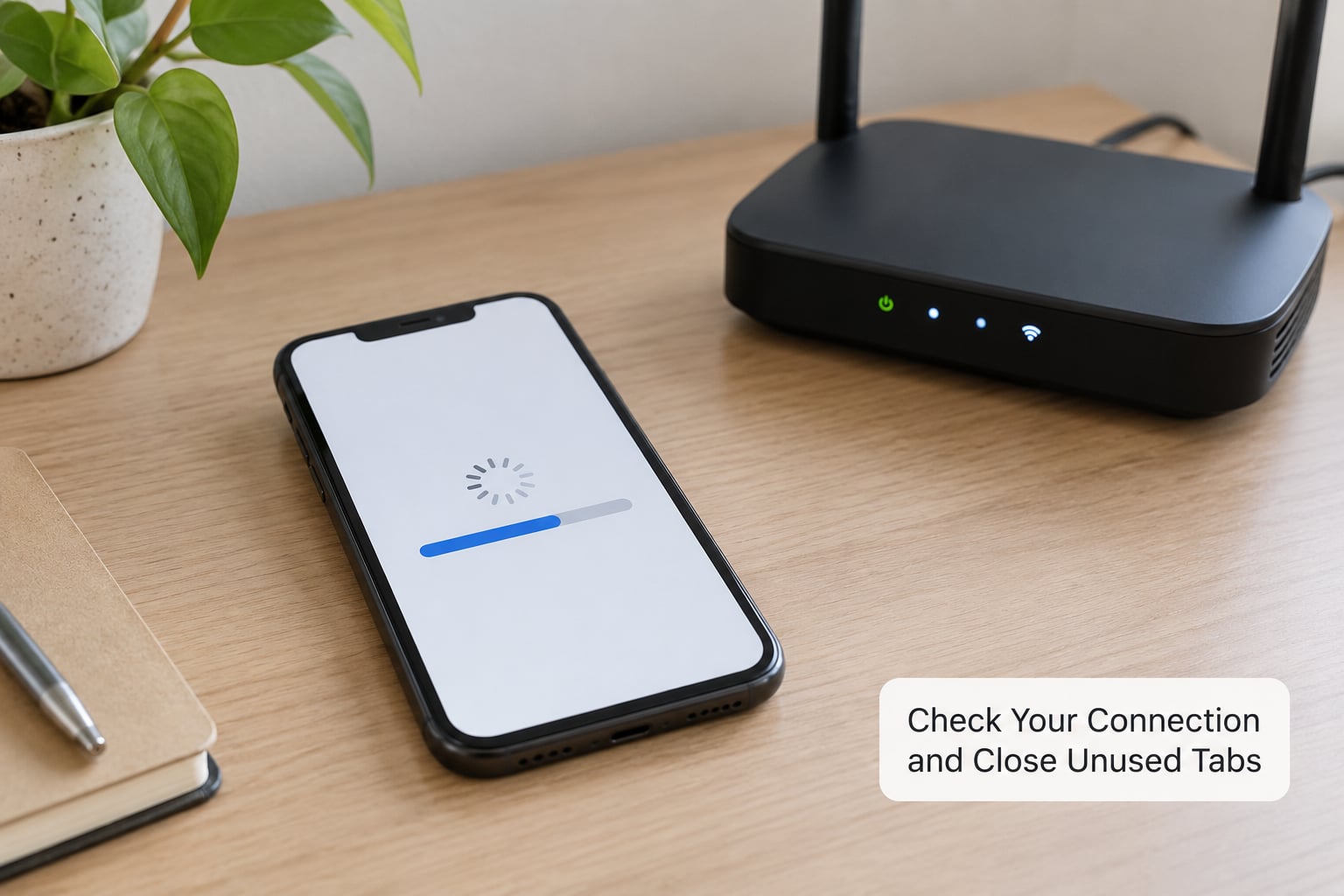
Open any large site you know well, then load a different one. If both are slow, the browser is the likely culprit. If only one is slow, that site is the problem and no amount of cache clearing will touch it.
On Android, pull down the notification shade and look at the Wi-Fi or mobile data icon. Two bars or an X means the connection dropped, and the browser is honest about showing an error page for it. On iPhone, check that Wi-Fi is on under Settings > Wi-Fi and that airplane mode is switched off in Control Center.
Run a speed test on the same network if you want a number. The catch is that a fast speed test still leaves a slow browser possible, which is why testing a real page matters more. Switch between Wi-Fi and mobile data once. If one is dramatically quicker, you have your answer without opening a single setting.
Now count your tabs. Every open tab keeps a page alive in memory, and mobile browsers keep far more in reserve than the number you can see. Twenty or thirty tabs on a mid-range Android phone is enough to cause visible stutter when scrolling and switching.
Close them from the tab switcher view. In Chrome, tap the number in the square at the top right, then tap Close all. In Safari, tap the square in the bottom right and swipe each card away. On Android, some browsers offer a swipe-to-dismiss gesture instead, which is faster than tapping each cross.
How you know it worked: the tab switcher opens without a delay, and scrolling through a page stops stuttering. If nothing changed, move on. Ten seconds of effort has ruled out two of the big causes.
2. Update the Browser and Operating System
Outdated browsers get slow in a predictable way. Rendering bugs that were patched months ago keep costing you frames, and old versions often fail to use newer, faster network and compression features. On iPhone, a browser stuck on an old WebKit version cannot be updated separately at all.
Update the browser from the app store rather than from inside the app. On Android with Chrome, open Google Play > tap your profile icon > Manage > Updates, then look for Chrome. On iPhone, open the App Store, tap your profile picture, scroll to pending updates and pull down to refresh.
Update the phone itself too. On Android, Settings > System > System update or Settings > About phone > Software update depends on the brand. On iPhone, Settings > General > Software Update.
Restart after installing. Android phones apply some system optimisations while they are shut down, and a browser update rarely has full effect until the app is relaunched. Restarting weekly is a cheap habit that prevents the slow-loading freeze cycle entirely.
How you know it worked: the browser version number in Settings > About has changed, and pages that hung now render as you scroll. If you cannot install an update because storage is full, jump ahead to step six and free space first.
3. Clear Browser Cache and Site Data
Cached files are stored copies of pages, scripts and images, kept so sites load faster on a second visit. Over months they grow large and fragmented, which makes the browser read from storage more than it should. Clearing them costs you one extra slow load per site and nothing else.
On Chrome for Android, tap the three-dot menu and choose History, then tap Clear browsing data. Pick All time as the time range, tick Cached images and files, and tap Clear data. Leave cookies unchecked unless you want to sign out everywhere.
On Chrome for iPhone, open the app, tap … > History > Clear Browsing Data, choose All time, select cached images and files, and tap Clear Browsing Data.
In Safari on iPhone, there is no clear-all-cache button by default. Tap the aA icon in the address bar, scroll to Website Settings, clear history and cookies, then use Advanced > Website Data to remove cached data site by site. Settings > Safari > Advanced has a Clear History and Website Data option that does both at once.
Read this before you tap clear. Clearing site data and cookies signs you out of banking, email and shopping sites, and some apps ask for a fresh login code. Clearing only cached images is the safer first move.
How you know it worked: the first visit to a site takes a second longer than it did yesterday, and the second visit is back to normal. If nothing feels different, the cache was never the bottleneck.
4. Disable Extensions and Reduce Background Activity
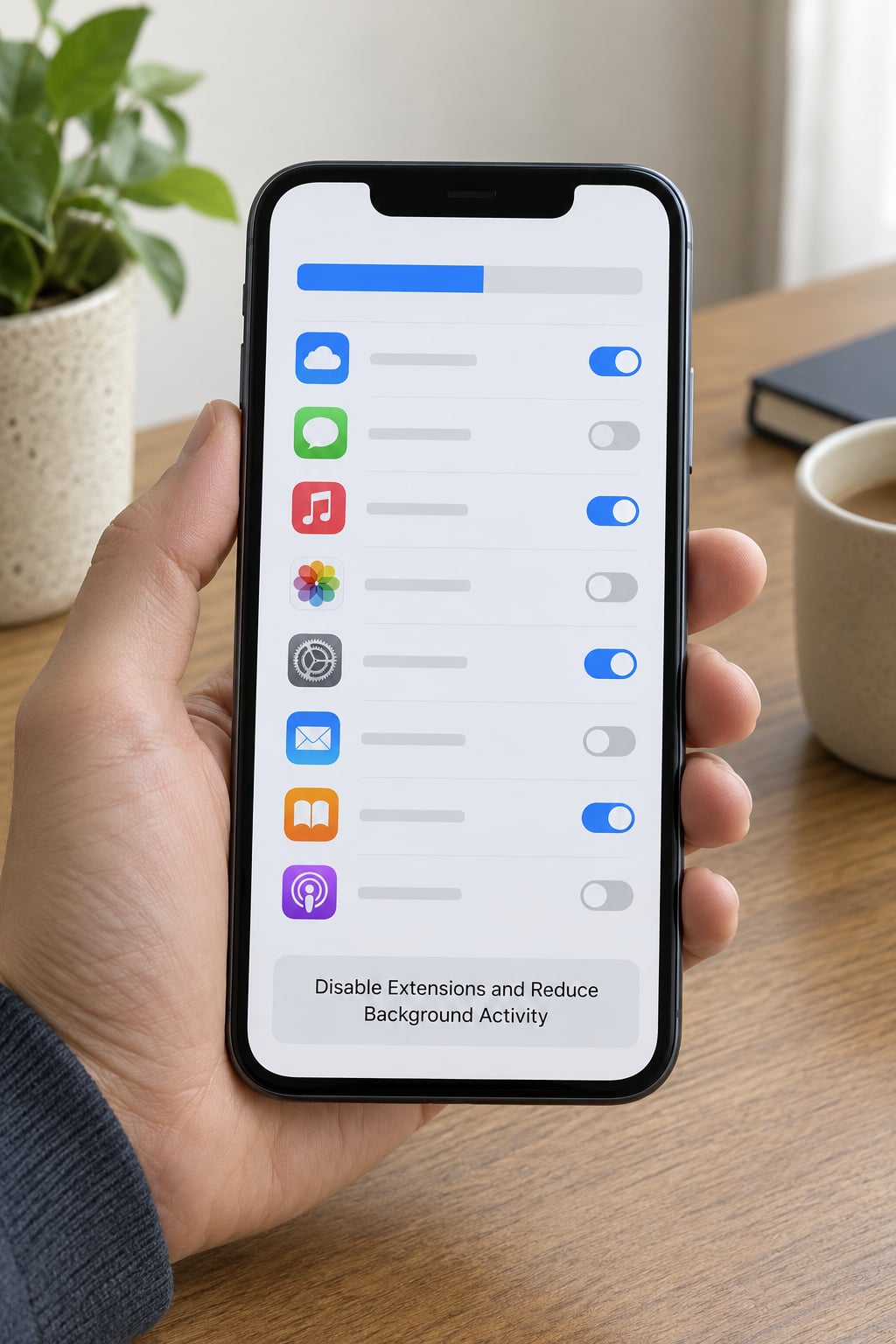
Extensions inject code into every page you load, and each one costs memory and processing time. On mobile that hit is sharper than on a desktop. Chrome on Android supports extensions; Firefox on Android supports add-ons from its add-ons menu; Safari on iPhone allows a handful through its own extension settings.
Review what you actually use. Open the browser menu, find Extensions on Android Chrome or Add-ons on Firefox, and disable anything you do not recognise or have not opened in months. A password manager and a blocklist are usually worth keeping. Three analytics and coupon extensions are not.
Safari extensions live under Settings > Safari > Extensions on iPhone, where each one toggles individually.
Then look at what the browser is doing while you are not using it. Many browsers preload and preconnect to sites you visited earlier, which saves time later but uses data and memory continuously. On iPhone, Settings > Safari > Advanced > Preload Safari lets you switch preloading off. On Android, Chrome’s Lite mode or a lighter browser does the same job more aggressively.
Downloads count too. A paused download sitting in Chrome’s download shelf holds a connection open. Cancel anything you no longer want.
For the phone itself, Android users can open Settings > Apps, tap an app, then Battery and choose Unrestricted for the browser so battery saving does not throttle it. Samsung phones add Background usage limits on the same screen, where you can set Never allow. On iPhone, background refresh lives under Settings > General > Background App Refresh.
How you know it worked: switching tabs feels instant, and the phone no longer gets warm while the browser sits in the background.
5. Reset Browser Settings and Check Storage
Do this only after the earlier steps, because a reset throws away every customisation you made. On Chrome for Android, Settings > Reset > Restore default settings returns search engine, homepage and startup behaviour to factory values without touching your bookmarks or saved passwords. On iPhone, deleting and reinstalling the app resets it fully while keeping your iCloud browsing data.
Now check free storage. On Android, Settings > About phone > Storage, or search for Storage in the settings search bar. On iPhone, Settings > General > iPhone Storage. Phones need roughly 10 to 15 percent of storage free; below that, the system starts trimming caches itself and everything feels slower, browsers included.
Look at the biggest entries first. Old downloads, chat app attachments and duplicate photos usually win. Deleting from the browser’s own downloads list is the easiest win because nothing else depends on it. Uninstall apps you stopped using months ago, particularly preinstalled ones you never opened.
One popular trick on older Android devices is turning off interface animations. Go to Settings > About phone > Tap Build number seven times to unlock developer options, then set Window animation scale, Transition animation scale and Animator duration scale all to Off. Menus stop sliding and open instantly, which makes the phone feel quicker even though the processor does the same work.
How you know it worked: storage free moves above 10 percent, menus open without animation, and the browser no longer stutters between pages.
6. Common Mistakes When You Speed Up a Slow Mobile Browser
Clearing everything at once. Ticking cookies, cache and history in one go signs you out of every site, including email and banking, and you end up signing back in to find nothing has improved. Clear cached images only, keep cookies, and test again.
Assuming the cache fixes a weak signal. No cached copy helps when the connection never reaches the site. If a speed test shows a poor number, or other apps on the phone are slow too, the problem is upstream. Fix the network before touching the browser again.
Installing browsers from outside the official stores. Sideloaded or cloned browsers can ship with extra processes and aggressive tracking, and some are simply old builds with known flaws. Extra browsers also sit in memory and cost background data. Uninstall duplicates you no longer open, then install one well-known alternative from its official store.
Running an unexamined VPN. Public VPNs route your traffic through someone else’s servers, which adds distance to every request. If the browser became slow right after connecting one, turn it off and test again before looking anywhere else.
Ignoring the hardware. On a phone with 2 GB of RAM, no setting brings a modern heavy page to full speed. Community advice on Android forums consistently points to lighter browsers such as Brave or Firefox with tracking protection enabled for older hardware. Turning off automatic photo backup also frees background work, which is a measurable gain on budget devices.
One last practical tip: if the browser is slow and everything else on the phone is smooth, try the same site in a different browser for a day. That single test tells you whether to keep tuning settings or to switch browsers entirely.
Frequently Asked Questions
Why is my mobile browser suddenly slow?
A sudden change usually points to something outside your settings: a browser or system update that changed how pages render, a browser extension or VPN you added recently, a weak Wi-Fi signal, or storage that has run out. Check your connection and free space first, since both are quick. Restarting the phone clears the running processes that may be stuck, and if the slowness started right after an app change, remove that app or extension.
Should I clear my browser cache on my phone?
Yes, but clear cached images and files first, and leave cookies alone. Cached data grows over months and fragments, which makes the browser work harder than it needs to on every page. The cost is one slow first load per site. Clearing cookies or all site data signs you out of email, banking and shopping accounts, which is why it should not be the first thing you tap.
Is Chrome or Safari faster on a phone?
Both are fast, and on iPhone Safari is the only option that stays current with the system, because apps cannot update the rendering engine themselves. Chrome on Android generally wins on extension support and data saver features. Neither is meaningfully faster on a good connection. On older hardware, a lighter browser such as Brave or Firefox often feels faster than Chrome simply because it uses less memory.
Does clearing browser data delete my passwords?
No. Saved passwords, autofill entries, bookmarks and your history are stored separately from cache and cookies, so clearing browsing data leaves them intact. What you do lose is the sign-in state for websites, because deleting cookies signs you out everywhere. On some browsers the cookie and site data option is worded closely enough to look alarming, so read the tick boxes before confirming.
Can a slow mobile browser be caused by low phone storage?
Yes. When a phone runs low on storage it starts trimming cached files and system resources to make room, and browsers lose the room they need to hold open tabs and pages. Keep roughly 10 to 15 percent of storage free. Remove old browser downloads, unused apps and duplicate photos first, since those are large and easy to check without touching personal photos or messages.
What should I do if my browser is still slow after these fixes?
Test the same site on a second device on your network. If it loads quickly there, the problem is your phone rather than your connection or the site. Try one well-known alternative browser from its official store for a day, and check whether a VPN or private DNS setting was recently added. If a whole second device loads the same site slowly, the site itself is having a bad day.
Conclusion
Start with the connection, close the tabs, then update the browser. Those three checks take a few minutes and rule out most causes of a slow mobile browser before you clear any data. Only after that is it worth clearing cached images, trimming extensions and freeing storage.
If the same site loads fine on another device, the browser or phone is at fault. If it is slow everywhere, the site or the connection is, and no setting on your phone will change that.