Most Android phones already encrypt everything on the device once you set a screen lock, so the real question is what you need beyond that. To encrypt files on an Android phone for real, you either rely on full-device encryption, move sensitive documents into an encrypted vault app, or encrypt files yourself before they sync to Google Drive or Dropbox.
Here is the short version: check your encryption status first, back up your photos, then move the files that actually matter into a vault with a strong master password. Give it about 30 minutes. No root required.
Table of Contents›
- What You Need
- Step-by-Step
- Choose the right type of file encryption
- Encrypt the entire Android device
- Encrypt selected files with a secure file vault
- Encrypt files in cloud storage
- Verify protection and handle encrypted files safely
- Common Mistakes
- Treating a screen lock as file encryption
- Deleting the original before testing recovery
- Assuming cloud sync is encrypted storage
- Reusing one password everywhere
- Leaving sensitive files in Downloads
- Assuming encryption defeats a compromised account
- Frequently Asked Questions
- Is my Android phone already encrypted?
- Can I encrypt individual files instead of my whole Android phone?
- What is the difference between a PIN, a password, and file encryption?
- How do I encrypt photos and documents on Android?
- Can encrypted Android files be recovered after a phone reset?
- Does Android encryption protect my files if my phone is stolen?
- Conclusion
What You Need
Before you touch anything, it helps to be clear about the three different things people mean when they say they want to encrypt files.
- Full-device encryption protects everything on internal storage at once. Android scrambles the files, and your screen lock unlocks them. You cannot choose individual files here.
- An encrypted vault is an app holding a password-protected folder. You put specific documents or photos in it, and the app encrypts just those.
- Client-side encrypted cloud storage encrypts files on the phone before they leave it, so the provider only sees ciphertext.
For any of the three you need a screen lock already set. Android ties file-level encryption keys to your lock screen, and a swipe pattern or no lock at all leaves your files readable to anyone who has the phone.
You also need a charger. Full-device encryption runs in the background for roughly 30 to 60 minutes depending on how much data you have, and switching the phone off midway is how people end up with a half-finished encryption job.
And you need a backup. This is the step people skip, then regret. Encrypted data that nobody can decrypt is indistinguishable from lost data.
Step-by-Step
Choose the right type of file encryption
Pick based on what you are protecting, not on which app looks the most impressive.
If a lost phone is your real fear, the built-in device encryption you already have covers it and you can stop there. If the worry is one specific set of files — tax forms, medical results, a scanned passport — a vault app is less friction, because you can move only those and forget about them.
For files that live on more than one device or in cloud storage, you need client-side encryption, which happens before upload. For an SD card or a USB drive you carry around, an encrypted container that you can unlock anywhere tends to be simpler than trying to protect the card itself.
Encrypt the entire Android device
On Android 10 and later, encryption is on by default as soon as you set a screen lock, so there is usually nothing to switch on. To check it, open Settings > Security > Encryption & credentials and look at the status line, which should read that the device is encrypted.
On older Android versions the path differs. Try Settings > Security > Encryption or Settings > Security and look for an encryption or “Encrypt phone” entry. Manufacturer skins move these menus around a lot, so if you cannot find it, search Settings for “encrypt”.
If your phone was set up without a lock screen, Android will offer to encrypt once you add one. Plug it in, set a PIN, password or pattern, and let it run. It restarts on its own at the end.
Two details worth knowing. Android 7.0 introduced file-based encryption, which gives each file its own key, and Android 9 added metadata encryption so the sizes and layout of your files stay hidden too. Full-disk encryption, the older single-key model, was dropped in Android 10.
Encrypt selected files with a secure file vault
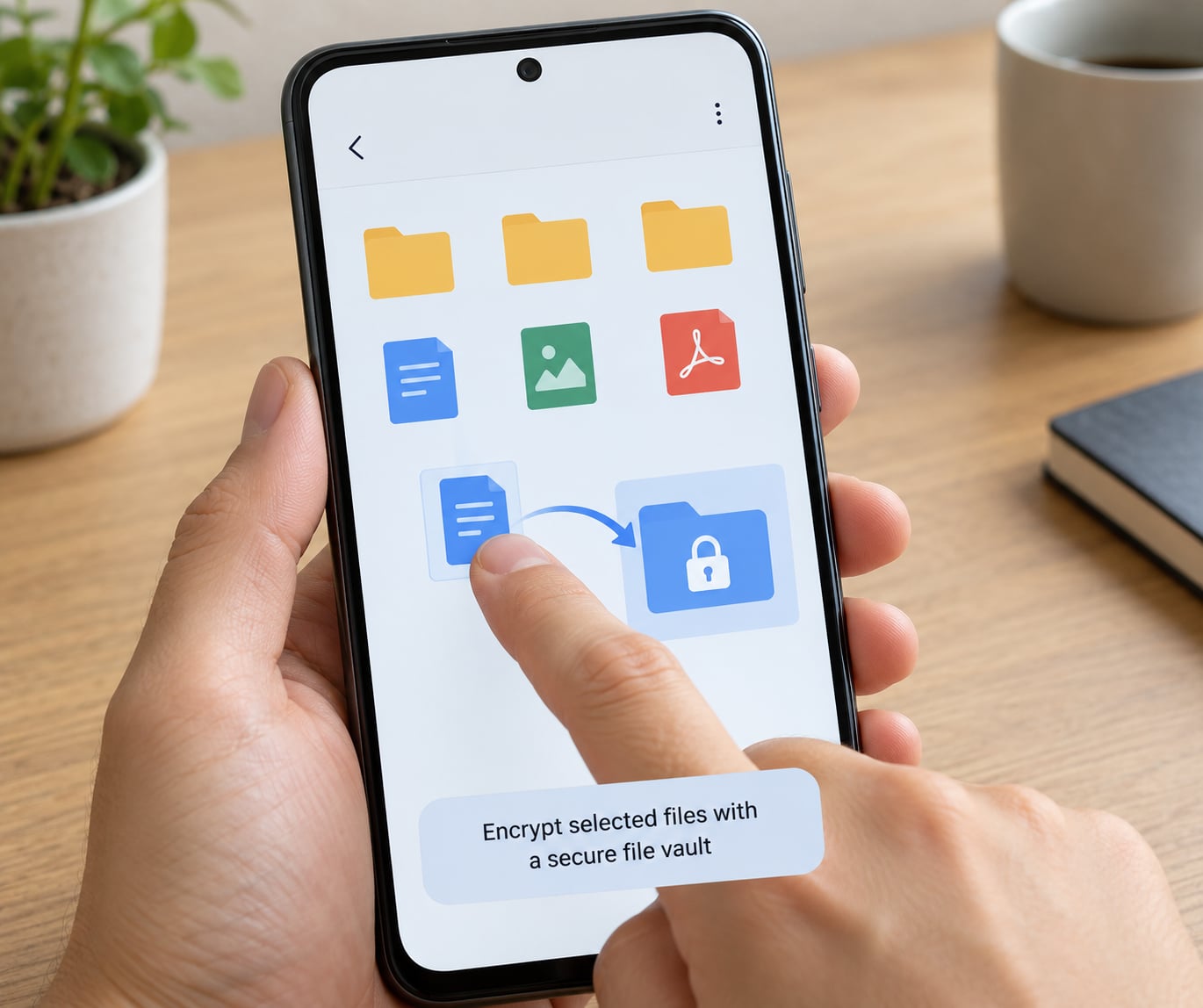
This is the route most people mean when they search for how to encrypt files on an Android phone without encrypting everything. It takes about five minutes.
- Install a vault or a file manager with built-in encryption from the Google Play Store, and check that it is published by a developer with a real track record.
- Open it and create a vault with a master password you have never used anywhere else. A long passphrase beats a short password here.
- Turn on fingerprint or face unlock if the app offers it, and set a short auto-lock timeout like 30 seconds.
- Move the files you want protected into the vault using the app’s own import or “move to vault” option.
- Force-stop the app, open it again, and confirm your files are still readable after the password prompt.
- Only then delete the originals from your regular storage, after your backup is confirmed working.
The order in steps 5 and 6 matters. Several people have deleted the originals first and then realised the vault app never had the files. Test the restore path before you clear anything.
On r/fossdroid and r/privacytoolsIO, the recurring advice is to favour open-source tools you can inspect, and to check what happens to your data if you uninstall the app. Some apps delete the vault on uninstall. Others leave an unreadable container behind.
Encrypt files in cloud storage
Ordinary cloud sync is not encrypted storage. Google Drive and Dropbox encrypt data in transit and at rest on their servers, but they can technically read your files. If that matters to you, you want a client-side encrypted vault such as Cryptomator, which encrypts files before they upload and decrypts them when you open them on another device.
Set it up like this:
- Create the vault in the cloud app, and unlock it with a strong passphrase.
- Enable two-factor authentication on the cloud account itself. This protects the account even if the vault is strong.
- Move files into the vault folder in your phone’s file manager, and let the sync finish.
- Check the provider’s device list and sign out anything you no longer use.
- Test opening a file on a second device to confirm the decryption key reaches it.
Cryptomator charges on mobile while staying free on desktop, which is the complaint that comes up most often on r/android. If that bothers you, some file manager apps encrypt locally instead and sync the encrypted container, which costs nothing and keeps the ciphertext on the provider’s servers.
Verify protection and handle encrypted files safely
Reboot the phone and confirm you can still open the vault. Encryption that you have never tested is a guess.
Check the status screen in Settings again, and note which Android version produced it, since the encryption model differs by release.
Store your master passwords in a password manager, not in a notes app and not on paper in the same drawer as the phone. Then test the recovery path: can you retrieve the password from that manager on a different device?
Keep one separate encrypted backup of anything irreplaceable. An encrypted copy in cloud storage or on an external drive is not the same as the working file on your phone, and it costs you nothing to maintain.
Review access. Revoking old sessions and removing devices you no longer own matters more than most people expect.
Common Mistakes
Treating a screen lock as file encryption
A PIN stops someone from unlocking your phone in a coffee shop. It does not stop a person holding an unlocked device, or an app with storage permission, from reading your Downloads folder. Device encryption only kicks in once the phone is locked and the key material is protected.
Deleting the original before testing recovery
The single most common way people lose data. Restore from a fresh vault, on a second device if possible, before you remove anything from your regular storage.
Assuming cloud sync is encrypted storage
Provider-side encryption protects you from drive failure, not from the provider. If you need the provider unable to read the file, encryption has to happen on the phone.
Reusing one password everywhere
One leaked vault password should not unlock your email. Use a passphrase unique to each vault, stored in a password manager.
Leaving sensitive files in Downloads
Downloads is where tax forms and screenshots of passwords end up, and it is the folder most likely to get swept into an unencrypted backup. Move them deliberately.
Assuming encryption defeats a compromised account
If someone is signed into your cloud account, they can delete synced files and they can read anything you decrypt. Encryption is one layer, not the whole job.
A few habits worth keeping: turn on automatic locking, review which apps can access storage, keep the phone updated, and never sideload a vault app from outside the Play Store unless you know exactly what you are installing.
Frequently Asked Questions
Is my Android phone already encrypted?
Most likely yes. Android 10 and later encrypt internal storage automatically as soon as a screen lock is set. Open Settings, then Security, then Encryption and credentials, and read the status line. If the entry is missing on your device, search Settings for encrypt, since manufacturer menus move it around.
Can I encrypt individual files instead of my whole Android phone?
Yes, and most people should. Full-device encryption is all or nothing, so for a handful of documents you want an encrypted vault app instead. You move the specific files in, they are encrypted on the device, and the app asks for a password or biometric unlock when you open them again.
What is the difference between a PIN, a password, and file encryption?
A PIN or pattern is a screen lock, a way to stop someone reaching your home screen. A password is a secret that unlocks an encrypted vault. File encryption is what scrambles the actual file contents using a key derived from that password, so the data is unreadable even when it is copied off the phone.
How do I encrypt photos and documents on Android?
Install a vault app or a file manager with encryption from the Google Play Store, create a vault with a strong master password, and move the photos or documents into it. Enable fingerprint unlock if the app supports it. Test that the files reopen after a restart, and delete the originals only once your backup is confirmed.
Can encrypted Android files be recovered after a phone reset?
Only with the key. Device encryption keys come from your screen lock, so a reset without a backup of your data means the files are unrecoverable. Encrypted vaults behave the same way, with the master password as the only way back in. Keep one separate encrypted backup somewhere else before you ever wipe a phone.
Does Android encryption protect my files if my phone is stolen?
Yes, as long as the phone is locked when it is taken. File-based encryption keeps the data scrambled until someone enters your PIN, password or pattern, which makes extracting files after a theft or a lost-and-found inspection far harder. A phone with no screen lock defeats the whole mechanism, so set one before anything else.
Conclusion
Start with the part that takes five minutes: check that your screen lock is on and that Settings reports the device as encrypted. Then back up your photos before you move anything.
Once that is done, put the handful of files that would actually hurt to lose into a properly configured encrypted vault with a unique master password stored in a password manager. Test the restore, revoke the devices you no longer use, and leave it there.