To limit app installs for kids on Android, you need two controls working together: Google Play parental controls with a parent PIN, which filters apps by content rating, and Google Family Link’s install approval, which sends every new app request to your phone before it lands. Set both and a child cannot add anything without your OK. The whole setup takes about ten minutes.
The part most guides skip is that the Play Store setting alone does almost nothing. It hides apps rated for older children, but a free game rated 12+ still installs with one tap. The control that actually gates every download is the approval toggle in Family Link.
Menu labels shift between Android versions and phone makers, so I’ll give the standard Android path first, then the Samsung and Xiaomi variants. Checked and kept current for 2026.
Table of Contents›
- What You Need to Limit App Installs for Kids on Android
- Step-by-Step: How to Limit App Installs for Kids on Android
- How to Limit App Installs for Kids on Android with Google Family Link
- How to Limit App Installs for Kids on Android on the Device
- Test That the App-Install Restrictions Work
- What This Does and Does Not Block
- Common Mistakes When Restricting Android App Installs
- Frequently Asked Questions
- Can I block app installs on my child’s Android phone without Family Link?
- Will limiting app installs remove apps my child already has?
- How do I require approval for Android app purchases?
- Can a child install apps by using a different Google account?
- Does app-install protection work on Android tablets?
- What should I do if my child can still install apps?
- What to Do First
What You Need to Limit App Installs for Kids on Android
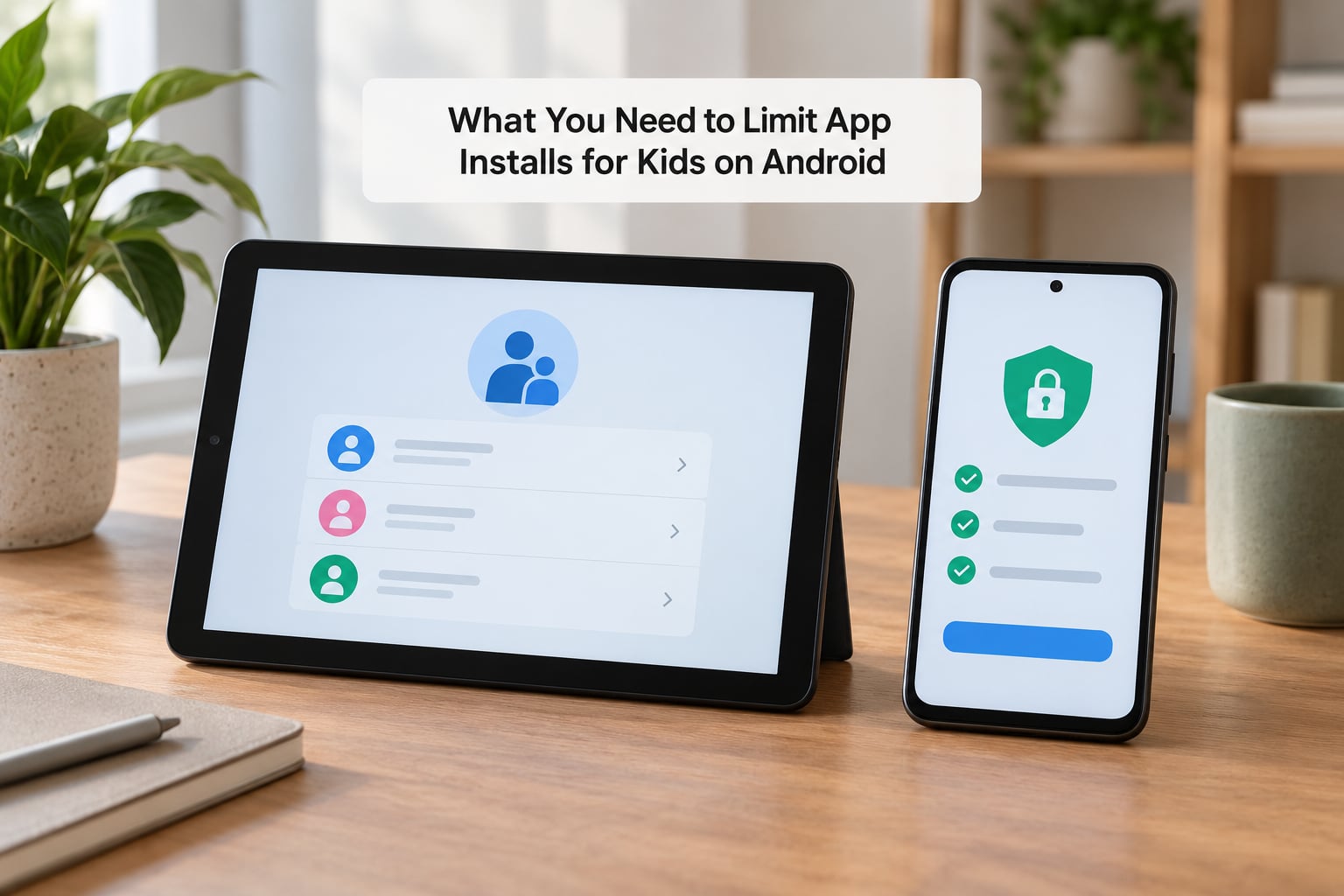
You need the parent account first. It should be your own Google account, not one the child knows the password to, because that account is what holds the approval authority.
On the child’s side you need a supervised Google account and Android 5.0 or newer, with Google Play Services current. Tablets work the same way as phones for install approval.
You also need a PIN the child cannot guess. A four-digit birthday is the most commonly cracked PIN, and without a PIN your child can turn the entire control off in under a minute.
Finally, install the correct app on each device: Google Family Link for parents on your phone, and Google Family Link for children and teens on the child’s device. Parents mix these up constantly, and linking fails silently when the wrong one is on the child’s phone.
Step-by-Step: How to Limit App Installs for Kids on Android
How to Limit App Installs for Kids on Android with Google Family Link
This is the control that does the real work, so start here.
- Install Google Family Link for parents from the Play Store on your own phone and sign in with the parent Google account.
- Install Google Family Link for children and teens on the child’s phone. Tap the menu icon, then Get started.
- On your phone, open Family Link and tap Add child or Create a family group for your child. If a family group already exists, use it.
- Your child’s phone shows a QR code. Scan it with your phone and sign in to the child’s account.
- Set an age range for the account and confirm the terms. Google ties the account to your family group, and the settings stay tied as long as you’re in the same group.
- In the app, tap your child’s name, then tap Manage settings, then Play Store, then Content restrictions. Choose the age range that matches your child.
- On the next screen, turn on Require approval for downloads. On newer versions this appears as Approve or block app installs, and the switch sits under Play Store controls in the child’s card.
- Set app time limits, bedtime schedule, and in-app purchase restrictions while you are in there. Turn on SafeSearch and YouTube restricted mode too.
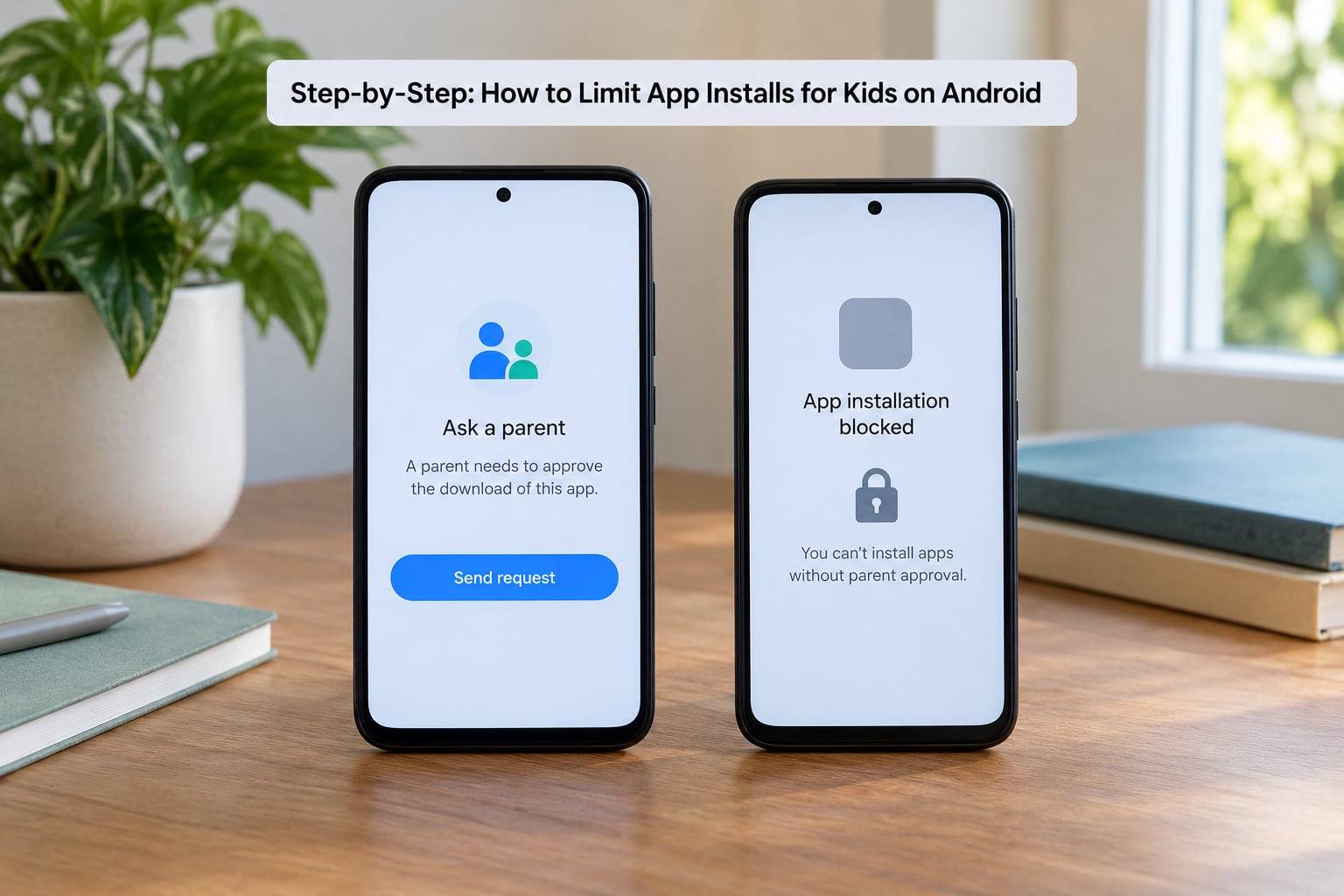
After this, any app the child taps in the Play Store produces a notification on your phone. Approve or deny it there and the app appears only if you allow it. Approval requests expire if you ignore them for too long, so check the notification list rather than swiping it away.
How to Limit App Installs for Kids on Android on the Device
Family Link handles the Play Store. Device settings handle everything outside it.
Turn off Install unknown apps. This is the biggest hole in most setups, and it is how children get apps past the store. Go to Settings, then Apps, then Special app access, then Install unknown apps. Every app you see there has permission to install packages from outside the Play Store. Set them all to Not allowed.
Use guest mode or a restricted profile on a shared tablet. On most Android tablets, Settings has a Guest or Multiple users option. A guest profile keeps the child’s downloads in a separate space and wipes it when they leave. Samsung tablets call this Dual Messenger or a second user profile; older Android versions call it Restricted profile, which is stricter because it cannot reach your files.
Review app permissions. Settings, then Apps, then Permission manager shows what each app can reach. Location, camera, microphone and contacts are worth a look, and anything you did not deliberately install is worth investigating.
Check per-brand differences. Samsung keeps Play Store settings in the Play Store tab, not in a combined Family menu, and Digital Wellbeing is at Settings, then Digital Wellbeing and device care. Xiaomi and HyperOS bury some of these under Settings, then Apps, then App management. Google Pixels and other standard Android builds use the path above unchanged.
Turn off auto-update for individual apps if an update is pulling a feature you did not agree to. Long-press the app in the Play Store, tap Manage, then turn off automatic updates.
Test That the App-Install Restrictions Work
Testing takes two minutes and catches most broken setups.
On the child’s phone, open the Play Store and search for an app the child wants but has never been approved for. You should see a blocked or request-approval screen instead of an Install button. Ask your child to try while you watch.
Tap through on your parent phone. The request should arrive as a notification naming the app. Approve one and deny the other so both paths are proven.
Then check the two escape hatches. Have the child try a browser download of an APK file to confirm Install unknown apps is off, and confirm that adding a second Google account on the child’s device does not open an unfiltered store.
What This Does and Does Not Block
Stock Android cannot block one specific named app from being installed at the operating system level. Parents search for this constantly and it does not exist. What you can do is stop it reaching the store through the child’s account: lock it in Family Link, filter by content rating, or remove it from the account entirely.
To lock a single app, open Family Link, tap your child, tap the three dots next to the app in the app list, and set it to Locked. Locked apps disappear from the child’s view and cannot be run. To do the reverse, set the app to Always allow so it never generates an approval request.
Two limits worth knowing. Supervision through a child account ends automatically when the child turns 13, and parents often notice weeks later. You can still manage a teen through their account as a family member, but the approval queue changes shape, so set up screen time and location features before that birthday rather than after.
Common Mistakes When Restricting Android App Installs
Assuming content restrictions stop installs. They filter by age rating only. An app rated for a 16-year-old stays invisible to a 9-year-old’s account, but a free game rated 12+ still installs without approval. Fix: turn on Require approval for downloads as well.
Using a weak or shared PIN. Four-digit birth years and repeated digits fall in seconds. Fix: use four unrelated numbers, and never reuse your device unlock code if the child has ever seen it.
Installing the wrong Family Link app. The child-side app is Google Family Link for children and teens, not the parent app. Fix: uninstall the parent app from the child’s device and install the children version.
Leaving the parent account on the child’s device. A signed-in parent account gives a full, unfiltered Play Store. Fix: check the profile switcher on the child’s phone and sign out of every adult account.
Not disabling Install unknown apps. This is how sideloaded APKs and modded apps get in. Fix: set every entry under Special app access to Not allowed.
Over-restricting a teenager. A device with nothing installed gets used anyway, usually through someone else’s phone. Forum discussions on this topic repeat the same advice: set rules together and loosen them as the child grows.
Forgetting purchase controls. Blocking installs does nothing about spending inside a game. Fix: turn on require password for purchases in Play Store settings and set a payment method limit on the Google account.
Expecting approval requests to wait forever. Requests time out, and the child then retries and complains. Fix: agree on a window, and use Always allow for the handful of apps used daily so routine use generates no requests at all.
A quick check list: PIN set and non-guessable, Require approval for downloads on, Install unknown apps off, no adult accounts signed in on the child’s device, and in-app purchases password-protected. If all five are true, the setup is solid.
Frequently Asked Questions
Can I block app installs on my child’s Android phone without Family Link?
Partly. Without Family Link you can still set Google Play parental controls and choose a security PIN, which filters apps by content rating and blocks purchases without a password. But standard Android has no per-install approval queue, so an app inside your child’s age range installs without asking. For true per-app control, Family Link is the free route.
Will limiting app installs remove apps my child already has?
No. Turning on content restrictions or install approval does not uninstall anything already on the device. To remove an app, open it in Family Link and choose Uninstall, or delete it from the child’s phone. Locking an app is different again: it hides the app and stops it running without deleting it, which is useful for apps you want to keep but switch off.
How do I require approval for Android app purchases?
In the Play Store, tap your profile icon, then Settings, then Family, then Parental controls, and set a PIN. Turn off all purchase options so nothing buys without that PIN. In Family Link, open your child’s card, tap Manage settings, then Play Store, and enable the purchase approval and content restriction switches. Locking the Play Store app itself in Family Link is the bluntest option.
Can a child install apps by using a different Google account?
Yes, if a fresh account can be created on the device without your PIN. That is why the Play Store PIN matters: with parental controls on and a PIN set, changing or removing accounts requires it. Also sign out every adult Google account on the child’s device and set Install unknown apps to Not allowed, since an added account opens a second unfiltered store.
Does app-install protection work on Android tablets?
Yes, and the approval queue works identically on tablets. Most families use a shared tablet for video, so pairing the approval method with guest mode or a restricted user profile gives the best result. The child watches in the main profile, and anything they try to install either triggers an approval request or stays in a throwaway guest session.
What should I do if my child can still install apps?
Work through the escape hatches in order. Check that Install unknown apps is off for every app, that no adult Google account is signed in, and that Require approval for downloads is still switched on in the child’s Play Store controls. Then confirm the approval notification is reaching your phone, since some devices silently block the Family Link app from showing them.
What to Do First
Start with the Play Store PIN, then turn on Require approval for downloads in Family Link, then close Install unknown apps. Those three changes cover almost every real failure I hear about, and they cost nothing.
Set the rules with your child rather than behind their back. A list of three apps they can always install without asking removes most of the friction that makes install approval feel like surveillance.