An app that will not uninstall is nearly always blocked rather than broken. On Android and iOS the block sits with device administrator rights, Screen Time or a work profile, or with the app being a pre-installed system package, and on a computer it sits with a running process or a missing uninstaller. Work through the fixes in order below and most stubborn apps go on the first or second try, in about five minutes. Menu paths were checked against current Android, Samsung One UI, iOS, Windows 11 and macOS builds in 2026, and the wording of your menus will vary a little by brand and model.
Table of Contents›
- What You Need
- Step-by-Step: How to Uninstall Apps That Will Not Uninstall
- Use the Normal App Uninstall Settings First
- Force Stop the App and Restart the Device
- Check Whether Another App Is Blocking Removal
- Clear the App Cache or Storage Before Retrying
- Test Android Safe Mode and Remove the App
- Use the Platform’s App Manager or Settings Fallback
- Recover a Stubborn App Without Erasing Everything
- Common Mistakes
- Frequently Asked Questions
- Why does my app keep reappearing after I uninstall it?
- Why is the Uninstall button missing or greyed out on my phone?
- Can I uninstall a system or preinstalled app on Android?
- What is the difference between clearing app storage and uninstalling an app?
- Will uninstalling an app delete my account or cloud data?
- When should I reset my phone to remove an app that will not uninstall?
- Start With the Normal Uninstall Path
What You Need
Before touching anything, work out which device and build you are dealing with. On Android, open Settings and tap About phone, then look at the Android version and the build number. On iPhone and iPad, check Settings, then General, then About. The exact menu names change between versions, and an outdated tutorial is the number one reason people think their phone is broken.
Next, confirm the app is a normal user app. Open the app list and look at what buttons appear. If you see Force stop, Disable and Uninstall updates but no Uninstall, the package is part of the system build, and that is a different problem with a different answer.
Apply the pending updates first. An operating system update and a fresh install of the app often replace a corrupted installer, which is one of the few causes that genuinely breaks removal. On Windows, Microsoft also ships a Program Install and Uninstall Troubleshooter that repairs the installer database when a program refuses to uninstall.
Back up before you use anything that clears data or restarts the device. Uninstalling an app takes its local documents and cached logins with it. Copy anything you care about to cloud storage or a computer, confirm your important photos, messages and authenticator apps are synced, and make sure you know your Screen Time passcode or device PIN so a restriction cannot lock you out mid-process.
You do not need any tool or app to start. Everything in the next section uses menus your device already has.
Step-by-Step: How to Uninstall Apps That Will Not Uninstall
Follow the steps in order and stop as soon as the app is gone. Each step assumes the previous one did not work, and each one tells you how to confirm whether it did.
Use the Normal App Uninstall Settings First
Most apps that seem stuck are removed in under a minute through the normal settings path, and this is the path to always try before anything else.
On Android 14 and 15, press and hold the app icon on the home screen or in the app drawer, tap App info, then tap Uninstall and confirm. The longer route is Settings, then Apps, then See all apps, then the app, then Uninstall. On Samsung One UI 6 and 7 the App info button is in the same place after a long press, and the sorted list is reached from Settings, then Apps, then the three-dot menu at the top right of the list screen.
On iPhone and iPad, press and hold the icon on the Home Screen, tap Remove App, then Delete App, then Delete. If the icon is not on the Home Screen, open the App Library, long press the icon and choose Delete App. There is also a settings route: Settings, then General, then iPhone Storage or iPad Storage, then tap the app, then Delete App.
You know it worked when the icon is gone from the Home Screen and the app no longer appears in the app list. One thing confuses a lot of people: on Android the name sometimes stays visible in the launcher for a short while after the removal has already succeeded. Users on r/minimalist_phone describe this as a display artefact rather than a failed uninstall, and a restart clears it.
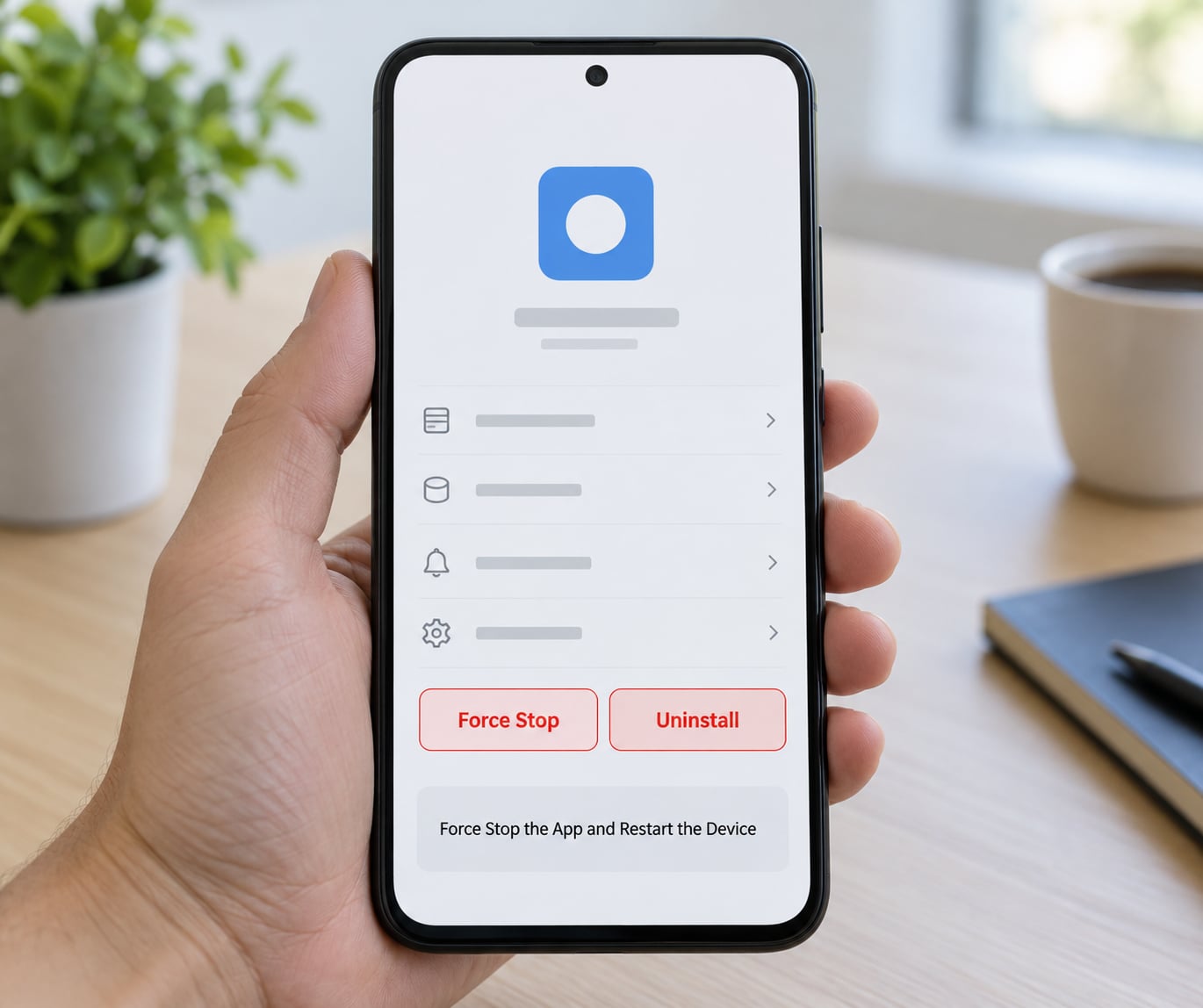
Force Stop the App and Restart the Device
Force stopping first releases the files the app is holding open, which is the usual reason an uninstall stalls or the button does nothing.
On Android, open App info for the app and tap Force stop, then wait about ten seconds before trying Uninstall again. To restart an Android phone, press and hold the power button, tap Power off, wait a few seconds, then press and hold the power button again. On iPhone and iPad, open Settings, then General, then Shut Down, wait until the screen goes black, then press and hold the side button until the Apple logo appears.
Anything the app had not saved is lost, so close anything important first. If the Uninstall button works after the restart, you are done.
Check Whether Another App Is Blocking Removal
If the Uninstall button is greyed out or missing entirely, something else is holding the app in place, and that something is usually a permission or a policy.
Device administrator is the most common blocker on Android. Apps that manage other apps, back up data or read screen content request this access, and Android refuses to remove them until it is revoked. Open Settings, then Apps, then Special app access, then Device admin apps on current Android versions. On some older builds the path is Settings, then Security, then Device admin apps. Turn the app off in that list, confirm, and only then return to App info and uninstall.
Ordering matters on Samsung. One UI users report the Disable button itself greyed out for carrier apps, and the working sequence on r/oneui and r/AndroidQuestions is to revoke device administrator access first and disable second.
On iPhone and iPad, Screen Time blocks removal. Go to Settings, then Screen Time, then App Limits, then App Store, then Installing Apps, and turn it off. Removing apps can be restricted under Content Restrictions as well, in Settings, then Screen Time, then Content Restrictions. If a passcode protects it, the person who set it up has to change it.
Work and school devices are the other category. Android shows a work profile in Settings, then Accounts, or in the app list under a work tab. On iPhone and iPad, a supervised device shows a profile in Settings, then General, then VPN and Device Management. These are centrally managed by an employer or school, and the administrator has to remove the app or lift the policy. Trying to work around device management breaks your agreement with that organisation and is not something I would help with.
If a failed removal is reported by an app manager, a security app or an antivirus, pause it first. Security software holding a file open can block removal, and removing the antivirus itself is a common cause of that loop.
Clear the App Cache or Storage Before Retrying
Clearing storage is cheap and it sometimes releases a corrupted process that is keeping the uninstall control locked.
On Android, open App info, then Storage, then Clear cache, and try Uninstall. If that does not do it, tap Clear storage, which deletes the app’s local data including logins, offline downloads and game progress, then uninstall again. To clear system-wide cached files in one pass, open the Play Store, tap your profile icon, tap Manage, tap Storage used by cached apps and tap Clear cached files.
On iPhone and iPad, the equivalent screen is Settings, then General, then iPhone Storage or iPad Storage, which lists apps by size. This is also the trick for an app with no Delete App button: tap Offload App to free up its space while keeping your documents, then move on. Delete App is what removes it for good, and it can wait until the app is responsive again.
Clearing storage is not uninstalling. It empties the app’s data but the app stays on the device with its icon intact, which is worth keeping straight because the two are often confused.
Test Android Safe Mode and Remove the App
Safe mode runs the device with third-party apps switched off, so anything one of them is doing to block the removal stops happening.
On most Android phones, press and hold the power button until the power menu appears, then hold your finger on Power off and tap OK when the message about restarting in safe mode appears. On Samsung devices, press and hold the power and volume down buttons together, and on some One UI models add the volume up button, then tap Confirm on the restart prompt. A notification reading Safe mode has been triggered confirms you are in it. Once there, open Settings, then Apps, then See all apps, tap the stubborn app and tap Uninstall.
To return to normal, press and hold the power button and choose Power off, then turn the phone back on. Safe mode is Android-specific and only disables third-party apps, so a system package will still refuse to go.
Use the Platform’s App Manager or Settings Fallback
Every platform ships more than one route to removal, and the alternative route often gets past a broken primary one.
On Android, the Play Store can uninstall anything it installed: open the Play Store, tap your profile icon, tap Manage, tap Show system apps, find the app and tap Uninstall. This is the best route for carrier apps and pre-installed software the Settings screen refuses to remove. Manufacturer tools do the same job from a different angle. Samsung has Battery and device care, then Device care, then Storage, then Manage storage. Google phones have a Storage section inside the Settings app, and Xiaomi has Security, then Apps, then Manage apps.
When the app manager shows only Force stop, Disable and Uninstall updates, that confirms a system package. Some of those genuinely cannot be removed on a stock device. Streaming apps on Android TV are the classic case: users on r/AndroidTV report that Netflix and Prime Video have no Uninstall option at all, and the accepted answer is that TV packages are unbundled by default, so Disable is the correct result rather than a failure.
On iPhone and iPad, when Delete App is missing there is usually a restriction rather than a fault. Tap and hold the icon until it wobbles, then press Delete App. If the option is still absent, the app is either part of iOS itself or held by a management profile, and the profile has to go through the organisation that installed it.
On Windows, the equivalent fallbacks are Settings, then Apps, then Installed apps, and Control Panel, then Programs and Features. Advanced options for a program with a Terminate button can be used to stop it first. On macOS, drag the app to the Trash from Launchpad or Finder and empty the Trash, then remove what is left behind in the Library folders. Both platforms also have a built-in App Cleaner in System Settings on Windows 11, which removes the leftover program files, registry entries and startup items the standard uninstaller leaves.
Recover a Stubborn App Without Erasing Everything
These are the escalating options for one app, in the order I would try them before considering anything that resets the device.
Start with Uninstall updates on the App info screen. It rolls the app back to the version that shipped with the phone, and the older installer often removes cleanly. If the removal still fails, Disable the app so it stops running and syncing, and deal with the rest when you have more time or better instructions.
If a work profile exists but is not being used, remove that profile rather than the app. Open the app list, find the work tab, and follow the option to remove the work profile. You will need the admin password to complete it.
Use the manufacturer’s own repair and cleanup tool before any third-party program. These are built into the phone or computer, they know the correct package names, and they are far less likely to delete something they should not.
Check free space too. A device that is nearly full frequently fails partway through an uninstall, so clearing two to three gigabytes and retrying is a reasonable move.
Restore from a backup as the last step before a full reset. On Android, a Google backup covers app data, contacts and photos, and on iPhone and iPad, a Finder or iCloud backup does the same. On Windows, System Restore rolls back system file changes, which does not remove the app but often frees the files it is holding.
Factory reset, Erase All Content and Settings, and Reset this PC come last. They are correct when a removal has damaged the system or when you are selling the device, and they are the wrong tool for a single app. Back up first, every time.
Common Mistakes
Almost every long troubleshooting thread I have seen comes down to one of the same handful of mistakes.
- Tapping Update instead of Uninstall. On Android the App info screen shows Force stop, Uninstall updates and Uninstall in a column, and the middle one is easy to hit by mistake.
- Not confirming the dialog. The app is removed only after you tap Uninstall or Delete App in the pop-up, not when you tap the button in the list.
- Ignoring device administrator. Disable stays greyed out on Samsung until that access is revoked, which is why guides that skip that step look wrong.
- Clearing data instead of deleting the app. You get an empty app back rather than a removed one.
- Removing the wrong account. If the app belongs to a work or school profile, deleting it from your personal account does nothing.
- Following outdated paths. Guides written years ago send you to Settings, then Applications, and current builds have Settings, then Apps, then See all apps.
- Resetting before backing up. A reset is reversible in exactly one direction.
- Installing a cleaner or uninstaller app from an unknown source. You then have two problems, and security forums regularly see these tools arrive with unwanted extras attached.
- Deleting folders by hand without checking what they are. Leftover folders in the Library or ProgramData directories can contain files other programs still need.
- Assuming a visible icon means the uninstall failed. On Android the launcher entry sometimes survives a successful removal until you restart.
Two more worth knowing. Removing a program on Windows can leave shared files behind because several programs use the same runtime, and that is the reason built-in cleaners and dedicated uninstallers exist at all. And if the same app keeps coming back after you remove it, something is reinstalling it: an update service, a scheduled task in Task Scheduler, a startup item, or worse. Run a full security scan before you go any further down that road.
Frequently Asked Questions
Why does my app keep reappearing after I uninstall it?
Usually something is reinstalling it. On a managed device, a work profile, MDM policy or family sharing rule can restore an app you removed yourself. Less often, an update service, a scheduled task or a startup item puts it back. Check whether the device has a work profile, look at startup items and scheduled tasks on a computer, and run a full security scan if you did not install it deliberately.
Why is the Uninstall button missing or greyed out on my phone?
Four causes cover almost every case. The app is a pre-installed system package, so only Disable and Uninstall updates appear. It holds device administrator rights on Android, which must be revoked in Special app access before removal is allowed. A Screen Time limit or a company MDM profile blocks it. Or the device is too low on storage to finish the operation. Each one has a different fix, starting with App info.
Can I uninstall a system or preinstalled app on Android?
Sometimes. Many carrier and manufacturer apps can be removed through the Play Store by turning on Show system apps, and some uninstall cleanly from App info. Others are unbundled by default and cannot be removed on a stock device, which is common on Android TV. In that case Disable is the correct result: the app stops running, syncing and updating, and its icon can be hidden from the home screen.
What is the difference between clearing app storage and uninstalling an app?
Clearing storage wipes the app’s local data, logins and cached files, but the app stays on your device with its icon and permissions intact. Uninstalling removes the app itself and everything stored on the device for it. Clearing storage is a good troubleshooting step because it releases locked files. It does not get rid of the app, so it never solves a stubborn uninstall on its own.
Will uninstalling an app delete my account or cloud data?
No. Uninstalling removes the app from your device, not your account. Anything synced to a service, such as photos, messages or documents, stays on the server and reappears when you reinstall and sign back in. Anything saved only on the phone, such as offline downloads and local game saves, is deleted with the app. Check that important items are backed up before you confirm the removal.
When should I reset my phone to remove an app that will not uninstall?
Almost never, for a single app. Work through the settings path, force stop and restart, clear storage, revoke device administrator access, check for work profiles and Screen Time limits, and try Safe Mode. A factory reset removes everything including your photos and passwords, and it removes the offending app only by deleting everything else with it. Reset when the removal has damaged the system or when you are preparing the device to sell.
Start With the Normal Uninstall Path
If you take one thing from this, make it the first step: press and hold the app icon, open App info, tap Uninstall and confirm. That single path resolves the large majority of apps that people assume are stuck.
If it does not, work down the list in order rather than jumping to the last resort. Force stop and restart, clear storage, revoke device administrator access, check for a work profile or Screen Time limit, then try Safe Mode. Most of the time the block is one of those, and the app goes without you losing anything.