To use two SIM cards on one phone, you need a handset with two working lines: two physical SIM cards, one physical SIM plus an eSIM, or two eSIM profiles. Open the dialer and type *#06# — if two IMEI numbers appear, your model supports two active lines at the same time. Setup takes about ten minutes once both numbers are active.
Most dual-SIM phones run dual standby (DSDS), so both lines stay registered with their carriers, but one line drops to a temporary hold while you’re on a call or using data through the other. Here’s how to get from two loose SIM cards to a working setup on both iPhone and Android.
Table of Contents›
- What You Need
- The three dual-SIM configurations compared
- Step-by-Step
- Step 1: Check that your phone supports two SIM cards
- Step 2: Insert or download the SIM cards
- Step 3: Activate both SIM cards with your carrier
- Step 4: Set the default SIM for calls, messages, and data
- Step 5: Test both SIMs and troubleshoot any problems
- Common Mistakes
- Frequently Asked Questions
- Can one phone use two SIM cards at the same time?
- Can both SIM cards use mobile data at the same time?
- How do I switch between two SIM cards on my phone?
- Why is my second SIM card not working?
- Is it safe to use two SIM cards in one phone?
- Conclusion
What You Need
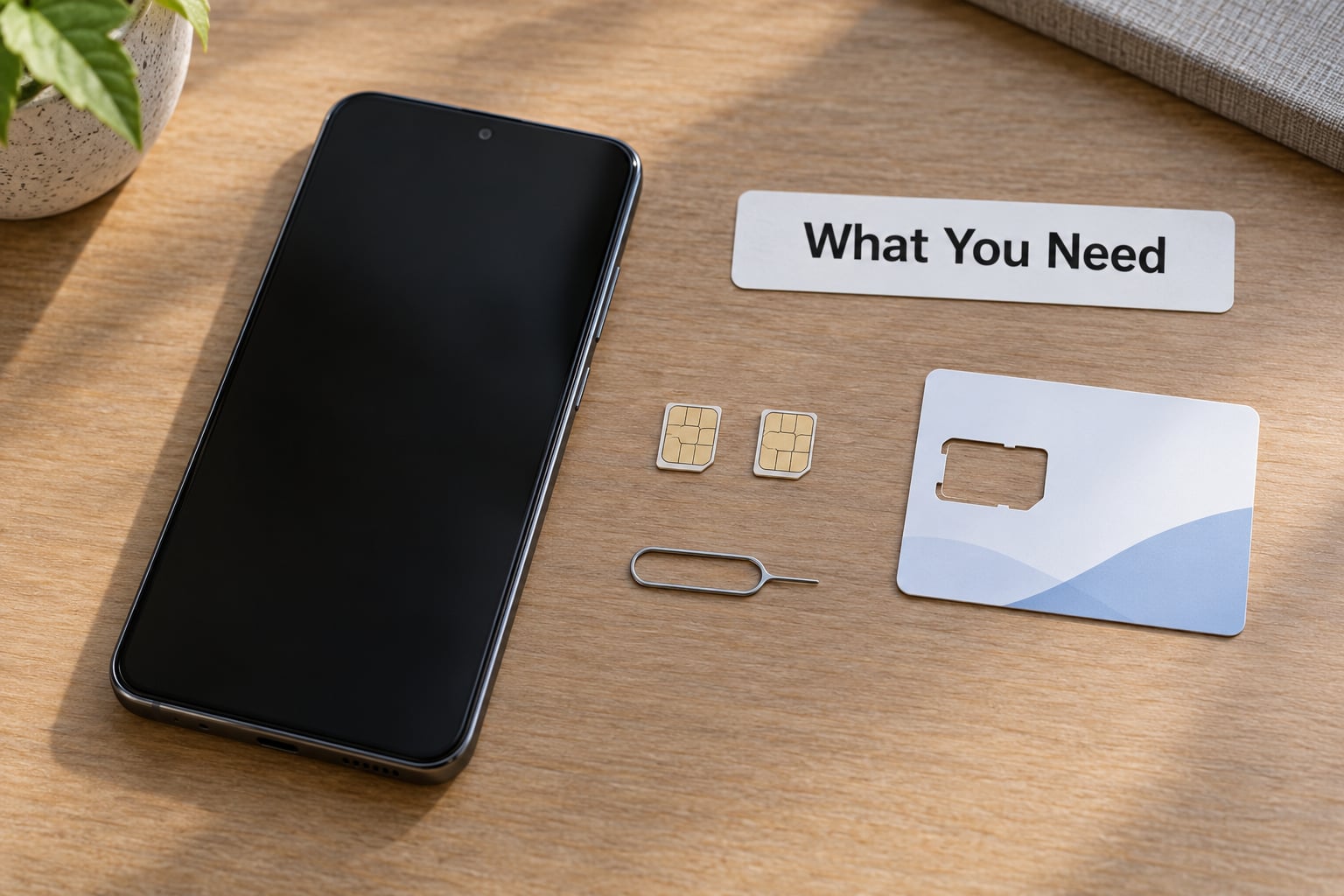
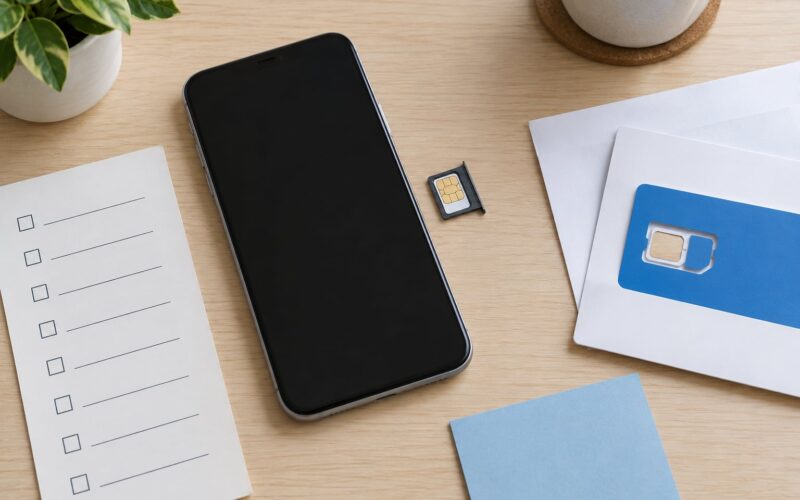
Gather these before you start. Missing one item is the usual reason a second line shows “No Service” an hour later.
- A dual-SIM-capable phone. Check the model number in Settings, not just the marketing name. Regional variants sold in mainland China, Australia on some carriers, and parts of the US often ship with a single physical slot plus eSIM instead of two slots.
- A carrier-unlocked phone if you want two different carriers. A handset locked to one network rejects a SIM from anyone else, no matter how many free slots it has.
- Two active lines. Each SIM carries its own number, plan and data allowance. Confirm both accounts are active before you open the tray.
- SIM PIN and PUK codes for both cards, plus the account PIN or security code your carrier uses to authorize a new SIM.
- The SIM ejector tool that came with the phone. A bent paperclip works, but the pin tool is sized for the tray pinhole.
- Porting details if a line is new — account number and transfer PIN for the number you are bringing over.
Worth knowing: an eSIM line also needs an activation code or QR code from its carrier, and some carriers only hand those over inside their app or by phone call rather than on a web page.
The three dual-SIM configurations compared
| Configuration | What you need | Lines active at once | Watch out for |
|---|---|---|---|
| Two physical SIM cards | Dual physical tray, two nano-SIM cards | Two, on dual standby | Carriers sold the second card as eSIM-only; physical trays are increasingly single-slot |
| One physical SIM plus eSIM | Tray slot plus an unlocked eSIM line | Two, on dual standby | Some carriers won’t provision an eSIM on a phone that also has a physical card |
| Two eSIM profiles | An eSIM-only model or one with both slots assigned to eSIM | Two, on dual standby | Limited transfers per phone, and deleting a profile can be slow to reverse |
Step-by-Step
Step 1: Check that your phone supports two SIM cards
Dial *#06# and read the screen. One IMEI means one active line slot; two IMEIs (often labelled 1 and 2) means the radio supports two.
On iPhone, the hardware list is longer. iOS shows an “Add eSIM” option under Settings > Cellular on iPhone XS, XR and newer, but only if the device is unlocked. iPhones 14 and later sold in the US take one physical card plus up to two eSIMs, while dual physical nano-SIM trays remain common on other models and in other markets. Physical availability varies by country and carrier, so check the spec sheet for the exact model number you own.
On Android, look for two entries in Settings > Network & internet > SIMs, or two slots under Settings > Connections > SIM manager on Samsung. Some budget and carrier-locked Android phones report a second slot on the box but ship with it disabled.
Step 2: Insert or download the SIM cards
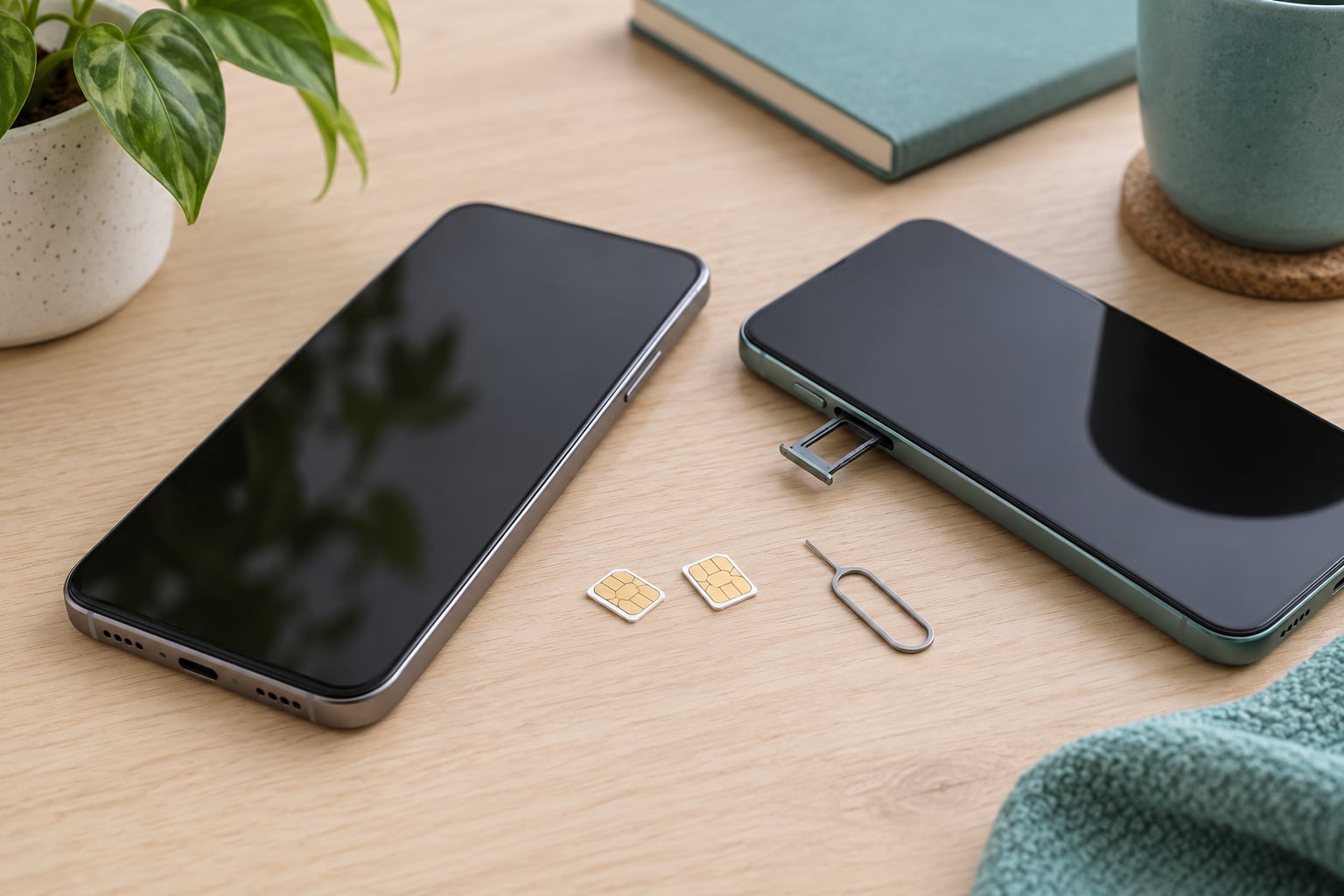
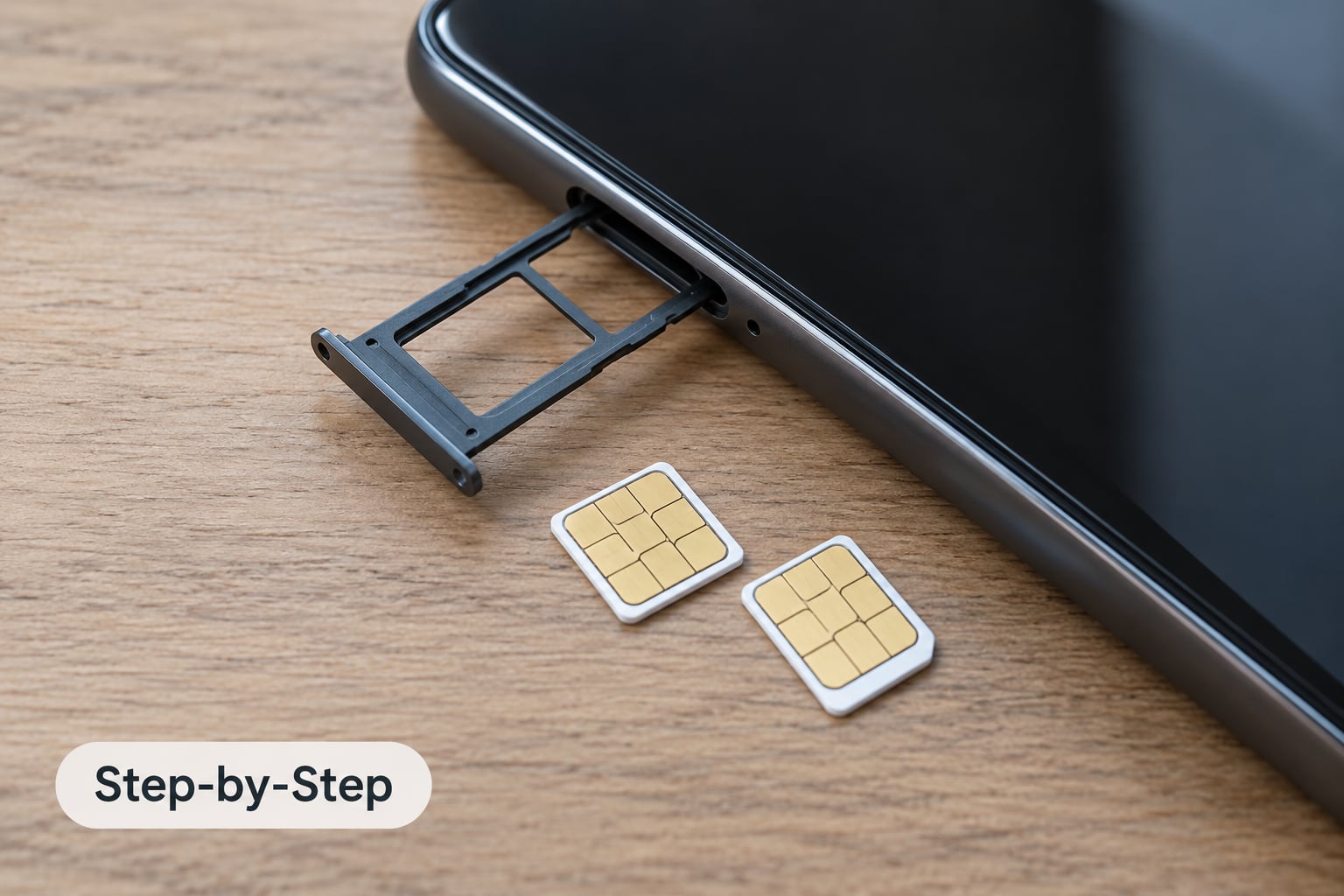
Power the phone off first. Push the ejector tool into the tray pinhole, pull the tray out, and seat each nano-SIM in its own slot with the gold contacts facing down. Slide the tray back until it clicks flush, then restart.
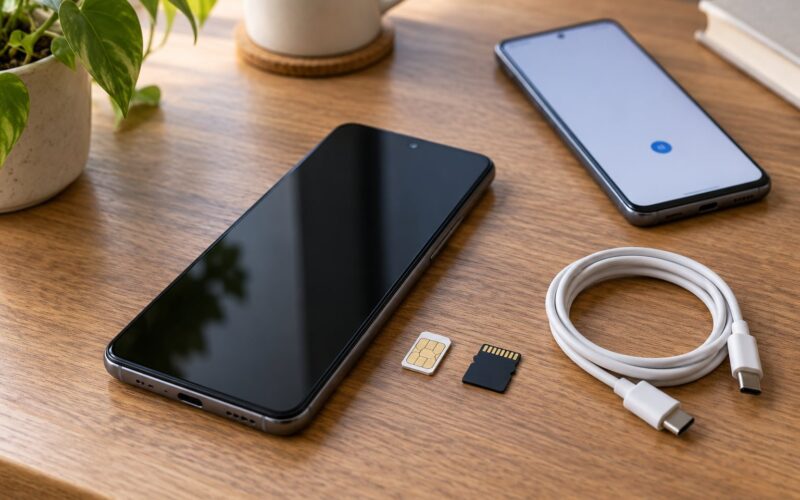
Many phones ship with one tray slot and a tray plus a separate microSD slot in the same drawer. If you put the memory card in the SIM position, no second line will ever appear.
For an eSIM, skip the tray. On iPhone: Settings > Cellular > Add Cellular Plan, then scan the carrier’s QR code or type the activation code, and confirm with Face ID. On Android: Settings > Network & internet > SIMs > Add eSIM, or dial the carrier’s eSIM activation number that printed on the SIM packaging.
Apple limits how many eSIM profiles a given phone line can hold, and Android limits transfers per device in a rolling period. If you are porting a number from another phone, ask the new carrier whether they are pushing it over eSIM or sending a physical card — that decision changes your whole setup.
Step 3: Activate both SIM cards with your carrier
Insertion does not activate a card. Each new SIM has to be registered to your account, either automatically on first connection or by dialling the activation number printed on it.
The usual sequence: insert and restart, wait two or three minutes for the network to register, then check Settings. If the line stays inactive, call the carrier or use their app to confirm the SIM’s ICCID matches the one on the account. For a number being ported in, give the new carrier your old account number and transfer PIN; porting usually takes minutes to a few hours, sometimes longer than that over a weekend.
If a line shows “No Service” but the SIM is definitely active on the account, ask the carrier to push a network settings update, then toggle the line off and on inside Settings. In the US, VoLTE must be supported and enabled on the line for calls to connect on some older handsets, so ask about that too.
Step 4: Set the default SIM for calls, messages, and data
Both lines can be live, but only one is the default for anything you do without picking. Set that before you start moving numbers across.
iPhone: Settings > Cellular lists each line as “Primary” and “Secondary” when two are active. Under Cellular Data choose which line carries mobile data and which handles Wi-Fi calling; open Phone > My Number for the voice line, and Messages to pick the SMS line.
Samsung Galaxy: Settings > Connections > SIM manager > Phone numbers, where you switch calls, messages and data per line, then toggle each line on.
Google Pixel: Settings > Network & internet > SIMs, with Preferred SIM for calls, texts and mobile data under each active card.
Xiaomi: Settings > Connection & sharing > SIM card manager > Default settings. Motorola and most other Android builds use the Pixel path.
For per-contact routing, open the contact in the Phone app, tap the three-dot menu, and choose “Set as default” or “Call with which SIM”. On iOS, do the same through the contact card after enabling “Default Calling App”, or simply ask which line when the call screen appears. Assign work contacts to the work line and personal contacts to the personal line, and you stop choosing.
Mid-call switching works too. During a cellular call, iPhone offers “Switch Over to Cellular” to drop the Wi-Fi line and move the call to the cellular one. On Android, hold the call button in the Phone app and pick the other line.
Step 5: Test both SIMs and troubleshoot any problems
Test each line on its own before you rely on it. Place a call from each number, send a text both ways, load a page with each line on mobile data, and check voicemail separately on each — many carriers keep separate greetings and PINs per line.
If one line is dead, work through this order:
- Airplane mode off, and no network mode set to “Airplane” for that line.
- Line switched on in the SIM settings screen, not just present in the tray.
- SIM reseated — power off, reinsert the card aligned with the tray outline, restart.
- PIN and PUK — three wrong PIN attempts lock the card and the phone then asks for the 8-digit PUK. Ten wrong PUK entries kill the SIM.
- Carrier side — the ICCID on the card must match the one on the account, and the line must be provisioned for that IMEI.
- eSIM transfer delays — a profile can take an hour or more to appear, and a carrier’s activation portal sometimes reports success before the profile has landed.
Also worth testing while you are in there: personal hotspot. Turning on mobile hotspot uses whichever line you pick, and on some carriers it disables VoLTE on that line, so calls may drop while the hotspot is running.
Common Mistakes
Using a SIM locked to another carrier. The phone accepts the card, then shows no service or only emergency calls. A carrier-unlocked device is required for two different networks.
Forgetting the SIM PIN. The card works until it is locked by a wrong entry or a new security area. Keep the PIN and PUK codes in a password manager, not on a note in the phone bag.
Installing only one card. The most common version of this is a memory card in the SIM tray slot, so the phone reports a second slot that never appears in Settings.
Leaving airplane mode on. Everything goes quiet at once, which reads as a hardware failure. Toggle it off, then restart the phone.
Selecting the wrong data SIM. A line can be active for calls but have mobile data off, or be set to Wi-Fi only. Open the per-line settings and check that the data switch is on for the line you want carrying your traffic.
Turning the secondary line off. Battery-saving “Dual SIM off” or “Smart SIM” modes disable the second line entirely. If a line suddenly has no service after a power saving update, check the SIM manager first.
Expecting two lines to ring at once on a call. On dual standby, a call on the primary line sends the other to voicemail or to a forwarded number. Call forwarding is the fix: on iPhone, Settings > Phone > Call Forwarding per line; on Android, Phone app > three-dot menu > Settings > Call forwarding.
Assuming dual active. A handful of gaming and business phones support two active lines (DSE), letting both lines receive calls at the same time. Most consumer phones do not, and extra radios mean extra battery drain — roughly 5 to 10 percent a day on a two-line phone compared with the same phone on one line, in my experience with travel SIM pairings.
Expecting one SIM to work in two phones. A SIM carries an IMSI identity that the network registers to one device at a time. Moving it to another phone deactivates the first. Cloning a SIM is unlawful and cut off by carriers. To get one number on two devices, use call forwarding, a carrier number-sharing service, or a VoIP number that rings on both.
Dropping a SIM and expecting the phone to wipe. Removing a card erases nothing. Contacts, photos and apps live on the phone; the line simply stops, and the phone may ask for the PIN on the next restart.
Two smaller traps: many messaging apps tie a WhatsApp or Signal account to a phone number, and running both numbers means installing the app twice, once per number. Some carriers also bill call forwarding as a separate feature, so check what your plan includes before relying on it.
Frequently Asked Questions
Can one phone use two SIM cards at the same time?
Yes, if the handset supports the configuration. Most dual-SIM phones run dual standby, which keeps two lines registered with their networks while one line is on hold during a call. Only a few models support dual active, where both lines receive calls and data simultaneously. Two physical cards, one physical card plus an eSIM, or two eSIM profiles all count as two lines.
Can both SIM cards use mobile data at the same time?
Usually not. Almost every consumer phone has a single data modem, so only one line carries mobile data at a time and the other stays for calls and texts. You pick the data line in Settings and can switch it manually, or let an Android phone switch automatically based on signal strength. Phones with dual active support can keep data live on both lines, but they cost more and drain battery faster.
How do I switch between two SIM cards on my phone?
Open the SIM settings and change the default line. On iPhone it is Settings u0026gt; Cellular, where you set Cellular Data and tap your number under Default Voice Line. On Android it is Settings u0026gt; Network and internet u0026gt; SIMs, or Settings u0026gt; Connections u0026gt; SIM manager on Samsung. To route one contact automatically, open the contact, tap the menu and choose Set as default for that line.
Why is my second SIM card not working?
The usual reasons are a carrier-locked phone, a SIM that was never activated on the account, a forgotten PIN, or a card seated the wrong way in the tray. Check the line is switched on in SIM settings, reseat the card with the phone powered off, and confirm the ICCID on the card matches your account. eSIM transfers also take time, sometimes over an hour, before the profile appears.
Is it safe to use two SIM cards in one phone?
Yes. Two SIM cards in one phone is a normal, supported configuration, and the phone’s radio isolates each line. The real risks are financial, not technical: roaming on a travel line can add charges, call forwarding may be billed separately, and a second line can quietly use data. Nobody can see your second number just because the phone has two SIMs, so it is not a privacy risk either.
Conclusion
Start by dialling *#06# and counting the IMEI numbers. If you get two, activate both lines with their carriers, install or download the cards, then set the default for calls, texts and mobile data before assigning contacts.
Test each line separately — call, text, data, voicemail — and set up call forwarding so the second line is not silent while you are on the first. Once both numbers behave, that is how to use two SIM cards on one phone without the second one becoming a support call.