On current Android versions you usually cannot move an installed app to a microSD card at all. Google removed the per-app Move to SD card button years ago, and the only official way to get apps onto a card now is to format it as internal (adoptable) storage, which is a one-way door for that card.
This guide covers the honest version of how to move apps to an SD card on Android in 2026: the compatibility check, the format-as-internal route, the exact menu path when a Move or Change button does exist, and what to do on the many phones where nothing can be moved at all. It takes about ten minutes to check, and the risky part (formatting) is clearly marked before you touch it.
Last updated October 2026. Menu names differ slightly by brand and Android version, and I call out the paths for Samsung One UI, Pixel, Xiaomi and Motorola below.
Table of Contents›
- What You Need
- Step-by-Step
- 1. Check whether your phone supports SD-card app storage
- 2. Prepare and format the SD card
- 3. Move an individual app
- 4. Confirm the app works from the card
- 5. Handle apps that cannot be moved
- Common Mistakes
- Frequently Asked Questions
- Can I install apps directly to an SD card on Android?
- Why is there no move to SD card option?
- Why can’t I move some apps to my SD card?
- How do I use an SD card instead of internal storage on Android?
- Can I read an adopted SD card on my PC or another phone?
- How do I move photos, videos and downloads to an SD card?
- Conclusion
What You Need
Before you start, check you have all of these. Miss one and the process stops halfway with an error.
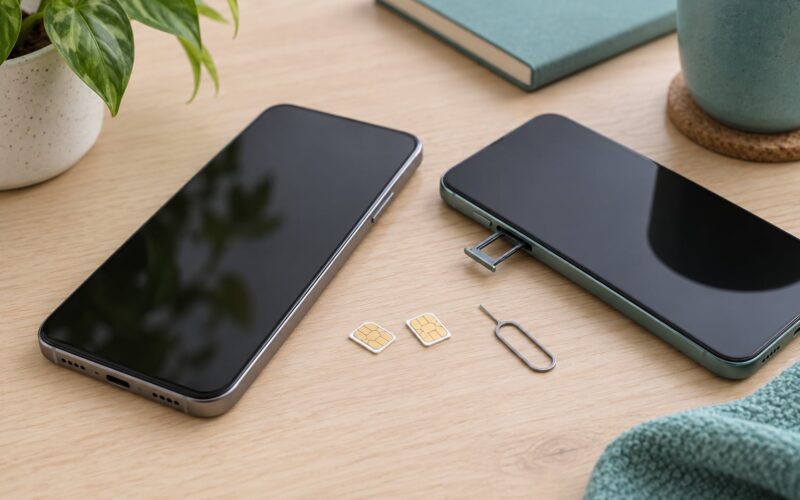
- A phone or tablet with a microSD slot. Plenty of modern phones have no slot at all. If Settings does not show an SD card or Adopted storage entry, you cannot add one later.
- A supported card. microSDHC cards top out at 32GB; microSDXC goes from 64GB to 1TB. Android phones generally need exFAT for anything above 32GB because FAT32 cannot hold a single file larger than 4GB.
- A fast enough card if apps will run from it. Look for an A1 or A2 rating on the card, plus UHS-I or UHS-II. A Class 10 card with no A rating will feel sluggish and can cause crashes when an adopted card is slow.
- 20GB or more free on internal storage. The format step cannot run when internal storage is nearly full, and it needs scratch space.
- A backup of anything on the card. Formatting erases every file on it, no matter which option you pick.
- An app that permits moving. Even on older devices, the developer of each app decides whether it can run off the card. System apps and anything holding an active session, such as messaging or banking apps, almost never can.
If you have a laptop nearby, keep the USB cable handy. A cable transfer is usually faster and far more reversible than any on-phone method once adoptable storage is involved.
Step-by-Step
1. Check whether your phone supports SD-card app storage
Open Settings and search for storage. On a phone with a working card slot you will see an entry for the card itself, usually labelled SD card, and often a separate Adopted storage entry once a card is in use. No card entry at all means either the slot is missing or the card is not seated.
Android changed this area twice, and the version matters more than the brand:
| Android version | What you can do |
|---|---|
| 5.x and earlier | Per-app Change button moves apps to the card directly |
| 6.0 to 9 | Adoptable storage introduced; Move button survives on some builds |
| 10 and 11 | Scoped storage rolls out; Move option disappears on most devices |
| 12 and later | Adoptable storage is the only official route to apps on a card |
Menu labels also move around between skins of Android. Here is where the storage menu usually lives:
| Brand | Path to the card settings |
|---|---|
| Samsung (One UI) | Settings, then Battery and Device Care, then Storage, then Internal Storage or SD card |
| Google Pixel | Settings, then Apps, then See all apps, then the three-dot menu, then Show system apps |
| Xiaomi and Redmi (HyperOS) | Settings, then Additional settings, then Storage, then the card name |
| Motorola | Settings, then Apps and notifications, then App management, then the app |
| OnePlus and Oppo (OxygenOS, ColorOS) | Settings, then Device care or Storage, then Storage system |
2. Prepare and format the SD card
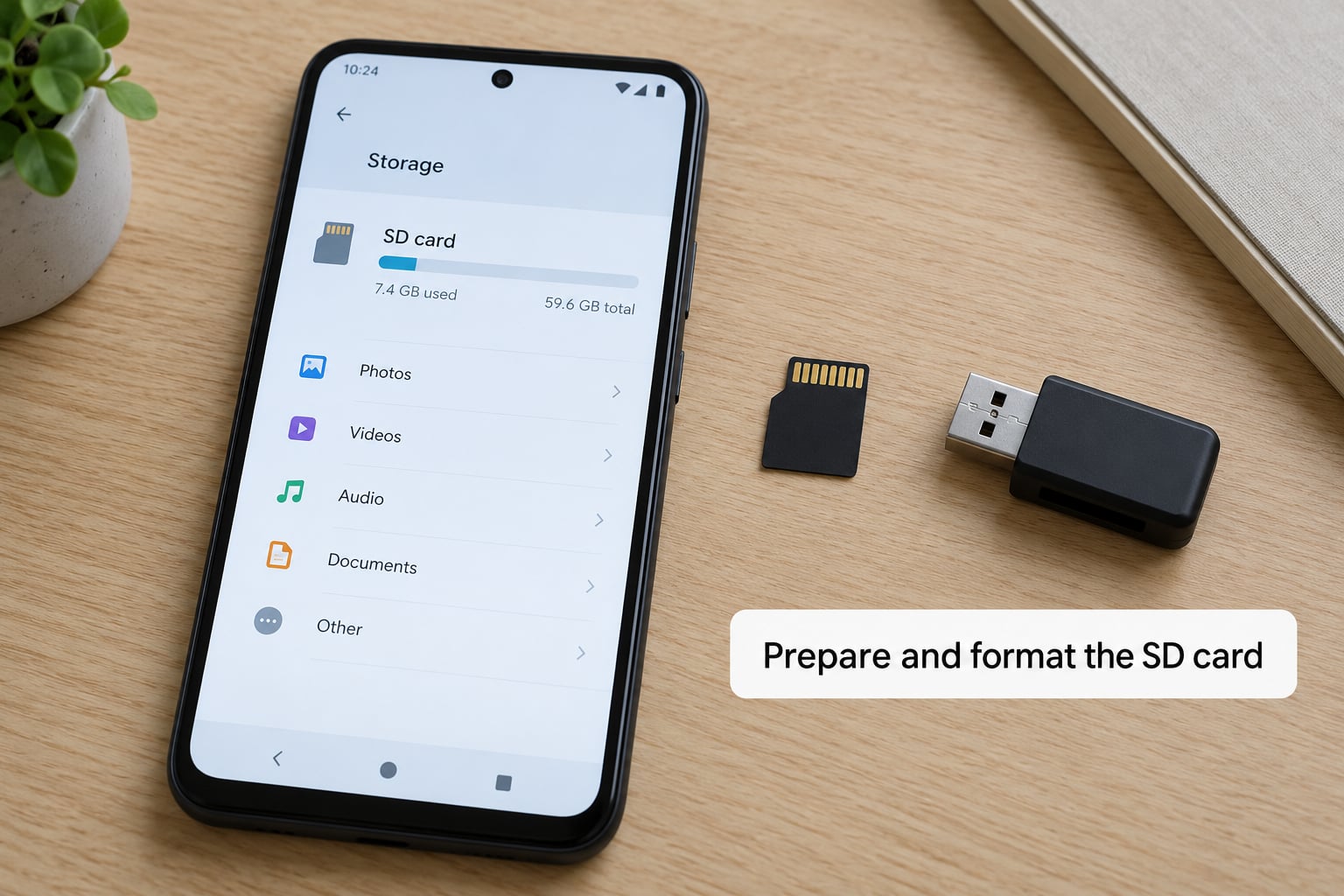
Copy anything you want to keep off the card first, either to the phone or to a computer. Then put the card in and let the phone mount it.
Open the card’s settings and you will see two choices, and the wording decides what happens to the whole card.
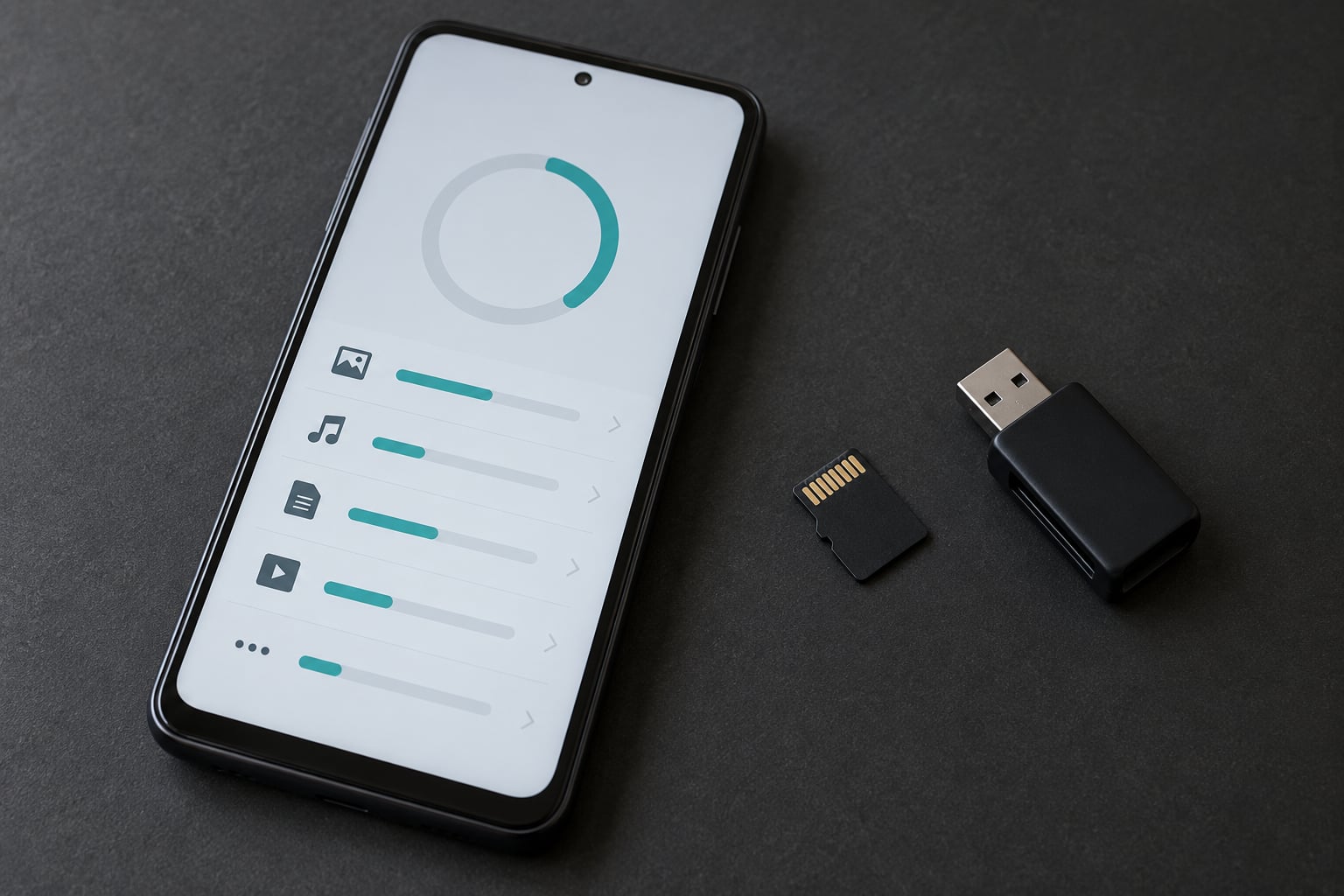
- Format as portable storage. The card stays readable on a PC, a camera and other phones. Photos, videos, music and downloads can live there. Apps cannot.
- Format as internal storage. Android encrypts the card and treats it as extra built-in memory, so apps install onto it as if it were the phone’s own storage. That is the only official way to get apps onto a card.
Pick your file system when the phone asks. exFAT is the right answer for 64GB and larger. Anything you leave on an adopted card is normally unreadable on a computer or a second phone, so treat the card as part of the phone, not a spare USB stick.
Wait for the format and the encrypt to finish before pulling the card or restarting. On many devices that takes a few minutes and the phone may reboot once on its own.
3. Move an individual app
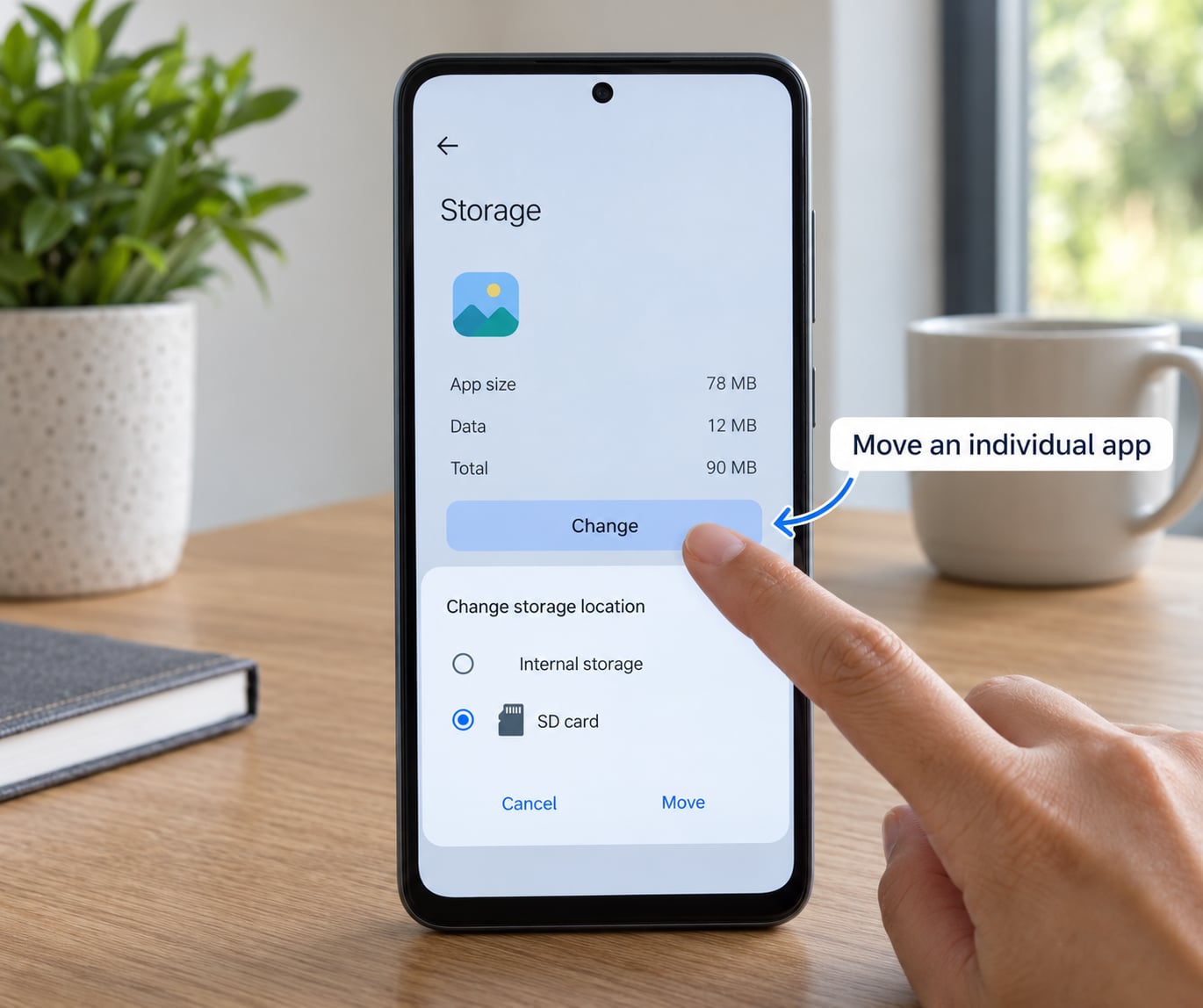
If a Move or Change option exists, it lives on the app’s own storage page. Go to Settings, then Apps, then See all apps, tap the app, then tap Storage or Storage and cache.
On some builds the path is Settings, then Apps, then See all apps, then the three-dot menu, then Show system apps, which is the only way to reach apps Android hides by default. Samsung hides System storage behind the same three-dot menu.
On the storage page, look for Change, Move to SD card, or a storage location dropdown. If it is there, choose the SD card or external storage and confirm. A progress bar appears while the app relocates; do not force the phone to restart or remove the card during it. Some builds keep a small launcher stub in internal storage so the icon still resolves, so the internal number may fall a little rather than drop to zero.
Users on r/AndroidQuestions report the reverse case more often: the button appears, the progress bar finishes, and Storage still shows the app on internal storage. That happens when the relocation only moves data inside the emulated internal folder, a known behaviour documented back in 2016 and still reported today. Reopen the app, force stop it, and check again before assuming it worked.
4. Confirm the app works from the card
Force stop the app from Settings, then Apps, then See all apps, then the app, then tap Force stop. Reopen it from the launcher and sign in again if the session dropped.
Test the things the app actually does: loading a large list, playing a video, saving a file, sending a photo. Then return to the app’s Storage page and confirm the location line reads SD card or the adopted card name. While you are there, re-check permissions, since a relocated app sometimes re-prompts for storage access on first run.
Watch for lag over the first few days. An adopted card is only as fast as the card itself, and a slow card shows up as slow app launches, stutter and occasional crashes.
5. Handle apps that cannot be moved
No button on the app’s Storage page is the normal outcome on current Android, not a fault on your phone. There are four reasons, and they stack.
- Scoped storage. From Android 10 onward, an app only sees its own folder unless it asks for broad access. Splitting an app across two physical volumes is exactly what that model prevents, so Google dropped the button.
- The developer’s choice. A developer can flag an app as non-movable in its manifest, usually because it holds a system-level permission, an active login, or a licence check. Camera, wallet, banking and messaging apps fall here.
- Manufacturer override. Some skins hide the option entirely, on some carriers and regions within the same model.
- System apps. These are part of the OS image and are not movable at any level, root aside.
Here is how the available methods compare:
| Method | Root needed | Reversible | Works on Android 11 and later |
|---|---|---|---|
| Per-app Move or Change button | No | Yes | Rarely, on older builds only |
| Format as internal storage | No | Hard to undo, erases card | Yes |
| adb shell pm move on a computer | No | Yes | Only to adopted storage |
| Third-party movers such as App2SD or Link2SD | Usually | Patchy | No, mostly abandoned |
| Move media and downloads instead | No | Yes | Yes |
If you have access to a computer and developer options switched on, adb shell pm move PACKAGE_NAME /storage/emulated/0/Android/data/ can relocate a package to adopted storage. Turn the option on under Settings, About phone, then tap Build number seven times, then reopen Developer options and enable USB debugging. Install Android platform tools on the computer first. This is not a bypass for the missing button; it targets the same adopted volume.
Skip the Play Store app movers. App2SD, Apps2SD, AppMgr III and Link2SD all predate current Android, several need root and an ext4 partition, and forum advice often points to patched installers of the kind that get accounts banned. If an app promises to move anything anywhere without root, treat it as a risk rather than a solution.
On hardware that still exposes a real install path to the card, users on r/retroid and r/logitechgcloud keep using Format as internal, because those devices genuinely install apps onto the card. On ordinary phones, adoptable storage is the equivalent.
Common Mistakes
The Move button is missing. Expected on Android 10 and later. Check the app is not a system app, update it from the store, restart the phone, then re-check. If it is still missing, the app is not movable and your only options are adoptable storage or the alternatives above.
The app says it moved but internal storage barely changed. This is the /storage/emulated/0 case. The app relocated inside internal memory rather than onto the card. Re-check after a reboot, and if the location line still reads internal, the move did not reach the physical card.
The phone does not see the card. Power down and reseat the card, then clean the contacts with a dry cloth. Try a different card, since a card that fails on one device frequently fails on others. On a new card, some devices only mount it after a reboot.
Files larger than 4GB will not copy, or the card shows as corrupted. That is FAT32’s hard limit. Format the card as exFAT, which is also the only sensible choice above 32GB.
Format as internal is greyed out. Internal storage is usually nearly full. Free up at least 20GB, or move photos off the phone first, and try again.
Notifications stop or permission errors appear after a move. Revoked permissions and background restrictions travel with the app. Re-grant storage and notification permissions, and exclude the app from battery optimisation if it needs to run in the background.
Adopted storage cannot be read on a computer or a second phone. Expected. The card is encrypted to the phone that adopted it. Unmount and format it as portable storage to use it elsewhere, which erases it, then copy files across before formatting again.
One more practical habit: unmount the card from notification shade settings before removing it, and never remove it while an app is writing to it. Cards fail early when they are yanked mid-write, and that failure looks like a dead card rather than a removed one.
Frequently Asked Questions
Can I install apps directly to an SD card on Android?
Only through adoptable storage. On Android 10 and later there is no per-app install location setting, so the card has to be formatted as internal storage first, after which apps install onto it like built-in memory. Files, photos, videos and downloads can still go to a card formatted as portable storage, but apps cannot.
Why is there no move to SD card option?
Google removed it because of scoped storage, the model introduced around Android 10 in which each app only sees its own folder. Splitting an app between two volumes breaks that isolation, so the per-app option disappeared on most devices. A developer can also mark an individual app as non-movable, and some manufacturer skins hide the option completely.
Why can’t I move some apps to my SD card?
Most apps cannot be moved on current Android at all, so a missing option is normal. On older builds the remaining blockers are the developer’s own restriction, the app holding an active login or system permission, and system apps that belong to the OS image. Messaging, camera, wallet and banking apps are almost never movable.
How do I use an SD card instead of internal storage on Android?
Put the card in, open the phone’s storage settings, tap the card name and choose Format as internal storage. Pick exFAT for 64GB and larger, confirm the erase, and wait for the encrypt to finish. The card is then presented as extra internal memory, though its contents become unreadable on a computer or another phone.
Can I read an adopted SD card on my PC or another phone?
Not while it is adopted. Android encrypts the card and ties it to the phone that formatted it, which protects your data but also blocks computers and second devices. To get files back, unmount the card in storage settings, format it as portable storage, then connect it. That step erases everything on the card, so copy anything important off first.
How do I move photos, videos and downloads to an SD card?
Much easier than moving apps, and no adoptable storage needed. Keep the card formatted as portable storage, open the camera or gallery app and set the save location to the SD card, then set Downloads to the card under Settings, Apps, See all apps, then the browser or Files app. On a phone with no card slot, use cloud sync instead.
Conclusion
Start with the compatibility check, not the format step: open your storage settings and see whether the phone exposes an SD card at all. If it does and a Move or Change button exists on the app’s Storage page, use it and confirm the location line afterwards.
If there is no button, the safe first action is to move one nonessential app after adopting the card, live with it for a few days, and only then shift anything you care about. Move your photos and downloads to a portable card either way; that is where most of the reclaimed space comes from.