A factory reset always erases the data stored on your phone. So how do you factory reset an Android phone without losing everything? The answer is that you back everything up first, run the reset, then sign back into the same Google account during setup and let the phone restore itself. Nothing survives the wipe on its own.
The whole job takes about 30 minutes of tapping plus waiting. A reset itself can run up to an hour on some devices, and a first backup or restore can take up to 24 hours. The reset is permanent and cannot be undone. Last updated October 2026.
Table of Contents›
- What You Need
- How to Factory Reset an Android Phone Without Losing Everything
- 1. Prepare and back up the phone
- 2. Confirm the backup before erasing the device
- 3. How to factory reset the Android phone from Settings
- 4. Set up Android and restore the backup
- 5. Verify restored data and protect the account
- Common Mistakes
- Frequently Asked Questions
- Is it possible to factory reset an Android phone without losing data?
- Will I lose my photos if I factory reset my phone?
- What is a soft reset, and is it enough for a slow phone?
- Can you undo a factory reset on Android?
- Which Google account do I need to restore my data?
- How long does a factory reset take, and can I do it without Wi-Fi?
- Conclusion
What You Need
Before you erase anything, you need four things in place: a charged phone on Wi-Fi, a working Google account password, your screen lock PIN or pattern, and a verified backup. Miss any one of those and the reset either fails halfway or leaves you locked out of your own accounts.
- Charge above 70 percent. A reset that dies mid-process can leave the phone unbootable. Plug it in if you can.
- A working password for the Google account on the phone. After the wipe, Android asks you to sign in to the same account before it will run the setup wizard. Forgetting this is the single most common self-inflicted lockout.
- Your screen lock PIN, pattern or password. Encrypted backups need the old screen code to unlock during restore.
- Reliable Wi-Fi. Both the backup and the restore are network jobs. Offline, you are just deleting.
- Ten minutes of manual exporting for anything Google does not copy — the section below covers exactly what that is.
Here is the honest version of what a reset covers up. This is the part most guides skip, and it is where people discover a problem three days too late.
| Data | Erased by the reset? | Comes back from Google Backup? |
|---|---|---|
| Photos and videos in your gallery | Yes | Yes, if Google Photos sync was on |
| Contacts | Yes | Usually — one missing label list is a known fluke |
| Text messages and call history | Yes | Yes — recent messages sit inside Google Messages backup |
| Installed apps and app logins | Yes | Yes, most apps reinstall automatically |
| WhatsApp chats and media | Yes | No — only from WhatsApp’s own Drive backup |
| Authenticator codes (Google, Microsoft, Authy) | Yes | No — export a recovery code first |
| Banking and DRM apps | Yes | No — log in again from scratch |
| Downloaded files, PDFs, offline maps | Yes | No |
| Wi-Fi passwords and Bluetooth pairings | Yes | Yes, if saved to your Google account |
| Your Google account, other phones, your laptop | No | Not affected |
That last row matters more than people expect. Resetting a phone does not delete your Google account, and it does not touch data on your other devices signed into the same account.
How to Factory Reset an Android Phone Without Losing Everything
Five steps, in this order. Skipping ahead to step 3 is how people end up restoring an empty phone and blaming Google.
1. Prepare and back up the phone
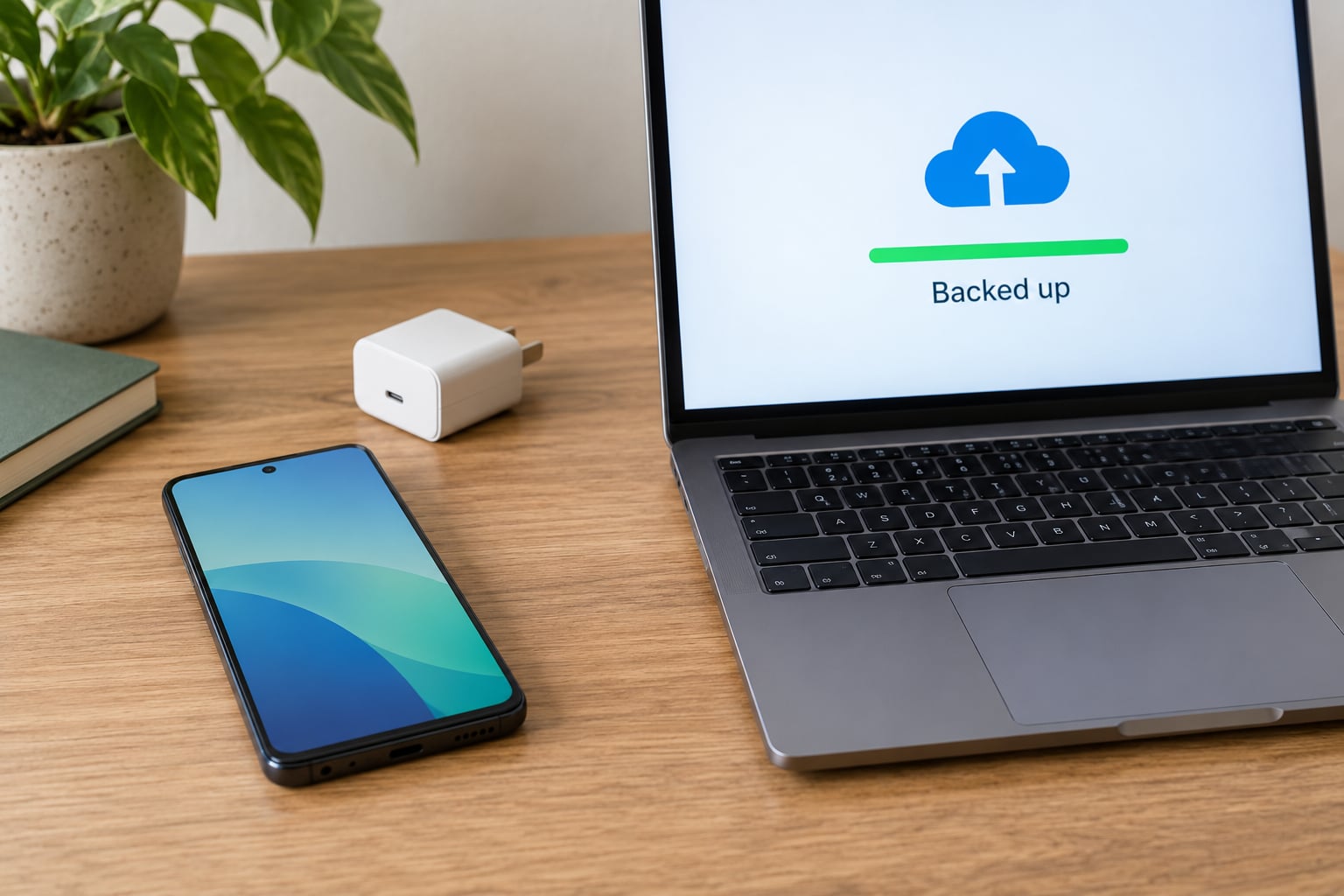
Open Settings, then Google, then Account backup or Backup and sync, depending on your build. Tap Back up now and leave the phone plugged in on Wi-Fi while it runs. On Samsung phones the same control sits under Settings, then Accounts and backup, then Back up data.
While the backup runs, update Android and the Google apps first. Restoring onto outdated system files is one of the reasons restores stall or leave apps misbehaving afterwards.
Then handle the three things Google will not touch for you. Export your authenticator recovery codes — this is the step that keeps email, banks and password managers reachable. Run WhatsApp’s own backup to Google Drive. And copy anything you downloaded rather than streamed: PDFs, offline maps, saved podcasts, a folder of photos you moved off the camera roll.
If you use a microSD card, take it out before you reset, or decrypt it in Settings, Storage, then decryptable storage. An encrypted card that stays encrypted after a reset is unreadable and usually prompts a factory wipe of the card itself.
2. Confirm the backup before erasing the device
Do not trust a backup you have not looked at. Go back to the same backup screen and check the line that reads “Last backup” with a date and time. If it says anything older than an hour ago, run Back up now again and wait for it to finish.
Then open Backup details and scroll the list. Every app you care about should show a green tick and a timestamp beside it. Screenshots of that list are worth keeping — if a restore goes sideways, that list tells you what to chase first.
This thirty-second check catches the failures that actually happen. The common one: the backup reports success, the restore finishes cleanly, and the contact list is missing. A lost label list is a known Google fluke, and the missing list is often sitting in the Trash inside the Google account, a place almost nobody looks. Knowing your backup is real, and knowing where to look if it isn’t, saves the whole afternoon.
3. How to factory reset the Android phone from Settings
Menu names differ by brand and by Android version, so use the row that matches your phone.
| Brand | Settings path to the reset |
|---|---|
| Google Pixel and most stock Android | System, then System reset options, then Erase all data (factory reset) |
| Samsung Galaxy | General management, then Reset, then Factory data reset |
| Motorola | System, then Reset options, then Erase all data (factory reset) |
| OnePlus and Oxygen builds | System, then System reset options, then Erase all data |
| Older Android (before 9) | System, then Reset, then Factory data reset |
On most phones you will find reset options by searching “reset” in the Settings search bar, which sidesteps the naming differences entirely.
When the confirmation screen appears, read the list of what will be erased and tap Erase all data or Reset. If you see an option for Reset settings only, that is not the same thing — it resets network, accessibility and app preferences and leaves your photos, apps and accounts untouched. It is worth trying on a sluggish phone before you commit to a full wipe.
The screen will ask for your PIN, pattern or password, then for your Google account password on newer versions. Keep the phone on power. A wipe that stalls on a flat battery is the kind of problem that turns a reset into an expensive one.
4. Set up Android and restore the backup
The phone restarts into the Hello screen. Connect to Wi-Fi, then sign in with the exact Google account that made the backup — a second account on the phone does not count, and this is the number one cause of an empty-looking restore. Followers appear before your apps download.
At the restore prompt, choose Copy apps and data. Some builds skip the question and restore automatically; if that happens, wait it out rather than interrupting. The verification screens during setup usually ask for that old screen code, because the backup was encrypted.
5. Verify restored data and protect the account
Check contacts, your photo timeline, your messages, your files, and your authenticator. Open one WhatsApp chat and check for media, not just the conversation. Anything that did not come back usually belongs to the “not backed up” table above.
If the phone was lost, stolen, compromised or handed to someone else, change your Google password and sign out of other sessions before you wipe further. A factory reset signs you out of apps on that device; it does not revoke sessions on your other phones or laptops.
Selling or gifting the phone? Remove the Google account first, under Settings, Accounts, then your account, then Remove account. Skip that and the next owner meets FRP lock, a screen demanding a Google account that only you can enter.
Common Mistakes
Most lost data traces back to one of these, and every one of them has a fix you can apply before you press reset.
- Trusting a backup you never checked. Open the backup screen, read the timestamp, open Backup details. Google backs up silently and happily reports success for an empty app list.
- Restoring into the wrong Google account. Sign in with the account that made the backup. Adding a second account to the phone does not merge two backups.
- Leaving the phone on low battery. Charge above 70 percent and keep it there.
- Skipping the authenticator export. Without recovery codes, a reset can lock you out of email, banking and your password manager at once.
- Assuming WhatsApp is covered. Google Photos and Google Drive do not hold WhatsApp chat media by default. Only WhatsApp’s own Drive backup does, and it needs enough free space to restore into.
- Choosing Reset settings only and expecting a clean slate. It clears preferences, not data. If you want the erase, you need Erase all data.
- Deleting the backup too early. Leave the cloud backup in place until you have verified your data on the new phone.
- Deleting the Google account after the reset. The account is what runs the restore. Remove it only when the phone leaves your hands.
- Resetting with no connection. The erase works offline; the backup and restore do not. You would be deleting without a copy.
- Interrupting the restore. Powering off during the overnight restore phase can leave a half-finished phone.
Here is the difference between the three resets people confuse most often.
| Action | What it erases | When it is enough |
|---|---|---|
| Soft reset (restart) | Nothing — the phone just restarts | An app is frozen or the screen is stuck |
| Reset settings only | Network, accessibility and app preferences | Odd behaviour after an update, a very laggy phone |
| Factory reset | All local data, apps and accounts | Boot loops, malware, corruption, or a sale |
If a restart fixes it, you did not need a wipe. That question comes up in almost every support thread, and trying the cheap option first costs nothing.
Frequently Asked Questions
Is it possible to factory reset an Android phone without losing data?
Not during the reset itself. Erase all data (factory reset) permanently wipes the phone, and there is no undo. What people mean is that nothing is lost overall: you back up first, reset, then restore from the same Google account during setup. Anything Google Backup does not copy, such as WhatsApp chats and authenticator codes, has to be exported by hand before you start.
Will I lose my photos if I factory reset my phone?
Only if they were never synced. Photos taken on the camera and saved in Google Photos, or uploaded manually to Drive or a computer, come back during setup. Photos you downloaded from messages, deleted from Google Photos a long time ago, or kept only in an app’s private folder are gone. Before you reset, open your Google Photos timeline and confirm the count looks right.
What is a soft reset, and is it enough for a slow phone?
A soft reset is simply a restart. Hold Power for a few seconds, then tap Restart, or go to Settings, System, Advanced, then tap Restart. It clears running memory and takes seconds, with no effect on your data. Start here for one frozen app or a laggy phone. Move to a factory reset only when the phone is crashing, stuck in a boot loop, infected, or being sold.
Can you undo a factory reset on Android?
No. Once Erase all data (factory reset) finishes, the local data is gone and Android offers no way to reverse it. The only recovery route is a backup you made before the reset, or files that live in cloud accounts such as Google Photos or Google Drive. That is why checking the backup timestamp before you start is worth the thirty seconds it takes.
Which Google account do I need to restore my data?
The one that made the backup. During setup, sign in with that exact account; a different account on the phone restores nothing and gives you a clean-looking phone with none of your data. If you have two Google accounts on the device, check which one holds the backup before you wipe. You can confirm this on the backup screen, where the account email is shown at the top.
How long does a factory reset take, and can I do it without Wi-Fi?
Plan for 30 minutes to an hour of tapping and waiting, and keep the phone on power throughout. A first backup or restore can run up to 24 hours. The reset itself will run offline, but the backup and restore will not, so going offline means erasing without a safety copy. Restore failures that do happen usually come from low free storage or a skipped restore prompt.
Conclusion
Back up the phone first, then open the backup screen and read the timestamp before you reset anything. Export your authenticator recovery codes and run a WhatsApp backup while you are there, remember which Google account the backup belongs to, and keep the phone charged until the setup wizard finishes. That is the whole job: back up, verify, reset, sign back into the same account, and check your photos and contacts before you delete a single backup.