To wipe personal data from a phone permanently, back up what you need, remove your Google or Apple account, pull the SIM and any paired accessories, run the built-in factory reset, then confirm the phone starts at the setup screen. On any phone from the last ten years the reset destroys the encryption key along with your files, which is why recovery specialists say a wiped modern phone is normally unreadable. Budget 15 to 30 minutes once the backup is done.
The part people get wrong is not the reset itself. It is skipping the account removal beforehand and handing the buyer a phone that demands your old password, or assuming the reset cleaned out a microSD card or a paired smartwatch that nothing else touches. Updated for 2026: iOS and Android both change their menu wording every year or two, so below I give the current paths and note where brands differ.
A note on terminology before we start. “Factory reset” on Android and “Erase All Content and Settings” on iOS are the two real options that matter. A delete button in an app or an emptied recycle bin is not a wipe. That distinction runs through everything below.
Table of Contents›
- What You Need
- Step-by-Step: How to Wipe Personal Data From a Phone Permanently
- 1. Back Up Anything You Need
- 2. Remove Accounts, SIM Cards, and Accessories
- 3. Factory-Reset an Android Phone
- 4. Factory-Reset an iPhone or iPad to Erase Personal Data Permanently
- 5. Verify the Reset and Complete Setup
- What a factory reset does not erase
- Common Mistakes
- Frequently Asked Questions
- Does a factory reset make personal data permanently unrecoverable?
- Is signing out of my Google or Apple Account enough to wipe a phone?
- Will a factory reset erase data stored on an SD card?
- Can I permanently wipe a phone I no longer have the passcode for?
- What should I do before wiping a phone I am selling?
- Conclusion
What You Need
Four things, and the first one is non-negotiable. Without a backup there is no undo, because the reset removes local data immediately and nothing on the device can restore it afterwards.
- A completed backup. Photos, contacts, messages and authenticator accounts, copied to a computer or a cloud account you control and have actually opened to check.
- Your account passwords. The Google Account on an Android phone, the Apple Account password on an iPhone. Both are needed to remove the account before you reset.
- Your screen lock passcode. The reset itself asks for it. If you have forgotten it, deal with that before anything else.
- A charger and a connection. A half-finished reset leaves you with a phone in a strange state, and it can take 20 minutes or more.
- The SIM or eSIM PIN if your carrier set one, so you can move the number to the new phone without guessing.
One more check before you touch a single setting: find out whether the phone is managed by a school or employer. Device management profiles block factory reset on most managed phones, and a reset that appears to succeed on a managed device can leave company data behind. On iOS look for a “VPN & Device Management” entry in Settings and on Android for “Device admin apps”. If either is there, wipe through the organisation’s own process instead.
Finally, decide where the phone is going before you wipe it. Selling, gifting to a family member, trading in at a carrier, donating and recycling are all handled by the same reset, but they differ on whether you also need to remove the eSIM and the carrier lock. A phone sold with a financed balance still attached needs its network lock cleared by the carrier first, or the buyer’s new SIM will not work in it.
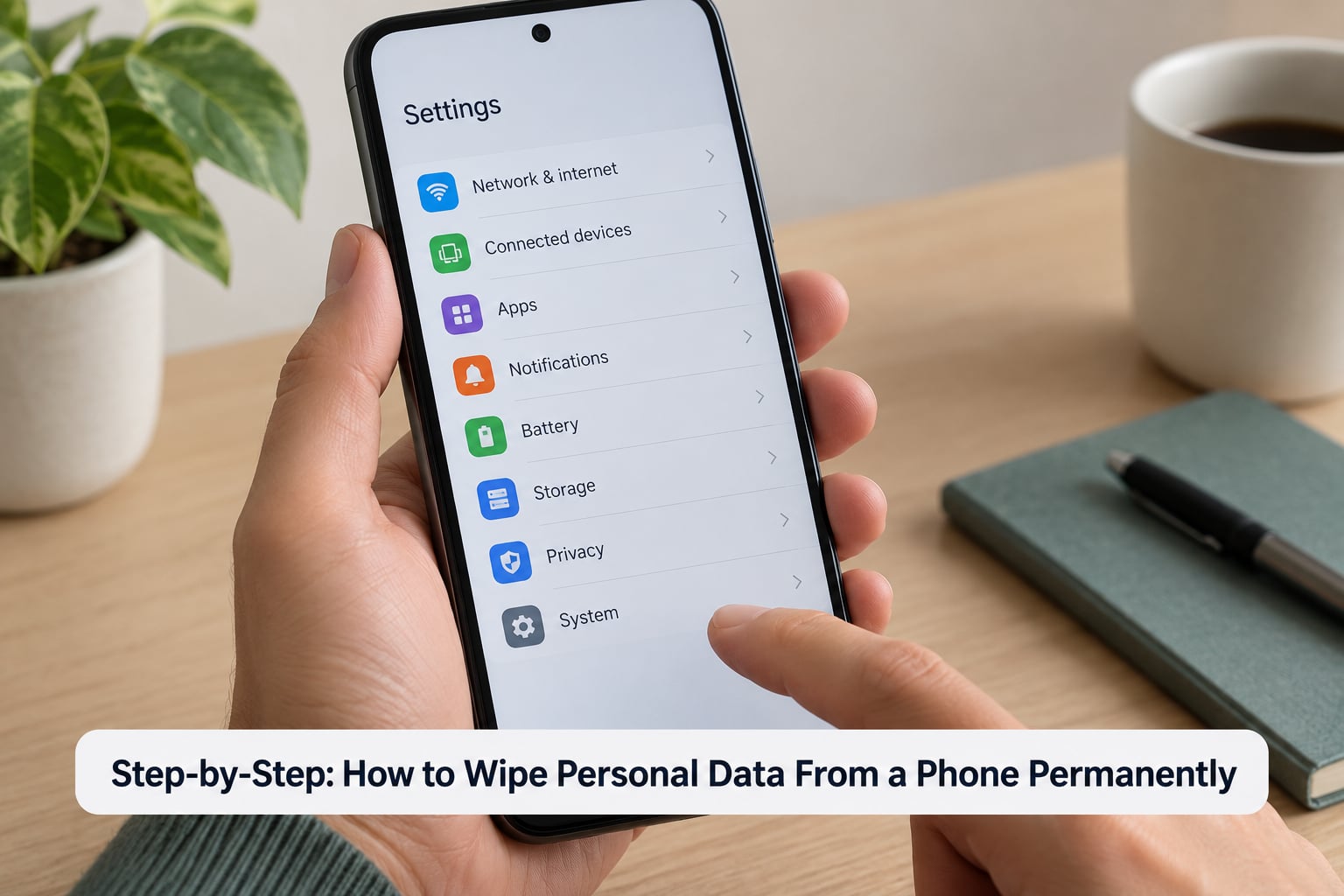
Step-by-Step: How to Wipe Personal Data From a Phone Permanently
1. Back Up Anything You Need
Copy everything before you wipe personal data from a phone, because there is no second chance. Photos and videos go to Google Photos, iCloud Photos, or a folder on a computer via a USB cable, and contacts sync to your Google or iCloud account in most setups.
Messaging apps are the ones people miss. WhatsApp keeps its history in a cloud backup tied to your account, not on the phone, so a reset wipes the device copy while the backup survives until you delete it yourself. Do the same check for Signal and for iMessage, which syncs to iCloud. Open the backup on another device before you wipe, so you know it is really there.
Transfer your authenticator accounts next. Google Authenticator, Authy and similar apps store codes only on the device unless they are synced to an account, and wiping without a plan can lock you out of your own email and banking. Rotate the QR code or export the accounts before you reset.
Do not delete the cloud copy of your photos as part of the wipe unless you want those photos gone from every device you have ever used. Resetting a phone is a local operation; your iCloud library and Google Photos library stay exactly where they are.
2. Remove Accounts, SIM Cards, and Accessories
Removing the account first is the single step that prevents the most common failure. On Android, go to Settings, tap Accounts, then Account backup or Manage accounts, tap the Google account, tap Remove account and confirm. On iPhone, go to Settings, tap your name at the top, scroll to the bottom and tap Sign Out, then enter your Apple Account password when prompted.
Skip that and the reset still happens, but the phone stays tied to your account. On Android the next owner hits the “Verify your account” screen and the phone is a bricked paperweight until you intervene; on iPhone they hit Activation Lock and cannot get past the Apple logo. This shows up repeatedly on r/AndroidQuestions, where sellers ship devices and then get messages from buyers sitting on the lock screen.
Next, sign out of the apps that hold the most sensitive data rather than relying on the reset to handle them: banking apps, Google Wallet and Apple Pay, your email client, password manager and any work or school app. Removing the account usually signs these out for you, but check the list afterwards.
Pull the physical SIM card out of its tray and keep it somewhere safe. A SIM holds contacts and network identifiers, not your photos or messages, and removing it deletes nothing on the phone. If the phone has an eSIM, remove it in Settings under Cellular or Mobile Data, or reset it if you are keeping the number for the new device.
Disconnect accessories before the reset, not after. Pairing lives in the phone’s Bluetooth list, and a reset clears that list, but the reverse pairing on your earbuds, smartwatch and car stereo survives, so the new owner can get automatic reconnect prompts or a stolen-device alert from your old account. Unpair them from the phone and from each of their apps first.
3. Factory-Reset an Android Phone
Android’s reset lives under Reset options and the label changes by brand. On stock Android and Google Pixel, go to Settings, tap System, tap Reset options, then tap Erase all data and factory reset, tap Erase all data, then Erase all data and factory reset again and wait for the phone to restart. On Samsung, the path is Settings, General management, Reset, Factory data reset, Erase all data.
On Xiaomi, Redmi and Poco phones it is Settings, General settings, Reset, Factory data reset. OnePlus, Oppo and Realme use Settings, System, Reset options, Erase all data. Motorola sits at Settings, System, Reset options, Erase all data and factory reset. If you cannot find it, searching the settings for “reset” works on every current version.
This option removes your Google and Samsung accounts, installed apps and their data, photos and files in internal storage, messages and call history, saved Wi-Fi networks and Bluetooth pairings, accounts, the screen lock, alarms, and your wallpaper. It also removes Factory Reset Protection only if you removed the Google account in step 2. The reset can take anywhere from five minutes to half an hour, so keep it on power.
Pixel phones add two options worth knowing about. “Lock” or “Device protection” can seal the device so it can only be unlocked with your Google Account, and Google’s Find My Device service can mark the phone lost and erase it remotely. Either works as a backup if the phone is stolen rather than sold. Most Android makers also offer a “Schedule reset” option, which is handy if you want the wipe to happen automatically after a set number of idle days.
4. Factory-Reset an iPhone or iPad to Erase Personal Data Permanently
The iPhone route is Settings, General, Transfer or Reset iPhone, Erase All Content and Settings, then confirm. You will be asked for your passcode and then your Apple Account password, so have both ready, and confirm one final time before the phone restarts. On an iPad the same option sits under Settings, General, Transfer or Reset iPad.
If you are already using a Mac with Finder or a Windows PC with iTunes, the desktop route works too: connect the phone by cable, click the device in the sidebar, choose Summary, then Restore and confirm. Do not choose “Back Up to This Computer” from that panel if your goal is a wipe; that backs the phone up instead of erasing it.
This option removes your Apple ID, all apps and app data, photos, messages, call history, Apple Pay cards, Face ID and Touch ID enrolment, Bluetooth and Wi-Fi settings, and the passcode. The device restarts to the “Hello” screen with no owner attached. Whoever sets it up next gets a genuinely clean device, which is the point of doing it properly before a sale.
If the iPhone is managed by a school or employer, Erase All Content and Settings will be greyed out. That is not a fault; the reset has to come from the organisation.
5. Verify the Reset and Complete Setup
A finished wipe ends at the setup screen, so check for that first. On iOS you should see the “Hello” language picker with no Apple logo loop and no owner name. On Android you should see the “Let’s set up your phone” screen or the brand’s equivalent, and the device should not prompt for a previous owner’s account.
You can also verify by signing in as the new owner and checking that the old person is gone. Set the phone up with a fresh or intended account, open Photos, Gallery, Messages and Files, and confirm each is empty. If a folder called “Recovered” or a previous owner’s name appears in contacts, something did not wipe and you need to start again.
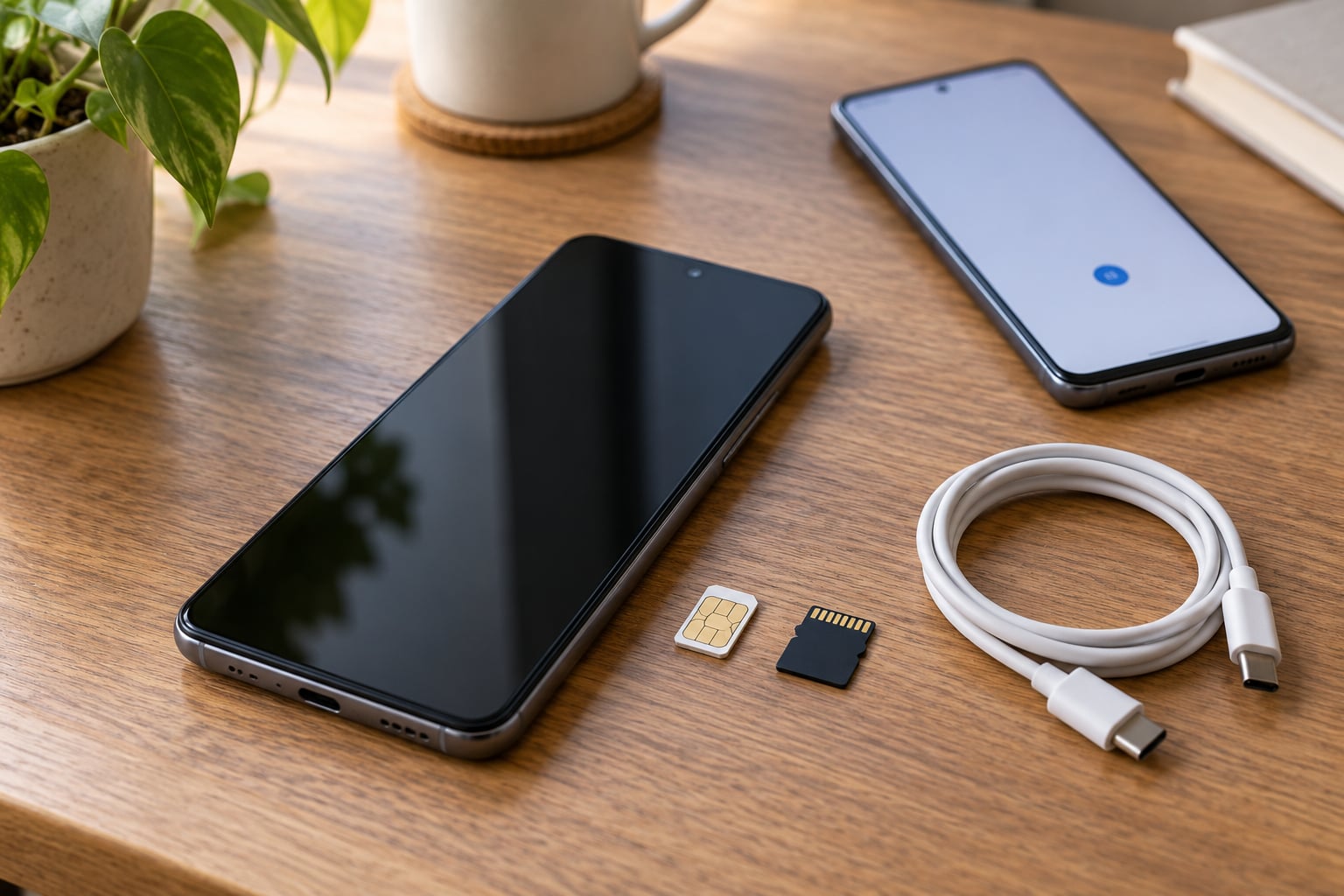
Check the four storage locations a reset cannot reach. A microSD card in the tray survives untouched, so take it out and wipe it separately with your computer if it holds photos. Bluetooth-paired accessories still hold your old pairing on their side, so open the companion app on your watch, earbuds and car head unit and forget the device. Your SIM card, already out, holds contacts worth deleting through your carrier or by putting it in another handset.
Finally, look for signs of a previous owner. If the setup screen asks you to activate with somebody else’s Apple ID or Google account, stop and reset again from that screen. Activation Lock and Factory Reset Protection both clear once the original account is removed and the phone reaches setup mode.
If Find My iPhone or Find My Device still lists the phone in your account after the reset, that is expected and it disappears on its own within a few days. Removing it from your account’s device list before the reset is the tidier option if you want it gone immediately.
What a factory reset does not erase
The parts a reset misses are the ones people forget. A quick list: everything stored in iCloud or Google Photos, iCloud Drive and Google Drive files, chat backups held by WhatsApp or Signal in the cloud, microSD card contents, the SIM card’s own contacts, your old Bluetooth pairings on the other device, and the factory lock on the device itself.
None of that is recoverable by a buyer holding the phone, but it matters if you are giving it to someone in your family or donating it to someone who shares your cloud account. If you have no intention of keeping your cloud copy of a photo library, delete it separately, and be deliberate about it.
Common Mistakes
Deleting files instead of resetting is the most common error, and the least effective. Pressing Delete in Photos, emptying the album’s Recently Deleted, or clearing an app’s cache leaves the phone exactly as full and as readable as before. A wipe is a whole-device operation, not a cleanup job.
The “fill the phone with junk files and reset twice” ritual is the one I would most like retired. It comes from the 2015 Android research that found millions of devices did not overwrite storage on reset, a real finding for phones of that era. On anything with full-disk encryption the extra step buys you nothing, because the reset destroys the encryption key and the old data is unreadable regardless of how many passes were made. Users on r/privacy reach the same conclusion once the encryption explanation lands. On a very old, unencrypted handset, an extra pass costs you twenty minutes and costs you nothing to do.
Forgetting removable storage leaves the most embarrassing material behind, since photos on a microSD card are never touched by the reset. Pop the tray, format the card on your computer, and reinsert it only if the phone is staying with you.
Signing in after setup to make activation easier is a bad trade. The moment you add your account during setup, the phone is bound to you again and the next person hits the lock screen. Set the phone up with no account, or with the new owner’s account, and you are done.
Leaving a paired smartwatch or car stereo connected is a subtle one. The reset clears the phone’s Bluetooth list, but the watch and the car unit remember the phone, which produces dropped connections and device alerts on the new owner’s wrist. Forget the phone from each companion app and from the car’s Bluetooth menu.
Assuming an e-waste recycling centre wipes for you is a common and expensive assumption. Most accept the handset and do nothing to its storage. If the device is going to a charity, ask in writing whether they wipe before resale, or wipe it yourself first.
Breaking the phone is the worst option. Physical destruction rarely reaches the NAND chips inside a modern phone, so a smashed screen leaves the storage readable to anyone with a board-level tool. It also removes any value the device had and is unlawful to do carelessly if you are simply disposing of it. If you want the data gone and the phone recycled, the factory reset is enough; if you are genuinely destroying a device for legal or corporate reasons, use an accredited data destruction service rather than a hammer.
Skipping the reset and just removing the account is the mistake behind most resale horror stories. Signing out stops Activation Lock, but it leaves every photo, message and cached password on the handset, readable by anyone who plugs it into a computer. Sign out and reset. Both, in that order.
Frequently Asked Questions
Does a factory reset make personal data permanently unrecoverable?
On a modern phone, effectively yes. Because storage is fully encrypted and the encryption key is destroyed by the reset, the old files become unreadable rather than merely hidden. Recovery specialists confirm that they can rarely pull anything from a factory-reset device that had a passcode set. Very old handsets without full-disk encryption are the exception, where a specialist lab may still have a chance.
Is signing out of my Google or Apple Account enough to wipe a phone?
No. Signing out removes the Activation Lock or Factory Reset Protection that would otherwise trap the next owner, but it leaves your photos, messages, cached app data and saved files on the handset where anyone with a USB cable can read them. You need both: remove the account first, then run the factory reset.
Will a factory reset erase data stored on an SD card?
No. A factory reset only touches internal storage, so a microSD card stays exactly as you left it and anyone who pops the tray can open it. Take the card out before you wipe, connect it to your computer and erase its contents there if it holds photos you do not want to hand over.
Can I permanently wipe a phone I no longer have the passcode for?
Not on your own. Both resets ask for the screen lock before they will run, because that lock is what protects the encryption key. If the passcode is gone, your options are the factory reset option already enabled on your Google or Apple account, or taking the device to an Apple or authorised service centre with proof of ownership.
What should I do before wiping a phone I am selling?
Back up everything, open the backup somewhere else to confirm it works, then sign out of your Apple ID or Google Account and pull the SIM. After that, run the factory reset, unpair smartwatches and earbuds, wipe any microSD card, and finish at the setup screen with no account added. Doing it in that order is what stops the buyer getting a locked phone.
Conclusion
Wiping personal data from a phone permanently comes down to four things in the right order: back up and verify the backup, remove the Google or Apple account and the SIM, run the platform’s own factory reset, and confirm the device lands on the setup screen with nothing attached to you. Do those four and a modern phone’s storage is unreadable, because the reset took the encryption key with it.
The detail that earns its keep is removing the account before the reset. That is the difference between a clean sale and a buyer stuck on a verification screen, and it takes two minutes. Everything else on this list is either covered by the reset or simply outside the phone.