To disable preinstalled apps on Android, open the app’s page in Settings, tap Disable, and confirm. That stops the app running and pulls it out of your app drawer, but the files stay on the read-only system partition, so you get a tidier phone rather than free gigabytes. When there is no Disable button, uninstall the updates first and then disable, or use ADB from a computer if the phone allows it.
Last reviewed for October 2026. Menu labels below match Android 13 and later on Pixels and on Samsung’s One UI; other brands rename the same screens. Nothing here needs root and nothing here voids your warranty.
Table of Contents›
- What You Need to Disable Preinstalled Apps on Android
- Step-by-Step: How to Disable Preinstalled Apps on Android
- 1. Check Whether the App Can Be Disabled
- 2. Disable the App in Android Settings
- 3. Disable the App on Samsung, Google Pixel, and Other Android Phones
- 4. Remove the App or Its Updates When Needed
- 5. Use ADB Only If Your Device Allows It
- 6. Confirm the App Is Disabled
- Common Mistakes and How to Fix Them
- Frequently Asked Questions
- Can I disable preinstalled apps on any Android phone?
- Why is the Disable button missing for some preinstalled apps?
- Does disabling an app delete its data?
- Can disabling bloatware improve battery life?
- What happens if I uninstall a system app on Android?
- How do I restore an app I disabled?
- Conclusion
What You Need to Disable Preinstalled Apps on Android
You need the phone unlocked and about two minutes. If it is on someone else’s account or a work profile, that changes things, which I cover further down.
Here is the honest shortlist of what you actually need:
- The phone, unlocked, with your PIN or pattern ready so you can prove it is you.
- Settings access to the app’s information page. If you can open the app list, you have this.
- Nothing else for the Settings method. No computer, no cable, no extra app.
- Optional: a computer with Android platform tools if you want to remove apps for good rather than park them.
- Optional: two small apps from a reputable source if you would rather do the advanced route on the phone itself with no cable.
What varies is the manufacturer. Samsung, Xiaomi, Realme, OPPO and Vivo each bury the same controls under different names, and carrier-locked models sometimes hide them entirely. I walk through the brand paths in step 3.
A note on company phones. If your phone runs a work profile or is managed through MDM, IT controls which apps can be uninstalled, and the Disable button will be greyed out or missing. That is not a bug and there is no user-side fix. Personal phones are fine.
Step-by-Step: How to Disable Preinstalled Apps on Android
There are four routes, in escalating order of effort and of results. Start with the first one and stop when the app goes away. Most people never need to go past step 2.
1. Check Whether the App Can Be Disabled
Open Settings, then Apps, then See all apps and scroll to the app you are thinking about. Tap its name to open the app info screen.
What you see at the top of that screen tells you everything. A blue Uninstall button means it is an ordinary app you downloaded and it goes completely. Three greyed-out dots, a Force stop button and a Disable button mean it is a system app you can only park.
For system apps you will also see Uninstall updates near the bottom, and Storage showing how much space it holds. Note the difference between the buttons: Force stop halts the app right now and it starts again the next time you tap it or the system needs it. Disable is the one that sticks. Uninstall updates rolls the app back to the version baked into the system partition.
2. Disable the App in Android Settings
This is the path that handles roughly eight out of ten apps people want gone, and it takes about thirty seconds.
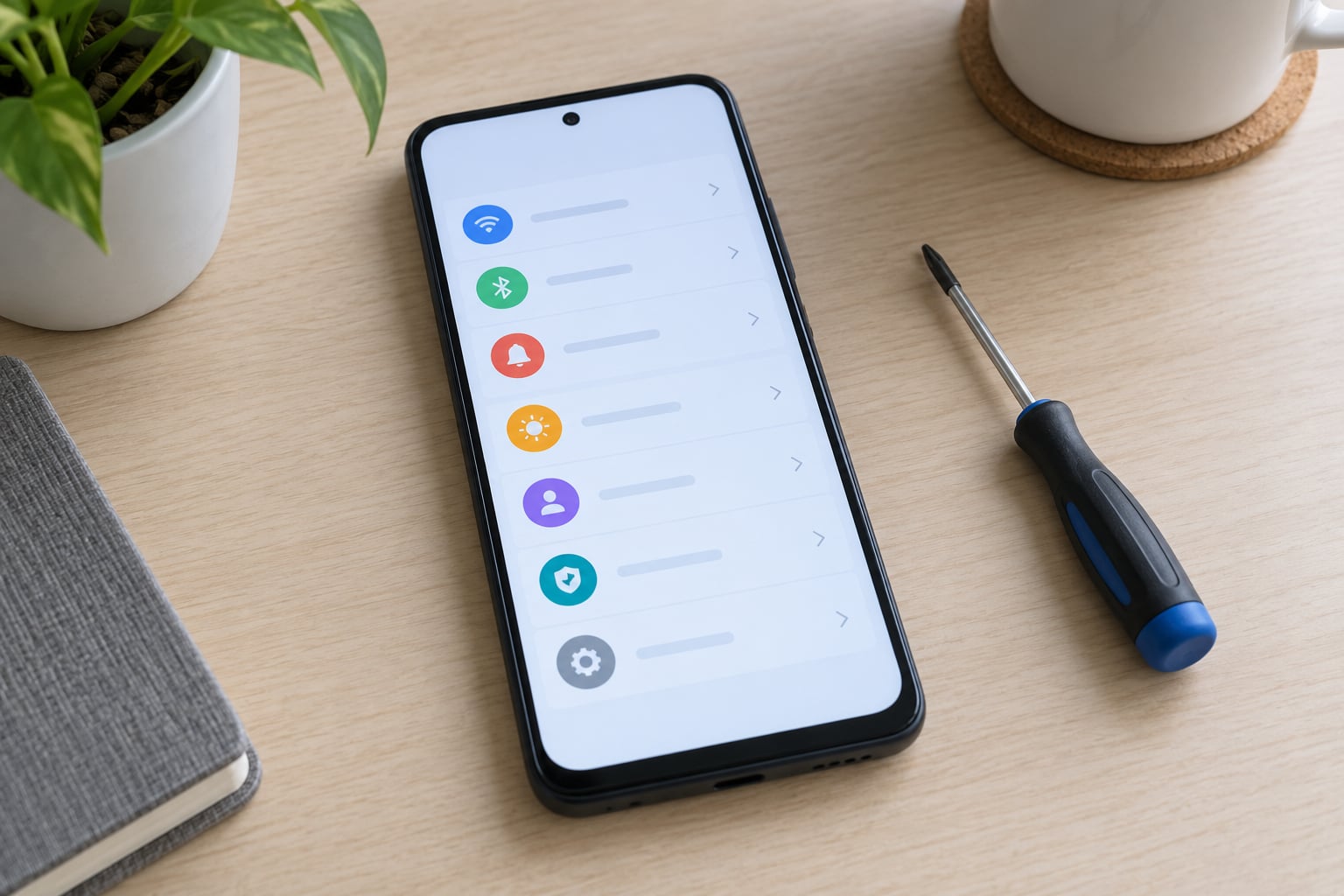
- Open Settings and tap Apps.
- Tap See all apps to get the full alphabetical list.
- Scroll to and tap the app you want to remove.
- Scroll down to the bottom of the app info screen and tap Disable.
- Read the warning. Android explains the app will be hidden from the app drawer and you will not receive its notifications. Tap Disable app or OK.
- Restart the phone when you have disabled a handful of apps, so the system releases the memory they were holding.
What happens next: the icon disappears from the app drawer, notifications stop, background activity stops, and the app stops checking for updates. The app still exists on the read-only system partition, so the storage it occupies is not handed back to you. Disabling is reversible, which is the main reason to prefer it over anything more aggressive.
Disabled apps live under Settings, then Apps, then See all apps, then the three-dot menu, where you will find Disabled apps or Show disabled apps. Tap Enable there to bring one back.
3. Disable the App on Samsung, Google Pixel, and Other Android Phones
On a Google Pixel, the path above is exactly right. Samsung, Xiaomi and the other big Android brands ship their own interface on top and rename things, so here is the map.
Samsung One UI. Settings, then Apps, then tap the three-dot menu at the top right of that list and choose Show system apps. Once system apps are visible, open one and you get Disable at the bottom. Samsung also puts Uninstall updates inside the app screen rather than at the bottom, and several partner apps install through the Galaxy Store, where the uninstall button behaves normally. If you disable something Samsung uses elsewhere, such as Galaxy Store on a watch that is paired to the phone, expect the watch side to complain.
Xiaomi, Redmi, Poco, HyperOS and MIUI. Settings, then Apps, then Manage apps, then the three-dot menu at the top right, then Show system apps. On HyperOS the menu entry can also read Show all apps. Xiaomi adds an autostart manager: search Settings for Autostart and switch off anything you have disabled, so the system does not quietly switch it back on.
Motorola. Close to unmodified Android. Settings, then Apps, then See all apps, then the app, then Disable.
OPPO ColorOS, Realme UI and Vivo. Settings, then Apps, then App management, then the three-dot menu, then Show system apps. These brands also control background work through a phone manager or i-manager utility, where you can set an app’s autostart to off.
Carrier-locked models. Some carrier apps have no Disable button at all. Uninstalling updates is sometimes the only option offered. When that happens, move to the next step.
4. Remove the App or Its Updates When Needed
Three buttons do three different things, and mixing them up is the most common misunderstanding here.
| Action | App drawer | Storage freed | Reversible |
|---|---|---|---|
| Force stop | Unchanged | None | Restarts on next launch |
| Disable | Hidden | Almost none | Yes, from the app list |
| Uninstall updates | Unchanged | Size of downloaded updates | Re-download from the store |
| Uninstall | Removed | App plus its data | Only if it was a normal app |
So when an app has no Disable button, tap Uninstall updates and then look again. Frequently the Disable button appears afterwards, because some manufacturers only expose it for the system build rather than the updated one. This is also the single easiest way to reclaim real space: a preloaded game or video app that downloaded 400 MB of updates gives that back immediately.
Android system apps are the reason uninstalling behaves oddly. They live in a read-only partition that the operating system protects, so a normal uninstall is refused. Uninstalling updates does not delete the app either. It replaces the newer copy with the older copy that shipped in the system partition, which is why you sometimes lose features after doing it.
Install your pending security and system updates after a debloat session rather than before. A phone sitting on months-old updates is a bigger risk than a leftover partner app, and restoring a disabled app after a major Android version jump is smoother than restoring one mid-upgrade.
Some packages are genuinely load-bearing. Leave these alone unless you know exactly what you are doing and you have a recovery plan:
- Google Play services (com.google.android.gms). Disabling this breaks the Play Store, sign-in and most apps you own.
- Android System WebView (com.android.webview or com.google.android.webview). Many apps render nothing without it.
- System UI (com.android.systemui). The status bar, notification shade and lock screen go with it.
- Settings (com.android.providers.settings). You lose the menu you are using to undo mistakes.
- Dialer, telephony and Bluetooth (com.android.phone, com.android.bluetooth, com.android.nfc). Calls, contacts and accessories stop working.
Everything else on your list is a judgement call. Facebook, Instagram, Netflix, the Microsoft suite, trial games, partner shopping apps and some brand extras are fair game, usually with a normal Uninstall available.
5. Use ADB Only If Your Device Allows It
There are two advanced routes, and both stop short of root. Neither is needed for most people.
On the phone, no computer. Shizuku is an open-source app that gives other apps a slice of ADB-level permission over wireless, without rooting. Canta and UIBloatwareRegistry are debloaters built to pair with it.
- Open Settings, then About phone, then tap Build number seven times to unlock Developer options.
- In Developer options, turn on Wireless debugging. On Android 10 and older, you need a cable and USB debugging instead.
- Tap Wireless debugging, then Pair device with pairing code.
- Open Shizuku, tap Start via wireless debugging, and enter the pairing code shown on your phone.
- Open Canta or UIBloatwareRegistry. Both group apps into risk tiers such as Recommended, System, Expert and Unsafe.
- Remove only from the Recommended and System tiers first. Everything in Expert or Unsafe can break features you rely on.
Wireless debugging switches itself off when you reboot, so Shizuku needs restarting after every power cycle. If a debloater app asks you to install a system app or turn on “unknown sources” permanently, close it.
From a computer. This is the route that actually deletes an app for your user account, data included.
- Install Android platform tools on your computer and put adb on the command path.
- On the phone, enable Developer options, then turn on USB debugging.
- Connect the phone with a cable, set the USB mode to file transfer, and accept the debugging prompt.
- Run adb devices and confirm your phone is listed.
- Find the package name with adb shell pm list packages, or read it from the Play Store URL, where it follows id=. An app inspector app shows it without any typing.
- Run adb shell pm uninstall -k –user 0 com.example.appname.
What the flags mean: -k keeps the app and its data files in place, and –user 0 limits the removal to the primary user on this phone. Other users, and the system partition itself, are untouched. That is why the app is still on disk and can be brought back with adb shell cmd package install-existing com.example.appname.
I am deliberately not covering rooting here. Unlocking the bootloader voids the warranty on most brands, trips device integrity checks that stop banking and payment apps from running, and needs a factory reset afterwards. The ADB route above gets you the same result for the apps you actually want gone.
6. Confirm the App Is Disabled
Check four things so you know the change took.
- Open the app drawer and search for the app name. A disabled app is not there.
- Open Settings, then Apps, then See all apps, then the three-dot menu, and look in Disabled apps or Show disabled apps for it.
- Open Settings, then Battery, then Battery usage, and confirm the app no longer appears as a background consumer.
- Keep an eye out for a feature you rely on, such as a paired watch, a Samsung window or a fingerprint reader. Test it before disabling the next app.
Then check the app list again after your next major Android update. Some carrier and partner apps re-enable themselves when the system image changes, and that is a normal thing to deal with twice a year rather than a reason to worry.
Common Mistakes and How to Fix Them
The Disable button is missing. Usually the app is an ordinary app in disguise, and you have scrolled past Uninstall. If only Uninstall updates is offered, tap it and reopen the screen. On Xiaomi and One UI you also need to switch on Show system apps first. On a work-managed phone, no fix exists from your side.
Apps come back after an update. A major Android upgrade or a carrier firmware push restores the app. Go back to Disabled apps and disable it again. On Xiaomi, check that autostart is off, otherwise the system can revive it.
Treating force stop as disable. Force stop halts the app until something restarts it, so it feels like it worked and quietly returns tomorrow. Disable is the setting that persists.
Removing a core function by accident. The apps listed in step 4 cause most of the broken phones people write about. If something has gone wrong, hold the power button, long-press Power off, and tap Safe mode, which starts the phone without third-party apps. On older versions, hold power and volume up together until the logo appears.
Believing a system app remover APK. Some search results advertise a one-tap “debloat” app that does nothing useful and quietly collects data. The apps worth using are Shizuku, Canta and UIBloatwareRegistry, all open source and all listed by their developers. Anything asking for a system-level install or permanent unknown-sources access is the pattern to walk away from.
Expecting gigabytes back. Disabling frees very little space, because the files sit in the read-only partition. Uninstalling updates frees the downloaded updates. Real storage comes from clearing app data and cache for apps you keep.
Frequently Asked Questions
Can I disable preinstalled apps on any Android phone?
On most phones, yes. Any app you installed yourself uninstalls normally, and most preinstalled system apps can be disabled from their app info page. The exceptions are managed work phones, where IT policy removes the option, and a handful of carrier apps that only offer Uninstall updates. Everything here works without root and does not affect your warranty.
Why is the Disable button missing for some preinstalled apps?
Either the app is not really a system app and it has an Uninstall button above the ones you expected, or you have not switched on Show system apps in your brand’s app manager. On Xiaomi and Samsung that toggle lives behind the three-dot menu in the app list. If only Uninstall updates appears, tap it and reopen the app screen; Disable often shows up after that.
Does disabling an app delete its data?
Disabling stops the app running, hides it from the app drawer, and ends its notifications and background work. It does not delete its data, and it barely frees any storage, because the files stay in the read-only system partition. Nothing is lost, so re-enabling the app later brings everything back exactly as it was.
Can disabling bloatware improve battery life?
It helps a little, and mostly by stopping apps that wake the radio, show ads or run background sync. On a modern phone the gain from removing a dozen preinstalled apps is usually a modest improvement rather than a dramatic one, because the system already restricts background activity. Uninstalling their updates and clearing their data frees more storage, which often feels like the bigger win.
What happens if I uninstall a system app on Android?
Android blocks it, because system apps sit in a read-only partition. Uninstalling updates rolls the app back to the version that shipped with the phone rather than deleting anything, and the app keeps running until a system update replaces it. Using ADB with the u002du002duser 0 flag removes the app for your user account only, which is why it can be restored later.
How do I restore an app I disabled?
Open Settings, then Apps, then See all apps, then tap the three-dot menu and choose Disabled apps or Show disabled apps. Tap the app and then Enable, and confirm. The app returns to the app drawer with its data intact. If you removed it with ADB instead, restore it from a computer with adb shell cmd package install-existing and its package name.
Conclusion
Start in Settings. Open the app, tap Disable, and confirm; that alone handles most of what people want, and it is free to undo. If the button is not there, uninstall updates first and look again, and turn on Show system apps if your brand hides it.
Reach for Shizuku with a phone-only debloater when you want a system app gone without a laptop, and use ADB from a computer only when the app matters enough to justify the extra steps. Skip anything on the do-not-touch list, keep the phone updated after a debloat session, and hold the power button to reach Safe mode if something feels wrong.