Your phone shows no service when it cannot register with a nearby cell tower, so calls, texts and mobile data all stop working. Why does my phone show no service? Usually it is airplane mode left on, a loose SIM, a carrier outage or a network setting that needs resetting. Most cases take under ten minutes to fix; a few point to hardware.
Below is the order I would work through it. Cheapest and most likely first, so you are not opening the phone or calling the carrier before ruling out the obvious.
Table of Contents›
- What You Need
- Step-by-Step
- 1. Check Airplane Mode and Cellular Settings
- 2. Check Whether the Outage Is Affecting Your Area
- 3. Reseat or Check the SIM Card
- 4. Select the Correct Network and Check APN Settings
- 5. Restart the Phone and Update Its Software
- 6. Check for a Carrier Settings or Network Profile Problem
- 7. Check for a SIM, Account, or Billing Hold
- 8. Test the Phone Without the Case or Accessories
- 9. Check for a Region, Roaming, or SIM Compatibility Lock
- 10. Contact Your Carrier or Arrange Repair
- Common Mistakes
- Frequently Asked Questions
- Why did my phone lose service right after a software update?
- Why is my dual-SIM phone showing no service on only one line?
- Why does my prepaid phone show no service when my plan has credit?
- Why does my phone show no service when I travel abroad?
- How do I tell whether it is the SIM, the carrier, or the phone?
- Conclusion
What You Need
Almost nothing. The phone itself, its passcode, and a working Wi-Fi connection so you can check your carrier account if you need to.
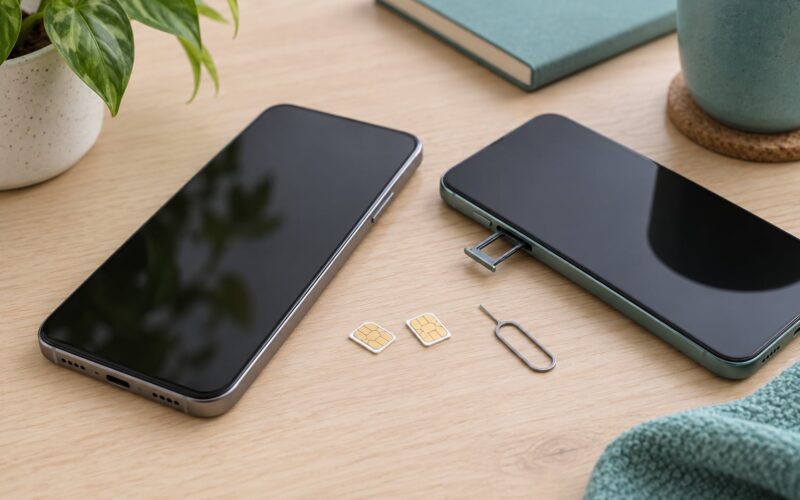
A SIM ejector tool is only needed if your model has a removable SIM tray. Most phones since around 2018 use an eSIM or a tray without a tool, and those should not be pried open with a paperclip.
Know which carrier you are on and, ideally, your account PIN or the phone number on the line. Menu names shift between iOS and Android versions, so I give the path for each and the label to look for.
Step-by-Step
1. Check Airplane Mode and Cellular Settings
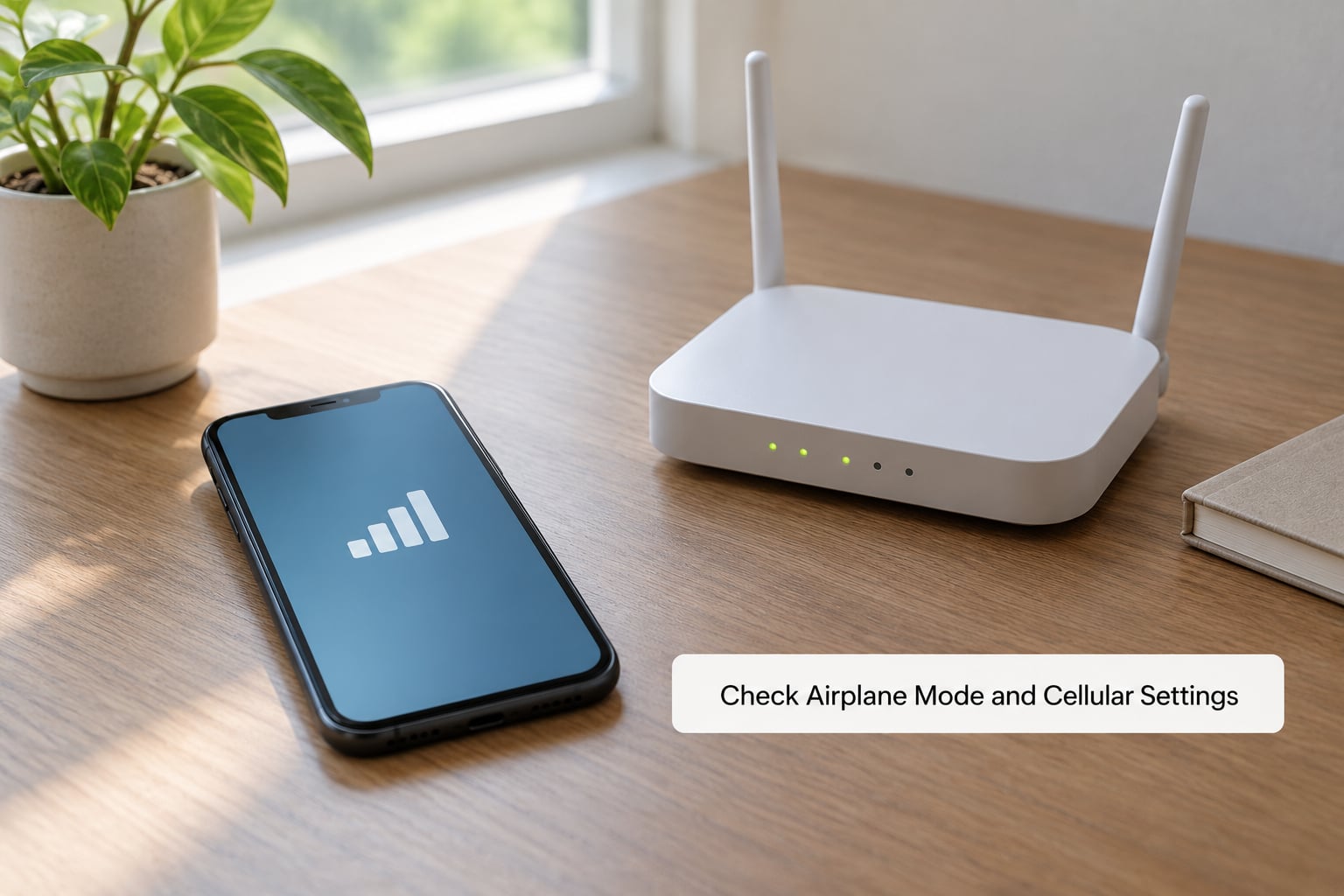
Start here because it costs five seconds and it is the most common answer. On iPhone, swipe down from the top right corner for Control Centre and tap the airplane icon until it turns off. On Android, swipe down twice for the full quick settings panel and tap Airplane mode off.
Then confirm cellular itself is switched on: iPhone, Settings, Cellular, Cellular Data. Android, Settings, Connections, Mobile networks, Mobile data.
Toggle airplane mode on for ten seconds and off again. That forces the radio to shut down and re-register with the network, which fixes a surprising share of stuck cases. If signal bars return, you are done.
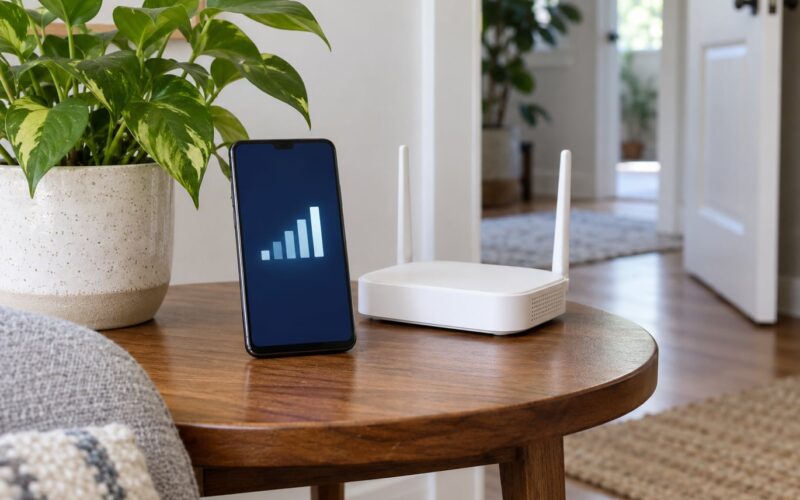
One catch: visible bars do not guarantee voice service. A phone can show four bars, register on the network, and still be unable to place a call if the tower is congested or your line is restricted.
2. Check Whether the Outage Is Affecting Your Area
Before touching settings, find out whether the problem is even yours. Open your carrier’s app or status page, or search for their outage map plus your city, and check whether maintenance or a network issue is reported.
Forum threads about this problem repeat one pattern: a whole neighbourhood loses service at once, sometimes affecting people on different carriers because a shared site or its backhaul is down.
Two quick tests tell you a lot. Make a Wi-Fi call. If it works, your line is fine and the radio is failing. Then step outside and try again, because basements, lift lobbies, garages and thick concrete are genuine dead zones.
3. Reseat or Check the SIM Card
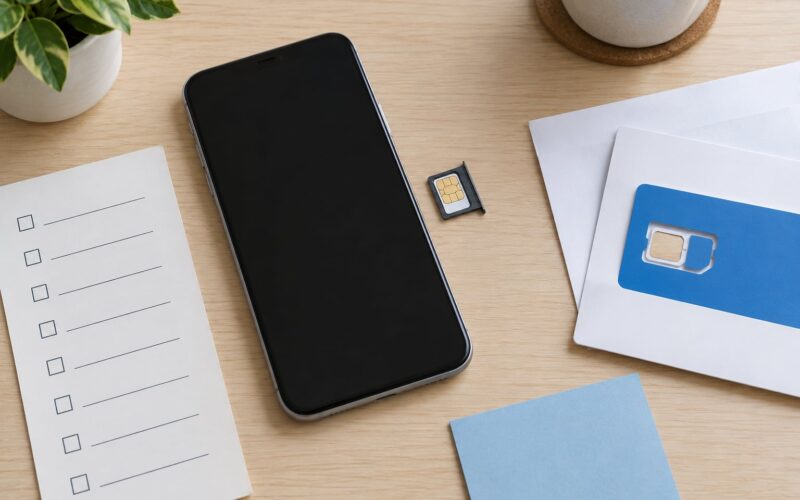
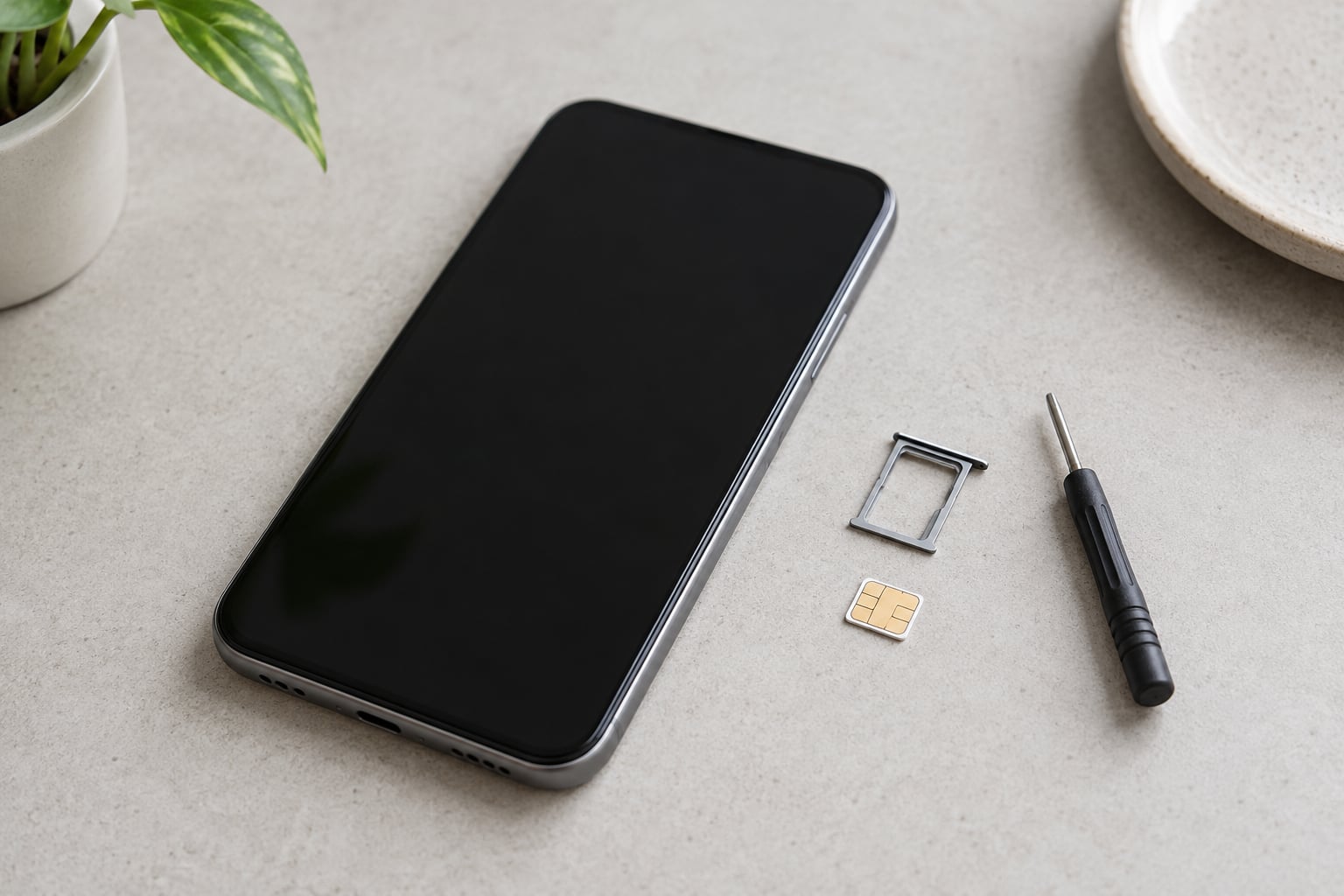
On a phone with a removable SIM, power it off first, then pull the tray with your ejector tool. Hold the card by the edges and check the gold contacts for dust, lint or a greenish oxidation, and wipe them gently with a dry cloth. Never use alcohol or a sharpened edge.
Slide the tray back in so the card sits flat and aligned with the socket, then restart. If the tray feels loose or the card wiggles when seated, that misalignment alone can stop a phone registering.
eSIM devices skip all of this. There is no card to reseat, so treat them as software: check the mobile plan is active and switch the line off and on in Settings, Cellular or Mobile network settings. Never open an eSIM phone to look for a card.
Success looks like the carrier name appearing at the top of the status bar within a minute of restarting.
4. Select the Correct Network and Check APN Settings
Sometimes the phone is stuck on an operator that is no longer serving your area. On iPhone, open Settings, Cellular, Network Selection, then turn Automatic off, wait for the list, pick your carrier manually, and turn Automatic back on afterwards.
On Android, the path is Settings, Connections, Mobile networks, Network operators, Search networks. Choose your carrier by hand, then switch back to automatic once it connects.
APN settings only matter for mobile data, not calls, and only when your carrier gave you a custom profile. Check iPhone, Cellular, Cellular Data Network, or Android, Access Point Names. Leave these alone unless your carrier told you the values, because editing them breaks data on a phone that otherwise has voice service.
Understanding the difference helps: no signal means no bars at all, no mobile data means bars but no internet, and failed calls alone points to account or provisioning rather than radio hardware.
5. Restart the Phone and Update Its Software
A normal restart clears the network stack in memory. Hold the power button on Android, or Side plus Volume Up on iPhone, slide to power off, wait ten seconds and switch it back on.
If it is fully stuck, force restart instead. On most iPhones, press Volume Up, then Volume Down, then hold Side until the Apple logo appears. On Samsung, hold Side plus Volume Down for about seven seconds.
Then install updates. iPhone: Settings, General, Software Update. Android: Settings, System, System update, or tap the notification when Android tells you an update downloaded. Many cases that began right after an update are cleared by installing the follow-up patch.
Back up anything you cannot lose before a large update or any reset, and never interrupt an install midway.
6. Check for a Carrier Settings or Network Profile Problem
Every carrier ships a settings profile that tells your phone which bands to use and how to register. When it is missing, stale or wrong, the phone shows no service with nothing else visibly wrong.
iPhone: Settings, General, Transfer or Reset iPhone, Reset, Reset Network Settings. You will lose saved Wi-Fi passwords, Bluetooth pairings and any VPN profile, so note them down first. Android equivalents vary by maker: Samsung has Settings, General Management, Reset, Reset Network Settings; Pixel and most stock devices put Reset Wi-Fi, mobile and Bluetooth under Settings, System, Reset options.
After the reset, reconnect to Wi-Fi manually and let the carrier profile reinstall on its own. This step fixes a large share of cases where the phone worked fine until a bad update.
7. Check for a SIM, Account, or Billing Hold
An unpaid bill, a paused plan, a line ported out to another carrier, or an account flagged for fraud will all produce no service while the hardware is perfectly fine. Unpaid bills and port-out locks are two causes most guides skip, and both are resolved in minutes once you see them.
Log into your carrier’s app or website over Wi-Fi and look at the line status, billing history and any notices. Confirm the phone number on the account matches the one in Settings, Cellular or About, because swapping phones and swapping numbers are easy to mix up.
If the account looks fine, contact support with your IMEI and account PIN ready. On iPhone the IMEI is under Settings, General, About; on Android, Settings, About phone, Status, IMEI.
8. Test the Phone Without the Case or Accessories
A thick case with a metal plate, a magnetic mount or a credit in the wallet can block antenna contact. Take the phone out, remove the case and any accessory, and test again in the same spot where it failed.
Inspect the SIM tray and slot for grit or bent pins, and check the phone’s charging port for lint, which can draw power and cause a phone to die or drop the network under load.
If the phone has been wet, power it off and do not charge it. Do not open it, and do not put it in rice. Dry it, leave it powered off for at least 48 hours, then test. Water damage rarely shows a warning before the cellular path starts misbehaving.
9. Check for a Region, Roaming, or SIM Compatibility Lock
If service vanished after you travelled, moved countries or switched carriers, compatibility is the likely culprit. Some carriers lock phones bought elsewhere, and some networks use bands your handset does not support, so it registers with nobody.
On iPhone, check Settings, Cellular, Cellular Data, Network Selection. If a new carrier is listed, tap it. On Android, Settings, Connections, Mobile networks, Network operators, and confirm roaming is on if you are outside your home country.
Your carrier can confirm the IMEI status and whether the phone is paid off and unlocked. An unlock helps you use another carrier; it does nothing for an outage, and be cautious with any service claiming to unlock devices for a fee. On eSIM devices, a travel line needs its own activation and profile download, which can take a while.
10. Contact Your Carrier or Arrange Repair
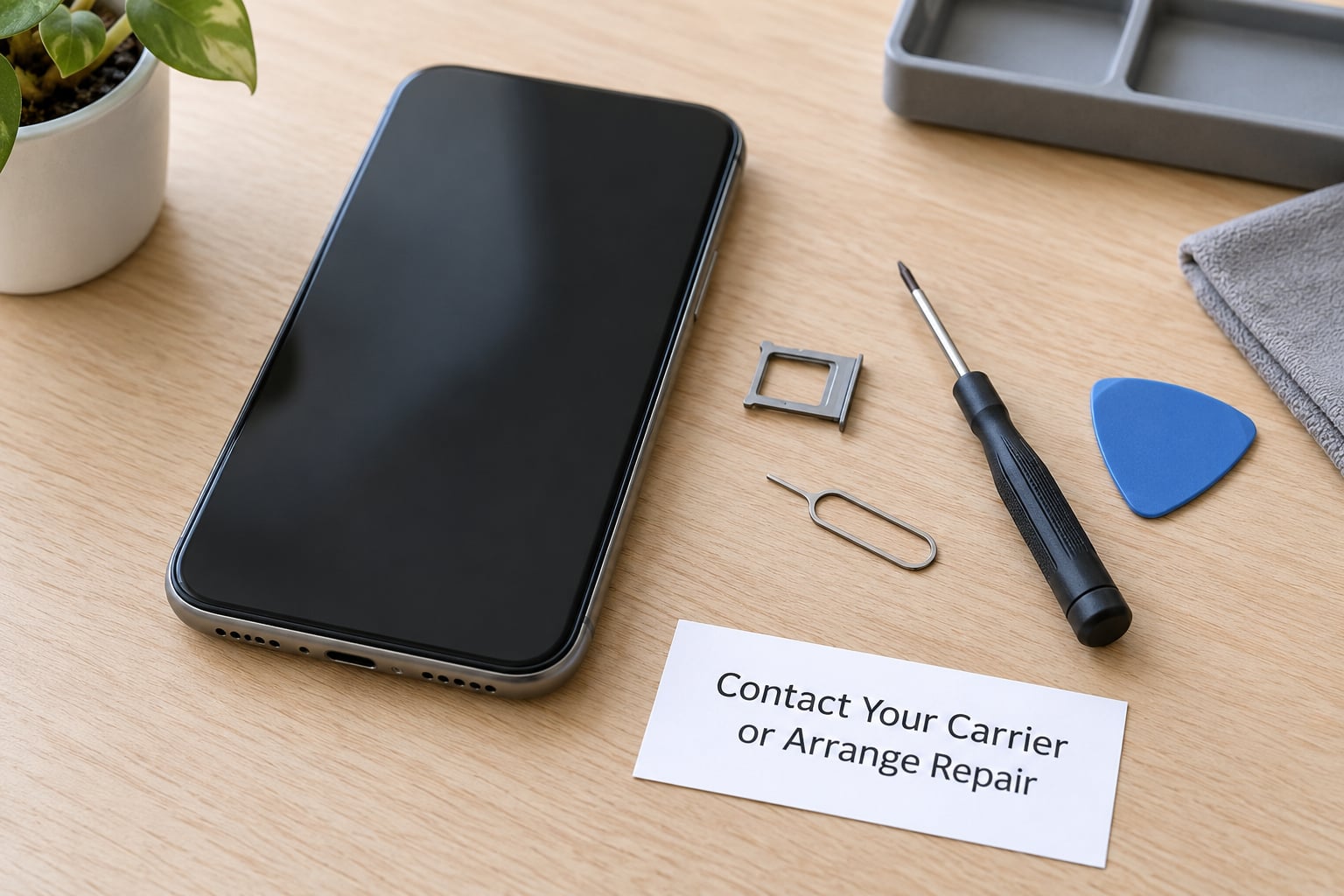
If you have reached this point with the phone on Wi-Fi only, the failure is below the software layer. Have ready: phone model, exact message from the status bar, the line number, your location, your IMEI, and a list of what you already tried. Support can usually skip straight to the right department with that, and it shortens a call that would otherwise run long.
Ask the carrier to re-provision the line and re-push the carrier profile, and to check for a network-side registration block. A new SIM costs nothing or very little in most cases, so request one before considering anything more invasive.
Repair is the right next step when service never returns after a drop, a screen or back-cover replacement, or a water exposure, and also when another SIM shows the same failure in the same phone. Post-repair antenna or connector damage is common enough that it deserves its own mention: a screen swap should never cost you cellular reception, so go back to whoever did the work.
Stop the DIY at that boundary. Opening a modern phone risks the battery, the seals and your warranty, and board-level modem work is a technician’s job.
Common Mistakes
Factory resetting first. A factory reset is the last resort, not the first move. It erases photos, messages and authenticator apps, and most no-service cases never needed it. Reset network settings first, which is far narrower.
Installing third-party phone repair software. Plenty of these apps exist to sell you a fix, and several of them request full device access or push a firmware file. None of them can register a SIM or fix a radio. Avoid them.
Borrowing a random SIM to test. A SIM from another carrier or another account may simply be incompatible with your phone, which tells you nothing. Test with a SIM from your own carrier, on your own account, ideally in a second device.
Editing APN settings on a hunch. APN only affects mobile data. If you still have voice, changing it can make things worse. Ask your carrier for the values first.
Opening a water-damaged phone. Once liquid has entered, opening it spreads corrosion and can damage the battery. Power it off and let it dry.
Ignoring the location test. Standing in a basement and concluding the phone is broken wastes hours. Step outside first, then judge.
One habit worth keeping: note where and when the signal drops. A pattern tied to time of day usually means network congestion, and a pattern tied to a room usually means coverage.
Frequently Asked Questions
Why did my phone lose service right after a software update?
Updates replace your carrier profile along with the system files, and a failed or partial install leaves the radio unable to register. Install any pending follow-up update first, then reset your network settings so the carrier profile is downloaded clean. If the message appeared straight after the update and both steps fail, a repair shop can reinstall the firmware without touching your data.
Why is my dual-SIM phone showing no service on only one line?
One failing line usually means a problem with that line rather than the phone. Check the settings screen to see which slot holds the failing SIM, confirm that line is active and paid on your account, and reseat a physical card in that slot. If the second line works fine, the radio, antenna and phone hardware are almost certainly healthy.
Why does my prepaid phone show no service when my plan has credit?
A prepaid line can be active and still fail to register if the account is in a grace period, the balance has not refreshed, or the previous plan’s tokens are still loaded on the handset. Switch the line off and on in mobile network settings, restart the phone, then ask the carrier to refresh or reprovision the line. This is common on mobile virtual network operators.
Why does my phone show no service when I travel abroad?
Roaming needs to be enabled, your carrier must have a roaming agreement covering the country, and your handset must support the bands used there. Some phones also need the network set manually because automatic selection lands on an operator your plan cannot use. If service fails only outside your home country and works normally at home, the phone is fine.
How do I tell whether it is the SIM, the carrier, or the phone?
Borrow a SIM from your own carrier and put it in a second device at the same spot. If that device also fails, the problem is the tower or your line. If the second device works and your phone still fails with the same SIM, the fault is in your phone. If the problem follows you rather than the location, suspect the device; if it stays with the location, suspect the network.
Conclusion
Why does my phone show no service? In most cases the answer is short: airplane mode left on, an outage in your area, a phone that needed a restart, or a SIM or account that has not registered properly.
Work those four first, then move down the list. Call your carrier once the SIM, the account and every network setting have been checked, or if the same failure follows the phone into another location or another SIM. That is the point where the problem is no longer one you can fix from the settings menu.