Tablets freeze when the operating system runs out of free storage or memory, hits a buggy app, overheats, or hits a failing battery or screen. In most cases a force restart clears it, and the real fix is whichever of the six steps below matches your symptoms.
The annoying part is that freezing is intermittent. It might happen while opening an app, halfway through a video, or only after the tablet has been on for an hour. That makes it hard to test a fix, which is why guessing wastes days. Work the steps in order, change one thing at a time, and note when the freeze happens. All the menu paths below name the platform they apply to, because a Samsung tablet and an iPad do not share a settings layout.
If your tablet is not answering touch but the sound keeps playing, skip to when freezing means the tablet needs repair — that pattern points at the touchscreen rather than software.
Table of Contents›
- What You Need
- Why Does My Tablet Keep Freezing? Start With the Symptoms
- Step-by-Step: How to Fix a Freezing Tablet
- 1. Restart the Tablet Correctly
- 2. Close or Restart the App Causing the Freeze
- 3. Free Up Storage and Reduce Background Activity
- 4. Check for Overheating, Battery, and Charging Problems
- 5. Update the Tablet and Uninstall Problem Apps
- 6. Reset Settings or Perform a Factory Reset as a Last Resort
- Common Mistakes That Make Freezing Worse
- When Freezing Means the Tablet Needs Repair
- Frequently Asked Questions
- Why does my tablet freeze when charging?
- Does low storage cause a tablet to freeze?
- Will restarting my tablet delete anything?
- Is an old tablet more likely to freeze?
- Can a factory reset fix a tablet that keeps freezing?
- Conclusion: Start With a Restart and Test One Change at a Time
What You Need
You do not need tools for most of this. You do need a few things in place before you start, because half of the standard advice fails when the basics are missing.
- The charger and cable that came with the tablet, or the same rated replacement. A weak cable causes charging stalls and heat, which look like freezing.
- A stable internet connection, either Wi-Fi or mobile data. Updates and cloud backups stall without one, and a half-downloaded update can leave the tablet unable to boot properly.
- Your tablet model and operating system version. On Android: Settings, then About phone or About tablet. On iPad: Settings, then General, then About. Write both down.
- A rough timeline of the freezes — which apps, how long the tablet has been on, whether it happens on Wi-Fi only.
- 15 to 30 minutes for the basic diagnostics. Nothing in the first five steps takes longer than a coffee break.
If the tablet has been sitting unused in a drawer for months, charge it to full first and let it sit on the cable for an hour before you diagnose anything. A flat or deeply discharged battery can behave exactly like a dead tablet.
Why Does My Tablet Keep Freezing? Start With the Symptoms

The short answer: a tablet freezes when a process stops responding and the operating system cannot recover on its own. The most common triggers are memory pressure from too many background apps, storage sitting near full, a single buggy app, an operating system that is out of date, and heat. Less often it is a weak network, a failed update, malware, or failing hardware.
Match what you see in the table below to the step that fixes it, rather than reading every cause in order.
| What you see | Likely cause | Start here |
|---|---|---|
| Screen stuck, but audio or video still plays | App hung, or touchscreen digitizer fault | Step 2, then the repair section |
| Freezes only inside one app | That app is buggy or incompatible | Step 2, then Step 5 |
| Freezes when you open apps or switch between them | RAM exhausted by background processes | Step 3 |
| Slow and stuttering everywhere, storage bar nearly full | Low storage space, under 10 percent free | Step 3 |
| Hot to the touch, slows down after a while | Overheating and thermal throttling | Step 4 |
| Freezes only while plugged in | Charger, cable, or battery wear | Step 4 |
| Began within days of a system update | Buggy update or app incompatible with new OS | Step 5 |
| Freezes on Wi-Fi while streaming or browsing | Weak or fluctuating signal, app data overload | Step 5 and Step 3 |
| Battery drains fast, tablet dies suddenly | Battery health degradation | Step 4 |
| Freezes within seconds of every restart | Failed update or hardware fault | Repair section |
Two details worth keeping in mind. A force restart deletes nothing — no photos, no apps, no accounts — it just reloads the system in memory, which is why it is safe to try twice. And a restart that the tablet performs on its own within minutes means something is still wrong underneath.
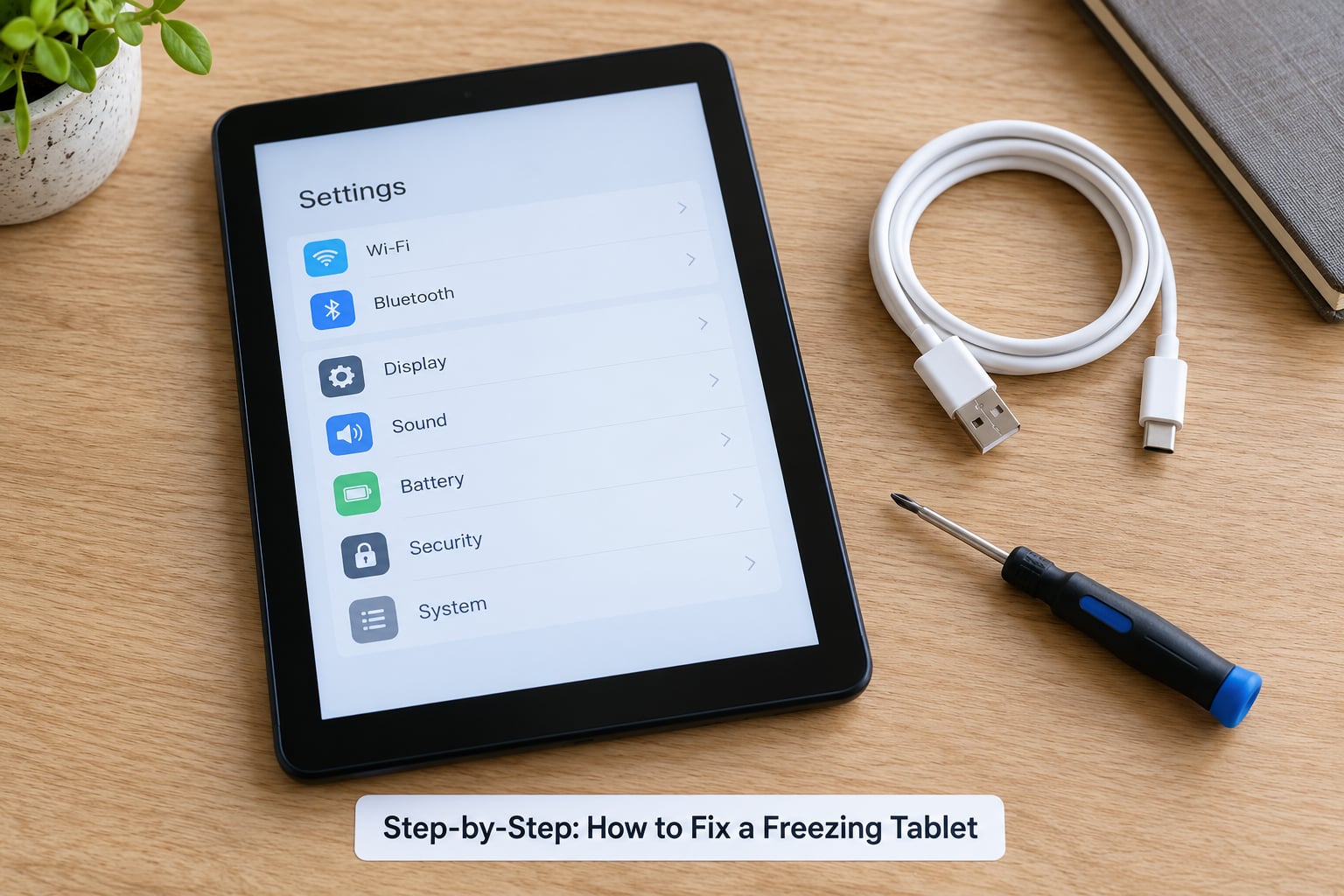
Step-by-Step: How to Fix a Freezing Tablet
1. Restart the Tablet Correctly
Start with a normal restart. On most Android tablets, swipe down from the top, tap the power icon, then tap Power off, wait ten seconds, and press the power button. On an iPad with a home button, press and hold the top or side button until the slider appears, slide it, wait, then press the button again. On a Windows tablet, go to Start, select Power, then Shut down — a full shutdown clears more state than a sleep and wake cycle.
If the screen will not respond to touch at all, do a force restart. The button combination differs by brand, so use the one that matches your device:
- Samsung Galaxy Tab and most Android tablets: hold Power plus Volume Down for about 7 to 10 seconds until the device vibrates or the logo appears, then release.
- iPad with a home button: hold the top button (or side button on newer models) plus Home for 10 to 15 seconds until the Apple logo appears.
- iPad without a home button: press Volume Up once, then Volume Down once, then hold the top button until the Apple logo appears.
- Amazon Fire tablet: hold Power plus Volume Down for about 40 seconds until the screen flickers or the Fire logo shows, then release and wait a minute.
- Lenovo and other Android tablets: hold Power for 15 seconds, and if nothing happens, hold Power plus Volume Up for 30 seconds.
A normal restart is enough when the tablet was merely overloaded. Signs that you need a forced restart: the screen is frozen mid-animation, taps do nothing, but the power button or volume buttons still react. How do you tell the fix worked? Use it normally for a day. If the freeze returns in minutes, move to Step 2; if it does not return for days, the cause was almost certainly a hung process.
2. Close or Restart the App Causing the Freeze
Decide first whether the freeze is one app or the whole tablet, because the fix differs. If every app freezes, the cause is system-level. If only one freezes, you can fix that one thing.
To force-close an app: on Android, open the recent apps view (the square button, or swipe up and hold), swipe the app card away, and confirm close. On iPad, swipe up from the bottom bar without releasing, pause on the app card, then swipe it up. On Fire OS, open the app switcher by swiping up from the middle of the screen, then swipe the app away.
Now reopen it and try the task that froze it. If it freezes again in the same spot, update the app from the store, then uninstall and reinstall it. Reinstalling clears corrupted app data while leaving your accounts alone, since your login lives in the cloud or in the other apps. If the app is no longer supported on your tablet — common on older devices — look for a Lite version in the store, which is built for lower memory and weaker processors.
Forum threads from Amazon and Reddit repeat one pattern: people are told to reboot, they reboot, and the freeze comes back because it was never the system. If your freeze is confined to a single app, skip the general steps and work here first.
3. Free Up Storage and Reduce Background Activity
Check your free space. On Android: Settings, Storage, then the internal storage bar. On iPad: Settings, General, iPad Storage. Keep at least 10 to 15 percent of total storage free. Below that, the system cannot write temporary files, so it stalls when you open anything new.
To free space safely:
- Delete downloads, old installers, and files in the Files or My Files app.
- Clear app caches. On Android: Settings, Apps, choose the app, Storage, Clear cache. On iPad: open the app, wait, long-press it off the home screen, delete the app, and reinstall it from the App Store — that is the iPad equivalent of clearing cache.
- Review the apps you never open. Social, shopping, and streaming apps are the ones that build cache fastest.
- Watch video at lower quality in streaming apps, and set download quality to a lower tier in the app settings.
Next, cut background work. On Android: Settings, Battery, Battery usage, then turn off or restrict apps you rarely use, and set Background activity or Background restriction for the heaviest ones. On Samsung One UI, also check Settings, Device care, Memory, and close apps running in the background. On iPad, there is no background app switch, so the practical lever is uninstalling apps you do not use.
Be careful with cleaner apps from the store. Users on tech forums raise the same worry repeatedly: many are ad-heavy and ask for permissions they have no business holding. Use the built-in storage tools instead. And never delete a folder in your file manager whose name you do not recognise — that is how people remove system files and cause real problems.
You should notice less stutter within a session, and longer uptime before the first freeze. If nothing changed at all, storage was not the trigger.
4. Check for Overheating, Battery, and Charging Problems
Heat causes thermal throttling: the processor deliberately slows down to stay within a safe temperature, and that shows up as lag, stutter, and freezing. It gets worse in hot weather, under a thick case, while fast-charging, and during long gaming or video sessions.
Check the temperature by feel first. Warm is normal. Too hot to hold comfortably for more than a few seconds is not. If that is the case: take the case off, move the tablet out of direct sun, stop gaming or streaming for a while, and let it cool on a hard surface with airflow. Never charge it under a pillow or inside a bed — that is how batteries get damaged.
For battery and charging problems, work through these:
- Charge with the cable and adapter rated for the tablet. An underpowered charger makes the tablet sip power, run hot, and report odd battery behaviour.
- Inspect the cable and the port. A frayed cable, a bent connector, or lint packed into the charging port causes intermittent charging, heat, and restarts. Lint you can see or gently remove with a wooden toothpick; do not use metal.
- Watch for a swollen battery: the back panel lifting, the screen no longer sitting flush, or a case that suddenly feels loose. Stop using the tablet and stop charging it if you see this.
- On iPadOS, check Settings, Battery, Battery Health and Charging. On Samsung, open the Samsung Members app, which includes a battery diagnostics panel on supported models.
Unplug the tablet and leave it alone if the charging port feels loose, smells odd, or the tablet is too hot to touch while unplugged. Those are hardware faults, not settings problems.
5. Update the Tablet and Uninstall Problem Apps
Outdated system software is a real cause. Updates fix known bugs, patch security holes, and often include performance work for the hardware in your model. Check for one: on Android, Settings, System, System update. On Samsung, Settings, Software update. On iPad, Settings, General, Software Update. On Fire tablets, Settings, Device Options, System Updates.
Do not update with storage critically low. Clear at least 10 percent free first, plug the tablet in, and leave it alone until the install finishes. An interrupted update is a common reason a tablet starts freezing right after an update, or failing to boot properly at all.
Update the apps too, especially the ones that crashed the most. Many stores also offer an auto-update toggle: Google Play, tap your profile icon, then Manage and Auto-update apps. iPad updates run on a schedule you can set in Settings, App Store, App Updates.
If the freezing started right after a system update, two moves usually settle it. First, boot into safe mode and see whether the tablet still freezes there. On Android, hold Power to shut down, then hold Power plus Volume Down until the device boots; a Safe mode badge appears in the lower corner. Third-party apps do not load in safe mode, so a tablet that behaves normally in safe mode has an app problem. On some models you can also hold Volume Down during boot to reach a menu with Reboot into safe mode.
Next, run a security scan if you install apps outside the official store, and remove anything you do not recognise. Malware and unwanted background apps show up as constant background data use, pop-ups, and sudden slowness, and yes, they can cause a tablet to freeze. Then uninstall or disable the apps that keep freezing: force-close them, update them, and if that fails, uninstall and reinstall. If an app is essential, replace it with the Lite version.
If the tablet freezes in safe mode, skip the app work entirely and go straight to Step 4 and the repair section.
6. Reset Settings or Perform a Factory Reset as a Last Resort
Two different things, with very different consequences. A settings reset puts system preferences back to their defaults and removes nothing you created. A factory reset erases everything on the tablet.
Reset only the settings first. On Android: Settings, System, Reset options, Reset Wi-Fi, mobile and Bluetooth settings — and for Samsung, also Settings, General management, Reset, Reset system settings. On iPad: reset individual items such as network settings, keyboard dictionaries, or location from Settings, General, Transfer or Reset iPad.
Before any factory reset, run this checklist:
- Back up photos, videos, documents and downloads to a computer or cloud service, and open a few of them to confirm they transferred.
- Note which accounts are signed in, and make sure you know the passwords. Two-factor authentication can block a reset device from signing back in.
- Write down Wi-Fi passwords and any Bluetooth pairing details.
- Confirm free space for the backup exists somewhere else first. Resetting frees up storage but not your data.
Then reset. Android: Settings, System, Reset options, Erase all data, confirm, and wait for the tablet to restart and run its setup screens. iPad: Settings, General, Transfer or Reset iPad, Erase All Content and Settings. Fire tablets have no factory reset option in settings, so the supported path is to hold Power plus Volume Down for about 40 seconds, then choose Erase, or use the Fire OS recovery options on the device.
If it still freezes after a factory reset, stop. Software is no longer the explanation.
Common Mistakes That Make Freezing Worse
Almost every wasted troubleshooting session I have read about online comes down to one of these six.
Tapping a frozen screen repeatedly. Hammering the glass accomplishes nothing and can trigger accidental taps. Force restart instead. The screen is already locked up, so there is no input reaching the system.
Using an underpowered charger. A tablet drawing more current than the adapter supplies will run hot, charge slowly, and sometimes reset itself mid-session. Match the rated charger.
Deleting folders you do not recognise. Plenty of system directories look like clutter. Delete app caches from Settings, never unknown folders from the file manager.
Installing several cleaner apps. These add background activity, which is one of the causes you are trying to remove. Use the storage tools built into the tablet.
Running an update with storage nearly full. The install needs room to stage files. Free up 10 percent first, then update.
Resetting before testing the simple causes. A factory reset destroys evidence. Note when the freeze happens and which apps are open first, because you will not be able to test that pattern again afterwards.
Two more habits worth dropping: leaving the tablet in a hot car or on a heated surface, and using a screen protector so thick that the digitizer struggles in corners. Both cause problems people usually blame on the operating system.
When Freezing Means the Tablet Needs Repair
Software fixes have a ceiling. These signs mean you are past it:
- The screen stops responding to touch but buttons, audio, and video still work. Multiple owners describe exactly this on Lenovo and Samsung tablets, and it is a digitizer or connection fault, not an app problem.
- A swollen battery, a lifting back panel, or a screen no longer sitting flat.
- Charging that only works at a particular cable angle, or not at all.
- Corruption right after a drop or liquid exposure: apps that crash on open, random restarts, files that will not open.
- A tablet that freezes within seconds of every start, including from a full factory reset.
- Restart loops that return even after safe mode runs clean for a day.
Before contacting anyone, collect what support will ask for, because most forums and help desks will ask anyway: the exact model, the operating system version and date of the last update, how much storage is free, which apps were open when it froze, whether safe mode behaved differently, and whether the tablet has been dropped or wet. Screenshots of the About page and the storage screen cover most of it in one shot.
Then use the warranty first. Consumer tablets usually carry a limited hardware warranty, and screen and battery faults are common claims. Manufacturer support can also run diagnostics you cannot access. Outside warranty, a qualified repair service can replace a battery, charging port, or digitizer, which is usually cheaper than replacing the tablet. If repairs cost more than a comparable replacement is worth, replacing it makes more sense.
On lifespan, the honest answer is that quality varies enormously by model, battery cycles, and storage type. A well-kept tablet that stays clear of heat and gets its software updated will outlast one that is never charged below 20 percent. What matters more than a number is the pattern: a tablet that needs a restart every few days, or that is more than three years past the end of its security updates, is usually telling you it is near the end of its useful life rather than having one fixable fault.
Frequently Asked Questions
Why does my tablet freeze when charging?
Heat is the usual reason. Charging raises the battery temperature, and a hot tablet slows its processor on purpose to stay safe, which shows up as lag and freezing. Second on the list is a worn battery or a damaged cable drawing uneven current. Try a different rated cable and adapter, remove the case while charging, charge on a hard surface with airflow, and never charge under bedding. If it still freezes on power, the charging circuit or battery needs service.
Does low storage cause a tablet to freeze?
Very often, yes. When free storage drops under about 10 to 15 percent, the system cannot create the temporary files apps need, so opening anything stalls. Watch video and downloads in a lower quality setting, delete old files, clear app caches from Settings, and uninstall apps you never open. On an iPad, Settings, General, iPad Storage shows what is taking the space and where.
Will restarting my tablet delete anything?
No. A restart and a force restart both reload the operating system from scratch, and nothing you have saved or downloaded is deleted. Accounts, apps, photos and files all survive. The only time you lose data is a factory reset, which erases the tablet, so back up before that one and keep the backup somewhere other than the device.
Is an old tablet more likely to freeze?
Yes. Older tablets have less memory and slower processors, so the same apps leave less headroom, and they often run for years without security or performance updates. That also means new app versions can outpace the hardware. Keeping 10 to 15 percent storage free, limiting background apps, and using Lite versions of demanding apps buys you a lot more time. Once a tablet needs restarting every few days, or has gone years without updates, replacement is usually the better use of money.
Can a factory reset fix a tablet that keeps freezing?
It clears corrupted files, bad updates and misbehaving settings, so it fixes a large share of software freezes. It does nothing for a worn battery, a failing charging port, or a dead touchscreen. Only try it after the lower-risk steps fail, and back up first. If the tablet freezes again within days of a clean reset with nothing restored, that is strong evidence of a hardware fault and time to contact the manufacturer or a repair service.
Conclusion: Start With a Restart and Test One Change at a Time
If you want to know why does my tablet keep freezing and want it handled in one sitting, do this. Force restart with the button combination for your brand. Then use it normally and watch which app, if any, freezes next. Check free storage and get above 10 percent, cut background activity, and feel the back of the tablet for heat. Update the software and the apps that misbehave, and use safe mode to confirm an app is the culprit. Only when all of that fails do you consider a settings reset, then a factory reset with a verified backup. If it still freezes after a clean reset, or the screen has stopped responding to touch while sound still plays, it is a hardware fault and it needs a repair shop or the manufacturer, not more troubleshooting.