If you want to improve Wi-Fi signal on a phone, the fastest wins usually come from three places: picking the right frequency band, resetting the phone’s network stack, and fixing where the router sits or which channel it uses. Most people can get a usable connection back in under ten minutes, and almost all of it is free.
Here is the order I would work through it. Start at step 1 and stop as soon as a speed test tells you things are back to normal — there is no point changing router settings if the problem was a stuck Wi-Fi connection on the handset.
Table of Contents›
- What You Need
- Step-by-Step: How to Improve Wi-Fi Signal on a Phone
- 1. Check the Wi-Fi connection and restart the phone
- 2. Move closer to the router and test the signal
- 3. Change the Wi-Fi band on a dual-band router
- 4. Use the correct Wi-Fi settings on Android and iPhone
- 5. Reduce interference from nearby devices
- 6. Improve router placement and signal coverage
- 7. Update the phone and router software
- 8. Reset network settings and optimize the phone
- 9. Upgrade or add mesh coverage when needed
- Common Mistakes
- Frequently Asked Questions
- Why does my phone show full Wi-Fi bars but the internet is slow?
- Is 5 GHz or 2.4 GHz better for a phone?
- Does using mobile data improve Wi-Fi signal?
- Can a VPN slow down Wi-Fi on a phone?
- Should I buy a Wi-Fi signal booster?
- Conclusion
What You Need
Not much. Before you change anything, you need four things in reach:
- The phone itself, plus the password for your network. Menu names below are written for current Android and iOS; Samsung, Pixel and Xiaomi each label things slightly differently.
- The router and the phone number printed on its label if you want to read manual settings such as channel width.
- Access to the router admin page, usually
192.168.0.1or192.168.1.1in a browser, with the admin credentials from the sticker. If you rent and control nothing, skip every router step and go straight to step 9. - A speed test — the browser-based test from your ISP or any reputable speed test app — plus a second phone or laptop, so you can tell whether the problem is the network or your handset.
Write down your current download speed first. Without that baseline you cannot tell whether a change worked, and you will end up fiddling for an hour with nothing to show for it.
Step-by-Step: How to Improve Wi-Fi Signal on a Phone
1. Check the Wi-Fi connection and restart the phone
Toggle Wi-Fi off, wait ten seconds, and turn it back on. If that does nothing, forget the network and rejoin it: on iPhone, tap the i beside the network name and choose Forget This Network, then re-enter the password. On Android, long-press the saved network, tap Forget, then reconnect from the network list.
Restart the phone properly afterwards — a full shutdown and power-on, not just a lock and unlock. A restart forces the Wi-Fi radio and the network stack to reload, which clears a surprising number of stuck-connection problems.
Now check whether the problem follows you or stays at home. If the same network is fine on your laptop and weak on the phone, keep going. If every Wi-Fi network is slow on the phone and fine elsewhere, you have narrowed it down a lot.
2. Move closer to the router and test the signal
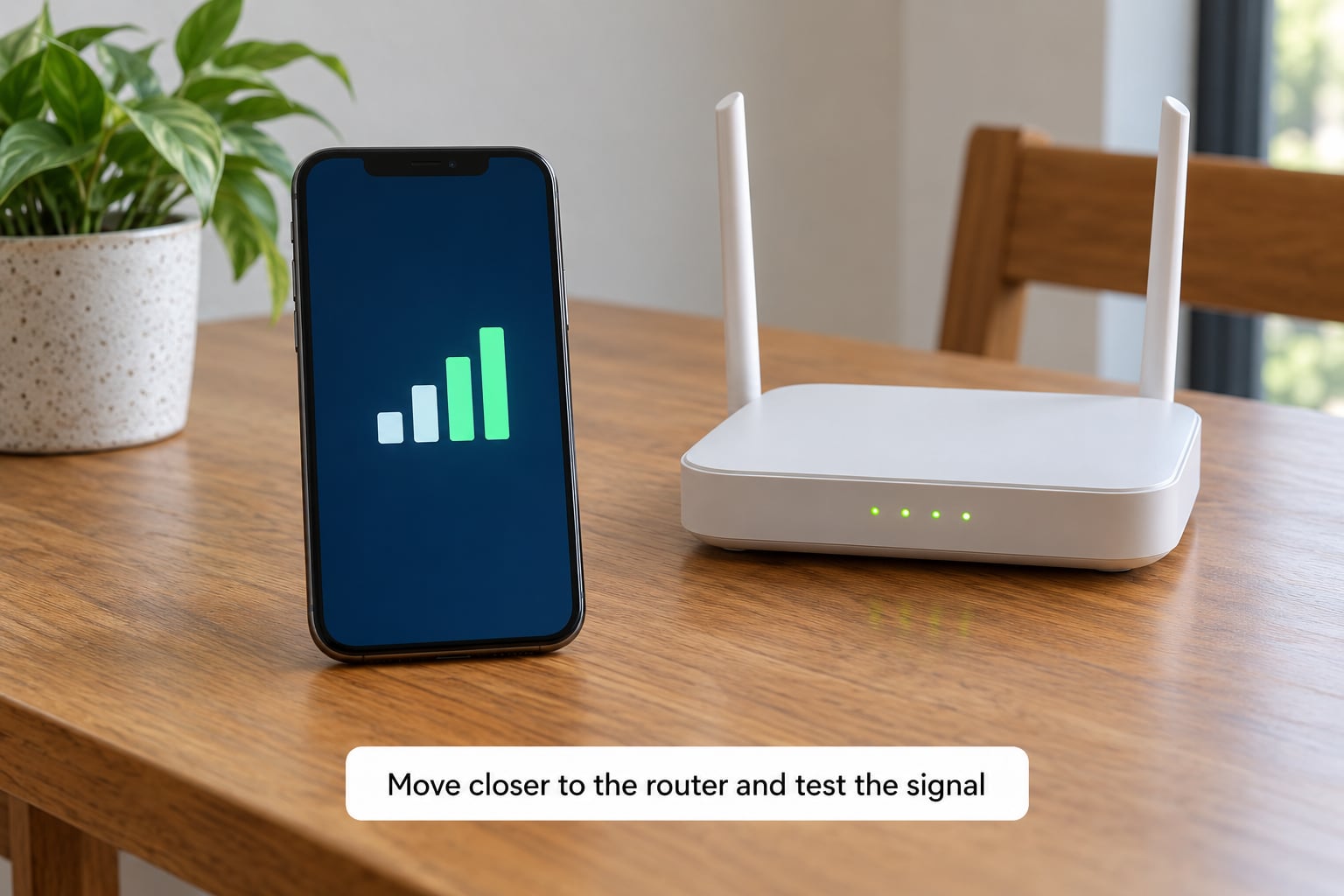
Signal weakens with every metre and with every wall. Stand next to the router and run a speed test, then walk to the room where the connection is bad and run it again. That difference is your entire problem in one number.
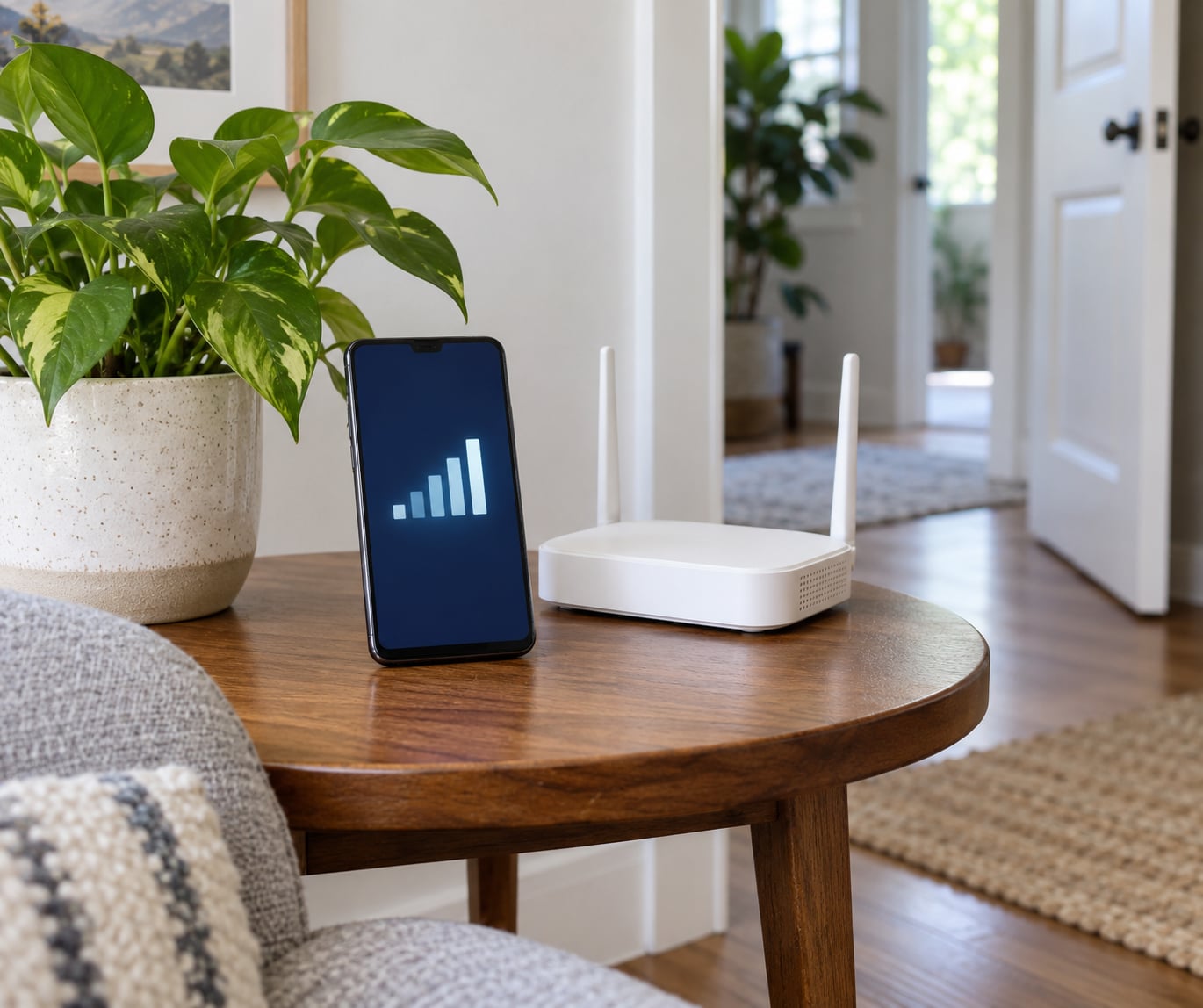
The bars in your status bar measure the radio signal, reported as RSSI in dBm — roughly -50 is excellent in the same room, -67 is workable, -70 is marginal, and -80 or worse means you are on borrowed time. Two caveats: the bars are coarse and identical for anything between -60 and -65, and a strong signal on a congested channel still gives you a slow connection.
If the near-router test is also slow, the problem is not signal strength. Move on to steps 4 and 8, because it is congestion or a phone setting.
3. Change the Wi-Fi band on a dual-band router
Most routers broadcast two or three bands under one network name. 2.4 GHz reaches further and punches through walls better, but it is crowded — neighbours in an apartment block share it. 5 GHz is much faster and cleaner but gives up range quickly. 6 GHz, on Wi-Fi 6E and Wi-Fi 7 routers, is the cleanest of all and barely leaves the room.
Pick 5 GHz when you are in the same room or one nearby and you care about speed. Pick 2.4 GHz in a basement, a far bedroom or a thick-walled flat. If the router merges both bands under one name, split them in the admin page and join the better one directly — a separate 5 GHz network name, or scan the QR code on the router’s sticker.
On a Samsung phone, Settings > Connections > Wi-Fi > the three-dot menu > Advanced > Wi-Fi Assistant lets you set Prefer 5 GHz. Otherwise, split SSIDs are the reliable route.
4. Use the correct Wi-Fi settings on Android and iPhone
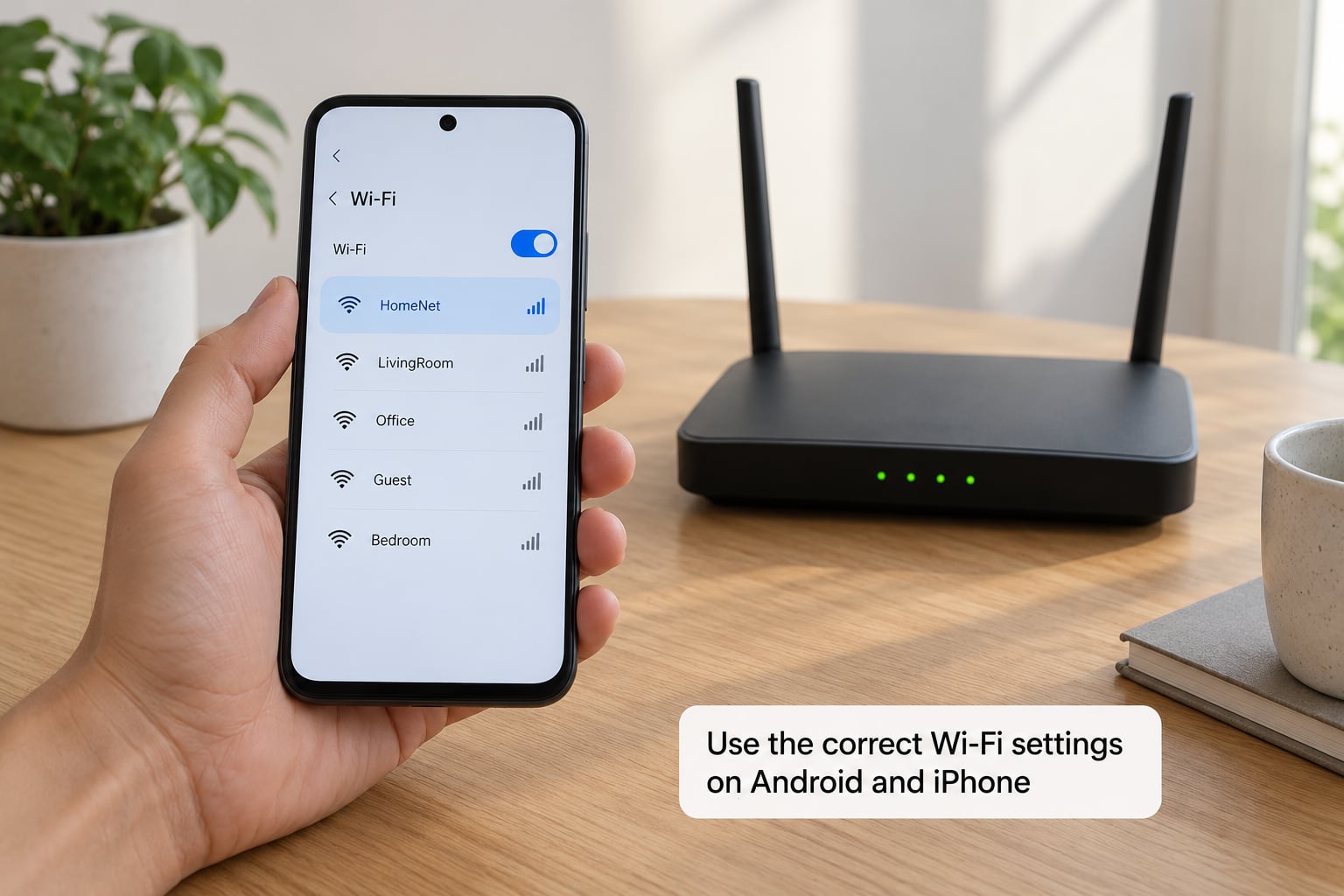
On Android, the network controls sit under Settings > Network & internet > Wi-Fi. Tap the network name to confirm it is on “Connected”, then check the three-dot menu for saved-network options, Wi-Fi scanning refresh and any “switch to mobile data automatically” setting — turning that off stops the phone quietly falling back to cellular.
On iPhone, the network list lives in Settings > Wi-Fi with the (i) button beside each network. Turn off Auto-Join for any network your phone grabs when it shouldn’t — the neighbour’s open Wi-Fi or a guest network is a common culprit. Wi-Fi Assist, under Settings > Cellular, decides when iPhone switches to mobile data on a weak network; leave it on unless you specifically want to stay offline.
Check Private DNS on Android under Settings > Network & internet > Private DNS, and make sure no VPN or ad-blocking app is running while you test. Both add a detour that can eat real speed.
5. Reduce interference from nearby devices
2.4 GHz sits in the same crowded part of the spectrum as cordless phones, baby monitors, Bluetooth speakers, wireless headphones and older microwave ovens. One neighbour on a channel next to yours halves your airtime, so your throughput drops even with full bars.
The fix is at the router, not the phone. Open the admin page, find the wireless channel settings and move 2.4 GHz off the crowded defaults of channels 1, 6 and 11 — pick one fewer used by neighbours. Set 5 GHz to a channel above 36 with an 80 MHz width. Reducing 5 GHz width to 40 MHz helps in very crowded flats, at the cost of peak speed.
Easy test while you are there: switch the microwave off and re-run the speed test. If numbers jump, you have found a physical obstruction and not a network one.
6. Improve router placement and signal coverage
Routers are sold to look tidy, and tidy usually means tucked on a shelf behind the TV. Move it up, into open air — roughly waist to ceiling height, in the middle of the floorplan, and out in the open rather than inside a cupboard or behind a television.
Keep it clear of metal, mirrors, thick plasterboard, refrigerator doors and large TVs. Wires and power adapters running right beside the antennas will heat the unit, and routers throttle themselves when they get hot, so give it airflow.
Walk the house with a Wi-Fi analyzer app open and note the reading in each room. Compare those numbers before and after you move the router — the before and after is what tells you whether the reposition was worth it.
7. Update the phone and router software
Phone updates carry Wi-Fi driver and firmware fixes that resolve real connection bugs, so install any pending system update before you start debugging. On Android it is Settings > System > Software update; on iPhone it is Settings > General > Software Update.
Router firmware matters just as much, because channels, band steering and stability bugs usually live there. The admin page or the manufacturer’s app will show it, and most modern routers can update themselves automatically — enable that if you would rather not remember. Restart both devices when the update finishes, not just the phone.
8. Reset network settings and optimize the phone
If forget-and-rejoin did nothing, reset the network stack. On iPhone: Settings > General > Transfer or Reset iPhone > Reset > Reset Network Settings. On Android: Settings > System > Reset options > Reset Wi-Fi, mobile and Bluetooth (Samsung) or Settings > System > Reset options > Reset all network and device settings (Pixel).
This wipes saved networks, passwords and any VPN or DNS configuration. You will re-enter every password once. Note that down first, and do it before step 9 rather than after.
While you are in Settings, also look at battery saver, which restricts background network activity on both platforms, and turn off app auto-updates over Wi-Fi if other devices in the house are slow too. On Android, Data Saver under Network & internet caps background data; on iPhone, Low Data Mode under Cellular does the same for cellular, not Wi-Fi.
9. Upgrade or add mesh coverage when needed
Phone-side fixes bottom out around step 8. Beyond that, the physics does not care about your settings: a basement under a concrete floor, or the far end of a three-storey house, needs more signal source, not a better phone setting.
Start with a wired test — plug a laptop into an Ethernet port near the router and speed test there. Slow there means the problem is the internet connection or the ISP, and no amount of Wi-Fi work will fix it. Fast there and slow on Wi-Fi means you need coverage.
From there, a mesh node or a second access point is more reliable than a cheap repeater, and a repeater placed badly can make things worse because it re-broadcasts on the same channel. If you run Ethernet back to a second router and set it to access point mode rather than router mode, you keep full speed and stop double NAT.
Replace the router when it is a non-Wi-Fi 6 model, when your ISP firmware is years old, or when it has no 5 GHz radio at all. Otherwise, upgrade coverage, not the box.
Common Mistakes
- Measuring only next to the router. If the speed is fine there, the signal strength in the target room is your problem, and no phone setting will fix it. Test in the failing room and compare.
- Changing five settings at once. You will not know which one helped. Make one change, run the speed test, then move on.
- Forcing 5 GHz everywhere for maximum range. It is the faster band and the shorter one. Distance and speed are the same trade-off as dark mode on battery.
- Restarting the phone repeatedly without recording the numbers. Restarting is worth doing once. Doing it five times while ignoring the results is just waiting.
- Blaming the phone when the problem follows the network. If the laptop is slow in the same room, the phone is fine. Go to steps 5 and 6.
- Buying a booster app. An app cannot add radio power to a phone that does not have an external antenna. The forums are full of people who paid for one and got nothing; the money goes to the developer.
- Trying aluminum foil on the router. It reflects radio energy away from itself, not toward your phone. A foil shield is a Faraday cage, and it makes the signal worse.
One last tip: keep a note of your speed numbers and the room you measured in. The second week you have a problem, that note is the fastest diagnosis you will ever make.
Frequently Asked Questions
Why does my phone show full Wi-Fi bars but the internet is slow?
Full bars only mean the radio link is strong, measured as RSSI in dBm. They say nothing about how much airtime your router has left. A congested channel, dozens of neighbouring routers on 2.4 GHz, a VPN running, or background downloads from another device will all produce four bars and a slow page. Check whether other devices are slow in the same room, then run a speed test and look at latency as well as download speed.
Is 5 GHz or 2.4 GHz better for a phone?
5 GHz is better when you are close to the router: it is faster and far less crowded. 2.4 GHz is better when you are far away or behind thick walls, because its longer wavelength travels further and penetrates better. If your router shows one combined name, split the two bands in the admin page and connect to the 5 GHz network directly in rooms where the signal is strong.
Does using mobile data improve Wi-Fi signal?
No. Mobile data and Wi-Fi are separate radios. Switching to mobile data sidesteps a weak Wi-Fi signal rather than improving it, and it uses your data allowance. One useful trick is turning on Wi-Fi calling, if your carrier supports it: calls then stay on the cellular network inside buildings where Wi-Fi is weak, instead of dropping.
Can a VPN slow down Wi-Fi on a phone?
Yes, usually. A VPN adds encryption and an extra hop to every request, so it costs throughput and adds latency, and the effect is obvious on a home connection with a fast line. Many phone VPNs also add battery drain and background traffic. Turn the VPN off before you run any speed test, and leave it off while diagnosing a Wi-Fi problem.
Should I buy a Wi-Fi signal booster?
Only if you have no router admin access, or your provider supplied the router and it is locked. For a home network you control, a mesh node or a wired access point is the better buy: boosters and repeaters that work by re-broadcasting on the same channel can halve throughput and add dropouts. Phone apps claiming to boost signal cannot work at all.
Conclusion
To improve Wi-Fi signal on a phone, work in order: toggle Wi-Fi and restart, forget and rejoin the network, test in the failing room to get a real number, then pick the right band — 5 GHz when you are near the router, 2.4 GHz when you are not. After that comes the phone settings, the interference and placement fixes, and finally the software updates and network reset.
Call your ISP when a wired device in the same room is also slow, or when the problem is only at certain hours. Replace equipment when you already have strong 5 GHz next to the router and the problem persists two rooms away — at that point you need mesh coverage, not another setting.