How to use focus modes on Android is simpler than most guides make it sound: open Settings, go to Digital Wellbeing, tap Focus mode, choose the apps you want to pause, and turn it on or set a schedule. It takes about three minutes on a Pixel, five if you are on Samsung One UI.
Focus mode is the only built-in Android setting that locks whole apps rather than just muting their notifications. That makes it the tool people reach for when a work block keeps collapsing into a twenty-minute scroll, or when they want their phone quiet on the sofa at night.
I have set this up on my own phone and on family phones with wildly different Android versions, and the menus rarely match. So this guide gives you the stock Android path first, then the Samsung, Xiaomi and Motorola differences, plus what to do when focus mode simply refuses to work.
Last checked against Android 15 and One UI 8 menus in 2026. Paths shift with every system update, so if yours looks different, search Settings for “Digital Wellbeing” or “Focus mode” and you will land in the same place.
Table of Contents›
- What You Need to Use Focus Modes on Android
- Step-by-Step: How to Use Focus Modes on Android
- Turn On a Focus Mode
- Choose What the Focus Mode Allows
- Schedule Focus Modes for Work, Study, or Sleep
- Use Focus Mode with Specific Apps
- Check, Pause, or Turn Off the Focus Mode
- Common Mistakes When Using Focus Modes on Android
- Tips for Making Focus Mode Work for You
- Frequently Asked Questions
- How do I turn on Focus Mode on my Android phone?
- What is the difference between Focus Mode and Do Not Disturb?
- How do I turn Focus Mode on my Samsung?
- How do I turn off Focus Mode, and why can it get stuck?
- Why are notifications still coming through in Focus Mode?
- How do I put my phone on study mode?
What You Need to Use Focus Modes on Android
Everything you need is already on the phone. There is no app to install and no account to create.
- An Android phone or tablet running a reasonably recent system version. Focus mode has shipped since Android 9, so any device you are still using qualifies.
- Two or three minutes to decide which apps pause and which ones always get through.
- A look at your notification settings, because focus mode sits next to them rather than replacing them.
One thing worth knowing before you start: the feature name changes between makers. Google calls it Digital Wellbeing, Samsung groups it under Digital Wellbeing and parental controls, Xiaomi renamed part of it Ways to Disconnect, and Motorola tends to bury it one level deeper than stock Android. The function underneath is the same.
Step-by-Step: How to Use Focus Modes on Android
Turn On a Focus Mode
On a Pixel or any phone running close-to-stock Android, the path is Settings, then Digital Wellbeing, then Focus mode. Samsung users go to Digital Wellbeing and parental controls, then Focus mode, and Xiaomi users look for Focus mode inside Ways to Disconnect.
From the Focus mode screen, tap the switch at the top to turn it on right now, or set a schedule for later. You will know it is active because a crescent moon icon appears in the status bar and a persistent notification shows how long the session has left.
If you would rather not dig through Settings each time, pull down the notification shade twice and tap the Focus mode tile in Quick Settings. One tap starts it, one tap stops it.
Choose What the Focus Mode Allows
Focus mode handles app interruptions. Do Not Disturb handles everything else, including calls, alarms and messages, and the two are frequently confused. This table separates them.
| What it does | Focus mode | Do Not Disturb |
|---|---|---|
| Blocks whole apps | Yes, pauses selected apps and greys their icons | No, apps still open normally |
| Silences notifications | Only from the apps it pauses | Everything, except an allow-list |
| Allow-list of contacts | No | Yes, calls from starred contacts can pass through |
| Alarms and timers | Unaffected | Option to let alarms and reminders through |
| Scheduling | Yes, set start and end times with repeat days | Yes, plus location and event triggers |
| Best for | Killing a scrolling habit during a work or study block | Sleeping, meetings, or silencing a whole phone |
The practical answer for most people is to run both. Focus mode pauses the three apps you cannot be trusted with, and Do Not Disturb handles the rest of the noise while still letting alarms and a partner’s calls through.
In Do Not Disturb settings you will find the options that matter: Allow notifications, then Only allow notifications from, the People you allow notifications from list, and the alarm, reminder and event exceptions. Star the people who must always reach you.
Schedule Focus Modes for Work, Study, or Sleep
Manual mode helps once. A schedule is what actually changes your phone’s habits.
Open Focus mode and tap the schedule option. Set a start time and an end time, then pick the days it should repeat. Tap the label and name it something you will recognise later, such as Work, Study or Bedtime. The name shows in the status bar and the notification, so it is worth ten seconds of your time.
There is no repeat-weekly shortcut. You choose the days with the little day toggles, and the schedule then repeats on those days until you delete it. If a schedule is not firing, check that you actually marked the day, and check that a second routine is not fighting it for the same hours.
On Samsung, some people build the schedule through Modes and Routines instead, which can trigger on location as well as time. That is worth setting up once for the office and once for home.
Use Focus Mode with Specific Apps
Tap the app list inside Focus mode and tick the apps you want paused. The usual suspects are the ones with an endless feed: social apps, shopping, news, and the group chat that is never actually urgent.
While an app is paused, its icon turns grey on the home screen and in the app drawer. Opening it directly does nothing. What you cannot do is delete it, and what most people miss is that the paused app still works fine from a notification, or from a link in another app.
For apps you want limited rather than blocked, use an app timer instead. Daily app timer under the same Digital Wellbeing menu sets a hard usage allowance, which is a better tool for a game or a video app than focus mode is.
If an app must always reach you, WhatsApp or Messages for instance, leave it out of the pause list entirely and control it with Do Not Disturb’s allow-list instead. Focus mode is blunt by design; the allow-list is the sharp instrument.
Check, Pause, or Turn Off the Focus Mode
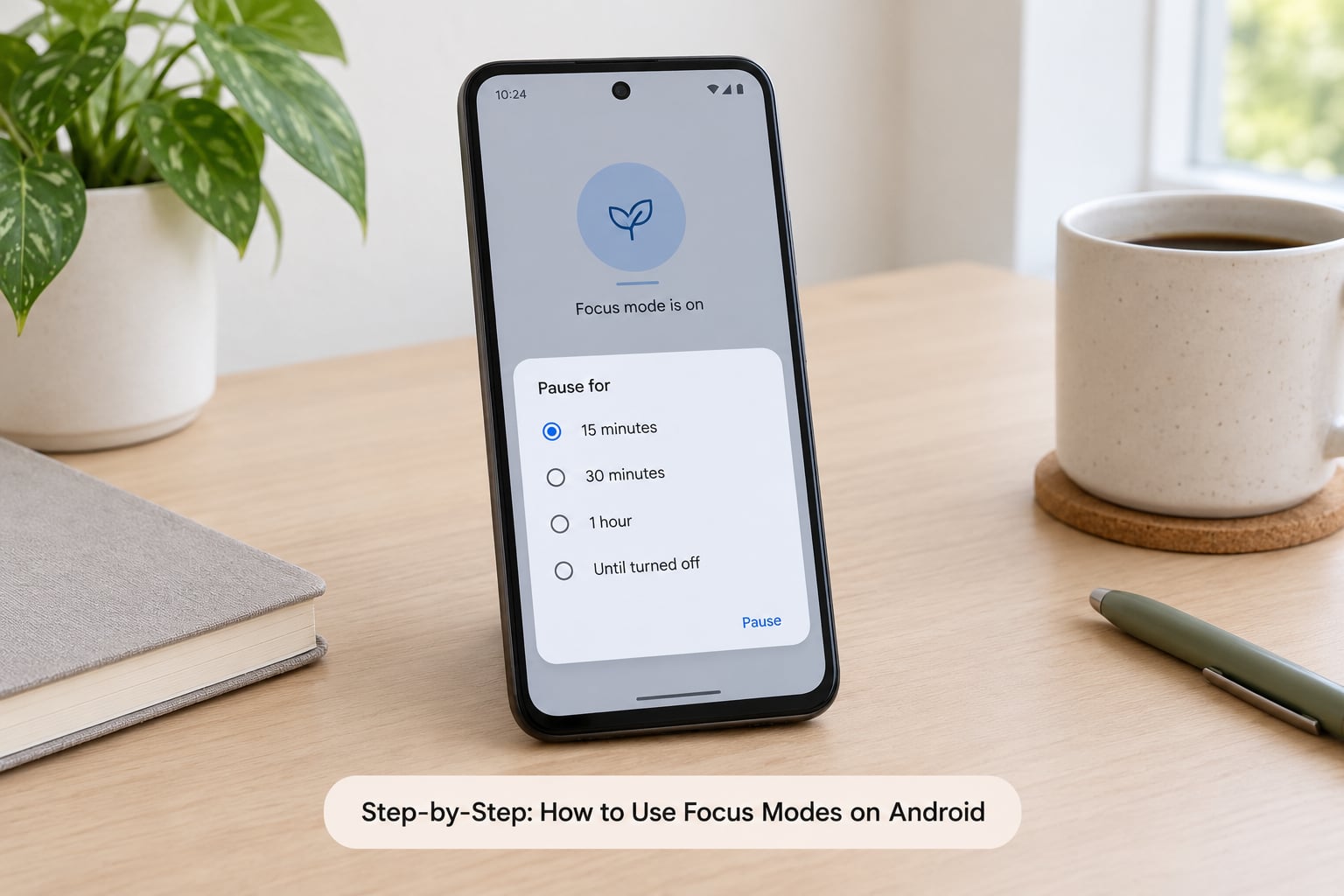
Three quick checks tell you where you stand. The crescent moon in the status bar means focus mode is on. The Focus mode notification shows the time remaining and two buttons: Take a break and Turn off. A greyed app icon is proof the pause is working.
Take a break opens the app for 5, 15 or 30 minutes, then the pause resumes on its own. That is the escape hatch for the genuine emergency, and it is also the reason a focus mode that feels solid usually is.
To end the session early, open the Focus mode notification and tap Turn off, or use the Quick Settings tile. If you cannot find either, go back to Digital Wellbeing and switch focus mode off from the main screen.
Common Mistakes When Using Focus Modes on Android
Almost every complaint I can find about Android focus mode comes down to one of these six.
You missed a call. Focus mode does not touch calls. A blocked app can still ring you through if it is not on the pause list. Open Do Not Disturb and check the allow-list if you expected silence and got a ring.
Notifications still arrive. Usually the app was never paused, or the notification is coming from a clone of the app. On Samsung, apps inside Secure Folder or Dual Apps can sit outside the focus mode list entirely, so check whether you are looking at the same copy of the app you are blocking.
The schedule never fired. Confirm the day toggles are set, then look for a second routine or mode covering the same hours. Two schedules fighting over the same time window is the usual cause, and it also explains focus mode switching itself off at random.
The wrong menu. On Xiaomi, Digital Wellbeing notifications can be switched off by the system, which hides the Focus mode notification and with it the button to undo the mode. Re-enable Digital Wellbeing notifications in the notification settings for that app.
An app is bypassing it. Focus mode pauses the app, not the notifications it sends through other channels. A paused messaging app can still push a message through a companion app on your watch or tablet, and that arrives as normal.
You muted an alarm by accident. Never allow focus mode to sit on top of an overnight alarm without checking that Do Not Disturb exceptions include alarms. Keep emergency contacts on the allow-list too. This is not a feature to run aggressively at 3am.
Tips for Making Focus Mode Work for You
Start small. A 30-minute test tells you whether the setup works and whether you resent it, which is information a two-hour block never gives you.
Keep four apps out of the pause list no matter what: your phone app, your maps, your wallet, and whatever you use for two-factor codes. Blocking those is how people end up turning the whole thing off.
Use the same schedule every weekday. A consistent trigger costs far less willpower than a decision made at 9am every morning.
Run Do Not Disturb alongside it during meetings and after dark, and add Bedtime mode in the evening if your problem is reaching for the phone in bed rather than checking it at a desk.
Review the result a week in. Digital Wellbeing’s own dashboard shows you which apps ate the time, and it is usually not the one you expected.
Frequently Asked Questions
How do I turn on Focus Mode on my Android phone?
Open Settings, tap Digital Wellbeing, then Focus mode. Tick the apps you want paused and flip the switch at the top of the screen, or set a schedule instead. A crescent moon in the status bar and a Focus mode notification both confirm it is running. On a Pixel this takes about a minute.
What is the difference between Focus Mode and Do Not Disturb?
Focus mode pauses whole apps, greying their icons and suppressing their alerts, while leaving calls, alarms and the rest of the phone alone. Do Not Disturb silences everything instead, with an allow-list of starred contacts and alarms that can break through. Most people run both: focus mode for the apps they cannot stop, Do Not Disturb for the room.
How do I turn Focus Mode on my Samsung?
On a Galaxy, go to Settings, then Digital Wellbeing and parental controls, and tap Focus mode. Choose your apps, then turn it on or build a schedule. Recent One UI versions also let you drive focus mode through Modes and Routines, which can trigger on location as well as time. Apps inside Secure Folder or Dual Apps often ignore it.
How do I turn off Focus Mode, and why can it get stuck?
Tap the Focus mode notification and choose Turn off, or use the Quick Settings tile. If neither works, go back to Digital Wellbeing and switch it off on the main Focus mode screen. It can look stuck on Xiaomi, where the Digital Wellbeing notification is disabled by the system and the undo button never appears, so re-enable that notification first.
Why are notifications still coming through in Focus Mode?
Most often the app was never added to the pause list, or you are blocking one copy of an app while a duplicate in Secure Folder or Dual Apps keeps sending alerts. Focus mode also does not stop alerts relayed by a companion app on your watch or tablet. Check the pause list first, then the app’s own notification settings.
How do I put my phone on study mode?
Combine three settings. Turn on focus mode with social and entertainment apps paused, add a Do Not Disturb schedule with alarms and starred contacts allowed through, and set daily app timers on the few apps you want capped rather than blocked. Bedtime mode with grayscale on the same schedule handles evening revision when the screen is the problem.
One note on search confusion: “focus mode” in a camera app means autofocus, which has nothing to do with distraction blocking.
So do this: pick three apps you lose time in, set a 60-minute schedule for tomorrow morning, and see how it feels. An hour is long enough to be a real test and short enough that you will not abandon it after one bad afternoon. Adjust the app list once, then leave it alone for a week.