To turn off app notifications without missing important ones, sort your apps into three groups before touching a single switch: urgent, useful and optional. Silence the optional group, downgrade the useful group to silent or badge-only, and keep urgent alerts for calls, direct messages, two-factor codes, banking and calendar reminders. This takes about fifteen minutes on iPhone, iPad or Android.
Most people approach this backwards. They hit Do Not Disturb at breakfast, mute everything, then spend the morning wondering whether the message they missed was important. A few days later they turn it all back on and the noise returns, worse than before.
The fix is boring and it works. You are not trying to reduce the number of notifications. You are trying to separate the three that matter from the two hundred that do not.
Table of Contents›
- What You Need
- Step-by-Step: How to Turn Off App Notifications Without Missing Important Ones
- Check the System-Wide Notification Settings
- Decide Which Notifications Should Remain Enabled
- Turn Off App Notifications You Do Not Need
- Adjust Alerts Instead of Turning Everything Off
- Test the New Setup and Recheck Regularly
- Common Mistakes
- Frequently Asked Questions
- How do I clear an app notification that won’t go away?
- Is there a way to turn off notifications for certain apps?
- Is there a way to turn off all app notifications on iPhone?
- How to stop annoying app notifications?
- How do I stop notifications at night only?
- Why do my notifications keep turning back on?
- Conclusion
What You Need
Nothing to buy. This is a settings job, and every control you need already sits inside your phone.
You do need to know three things before you start:
- Your platform. iPhone and iPad run iOS and share almost the same menu. Android phones differ by manufacturer, so know whether yours is a stock Pixel, a Samsung One UI model or a Xiaomi or HyperOS device, because the labels change.
- Your OS version. Check Settings, then About or General, then About. Menus move between major versions and an old tutorial can send you hunting for a toggle that no longer exists.
- Your app list. Open your notification history first so you are ranking alerts you actually receive, not apps you vaguely remember installing.
On Android, open Settings, then Notifications, then Notification history. On iPhone and iPad, long-press an app icon and choose Notifications to see recent items, or swipe down from the top of the screen to open Notification Center.
Spend five minutes there before you change anything. Notifications that arrived while the phone was in your pocket do not tell you much about what matters. Notifications you acted on within a minute do.
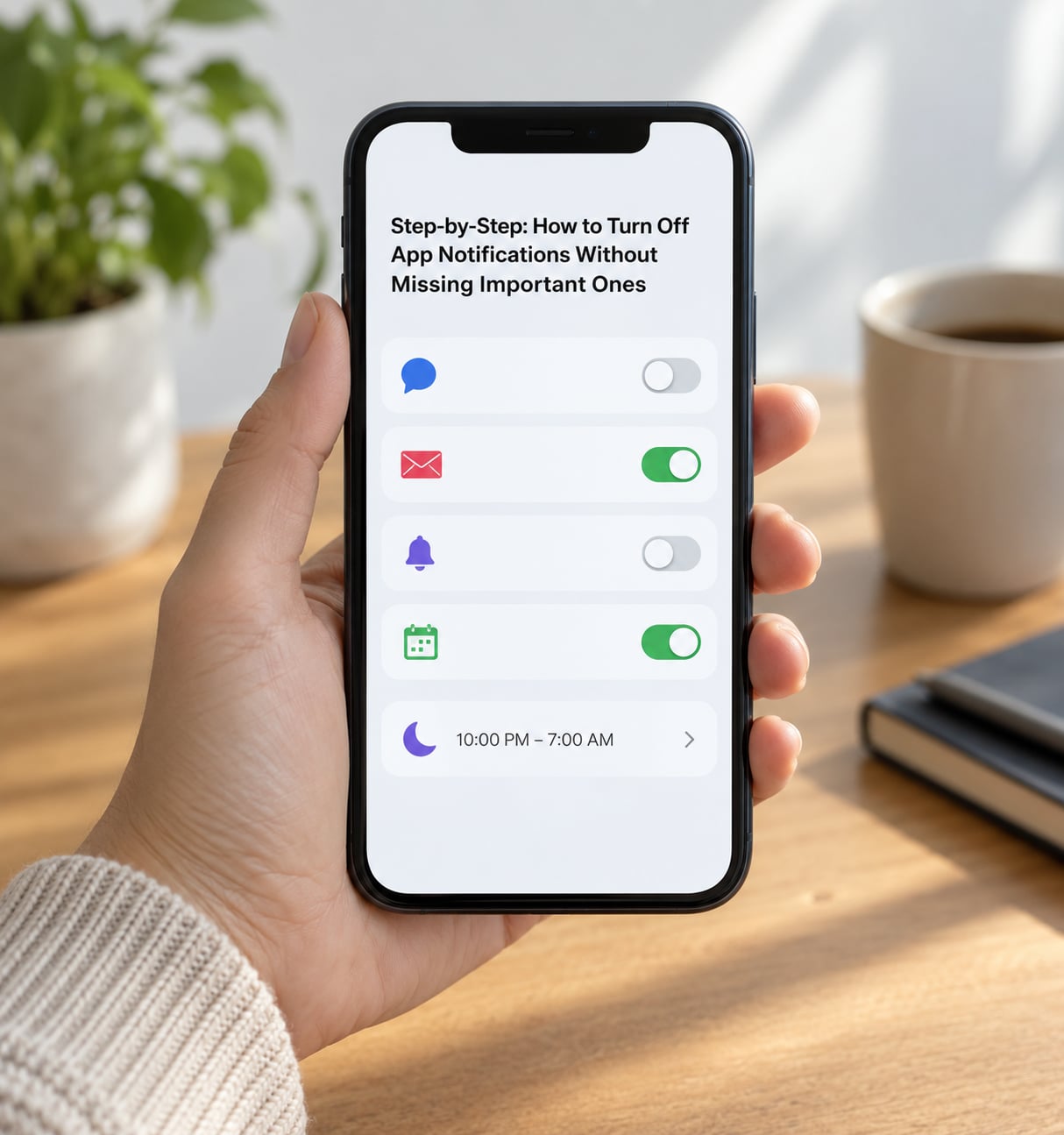
Step-by-Step: How to Turn Off App Notifications Without Missing Important Ones
Check the System-Wide Notification Settings
Start with the system layer, because a global setting quietly overrides everything you do per app.
On iPhone and iPad, open Settings, then Notifications. There you will find Allow Notifications, Allow Badges, Allow Sounds, and Lock Screen, Notification Center, and Banners style. Below that, Set a Focus schedules Do Not Disturb, Bedtime, Driving and any Focus modes you have created. Turn on Scheduled Summary to get a single digest instead of a stream.
On Android, the path depends on the skin. Stock Android and Pixel: Settings, then Notifications, then Do Not Disturb for schedules and Notification history. Per-app controls live under Settings, then Apps, then the app, then Notifications, where you also find Notification categories, the channel list and Show notifications. Samsung One UI puts most of this under Settings, then Notifications, then Notification categories and Manage notifications. Xiaomi and HyperOS bury it under Settings, then Notifications, then App notifications.
Most Android versions also offer an interruption level per category: Urgent makes an alert ring over everything else and stay until handled, Default behaves normally, and Silent delivers quietly to the shade with no sound. Urgent is reserved for things like a running taxi order or an alarm, not for a retailer.
If you use a Linux-based phone such as a Pine64 or a postmarketOS build, the plumbing is the same idea with different labels. PostmarketOS exposes notifications through its settings application and a dedicated notification daemon, and the toggle is per application. Worth knowing that desktop Linux behaves the same way, so the reasoning carries over if you also sit at a computer.
One distinction matters here: blocking a notification and hiding its preview are different actions. Turning off previews means the alert still arrives, you just do not see the sender or the message on the Lock Screen. Some people prefer that, because an alert with hidden content still prompts a glance without exposing private details in public.
Decide Which Notifications Should Remain Enabled
Rank alerts by consequence, not by app name. Here is the framework I use, and it takes about ten minutes.
Urgent, never silent. Incoming calls and missed-call alerts. Two-factor and passkey prompts, because you cannot log in without them. Banking and payment security alerts. Direct messages and mentions from named individuals at work. Calendar invitations and anything tied to a door code, a school pickup or a medical appointment.
Useful, but not interrupting. Email from real correspondents, package tracking, project updates, weather warnings. These do not need a banner and a buzz during dinner. Delivery quietly or badge-only is plenty.
Optional. Social feeds, gaming, shopping promotions, news push, streaks and reminders from apps you open out of habit anyway. Silence all of it.
The audit that makes this honest is simple. Look at the last twenty notifications and mark each one that made you do something within five minutes. Most people count two or three. Those are your urgent tier. Everything else is either useful or optional, and it is safe to downgrade.
One detail worth acting on: for a lot of people, the problem is the vibration, not the content. ADHD and autistic users describe exactly this on r/ADHD and r/autism. If the haptic buzz is what breaks your focus, removing the app badge and the sound does more than trimming the volume of alerts.
Turn Off App Notifications You Do Not Need
Change one app at a time. Bulk switches are how people end up back at square one.
On iPhone and iPad: Settings, then Notifications, then scroll to the app, tap it, and switch Allow Notifications off. With it off, you can also turn off Allow Badges and Allow Sounds independently, and choose Lock Screen, Notification Center, or Banners under the display options. A quieter route is to keep Allow Notifications on and set the style to Deliver Quietly, which lights the screen without sound.
Here is the honest limitation: iOS gives you a single on-off switch per app plus a handful of system categories. It does not give you Android-style channels where one app splits into Promotions, Social, Messages and Reminders. Reddit threads in r/apple have asked for that split for years. Until it exists, silencing a noisy app on iOS is all-or-nothing at the app level.
On Android: Settings, then Apps, then the app, then Notifications. Toggle Show notifications off for everything, or keep it on and turn off individual channels underneath. The channel list is where the marketing noise usually lives, and Android is genuinely better here than iOS because most apps do separate Promotions, Updates and Messages on their own.
Then go inside the app as well. Open the app, tap the profile icon or the three dots in the corner, open Settings, and switch off push notifications for likes, follows, recommendations and marketing email. Instagram, TikTok, Reddit, Facebook and most shopping apps all keep their own master switch there, and some will let you keep direct messages while silencing everything else. That single combination solves the most common complaint: keep the DM, lose the feed.
Browsers work the same way. In Chrome, tap the icon at the right of the address bar, then Site settings, then Notifications, and block. Safari on iPhone: Settings, then Safari, then Notifications. Edge: Settings, then Site permissions, then Notifications. On a laptop the equivalent is System Settings, then Notifications on macOS, or Settings, then System, then Notifications on Windows, where Focus Assist lives under System, then Focus Assist.
One note on calls. The Phone app’s Show Notifications switch on some Android builds appears greyed out, because incoming calls are treated as a system alert rather than an app alert. If that is what you are looking at, the control you actually want is Do Not Disturb, with your own contacts allowed through rather than the switch being stuck.
Adjust Alerts Instead of Turning Everything Off
Downgrading beats deleting. These are the settings that keep a useful alert visible while removing the interruption.
- Deliver quietly (iOS). Same notification, no sound, and the screen does not light up for that app.
- Silent channel (Android). Set a single category to Silent while leaving another on Urgent.
- Lock Screen off, Notification Center on (iOS). Alerts arrive silently and you read them when you pick the phone up.
- Badge off (both). The number stops counting down and the app stops nagging visually.
Then schedule the silence instead of toggling it by hand. That is the fix for the cycle people fall into, because a manual Do Not Disturb switch is always forgotten. iOS: Settings, then Notifications, then Set a Focus, then Focus, then Add Focus, then set a time. Add people to the Allowed Notifications list so calls from your family or your manager get through. Android: Settings, then Notifications, then Do Not Disturb, then turn on Do Not Disturb automatically, then pick your schedule. Windows uses Focus Assist with its own priority list.
Newer iPhones on Apple Intelligence hardware do more with this. Summarize Notifications stacks everything into one digest, Prioritize Notifications pushes the likely-important items to the top of the lock screen, and Reduce Interruptions is a Focus that reads your notifications and silences the ones that do not matter. A Reddit thread on r/apple notes the fair warning: digest features can swallow a real message inside a pile of noise, so test them for a week before trusting them with anything time-sensitive.
Test the New Setup and Recheck Regularly
Verify the change instead of assuming it. Ask someone to message you, and check that the alert arrives with the right sound, style and timing.
Then check the special cases, because these are what get missed:
- Lock the phone and confirm what shows on the Lock Screen.
- Confirm two-factor codes still appear when signing in somewhere new.
- Check that a calendar reminder still alarms at the right time.
- Look at the app icon and make sure no badge numbers you cannot control are creeping back.
Review on a cadence rather than in the moment. Two weeks is the right interval: long enough that you have lived with the change, short enough that you notice what you miss. A quick daily glance at the shade during your scheduled Focus or Do Not Disturb window is enough, and it replaces the anxious checking that made you revert everything last time.
Two things change on their own. Major operating system updates sometimes reset per-app choices, and some apps re-prompt for notification permission after a major update, especially messaging and banking apps. When an app suddenly starts buzzing again, check its settings first before assuming your change failed.
Last layer: settings cannot stop a phone buzzing inside a jacket pocket. Face-down on a surface in another room solves what no toggle reaches.
Common Mistakes
1. Turning off everything at once. You miss the one alert that mattered, panic, and restore all of it. Fix: change one app per day, five apps a week.
2. Disabling the whole notification system. The global Allow Notifications switch turns off calls and emergency alerts along with everything else. Fix: use Do Not Disturb with an allowed-caller list instead, which keeps urgent things working.
3. Stopping at the app level on Android. The app is quiet but promotional channels still arrive. Fix: open Notification categories under the app and toggle each channel.
4. Expecting per-category control on iPhone. It does not exist for individual apps. Fix: use the in-app settings to separate messages from likes, then keep the OS toggle on with Deliver Quietly.
5. Silencing banking, 2FA or security alerts. You lock yourself out of an account or miss a fraud warning. Fix: keep these on Urgent and treat them as untouchable.
6. Using Do Not Disturb without allowed contacts. Everyone gets blocked, including the people you were trying to hear from. Fix: add specific people under Allowed Notifications before scheduling it.
7. Not testing after an OS update. A major iOS or Android release can restore defaults. Fix: re-check your three urgent apps after every major update.
8. Trusting a digest too early. Notification summaries and Reduce Interruptions are good, but they rank for you. Fix: give them a week and keep time-sensitive alerts off the digest path until you trust them.
A couple of extras worth knowing: badge counts with no way to clear them usually come from an app using a persistent foreground notification, and toggling the app off is the only reliable fix. And if an app switch looks greyed out, check whether a device profile or Screen Time or Family Link restriction is holding it, since parental controls override the switch entirely.
Frequently Asked Questions
How do I clear an app notification that won’t go away?
Pull down the notification shade or open Notification Center and swipe the item away. If it reappears, the app is posting a persistent foreground notification. Force close the app, then disable its notifications entirely: Settings, then Apps, then the app, then Notifications, then turn off Show notifications on Android, or Settings, then Notifications, then the app, then turn off Allow Notifications on iPhone. You can also disable per-app persistent notifications inside the app’s own settings.
Is there a way to turn off notifications for certain apps?
Yes, on both platforms, app by app. On iPhone and iPad go to Settings, then Notifications, then tap the app and switch off Allow Notifications. On Android go to Settings, then Apps, then the app, then Notifications and turn off Show notifications, or toggle individual notification categories underneath it. You keep the app and all its data, so nothing is uninstalled and nothing breaks.
Is there a way to turn off all app notifications on iPhone?
You can, but do not. The global switch in Settings, then Notifications also silences calls and time-sensitive alerts, and you may not notice a missed emergency. A better route is to schedule Do Not Disturb under Set a Focus and add specific people to Allowed Notifications. That blocks the noise on a schedule while urgent calls, two-factor codes and alarms keep working.
How to stop annoying app notifications?
Rank your last twenty notifications and mark only the ones that made you act within five minutes. Put those in your urgent tier and leave them on. Everything else becomes useful, so it gets a quiet or badge-only treatment, or optional, so it gets switched off entirely. Handle apps one at a time and change the noisiest three this week rather than everything at once.
How do I stop notifications at night only?
Schedule it instead of remembering to toggle it. On iPhone, open Settings, then Notifications, then Set a Focus, then Focus, then add a custom Focus with a bedtime schedule and add contacts to Allowed Notifications. On Android, go to Settings, then Notifications, then Do Not Disturb, turn on Do Not Disturb automatically and pick your sleep hours. Both keep alarms and emergency calls working.
Why do my notifications keep turning back on?
Usually the app itself. Messaging, banking and social apps re-request notification permission after a major update, and some restore your settings during an account sign-in. Check the app’s own settings first, since an in-app master switch overrides the system one. Second, a major iOS or Android release sometimes resets per-app notification permissions, so re-check your three urgent apps after each update.
Conclusion
Start tonight with the notification history, not the settings screen. Mark the two or three alerts that would have changed your behaviour if you had missed them, keep those on at full volume, and switch off only the optional group, five apps at a time. Then give it two weeks with a short daily check-in, so silence turns into a settled habit instead of a worry you react to.