The strongest screen lock on Android is a random six-to-eight digit PIN paired with fingerprint unlock, or a full alphanumeric password if you want the maximum protection. Setting one up takes about five minutes: open Settings, go to Security & privacy, tap Screen lock, and pick your credential. Below is the exact path for each brand, how to choose something an attacker cannot guess, and what to do if you forget it.
Table of Contents›
- What You Need Before You Set Up a Strong Screen Lock on Android
- Step-by-Step
- Step 1: Choose the right screen lock for a strong Android lock
- Step 2: Open Android security settings
- Step 3: Create a strong PIN or password
- Step 4: Add fingerprint or face unlock if desired
- Step 5: Adjust lock-screen behavior
- Step 6: Test the screen lock and confirm recovery
- Common mistakes to fix right now
- Frequently Asked Questions
- Is a six-digit PIN strong enough for an Android screen lock?
- Is an Android pattern lock more secure than a PIN?
- What should I do if I forgot my Android screen lock?
- Is fingerprint or face unlock safer than a PIN or password?
- Why can I be locked out after changing my Android screen lock?
- Conclusion
What You Need Before You Set Up a Strong Screen Lock on Android
You need your Android phone or tablet, the current passcode screen (Samsung asks for the existing PIN before it will let you change it), and about five minutes. A memorable PIN or password helps too, since the whole method depends on you recalling it correctly.
Make sure a Google account or a manufacturer account is signed in before you start. Recovery features such as Find Hub on Pixel devices or Find My Mobile on Samsung phones only work when an account is attached, and Factory Reset Protection ties itself to that account.
One thing worth knowing up front: menu labels changed across Android versions. Guides written before Android 10 show a path called Screen lock and passwords, which no longer exists on a current phone. Every path below is written for current Android, with the older names called out where people get stuck.
Step-by-Step
Step 1: Choose the right screen lock for a strong Android lock
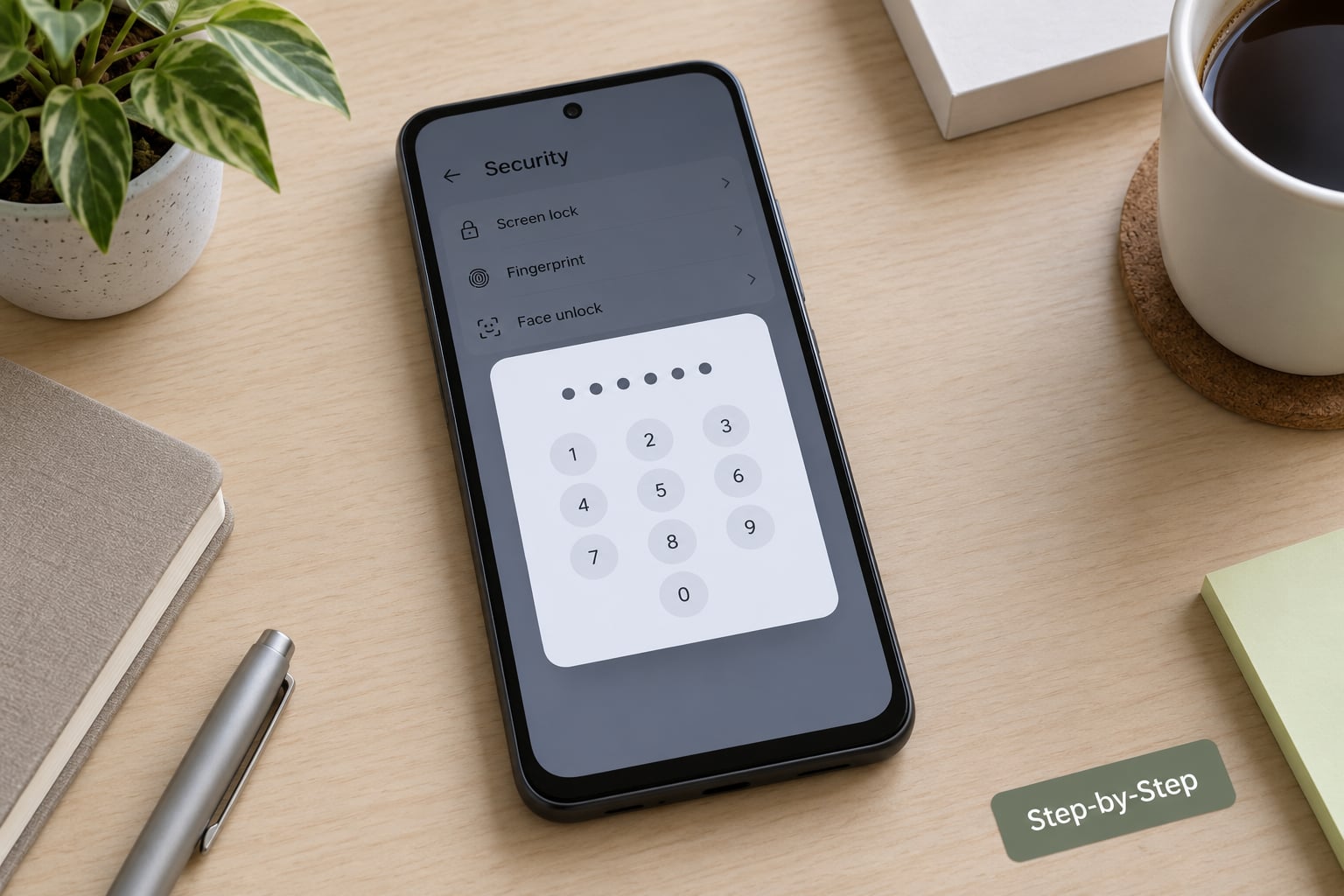
Choose a password if you want the strongest lock, or a random PIN plus fingerprint if you want strong and fast. Pattern and swipe locks protect far less, and face unlock is the weakest of the biometric options.
| Screen lock type | Strength | Effort to guess | Best for |
|---|---|---|---|
| Password (letters, numbers, symbols) | Highest | Very high | Maximum security, coercion resistance |
| PIN, 6-8 random digits | High | High | Everyday use with fingerprint unlock |
| Fingerprint unlock | High as a shortcut | Low | Fast daily access, paired with a PIN |
| Face unlock | Medium | Low to medium | Devices with a secure 3D sensor |
| Pattern lock | Low | Low | Children’s tablets, low-risk devices |
| Swipe only | None | None | No real use – do not stop here |
Pattern lock gets criticised for good reason. There are few possible routes across the grid, the line leaves a smudge on the screen that a camera can pick up, and someone standing behind you can read it in one glance. If you keep a pattern, turn off Make pattern visible under Screen lock, or move to a PIN.
There is a genuine improvement here that most guides skip: Android 13 added larger pattern grids, so some phones now offer more than the old 3×3 layout. Pixel devices picked that up early. A bigger grid adds combinations, but it does not close the shoulder-surfing gap, so a PIN still wins.
Step 2: Open Android security settings
Open your security settings from the Settings app; the exact path depends on the brand and Android version.
| Device | Settings path |
|---|---|
| Pixel and most current Android phones | Settings > Security & privacy > Screen lock |
| Samsung Galaxy (One UI 6 and 7) | Settings > Lock screen and AOD > Screen lock |
| Older Samsung Galaxy (One UI 4 and 5) | Settings > Lock screen > Screen lock type |
| Many other brands | Settings > Passwords & security, or Security > Screen lock |
| Android tablets | Same path as the matching phone |
If you already have a lock, the phone will ask you to enter it before showing the new options. That prompt is normal, and it is also your confirmation that a lock is already active.
Step 3: Create a strong PIN or password
Pick PIN or password, and make the number of characters work for you rather than defaulting to the minimum.
| PIN length | Possible combinations | Realistic protection |
|---|---|---|
| 4 digits | 10,000 | Effectively none against a determined attempt |
| 6 digits | 1,000,000 | Reasonable only with rate limiting and lockout |
| 8 digits | 100,000,000 | Strong, and still easy to type |
| Alphanumeric password | Vast | Strongest option available |
Avoid birthdays, repeated digits like 2580 or 1111, and any four-digit sequence. The oldest guides recommend rolling a die eight to ten times and using the digits as your PIN: random, long, and nothing tied to your life. Another approach is a passphrase of three or four unrelated words, which is easier to remember than a random number and far harder to guess than a short PIN.
How many digits your device accepts varies, with 4, 6, and longer options being common. Enter the credential twice when prompted. If the two entries do not match, nothing is saved and the old lock stays in place, which trips up more than one person.
Step 4: Add fingerprint or face unlock if desired
Add a fingerprint after the PIN or password is set, never instead of it. On Pixel and most Android devices the path is Settings > Security & privacy > Fingerprint unlock; on Samsung it sits under Settings > Lock screen and AOD > Fingerprint recognition.
Register one finger rather than all of them. It is deliberate hardening: a registered fingerprint is something someone can physically press onto the sensor, whereas a password is something only you know and can change in private.
Face unlock carries the same concern and then some, because your face is always available to whoever is holding the phone. The coercion angle matters here, and it rarely gets mentioned in mainstream guides. If someone may be able to demand that you hand over your phone, keep an alphanumeric password as your primary credential.
Also check Require authentication to unlock device in the Screen lock menu. Turn it on and the phone will not fall back to a plain swipe after biometrics, so the PIN genuinely becomes the gate.
Step 5: Adjust lock-screen behavior
Set the lock to engage quickly, because a strong credential on a screen that stays unlocked for five minutes is not doing much work.
Under Screen lock, look for these four settings:
- Lock on power button press (Samsung calls it Press power button to lock) so the device locks the moment you are done with it.
- Require authentication to unlock device, as above.
- Show sensitive content under Notifications, set to hide previews entirely. A visible message preview on a locked screen can hand over more than you would like.
- Lock-screen shortcut tiles, which on some Samsung builds put a camera or assistant shortcut right on the locked screen. Turn them off.
Screen timeout lives at Settings > Display > Screen timeout. Fifteen seconds is the most secure and mildly annoying, thirty seconds is the sensible middle, and one to five minutes is convenient but leaves the phone unlocked when you put it down. Most people settle on thirty seconds to one minute and stop thinking about it.
If your phone locks too quickly while you are reading something, raise the screen timeout first rather than weakening the lock itself.
Step 6: Test the screen lock and confirm recovery
Test the lock by using it, not by assuming it works. Press the power button to lock, let the screen time out, then wake it and enter your PIN. Then confirm the biometric path: on the lock screen there should be a Use PIN or Use password option, and entering that deliberately proves your fallback still works even when the sensor fails or your finger is wet.
Next, check your recovery accounts. On Android, Find Hub is at google.com/android/find; Samsung uses Find My Mobile at findmymobile.samsung.com. Open each one while your phone is in your hand and confirm it shows the correct device and location.
Keep three different things straight, because they are regularly confused. Your screen lock credential unlocks the device. Your Google or Samsung account password resets the account. The manufacturer privacy password, such as the one behind Samsung Secure Folder, is a separate layer again. Changing one does not change the others.
Factory Reset Protection deserves a quick check too. It is switched on by default once a screen lock exists, and it blocks a wiped phone from being set up by someone who is not signed into your account. Removing your Google account from a device before you sell or hand it over disables it, which is exactly what you want to do.
Common mistakes to fix right now
- A four-digit PIN, or a repeated sequence. Fix: switch to 8 random digits, or a passphrase, and change it in the Screen lock menu.
- Face unlock with no PIN behind it. Fix: set a password or PIN first, then enable biometrics as a shortcut on top.
- Following an old guide. Fix: if the path says Screen lock and passwords, you are reading a pre-Android 10 guide. Use the table in Step 2.
- Leaving Make pattern visible on. Fix: turn it off in the Screen lock menu, or move to a PIN.
- A five-minute screen timeout. Fix: Settings > Display > Screen timeout, set it to 30 seconds or one minute.
- Registering every finger and a family member’s finger. Fix: remove the extras, keep one finger you control.
- Leaving Smart Lock switched on everywhere. Fix: keep it for your own home and car only, and turn it off for everywhere else.
- Never testing the fallback. Fix: deliberately use Use PIN on the lock screen once a week until it is muscle memory.
Two more tips. If you want to change the lock later, go back to the same Screen lock menu; changing lock type does not disturb your photos or apps. And if the phone is already lost, use Find Hub or Find My Mobile from a computer rather than wiping it remotely, because a wipe can complicate your own recovery.
Frequently Asked Questions
Is a six-digit PIN strong enough for an Android screen lock?
A six-digit random PIN is a reasonable everyday choice when fingerprint unlock is also on, because the phone rate-limits and eventually locks out repeated wrong attempts. Against offline attack tools working through all one million combinations, six digits is far too short. Eight random digits is the sweet spot: 100 million combinations, still quick to type. If the device is lost often or holds banking and password manager apps, use a full alphanumeric password instead.
Is an Android pattern lock more secure than a PIN?
No. A pattern lock has far fewer possible routes than a six-digit PIN, leaves a smudge trail on the screen that a camera can capture, and is trivially read by anyone standing behind you. Android 13 added larger pattern grids on some devices, which adds combinations but does nothing about being watched. If you keep a pattern, turn off Make pattern visible in the Screen lock menu. A PIN or password is the better choice every time.
What should I do if I forgot my Android screen lock?
If your Google or Samsung account is signed in, use Find Hub at google.com/android/find or Find My Mobile at findmymobile.samsung.com from another device to lock and erase the phone remotely. That erases data, and Factory Reset Protection then blocks anyone who tries to set it up without your account. There is no back door for a forgotten credential, so set a PIN you can actually recall and keep your recovery account details current before you lock yourself out.
Is fingerprint or face unlock safer than a PIN or password?
Neither replaces the other. Biometrics are a fast shortcut layered on top of a device already protected by a PIN or password, and Android will not let you register a fingerprint or face without a secure credential set first. Fingerprint is generally the stronger of the two. Face unlock can also be physically compelled, while a password is only something you know. Keep the credential as the real lock and treat biometrics purely as convenience.
Why can I be locked out after changing my Android screen lock?
Most lockouts happen right after a change, when the new credential has not been tested. Android also keeps a short window of the previous credential in some builds, which can be confusing. The other cause is a failed biometric followed by no working PIN. Test the new PIN immediately after setting it, use Use PIN on the lock screen once to prove the fallback, and confirm Find Hub or Find My Mobile still shows your device before you walk away from the phone.
Conclusion
Start by setting a random eight-digit PIN, or a full password if you want the strongest lock, then add fingerprint unlock on top as pure convenience. Before you walk away, test the PIN fallback, drop the screen timeout to thirty seconds or a minute, and confirm Find Hub or Find My Mobile shows your device.