If you want to know how to spot a phishing link on a phone, you do not need a security app. You need to read the message the way a stranger would: check who sent it, preview the real address without opening it, and never type anything into a page a stranger pushed at you. That inspection takes about thirty seconds.
Here is the part most advice gets wrong. Desktop guides say hover over the link to see where it goes, and that instruction is useless on a touchscreen. Phone users have to press and hold instead, and almost nobody explains how. That is what this guide is for, step by step on both iPhone and Android, updated for 2026.
Table of Contents›
- What You Need
- Step-by-Step: How to Spot a Phishing Link on a Phone
- 1. Check who sent the message
- 2. Read the context and urgency
- 3. Preview the destination without opening it
- 4. Examine the web address carefully
- 5. Check what happens when you tap
- 6. Identify what information or action is requested
- 7. Verify through a separate, trusted channel
- Common Mistakes
- Frequently Asked Questions
- Is it safe to long press a link to preview it before clicking?
- Are shortened links like bit.ly safe to open from a text message?
- Can a QR code in a photo or email hack my phone?
- Is phishing more dangerous on iPhone or Android?
- What should I do if I already tapped a phishing link on my phone?
- Conclusion
What You Need
No special app. Everything below runs on a phone you already own, and every check is free.
You do need the original message in front of you, not a summary of it someone told you about. Scam forwarding often strips the sender details that give the trick away, so pull the message up from your inbox or thread rather than trusting a retelling.
A current browser helps too. Safari on iPhone and Chrome on Android both keep a blocklist of known malicious sites and warn you before a page loads, and both are updated with system updates. Treat that warning as a reason to stop, not as a nuisance to dismiss.
Step-by-Step: How to Spot a Phishing Link on a Phone
The process has seven checks. Run them in order, and stop at the first one that raises a doubt.
1. Check who sent the message
Read the full sender, not the name on the screen. On iPhone, tap the sender name at the top of a Messages thread and check the number or address listed underneath; a conversation with a contact stays linked to their saved name, while an unknown sender shows a raw number or a generic label. In Gmail, open the three-dot menu on the message and choose Show original to see the real Return-Path address.
Look for a mismatch between the brand and the channel. A package delivery notice should come from a carrier, not from a personal Gmail address dressed up as a support desk. A bank almost never texts from a personal address, and legitimate delivery companies send tracking from a no-reply sender on their own domain.
Short codes and unfamiliar local numbers deserve the same suspicion. So do messages that arrive from a number you do not recognize but which uses a familiar first name, and details like a recent purchase or a specific order are often pulled from breached data rather than from anything the company would share.
2. Read the context and urgency
Phishing leans on pressure, so treat a message that wants an answer in the next ten minutes as suspect by default. The common pressure plays are a held parcel, a failed payment, a suspended account, an unpaid toll, a prize, a refund, or a family member in trouble asking for money fast.
Urgent messages also arrive at bad moments: mid-conversation, during a paying check, or while you are trying to complete something else. Forum threads about these scams repeat the same pattern, where the text lands as an interruption and the tap happens before the reading starts.
Ask one question: was I expecting this? If no prior interaction with that company exists, no recent order, no failed transaction, the answer is no, and the urgency is manufactured.
3. Preview the destination without opening it
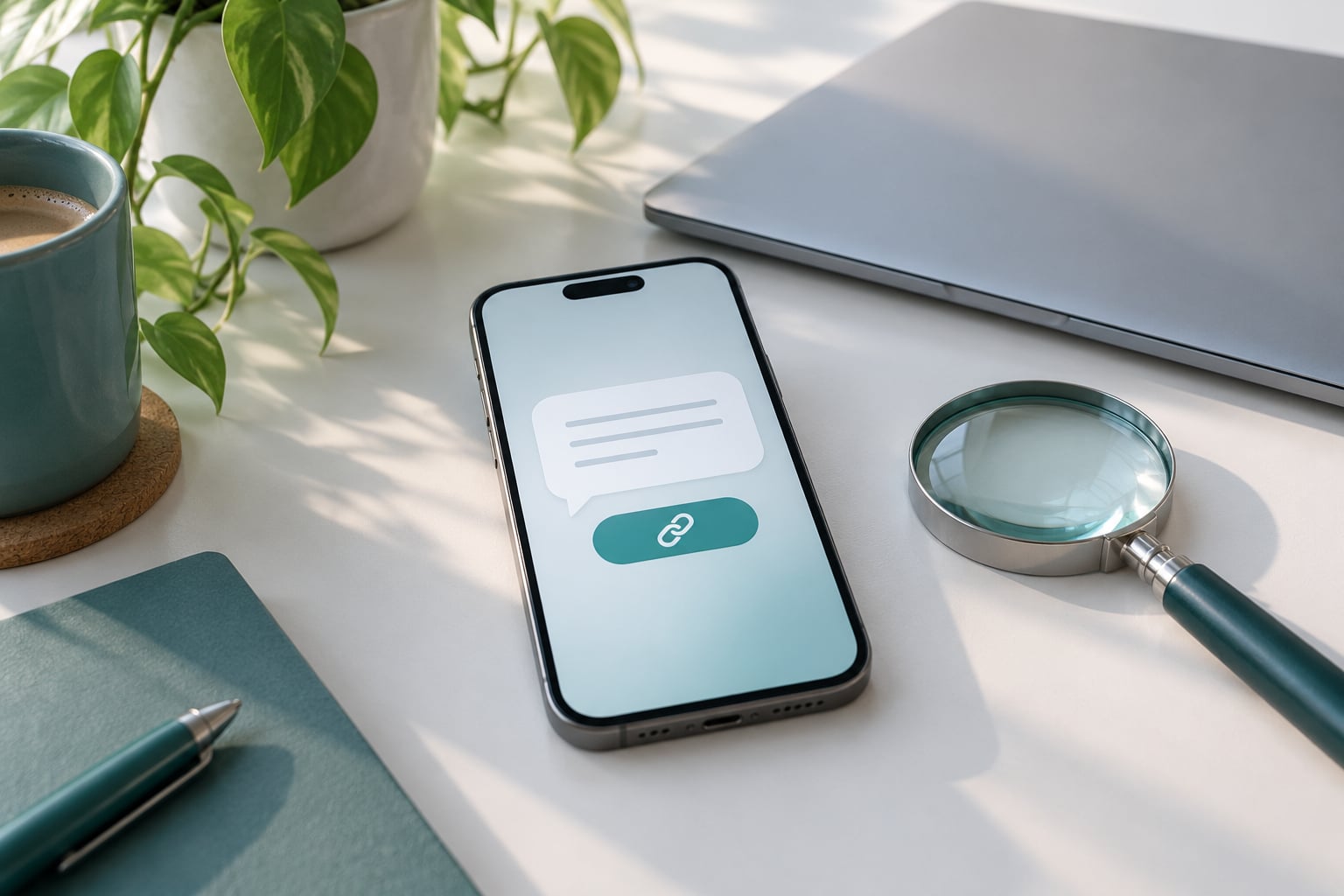
This is the check desktop advice never explains, and it is the highest-value one on a phone. A preview reads the link without loading the page, and reading a link is harmless.
iPhone, Messages: press and hold the link, then lift your finger. A panel opens showing the destination address, the site name, and a thumbnail preview, with an option to open it if you decide to. Some messages hide the link behind a tracking wrapper, so check that the address inside the preview matches what you would expect rather than assuming the visible text is the destination.
iPhone, Mail: tap the small arrow at the right edge of a message to expand link details without opening anything. If previews are disabled in Settings, Mail, a tap-and-hold still offers Copy, Open, and options to inspect the address.
Android, Google Messages: tap the arrow next to the link to expand it and see the full address and preview. A long press gives Copy and Share plus the option to open the link.
Android, Chrome: a long press on any link shows the destination with Copy link address, so you can paste it somewhere safe and read it.
Two warnings worth knowing. A preview is not a security guarantee, since a scam domain can display a perfectly ordinary thumbnail, and some banking apps and work profiles deliberately turn link previews off. When previews are missing, treat the link as unverifiable and go straight to step 7.
4. Examine the web address carefully
The trick is to find the real domain, and the rule is simple: read from the end backwards and stop at the first single slash. Everything after that slash is a path, and everything before the second-to-last dot is decoration.
Take usps.com-track-parcel.info/r/8842. The first single slash comes right after .info, so read backwards and the registered name is usps.com-track-parcel.info. USP owns usps.com and nothing else. A link that needs a hyphen to fit a brand name into a domain is not that brand.
Also check the ending. .com is the norm. Endings like .info, .top, .xyz, .click, .buzz and .live cost almost nothing and get registered in bulk, so they show up far more often in scam addresses than in real company addresses.
Watch for a URL shortener such as bit.ly or tinyurl. A shortened link hides its destination by design, which is exactly the opposite of what you need, so treat any short link in an unsolicited message as unverified.
And remember that the lock icon means the connection to that domain is encrypted. It says nothing about who owns the domain, and a padlock on a fake site looks exactly like one on a real site.
5. Check what happens when you tap
If you have already tapped, watch for three things: a warning screen you dismissed, an app install prompt, and a login page that appears without context.
On Android, browser warnings about dangerous pages and prompts to install an app outside the Play Store are hard red flags. No legitimate service asks you to sideload a file or turn on accessibility permissions to view a tracking page.
On iPhone, a request to add a configuration profile, enter an Apple ID password, or confirm a device in Find My is always an attempt to lock you out of your own phone.
A sudden request for a password, a one-time code, or card details is where the actual damage happens. Close the page, close the tab, and use step 7 instead.
6. Identify what information or action is requested
Read the ask, not the story. Real companies have no reason to ask you for a password, a one-time verification code, a Social Security number, full card details, a gift card code, or bank transfer instructions in a message you did not initiate.
Watch for requests to reply with a word such as YES or NO. Replying confirms the number is live and read by a real person, which raises how many messages you get. STOP reduces volume on some numbers but still confirms the line is active, so reporting is the better move.
Irreversible payment requests deserve an instant no. Gift cards, cryptocurrency, wire transfers, and payment app transfers to strangers are never legitimate, and no refund, redelivery fee, or account balance is ever settled that way.
7. Verify through a separate, trusted channel
Reach the company yourself, never through the message. Open the banking app from your home screen, or type the address you already know into the browser bar. Use a phone number from the back of your card or from the company site saved years ago, not one printed in the text.
If you want to check a domain more deeply, free lookups at RDAP and WHOIS services show when a domain was registered, and a domain created days ago deserves real suspicion. Where a site is hosted can also add context. Treat this as optional, though, since step 3 and step 4 already catch most attempts and this is the slowest part.
Final decision rule: if you cannot verify the destination through a channel you chose yourself, do not tap, do not reply, and do not enter anything.
Common Mistakes
These are the errors I see most often, each paired with the correction that actually helps.
- Judging a link by its label. A button reading Track my parcel proves nothing, since the text is chosen by the sender. Read the destination from step 4.
- Treating the padlock as a seal of approval. It encrypts the connection to whatever domain is named in the address bar, and that domain is exactly the thing to distrust.
- Replying to confirm who sent it. Any reply, including STOP, marks the number as active and read by a person. Use Report junk or forward to 7726 instead.
- Reading only the first part of a URL. Brand names are placed in front to catch a fast glance. Read backwards and stop at the first single slash.
- Installing an app or file to make a page work. A page that refuses to display until you install something is running an attack, and sideloading defeats the protections your phone ships with.
- Clicking search ads to verify a brand. Sponsored results are purchasable and routinely sit above the real site for a brand name plus a keyword. Type the domain you already know instead.
- Skipping the check because the message used real details. Correct names, real bank names, and real order numbers come from breached records and data brokers, and they prove nothing.
One more habit matters more than any single check: reach the company through its app. Banking, delivery, and government services all have apps, and opening the app from your home screen removes the message from the equation entirely.
Frequently Asked Questions
Is it safe to long press a link to preview it before clicking?
Yes. Pressing and holding a link to see where it points reads the address without loading the page, which is why phone guidance recommends it instead of the desktop advice about hovering. The preview tells you the destination domain and can show a thumbnail, but a convincing thumbnail means nothing on its own. Read the domain, and if anything looks wrong, close the preview and reach the company through its own app.
Are shortened links like bit.ly safe to open from a text message?
Not when the message is unsolicited. A short link hides its destination behind a redirector, so you cannot judge the domain before opening it, and that opacity is the whole point of the trick. If a company you already deal with sends one for a reason you initiated, open the app or website instead. If the message is unexpected, do not expand the link, and reach the company through a number or address you already had.
Can a QR code in a photo or email hack my phone?
A QR code is just a link in another shape, and it hides the destination until your camera opens it. Codes on posters, receipts, parking meters, and email attachments are a common delivery method because nobody reads a square. Treat one the way you would treat an unknown text link: do not scan it unless you initiated the transaction, and if the camera opens a URL, close it and check the address before anything else.
Is phishing more dangerous on iPhone or Android?
The tactics are identical, and the deciding factor is what you do on the page rather than the platform. iPhone models use Messages, Mail, and Safari, where press and hold opens a preview panel. Android uses Google Messages and Chrome, where the arrow beside a link expands it and a long press copies the address. Android carries extra risk from sideloaded apps and unknown-source installs, so never install anything a link asks you to add.
What should I do if I already tapped a phishing link on my phone?
Close the page and do not enter anything. If you only tapped and typed nothing, close the tab, delete the message, and report it, since the harm in these scams comes from what you submit rather than the tap. If you entered a password, change it from the official app right away, sign out other sessions, and turn on two-factor authentication. If you paid, contact your bank immediately and keep screenshots of the message and the page.
Conclusion
The safest first action takes five seconds: slow down. Read the sender, preview the real address without opening it, check what the page is asking for, and reach the company through its app or a number you already had.
Then take the message out of your inbox. Delete it after taking a screenshot if you may need proof, then report it through Report junk or Report and Block in the messaging app, and forward the text to 7726 (SPAM), which works free on US mobile carriers. File a report at ReportFraud.ftc.gov, and for phishing emails use the reporting address your provider publishes. If you entered a password or paid anything, treat that as urgent and act today.