To set up parental controls on an Android tablet, install Google Family Link on your own phone and on the child’s tablet, create a child Google account, and turn on supervision. From there you set screen time limits, app approvals, content filters and purchase approvals remotely. The whole process takes about 15 minutes if you have the child’s consent screen ready, and it is completely free.
There are two routes to the same destination. The on-device route uses Digital Wellbeing on the tablet itself, which is quick but useless the moment you lose the device. The remote route, through Family Link, is the one that actually holds because the limits live on your phone and apply whether or not the tablet is in the room.
Paths below were checked against current Android and Google Play menus in 2026. Samsung, Xiaomi, Huawei and Amazon tablets shuffle the labels around, and I’ve flagged where that happens.
Table of Contents›
- What You Need
- Step-by-Step: How to Set Up Parental Controls on an Android Tablet
- Set Up the Child’s Google Account
- Install and Connect Family Link
- Set App, Screen-Time, and Purchase Limits
- Restrict Web Content and Test the Settings
- Common Mistakes
- Frequently Asked Questions
- Is Family Link free for an Android tablet?
- What is the best way to set up parental controls on an Android tablet?
- How do I recover a forgotten Family Link PIN?
- Can parental controls block every inappropriate website or app?
- Why can’t I find the screen-time controls on my Android tablet?
- How do I remove parental controls when my child is ready?
What You Need
You need five things, and two of them are the reason most setup attempts fail on the first try.
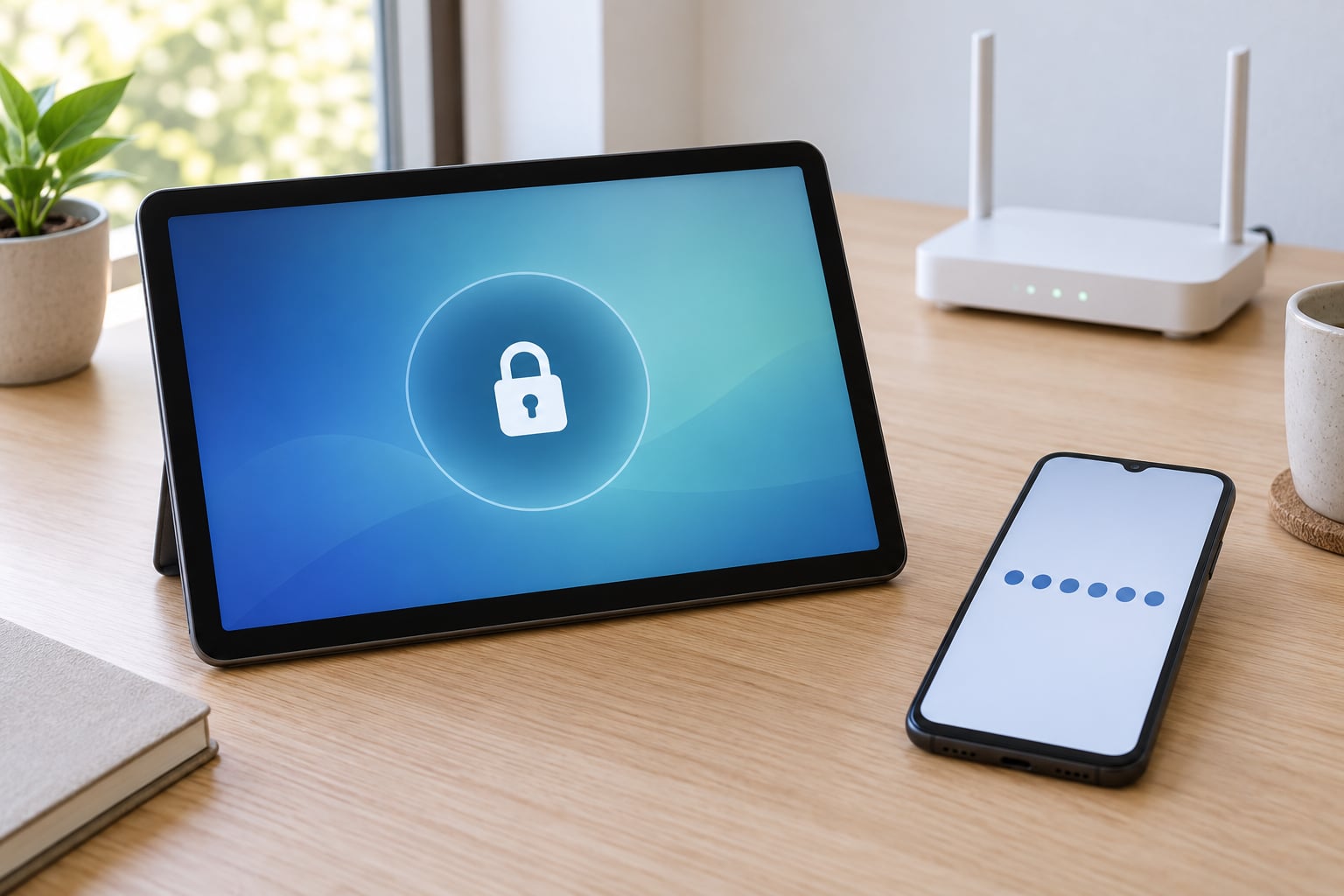
- The tablet, with a screen lock already set. Open the child’s profile, go to Settings, then Security or Lock screen, and set a PIN or pattern. Do this first. A parental control with no device lock is a suggestion, not a control.
- A parent device you control. Any Android phone, tablet or iPhone works for the parent side. Android gives you more to work with; an iPhone works fine but drops the approval notifications sometimes, so turn on Family Link app notifications and check the app itself.
- The child present for part of this. During pairing, a consent screen appears on the child’s tablet. An adult has to tap Agree on that screen. You cannot consent on their behalf.
- A Google account for the child. If they don’t have one, Family Link creates it for you and picks the age bracket, which decides which content ratings apply.
- Google Play services working on the tablet. Check Settings, Apps, Google Play services. If that app is missing or disabled, Family Link will not install at all.
Also worth knowing before you start: Android version matters. Android 12 and newer share the Settings, Google, All services, Parental controls path. Older builds and heavily skinned versions use different wording, and Samsung One UI adds its own kid mode on top.
Step-by-Step: How to Set Up Parental Controls on an Android Tablet
Eight steps, in this order. Do not skip ahead to step five, because the limits you set there will behave oddly if the account in step two is not a supervised child account.
- Lock the tablet screen. On the child’s profile, Settings, Security or Lock screen, set a PIN, pattern or password. This code must be different from the one you will use as the Family Link parent access code.
- Create or pick the child Google account. In Family Link on your phone, tap the child’s name or the + button to add a child, then Create a Google Account for your child.
- Install Family Link on both devices. Install it on your phone from Google Play, then on the child’s tablet from the Play Store.
- Pair the two devices. Open Family Link on the parent phone, tap Set up a child or Add child, and enter the pairing code shown on the tablet.
- Approve consent and device admin. On the tablet, an adult taps Agree on the parental controls screen. The same screen asks to activate device admin. Accept it, or every limit you set will be trivially removed.
- Set Screen time. In the Family Link app on your phone, open the child’s name, then Screen time. Set the daily limit and decide whether ending it locks the device.
- Turn on app approvals. Under Limits, switch on App and website install times and any blocklists you want. From now on, every new app needs your tap.
- Set filters and test. Turn on content filters and SafeSearch, then run the three tests in the last section to prove the rules fire.
Set Up the Child’s Google Account
You have three account options, and they are not equivalent. A standard Google account gets no supervision at all. A guest profile on the tablet gets nothing remotely, and the child can leave it with one tap.
A supervised child account is the one that matters. On the parent’s phone, open Family Link, tap the child’s existing account or the + icon, then Create a Google Account for your child. Pick the age bracket honestly: it sets the content rating boundary, and if you later change the birth year Google may ask you to verify with a credit card.
If the tablet is already set up with an adult account signed in, you can still do this without a factory reset. Add a new user profile on the tablet, create the child account inside it during the pairing flow, and keep the adult profile for yourself. That approach is slower and leaves the adult profile visible on the lock screen, but it keeps the tablet’s existing apps and setup intact.
Install and Connect Family Link
On your phone, open the Play Store and search Google Family Link. The developer is Google LLC. Open it and install.
On the tablet, do the same through the Play Store. This step fails silently on Amazon Fire tablets and on any Android build without Google Play services, because the app simply isn’t there to install.
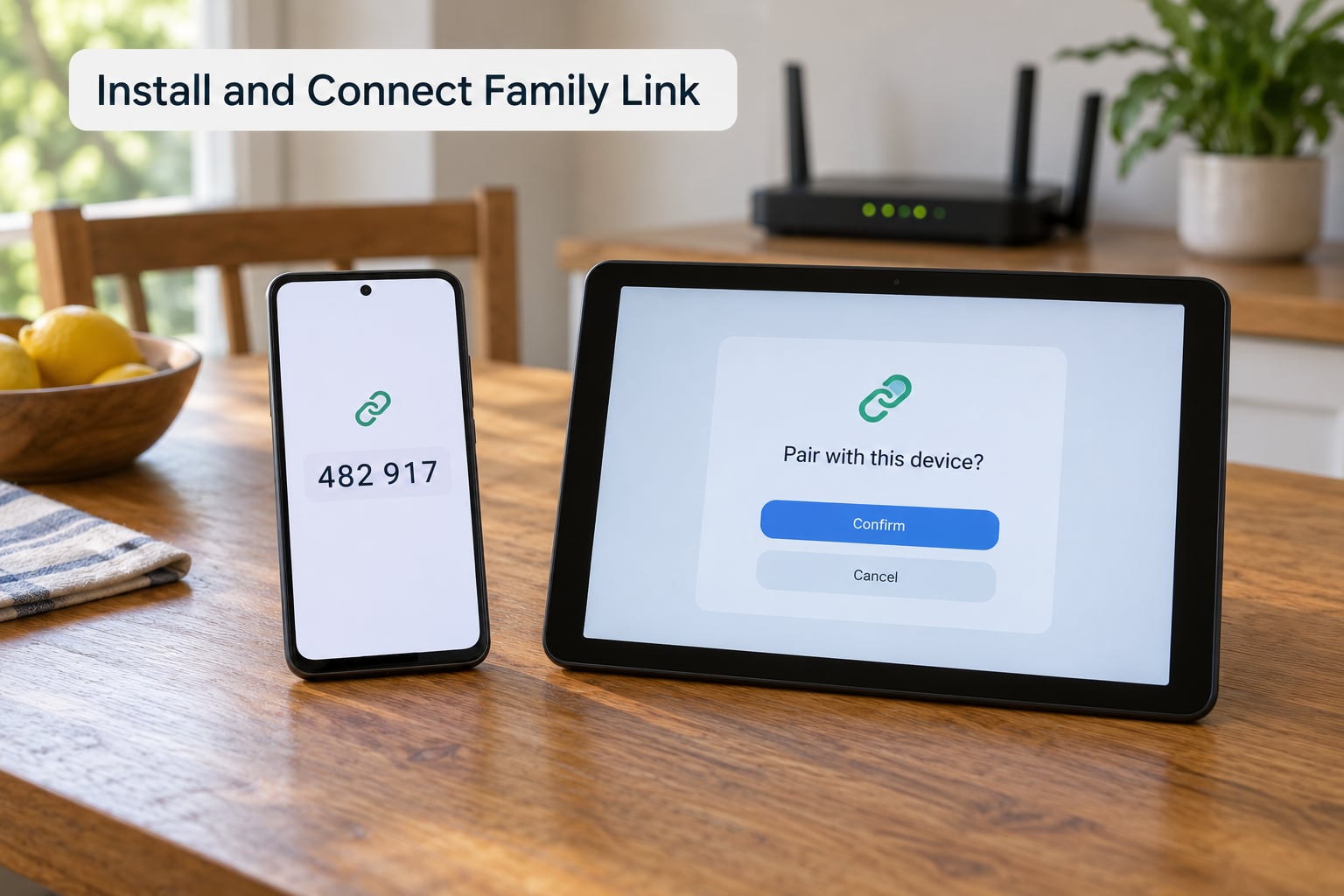
Now open Family Link on your phone and tap Set up a child or Add child. The app offers to send a link to the child’s device or to enter a pairing code manually. The code route is faster on the same Wi-Fi network, and it expires within a couple of minutes, so have the tablet unlocked in front of you.
On the tablet, a screen appears saying someone wants to use this device with Family Link. An adult taps Agree. A second screen asks to activate device admin. That one matters: it is the permission that stops your child from uninstalling the controls or changing limits without you. Confirm it now, because finding it later means digging through Settings, Apps, Special app access, Device admin apps.
Once paired, the child’s name appears in your Family Link app with a summary of today’s screen time. That screen is the command centre for everything below.
Set App, Screen-Time, and Purchase Limits
Open the child’s profile in Family Link. Screen time is the first tab, and it holds four things that parents constantly mix up.
Daily limit is the total time across apps, including browser use. When you set it, you choose what happens at the end: Lock device, Show a stop screen, or let the child ask for more time. Lock device is the only real lockdown on a tablet.
App-specific limits and timers sit under Limits. Add a per-app daily limit for anything you expect to be a problem, and set a timer window rather than a flat budget if the app is only meant for a specific part of the day.
Downtime is a repeating schedule when almost everything locks, useful for homework and bedtime. School time is a separate schedule with a PIN your child cannot open without you, which is the setting that stops the override question before it starts.
Purchase approvals need one extra piece most guides forget. Under Limits, switch on Require approval for purchases made in Google Play. For that to work, your family group needs a payment method attached, so open the Play Store, tap your avatar, then Family, then Family payment method, and add a card or a gift balance. Without a payment method on file, approval requests never fire and the child can buy things without you seeing a request.
| Control | Where to find it | What it does | App |
|---|---|---|---|
| Daily screen time limit | Family Link, child profile, Screen time | Caps total device use and can lock the tablet at zero | Family Link |
| App limits and timers | Family Link, Limits, App limits | Per-app daily cap or a scheduled window | Family Link |
| Downtime | Family Link, Screen time, Downtime | Recurring lockdown on a schedule you set | Family Link |
| School time | Family Link, Screen time, School time | PIN-protected device unlock for school nights | Family Link |
| Install approvals | Family Link, Limits, App and website install times | Every new app waits for your approval | Family Link |
| Content filters | Family Link, Settings, Content filters | Age rating ceiling for apps and websites | Family Link |
| On-device timers | Tablet: Settings, Digital Wellbeing, Screen time | Works with no parent phone, child can edit it | Digital Wellbeing |
| Kid mode launcher | Samsung: Settings, Samsung Kids. Pixel: Settings, Apps, Google Kids Space | Full-screen launcher with app approvals inside it | OEM kid mode |
Restrict Web Content and Test the Settings
Content filters live in Family Link under Settings, Content filters, where you set the maximum age rating for both apps and websites. Leave the checkbox for websites on, or the rating ceiling only applies to downloaded apps and the open web stays unfiltered.
Turn on SafeSearch inside the same area and lock it. Unlocked SafeSearch is a preference the child can flip in two taps, so the lock is the setting that counts. For YouTube, the restricted mode setting sits in the Family Link content filters menu and applies to the YouTube app on the tablet and in Chrome.
Now test. Three tests, in this order, take about five minutes and tell you whether the setup actually works.
- Test the web filter. On the tablet, open Chrome and search for something you know crosses your age limit. If results load normally, the website filter is off.
- Test the install approval. Ask the child to install an app from Play. The install should stall on an approval screen and a request should appear on your phone. If no request appears, check Family Link app notifications and the Play payment method.
- Test the lock. Set a daily limit of five minutes, or set downtime to start in ten minutes, and watch what happens at zero. Lock device is the only version of this test worth doing, because the stop screen is dismissible.
Write down the date you tested. Menu paths shift with Android releases and this is the section to re-check first if something stops enforcing.
Common Mistakes
Using the wrong Google account on the parent side. If your phone is signed into a work or second Google account, Family Link supervises the family group tied to that account and nothing appears to work. Open the Family Link avatar menu and confirm the linked family is the one your child is in.
Reusing the tablet’s unlock PIN as the parent access code. The six-digit parent access code is separate, and it rotates hourly. A child who knows the screen lock PIN can guess at it. Check Settings, Apps, Google, All services, Parental controls to see your code, and set it to something your child would not try.
Treating screen time as a device lock. This is the most common misunderstanding in the r/familylink and r/AndroidQuestions threads. Ending a screen time limit can show a friendly stop screen with an Extend option. If you want the tablet to shut, you must select Lock device in the daily limit settings.
Not linking the child’s account at all. Setting a PIN on the tablet’s Digital Wellbeing screen and calling it parental controls is a common shortcut. Digital Wellbeing limits can be edited by anyone holding the tablet, and it reports nothing to you. It is a useful fallback, not a supervision system.
Relying on one setting. Parents ask which control holds up against a determined nine-year-old. There isn’t one, because the standard bypasses are cheap: switching to the guest profile, opening an incognito window, using a sideloaded app, or on a shared tablet simply adding a new user. Layer an age rating filter, install approvals, a device lock and location reporting, and the effort required goes up fast.
Assuming the menu paths match across brands. Pixel and most stock Android builds use Settings, Google, All services, Parental controls. Samsung One UI adds Digital Wellbeing at Settings, Digital Wellbeing and puts its own controls under Settings, Samsung Kids plus Knox. Xiaomi and Redmi put the relevant switches under Settings, Passwords and security. Huawei tablets without Google Play services cannot use Family Link at all, which brings us to the next one.
Using an Amazon Fire tablet and expecting Family Link. Fire OS is Android underneath, but it has no Google Play and no Google Play services. Family Link is not available on it. You need the Amazon parental controls built into Fire OS instead, and settings from the Play Store route above simply don’t exist on that device.
Forgetting that a factory reset wipes supervision. This one shows up repeatedly on Reddit and it’s worth saying twice. Erase the tablet, or let your child do it through a factory reset, and Family Link supervision is gone. It is not restored when they sign back in. The screen lock is the backstop.
Setting up before thinking about the age band. A toddler’s profile that is all blocked is manageable. A teenager with the same settings will route around them within a week, and you’ll have argued your way back to zero restrictions. Match the limits to the child, not to the worst case.
Frequently Asked Questions
Is Family Link free for an Android tablet?
Yes. Google Family Link is free, including the app limits, screen time limits, downtime, content filters, purchase approvals and location reporting. Paid third-party apps exist and add things like text message monitoring and live GPS history, but nothing in the core setup requires a subscription.
What is the best way to set up parental controls on an Android tablet?
Create a supervised child Google account through Family Link, pair it with your phone, then set a daily limit with the lock option, turn on install approvals, add a family payment method and enable content filters with SafeSearch locked. Finish with a lock test, because a stop screen without a lock is not a lockdown.
How do I recover a forgotten Family Link PIN?
A forgotten parent access code cannot be recovered or reset, and that is deliberate. On the child profile, tap the three dots beside Screen time and choose Forgot password, then request a reset link from your parent email or phone. If that fails, the account password reset on the child’s Google account is the only route back.
Can parental controls block every inappropriate website or app?
No. Filters work on age ratings and SafeSearch matching, so a site with no rating or one hosting harmful content without a label will pass through. Private browsing, VPNs and sideloaded apps also sit outside the filter. Treat Family Link as a strong set of speed bumps rather than a sealed room.
Why can’t I find the screen-time controls on my Android tablet?
On most Android 12 and newer builds the path is Settings, Google, All services, Parental controls, or Settings, Digital Wellbeing. On Samsung One UI, Digital Wellbeing sits directly in Settings, and on Amazon Fire tablets Google Play services is absent so Family Link never installed. Manufacturer builds move these labels around.
How do I remove parental controls when my child is ready?
In the Family Link app, open the child’s profile, tap the three dots and choose Stop supervision, then confirm with your parent access code. Do it from the parent app rather than the tablet, because removing the app on the tablet side can leave the account in a half-supervised state. The screen lock stays until you remove it yourself.
Start tonight with the screen lock and a supervised child account. Everything else in this guide sits on top of those two, and getting them right first means the rest of the setup takes fifteen minutes rather than an evening.