A guest profile is a temporary second user space on an Android tablet, so you can hand the device to someone else without exposing your apps, accounts, photos or messages. Learning how to use a guest profile on an Android tablet takes under a minute once you know where the switch lives, and it works on stock Android and on Samsung tablets with a slightly different menu path.
Every profile on an Android tablet keeps its own app data and its own accounts, which is why the guest screen looks empty even when your own screen is full of shortcuts. Below I walk through creating the guest, switching into it, using it safely, and deleting it afterwards. Menu names shift a little between Android versions and manufacturers, so I give both the stock Android path and the Samsung One UI one.
Table of Contents›
- What You Need
- Step-by-Step: How to Use a Guest Profile on an Android Tablet
- How to Create the Guest Profile on an Android Tablet
- Switch to the Guest Profile
- Use Apps and the Internet Safely
- Return to Your Main Profile
- Delete or Reset the Guest Profile
- Common Mistakes
- Frequently Asked Questions
- Can a guest profile see my apps and files on an Android tablet?
- Why can I not find the guest profile option on my tablet?
- Does using a guest profile protect my personal apps and accounts?
- Can I use a guest profile without creating a new Google account?
- What happens to apps and downloads in an Android guest profile?
- Should I use a guest profile or a separate user account?
What You Need
You need the owner profile of the tablet, which is the first profile created on the device and the only one that can add or remove users. On most tablets that is the profile signed into your Google account.
A screen lock on the owner profile matters more than people expect. Your PIN, pattern or password is what stops a guest from switching back into your account, and without one anyone can hop straight out of the guest profile.
You also want a little free storage, though far less than most people assume. Adding a profile does not install a second copy of your apps. There is one copy of each app file and a separate data container per profile, so the cost is measured in megabytes rather than gigabytes.
Finally, know your tablet’s brand menu. Stock Android puts everything under System and Multiple users. Samsung Galaxy Tab tablets put it under Accounts and backup and Users, and a work or school management profile can grey the whole section out.
Step-by-Step: How to Use a Guest Profile on an Android Tablet
The quick version, if you want the tablet handed over right now:
- Swipe down from the top edge twice to open the full Quick Settings panel.
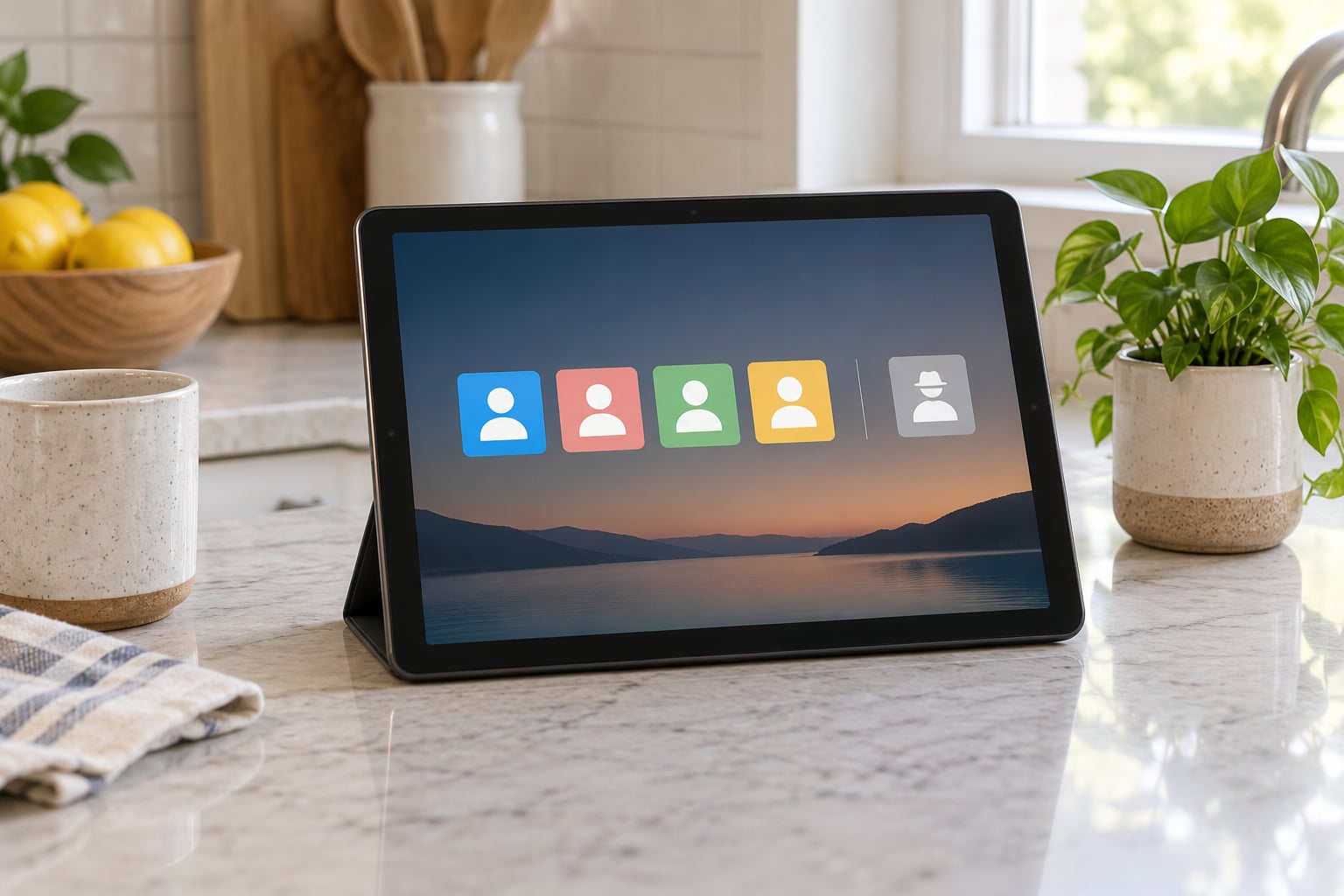
- Tap the user avatar, also called the profile icon, at the bottom of that panel.
- Choose Guest, then confirm Add new user.
- Check the home screen. A fresh Guest label and an almost empty app drawer means the switch worked.
How to Create the Guest Profile on an Android Tablet
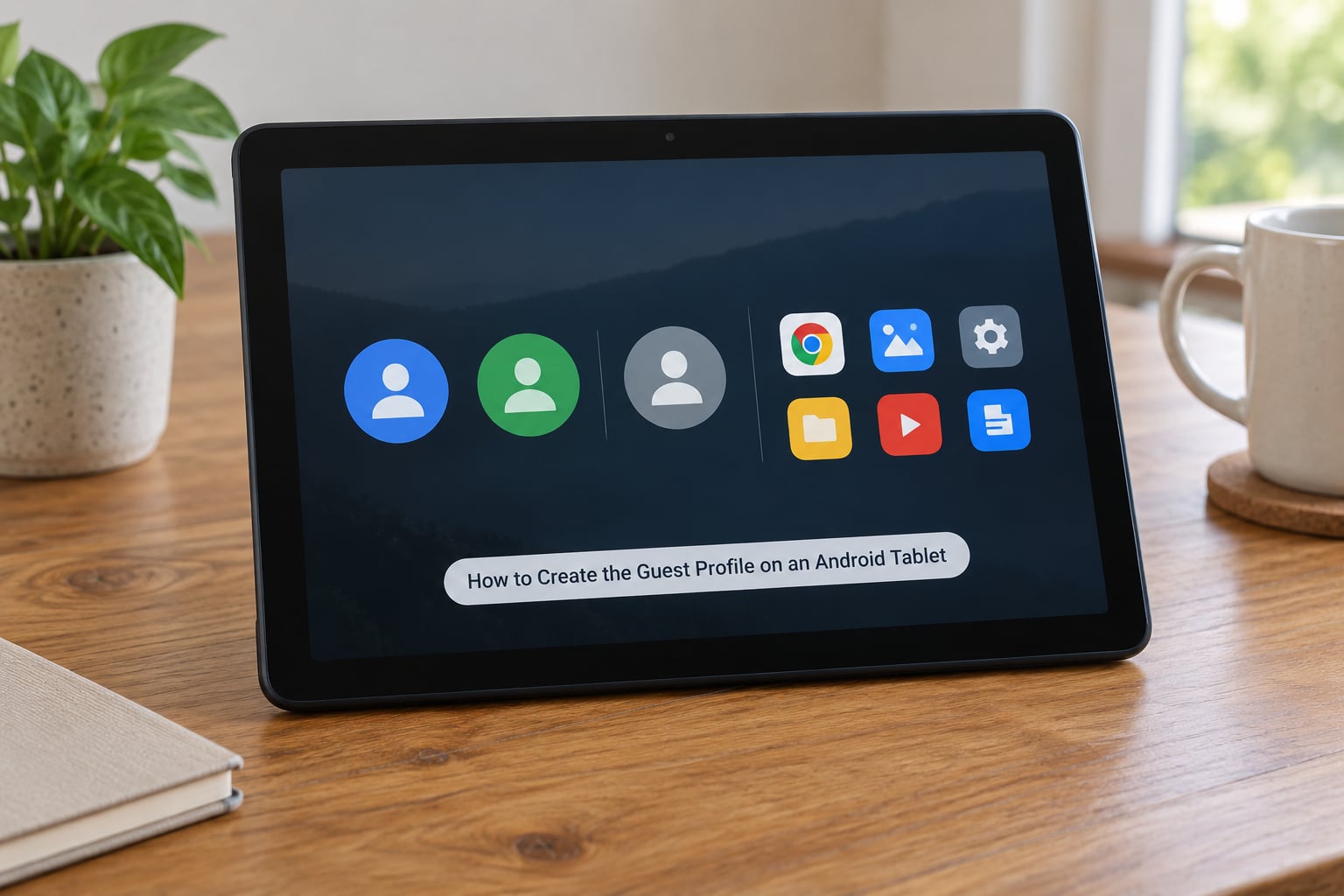
On stock Android, open Settings, tap System, then Multiple users. Switch on Allow multiple users, tap Add new user, and choose Add guest. Android creates the guest instantly and switches you into it without any further setup.
On a Samsung Galaxy Tab running One UI, the same function lives at Settings, Accounts and backup, Users, then Add new user, Guest. Samsung calls the three profile types Administrator, User and Guest, and only the Administrator profile can delete the others. That is Samsung’s word for what other brands call the device owner or owner account.
While you are in this menu, turn on the option that asks for a screen lock when someone tries to leave the guest profile. On tablets that support restricted profiles you will also see a Restricted profile entry, a tablet-only type the Administrator can lock down with app and account limits. It is the pick for a kids tablet that stays in the family living room.
Switch to the Guest Profile
The gesture is the same as the one you use for the notification shade. Swipe down once for notifications, swipe down again for Quick Settings, then tap the avatar tile. Pick Guest and confirm, and the tablet switches. If you enabled it, the profile picker also appears on the lock screen, so you can go straight there without unlocking first.
Switching takes a few seconds because Android stops the background apps of the old profile and starts the guest ones. That delay trips people up, but it is normal, especially on a tablet with a lot of background activity running.
Verify the switch rather than assume it. The home screen shows the Guest label, your own apps are gone, and nobody is signed into your Google account. If you still see your own apps and icons, you are not in the guest profile yet.
Use Apps and the Internet Safely
A guest profile does not need a Google account to be useful. Browsing, video, offline games and any app already on the tablet all work over the Wi-Fi network the tablet is joined to.
Since Android 13, the guest can open apps you already have installed, and you get the choice each time you switch profiles. Those apps open in a factory state, which means logged out, with no history and no session from your profile. It is a useful trick on a Netflix or Disney+ tablet: the app is there without you handing over your sign-in.
Streaming services treat that fresh state as a new device. The guest signs in with their own account, and your account is not exposed. YouTube, WhatsApp and similar apps all follow the same rule, so the guest supplies their own credentials or uses the app logged out.
Knowing the split matters more than the menu path. This is what the guest can reach, and what stays locked in your profile:
- Browser history and its own downloads are the guest’s, while your photos, screenshots and gallery stay in your profile.
- Apps you allow open logged out, but your Google account, email and messages are never shared.
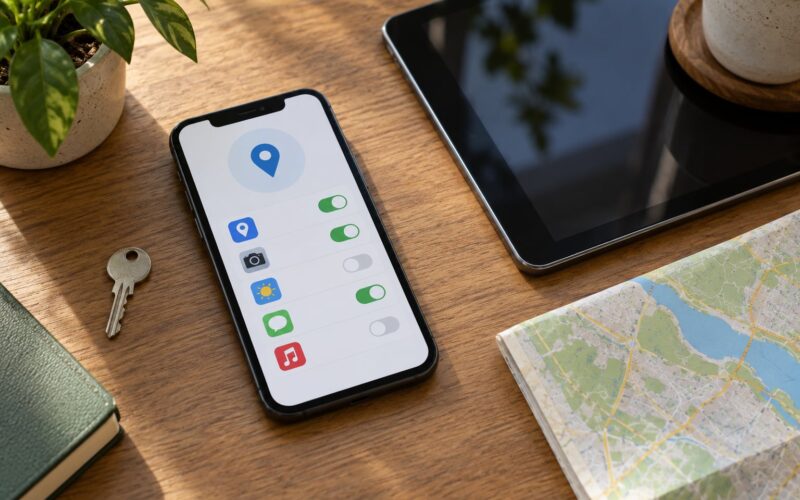
- Shared internal storage and SD card files are readable from the guest profile, so documents you copied there are not private.
- The Wi-Fi network the tablet is joined to is available to the guest, while your notifications and app history are not.
The shared storage line is the one that surprises most owners. Files you have copied onto the SD card, or into a shared folder on internal storage, stay readable from any profile. Before you hand the tablet over, move documents, receipts and anything personal off those shared locations, because guest mode does not hide them.
Return to Your Main Profile
Repeat the same gesture: swipe down twice, tap the avatar, and choose your own profile or Administrator. Android asks for your screen lock before it switches. Guest mode never bypasses the lock screen, so that prompt is the protection, not an inconvenience.
When you hand the tablet back and want the guest’s session gone, choose End session rather than simply switching away. Unfinished downloads, half-written notes and any photos the guest took during that session are deleted permanently at that point. If you only switch profiles, the next person sees a Continue session button and can open what the last guest left behind, which is the single most common surprise in this whole process.
Delete or Reset the Guest Profile
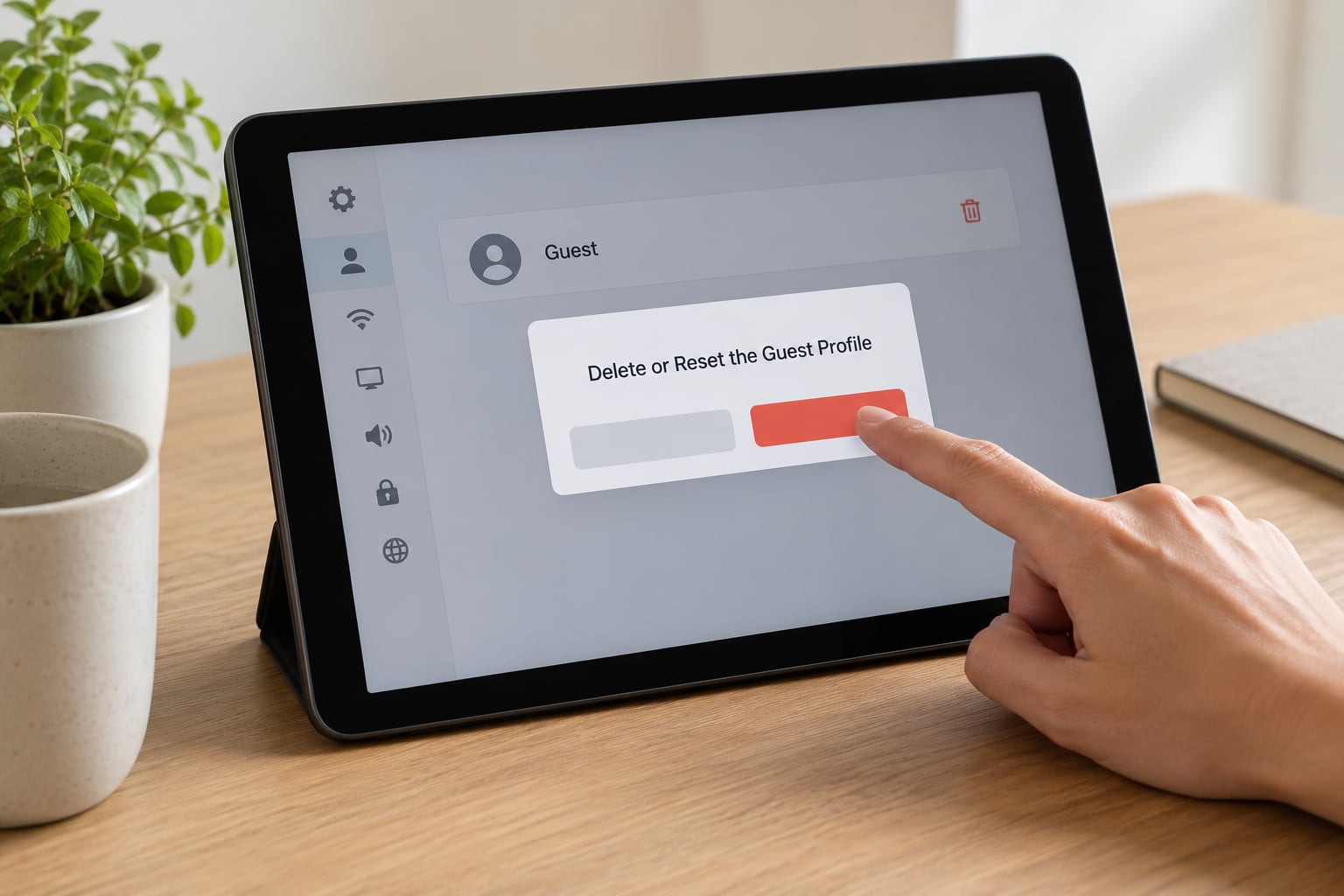
To remove the guest for good, go back to the same Users menu you created it from. Stock Android keeps it at Settings, System, Multiple users; Samsung keeps it at Settings, Accounts and backup, Users. Tap the guest entry, choose Remove user, and confirm.
Removing a profile deletes its data with no recovery path. Photos taken in guest, notes, downloads and app data all go. Forum threads about this feature fill up with the same story, and the short version is that anything left in a guest profile should be moved to your own profile before you delete it.
If a guest session is stuck or the tablet will not switch back because the screen lock was forgotten, a restart clears the session but not the lock. A forgotten owner PIN means a factory reset, which erases the owner profile too. That is the reason to keep the password somewhere you will actually find it.
Common Mistakes
You cannot find the guest option. On Samsung it is not under System. Look at Accounts and backup, Users. If the Users section is greyed out or missing entirely, a company or school management profile owns the tablet and the setting is controlled by that administrator, not by you.
Your guests cannot see the apps you want them to use. Installed apps only appear for a guest when you allow app sharing during the switch, and each app opens logged out. Anything blocked there has to be reinstalled from the Play Store, which needs a sign-in.
A guest found a file you thought was hidden. Shared internal storage and SD card content are readable from every profile, so keep personal documents off both.
The next person could see the last guest’s session. That is what Continue session is for. End the session instead of just switching, or remove the guest profile after every use.
You cannot leave the guest profile. Your screen lock is required to return to the owner profile, and a guest cannot bypass it. A restart clears the guest session; a forgotten owner PIN costs you a factory reset.
You are treating a guest like a second account. A guest starts empty every time and wipes itself when the session ends. A named secondary user keeps its own apps, accounts and lock screen across visits, and a restricted profile adds admin limits on top of that. Pick the guest profile for a quick handover, a named user for a regular family member, a restricted profile for a kids tablet.
Frequently Asked Questions
Can a guest profile see my apps and files on an Android tablet?
Your photos, messages, accounts, app data and downloads made in your own profile are not visible to the guest. Files on the SD card or in shared internal storage are readable from any profile, so clear anything personal from those folders first. Apps you already installed may also appear if you allow app sharing when switching profiles.
Why can I not find the guest profile option on my tablet?
On Samsung tablets the setting is not under System. Look at Settings, Accounts and backup, Users, then Add new user. Stock Android uses Settings, System, Multiple users. If the Users section is greyed out or absent, a work or school management profile controls the tablet, and a restart usually clears a menu that has stopped responding.
Does using a guest profile protect my personal apps and accounts?
Yes for anything stored inside your own profile, including app data, saved logins, messages and photos. A guest cannot return to your profile without your screen lock, and guest mode never bypasses that lock. Keep a PIN, pattern or password set on the owner profile, otherwise anyone can switch straight back out of the guest.
Can I use a guest profile without creating a new Google account?
You can. Browsing, video and offline apps all work in the guest profile without any Google sign-in. A Google account is only needed for Play Store purchases and for apps that require one, such as streaming services. The guest profile exists on the tablet itself and is completely separate from any Google account.
What happens to apps and downloads in an Android guest profile?
Each profile keeps its own app data, so anything the guest downloads stays inside the guest profile and disappears when you end the session or remove the user. Apps installed on the tablet remain installed for everyone; only the data inside them is separate. Ending the session wipes guest data permanently.
Should I use a guest profile or a separate user account?
A guest profile suits short handovers. It starts empty, ends with one tap and wipes itself automatically. A named secondary user keeps its own apps, accounts and lock screen between visits, which suits a family member who uses the tablet regularly. For a kids tablet, a restricted profile gives the most control over apps and accounts.
Start with the short path. Swipe down twice, tap the avatar, choose Guest, and the tablet is ready to hand over in a few seconds. Before you do, move anything personal off the SD card and out of shared storage, and confirm your screen lock is switched on. When the guest gives it back, end the session rather than just switching away, and the next person starts from nothing.