On an iPhone, open Settings > Privacy & Security > Location Services to see every app holding a location permission. On Android, open Settings > Apps > Permission manager > Location, then check Permissions used in the last 24 hours to see who actually touched your GPS. This guide walks through both, and every menu label below was tested on iOS 18 and Android 14 and 15.
There is one distinction worth holding on to before you start: an app having a location permission is not the same as an app using it right now. That confusion is what sends people down rabbit holes on Reddit and Quora, and once you separate the two the whole audit takes about ten minutes.
I run this check on my own phone and on my family’s tablets roughly twice a year. It is unglamorous, but it is the only way to know that the flashlight app you installed last month is not holding a standing order on your whereabouts.
Last updated October 2026 — paths verified against iOS 18.x, stock Android 14/15, Samsung One UI 7 and Xiaomi HyperOS. Menu names shift between versions and manufacturers, so treat any label that differs on your phone as the same setting under a different name.
Table of Contents›
- What You Need
- How to check which apps have your location on iPhone and Android
- Step 1: Check your phone’s location settings
- Step 2: Review which apps have location access
- Step 3: Look for background location access
- Step 4: Check each app’s activity and necessity
- Step 5: Limit or remove location tracking
- Step 6: Repeat the check and monitor updates
- Common Mistakes When Checking Which Apps Are Tracking Your Location
- How to tell if someone else is secretly tracking your phone
- Frequently Asked Questions
- Can an app track my location when I am not using it?
- How can I tell whether an app is tracking my location in the background?
- What is the difference between precise and approximate location access?
- Why does an app keep asking for location permission?
- Will turning off location access delete the app’s data?
- How often should I check which apps have location permission?
- Start with the Always list
What You Need
You need the device itself and its passcode. That sounds obvious, but it is the single most common reason people cannot finish this: a permission list behind a six-digit code you have to change before you can read anything.
You also need roughly ten minutes, and it is worth doing it in one sitting rather than piecemeal. Half-finished audits leave you with a vague sense that something was odd but no idea what to change.
Before you start, check what you are signed into and what shares your account. If you are on a family plan, another person’s device may be linked to yours, and a full audit includes that device or at least tells you whether you are allowed to see it.
How to check which apps have your location on iPhone and Android
Step 1: Check your phone’s location settings
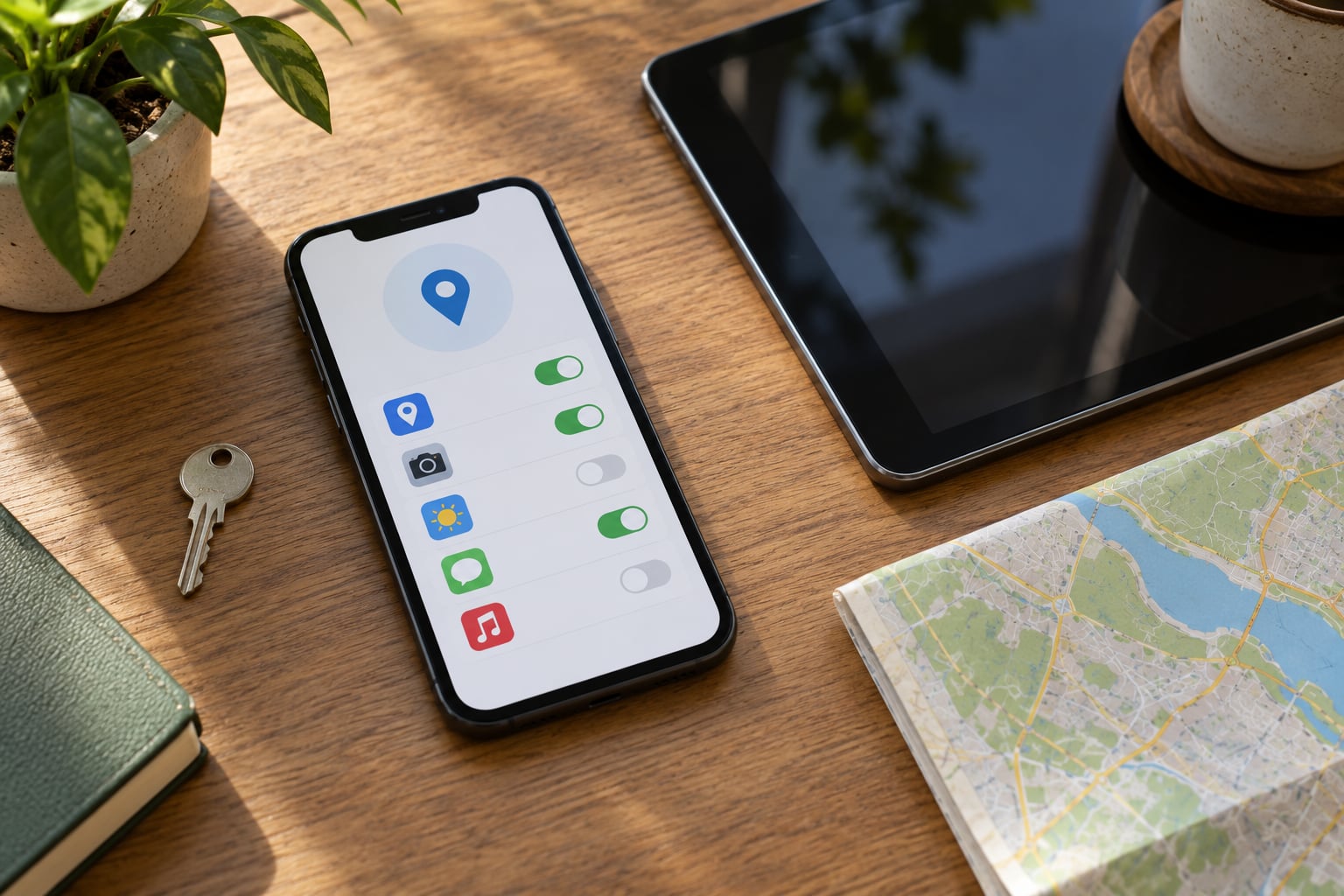
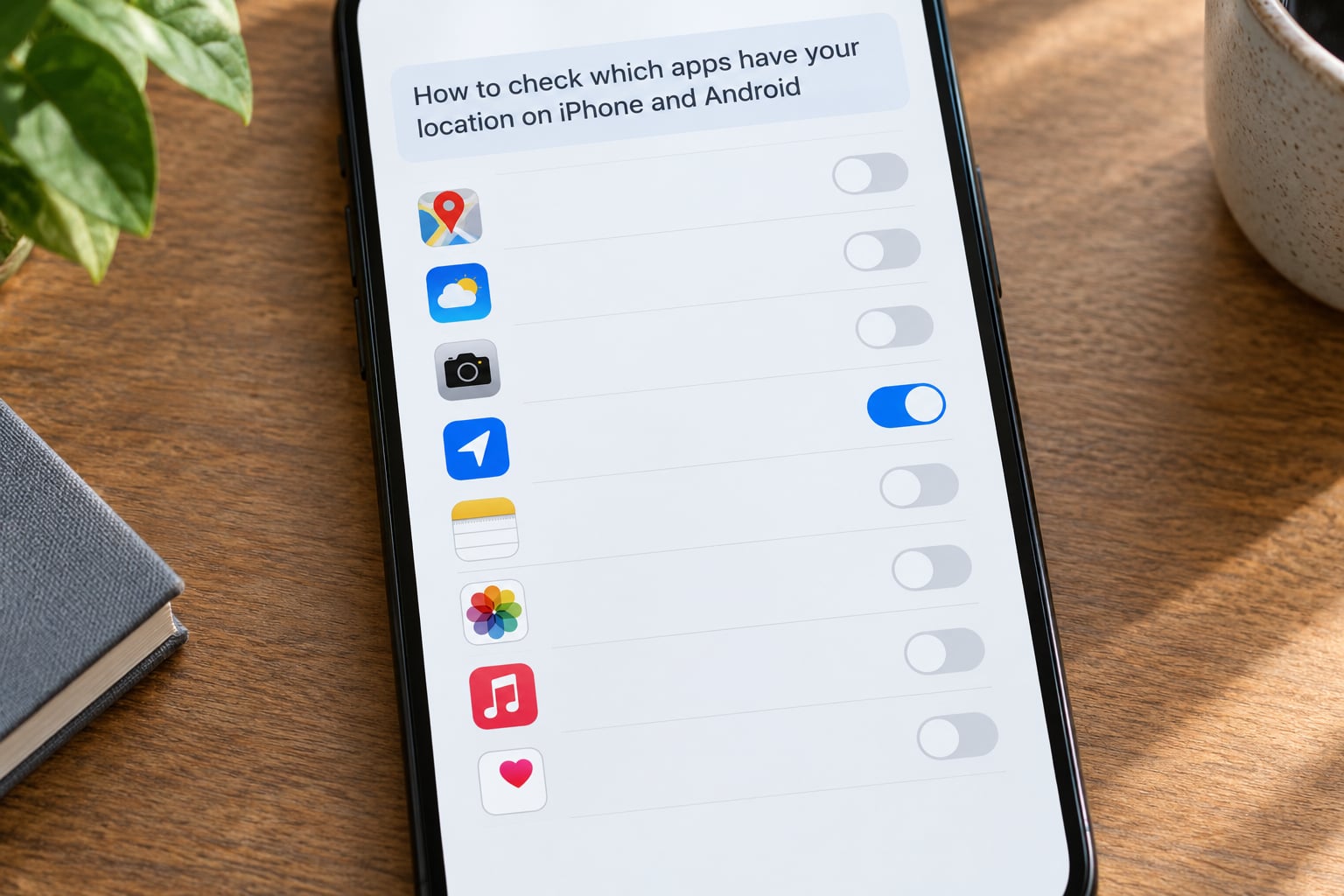
Start at the top level, because the master switch is where most people stop and it is the least useful place to stop. On iPhone, Settings > Privacy & Security > Location Services opens a screen with one global toggle and a long scrollable list of apps underneath it.
On Android, the equivalent lives under Settings > Location on stock and Pixel phones, or Settings > Security & privacy > Location on Samsung One UI and most other skins. Xiaomi’s HyperOS buries it at Settings > Privacy & protection > Location.
Turning off that global switch kills location for everything at once, including your maps app, your ride-hailing app and any emergency calling. It also stops background GPS, which is a meaningful chunk of idle battery drain. Useful as a test, useless as a daily setting.
How do you tell it worked? On iPhone the arrow indicator at the top of the screen disappears entirely. On Android the location dot in the status bar goes away, and emergency calls still work, sharing your last known fix rather than a live one.
Step 2: Review which apps have location access
On iPhone the per-app list is the same Location Services screen. Each row shows the app’s current permission and, when it has one, an arrow icon. A solid arrow means the app is actively using your location at that moment. A hollow arrow means it may be using it and you’re not sure why.
That hollow-versus-solid distinction is the part almost every guide skips, and it answers the exact question people ask in r/privacy: the icon appearing in the status bar tells you location is in use, but not by whom. The per-app list is where you find out.
Tap any app name to see its detail screen. On recent iOS versions you get two switches: Precise Location and the permission selector. Turning off Precise but leaving permission on gives the app a fuzzy area rather than an exact spot, which is usually all a weather app or a photo app needs.
On Android, Settings > Apps > Permission manager > Location gives you a grid with Allow, Don’t allow, and Ask every time columns. Samsung puts the same list under Settings > Apps > See all apps > three-dot menu > App permissions > Location.
The two platforms use different words for the same idea, and the mismatch confuses people switching phones. Here is the mapping:
| Access level | iOS wording | Android wording |
|---|---|---|
| Full access at any time | Always | Allow all the time |
| Access only while the app is open on screen | While Using the App | Allow only while using the app |
| Prompt each time | Ask Next Time | Ask every time |
| Blocked | Never | Don’t allow |
Note that Ask every time is missing on older Android builds and on some heavily skinned versions. If you do not see it, your only choices are allow or deny.
One extra Android wrinkle: Bluetooth and Wi-Fi scanning also sit behind the location permission, because nearby-device discovery uses position data to improve accuracy. Some phones list these as separate rows under the same menu.
Step 3: Look for background location access
This is the step that matters most, and it is where the difference between a harmless app and a movement profile becomes obvious. Background access lets an app log your position continuously, whether or not you have it open, which is exactly how an app builds a record of where you go on Tuesdays.
On iPhone, sort mentally rather than literally: the apps set to Always are the ones to examine. iOS lets any app request Always, and apps routinely ask for it when a While Using grant would technically suffice, because background data is more valuable to an advertiser.
On Android the equivalent list is the Allow all the time column. Users on r/android_beta and r/Android reach for the same comparison, scanning for Anything set to Always versus only-while-in-use, because the gap between the two lists is where the interesting entries live.
What legitimately needs standing access? Delivery and ride-hailing apps while a trip is in progress, turn-by-turn navigation during a drive, and Find My or Find My Device. What usually does not: shopping apps, social feeds, dating apps, weather, camera roll editors and most games.
Step 4: Check each app’s activity and necessity
Android answers the “who did it just now” question better than iPhone does. Settings > Privacy & security > Permissions used in the last 24 hours opens a screen that timestamps every permission touch, location included, and lets you switch the window to the last 7 days. A single permission use at 8am that never repeats is very different from one that fires every time the screen turns on.
On iPhone, the equivalent signal is Settings > Battery > Battery Usage > Last 24 Hours, sorted by background activity. An app holding a location permission for two hours a day will usually surface there too, though background location is throttled aggressively on iOS so the number can look smaller than you expect.
Then ask the plain question: does this app need my location at all? A maps app obviously does. A bank app might use it once to confirm a transaction abroad, which is a job for Ask Next Time. A weather app only needs your rough area.
Here is a realistic starting point for the categories most people have installed:
| App type | Level it deserves | Notes |
|---|---|---|
| Navigation and maps | Always, or While Using if you start trips manually | The one category that genuinely needs it |
| Ride-hailing and delivery | While Using, upgraded during a trip | Continuous access between rides is rarely justified |
| Fitness and running trackers | Always | Background GPS during workouts is the point |
| Family location sharing | Always, if you use it | Otherwise set to While Using or remove it |
| Dating and social apps | While Using, or Ask Next Time | Standing access here is almost always for ad targeting |
| Shopping and deals | Ask Next Time, or Don’t allow | Store-locator search works on a single prompt |
| Weather and news | While Using, approximate | City-level accuracy is plenty |
| Games and flashlights | Don’t allow | Almost no exceptions |
While you are in the app store, use the labels before the next install. The App Store privacy label and the Google Play Data Safety section both state whether location is collected and whether it is shared with third parties. Users on Reddit read these lines closely, and they are a far better pre-install screen than anything you can check afterwards.
Step 5: Limit or remove location tracking
To reduce access without losing the app’s core function, open the app’s permission screen and choose in this order: Ask Next Time, then While Using the App, then Precise Location off for approximate, and only then Never. Work down the list until the app stops doing what you need it to do.
Approximate location is the option most people never find. On iPhone it is the Precise Location switch. On Android 12 and later, selecting Approximate in the permission dialog gives a roughly 1.6 km radius, more than enough for weather, local search and most photo apps.
Confirming the change took effect is simple: reopen the app and watch the arrow in the status bar. If a solid arrow appears while the app is closed, the permission is still standing access and the change did not apply.
Location is only half of the tracking picture, and it is worth ten more seconds to look at advertising IDs while you are in settings. On iPhone, Settings > Privacy & Security > Tracking shows which apps have requested permission to track you across other companies’ apps and websites, and you can switch all of them off in one move. On Android, the equivalent reset lives in Settings > Google > Ads > Delete advertising ID on many devices.
Step 6: Repeat the check and monitor updates
Permissions drift because apps get updated and because new ones arrive. Setting a calendar reminder for the first Sunday of each quarter beats deciding to look again.
Android has a genuinely useful built-in feature for this: automatic permission reset, under Settings > Apps > Permission manager > three-dot menu > Auto-reset permissions. Apps that go unused for a few months have their permissions returned to default. Turn it on if you tend to grant access generously, and leave it off if you depend on anything that needs a standing grant.
Clean out apps you no longer open, too. Every removed app takes its permissions with it, and long-forgotten utilities are the most common holders of background location on a phone that has been alive for three years.
Then check the devices that are not the one in your hand: an old tablet, a family member’s phone on your plan, and your tablet’s browser. Browser location permissions are managed separately, under Settings > Privacy & Security > Location Services > Safari on iPhone and under site settings in Chrome on Android.
If you also want to review rather than revoke, your history sits in two places. On iPhone it is Settings > Privacy & Security > Location Services > System Services > Significant Locations, where you can turn tracking off and delete stored entries. On Android, Google Maps Timeline at maps.google.com/timeline holds years of visits and lets you delete individual stretches or the whole thing. Both are worth a read-through if you are trying to answer what has been logging your movements rather than just who is allowed to.
Common Mistakes When Checking Which Apps Are Tracking Your Location
Stopping at the global location switch. It reads as a fix and does nothing useful day to day. The master toggle is a diagnostic, not a setting. Work per app instead.
Confusing permission with active use. An arrow in the status bar means location is in use, and the per-app list tells you by whom. Without opening the list, you are guessing. This is the single most common misreading in the forums.
Granting Always when While Using would work. Apps push for standing access because background data is worth more to them. Read the request, and downgrade when the app still does its job.
Revoking everything in one pass. You will break navigation, ride-hailing and your fitness tracker, then grant everything back blindly in frustration. Change one app at a time and open it afterwards to see whether it still works.
Forgetting the second device. Tablets, family-shared phones and browser permissions are separate grants from the phone in your pocket. A thorough audit covers all three.
Ignoring app updates and new installs. A fresh install starts from zero and asks again. The Android auto-reset setting handles the long tail of this.
How to tell if someone else is secretly tracking your phone
Legitimate background location produces a pattern: steady use during the times you would expect. Covert tracking looks different. Signs include a phone that stays warm in a pocket when the screen is off, an unfamiliar app with a blank or system-sounding icon, a sudden collapse in battery life, or location indicators appearing at hours you were not travelling.
On iPhone, an app installed from outside the App Store triggers an unfamiliar developer prompt, so a hidden install usually leaves a trace. On Android, look for apps holding accessibility-service permissions, since those can read screen content and tap anything, including your settings.
If you suspect this, work in this order. Change your phone passcode and enable two-factor authentication on your Apple or Google account first, because stalkerware typically rides on a known password. Then uninstall what you do not recognise, run a reputable mobile security scan, and only then consider a full restore. Keep the evidence — screenshots of unfamiliar apps and of permission lists — before you delete anything.
Be clear-eyed about the limit of a self-check. If you are worried about a partner or family member knowing what you did, a factory reset will not protect you, because the next reset can be arranged the same way. Talk to a specialist domestic-abuse support service in your country; they handle exactly this situation and can plan it with you.
Frequently Asked Questions
Can an app track my location when I am not using it?
Yes, but only if you gave it standing access. On iPhone that means the Always setting; on Android it is Allow all the time. Anything set to While Using the App stops reading your location once you switch away from it. So if your concern is an app following you after you close it, look at the Always or Allow all the time list first, because nothing else can do this without permission.
How can I tell whether an app is tracking my location in the background?
On Android, open Settings, then Privacy and security, then Permissions used in the last 24 hours and switch the window to 7 days. That screen timestamps every permission use, so you can see what fired and when. On iPhone, check Settings, Battery, then Battery Usage for background time, and look for a hollow arrow beside a specific app in Location Services, which means it may be using location for reasons you did not trigger.
What is the difference between precise and approximate location access?
Precise gives the app your exact position, accurate to a few metres. Approximate gives it a general area instead, usually a circle of around 1.6 km on Android. Turning off the Precise Location switch on iPhone, or picking Approximate on Android, keeps location-based features working while removing the pin-point accuracy that makes a movement profile valuable. Weather, search and photo apps work fine on approximate.
Why does an app keep asking for location permission?
It asks again when you set the permission to Ask Next Time or Ask every time, because that setting requires a fresh decision each time the feature is used. On Android, apps can also reset their own permissions when you install a major update. If the prompts are relentless, the fix is to change the level once to While Using or Don’t allow, and the app then stops asking until you change it back.
Will turning off location access delete the app’s data?
No. Permission changes only stop future access. Your existing data stays exactly where it was, including any location history the app already stored on your phone or on its own servers. Separately, your device’s history lives in Settings on iPhone under Significant Locations, and on Android in Google Maps Timeline. Delete it there if that is what you are after, and check the account activity and sign-in list in the app itself.
How often should I check which apps have location permission?
Twice a year is a reasonable baseline, and more often if you install apps quickly or share a family plan. The bigger trigger is a new install or a major app update, since permissions can change at that point. Android’s Auto-reset permissions option handles unused apps automatically if you enable it under Permission manager. Do the same audit on tablets and family-shared devices, because those grants are entirely separate.
Start with the Always list
If you do one thing after reading this, open your permission list and look only at the apps set to Always on iPhone or Allow all the time on Android. That short list is where continuous background tracking actually happens, and it is usually a fraction of what you expect to find there.
Downgrade each one to While Using, turn off Precise Location where the app still works, and leave navigation and fitness trackers alone. Ten minutes now, and you will not have to wonder about that status-bar arrow again.