To stop targeted ads on an Android phone, you need to do three things: delete your Google Advertising ID, turn off ad personalization in My Ad Center, and pause the activity controls that feed your ad profile. It takes about 20 minutes and costs nothing. You will still see ads after this, but the ones that follow you around will mostly stop.
Before you change anything, one thing worth saying out loud. Free Android does not have a kill switch for advertising. What you are doing is breaking the link between your activity and the identifier advertisers use, which cuts the creepiest targeting without touching the contextual ads that pay for free apps.
What you are aiming at is interest-based advertising, sometimes called targeted or personalized ads. That is the ad for the running shoes you searched for at 11pm, the holiday gift you looked up, the thing you discussed out loud near the phone. A different problem is full-screen pop-up ads from a dodgy app, and that has its own fix near the end.
Table of Contents›
- What You Need
- Step-by-Step
- Reset Your Google Advertising ID on Android
- Review Android Ad Privacy Controls
- Limit Ad Personalization in Google
- Check App Permissions and Tracking Options
- Use a Privacy-Focused Browser and DNS Option
- What You Can Expect Afterward
- Common Mistakes
- Frequently Asked Questions
- Can I completely stop targeted ads on Android?
- Does deleting my Google advertising ID stop all personalized ads?
- Why do ads still follow me after I change my Android privacy settings?
- Should I use a private browser or ad blocker to reduce targeted ads?
- Does turning off location permissions stop advertising from an app?
- Will resetting the advertising ID delete all my Google tracking history?
- What to Do First
What You Need
Everything happens inside settings you already have. You need about 20 minutes and your Google account password, because several of these steps bounce you out to a browser where you have to sign in again.
Check your Android version first, because it decides which menu path you will see. Go to Settings > About phone > Android version. Android 12 and older phones use the older Settings > Google > Ads layout. Android 13 and newer move the same controls to Settings > Security & privacy > More privacy settings > Ads.
Then check the manufacturer, because the same control sits in a different place on a Samsung than on a Pixel.
| Phone brand | Where the ad controls live |
|---|---|
| Pixel and stock Android | Settings > Security & privacy > More privacy settings > Ads > Ad privacy |
| Samsung (One UI) | Settings > Google > Ads, and Settings > Accounts and backup > Manage accounts > Google > Personalisation and ads |
| Xiaomi and Poco (HyperOS) | Settings > Passwords & security > Privacy > Ad services (also check Settings > Google > Ads) |
| Motorola | Settings > Security & privacy > Privacy > Ads, with Google controls under Settings > Google > Ads |
| Oppo, Realme and OnePlus (ColorOS) | Settings > Google > Ads, plus Settings > Privacy > Ad activity |
If you have a family or work phone, note whether more than one Google account is signed in. Every account has its own Advertising ID, and the one you fix is not always the one serving the ads.
Step-by-Step
Reset Your Google Advertising ID on Android
Deleting the Advertising ID is the single most effective change, because that identifier is what ties a banner ad to a specific device. Resetting it only issues a new number, while deleting it makes the next tap of any ad app generate a fresh one.
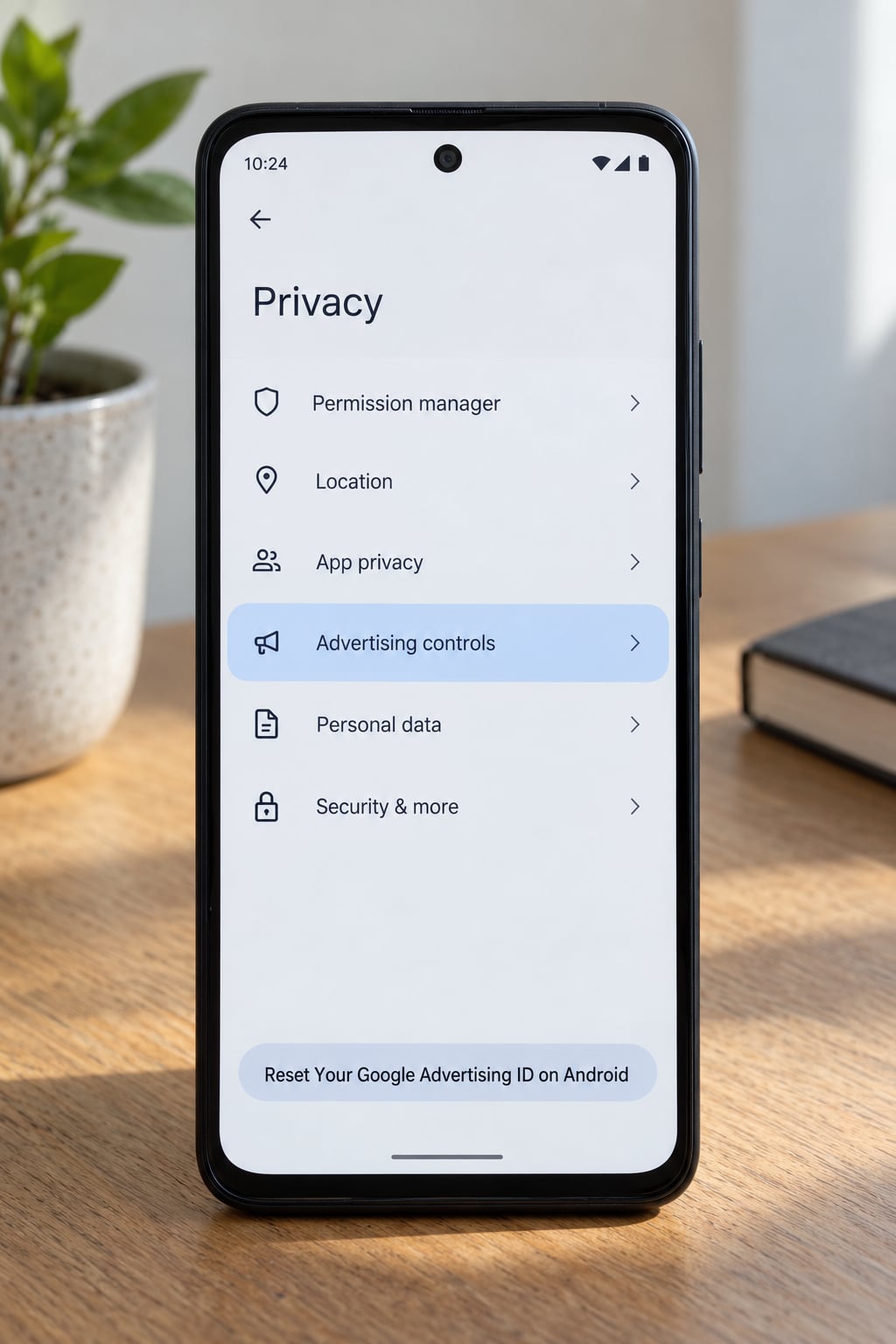
On Android 13 and newer: Settings > Security & privacy > More privacy settings > Ads > Ad privacy > Delete advertising ID, then confirm with the blue button at the bottom.
On Android 12 and older: Settings > Google > Ads, and the same Delete advertising ID option sits on that screen. On some Samsung and Xiaomi builds the wording is Reset advertising ID only, which is a partial version of the same thing.
How you know it worked: reopen Ad privacy and the delete option is gone or greyed out until something requests a new ID. That is normal, not a sign the setting failed.
One caution from the Android community forum: a deleted ID comes back on its own. Play Services regenerates it when an app requests it, which is normal and roughly why the setting still works without you doing anything. Check back once or twice a year.
Review Android Ad Privacy Controls
The Ad privacy screen is where Android groups the advertising switches, and most of what people want is already on one page. Open Settings > Security & privacy > More privacy settings > Ads and tap through Ad privacy, Ad services and Ad topics.
Look for the option that says delete or reset the advertising ID, and for the entry showing which topics Google has attached to you. Tapping it opens the same topic list that My Ad Center shows, so you can edit it from either place.
Menu names shift with the Android version, and a Xiaomi or Samsung phone may hide some of these behind its own privacy menu instead. If you cannot find Ads under Security & privacy, search Settings for the word ads, or check the brand table above.
Limit Ad Personalization in Google
Turning off ad personalization stops Google building a new interest profile from your activity going forward. Sign in at myadcenter.google.com on the phone, open Ad privacy and settings, and switch Personalized ads to Off. The same toggle is mirrored in the Google app under Settings > Ads, which is the faster route if you already have it open.
While you are in My Ad Center, clear the topics and brands. Scroll to My topics and use the three-dot menu on anything you did not choose to be associated with. Under Ad settings, check Hide ad content and review the sensitive categories list, where you can restrict categories like alcohol, dating or gambling.
Then handle the account-level switches. Go to myaccount.google.com > Data & privacy > Activity controls and pause Web & App Activity, Location History and YouTube History. Set auto-delete to 3 months rather than 18, which quietly shrinks the backlog.
People often ask about ads referencing things they only said out loud. Two switches matter there: the microphone permission for any app that has it, and Voice & Audio activity under Activity controls, which records what the voice assistant hears. Turn that off too.
Check App Permissions and Tracking Options
System-wide switches are only half the picture, because each app holds its own permission list. Open Settings > Apps > Permission manager and look at the Nearby devices, Location and Microphone categories.
Shop apps, social apps, news apps and free games rarely need precise location at all. Set Location to While using the app rather than Always, and move Nearby devices to Deny unless you actually use Bluetooth accessories. Microphone should be Ask every time or Deny for anything that is not a voice app, a call or a keyboard.
Under Special access, the one to check is Display over other apps also called Appear on top. That permission is what lets a full-screen ad cover your home screen. Revoke it for utility apps, cleaner apps, QR scanners and any app you installed once and forgot about.
Android also flags apps you have not opened in months. Running Apps and notifications with Unused apps makes those permissions revocable in one tap, which is faster than doing it app by app. A clean cut here does not break anything essential, and you can grant a permission back in ten seconds if an app complains.
Use a Privacy-Focused Browser and DNS Option
A private browsing window and a system-wide DNS filter solve different halves of the problem, and this is where most guides get vague. The DNS option is the stronger one, and it works on every app rather than just the browser.
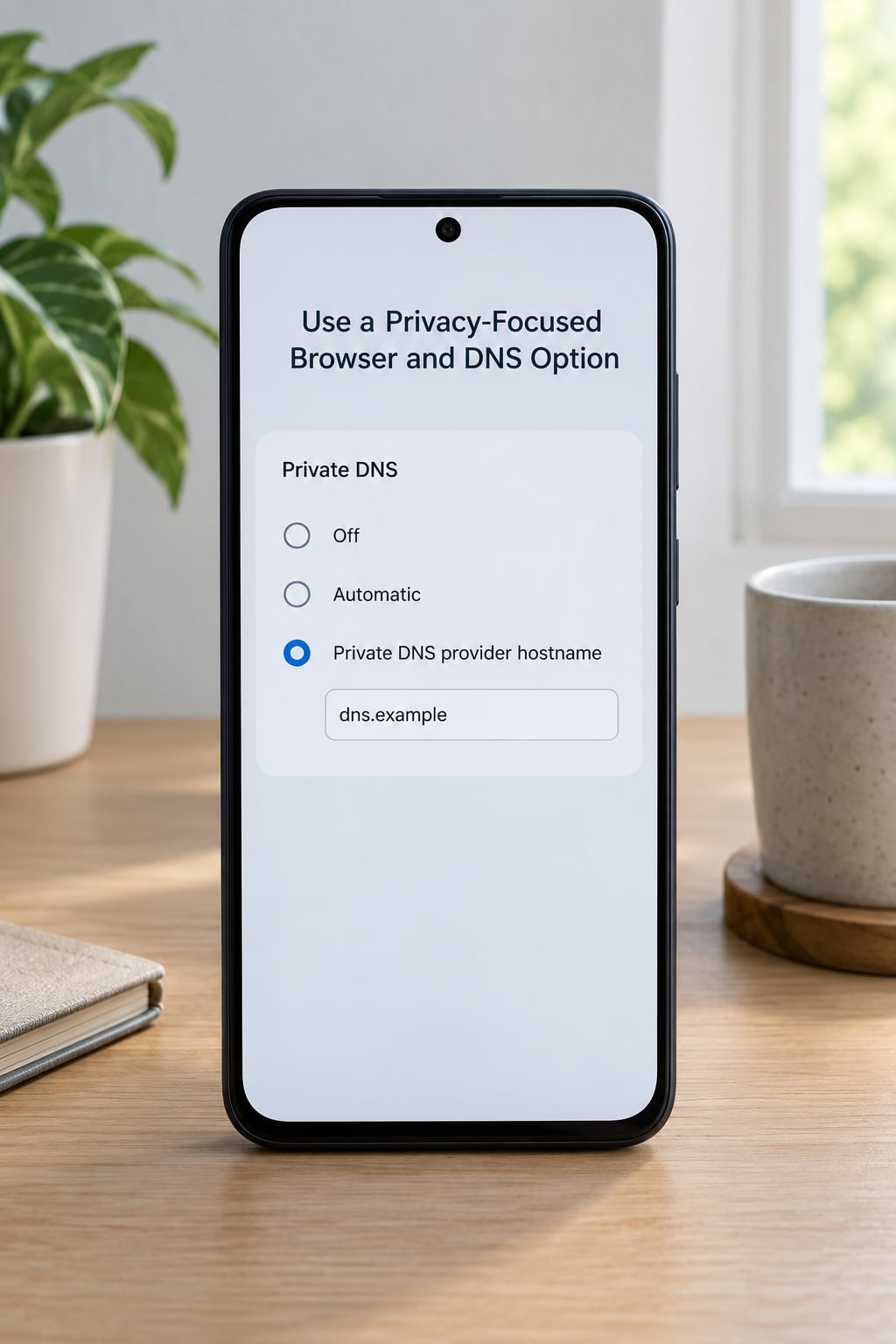
Go to Settings > Network & internet > Private DNS and choose Private DNS provider hostname. Paste the hostname of a filtering resolver, switch to Automatic off, and save. Android now refuses connections to ad and tracking domains before any app sees them, which removes a lot of banner and interstitial ads from apps as well as from websites.
It is not perfect. Ads served from the same domain as the content are difficult to filter, and some apps bundle ad calls into the same host as the app itself. Forum users routinely report that it works well and that a few stubborn ads survive, which is the honest expectation.
Inside the browser, turn on tracker blocking if your browser has it, and use a private window for shopping or health searches you do not want tied to your session. That only covers the browser. Sites can still identify you from your IP address and the account you are signed into, so treat private mode as a small piece of the fix.
On a shopping trip, be careful with free VPN apps from the Play Store. They ask for VPN permission precisely so they can see your traffic, and many are ad-supported, which defeats the purpose. System-level Private DNS needs no app at all.
What You Can Expect Afterward
Expect the creepy ads to fade over days, not minutes, and expect some ads to stay. Contextual ads, the kind that appear on a news site because the page is about flights, are paid for by the site you are on rather than by a profile of you, so no setting removes them.
Apps you have used for years keep whatever they stored before the change, and that history is not reachable through the settings above. Deleting your cache helps with display, not with targeting. You may need to sign out of an ad-heavy app and sign back in so it picks up the new settings.
Here is how to check what is left. Open Settings > Apps and sort by last used. Open myadcenter.google.com > Ad privacy and settings > My activity and read what the system says it inferred. Anything that surprises you, remove there. It is the closest thing to a readout of your ad profile that exists.
Finally, if the ads are full-screen pop-ups rather than targeted ones, none of the above will help. Those come from a specific app. Sort your app list by last used, revoke Display over other apps for anything unfamiliar, run a Play Protect scan, and if you are still seeing them, boot into Safe Mode for one day. If the pop-ups disappear in Safe Mode, the source is a third-party app, not your system.
Common Mistakes
The most common mistake is treating targeted ads and pop-up ads as one problem. Privacy settings fix targeting. Pop-ups need the app that is showing them removed or restricted, usually through Display over other apps.
The second is deleting apps that are not the problem. Uninstalling your email client does nothing for ad targeting and you will miss it tomorrow. Uninstall the app that shows ads full screen, and leave the rest alone.
The third is expecting private browsing to hide you from advertisers. It keeps your local history out of the browser, not your account, IP address or the advertising ID attached to the phone. Same goes for a trusted ad blocker: it removes ads from the page in front of you, it does not stop the profile being built.
The fourth is missing a second Google account. Secondary accounts on family phones and work profiles each carry their own Advertising ID and their own personalization toggle, and they are easy to forget. Work through every account under Settings > Accounts.
The fifth is quietly undoing the work. Reinstall an app and it requests location and microphone again, the prompt appears on day three when you have forgotten why, and you tap Allow. When a permission dialog appears for an app you barely use, Deny is almost always the right answer.
Two smaller ones. People set Private DNS and forget the hostname, leaving it on Automatic with no filter at all. And people delete the Advertising ID once and stop, then wonder why targeting resumed months later, when Play Services regenerated the ID. Pair it with the My Ad Center switch so the profile has nothing to attach to.
Frequently Asked Questions
Can I completely stop targeted ads on Android?
No, not on a free Android phone. Interest-based targeting is the funding model behind free apps, so Google and the other ad networks keep collecting signals even when you opt out. What you can do is delete the Advertising ID, turn off personalization and clear your topics, which removes the profile ads are matched against. Contextual ads tied to the page or app you are using will still appear.
Does deleting my Google advertising ID stop all personalized ads?
It removes one strong link, not all of them. The Advertising ID is the identifier most ad requests carry, so deleting it forces a fresh one and weakens the tracking chain. Ads can still be served using other signals, including account sign-in, in-app activity and location. Combine the delete with the personalization toggle in My Ad Center for a much larger drop.
Why do ads still follow me after I change my Android privacy settings?
Usually one of four reasons. The settings changed on a different Google account than the one serving the ads. The change has not propagated yet, so give it a few days. The ad came from a non-Google network such as Samsung Ads or Amazon, which keeps its own profile. Or it is contextual, chosen from the page or app you are viewing rather than from your history.
Should I use a private browser or ad blocker to reduce targeted ads?
Both help a little, and both are limited. Private mode keeps your browsing out of the local history and stops cookies between sessions, but sites can still identify you by account and IP address. A blocker removes ads from the page you are looking at. For system-wide reduction, Private DNS inside Android settings filters ad domains across every app and needs no extra software.
Does turning off location permissions stop advertising from an app?
Partly. Removing location cuts one of the strongest signals, so a shopping app that followed you from a store visit will lose that thread. The app will keep using your account, purchases and in-app searches. The same logic applies to microphone and nearby devices, so restricting all three removes far more than restricting one.
Will resetting the advertising ID delete all my Google tracking history?
No. It changes a single identifier, not the records behind it. Your searches, watch history, past activity and inferred topics stay with your account until you delete them yourself. Clear the topics in My Ad Center, set auto-delete to 3 months, and pause the activity controls. The Advertising ID change only stops that identifier from linking the new activity to the old profile.
What to Do First
Start with the Advertising ID. It takes thirty seconds at Settings > Security & privacy > More privacy settings > Ads > Ad privacy, or Settings > Google > Ads on older phones, and it undoes more than any other single setting.
Then spend ten minutes in My Ad Center turning off Personalized ads and clearing your topics, because that stops the profile from rebuilding itself. Pause Web & App Activity while you are there, set auto-delete to 3 months, and switch off Voice & Audio activity if the phrase “my phone is listening” bothers you.
After that, spend five minutes on permissions: Display over other apps for anything unfamiliar, and Location and Microphone for apps that do not need them. Finish with Private DNS if you want the ad filtering to apply across every app rather than just the browser.
Give it three days, then check My Ad Center’s activity view to see what the system still infers. If full-screen pop-ups continue, the problem is a specific app, not your settings.