To reduce data usage on a phone, turn on your system saver mode, switch background syncing to Wi-Fi only, and check the per-app usage screen to find the three apps responsible for most of your monthly data. On Android that means Data Saver, on iPhone it means Low Data Mode, and both take about a minute to enable.
The whole job takes roughly 20 minutes, and none of it requires a new phone or a new plan. Updated for 2026, the menu paths below match current Android and iPhone releases, with a Samsung Galaxy variant where the menus differ.
Table of Contents›
- What You Need
- Step-by-Step
- 1. Turn Off Mobile Data for Unused Apps
- 2. Use Wi-Fi Whenever It Is Available
- 3. Limit Background App Syncing and Notifications
- 4. Stop Apps from Using Location in the Background
- 5. Restrict High-Data Features
- 6. Use Lower-Quality Streaming and Download Settings
- 7. Check Data Usage and Set a Data Alert
- Common Mistakes
- Frequently Asked Questions
- How can I find which apps use the most mobile data on my phone?
- Does using Wi-Fi automatically stop an app from using mobile data?
- Will reducing mobile data usage lower my phone bill?
- Should I turn off background data for every app?
- Why is my data usage still high after I disabled video autoplay?
- Does airplane mode help reduce data usage?
- Conclusion
What You Need
You need the phone itself, your account or device passcode, and a Wi-Fi connection you trust. The passcode matters because per-app cellular controls on both platforms sit behind authentication.
A data monitoring app is optional. The built-in usage screens on Android and iPhone already break usage down by app over a rolling cycle, so most people never need anything extra.
Menu names shift a little between manufacturers. Samsung Galaxy phones label the same screens differently from stock Android, and older guides written for Android 8 or iOS 15 will send you looking for buttons that no longer exist.
Step-by-Step
Work through these in order. The first three cover most of the savings for most people, and each one tells you how to confirm it worked.
1. Turn Off Mobile Data for Unused Apps
The fastest way to reduce data usage on a phone is to tell specific apps they may not use cellular data at all. They keep working normally on Wi-Fi.
On Android, open Settings, then Network & internet, then Mobile network, then the app you want to restrict. Turn Mobile data off for that one app. Samsung Galaxy phones put this under Connections, then Data usage, then Mobile data, then tap the app.
On iPhone, open Settings, then Cellular, then scroll to the app list and tap an app name. Each app has its own Cellular Data switch, and turning it off restricts that app to Wi-Fi.
How do you tell it worked? Open the same usage screen a day later and confirm the restricted app’s mobile total stopped climbing while you were away from Wi-Fi.
2. Use Wi-Fi Whenever It Is Available
Every heavy task you move to Wi-Fi is data your plan never sees. Video, music, app installs, photo backup and software updates are the big ones.
On Android, leave Turn on Wi-Fi scanning and Switch to mobile data alone by default. You may still want to switch to mobile data off if you would rather be stuck on a slow connection than burn through your allowance. On iPhone, Wi-Fi Assist belongs off: Settings, then Cellular, then Wi-Fi Assist.
Auto-connect is what makes this stick, so connect once at home and once at work and forget about it. If a network is public or shared, open it manually rather than accepting every one that appears.
One honest caveat: Wi-Fi is not automatically cheaper. Some public hotspots are metered or route your traffic, so the safe rule is to use networks you control or trust by name.
3. Limit Background App Syncing and Notifications
Background activity is where phone data usage sneaks up on people. Apps refresh feeds, prefetch video and upload photos while the screen is off.
On Android, go to Settings, then Apps, then the app, then Battery, then App battery usage, and choose Restricted. That stops background work and keeps notifications on Wi-Fi only. You can also find it at Settings, then Network & internet, then Data Saver, then Unrestricted data, where you add exceptions one app at a time.
On iPhone, Settings, then General, then Background App Refresh turns the whole feature off, or you can pick individual apps from that same list. Individual settings are the better option because push notifications usually still arrive, they just arrive when you are on Wi-Fi.
Look for the usual culprits in your usage screen: photo backup, podcast episode downloads, and social video preloading. Switching off mobile data per app is usually the single biggest win, because it stops all of that background work in one tap rather than app by app.
4. Stop Apps from Using Location in the Background
Location services running at a low accuracy in the background still pull map tiles, traffic and location data all day. This is quietly expensive.
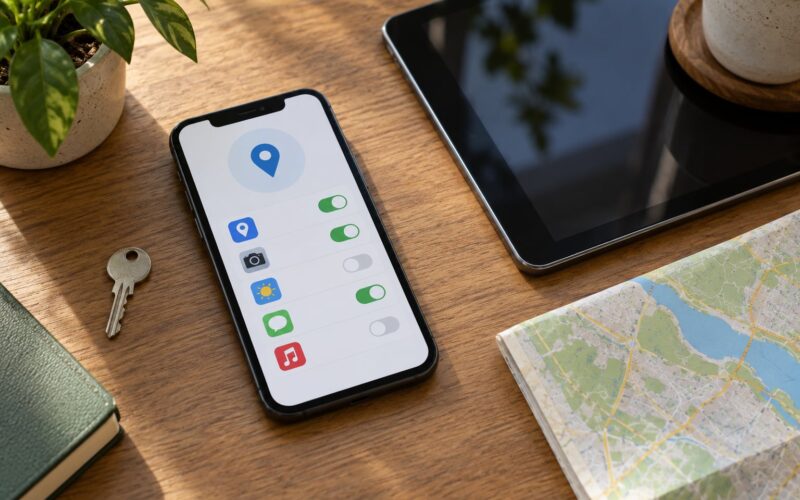
On Android, Settings, then Apps, then the app, then Permissions, then Location, then choose While using the app. On iPhone, Settings, then Privacy & Security, then Location Services, then the app, then set it to While Using the App.
Do not strip location from navigation, ride-sharing or Bluetooth finding apps. Those break in obvious ways, and you will just switch the setting back on later. Fitness trackers and social apps are the safe candidates.
5. Restrict High-Data Features
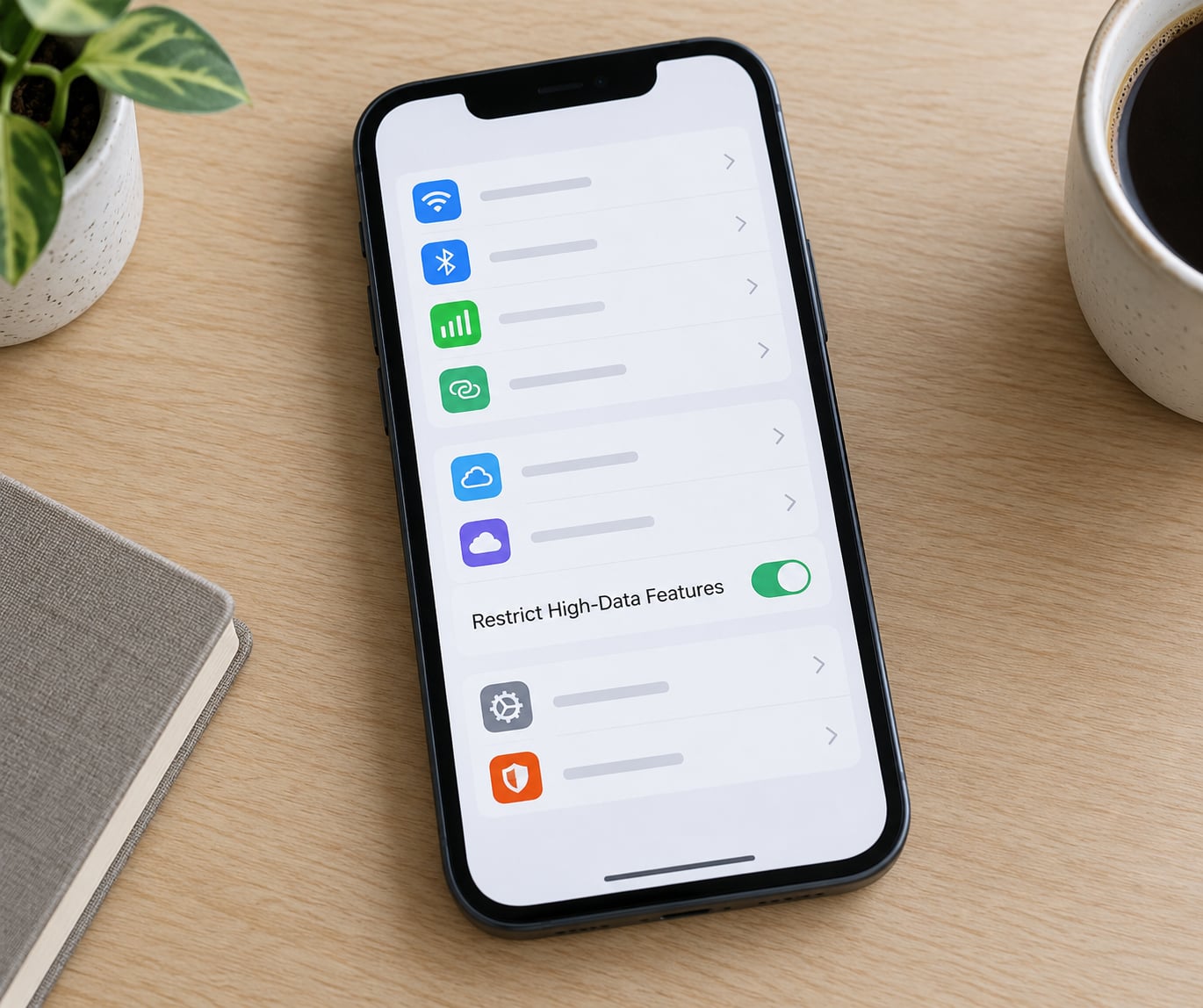
A few features pull data no matter how your per-app settings are configured, so they need their own switches.
Hotspot and tethering are the worst offenders. Any device tethered to your phone draws from your cellular allowance, and that usage shows up on your bill. On iPhone, Settings, then Personal Hotspot, then turn Allow Others to Join off when nobody is connecting. On Android, look for Hotspot or Tethering under Network & internet and turn it off.
Cloud backup is the other big one. On iPhone, Settings, then your name at the top, then iCloud, then Photos, then set both Photos and Backup to use Wi-Fi only. On Android, Settings, then Accounts, then Google, then your account, then Device and app data or Backup, and switch off mobile data usage.
Set email to fetch less often while you are at it. On iPhone, Settings, then Mail, then Accounts, then Fetch New Data, then set it to Manual and pull to refresh when you choose. On Android, most mail apps have a Sync or Fetch frequency setting in their own menu.
6. Use Lower-Quality Streaming and Download Settings
Video quality is the setting with the biggest single effect. Streaming at high definition runs somewhere around 1.5 to 3 GB per hour, while standard definition is closer to 0.5 to 0.7 GB and low data mode can push it near 0.3 GB.
YouTube has its own control: open the video, tap the gear icon, then Quality, then Data Saver. Most other video apps have a similar setting, usually under Playback or Data usage.
Download instead of stream when you are on mobile data with time to kill. The trade-off is real, though: downloads are cached ahead of time, so a file finished on Wi-Fi still costs you nothing later.
Clear finished downloads when you are done, and restrict downloads to Wi-Fi so a podcast app never quietly pulls four episodes while you ride. On Android, tap the download arrow next to an item and choose Download over Wi-Fi only. On iPhone, the download and cellular controls live in the app’s own settings screen.
7. Check Data Usage and Set a Data Alert
You cannot improve a number you never look at. Open the usage screen once and sort the list by mobile data, not total.
On Android, Settings, then Network & internet, then Data usage. You see a graph of your cycle, and below it a breakdown by app. Tap Reset statistics to start a fresh count if the cycle timing confuses you. Samsung Galaxy users go to Connections, then Data usage, which is the most useful screen on the whole phone for this job.
On iPhone, Settings, then Cellular, where the list already sorts by usage descending.
Then set a warning. Android offers Settings, then Network & internet, then Data usage, then Data warning and limit, which lets you set both a soft warning and a hard cut-off. iPhone has no hard limit of its own, so carriers provide alerts at set thresholds instead, usually around 75% and 90% of your allowance.
Give it four to seven days, then look again. Compare the same app list and confirm the same apps no longer sit at the top.
Common Mistakes
The most common mistake is blaming the phone instead of the apps. A sudden spike is almost never hardware. Check the per-app breakdown first, and check roaming if you were travelling.
Turning Wi-Fi off while troubleshooting is another one. It looks like a fix for connection problems and does the exact opposite of what you want.
Some people switch off permissions an app genuinely needs, then hit a dead end. Calls, two-factor codes and push messages from messaging apps can stop arriving, and that is the reason background data restrictions feel risky to some users.
Airplane mode is not a data saver. It drops the connection entirely and does nothing useful for the usage that happens on Wi-Fi.
And reducing settings without ever revisiting the usage screen wastes the effort. The habit that works is a two-minute check each billing cycle, adjusting only the top item on the list.
Frequently Asked Questions
How can I find which apps use the most mobile data on my phone?
On Android, open Settings, then Network u0026amp; internet, then Data usage, where apps are ranked by consumption. On iPhone, open Settings, then Cellular and read the sorted list. On Samsung Galaxy phones, go to Connections, then Data usage. Reset statistics first if the cycle start date is confusing, then let a full day accumulate.
Does using Wi-Fi automatically stop an app from using mobile data?
Not automatically. Many apps fall back to cellular the moment Wi-Fi quality drops, which is what Wi-Fi Assist and Smart Network Switch are designed to do. For a predictable result, turn off Wi-Fi Assist on iPhone and turn off Switch to mobile data on Android. Then restrict individual apps to Wi-Fi through the per-app cellular settings.
Will reducing mobile data usage lower my phone bill?
On a capped or prepaid plan, usually yes, since you will avoid overage charges and throttling. On a plan advertised as unlimited, reducing data may not change the bill at all, because many carriers keep the full price and instead slow your speeds after a threshold. Check your carrier’s terms, since deprioritisation practices vary widely.
Should I turn off background data for every app?
No. Turning it off everywhere breaks calls, messaging, two-factor codes and push notifications, and it can stop software updates. Restrict the apps that drain data quietly, such as social feeds, video, maps and cloud backup. Keep background data on for anything you rely on for real-time communication.
Why is my data usage still high after I disabled video autoplay?
Autoplay is rarely the only cause. Background photo backup, podcast downloads, map tiles and over-the-air updates often run at the same time. Check the per-app usage breakdown sorted by mobile data, since one app running all night can outweigh hours of autoplay. A sudden spike often means a single app rather than a habit change.
Does airplane mode help reduce data usage?
No, not as a long-term measure. Airplane mode cuts the radio entirely, so nothing syncs and nothing arrives, but it also stops your calls, texts and notifications. It is useful for a few hours of focus or on a flight. For ongoing control, use Data Saver or Low Data Mode along with per-app restrictions.
Conclusion
Start with four things today: turn on Data Saver or Low Data Mode, switch photo backup and syncing to Wi-Fi only, disable background autoplay, and open your phone’s data usage screen to see the top three apps.
Then wait four to seven days and check the same screen again. Adjust only the settings attached to the biggest remaining consumer rather than changing everything at once. That way you know exactly which switch earned its keep.