To use a VPN on an Android phone, install the provider’s app from Google Play, sign in, pick a server, and tap Connect — or skip the app entirely and add a profile at Settings > Network & Internet > VPN. Either route takes about five minutes once you have server details in front of you.
There are really two cases people are searching for. The first is a work or school network, where an IT department hands you a server address, a username, a password and a protocol. The second is a commercial VPN service you signed up for yourself, where the app does all the connecting for you. Both end up using the same key icon in your status bar to prove traffic is going through the tunnel.
Updated October 2026. Menu names below follow stock Android and the common skins from Samsung, Xiaomi and Motorola. Steps are written for Android 10 and later.
A VPN, short for virtual private network, builds an encrypted tunnel between your phone and a remote server. Your real IP address and the content of your traffic are hidden from the network you’re on, which matters most on café and airport Wi-Fi where anyone on the same network can otherwise see unencrypted traffic.
Table of Contents›
- What You Need
- Step-by-Step
- How to choose a VPN app on Android
- Install the VPN app and sign in
- Choose a VPN location and connect
- Confirm the VPN is working
- Disconnect and manage VPN settings
- Common Mistakes
- Frequently Asked Questions
- Does Android have a built-in VPN?
- Does a VPN slow down internet speed on Android?
- What should I do when my Android VPN will not connect?
- Does using a VPN drain battery on Android?
- Is it legal to use a VPN on an Android phone?
- Is a free VPN app safe to use on Android?
- Conclusion
What You Need
Four things, and only one of them takes real effort to get: Android 10 or later. Every Android phone ships with a VPN client built into Settings, so the hardware is already capable. The screen is under Settings > Network & internet > VPN on most devices.
Next, connection details from whoever runs the server. That means a server address (also written as hostname or IP), a username, a password, and a protocol type. If your employer or school issues these, check the welcome email or intranet page before you start. A commercial provider shows the same details inside its app under something like Connection info.
You’ll also want a steady internet connection and, for the very first connection, a network you trust — home Wi-Fi rather than a random hotspot. On public Wi-Fi, a half-configured tunnel is exactly the situation where your traffic matters most.
Skip unofficial APK files downloaded outside Google Play. They can carry anything, including code that reads your traffic before handing it to the VPN.
Step-by-Step
How to choose a VPN app on Android
Compare apps on the things you can actually verify, not on the star rating alone. Look for an independent security audit of the app itself, not just a promise on a marketing page, plus a no-logs policy that means browsing history and IP addresses are not stored.
Then check the practical bits: support for a modern protocol such as WireGuard or IKEv2, a kill switch (which blocks traffic if the tunnel drops instead of letting it leak out unencrypted), and how much data the free tier actually allows. Community consensus among Android users is blunt about this — free apps that monetise through logging or ad injection are not worth the convenience.
Transparent ownership matters more than it sounds. Know who runs the company, where it is registered, and whether the service has been through outside scrutiny. For everyday remote work, your employer’s own profile in Settings is usually the safest option of all, because you are not routing work traffic through a stranger’s server.
Install the VPN app and sign in
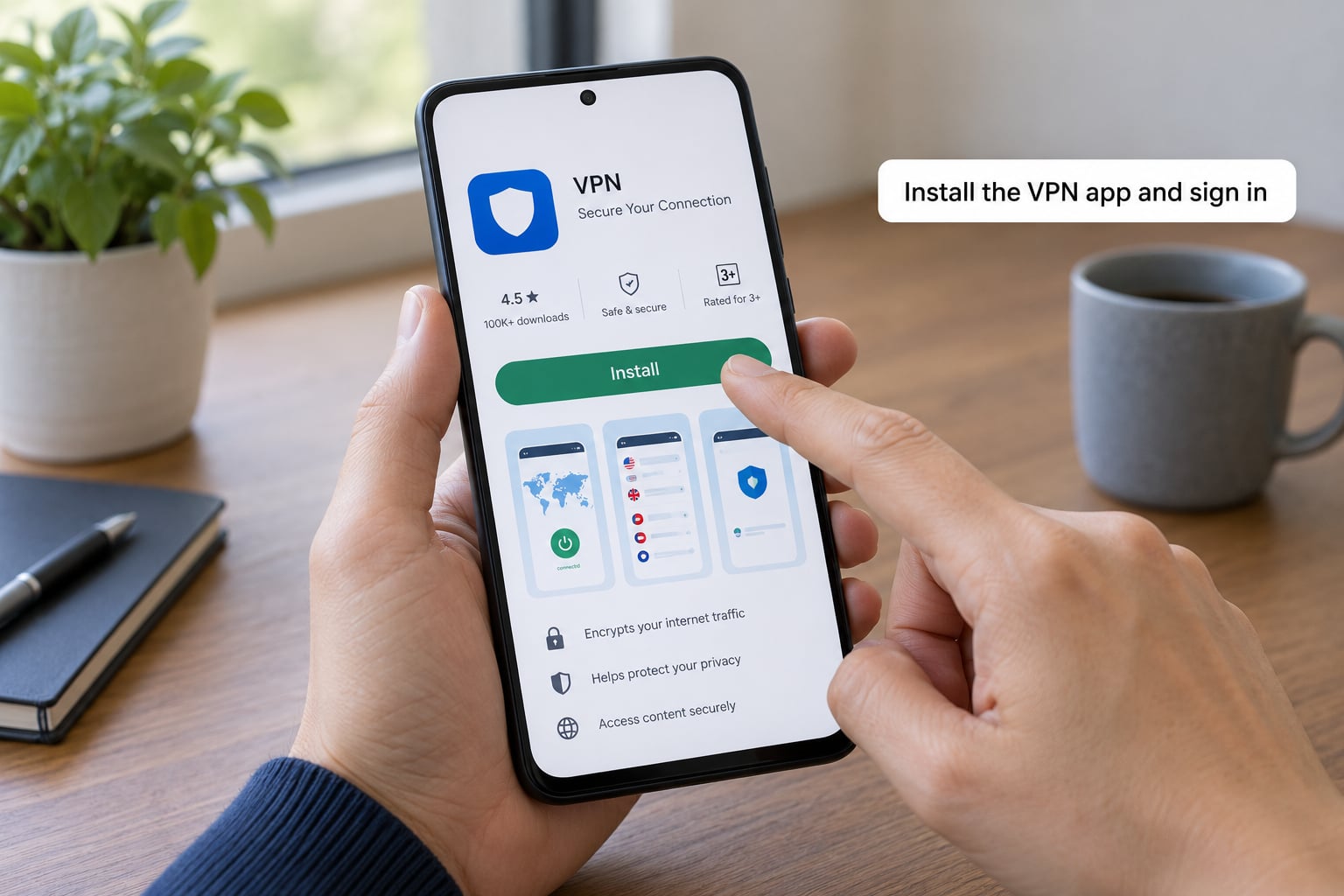
Open the Google Play Store and search for the provider by its exact company name, then confirm the developer name on the listing matches the one on the provider’s own site. Read the recent reviews rather than the top-rated ones, which are often years old.
Tap Install, then Accept when the permission dialog appears. The important one is the VPN configuration permission: Android shows it as a system dialog that says the app can set up a VPN, and only one app can hold that at a time. Granting it means the app can route all your traffic, which is why the developer check matters.
Open the app and create an account, usually with an email address. Some services ask you to verify the address before they hand you login credentials. If you already have server details from a workplace, skip this app entirely and use the Settings method below instead.
Choose a VPN location and connect
Open the app and tap the big Connect button or the quick-connect location. Nearest server is the right default — it keeps latency low, which is most of the difference between a fast VPN and a frustrating one.
Pick a specific country only when you have a reason: a service that only publishes in one region, a bank that refuses logins from unusual locations, or content licensed only at home. Elsewhere the closest node wins.
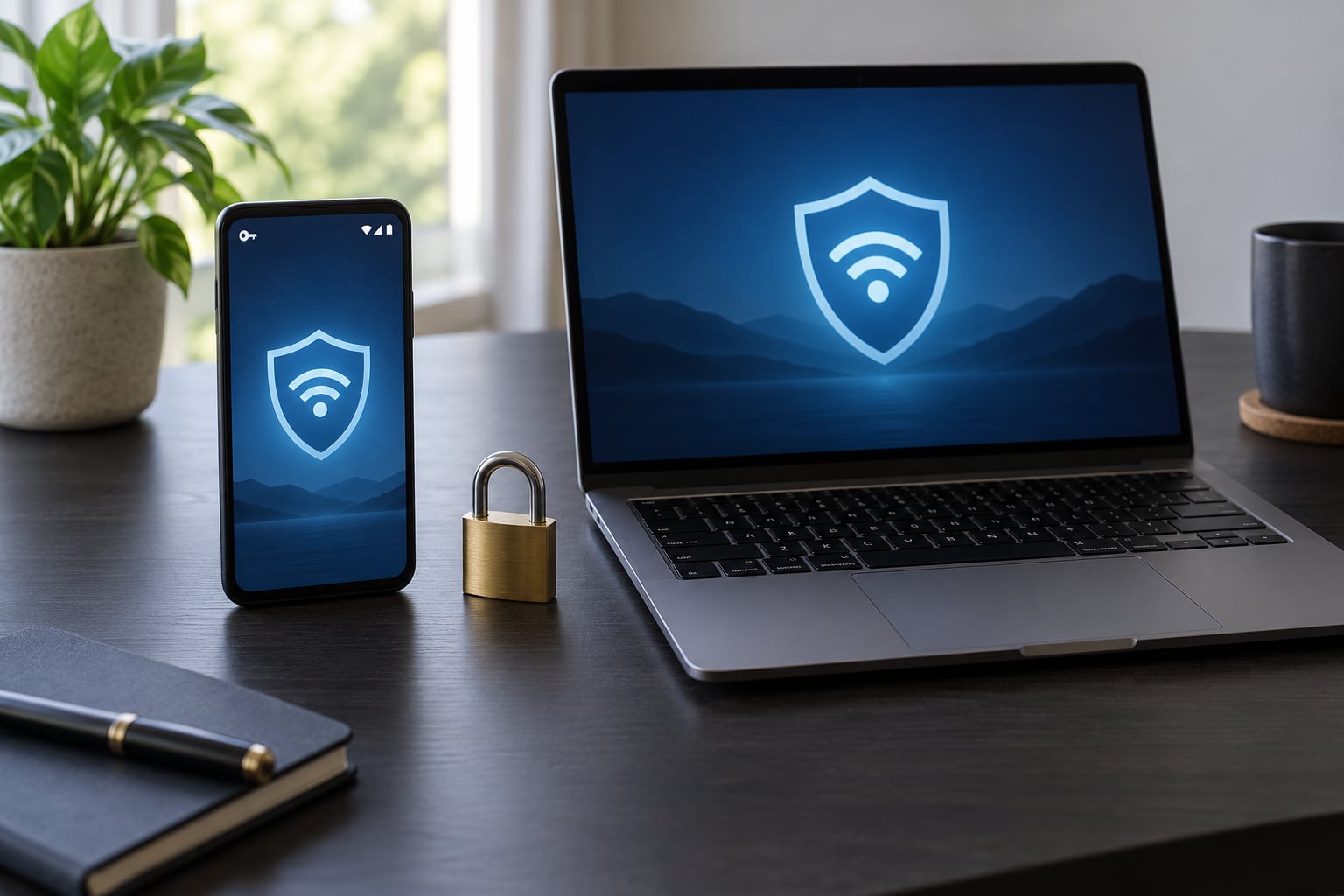
Watch for the small key icon in the status bar. On stock Android it appears once the tunnel is up, and pulling down the notification shade gives a VPN notification with the active profile name. Only one VPN can be connected at a time on Android, so if a second app refuses to connect, disconnect the first.
Confirm the VPN is working
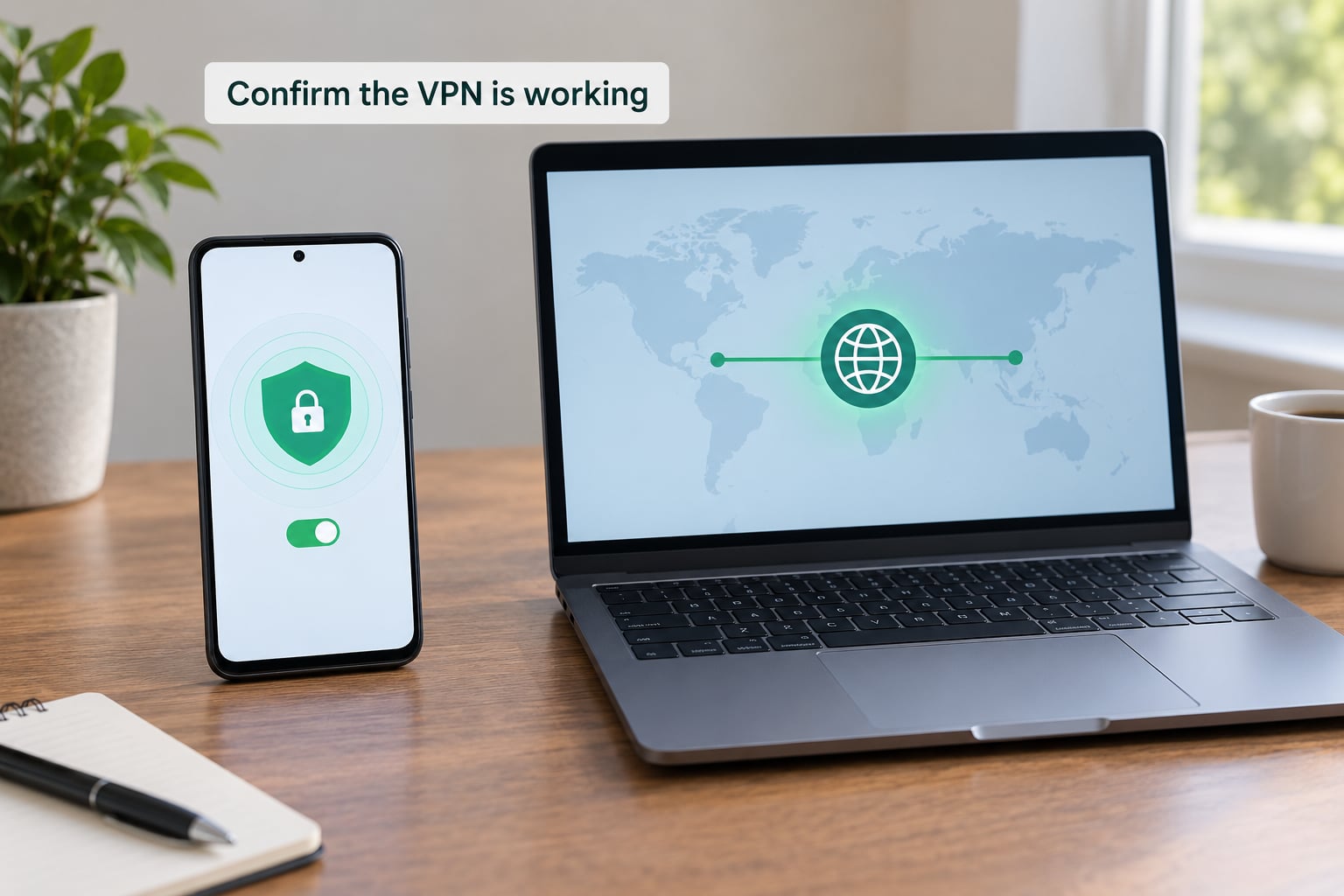
Three checks, cheapest first. One: the app says connected and shows elapsed time. Two: the key icon is in the status bar, or Settings > Network & internet > VPN shows the profile toggled on. Three: open your browser and search “what is my IP” — the address should match the server your app picked, not your city.
If you want more certainty, run a DNS leak test. It checks whether your name-server queries are going out encrypted through the tunnel; a handful of your real provider’s servers in the result means the tunnel is only partly doing its job.
One thing to keep in mind: a connected VPN protects traffic that travels through it. It does not make an untrusted app installed on the phone safe. Running a cracked game alongside a VPN is still a bad trade.
Disconnect and manage VPN settings
Turn it off from the app’s main button, from the quick-settings VPN tile, or by pulling down the shade and tapping the VPN notification. All three do the same thing, and all three stop routing immediately.
Two settings worth knowing about. Always-on VPN reconnects automatically and blocks traffic when no VPN is up, which suits someone who wants it always. Don’t block connections without VPN is the softer version. Leave both off if VPN apps currently break for you on mobile data.
On battery: Android’s battery optimisation can doze an app in the background and stall a tunnel. If the VPN keeps dropping, set its battery use to Unrestricted in Settings > Apps > your VPN app > Battery.
To remove it completely, go back to Settings > Network & internet > VPN, tap the profile, and delete it. Remember to uninstall the app too, or it keeps the permission ready to re-establish on its own.
Common Mistakes
It will not connect at all. Work through this order: toggle airplane mode on and off, switch between Wi-Fi and mobile data, restart the phone, then check that the username and password have no stray spaces. If you typed a server address by hand, that is the usual culprit.
It hangs on “Connecting.” Usually a protocol mismatch or a blocked port. Try switching the protocol between IKEv2 and OpenVPN, or between UDP and TCP in the app’s advanced settings. TCP on port 443 gets through networks that block the usual ports.
It keeps dropping. Mobile networks switching between cells break short tunnels. IKEv2 reconnects faster than OpenVPN on cellular for that reason. Turning off always-on VPN and battery optimisation also helps more than most people expect.
Some apps stop working. Banking, payment and streaming apps flag the sudden change of IP address. Turn the VPN off for those specific moments, or use split tunneling or per-app VPN if your provider supports it, so the tunnel routes everything except those apps.
Speed drops noticeably. Some of this is unavoidable — encryption and an extra hop cost something. Pick a closer server, switch protocol, and try wired charging-free conditions rather than blaming the phone. Free tiers are often slower because fewer servers serve more people.
Battery drains overnight. Android users report this often and the numbers are stark: roughly 50% overnight against a 10% baseline is a common complaint, while lighter clients report well under 1%. A WireGuard-based client such as a lightweight open-source option is usually the lightest; a heavy app left always-on is usually the heaviest. Battery > Battery usage tells you which app it is.
A VPN app appears you did not install. Uninstall it and check Settings > Network & internet > VPN for a profile you do not recognise. Remove that profile too. That combination usually means sideloaded software, not a phone problem.
Frequently Asked Questions
Does Android have a built-in VPN?
Yes. Every Android phone has a VPN client built into Settings, and you can add a profile without installing any app. Open Settings, tap Network u0026amp; internet, then VPN, then the plus icon at the top right. You type in a name, server address, protocol and your credentials. This works for L2TP/IPSec, IKEv2 and PPTP. OpenVPN needs a third-party app because Android cannot read .ovpn files itself.
Does a VPN slow down internet speed on Android?
Usually a little, and usually because of distance rather than the phone. Your traffic takes an extra hop through the server, so expect slower speeds on distant servers and near-normal speeds on one a few miles away. Protocol choice matters too: IKEv2 and WireGuard are lighter than OpenVPN over TCP. If the slowdown is severe, try another server before assuming the app is at fault.
What should I do when my Android VPN will not connect?
Work in order. Turn airplane mode on and off, switch between Wi-Fi and mobile data, restart the phone, then re-check the server address and credentials for stray spaces. If it still hangs on connecting, change the protocol, or switch between UDP and TCP if the app allows it. A manually typed server address is the most common mistake, so retype it rather than trusting the old one.
Does using a VPN drain battery on Android?
It can. Users report overnight drops near 50% with heavy VPN apps against a typical 10% baseline, while lighter clients have measured well under 1% over a week. The main culprits are always-on VPN combined with battery optimisation, and apps that keep the radio awake. Setting the VPN app’s battery use to Unrestricted and using a WireGuard-based client usually brings usage down sharply.
Is it legal to use a VPN on an Android phone?
In most countries, yes. A VPN is a standard business tool, used daily by remote workers and shipped as a standard Android feature. Rules differ by country and by service, and some places restrict or regulate VPN use, so check local rules if that applies to you. Whatever the law, using a VPN to break a service’s terms of use can get an account suspended, so that is worth knowing before you sign up.
Is a free VPN app safe to use on Android?
Some are, and the difference is in the business model. A free app that earns from subscriptions may be fine; one that earns from advertising, data sales or profiling is not. Check for an independent audit, a real no-logs policy and transparent ownership, and read what the free tier caps are. Unlimited-data free plans exist, but free servers are usually fewer and slower than paid ones.
Conclusion
Start with the app method. Install it from Google Play, verify the developer name, create your account, connect to the nearest server and confirm the key icon plus a changed IP address before you open anything sensitive.
If you already have server details from work or school, skip the app and add the profile at Settings > Network & internet > VPN instead. And if the connection misbehaves later, work the fixes in order — airplane mode, network switch, restart, then credentials — before you go hunting for a different app.