Checking for an Android system update takes about a minute. Open your Settings app, find the software update option your brand uses, tap Check for updates, and if a build is waiting, download and install it. The whole difference between phones is the menu name: Google Pixel hides it under System, Samsung puts it top-level, and Xiaomi buries it inside About phone.
- Open Settings, tap System, then System update (or tap About phone, then Check for updates).
- Tap Check for updates and wait a few seconds for the server reply.
- If a build shows up, tap Download and install, then restart when the phone prompts you.
If your phone says it is up to date, the check still worked. The catch is that manufacturers push updates in stages over days or weeks, so the result you see is what has reached your exact model and carrier right now.
Table of Contents›
- What You Need
- Step-by-Step: How to Check for an Android System Update
- 1. How to Check for an Android System Update in Settings
- 2. Check for Updates on Samsung and Other Manufacturer Phones
- 3. Download and Install the Android Update Safely
- 4. Confirm the Update and Complete Any Setup Steps
- Common Mistakes
- Frequently Asked Questions
- Why does my Android phone not show a system update?
- Can I install an Android update over mobile data?
- How long does an Android system update take?
- Why did my phone restart while updating?
- What should I do if an Android update keeps failing?
- Conclusion: Start With Your Phone’s Built-In Updater
What You Need
Before you tap anything, take five minutes to line up the basics. Most failed updates come from skipping this part.
- Battery above 30 percent, ideally plugged in. A large system update draws more power than normal use, and some phones will not start installing below a threshold.
- 5 to 10 GB of free storage. A major Android release needs room for the download, the extracted files and the rollback copy at the same time.
- A steady Wi-Fi connection, or mobile data with the download-over-Wi-Fi restriction turned off.
- A recent backup. Updates occasionally fail badly enough that a restore is the only way back. Back up before you start, not after.
- Ten to twenty free minutes. The install itself is quick, but the phone restarts on its own and runs setup steps afterwards.
Turn off Data Saver too. It blocks background data, and a system update that cannot reach the network will sit at zero percent forever without telling you why.
Step-by-Step: How to Check for an Android System Update
Four steps cover every Android phone from 2018 onward. Follow them in order and the phone tells you what it found at each stage.
1. How to Check for an Android System Update in Settings
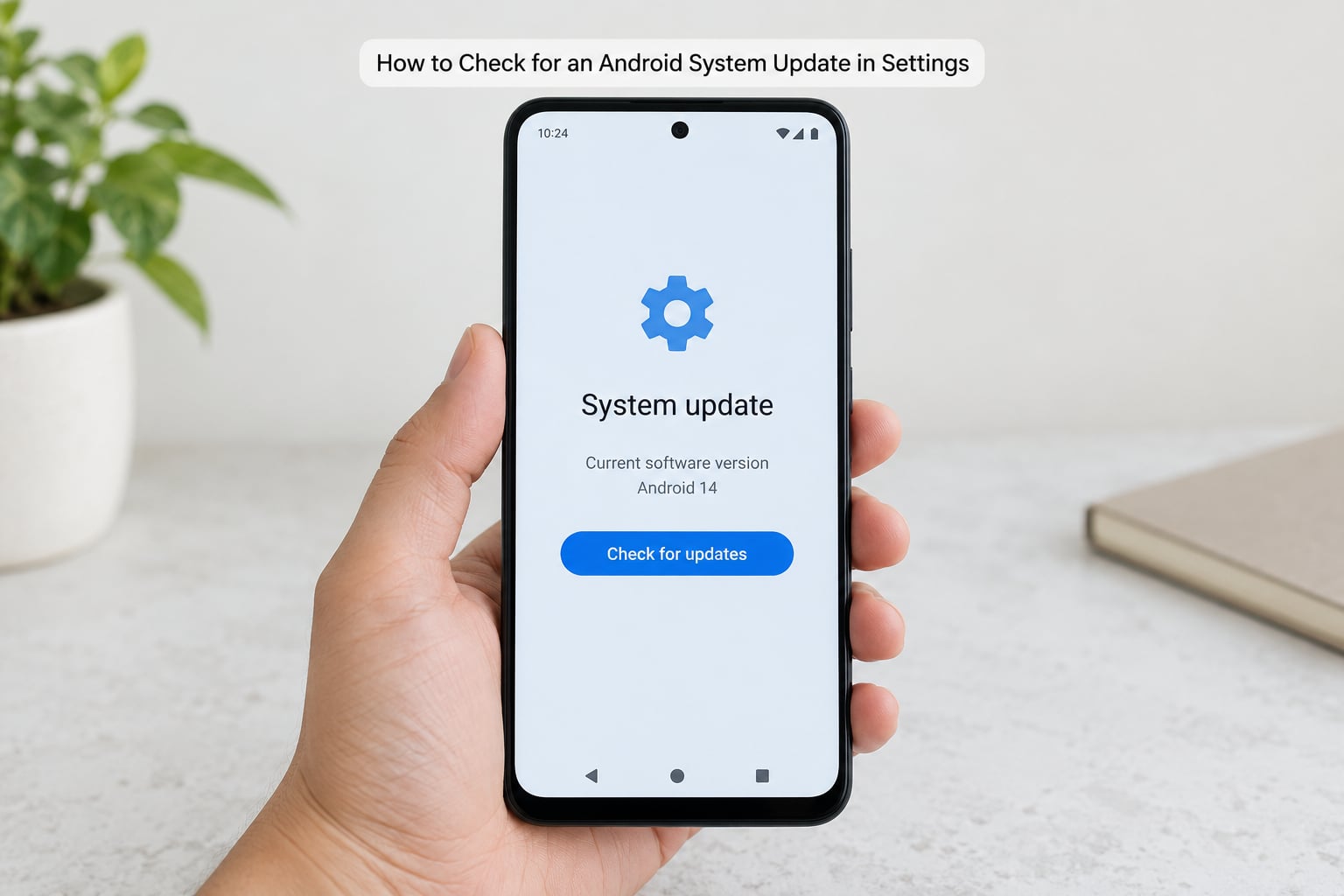
On standard Android, including Google Pixel, open Settings, tap System, then System update. You land on a page that shows your current Android version and a Check for updates button. Tap it and the phone contacts the manufacturer’s server, usually within five or ten seconds on a good connection.
Some standard Android builds use a shorter path: Settings, then About phone, then Check for updates right at the top of that screen. Both routes end in the same place.
Four results are possible, and each one tells you something:
- Download or Update means a newer build is available for your device.
- Your phone is up to date means nothing newer has reached your model yet.
- Downloading, paused means the file stopped partway, usually a connection or storage problem.
- Install now means the file is ready and waiting for a restart.
On the same screen you can read two numbers that matter more than most people expect: the Android version itself, and the security patch level date. If that date is months behind what your brand is handing out, keep checking, because your device is likely still in the staged rollout queue.
2. Check for Updates on Samsung and Other Manufacturer Phones
Samsung Galaxy phones put the option near the top of the main Settings list. Open Settings, tap Software update, then Download and install. Samsung community contributors also point out a second route that most guides skip: Settings, then About device, then Software update, then Download and install. The three-dot menu in the top corner of the Software update screen opens Software information, where the Android version and build number live.
OnePlus keeps it under About device, then Software update, and the check starts the moment you open that page. Motorola and most other brands follow a similar About device pattern.
- Google Pixel and standard Android: Settings, System, System update
- Samsung Galaxy: Settings, Software update, Download and install
- OnePlus: Settings, About device, Software update
- Motorola: Settings, System, System update
- Xiaomi and Redmi: Settings, About phone, tap the System update option at the top
- Oppo and Realme: Settings, Other settings, System updates
- Nothing Phone: Settings, System, System updates
Menus move between Android versions, which is why an old tutorial sends you to a path that no longer exists. If none of these match what you see, use the search bar at the top of Settings and type update. Every modern Android phone indexes its own settings, and the result jumps straight to the right page for your version.
3. Download and Install the Android Update Safely
Once a build appears, decide how you want it delivered. Most update screens offer three switches worth understanding: auto download over Wi-Fi, install automatically, and a scheduling option that waits for a time you pick, usually overnight while the phone is charging.
Leave the automatic options off if you use a metered or limited mobile data plan, because a full Android release can run several gigabytes. You can still install over mobile data by turning off the Wi-Fi restriction on that same screen. On many Android versions the toggle only appears after the download has already started.
During the download, leave the phone alone and keep it on power. Do not power off, factory reset or swap the SIM while files are being written. That is the single behaviour that turns a routine update into a recovery job.
When the download finishes, the phone offers to restart, or it installs silently and schedules the restart for you. Either way, expect the device to be unavailable for ten to twenty minutes.
4. Confirm the Update and Complete Any Setup Steps
After the restart, open Settings, then About phone, and read two lines: Android version and Android security patch level. If the version number changed and the patch date moved forward, the install worked. The same check works on Samsung under Software information and on most other brands under About phone.
The build number underneath is the most useful line for support and forum troubleshooting. Tap Build number seven times to unlock developer mode, then read the string. The middle group is usually a date in year-month-day form, so a build ending in 250505 was assembled on 5 May of the year encoded in those digits. The prefix tells you the platform, and Google uses quarterly patch releases with letter suffixes to mark them.
Now check Google Play system updates, which are separate from the operating system itself. Open the Play Store, tap your profile icon, then Settings, then About, then System updates. These deliver background components like Bluetooth, networking and privacy fixes, and they arrive on their own schedule. A phone can have Play system updates waiting while the OS screen says it is up to date.
Finally, work through any first-boot setup screens, reopen a couple of apps you rely on, and give the battery a full charge cycle. Some phones run hotter for the first day or two while background indexing catches up, which is normal.
Common Mistakes
Your phone says it is up to date but a friend just got the update. This is the most common complaint, and it is usually not a fault. Manufacturers roll updates out in stages, so the build reaches flagship colours and unlocked units first, then carrier variants, then the rest, sometimes weeks apart. Check again in a few days, and compare the security patch dates rather than relying on the message.
Your carrier variant lags behind the plain model. A phone bought through a carrier often waits for that carrier to approve the build, even when the manufacturer has already released it. Nothing is wrong with your phone, and no setting forces the carrier to approve it earlier.
Tapping Check for updates does nothing. No spinner, no message. Start with a forced restart: hold the power button for ten to fifteen seconds until the screen goes dark and the phone boots again. If the check still hangs, clear the update cache, then clear Google Play services data under Apps with system apps shown. Both resets are safe; they only remove cached files.
Not enough storage error. Free up more space than you think you need. The phone holds the download, the extracted image and a rollback build at the same time, so a 7 GB update can want 20 GB of room.
There is no update option in Settings at all. That usually means the device is managed by a work profile, a school account or a carrier lock. Check for a managed-device notice on the lock screen, and if there is one, the update has to come through your organisation.
The phone is stuck at the boot logo after a failed update. Hold the power button for at least ten seconds to force it off, then hold power and volume down together until the recovery menu appears. Choose Wipe data or Factory reset only as a last resort, since it erases everything. If the phone reaches a boot loop on its own, start it in Safe Mode by holding power during boot, then install the update from there.
Your phone has stopped receiving updates entirely. Every brand has a support window, and once it closes, the check will always say up to date. On r/Android, people comparing update timelines across models generally point to Samsung and Google as the brands with the longest commitments, and both have extended recent flagships well past the old three-year norm. Check your model’s support page before you assume a missing update is a bug.
Two habits prevent most trouble. Never install an Android update file from a message, a link or a third-party app site, because those packages are the classic route to a phone that will not boot. And turn on automatic security patches if you are not confident about monthly update habits; the patch date in About phone tells you when the phone last did that work for you.
Frequently Asked Questions
Why does my Android phone not show a system update?
Most often the update has not reached your device yet. Manufacturers stage Android releases in waves, so unlocked models and flagship colours get a build days or weeks before carrier variants. If your security patch date is recent, keep checking. If the patch date is a year old, the phone has probably passed its manufacturer support window, and no setting will bring the update back.
Can I install an Android update over mobile data?
Yes, on most phones. Open the software update screen, start the download, then turn off the auto download over Wi-Fi restriction if it is blocking you. A full Android release can run several gigabytes, so watch your data allowance. On some Android versions the Wi-Fi toggle only appears after the download has already started, so start it on Wi-Fi if you can.
How long does an Android system update take?
Expect 15 to 30 minutes from tapping download to a usable phone, depending on connection speed and the size of the release. A small security patch may finish in five or ten minutes, while a major version with many gigabytes can take half an hour or more. The phone restarts on its own, and the first boot after installing is often the slowest part.
Why did my phone restart while updating?
A system update has to swap out the operating system, and the phone does that by restarting itself. Restarting is also how a scheduled or automatic installation is applied. If your phone rebooted without a recent update, check Settings, then About phone, and read the Android version and security patch date to see whether the install actually completed.
What should I do if an Android update keeps failing?
Force a restart first by holding the power button for ten to fifteen seconds. Then clear the software update cache and Google Play services data, both found in Settings under Apps with system apps shown. Check that you have at least 10 GB free and that Data Saver is off. If it still fails, the phone may be too old for the release, and no amount of resetting will change that.
Conclusion: Start With Your Phone’s Built-In Updater
To check for an Android system update, open Settings, use the search bar to type update if the menu has moved, and tap Check for updates. Read the Android version and security patch date before you decide anything, and install only when you have the battery, storage, connection and backup in place. If it says you are up to date, that answer is usually correct, and it is worth checking again in a few days rather than hunting for settings that do not exist.