Most slow tablets are not broken. Storage has crept toward full, background apps have multiplied, animations draw longer than they used to, and the system software is years behind. Learn how to speed up an old tablet for everyday use and most of the lost snappiness comes back in an afternoon, at no cost, with no new hardware.
The order matters. Work through it top to bottom and you will know which step actually helped, instead of changing ten settings and guessing. Expect 45 to 90 minutes for the full pass, plus 10 minutes per restart.
Before you change anything, here is what usually causes the slowdown on a tablet you have owned for a few years: internal storage sitting near full, manufacturer bloatware running in the background, widgets and live wallpaper on the home screen, an operating system that no longer receives updates, a battery that no longer holds a full charge, and a processor that throttles itself when it gets warm. Each of those has a fix, and each fix lands somewhere different on the results scale.
Table of Contents›
- What You Need
- Step-by-Step
- 1. Back Up the Tablet and Check Its Condition
- 2. Free Up Internal Storage
- 3. Limit Apps That Run in the Background
- 4. Reduce Home Screen and Widget Clutter
- 5. Adjust Battery and Performance Settings
- 6. Optimize the Browser for Everyday Use
- 7. Restart, Update, and Test the Result
- Common Mistakes
- Frequently Asked Questions
- Can software fixes make an old tablet usable again?
- How much free storage should an old tablet have?
- Will clearing the cache improve a tablet that is very slow?
- Is an old iPad still useful for reading and browsing?
- When is a factory reset better than routine cleanup?
- How do I know if I need to replace my tablet?
- Conclusion
What You Need
You need the tablet itself, its charger, about 30 to 60 minutes for the first pass, and access to the Settings menu. That is genuinely it. No tools, no apps, no rewiring.
Before you start, confirm you have a recent backup of anything you cannot recreate. Photos, saved documents and passwords synced to a cloud account make this less nerve-racking. If the tablet has been flaky for months, a backup matters even more.
Know which platform you are on, because the paths differ:
- Stock Android and Samsung Galaxy Tab open Settings > Apps, while Samsung adds Battery and Device Care panels of its own.
- Amazon Fire tablets use Fire OS, where Amazon apps dominate the app list and Amazon content is the default browser.
- iPad and iPhone use Settings > General > iPad Storage on newer iPadOS versions, and older iPads running pre-iPadOS releases use Settings > General > Storage > Manage Storage.
One caveat up front: a tablet that has dropped out of the update list gets fewer of these options over time. Developer Options, per-app battery controls and some storage screens disappear from very old releases. If your tablet stopped receiving system updates, check that first, because it changes which steps apply.
Step-by-Step
Here is the sequence I would follow, ordered so the cheapest and highest-impact changes happen before anything harder to undo.
| Fix | Difficulty | Expected result |
|---|---|---|
| Free up storage and clear app caches | Easy | Largest single improvement on a full tablet |
| Restart on a regular schedule | Easy | Immediate, temporary |
| Install system and app updates | Easy | Fixes known bugs, gradual |
| Remove bloatware and unused apps | Easy | Noticeable on low-RAM devices |
| Restrict background apps | Medium | Steadier over a few days |
| Trim the home screen and widgets | Easy | Small but constant improvement |
| Shorten animations in Developer Options | Medium | Feels faster on every tap |
| Lighten the browser | Easy | Better on slow connections |
| Factory reset | Hard | All-or-nothing, backup first |
1. Back Up the Tablet and Check Its Condition
Sync your photos and documents, confirm your accounts are signed in, and write down the operating system version. On Android, tap Settings > About phone or Settings > About tablet and note the Android version. On iPad, it is Settings > General > About.
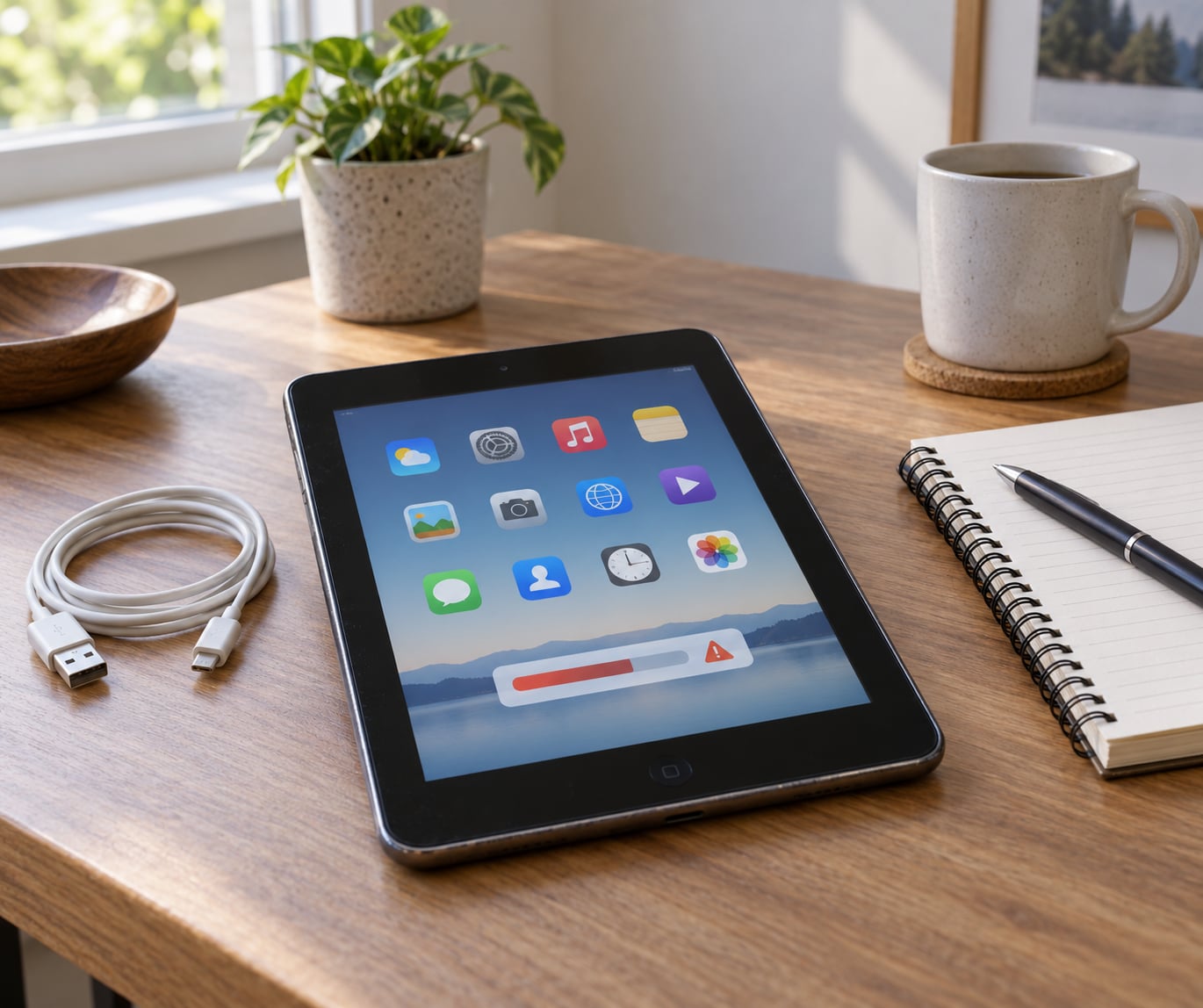
Then check free storage. On Android, Settings > Storage. On iPad, Settings > General > iPad Storage. If free space sits under about 10 percent of total capacity, that alone explains most of the sluggishness, and every later step will work better once you fix it.
Install any pending security fixes while you are there: Settings > System > System update on Android, Settings > General > Software Update on iPad. Success indicator: the tablet reports no pending update, and you know exactly which software version you are working with.
2. Free Up Internal Storage
A near-full tablet has almost no room to write temporary files, so the operating system slows everything down to compensate. This is the highest-impact step in the whole guide.
On Android, open Settings > Apps, pick an app, then Storage > Clear cache. Walk the list and do this for every app over about 500 MB. Clearing cache removes temporary files only; your accounts, photos and app data stay put. Clearing storage, by contrast, wipes that app’s data, so use it only for an app you do not care about.
Next, delete duplicate downloads. Look in Settings > Storage > Downloads and in your Files or My Files app for installers, ZIP archives and screenshots you will never open again. On iPad, open Settings > General > iPad Storage and the list is sorted by size, which makes the worst offenders obvious.
Empty the browser cache too. In Chrome on Android, tap the three-dot menu, then History and Clear browsing data. In Safari on iPad, tap Safari > Clear History and Website Data.
Aim for at least 10 to 15 percent of storage free. On a 32 GB tablet that is roughly 4 to 5 GB. Success indicator: the storage screen no longer warns, and app launches stop stalling.
3. Limit Apps That Run in the Background
Open the battery or usage screen and look at what drains most over the last 24 hours. Android: Settings > Battery > Battery usage. iPad: Settings > Battery > Battery usage. The list is usually more honest than people expect.
For anything heavy you rarely open, set its background activity to restricted. On Android, Settings > Apps > choose app > Battery > Unrestricted, then switch to Optimized or Restricted. Restricted blocks background work and stops notifications, so save it for apps you genuinely open yourself.
Be careful with sync-heavy apps. Mail, calendar and messaging keep background data on purpose, and cutting them off means alerts arrive late. On stock Android, Settings > Network > Data Saver limits background data for everything except the apps you allow through.
Force-closing an app from the recent-apps screen is fine once in a while, but it does not make things faster. Success indicator: the top battery consumer drops once you stop using it daily, and you notice fewer surprise notifications.
4. Reduce Home Screen and Widget Clutter
Every widget is a small program refreshing itself in the background, and several pages of icons mean the launcher holds more in memory than it needs to. Long-press a home screen icon to delete apps you never use.
Remove widgets the same way, then check whether your wallpaper is live or video. A live wallpaper animates continuously and costs battery and memory on older tablets. Switch to a still image in Settings > Wallpaper or by long-pressing the home screen and choosing Change wallpaper.
On Android, a lightweight third-party launcher genuinely helps on low-RAM devices because it holds less in memory than the stock one. Tapping home and swiping down usually exposes the Google search bar and the app drawer.
Success indicator: the home screen loads instantly after a press, with no visible delay before icons appear.
5. Adjust Battery and Performance Settings
Turn on battery saver. Android: Settings > Battery > Battery Saver or Adaptive Battery under Settings > Battery > Adaptive Battery. iPad: Settings > Battery > Low Power Mode. Adaptive Battery restricts apps that you rarely use, which quietly cuts a lot of background work on its own.
On iPad, reduce motion at Settings > Accessibility > Motion > Reduce Motion. On Android, the equivalent sits in Developer Options: tap Settings > About tablet, tap Build number seven times, then return to Settings > System > Developer options and set Window animation scale, Transition animation scale and Animator duration scale all to Animation off or 0.5x.
Expect the interface to feel snappier, because there is less to draw on each tap. The trade-off is that transitions stop looking polished, and on iPad Reduce Motion also disables parallax effects.
Turning off location for apps that do not need it, such as a flashlight or a calculator, saves a surprising amount of work. On Android, Settings > Location > App permissions. Success indicator: scrolling stutters less and the tablet stays cooler in the hand during a video call.
6. Optimize the Browser for Everyday Use
Browsers are usually the heaviest app on a tablet. Close tabs you are not using, since a dozen open tabs compete for memory while you scroll.
Remove extensions and add-ons you installed months ago and never use. In Chrome on a tablet, open the three-dot menu and look for the extensions or site settings entry.
Where your browser supports it, turn off autoplay of video so pages stop loading media you never pressed play on. In Chrome on Android, Settings > Site settings > Media lets you block autoplay. Switch off Continue where you left off so startup does not restore heavy tabs.
On iPad, background app refresh for Safari rarely matters, but clearing website data does: Settings > Safari > Advanced > Website Data > Delete clears years of accumulated trackers and scripts.
Test before and after with the same three pages. Open time for a news site and a shopping site is the honest measure, since both load ads and scripts. Success indicator: pages render in noticeably less time on your own connection.
7. Restart, Update, and Test the Result
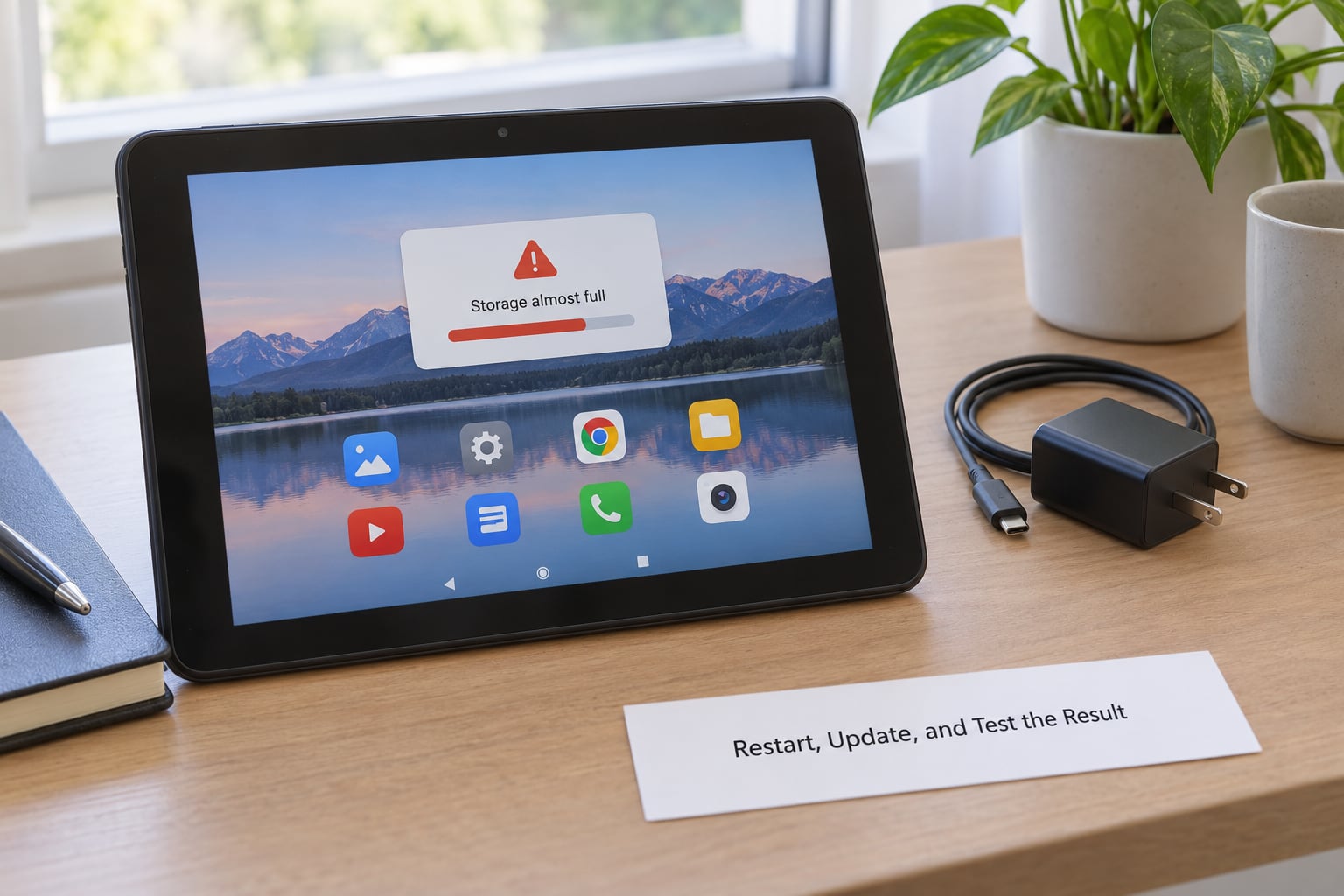
Restart the tablet properly. Hold the power button until the menu appears and choose Restart, rather than just powering off and on. A restart clears cached memory and ends stuck processes, which is why people call it the ten-second fix.
Do the same thing on a schedule. Once a week is enough for most people, and the tablets used mainly by children benefit from a restart every few days.
Then test it against a list: how long until your browser opens, whether scrolling stutters, whether typing keeps up, whether a video call holds steady, and whether the battery still drains quickly. Write down what improved, because that tells you which step was worth repeating.
If the tablet still feels sluggish after a factory reset and a fresh install, the cause is hardware. A battery that will not hold charge, a swollen cell, or a processor that throttles under normal load cannot be corrected in software. Forum threads on old tablets repeat the same lesson: resetting a genuinely worn device twice changes nothing, and at that point a replacement or a second-hand newer model makes more sense than further tuning.
Common Mistakes
Deleting unknown system files. Anything in a system partition that you cannot name is doing something the tablet needs. Uninstalling it by mistake can break features or stop the tablet booting. Fix: only remove apps you installed yourself, and use the Disable option rather than Uninstall for anything preloaded.
Installing RAM cleaner or task killer apps. Android and iPadOS manage memory by closing idle apps themselves, which is why closing one is harmless and a cleaner forcing it shut is not. Forum advice on old Android tablets is consistent on this point: cleaner apps consume resources and can make things worse.
Disabling every background service. Turning off all of them breaks mail alerts, messaging notifications and automatic backups. Fix: restrict only the apps that show up at the top of battery usage, and leave the rest alone.
Resetting without a backup. A factory reset deletes photos, downloads and app data locally. Fix: sync first, then verify the sync actually completed by opening the cloud app on another device.
Keeping software that no longer gets updates. Once a tablet stops receiving system updates, it stops getting security fixes too, and slow behaviour caused by a software bug can never be patched. Fix: find out where you stand, and plan for replacement rather than expecting more tuning to change that.
Rooting or installing a custom system image for everyday tasks. Lightweight Linux systems do keep some very old tablets usable, and owners report that result. But rooting voids the warranty on some models, and a bad image can brick the device. Fix: treat it as a hobby project for a spare tablet, never as your only device.
Frequently Asked Questions
Can software fixes make an old tablet usable again?
Most of the time, yes. Tablets usually slow down from software causes, and clearing storage, restricting background apps, updating the system and trimming the home screen routinely recover most of the lost speed for reading, browsing, email and streaming. Software fixes cannot repair a worn battery or a failing processor, so set that expectation early.
How much free storage should an old tablet have?
Keep at least 10 to 15 percent of total capacity free. On a 32 GB tablet that is around 4 to 5 GB, and on a 64 GB model closer to 8 to 10 GB. Below that threshold the operating system has trouble writing temporary files, and everything from app launches to scrolling starts to stall.
Will clearing the cache improve a tablet that is very slow?
It helps most when storage is tight, because cached files take up room the system needs. Clearing one app cache frees very little, so expect a difference from clearing several plus downloads and browser data, not from a single tap. Cache holds temporary files only, so accounts and settings stay intact.
Is an old iPad still useful for reading and browsing?
Yes, for those two tasks it is usually fine. eBooks, articles, email and video work well on older hardware because the load is light. An older iPad that no longer receives iPadOS updates will eventually stop supporting current apps, so check which version yours runs on before buying into it as a main device.
When is a factory reset better than routine cleanup?
Reset when the tablet is so slow that ordinary use is painful, and after you have already cleared caches, removed unused apps and restarted it. Back up first, since a reset erases local photos, downloads and app data. A reset that changes nothing points to hardware wear rather than software.
How do I know if I need to replace my tablet?
Replace it when the battery no longer holds a usable charge, the back or screen bulges, apps no longer receive updates, or it stays sluggish after a backup and a factory reset. At that point the cost of new batteries and repairs usually exceeds the price of a newer tablet, and everyday use stays frustrating.
Conclusion
To speed up an old tablet for everyday use, the same three moves do most of the work: free up internal storage, update the system and apps, and restrict the apps that run in the background. Add a weekly restart and shorter animations, and a tablet you were ready to replace often handles browsing, reading, email and video calls without complaint.
Start by backing up the tablet and clearing unused storage, then test it with your normal daily tasks before touching anything else. If it stays sluggish after a factory reset, the remaining cause is hardware, and no setting is going to change that.