To update Android apps manually, open the Google Play Store, tap your profile icon in the top right, choose Manage apps and device, tap See details under Updates available, then tap Update on a single app or Update all for everything at once. The whole thing takes under a minute. It gets slower only when an update refuses to start, which is usually storage, a background-data restriction, or a Play Store cache that needs clearing.
Most people search this because auto-updates stopped working, not because they enjoy tapping menus. So this guide covers the manual route first, then the automatic settings, then sideloaded apps, then the fixes for updates that hang on Pending.
Table of Contents›
- What You Need
- Step-by-Step: How to Update Android Apps Manually
- How to update apps manually in Google Play
- How to turn on automatic app updates (or turn them off)
- How to update a sideloaded Android app
- What to do when an Android app will not update
- Common mistakes when updating Android apps by hand
- Frequently Asked Questions
- Can I update an Android app without using Google Play?
- Does updating an Android app delete its data?
- Why does the Update button not work in Google Play?
- Can I install an older version of an Android app from an APK?
- Why is my downloaded APK blocked by Android?
- How do I update apps if I do not have Google Play Services?
- What to do first
What You Need
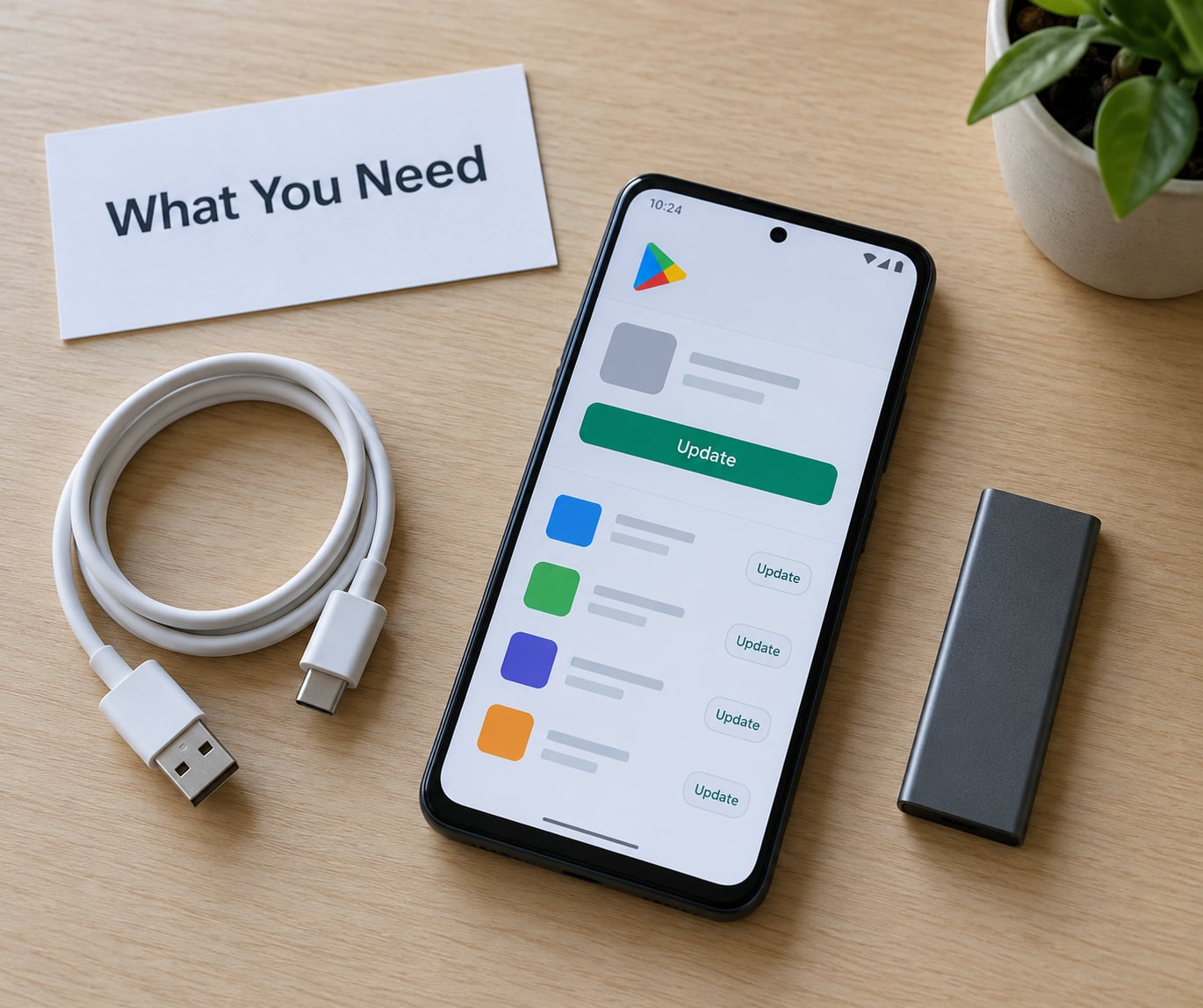
Four things, and you probably have all of them already:
- Your Android version. Check it in Settings, About phone, Software info. Android 11 and newer use the menu labels below; older releases called the same screen My apps and games.
- Google Play Store on the phone, signed into an account. No store means a different method entirely, covered further down.
- Free storage. A large app update can need twice the app size while it installs. Running out mid-update is the most common cause of a failed install.
- A connection you trust. Wi-Fi for big downloads, mobile data if the update is small and your plan allows it.
If the app is one you installed yourself rather than through Play, you also need access to the developer or their download page, and your account details for that app.
Step-by-Step: How to Update Android Apps Manually
How to update apps manually in Google Play
This is the whole manual method. Open the Google Play Store, tap the profile icon at the top right, tap Manage apps and device, and under Updates available tap See details.
You now have a list. Each app with a newer version shows an Update button and its download size. Tap Update on the one you want, or Update all at the top to start every pending app together. A progress bar appears at the bottom of the screen, and you can cancel a download from that bar without affecting the others.
You can tell it worked because the Update button turns into Open, or disappears entirely when no update is left. If you want the version number rather than a guess, open the app, tap its name at the top of the app page, then tap See details. The version shown there should match the listing in the store.
Labels drift a little between manufacturers. Samsung One UI, Xiaomi MIUI, and OnePlus OxygenOS all keep the Play Store itself identical, so the path above holds; only the Settings app around it changes.
How to turn on automatic app updates (or turn them off)
If your reason for reading is that nothing ever updates itself, the fix is a setting. In the Play Store, tap your profile icon, then Settings, then Network preferences, then Auto-update apps.
You get three choices:
- Over Wi-Fi only updates whenever the phone is on Wi-Fi and never touches your mobile data. This is the sensible default on a limited plan.
- Over any network updates on Wi-Fi and mobile data, which keeps apps fresh but can quietly use several hundred megabytes a month.
- Don’t auto-update apps stops background updates entirely and hands you full control, which is exactly the manual setup.
For a single app, open its store page, tap the three-dot menu at the top, and switch Enable auto update on or off. That toggle overrides the global setting for that app, so you can keep a chatty app pinned to Wi-Fi only while everything else updates freely.
How to update a sideloaded Android app
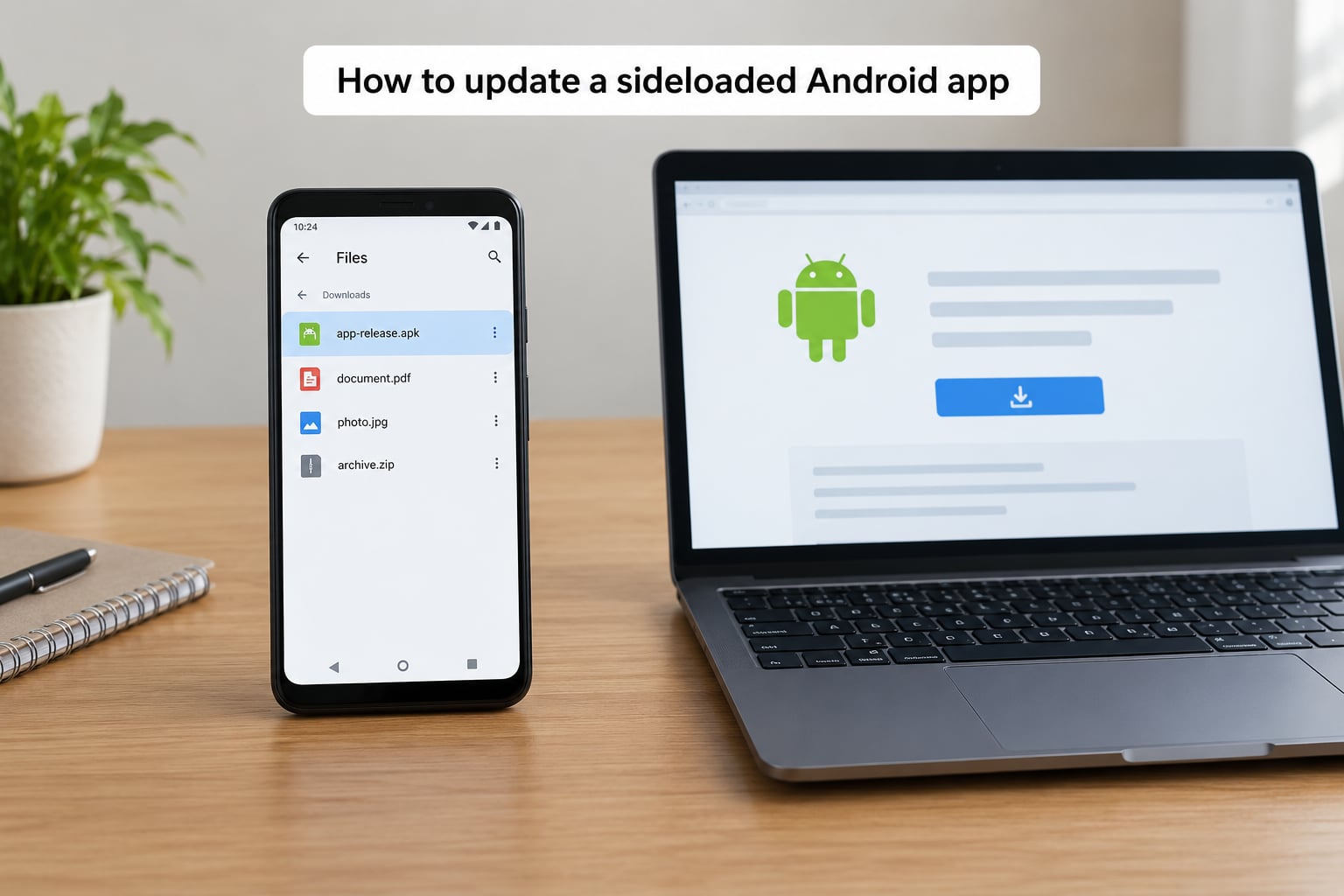
Apps installed from an APK file have no Play Store entry, so the Update button in the store is irrelevant to them. There are only two routes, and they are not equal in quality.
The good route: open the installed app and look for Check for updates in its settings. Apps that ship their own updater download the newer build directly and hand it to Android’s package installer. Note the version number before and after so you can confirm something changed.
The manual route: download the newer APK from the developer’s own site or a source you already trust, tap it, and let Android install it. The first time, Android asks which app may install files for that source. Grant it to your browser or file manager for that single app, then turn the permission back off afterwards. The Install unknown apps setting is per-source on Android 8 and newer, not one global switch.
Two warnings. First, installing an APK from a random mirror is how people end up with malware, and the version there may be older than what you already have. Android also refuses APKs with a lower version code, which is what stops you installing an older build over a newer one without a tool. Second, sideloaded apps have no automatic security patch pipeline, so the version you install is the version you own.
What to do when an Android app will not update
Work down this list in order. The first two fix most cases.
1. Check storage. Open Settings, Apps, See all apps, then the app and tap Storage. If free space is under a few gigabytes, clear old downloads and cached media, then retry.
2. Clear the Play Store cache and reset it. Settings, Apps, Google Play Store, Storage and cache, then Clear cache and Clear storage. Go back one screen, open Google Play Store, tap the three dots, tap Uninstall updates, then clear storage again. Reopen the store and install or uninstall any app to restart its sync. This is the fix people find most often on r/Android when the store throws a stuck spinner.
3. Restart the phone. Not just the app. Background update services get into bad states and a full reboot clears them.
4. Lift the restrictions that block background work. Settings, Apps, See all apps, Google Play Store, Battery, then choose Unrestricted. Check Data usage and switch Background data and Background data restrictions on. Battery saver, data saver, and Xiaomi’s aggressive background controls all silently stop updates from ever leaving Pending.
5. Update the system components apps depend on. Many apps crash after a failed update because Android System WebView or Android System is out of date. Update both from the store.
6. Reinstall the app, only as a last resort. Uninstalling wipes the app’s local data, logins and settings on that device, though anything synced to an account usually comes back. Back up anything that matters first. Reinstall from the store and sign in again.
Common mistakes when updating Android apps by hand
These are the failures that come up over and over, with the actual cause behind each one.
- Update button does nothing, no error. Background data is restricted or battery saver is on. Set the Play Store app to Unrestricted under Battery and enable background data.
- Install fails with not enough storage. Free space is below the update’s temporary requirement. Free up space, then retry the update.
- It sits on Pending download for hours. Usually the Wi-Fi only setting with a weak or captive connection. Switch Auto-update apps to Over any network once, or push the update manually.
- File not available error. The sideloaded APK has a lower version code than the installed build. Get the developer’s current APK; downgrades need extra tooling and risk data loss.
- App is blocked by Play Protect. The build is not from a verified source. Do not bypass it. Install from the developer’s own site or skip the app.
- App vanished after updating. The update failed and Play rolled it back. Clear Play Store storage, then reinstall the app.
- New version never appears. Staged rollout, or the app requires a newer Android release. Wait a few days, or check the store listing for the minimum Android version.
Two habits prevent most of this. Keep a couple of gigabytes free, and check the Play Store’s own update from time to time, because an outdated Play Store can stop delivering updates for other apps entirely.
Update the Play Store itself from the same place as any other app: profile icon, Manage apps and device, See details, Update. If you want a direct check, open the Play Store, tap its profile icon, tap Help, tap Check for update.
Frequently Asked Questions
Can I update an Android app without using Google Play?
Yes, but only if the app has its own updater. Open the installed app and look for Check for updates in its settings, which downloads the new build from the developer and installs it. If no such option exists, you can download the developer’s APK and install it, after granting your browser install unknown apps permission for that source only. Updates you install this way never arrive automatically, and an APK from an unofficial mirror is a malware risk.
Does updating an Android app delete its data?
No. A normal update replaces the app’s code and keeps your data, logins and settings. What clears data is uninstalling, and Apps, then Uninstall updates on the app’s own page, which restores the factory version of a system app. That is why clearing the Play Store cache and resetting it is safe, while uninstalling the app itself to fix an update problem is the last resort.
Why does the Update button not work in Google Play?
Usually something is blocking background work rather than the button itself. Check that the Play Store app is set to Unrestricted under Battery, that background data and background data restrictions are on under Data usage, and that battery saver is off. Storage problems and a corrupted Play Store cache also block updates. Clearing the Play Store cache and choosing Uninstall updates resets the store without touching your apps.
Can I install an older version of an Android app from an APK?
Not normally. Android compares version codes and blocks an install whose code is lower than the one already on the phone, which is the protection against exactly this. Workarounds exist using developer tools or by uninstalling first, but uninstalling wipes the app’s local data and older builds carry the bugs that were later fixed. On a device you rely on, staying current is the safer option.
Why is my downloaded APK blocked by Android?
Android blocks installs from sources you have not approved. Open Settings, Apps, Special app access, Install unknown apps, then pick the app you are installing from, usually your browser or file manager, and allow it. On Android 8 and newer this permission is per-source, so approving one app does not open the door for others. If Play Protect flags the file instead, that is a different problem: the build is unverified, and bypassing the warning is not worth it.
How do I update apps if I do not have Google Play Services?
On a device without Google Play, such as some Huawei models or a de-Googled phone, each app has to update itself. Open the app and look for Check for updates in its settings, or install the developer’s current APK manually. Alternative stores like F-Droid handle updates for the apps installed from them. There is no central update button in that situation, so the work is per app, and apps installed from an APK with no updater built in can only be reinstalled by hand.
What to do first
Open the Play Store, tap your profile icon, tap Manage apps and device, then See details. Update the apps with an Update button, and watch one finish so you can see the button change to Open.
If something refuses to move, clear free space and clear the Play Store cache before anything else. Those two steps resolve most stuck updates, and neither one touches your app data. Everything else in this guide is only worth trying after that.
One last distinction worth keeping straight: updating an app is not the same as updating Android itself. The operating system version comes through Settings, System update on most phones, and it is a separate, much larger process with its own schedule.