An update arrived on its own, and now the app drains your battery, logs you out, or has moved every button you actually used. The good news is that there is a way to roll back an app update on Android. You either return a pre-installed app to the factory version with the built-in Uninstall updates button, or you install the older APK yourself from a repository you trust.
Start with the built-in button, because it takes about thirty seconds and it deletes nothing beyond the update. Move to sideloading only when that button is missing or when you need a specific older build rather than the factory one. Everything below works on standard Android and Samsung Galaxy phones running One UI, with menu names called out where they differ.
Here is the honest version of what happens in each case, updated for 2026.
Table of Contents›
- What You Need
- How to Roll Back an App Update on Android: Step-by-Step
- Step 1: Check Whether the App Offers Its Own Rollback Option
- Step 2: Use Android’s Built-In App Version Controls
- Step 3: Reinstall the Previous App Version Safely
- Step 4: Restore Access If the Older Version Will Not Install
- Common Mistakes
- Frequently Asked Questions
- Can I roll back an app update on Android without losing my data?
- Why can I not downgrade an app on the Google Play Store?
- Is it safe to install an older APK version of an Android app?
- What happens if I uninstall an app to install an older version?
- How do I know whether the rollback actually worked?
- What to Do First
What You Need
Before you tap anything, gather five things. Skipping the first two is how people end up re-downloading an app they had already deleted.
- The app name and its developer. Plenty of apps have near-identical names, and copying the wrong APK from the wrong developer is a fast route to an install failure.
- Your Android version and phone skin. Stock Android, Samsung One UI, and some Chinese OEM skins label the same setting differently, and the roll back option moves between Settings and the Play Store.
- Free storage. You need roughly the size of the app twice over, since the current version stays on disk while the older one is checked and installed.
- A backup of anything local. Photos, offline downloads, game progress, drafts, and account tokens stored on the device live in the app’s private folder. Uninstalling wipes that folder.
- A computer or a trusted APK source — only for the methods in Step 3 and Step 4. If you stop at Step 1 or Step 2, you never leave your phone.
One thing worth checking before anything else: whether the app itself has a built-in history. Several note-taking, banking, and game apps ship their own version history or restore feature, and using it is safer than anything Android offers.
How to Roll Back an App Update on Android: Step-by-Step
Work through these in order. Each one is cheaper than the next, and stopping early costs you nothing.
Step 1: Check Whether the App Offers Its Own Rollback Option
Open the app and look for a version history, release notes, restore, or previous version entry. It usually hides in Settings, a Help section, or an About screen. Apps built on top of a versioned sync backend are the most likely to offer this, because the developer can rebuild your old state from their own records.
When you find it, pick the release from before the update, confirm the restore, and wait for the app to report it finished. Sign out and back in afterwards, since a restore can leave a stale session token.
How to tell it worked: the About screen, or the app’s own settings page, now shows the older version number. Write that number down. You will want it if the next step goes sideways.
Step 2: Use Android’s Built-In App Version Controls
Android ships one reliable built-in path, and it works best on apps that came with the phone.
On a Samsung Galaxy (One UI): open the Play Store, tap the three-dot menu, choose My apps, then Installed. Tap the app, then the three dots in the corner of its listing, then Uninstall updates. Confirm with Uninstall.
On standard Android, including Pixel: the same button appears on the Play Store app page under the three-dot menu. If you would rather not use the Play Store, open Settings then Apps, find the app, tap the three dots in the header, and choose Uninstall updates.
What survives: for pre-installed and system apps, uninstalling the update returns the app to the version that shipped on the phone, and it stays there even after a later update. Reddit users report this is the one path that reliably sticks on things like YouTube. Your Google or Samsung account sign-in normally survives, because that data lives in your account rather than the app folder.
What it does not do: it never picks an arbitrary older build. It can only restore the factory version, and on some apps the button simply is not there.
Why the button disappears: Android treats apps installed from a store as normal apps. Once an app is not a pre-installed system component, Uninstall updates no longer means anything, and on many third-party apps the same menu instead offers a full uninstall. That is exactly the outcome most people were trying to avoid.
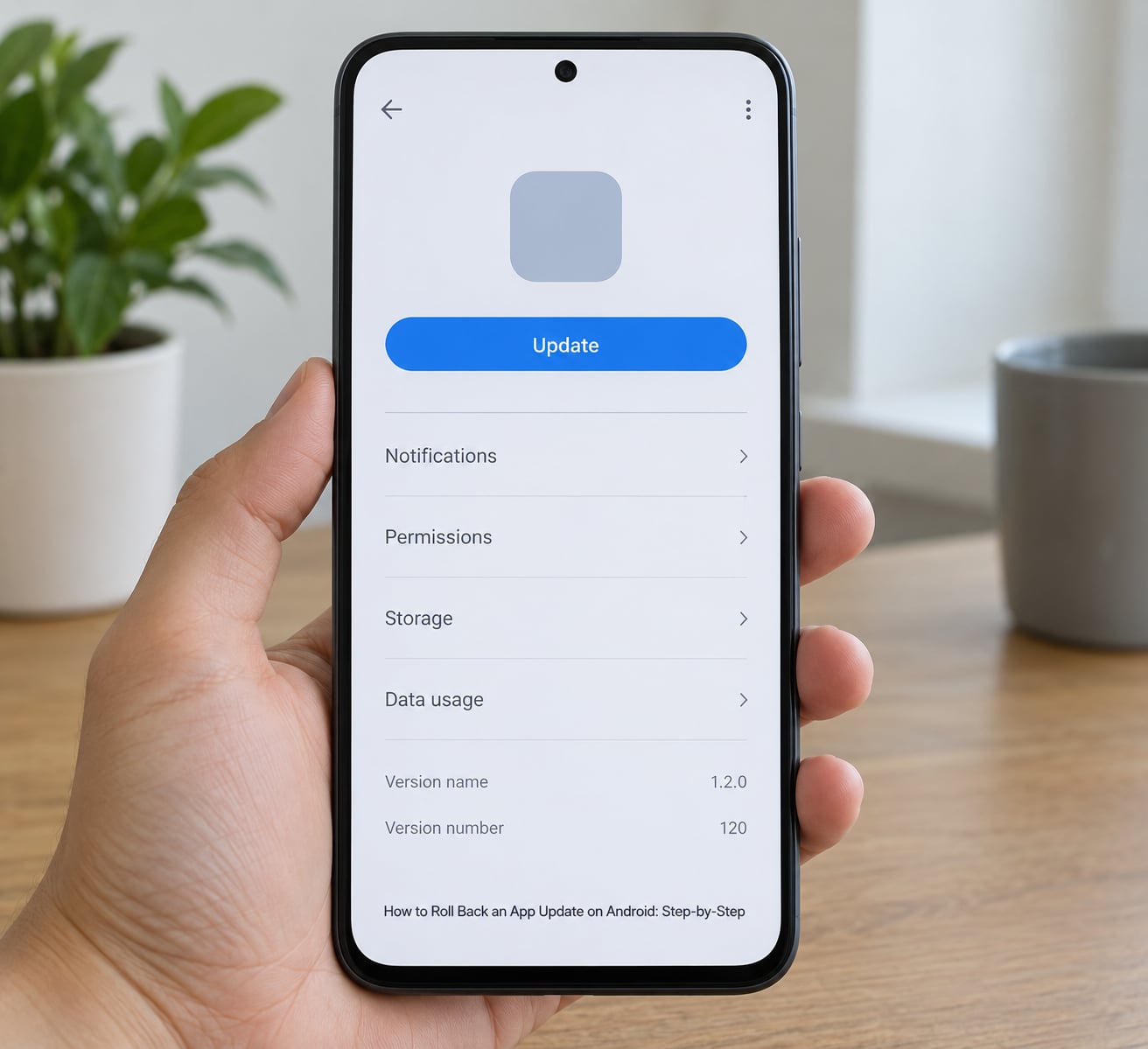
To confirm the result, open Settings then Apps, tap the app, and scroll to the bottom. The Version and Version code fields show what is actually installed right now.
Step 3: Reinstall the Previous App Version Safely
When there is no in-app history and no Uninstall updates button, you install the older build yourself. This is the step where data loss becomes real, so read the warning before you continue.
The data warning. To install an older build, you normally uninstall the current version first. That erases the app’s private folder: offline media, drafts, cached databases, locally stored game progress, and any account you signed in to without a cloud account behind it. Anything tied to a Google, Apple, or the developer’s own account comes back when you sign in again.
Method A — a trusted archive, on the phone. Search for the app on a well-known mirror such as APKMirror, open the app page, then the Versions tab, and pick a release older than the one you have. Two choices matter here:
- Architecture. Almost every modern phone is arm64-v8a. If the listing offers arm64-v8a and a universal APK, either works; universal simply carries extra libraries. armeabi-v7a is for old 32-bit devices, and x86_64 is for emulators and Chromebooks.
- APK versus APK bundle. Some releases are split into a base plus config files, or arrive as a bundle. A plain APK installs straight from your browser with a prompt. A bundle needs a helper installer that reads the split files together, and tapping the download directly will fail.
Before you open any downloaded file, read its signature status. Repositories like this one let you check whether the release was signed with the same certificate as the installed version, which is the single most common reason a downgrade refuses to run.
Method B — Aurora Store, which accepts manual version codes. Aurora Store is an unofficial Google Play client. Install it from F-Droid, sign in anonymously, search for the app, open it, tap the three dots, and choose Manual download. You get a field asking for a version code rather than a version name, so look up the version code in the version list on the app’s repository page. Enter it, tap Check, then Install. Users report this is the most repeatable version of the method because you are not hunting through dated release folders.
Method C — Shizuku and ShizuTools, when you cannot lose the data. Shizuku gives shell-level permissions over wireless debugging, with no root. Start Shizuku, tap Start via wireless debugging, and let it pair with your phone through Developer options. Install ShizuTools and open its Lookback tab, which lists installed apps and offers the previous version of each. Because it operates with elevated package permissions rather than as a separate app, the current version stays in place while the older one replaces it, so local data survives. It takes longer to set up than the other two methods, and it is the one most people should try before they uninstall anything.
Restoring data afterwards. Sign back in, let the app sync, and expect offline downloads to be gone. Do not restore a full app backup made by a different version into a downgraded app; older builds often cannot read newer database layouts, and the restore silently corrupts state rather than erroring.
Step 4: Restore Access If the Older Version Will Not Install
When a rollback fails, the error tells you which problem you have. Work down the list rather than retrying.
INSTALL_FAILED_VERSION_DOWNGRADE. Android refuses to install a build with a lower version code than what you already have. Uninstall the current version first, then install the older file immediately, and do not let anything reinstall the new one in between.
App not installed, or a signature mismatch message. The release was signed with a different certificate than the installed app, which happens when a developer re-keys their app or when the two files come from different sources. There is no workaround without root. Uninstall, confirm the file matches the official developer’s signing key on the repository page, then reinstall.
No older version exists. Some developers only publish the current build, and system-critical apps frequently ship without an archive. There is nothing to roll back to here, so wait for a fix in the next update or report the problem to the developer.
The device is managed. Work and school devices run mobile device management policies that block sideloading and third-party stores outright. Enterprise administrators confirm that a user-initiated downgrade is refused by policy and has to be pushed as a version policy instead. Contact your administrator rather than fighting the policy.
The app is system-critical. Android Auto, the Google Messages RCS stack, your keyboard, your launcher, and DRM components often break on an old build even when it installs. Roll these back only as a last resort, and expect an unexpected close or a stuck boot loop on a bad version.
The app updated itself again. This is the most common complaint on forums, and it has a fix. Turn off automatic updates: open the Play Store, tap your profile picture, choose Settings, then Network preferences, then Auto-update apps and choose Off. It is an all-or-nothing switch that applies to every app, so pair it with a monthly manual check. Apps you installed from a sideloaded source are already outside Play Store’s update path, which is why the Shizuku and Aurora Store routes keep holding their version where a plain sideload does not.
Common Mistakes
Each of these cost somebody their app data or an hour of confused tapping. They are ordered by how often they happen.
Assuming every phone has a roll back button. Uninstall updates only appears for pre-installed and system apps. On anything you installed yourself, the same menu usually means a full uninstall.
Grabbing an APK from an unknown mirror. Random download sites repackage apps and have been caught adding trackers. Use established repositories, and check the signature information before installing anything.
Uninstalling without reading the data warning. Offline downloads, local game progress, and any account that does not sync are gone the moment the uninstall finishes. Back up first.
Picking the wrong file variant. Wrong architecture or an unhandled APK bundle both fail in ways that look like a broken phone. Match arm64-v8a or universal, and use a bundle installer when the release is split.
Ignoring the signature check. This is the number one reason a legitimate older build refuses to install. Two minutes on the repository page saves an hour of reinstalling.
Never verifying the version afterwards. Open Settings then Apps then the app, and read the version number at the bottom. Assuming a fix worked is how people end up repeating the whole process a week later.
Confusing user rollback with developer rollback. Publishing a rollback for users of your own app is a Google Play Console action, completely separate from anything on this page. If you are a developer looking to unpublish a bad release, this guide is not for you.
Frequently Asked Questions
Can I roll back an app update on Android without losing my data?
Yes, sometimes. Returning a pre-installed app through the Uninstall updates button usually keeps your account sign-in, and the Shizuku with ShizuTools route replaces the build without uninstalling, so local data survives. Anything that requires uninstalling first loses offline downloads, local game progress, and accounts that do not sync to a server. Back up before you start either way.
Why can I not downgrade an app on the Google Play Store?
The Play Store has no downgrade feature at all, and Android enforces the same rule underneath it: a package can only be installed if its version code is the same or higher than the current one. That is why the only option on an app listing is Uninstall, which removes the app entirely. To go lower you need a tool that accepts a manual version code, such as Aurora Store or ShizuTools.
Is it safe to install an older APK version of an Android app?
It is reasonably safe if the file comes from a repository that shows you the signature and hash details, and if the signature matches the developer’s official key. Older builds miss security patches, so treat them as temporary. Never install an APK from a link in a random forum reply or a file-sharing site. Scan it first if your device offers that option.
What happens if I uninstall an app to install an older version?
The app’s private folder is deleted along with the app. That covers offline media, drafts, cached files, locally stored game progress, and any sign-in that did not go through an account. Signing in again restores anything the developer keeps on their servers. You also lose app-specific settings, widgets, and notification channels until the older build recreates them.
How do I know whether the rollback actually worked?
Open Settings, then Apps, tap the app, and scroll to the bottom of its info screen. The Version and Version code fields show what is installed right now, not what the store lists. If it still matches the new release, the install silently failed or Play Store re-updated the app, and you should disable automatic updates before trying again.
What to Do First
Open the Play Store listing for the app and look for Uninstall updates. If it is there, that is the whole job — tap it, and the phone returns the app to the build that shipped with it.
If the button is missing, check the app’s own settings for a version history entry before you uninstall anything. Only when both come up empty should you install an older build yourself, and the Shizuku with ShizuTools route is the one to try first if losing local data would hurt.
Last step, whatever method you used: turn off automatic updates so the fix survives the week, then confirm the version number in Settings then Apps. That is how to roll back an app update on Android and keep it rolled back.