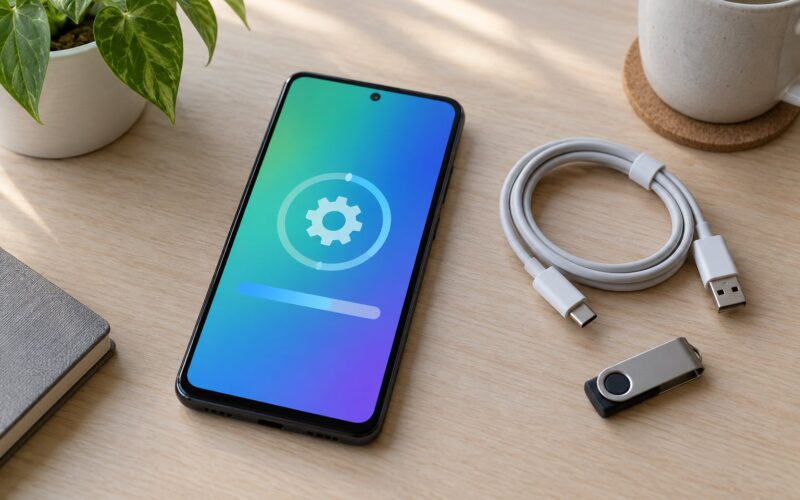
If an Android update fails, restart the device, check that Wi-Fi is stable, charge the phone above 50 percent, and free up storage, then run the update again from Settings. Most failed installs are one of those four things wearing a disguise. Only if those fail do you need the heavier steps, like clearing system caches or booting into recovery mode.
It helps to know which stage broke. Android downloads an update package, checks it against your build, then writes new system files and reboots. A stall while downloading looks different from a failure while installing, and the fix for one rarely fixes the other.
Menu names shift between manufacturers and Android versions, so I will flag where Samsung, Pixel, OnePlus and Xiaomi word things differently. Every fix below is ordered from cheapest and safest to most invasive.
Table of Contents›
- What You Need
- Step-by-Step: Fix an Android Update Failure
- 1. Restart the Phone or Tablet and Check the Error
- 2. Check Wi-Fi, Battery, and Available Storage
- 3. Clear the Google Play Services and Download Manager Caches
- 4. Remove or Disable a Restricting Update
- 5. Install the Update Manually or Retry Through Settings
- 6. Use Recovery Options if the Update Is Stuck
- 7. Know When to Contact Support or Visit a Repair Center
- Common Mistakes
- Frequently Asked Questions
- Will I lose my photos and messages if I fix a failed Android update?
- Why does my Android update keep failing on the same phone?
- Can I install an Android update manually from a ZIP file?
- Should I keep updating an old Android phone that will never get a new version?
- My phone will not turn on after a failed update. What do I do?
- Do I have to replace my phone if updates keep failing?
- Conclusion
What You Need
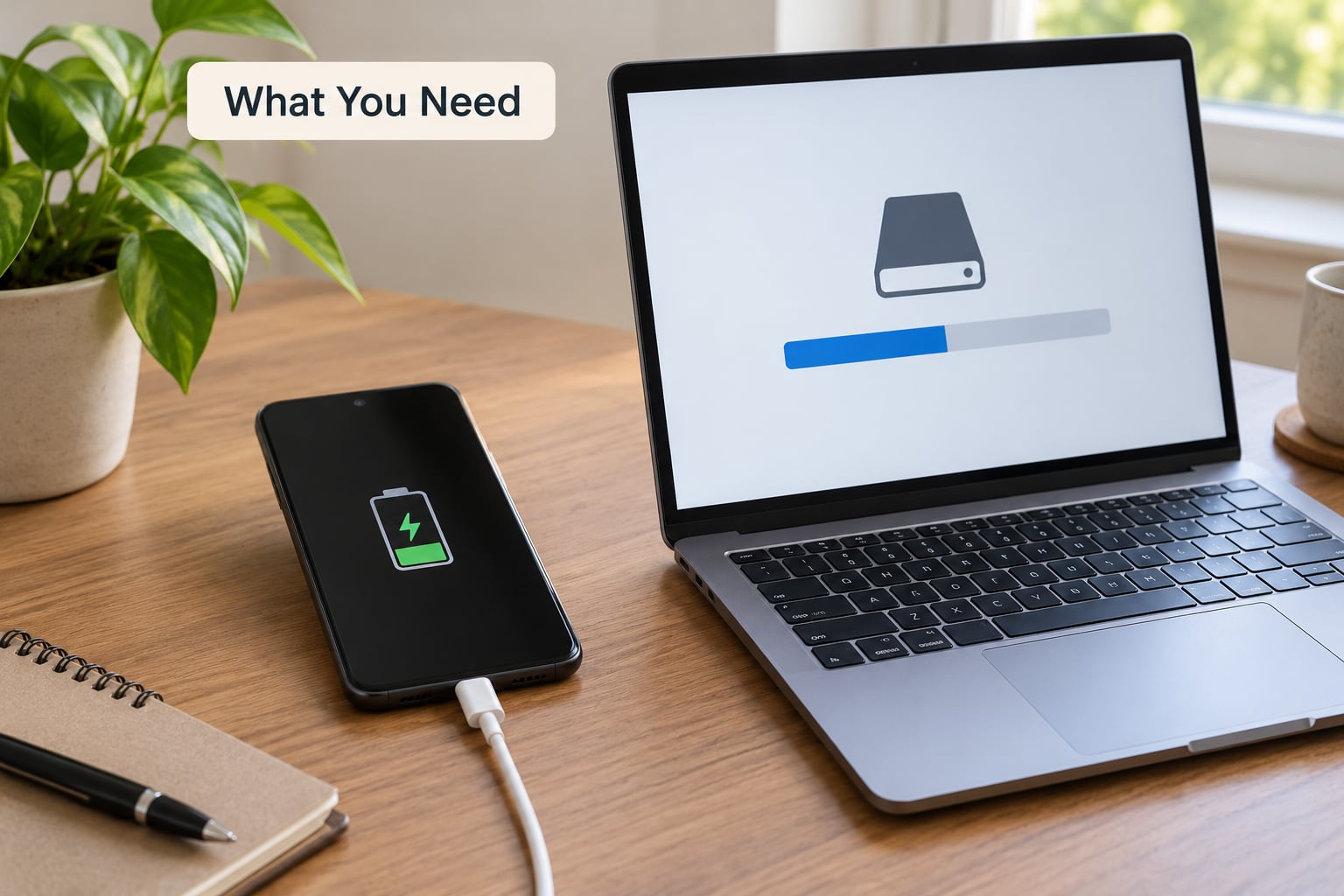
Before you touch anything, gather these five things. Most troubleshooting sessions fail because someone skipped the second one.
- The phone or tablet itself, plus the charger it normally uses. A flat battery mid-install is the single most common cause of a failed update.
- Stable Wi-Fi. Prefer it over mobile data. A connection that drops for ten seconds is enough to abort a download.
- Room to breathe on storage. A large security or system update can need several gigabytes of temporary space on top of the download itself.
- The exact error text. Write it down or screenshot it. “Something went wrong” and “install aborted” need completely different fixes, and the exact wording is what support will ask for.
- A backup. Turn on Google backup, or for Samsung use Smart Switch to a computer, before running any recovery or reset step.
Skip the backup and you accept the risk that a recovery action erases photos and messages. That is the one failure mode nobody can undo for you.
Step-by-Step: Fix an Android Update Failure
This is the order I would work through. Each step is one action with a clear signal that it worked, and if it does, move to the next.
1. Restart the Phone or Tablet and Check the Error
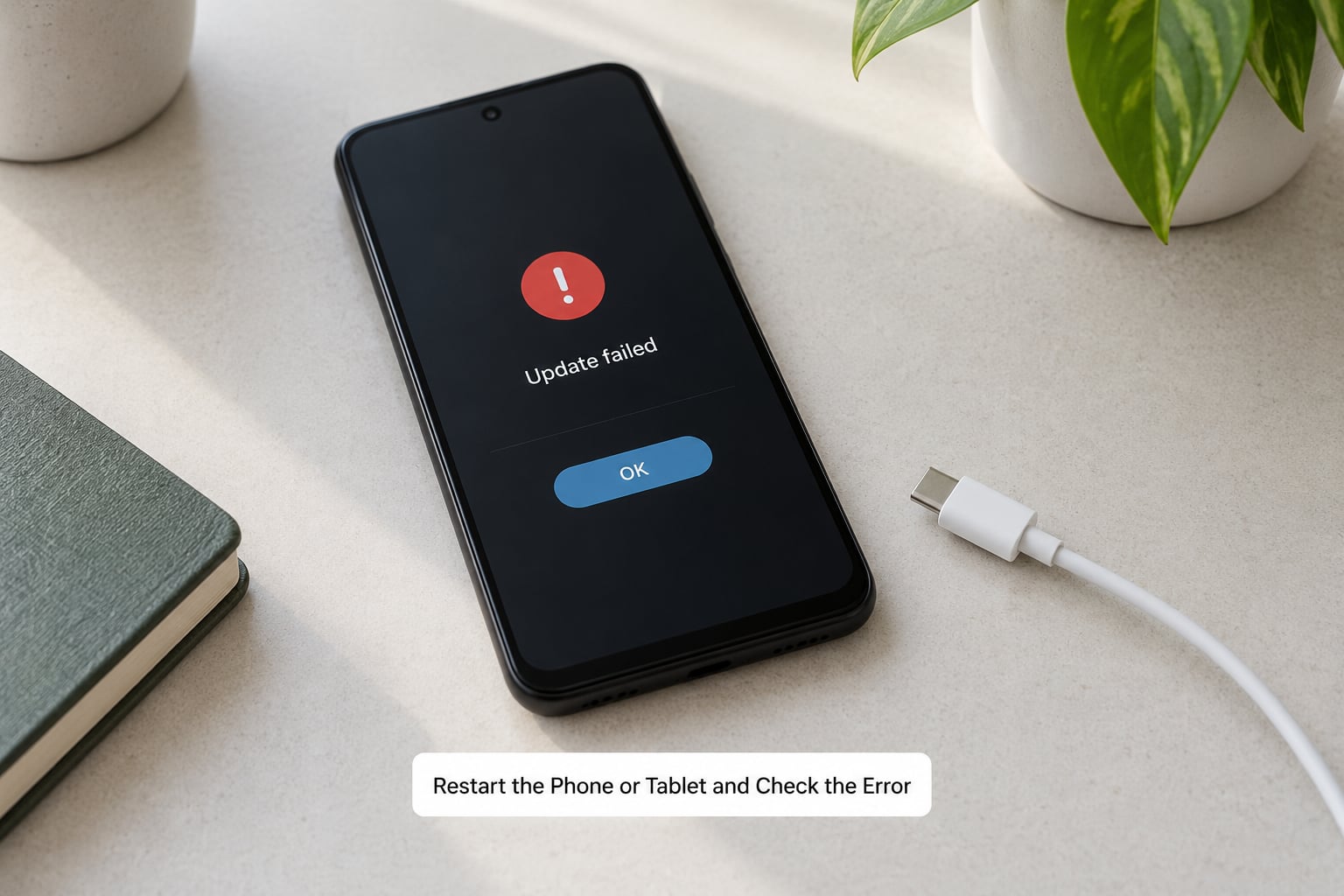
A normal restart clears the temporary state a half-finished install leaves behind. Hold the Power button, tap Restart, and wait for the home screen. If the screen is frozen on the update progress bar, force a restart instead: hold Power and Volume Down together for 10 to 15 seconds until the display flickers.
On older Samsung models and some other brands, that combination includes the Home button. A few phones use Power and Volume Up. If nothing happens after 15 seconds, keep holding while the device sits unplugged.
Once it boots, open the update menu again and read what it says. These are the error strings that come up most often:
- “Software update registration failed” — the phone could not complete its handshake with the update server.
- “Install aborted” — usually storage, or an app that refused to uninstall in time.
- “Update requires more storage than you have” — the message says exactly what it means.
- “System update stopped” or an error code such as 400, 403, 495 or 505 — the codes vary by manufacturer and usually point at a failed verification step rather than broken hardware.
While you are in there, check Settings, then About phone, and note your Android version, build number and Android security update level. Support will ask for the build number, and comparing it before and after the update tells you whether anything actually changed.
2. Check Wi-Fi, Battery, and Available Storage
Updates need three things, and each one fails quietly. Charge the phone to at least 50 percent and keep it plugged in for the whole install, because a phone that reaches zero during the write stage is a phone that may not boot afterward.
For the connection, open Settings, then Network and internet, then Wi-Fi, and check that a saved network is connected rather than simply in range. Then toggle Wi-Fi off and on, or switch to mobile data and back. Forum consensus on r/AndroidQuestions is that this small toggle resolves a large share of stalled downloads.
Storage paths differ by brand. On Pixel, it is Settings, About phone, Storage. On Samsung, it is Settings, Device care, Storage. OnePlus and Oppo use Settings, Additional settings, Storage. Xiaomi puts it at Settings, About phone, Storage. Motorola uses Settings, System, Storage.
Free up more than the update asks for. Downloads, cached photos in messaging apps and old videos are usually enough to reclaim a surprising amount.
3. Clear the Google Play Services and Download Manager Caches
A corrupted Play Store or Play services cache is the most reported cause of an update that will not install. Open Settings, Apps, then See all apps, and clear each one in turn.
- Google Play Store — tap Clear cache. Do not tap Clear storage.
- Google Play services — same path, same button.
- Download Manager — clear the cache here when a download stops without an error.
- Android System WebView — update it rather than clearing it, since an outdated copy breaks some system screens.
Clearing Play services also resets the component that talks to Google’s update servers, so give it a minute after you do it. Some Google community advice goes further and clears Google Services Framework data, but that resets services you did not ask about, so treat it as a later step rather than a first one.
4. Remove or Disable a Restricting Update
Some software silently blocks an Android update. Device administrator apps, aggressive file managers with root access, VPNs, ad blockers, work profiles and third-party antivirus tools are the usual suspects.
Check Settings, Apps, then Device admin apps and deactivate anything you no longer use. If an app refuses to deactivate, uninstall it first. Third-party security software is a known culprit, and one long-running Bitdefender community thread shows how persistently that class of app can stall updates.
For a work phone, remove the work profile temporarily if you are permitted to. For a rooted phone or a custom ROM, stop here. Officially signed builds update themselves; unofficial ones need their own updater, and mixing the two is how phones end up unbootable.
Write down everything you switched off. Restoring a VPN or profile in the wrong order locks you out of your own accounts.
5. Install the Update Manually or Retry Through Settings
Return to the brand’s own update menu and choose Check for updates. The path is Settings, About phone, Software update, Download and install on Samsung. Pixel uses Settings, System, System update. OnePlus, Oppo and Realme use Settings, System update. Xiaomi uses Settings, About phone, System update.
If the phone says up to date but you know a newer build exists, tap Check for updates repeatedly across a few days. Android retries silently in the background, and a rejected update sometimes appears only after the device re-registers with the server.
Manual installation means downloading the firmware or update package from the manufacturer’s official support page and installing it through a PC tool or recovery menu. It is legitimate only from that official source. Never sideload an update file from a mirror, forum attachment or file-sharing link, because a modified package can leave the phone unbootable and unrecoverable at home.
6. Use Recovery Options if the Update Is Stuck
Recovery mode is a separate boot environment outside Android. Turn the phone off, then hold Power and Volume Down until the recovery screen appears. Some Samsung models use Power, Home and Volume Up, and some Motorola and other brands use Power and Volume Up.
What to do there depends on the phone’s age. Older devices expose Wipe cache partition, which clears temporary system files without touching photos or apps. Newer releases removed that option, so the equivalent is clearing each system app’s cache from Settings as described in step 3.
Several older models also offer a Reset Updates or similar entry, which discards a downloaded but uninstalled package so the next attempt starts fresh. Use it when an update fails repeatedly and you are certain the download itself was corrupted.
Stay out of options that delete data, wipe partitions or change the boot order unless you have a backup and a reason. Recovery screens differ per manufacturer, and pressing the wrong entry can erase everything on the device.
7. Know When to Contact Support or Visit a Repair Center
Stop troubleshooting and get help if the phone will not boot past the logo, if recovery mode cannot read storage, if the battery swells or refuses to charge, or if the same error survives the full ladder twice.
Before you do, try to protect what is on the device. If the phone still powers on, confirm Google backup ran recently, or connect it to a computer with Smart Switch or a Samsung Smart Transfer equivalent. If it does not power on, Google’s Find My Device service can show its last location and can lock it, which matters more if the device was lost during the failure.
A failed update that leaves a phone unable to boot is a repair job, not a settings job. If the device is under warranty, do not attempt a factory reset or sideload anything first, because it can void coverage. Take it to the manufacturer or an authorised service centre with the build number and the error text you wrote down in step 1.
Common Mistakes
These seven mistakes turn a ten-minute fix into a lost afternoon.
- Starting on a low battery. Charge to 50 percent or more and stay plugged in. Fix: never begin an install below that.
- Ignoring an active VPN, ad blocker or work profile. These intercept the connection the update depends on. Fix: switch them off, update, then switch them back on.
- Installing firmware from an unofficial source. A modified package can brick the phone permanently. Fix: official manufacturer support page only.
- Deleting system files to “free up” space. Removing a system app can stop the update that would have fixed the problem. Fix: clear caches, and delete large personal files instead.
- Force restarting mid-install. If the progress bar is genuinely moving, leave it alone. Fix: give a stalled update 90 minutes on Wi-Fi before intervening.
- Resetting before backing up. A factory reset erases everything not already backed up. Fix: verify the backup completed before you tap the last confirmation.
- Treating three different updates as one. An OS update, a security patch and a Google Play system update are separate and often must land in order. Fix: install the OS update first, then the Play system update, then the security patch.
Frequently Asked Questions
Will I lose my photos and messages if I fix a failed Android update?
Not if you stay in the first five steps above. Restarting, checking storage and clearing individual app caches leave your personal files untouched. A wipe of the cache partition is also safe on the devices that still offer it. A factory reset does erase everything, so confirm your Google backup or Smart Switch copy completed before you run one.
Why does my Android update keep failing on the same phone?
Repeating failures usually mean one thing is still in the way. The most common are a corrupted Play services cache, a restriction from a VPN or antivirus app, and not enough free storage for the temporary files the installer needs. If two full passes through the ladder change nothing, the cause is more likely hardware or storage wear, and it is time for a service centre.
Can I install an Android update manually from a ZIP file?
Only from the manufacturer’s official download page, using the official PC tool or the recovery menu’s install package option. Files from mirrors, forums and file-sharing links are a common source of phones that will not boot. If you cannot get the package from the manufacturer directly, skip this step entirely and retry from Settings instead.
Should I keep updating an old Android phone that will never get a new version?
Yes, as long as the manufacturer still issues security patches for it. Even on an old major version, monthly patches fix real vulnerabilities, and apps built for newer Android releases eventually stop working on it. Once a model leaves its support window, weigh the device against the cost of a replacement rather than expecting new features to arrive.
My phone will not turn on after a failed update. What do I do?
Try the recovery menu first: hold Power and Volume Down together, or Power, Home and Volume Up on older Samsung models. If the recovery screen loads, use the install or wipe cache option there. If the phone shows only the logo, or the recovery screen cannot read storage, the update damaged the system partition and the device needs professional repair. Report it under warranty before attempting anything else.
Do I have to replace my phone if updates keep failing?
Not usually. Replace it only when a manufacturer-authorised service centre confirms a failed update has damaged storage or the system partition, or when the device is outside its support window and patches are no longer published. Persistent update failures on a supported phone are nearly always a software or storage problem, and a clean reinstall usually resolves them.
Conclusion
Start where nearly every case starts: restart the phone, read and record the exact error, charge it above 50 percent, free up real storage space, and check that Wi-Fi is genuinely connected. Then run the update again from the manufacturer’s own settings menu. If it fails a second time, clear the Play Store, Play services and Download Manager caches, and switch off any VPN, antivirus or work profile that could be blocking the install.
Only after that does recovery mode make sense, and only for the non-destructive options. If the phone will not boot past the logo, or the same error survives everything above, stop and take it to the manufacturer or an authorised service centre with your backup confirmed. That is what to do if an Android update fails at the point where your own troubleshooting has run out.