How to use a phone on a plane for offline entertainment is simple once you do it before you leave the house: download your movies, shows, music, podcasts, books and games at home, confirm each one is stored on the device, then switch on airplane mode when the captain asks. With the cellular radio off, everything already downloaded keeps playing, and you spend nothing on aircraft Wi-Fi.
The whole trick is doing the work at home, where you have fast internet and a charger. Download something at the gate over airport Wi-Fi and you are gambling on a connection that drops every time a catering truck rolls past.
Table of Contents›
- What You Need to Use a Phone on a Plane for Offline Entertainment
- How much storage do offline movies take up?
- Power bank rules worth knowing
- Step-by-Step: Download Everything Before You Board
- 1. Charge everything and clear storage
- 2. Update the apps you will use
- 3. Download your video, audio and books
- 4. Open each downloaded item in airplane mode
- 5. Screenshot your boarding pass and set an alarm
- 6. Save your documents offline
- 7. Turn on airplane mode when instructed
- How to Download Movies, Shows, and TV Apps
- How to Download Music, Podcasts, and Audiobooks Offline
- Set Up Offline Games, Maps, and Reading Apps
- How to Use a Phone on a Plane for Offline Entertainment in Airplane Mode
- Common Mistakes and How to Fix Them
- Frequently Asked Questions
- Can I use my phone on a plane without Wi-Fi?
- Does airplane mode stop all mobile data usage?
- How do I know that a movie, show, or music is downloaded for offline use?
- Will downloaded content expire or disappear during a long trip?
- How much phone storage should I leave for offline entertainment?
- Can I use my phone while the airplane is on the ground before takeoff?
What You Need to Use a Phone on a Plane for Offline Entertainment
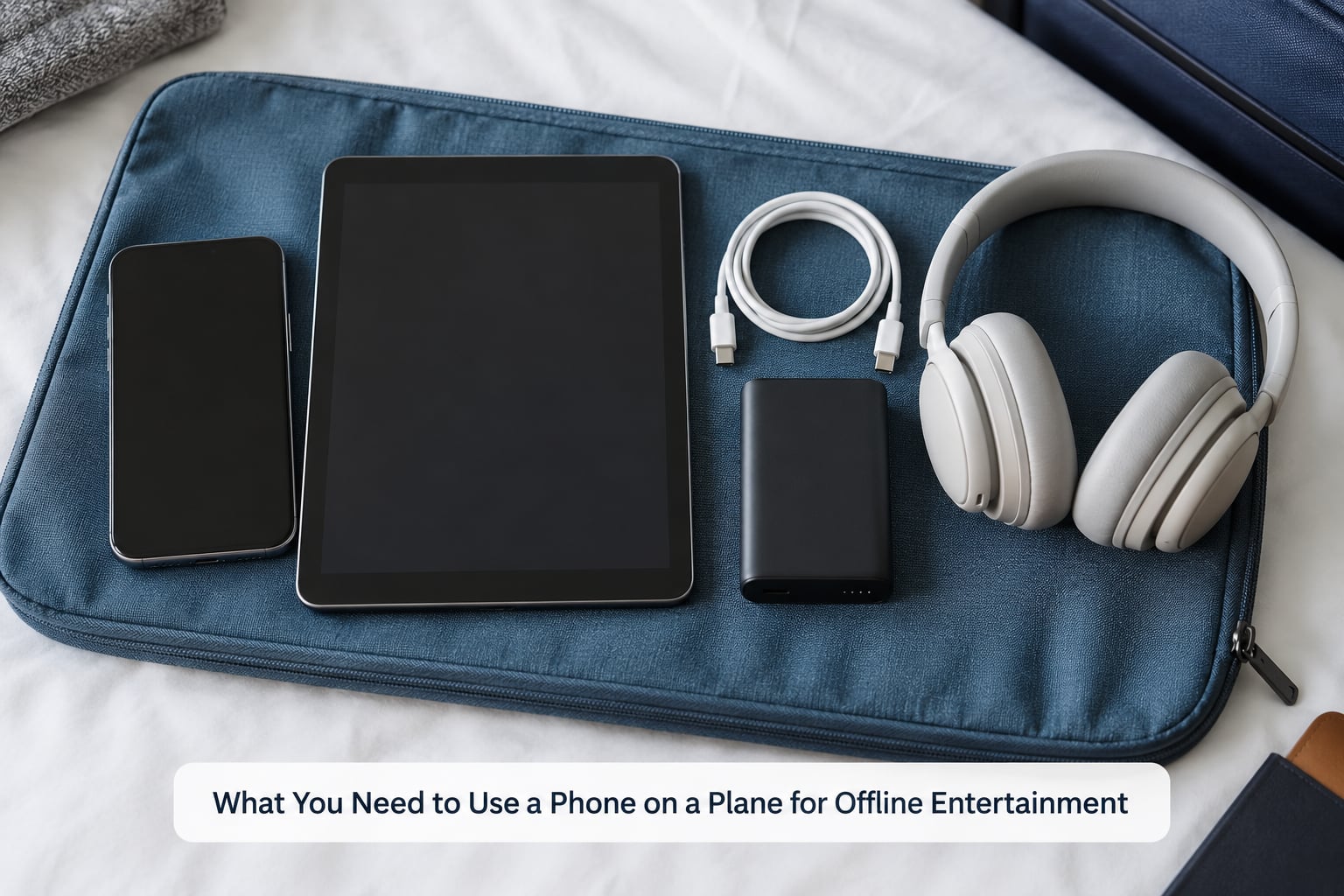
The list is short, and you probably own every item already.
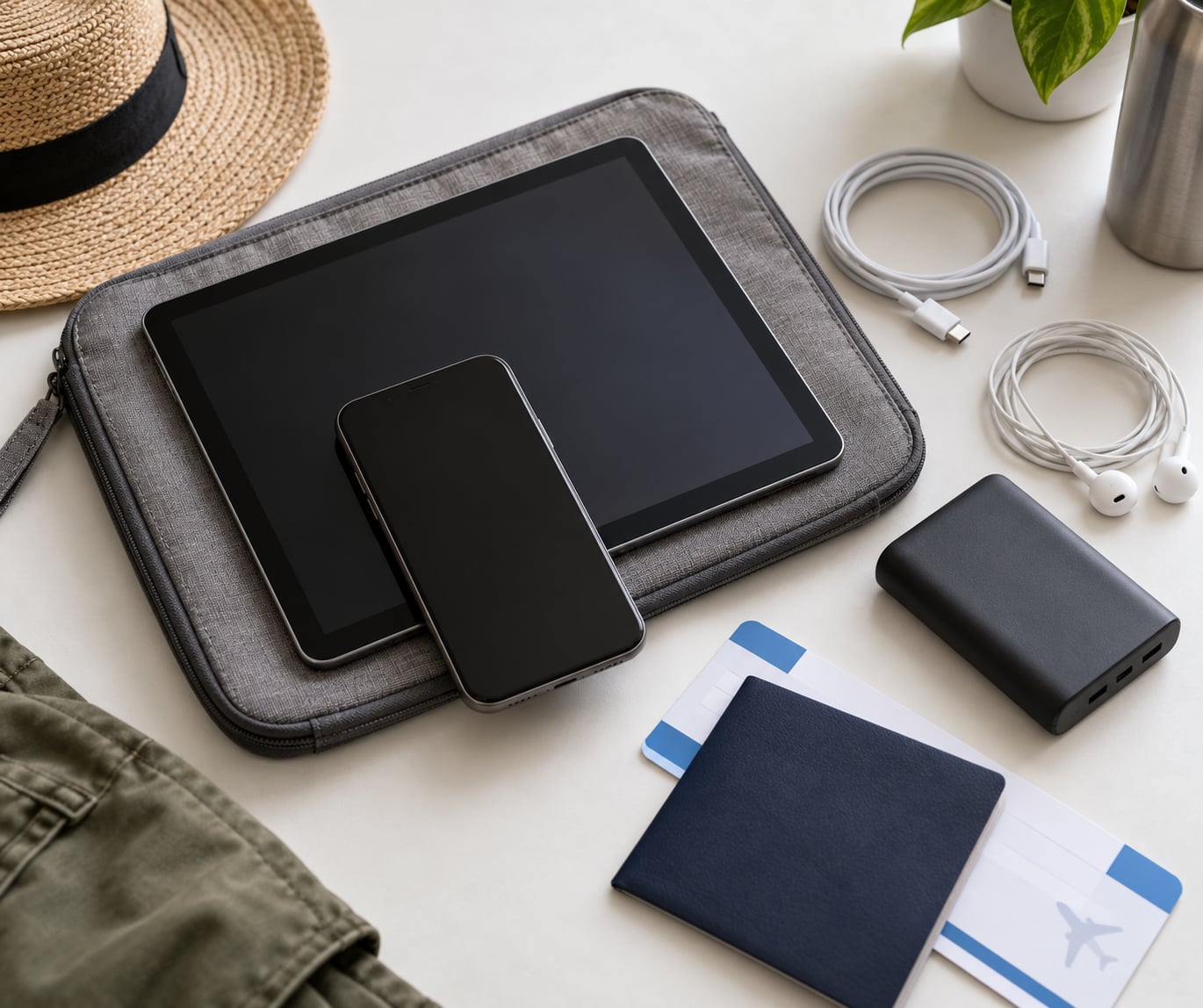
- A charged phone or tablet. Full battery before you leave. Any device with 8GB of free storage can handle a few hours of video; you need more than that for a long-haul trip.
- Headphones with wires, or earbuds. Most airlines expect anything with audio to go through headphones. Wired ones also charge while they play.
- A charging cable long enough to reach your seat, plus a power bank if you have one.
- Free storage. Check it before you download anything.
- Optional: a phone holder, a card reader for the seatback screen, and a second device for kids.
How much storage do offline movies take up?
Rough numbers, in standard quality: a one-hour film lands around 1GB to 1.5GB, while a TV episode runs about 0.5GB to 1GB. High quality can double that. An eight-hour flight with three films and a couple of podcast queues is easily 5GB.
Where to check your free space:
- iPhone: open Settings, then General, then Storage or iPhone Storage. The list shows which apps are eating the space.
- Android: open Settings, then Storage or Battery and device care, depending on your phone maker. Most show a breakdown by app.
- iPad: Settings, then General, then Storage.
- Android tablet: same as Android phone, usually under Storage.
Power bank rules worth knowing
Lithium batteries must travel in your carry-on, never in checked luggage, because a damaged pack is a fire risk in the hold. Most airlines allow power banks up to 100Wh without a special approval, and anything between 100Wh and 160Wh usually needs approval in advance. Spare lithium batteries are carry-on only. Read your airline’s page before you fly, because the enforcement side is real.
Step-by-Step: Download Everything Before You Board
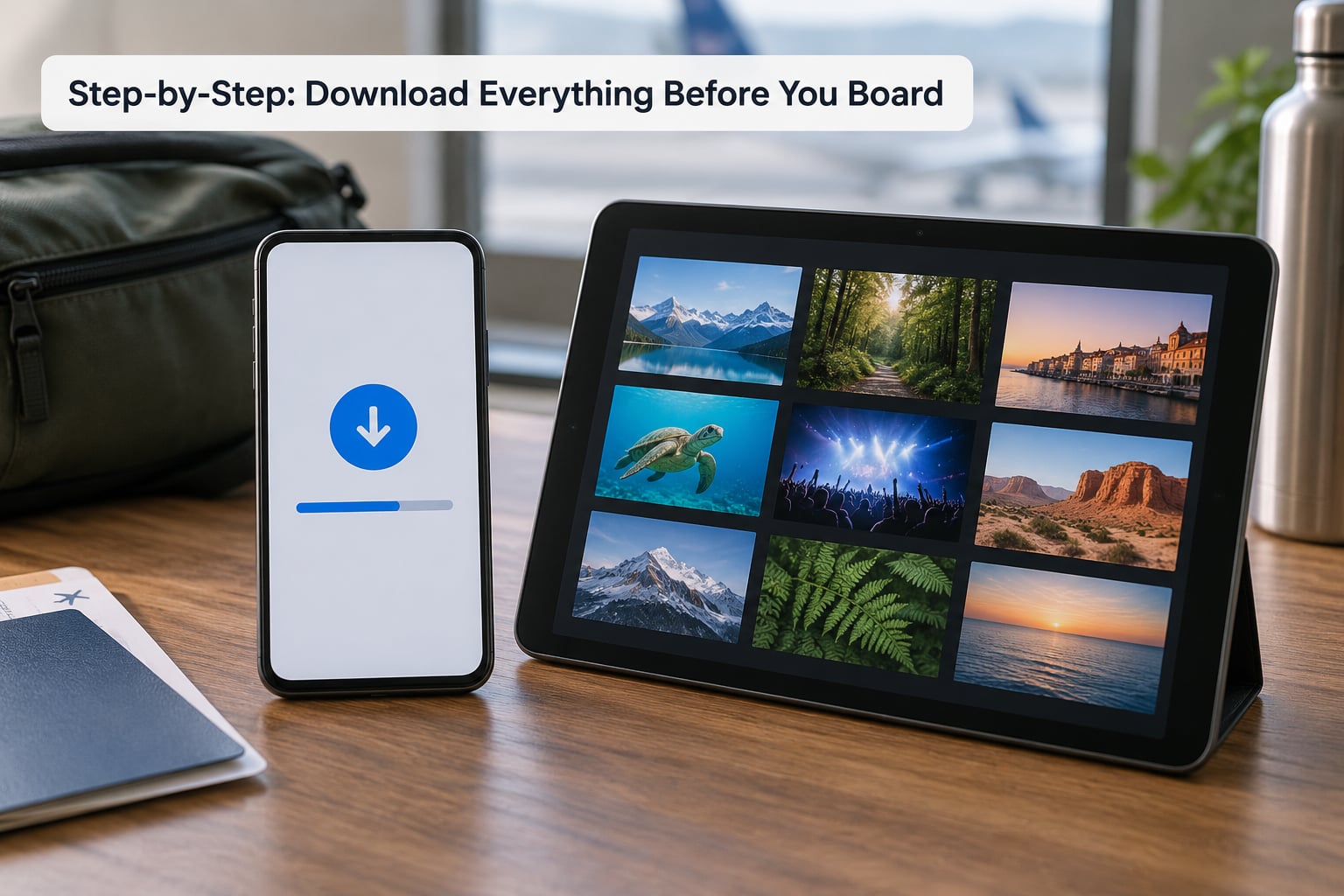
Run this list at home on your own Wi-Fi, ideally the night before. It takes about 30 minutes for a full setup.
1. Charge everything and clear storage
Charge the phone and the power bank to full. Then open the storage screen from step one above and delete old downloads, cached videos or an app you never use. Streaming apps cache as they play, so a phone that felt fine last month can be a mess now.
2. Update the apps you will use
Do this at home too. Menu paths and download buttons move between app versions, so current software saves you from hunting for a setting that moved.
3. Download your video, audio and books
Use the app-by-app instructions in the sections below. Each app marks a finished download differently, so confirm status rather than assuming the arrow tap worked.
4. Open each downloaded item in airplane mode
This is the test that saves flights. Turn on airplane mode, put the phone in airplane mode too, and try to play each title for 30 seconds. Anything that fails, redownload now rather than at the gate.
5. Screenshot your boarding pass and set an alarm
Both work with no connection. A screenshot of the boarding pass saves you when the airline Wi-Fi is down, and a phone alarm still fires in airplane mode. Add a second alarm fifteen minutes before landing so you are not relying on the chime you hear over the engines.
6. Save your documents offline
Photos of your passport, ID, insurance details, hotel address and any needed prescription labels, kept in one album or a single note. This matters more than entertainment if something goes wrong at the other end.
7. Turn on airplane mode when instructed
Airline rules differ. Many carriers require airplane mode at takeoff and landing but allow Wi-Fi in cruise, and some now allow you to make calls above cruising altitude. Follow the crew’s instructions over anything you read online, including this guide.
Where the switch lives:
- iPhone and iPad: Control Centre, or Settings, then Airplane Mode. On Face ID devices it is in the top-right block of Control Centre.
- Android phone and tablet: swipe down twice for Quick Settings and tap the airplane tile, or go to Settings, then Network and internet, then Airplane mode.
Airplane mode switches off the cellular radio, Bluetooth and Wi-Fi together. You can switch Wi-Fi back on individually once you are at cruising altitude and the crew says it is allowed, and Bluetooth separately for your earbuds. Turn it off again before landing.
How to Download Movies, Shows, and TV Apps
The pattern is nearly identical across services. Open the app, find the title, tap the download arrow, pick your quality, and wait for the progress bar to finish. Menu names shift between app versions, so match by shape rather than label.
iOS and Android, Netflix: tap a title to open it, then tap the Download icon on the detail page, or the Download arrow next to an episode in the season list. Leave the app open until the circle becomes a checkmark. Only titles marked Available to Download work offline; a lot of the catalogue is live streaming only. A Netflix download generally stops playing about a week after you save it, so download close to your travel date rather than weeks ahead.
Amazon Prime Video: open the title, tap the download icon on the playback screen, then choose Standard or High quality. Prime downloads sit inside the app and need the app open to play back.
Disney+, Max and Apple TV: tap the download icon on a title page, then select Standard or High. Apple TV titles must be downloaded inside the Apple TV app, not saved from a browser.
YouTube: downloading for offline viewing needs YouTube Premium. With Premium, tap the three-dot menu under a video and choose Download, then pick a quality level. Without Premium, downloaded videos stay only in the app cache and can disappear.
Google Play Movies or TV: tap the download button on the title page, then confirm with Download. Verify by opening the Downloads tab in your library.
A few habits keep this working:
- Check that a title finished. A cancelled or paused download leaves nothing playable.
- Delete what you have already watched. Reviews on flying forums keep repeating the same complaint: running out of room mid-journey on a 128GB phone.
- Pick standard over high quality. You are watching at arm’s length on a moving bus; the file difference is barely visible and the storage saving is large.
- Never plan to stream in flight. Most aircraft Wi-Fi packages block or throttle video, and the ones that allow it are not worth the cost.
How to Download Music, Podcasts, and Audiobooks Offline
Audio is the most reliable form of in-flight entertainment, because it uses less battery than video and works at any flight length. Audiobooks and podcasts last a nine-hour haul easily.
Spotify: open your library, find a playlist, tap the Download toggle. To set your own offline defaults, open Settings, then Playback, then Offline, and set the quality to your normal listening quality.
Apple Music: open your library, long-press a playlist or album, then choose Download. Turning on Automatic Downloads under Settings, then Music, keeps new music available automatically.
YouTube Music and Google Play Music: download from your library screen, or use the Download button on an album. Playlist downloads save everything in the list at once.
Podcasts: most apps such as Pocket Casts, Overcast and the Apple Podcasts app will auto-download new episodes over Wi-Fi. Turn that on before you travel so the queue is already filled.
Audiobooks: Audible and Libby download titles from your library into the app. Libby in particular will borrow and download from your public library card over Wi-Fi before you leave.
Build one queue rather than dozens of downloads, and check the total time against your flight. People on flying forums usually end up doing the same thing on every long trip: one long audiobook plus a downloaded playlist for the rest.
On headphones etiquette: use earbuds or headphones for anything with sound, and if you are on speaker, keep it low and use one earbud. A shared speaker at full volume is the fastest way to get a look from a flight attendant.
Set Up Offline Games, Maps, and Reading Apps
Games need more preparation than video because many stream their art from the internet, which is why a downloaded game stalls at the loading bar in flight. The fix is to run the game on Wi-Fi before you travel.
- Open the game on Wi-Fi. Load the main menu, then play a couple of minutes of actual gameplay so the character models, levels and audio download.
- Trigger the asset download where possible. Look in settings for something like Download on Wi-Fi only, Keep Downloaded Games, or a resource pack option.
- Check the permissions. Many games need location, motion or storage access even offline. Denying them on a plane can break a game mid-level.
- Turn off notifications for the app. Game notifications wake the screen and drain battery for nothing.
- Test in airplane mode. Load a level, not just the menu. The menu can be cached while the gameplay assets are not.
On game taste for long flights, the recurring advice from Android gaming communities is single-player with no ads and no in-app purchase prompts. Solitaire and card games are the guaranteed fallback that always works. Some travelers also load creative apps: a drawing app, a music workstation or a launcher they can customise for hours. Anything with ads is a bad choice at cruising altitude.
Maps: Google Maps has an Offline Maps setting under the profile menu, where you pick a region to download. Apple Maps caches a route and its surroundings when you start directions in Maps or Google Maps, and you can check the area beforehand. This one has saved more than one traveler trying to find a rental car at night.
Reading: Kindle, Google Play Books, Kobo and Apple Books all download titles from your library. For web articles, save them to Pocket, Instapaper or Safari’s Reading List first.
How to Use a Phone on a Plane for Offline Entertainment in Airplane Mode
Airplane mode is not a rule about apps. It is a switch for the cellular radio, and it is required by most airlines at least during takeoff and landing.
Here is what keeps working with it on:
- Downloaded video, music, podcasts and audiobooks
- Games already warmed up on Wi-Fi
- E-books and saved articles
- Offline maps and cached routes
- The camera, notes, calculator, timer and clock
- Alarms, including an alarm set for before landing
- Bluetooth audio, if you turn Bluetooth back on separately
- Aircraft Wi-Fi, if you turn Wi-Fi back on separately and the crew allows it
Here is what stops: calls, texts, mobile data, location over the cellular network, and any app that was quietly streaming instead of playing a download. Streaming apps will often show an error screen rather than falling back to your downloaded version, so test before you fly.
For battery life across a long flight, turn on Low Power Mode or Battery Saver once you are in cruise. On iPhone it is under Settings, then Battery; on Android it sits in Quick Settings or under Settings, then Battery. Drop brightness to around half, turn off auto-brightness so it does not wake, and expect roughly three to five hours of video at full brightness on a typical phone, more like six to nine with low power mode on and the screen dimmed. Audio stretches much further than video.
On an eight-hour flight with one power bank and a seat USB port, plan around three hours of video, then switch to audio or reading. That is the pattern most frequent flyers describe.
Common Mistakes and How to Fix Them
The download silently failed. A cancelled download or a backgrounded app causes this. Reopen the app, start the download, and watch for the completed mark before you close it. Testing in airplane mode catches every silent failure.
Content expires before you fly. Streaming downloads are licences, not purchases. Netflix downloads commonly expire about seven days after saving, and other services vary, so download a few days before departure rather than the week before.
Nothing plays in airplane mode. Usually a stream rather than a download, or an app that needs to verify your subscription first. Open the app at home, play the title, then retest with the radio off.
You ran out of storage halfway through. Free up space before you travel and delete watched content as you go. A short flight needs far less than you think; a twelve-hour one needs around 5GB for a handful of films.
The battery dies mid-flight. Seat power is often weak and sometimes only works with a USB-A plug. Carry a short cable, fully charge the power bank at home, and switch to audio before your battery gets low.
Your phone is not on airplane mode, and the crew noticed. That is a one-line fix: swipe down for the tile or open Settings. Airlines on European routes increasingly allow calls in flight, but you cannot assume your flight does.
You expected the aircraft Wi-Fi to stream a film. Most onboard networks block or heavily throttle video streaming, and the free message tier often will not carry it at all. Treat Wi-Fi as a messaging tool, not a television.
The phone got hot and the screen dimmed. Long video sessions under a pillow or a jacket do this. Air it out, drop brightness and keep the device out of direct sun against the window.
Two habits finish the job. Test the whole setup in airplane mode before you leave, and keep one backup activity that needs no downloads at all: a card game, a journal app, a photo album or a language app with offline lessons. If your phone dies at 30,000 feet, a downloaded app does not help you, and the calculator still does.
Frequently Asked Questions
Can I use my phone on a plane without Wi-Fi?
Yes. In airplane mode your phone keeps working offline for anything stored on the device: downloaded movies, music, podcasts, audiobooks, games, e-books, offline maps, the camera, notes and alarms. Wi-Fi is only needed for aircraft messaging, online maps and anything you did not download first.
Does airplane mode stop all mobile data usage?
Yes. Airplane mode disables the cellular radio, so no calls, texts or mobile data pass through your carrier. You cannot receive texts or make calls until you turn it off. Wi-Fi and Bluetooth are switched off too, but you can re-enable either one separately during cruise if the crew allows it.
How do I know that a movie, show, or music is downloaded for offline use?
Every app marks it differently, but the pattern is a download arrow that turns into a checkmark, a green circle or a downloaded label in your library. The only certain test is to switch on airplane mode at home and play the title for 30 seconds. If it starts, you are covered.
Will downloaded content expire or disappear during a long trip?
Streaming downloads are licences, not permanent files. Netflix downloads commonly stop playing about seven days after you save them, and other services run their own windows. Download close to your travel date. Purchased content from stores like Kindle and Audible does not expire, and personal files never do.
How much phone storage should I leave for offline entertainment?
Plan on roughly 1GB to 1.5GB per hour of a film in standard quality, and about 0.5GB to 1GB per TV episode. Three films, a podcast queue and a game together need around 5GB. Clear cached videos, download in standard quality and delete what you finish as you go.
Can I use my phone while the airplane is on the ground before takeoff?
Yes, until the crew asks for airplane mode for takeoff and landing, which most airlines require. You can use your phone on the ground and during boarding, then switch it to airplane mode when instructed. Rules for Wi-Fi and calls in cruise vary by airline and by country, so follow the crew.
Start tonight: charge everything, clear 5GB of space, download one film and one long audiobook, and test both with airplane mode on. Everything else on this list is a variation on that habit, and once it is set up the rest of the flight takes care of itself.