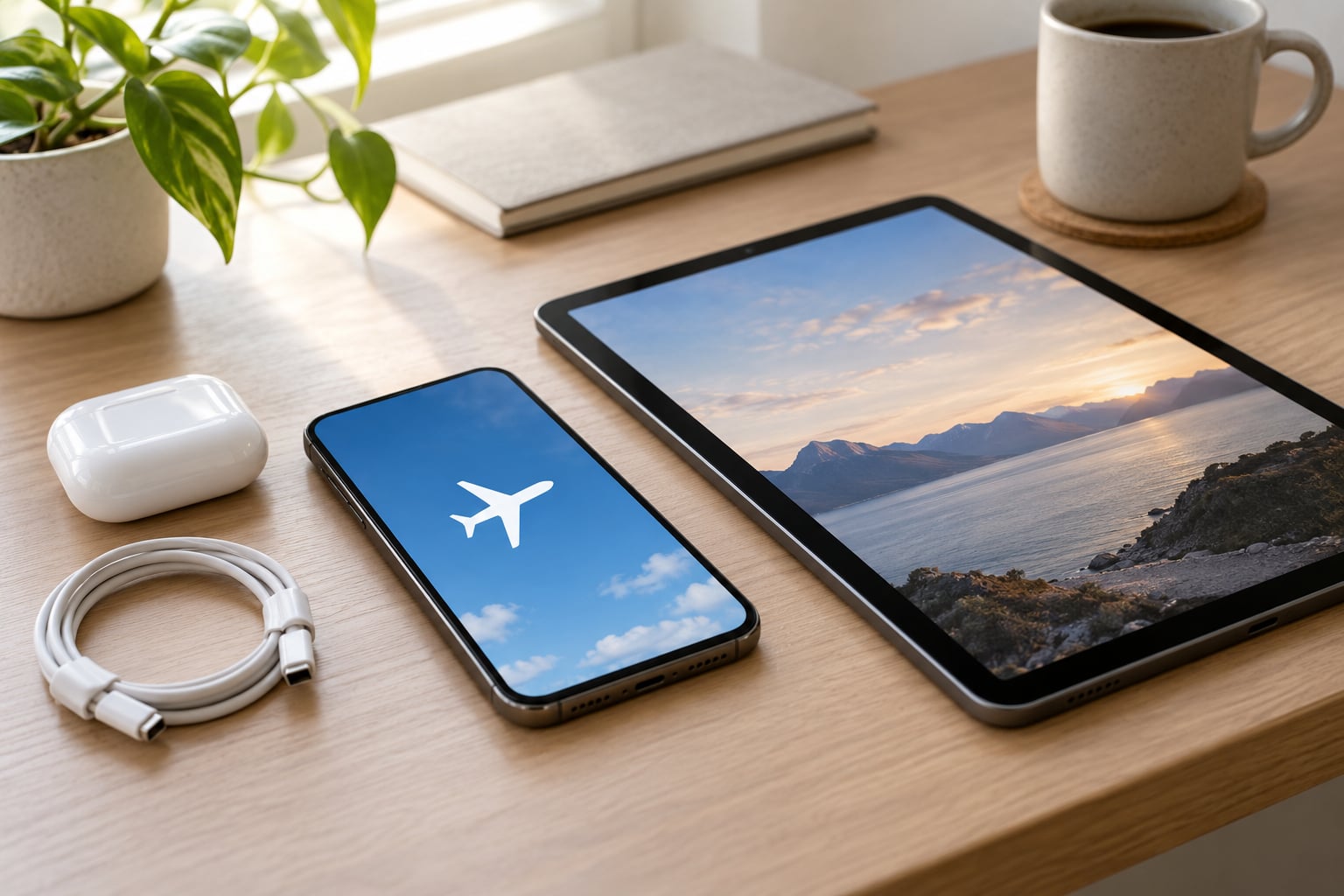
Airplane mode is a built-in setting that switches off the cellular, Wi-Fi, Bluetooth and GPS radios on a phone or tablet so it stops talking to towers. Knowing how to use airplane mode correctly takes about ten seconds per device: swipe down for quick settings, tap the airplane icon, then check that the airplane symbol shows in the status bar. The part most guides skip is what to do after, because switching it off again does not always bring mobile data straight back.
I have watched more friends get off a flight with a phone that had no signal and no data for the whole journey home, all because nobody told them there was a second switch to flip. That is the gap this guide closes, device by device, for 2026.
Table of Contents›
- What You Need
- Step-by-Step: How to Use Airplane Mode Correctly
- Step 1: Turn On Airplane Mode
- Step 2: Use Bluetooth or Wi-Fi Only When Needed
- Step 3: Turn Off Airplane Mode and Reconnect
- Common Mistakes
- When to Use It Beyond Flying
- Frequently Asked Questions
- Does airplane mode turn off Wi-Fi and Bluetooth automatically?
- Can I still make calls or use mobile data in airplane mode?
- Will airplane mode save battery on my phone?
- Can I use Bluetooth headphones while airplane mode is on?
- Why is my phone not connecting to mobile service after airplane mode?
- Can I use my phone on a flight with airplane mode enabled?
What You Need
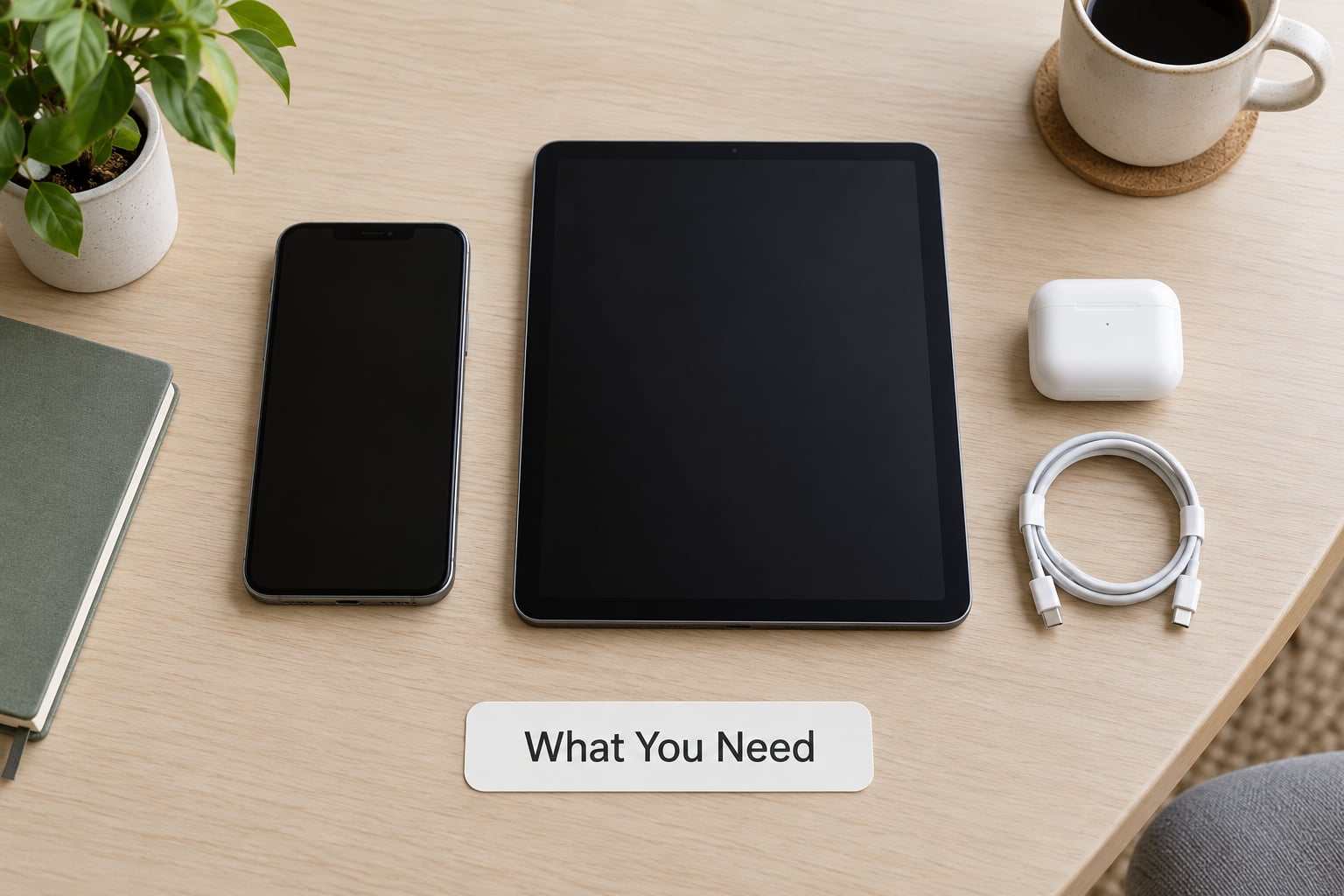
Nothing to buy and nothing to install. Airplane mode exists on essentially every smartphone, tablet and laptop made in the last decade, and the name is sometimes different: Android menus often call it Airplane mode, Samsung adds a Flight mode label in some regions, and UK and European versions of Android have used the word flight mode more often in recent updates.
What you do need is a rough idea of where two things live on your own device:
- The quick settings panel. On most phones this comes from a swipe down from the top-right or top-centre of the screen. iPhones use a downward swipe from the top-right corner on the right edge, not the top-left, which is the notch side.
- The Settings app. This is your fallback when the quick panel is missing a tile or you would rather not guess. The exact folder name differs by maker, which is where most people get stuck.
Before you fly, it is worth spending two minutes on preparation rather than fiddling with radios in the air. Download the films, podcasts or playlists you want, save an offline map for your destination, and check that any alarm or timer you depend on is set. Alarms still fire in airplane mode, but a timer you started with a data connection and then forgot about is not worth the gamble.
Step-by-Step: How to Use Airplane Mode Correctly
Step 1: Turn On Airplane Mode
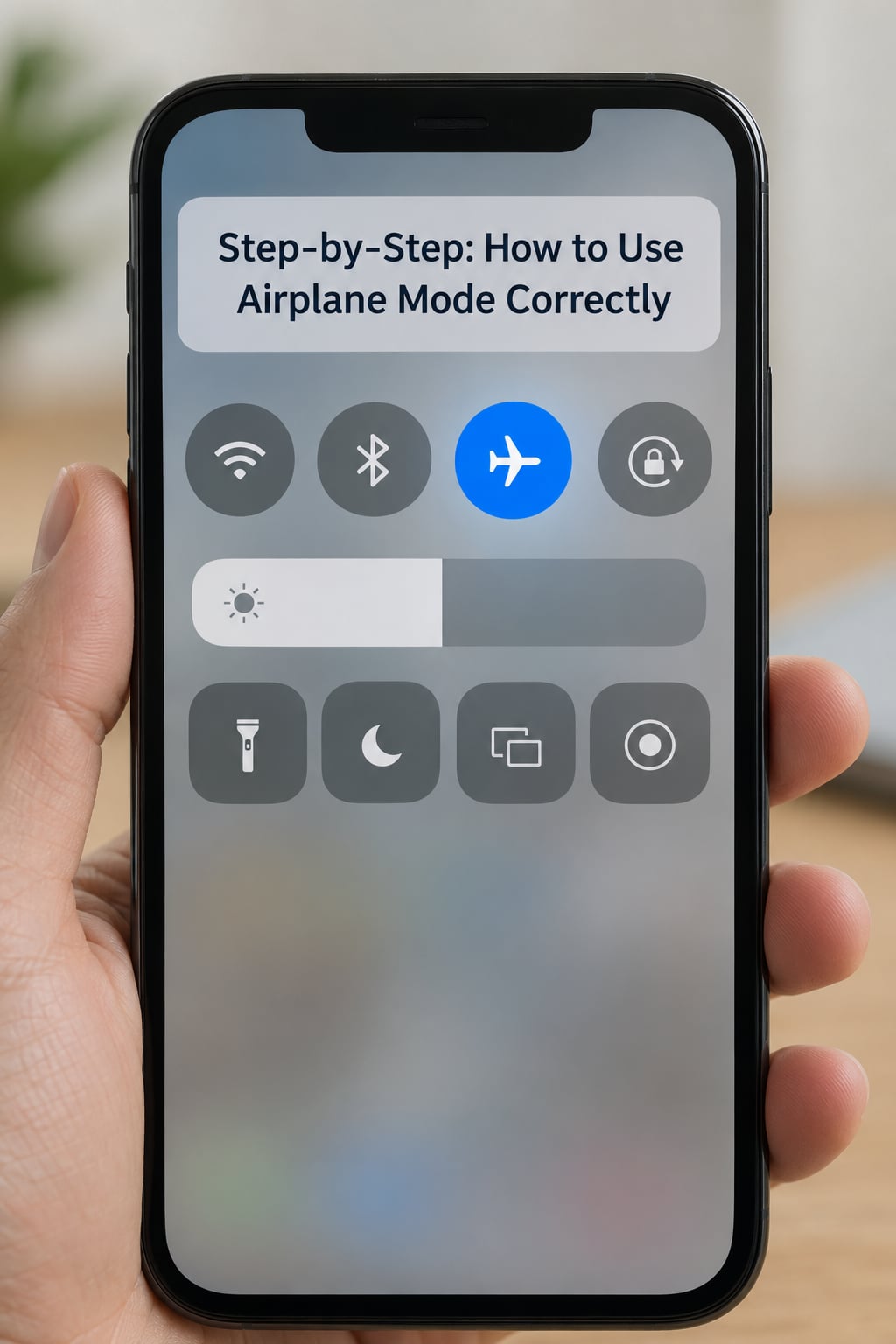
Swipe down from the top of the screen, tap the airplane icon once, and look at the status bar. If a small airplane symbol appears where your signal bars usually sit, the mode is on.
On Android, use two fingers swiping down from the very top to open the notification shade, then tap the airplane tile in the row of quick settings. If the shade only shows notifications, swipe down a second time or pull once more to expand the full quick settings grid. Some Samsung and Pixel skins place the tile on the first page, others push it to the expanded panel, so expand first and look.
The fallback path on Android is Settings, then Network and internet, then Airplane mode. On stock Android the toggle sits near the top of that page. Samsung puts it in Connections, then Airplane mode. Motorola and several other makers use Settings, then Network and internet, then Airplane mode. On iPhone and iPad, swipe down from the top-right corner to open Control Center and tap the airplane icon; if you are on an older iPad with a Home button, the Control Center lives in Settings, then Control Center, and can be opened with a swipe up from the bottom-right.
What you should see once it is active: the airplane icon in the status bar, no signal bars, no cell tower name, and usually the Wi-Fi and Bluetooth tiles switched off at the same time.
Step 2: Use Bluetooth or Wi-Fi Only When Needed
This is where most people get airplane mode wrong, and it is worth being precise. Airplane mode is a master switch for the cellular radio first. Wi-Fi and Bluetooth can be switched back on individually while airplane mode stays on, and on current iOS and Android versions they often re-enable themselves automatically when you deliberately turn them on.
To pair headphones or a smartwatch, turn airplane mode on first, then tap the Bluetooth tile or open Settings, Bluetooth, and pair as usual. The device will scan and pair normally. The same applies to Wi-Fi: connect to a trusted network from the Wi-Fi tile while airplane mode is still on. Your calls, texts and mobile data stay dead while you do it, which is exactly what the flight crew needs during takeoff and landing.
A note for iPhone and iPad users: if your device has cellular data, you may see an Allow Notifications When Connecting prompt the first time you switch Wi-Fi on in airplane mode. Tapping Allow turns on notifications for that connection so you can still receive messages over Wi-Fi mid-flight, which many fliers find more useful than a silent device.
The order that matters is cellular off, everything else optional. Whatever you switch on afterwards, the cellular radio stays quiet.
Step 3: Turn Off Airplane Mode and Reconnect
Wait until the aircraft has landed and the crew has said you can use devices again. Toggling in the air, before you are asked, is the fastest way to earn a telling-off.
Then reverse the steps: tap the airplane tile in quick settings or Control Center to switch the mode off. Watch for the signal bars to return within a few seconds. If they do not, the mobile data switch is the usual culprit. On iPhone, open Settings, Cellular, then check that Cellular Data is on. On Android, open Settings, Network and internet, SIMs, then make sure Mobile data is enabled for the active plan.
If bars are back but nothing loads, pull down the quick settings panel once more and confirm the Wi-Fi tile is off unless you want it. A phone stuck on an in-flight network that no longer exists nearby will sit there showing a connection it cannot use.
If service still will not come back after a minute or two, the reliable fix is a restart: hold the side or power button until the slider appears, slide to power off, wait ten seconds, and power on again. Restarting with airplane mode still enabled sometimes fixes the radio too, so try that combination before assuming the SIM or the network is at fault.
One last check that people forget: open the phone app and make a test call or send a message. Bars in the status bar only tell you the phone is registered with the network, not that your plan is provisioning mobile data on it.
Common Mistakes
Leaving airplane mode on after the flight. This is the most reported problem in airline and tech support threads, and it is entirely avoidable. If you land with no service, tap the airplane icon before you leave the aircraft. A ten-second fix saves an afternoon of no calls and no texts.
Thinking airplane mode is the same as turning the phone off. It is not. Airplane mode stops the radios; the phone stays on, alarms keep firing, timers keep counting, the camera works and music already downloaded plays. A full power-off saves a bit more battery overnight because the whole device sleeps.
Joining an unknown Wi-Fi network in airplane mode. Airplane mode removes your protection, not your judgement. A café network named FREE WIFI is still an open network. Use a network you know, or better, tether to a phone hotspot instead.
Using airplane mode when you only wanted quiet. If the goal is a distraction-free evening and you still want to receive calls from family, airplane mode is the wrong tool. Use Do Not Disturb on Android or a Focus mode on iPhone, both of which silence notifications while leaving the cellular radio connected. The distinction matters during an emergency, when a phone in airplane mode cannot receive a call at all.
Skipping the restart after a network problem. After long flights, tunnels or underground stations, the radio sometimes needs a nudge. Restarting the phone with airplane mode still on is the standard first move and resolves most cases without a carrier call.
Worried that a phone not in airplane mode will crash the aircraft. It will not. Pilots and aviation regulars on forums are blunt about this: the concern behind the rule is radio interference in the cockpit headsets used during takeoff and landing, not a phone bringing down an aeroplane. That said, the crew instruction still applies, and enforcement is real.
When to Use It Beyond Flying
Airplane mode earns its keep in a few situations that have nothing to do with aircraft. The clearest one is battery life in a weak-signal area: a phone that cannot find a tower transmits at full power searching for one, and switching the cellular radio off stops that hunt. The same reasoning covers remote hiking spots, basements, lift lobbies and dead zones inside buildings.
Roaming is the other big one. If you land in a country where your plan charges per megabyte, switching the mode on before you connect avoids any accidental data transfer through a partner network.
For sleep and deep work, airplane mode is heavier-handed than a Focus setting, and that is usually the deciding factor. Use it when you want the phone genuinely unreachable, and use Do Not Disturb when you only want it quiet.
Scheduling is also possible. Android has a built-in routine system in Settings, Digital Wellbeing, Wellbeing, or on newer builds a dedicated Routines section, where you can turn airplane mode on at a set time or at a location. On iPhone and iPad, the Shortcuts app can set a personal automation triggered by time of day that runs a Set Cellular Data or similar toggle action.
On a laptop, the equivalent control is the Wi-Fi, Bluetooth and airplane mode switch in the taskbar quick settings on Windows 11, or the Control Centre item on macOS for Wi-Fi and Bluetooth. Airplane mode there disables the wireless hardware, which is handy in a hotel room or a meeting where you want the machine offline without closing every app.
Frequently Asked Questions
Does airplane mode turn off Wi-Fi and Bluetooth automatically?
Yes, switching airplane mode on turns off the cellular, Wi-Fi and Bluetooth radios together on both iPhone and Android. You can switch Wi-Fi and Bluetooth back on individually afterwards while airplane mode stays on, which is exactly how you connect to in-flight Wi-Fi or pair headphones. The cellular radio is the part that stays off until you turn the mode off yourself.
Can I still make calls or use mobile data in airplane mode?
No. The cellular radio is switched off, so calls, texts and mobile data will not work. If someone calls you while the mode is on, the call goes straight to voicemail if your carrier does that, because the phone never registers with the network. Wi-Fi calling and Wi-Fi messages still work once you connect to a network.
Will airplane mode save battery on my phone?
Yes, and most of the saving comes in weak-signal areas where a phone with the radio on burns power hunting for a tower. With a strong signal the difference is smaller, so do not expect dramatic gains during a normal day at home. The bigger overnight saving is a full power-off, which puts the whole device to sleep.
Can I use Bluetooth headphones while airplane mode is on?
Yes. Bluetooth has its own radio and you can switch it back on while airplane mode stays on, either from the quick settings tile or Settings, Bluetooth. Pairing works normally. The crew instruction on a flight only concerns the cellular radio, so Bluetooth headphones and watches are fine to keep connected during the whole journey.
Why is my phone not connecting to mobile service after airplane mode?
Most often mobile data was left switched off. Check Settings, Cellular or Network and internet, SIMs and turn Mobile data back on, then confirm Wi-Fi is off unless you want it. If bars have still not returned after a minute, restart the phone with airplane mode on, wait ten seconds and power it back up.
Can I use my phone on a flight with airplane mode enabled?
On most flights you can use your phone once the crew say devices are allowed, provided the cellular radio stays off. Switch airplane mode on before takeoff and landing, then use Wi-Fi, Bluetooth headphones, downloaded films, games and offline maps. Many airlines still ask for screens off during taxi and climb, so follow the crew rather than the app.
Do one thing first: find the airplane tile on your own device now, before you need it. Once you know where it is and what the icon looks like in the status bar, turning the mode on and off takes a swipe and a tap, and turning it off properly means checking that mobile data switch before you walk off the plane.