To know how to audit the apps on your phone, you check four things for every installed app: whether its permissions exceed what the app actually needs, whether it runs in the background, whether it came from a trusted source, and whether you still use it at all.
Whatever fails one of those tests gets revoked, restricted, or removed. Budget 15 minutes for the fast pass or about an hour if you want the full sweep, including storage, battery, and account activity.
The whole process runs on the phone itself. iPhone keeps its records under Settings and Privacy and Security, Android keeps them under Settings and Apps, and while the menu names differ between platforms, the order of work is the same on both.
Permissions outlive the reason you granted them. An app that needed your location for one trip still holds that permission a year later, and most free apps ship with third-party advertising libraries that collect far more than the app’s own feature set requires.
Table of Contents›
- What You Need
- Step-by-Step: How to Audit the Apps on Your Phone
- Back Up the Phone Before You Change Anything
- Build a Complete List of Installed Apps
- Review App Permissions and Privacy Access
- Check Sign-Ins, Accounts, and App Activity
- Audit Storage, Battery, Network, and Data Use
- Check Updates, Developer Details, and App Reputation
- Remove, Disable, or Replace Risky Apps
- Review What You Discovered and Set a Maintenance Routine
- Common Mistakes
- Frequently Asked Questions
- Which app permission is most risky?
- How do I check for hidden or monitoring apps on my phone?
- Is it possible to find hidden apps on Android without rooting the phone?
- Can apps see everything on my phone?
- How often should I audit the apps on your phone?
- Does deleting an app remove the data it collected about me?
- Conclusion
What You Need
You need the phone itself, its passcode, and roughly 15 to 60 minutes. Nothing else is required, since both operating systems already keep a record of every app and every permission it holds.
Before you start, confirm you can reach the account email or phone number tied to your Apple ID or Google account. Several audit steps end with a password change, and being locked out mid-audit turns a 15 minute job into an afternoon.
It also helps to have your charger and a USB-C or Lightning cable nearby, in case you decide to back up to a computer rather than the cloud. A paper note or a notes app is useful for writing down what you find, which matters more than it sounds once you have 40 apps to judge.
If someone else may be reading the phone or tracking it, use a different device for the research part and change the phone passcode before you begin. Nothing below requires installing an app or creating an account.
Step-by-Step: How to Audit the Apps on Your Phone
Work through these eight stages in order. Each one gives you a clean picture the next stage depends on, and skipping ahead tends to send you down the wrong path.
Back Up the Phone Before You Change Anything
Confirm a current backup first, because removing apps and revoking permissions can lock you out of something you need later. On Android, open Settings and search for backup, or go to Settings and then Accounts and Google and Manage backup for the per-account toggle. Google Pixel devices also expose Settings and then System and then Backup.
On iPhone, the path is Settings and then your name at the top and then iCloud and then iCloud Backup and then Back Up Now. The screen tells you when the last successful backup ran, and that timestamp is the answer to whether you are protected.
Keep your Apple ID or Google account password and your two-factor codes within reach. You will need them if you change a password while checking sign-in activity.
Build a Complete List of Installed Apps
You cannot review what you have not written down. On Android, open Settings and then Apps and then See all apps, then tap the three-dot menu to switch on show system apps and to sort by last used. On Samsung devices the equivalent is Settings and then Apps and then the three-dot menu in the top corner.
On iPhone, swipe down on the App Library screen to reach the alphabetical list, or open Settings and then Screen Time and then App and Website Activity, which adds a last used column. Screen Time also tells you how long each app held the screen, which is often more honest than an install date.
For each app, note three things: what it is for, who made it, and whether you remember installing it. Apps you cannot place in your own life are the first candidates for removal, and the app list on Android will show an unfamiliar package name in places where a normal brand name should sit.
The same app may carry a different name on each platform. A flashlight tool is one app on Android and a different listing on the App Store, so cross-check anything ambiguous against the developer’s own website rather than the icon.
Review App Permissions and Privacy Access
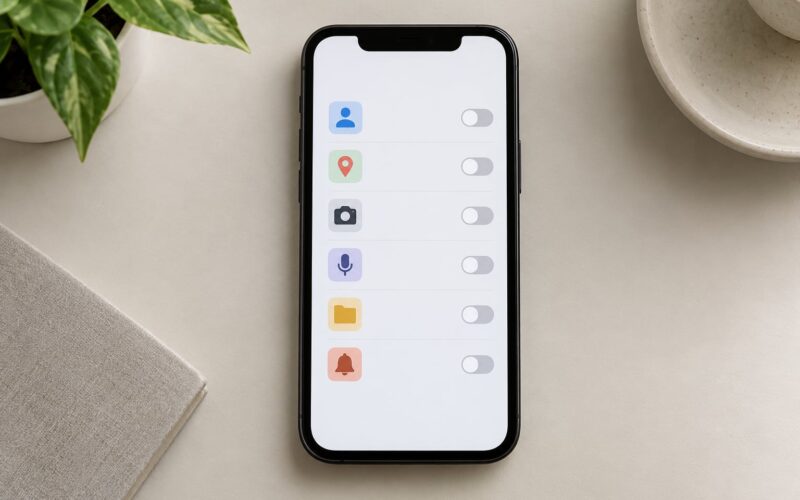
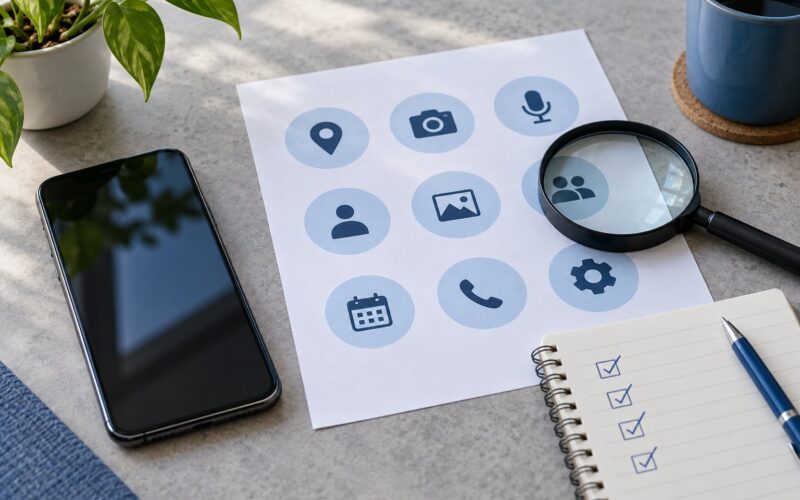
This is the highest-yield step of the whole audit. On iPhone, go to Settings and then Privacy and Security. Each category, Location Services, Camera, Microphone, Contacts, Photos, Calendars, Motion and Fitness, opens a list of every app holding that permission, and you toggle individual apps off from there.
Turn on Settings and then Privacy and Security and then App Privacy Report as well. That report logs every domain each app has connected to, and it is the fastest way to spot an app phoning home to something that has no business being in your banking session.
On Android, go to Settings and then Apps and then See all apps, tap an app, and open Permissions. The per-category overview is usually Settings and then Security and privacy and then Permission manager on a Pixel, Settings and then Apps and then the three-dot menu and then Permission manager on Samsung, and Settings and then Apps and then Permissions on Xiaomi devices.
Set location to While using the app rather than Always for anything that does not genuinely need a background fix. Deny microphone and camera to apps that have no feature involving voice or photos, and revoke contacts access to anything that is not a messaging or phone app.
On iPhone, also switch off Allow Apps to Request to Track. Turning it off is safe, because an app that needs cross-app tracking for a feature you actually use will still function and simply lose the personalised ads.
How do you audit the apps on your phone without breaking the ones you rely on? Revoke the permission, open the app, and use the feature for 30 seconds. If it breaks, you have learned something useful, and you can grant a narrower version such as While Using the App instead of restoring the full permission.
Check Sign-Ins, Accounts, and App Activity
Permission lists show which app can reach your data, never when it last did it. Account activity fills that gap, and it is where most real surprises turn up.
On iPhone, open Settings and then your name at the top to review the devices signed in to your Apple account, and check Settings and then General and then VPN and Device Management for any configuration profile you do not recognise. A profile there is either a corporate enrolment or something installed without your knowledge.
On Android, open Settings and then Passwords and accounts, then open the Google account and check Security and then your devices list. Look for a phone model you no longer own, and remove it, since a removed device cannot keep syncing.
Scan recent activity across the services your apps talk to: sign-in alerts from your email provider, unexpected password reset emails, two-factor prompts you did not trigger, and unfamiliar devices in your Google or Apple account list. Charge notifications on a card you do not recognise are worth investigating too.
Change any suspect credential from inside the official app or the service’s own website, never from a link in an email or a text. If your password manager holds a record for a service you have never used, delete it.
Audit Storage, Battery, Network, and Data Use
Sudden battery drain and unexplained mobile data use are the two most reliable tells that something is running when it should not be. Both platforms keep a per-app record.
On Android, open Settings and then Battery and then Battery usage to see which apps consumed power in the last day, and Settings and then Connections and then Mobile data, or Data usage on some makers, to see per-app data over 30 days. Battery usage figures lag by a few hours, so check the same screen again tomorrow before you judge.
On iPhone, open Settings and then Battery, where the list under Battery Level shows screen time and background time for each app over the past day. Add Settings and then Cellular and each app’s data figure for the current billing period.
Storage follows the same pattern. On iPhone it is Settings and then General and then iPhone Storage, and on Android it is Settings and then Apps with a sort by size, or Files on iPad-style Android builds.
High usage is not proof of anything. A navigation app that runs all weekend will burn battery and data, and a game with 12 GB of assets will dominate storage. Judge the pattern against what you know the app does, not the raw number.
Check Updates, Developer Details, and App Reputation
Open each app’s store listing and read three things: who the developer is, when it was last updated, and what the privacy label says. Android’s Data Safety section and Apple’s App Privacy label are self-reported rather than audited, so treat a discrepancy as a question rather than proof of wrongdoing.
Outdated apps with no update in a year, or ones whose developer name is a random string, deserve a close look. An app that asks for contacts and microphone and precise location but is described as a calculator is worth deleting on its own.
Verify the install source on Android under Settings and then Apps and then Special app access and then Install unknown apps. Every app listed there can install further packages, and if that switch is on for an app you do not recognise, turn it off.
Run Play Protect from the Play Store by tapping your profile picture and then Play Protect, then Scan. On Samsung and other Android builds, Settings and then Security and then Google Play Protect or Verify apps does the same job, and a scan you did not start is itself worth noting.
A perfect app store rating is not a safety certificate. Ratings are easy to buy, and clone apps copy both icons and names.
Remove, Disable, or Replace Risky Apps
Decide one of four ways for each app on your list: keep it, restrict it, delete it, or delete and reinstall it later. Start with the apps you never open, since those take nothing away.
On Android, uninstall from Settings and then Apps and then See all apps, tap the app, and choose Uninstall. On iPhone, press and hold the icon until it jiggles, tap Remove App and then Delete App, or go to Settings and then General and then iPhone Storage and then the app and then Delete App.
Sign out and revoke permissions before removing an app tied to an account, so it loses access rather than leaving a stale session. On iPhone, Settings and then Apps and then the app and then Account Deletion handles some services cleanly.
Some apps cannot be uninstalled because they are part of the system. That alone is not a red flag, and it is normal for the App Store, Siri, or a manufacturer’s own services to be locked in place. Judge them by permissions, not by the inability to remove them.
Skip phone cleaner and antivirus apps from the store when you can. They request broad permissions to advertise against, and several popular ones have been flagged for aggressive data collection.
Review What You Discovered and Set a Maintenance Routine
Write down what you found in a short list: apps removed, permissions narrowed, accounts and devices signed out. That record is what makes the next audit fast, and it is also the only way to notice if something reappears.
Confirm the final state by reopening the app list, checking Permissions and Permission manager again to see the changes held, and testing your core apps: camera, maps, messages, banking, and whatever you use for work.
Verify that backups are still current after the sweep, since a mistap during cleanup is the one scenario where you will want yesterday’s copy.
Then put the audit on a calendar. A quick permissions glance once a month catches the app that added a new permission after an update, and a full audit every three to six months catches drift. Run one more before you sell, trade in, gift, or hand off the phone.
Common Mistakes
Deleting an app before checking what it is signed into. Photos, notes, chat history, and offline files can live inside an app rather than in the cloud, and losing that data is hard to undo. Pull the app’s account and data settings before you uninstall.
The fix for the second common error is to revoke a permission that a core feature actually depends on. Maps without location, or a messenger without contacts, will break, and people conclude the audit was wrong. Grant the narrowest version that works instead of the broad one.
A third mistake is treating high battery use as proof of malware. Navigation, video recording, mobile gaming, and camera apps are legitimately heavy. Look for a change from your normal pattern rather than an absolute number.
Trusting the store badge is the fourth. A verified developer badge means who published the app, not what it collects with it, and clone apps copy that badge too.
Forgetting old and abandoned apps is the fifth. Anything uninstalled in a hurry, or dating from a phone you no longer own, tends to sit at the back of the list with permissions nobody has revisited since the first week.
A few habits make the whole process easier. Audit after every major app update rather than on a schedule you will forget. Keep the note list, since next time you only need to compare against it. And do the audit from your own account on a device you control, because a check performed through a compromised account tells you nothing.
Frequently Asked Questions
Which app permission is most risky?
Precise location, microphone, accessibility service, and device administrator access rank highest, in that order. Location reveals your movements and home address. Microphone captures conversations and one-time codes. Accessibility service can read every screen and tap anything, which is why most covert monitoring software relies on it instead of ordinary permissions. Notification access and full photo or file access sit just below.
How do I check for hidden or monitoring apps on my phone?
Start with Settings and then Apps and then See all apps and turn on show system apps. On Android, then check Settings and then Accessibility for downloaded services, search notification access in Settings, and open any app to see its permission list. On iPhone, check Settings and then General and then VPN and Device Management for profiles. An unfamiliar entry anywhere in those screens is worth removing.
Is it possible to find hidden apps on Android without rooting the phone?
Yes, and in most cases rooting is a bad idea that weakens your security. Covert monitoring apps register an accessibility service, a device administrator, or a VPN profile so they can keep running, and all three are visible in Settings. If nothing shows up there and behaviour is still strange, check your Google account’s device list and your email sign-in history instead, since account access is a more common explanation.
Can apps see everything on my phone?
No. An app can only read what it holds a permission for, and it cannot read another app’s private files, your passwords stored inside other apps, or data belonging to services it has not authenticated with. It can, however, collect far more than its stated feature needs once you grant a broad permission, which is why reading the permission list matters more than trusting the app description.
How often should I audit the apps on your phone?
Glance at permissions once a month, because apps often ask for something new right after an update, and run the full audit every three to six months. Add an extra pass whenever you notice unexplained battery drain, a data bill higher than expected, or an unfamiliar sign-in alert. Always run one before selling, trading in, or handing the phone to someone else.
Does deleting an app remove the data it collected about me?
No. Uninstalling removes the app from your phone, but data already collected, sold, or uploaded to a company server is not something you can undo from the phone. You can clear the local copy by deleting the app and clearing its cache first, and request deletion through the service’s own privacy page or account settings. Revoking a permission stops future collection only.
Conclusion
Start with three actions today: confirm a current backup, open your app list and write down what is installed, then review permissions and account activity from there. Those three cover most of what an audit ever finds.
The goal is a smaller, more transparent setup rather than an empty one. Keep the apps you use, narrow the permissions they hold, remove the ones that have earned their place in your home screen, and repeat the check every few months.