Free apps ask for so many permissions because you are not the customer. When you pay nothing, advertising and data fund the app, and every permission you grant is an input to that income. Some requests are genuinely needed for the app to work, and a good number are not.
That is the short version of why do free apps ask for so many permissions. The honest answer is a mix of real functionality, advertising measurement, bundled third-party code and a business model where your attention is the product.
The practical response is not to tap Allow on everything and it is not to deny everything. It is to open the permission screen, match each request to a feature you actually use, and pick the narrowest option available.
I have spent years sorting through permission prompts on family phones and it never gets easier, mostly because the prompts rarely explain themselves. Below is the plain version.
Table of Contents›
- What App Permissions Actually Control
- Why Do Free Apps Ask for So Many Permissions?
- What Each Common Permission Can Be Used For
- Required, Optional, and Dangerous Permission Requests
- Why Free Apps May Request More Than They Need
- How to Check Android App Permissions
- How to Check iPhone App Permissions
- How Permission Checks Work on Linux-Based Phones
- Five Permission Patterns Worth Being Careful About
- Safer Ways to Grant Permissions
- What To Do When an App Says It Cannot Work Without a Permission
- How to Tell Whether a Permission Request Is Suspicious
- Frequently Asked Questions
- Do free apps always ask for more permissions than paid apps?
- Why does a flashlight app want access to my contacts?
- What happens if I revoke an app permission later?
- Should I allow an app to use my location only this time?
- How can I tell whether an app’s permission request is suspicious?
- Conclusion
What App Permissions Actually Control
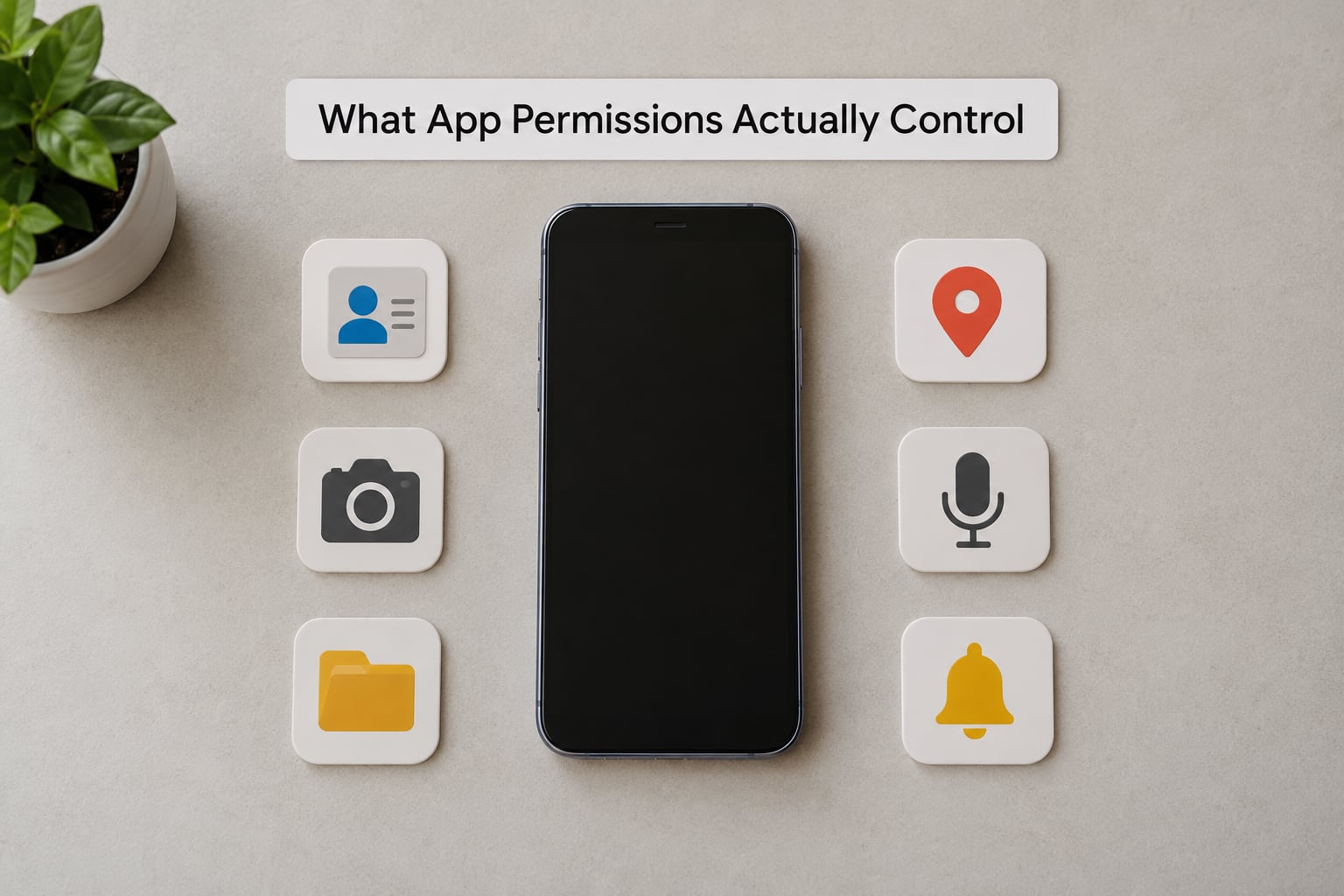
A permission is a system-level key. Android and iOS hold the keys to your hardware and your data, and an app asks for one before it can use that piece of you.
What each common permission really opens:
- Camera — takes photos and video, and on Android usually switches on the front camera indicator light.
- Microphone — records audio, including during calls in some cases.
- Location — reads where you are, either precise coordinates or an approximate area.
- Contacts — reads your address book, which also exposes everyone you know.
- Photos and files — reads pictures and documents on the device, sometimes everything, sometimes a selection.
- Calendar — reads and creates events, which often includes names of people you meet with.
- Notifications — lets the app post alerts and, on Android, often read the content of notifications from other apps.
- Background activity — keeps running and keeps collecting when the app is closed.
Access is not the same as collection, and that distinction matters. An app can hold a permission and never use it. It can also hold it, send what it collects to an ad network, and let that network attach the data to your advertising ID.
Two numbers frame the scale. Pew Research found free apps ask for more permissions than paid apps on average. And a SafetyDetectives audit of the top 50 free apps found more than three-quarters of social apps request sensitive data unrelated to their core function, with only 3 of the 50 carrying an independent security audit.
Why Do Free Apps Ask for So Many Permissions?
Free apps ask for so many permissions because the permissions pay for the app. Here is the direct answer: the permission prompt is the invoice, and granting it is what lets advertising, measurement and analytics companies pay the developer.
The five real reasons, in the order they usually matter:
- Advertising and ad targeting — an app with your location, contacts and browsing-ad ID can show ads that are relevant to where you are and who you know.
- Ad measurement and attribution — analytics and attribution SDKs installed inside the app report who installed it and who came from which campaign.
- Bundled third-party code — a single advertising or analytics library can request permissions the developer never intended to use.
- Core features and syncing — a navigation app genuinely needs location, a backup tool genuinely needs files, a messaging app genuinely needs contacts.
- Data resale and brokers — some developers sell aggregated or shared data on to data brokers who combine it with other records.
Free pricing does not make an app unsafe by itself. A weather app that asks for location is doing its job. The question is never whether the app is free, it is whether each permission matches a feature you would miss if it disappeared.
What Each Common Permission Can Be Used For
Every permission has a legitimate use and a misuse case. Location powers turn-by-turn directions, local weather and store finders, and it can also build a movement profile. The camera scans documents and QR codes, and it can also capture quietly if you never see the indicator.
Contacts powers WhatsApp-style sharing and phone lookup, and it also hands you and about 300 other people to an ad network in one tap. Microphone powers voice notes, voice search and calls, and it can also capture ambient audio when you open a video feature.
Photos access powers picking an image to upload, and it can also read your entire library. Notifications power reminders, and on Android they can also surface the content of messages arriving in other apps.
That pattern shows up in user complaints too. On r/explainlikeimfive, readers pointed out that a lot of apps request location only so Bluetooth scanning can find nearby devices, not so your whereabouts get written down. Understanding that changed how some of them answered the prompt.
Required, Optional, and Dangerous Permission Requests
Not all prompts are equal, so it helps to sort them before you decide.
| Request type | What it means | Example | What to do |
|---|---|---|---|
| Required | The app will not install or will not open without it | A maps app asking for location before the first search | Grant it, or pick a different app |
| Optional | One feature stops, the app keeps working | A period tracker asking for notifications | Deny and see whether you actually miss it |
| Feature-triggered | Asked at the moment you tap a specific button | Camera access when you hit Scan | Approve once instead of always |
| High-impact | Access that is dangerous in the wrong hands | SMS, call logs, accessibility, screen recording, background location | Refuse unless the app is a specialist you trust |
The dangerous category is the short one. Remote support tools, SMS readers, accessibility services and screen recorders can hand over your banking codes, so treat any request from that group as a reason to close the app.
Why Free Apps May Request More Than They Need
Some over-asking is developer convenience rather than malice. A team that wants one codebase for phones, tablets and browsers often requests a broad set of permissions so every platform shares a permission layer.
Bundled libraries are the biggest quiet cause. A developer adds an ad network, a crash reporter and an analytics suite in an afternoon, and each library carries its own wish list. The developer never sees a screen asking for your contacts, but you still get the prompt.
Feature bundling is the second one. An app that also does video calls requests camera and microphone up front instead of when you start a call. Bundling is not automatically dishonest, but it front-loads requests you never intended to use.
Account integration is the third. Signing in with the same account across an app’s other products is convenient and often requires contacts or calendar so the app can find your friends’ accounts too.
Lastly, vague business models. Some apps genuinely do not know what they will need because the product is still changing, and a few know exactly and ask anyway. You cannot tell which is which from the prompt alone, which is why the app type check matters.
How to Check Android App Permissions
Android has offered a dedicated permission screen since Android 6, and it has added finer choices since. Paths vary a little by skin, so the labels may differ but the structure holds.
- Open Settings, then tap Apps or Apps and notifications.
- Choose See all apps and find the app by name.
- Tap Permissions to see everything it currently holds.
- Tap any permission and switch it off, or change it from Allow all the time to Allow only while using the app or Allow only this time.
- Use Settings, Apps, Special app access, All apps access to find the ones allowed to run in the background.
Wherever you see location, you get a precise and approximate choice. Approximate gives the app your neighbourhood instead of your street, and most map and weather features still work.
One more worth knowing: Settings, Apps, See all apps, the app, then Uninstall updates or Force stop and Storage lets you clear an app’s stored data and reset every permission it has asked for. That is the nuclear option for an app you suspect.
How to Check iPhone App Permissions
iOS groups permissions by category instead of listing them per app, so the path looks different.
- Open Settings, then tap Privacy & Security.
- Pick a category such as Camera, Microphone, Location Services or Contacts.
- Tap the app in that list to set Ask Next Time, Allow While Using or Don’t Allow.
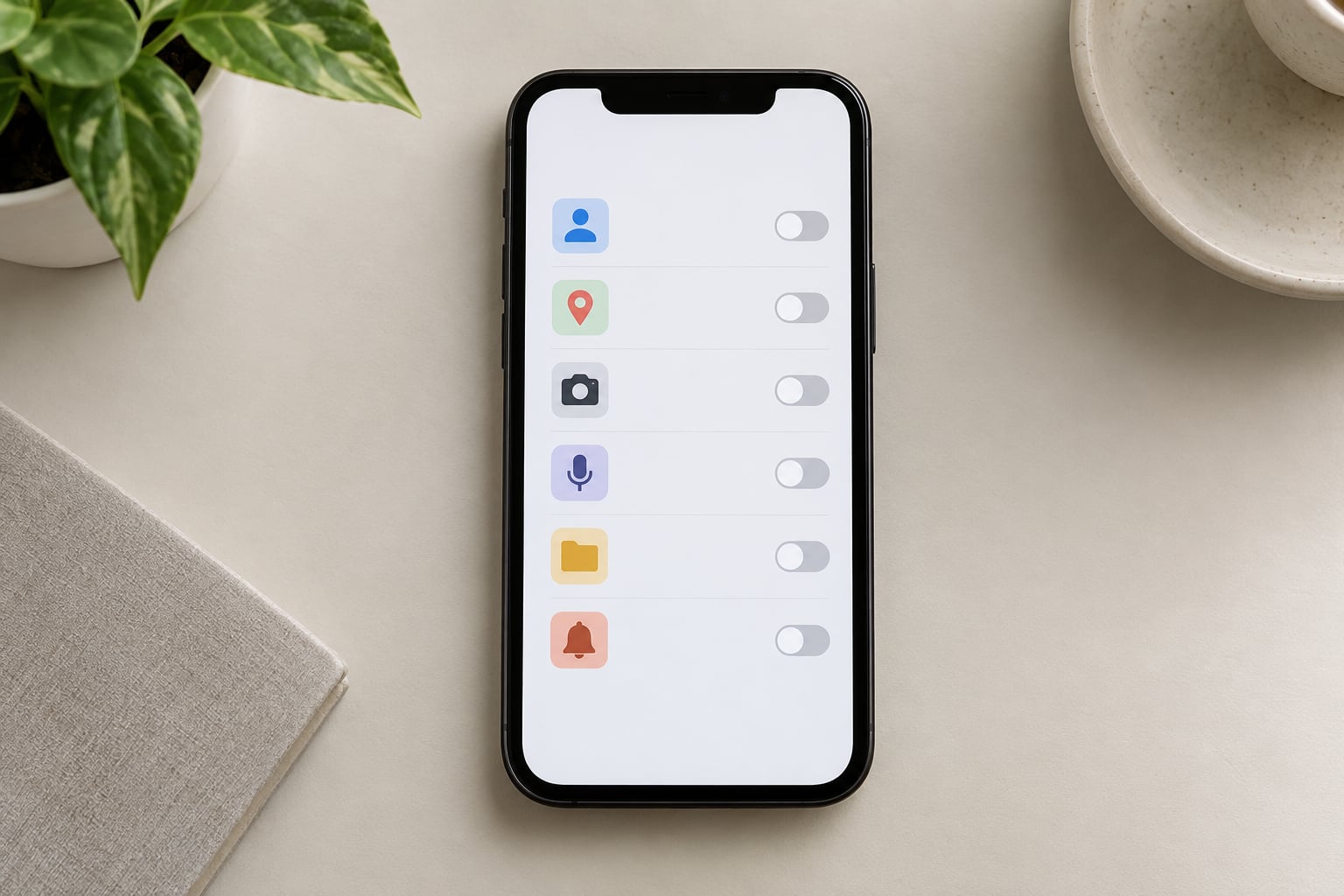
- For pictures, choose Photos and set Limited Selection so only the images you pick are visible.
Apple also allows delayed and estimated access. A developer can request access without the system prompt appearing on first launch, so the app may ask a week after install, and a location request can be set to approximate, giving a street-level or city-level answer instead of exact coordinates.
Notifications live under Settings, Notifications, and Bluetooth under Settings, Privacy & Security, Bluetooth. Everything under Privacy & Security has a plain list, so the audit takes about a minute once you know it exists.
How Permission Checks Work on Linux-Based Phones
Linux-based phones do not use the Android or iOS model, so the same habits do not transfer. Sandboxing tends to be stronger, and the permission prompts are usually flatter and easier to read.
Flatpak confines apps to a sandbox and asks for specific rights at install, such as access to your home folder, the network, Bluetooth, USB devices or the screen. If a Flatpak asks for a filesystem portal, it generally means it wants to open or save specific files you pick.
Snap packages ask for interfaces at install time, like network access or a home directory, and Snap confinement blocks direct contact with anything the developer did not declare.
Traditional Linux software installed from your distribution’s repositories uses conventional file permissions, meaning an app running as your user can usually read anything you can read unless sandboxed. There is no runtime permission prompt at all in many cases, so treat an unfamiliar desktop or mobile Linux app the way you would treat any script you do not understand.
The habit that travels well is the same one: check where the software came from and read the permission list at install, because you cannot rely on a prompt appearing later.
Five Permission Patterns Worth Being Careful About
These five patterns came up repeatedly in user reports, and they are worth a second look before you tap through.
- A flashlight app asking for location or contacts. Context: the tool itself needs none of that. Red flag: bundled ad code, or a developer quietly changing ownership. Response: deny and replace the app.
- A period tracker asking for contacts and SMS. Context: reminders genuinely need calendar and notifications. Red flag: phone numbers are not needed for reminders. Response: deny SMS, keep notifications.
- A browser asking for precise location with no clear feature. Context: local search and store suggestions use it. Red flag: a news reader or a camera app requesting exact coordinates. Response: switch to approximate location.
- A game requesting contacts and background data. Context: multiplayer titles use contacts for friends lists. Red flag: a single-player game asking for both. Response: deny, and cut background data in battery settings.
- A utility asking for access far beyond its job. Context: a memory cleaner, a wallpaper app or a QR scanner wanting your exact location, camera and storage at once. Red flag: it works fine with one narrow grant. Response: grant the minimum, uninstall if it insists.
On r/Android, one user described an ad-free periodic table app that began requesting location and phone access after an update. That is permission creep, and it is the most common reason people end up suspicious of an app they used to trust.
Safer Ways to Grant Permissions
The goal is not zero permissions. It is the smallest permission that still does the job.
| What you want the app to do | Narrowest permission worth granting |
|---|---|
| Check the weather or find a shop | Approximate location |
| Scan a barcode once | Camera, this time only |
| Share one photo | Limited photo selection or one-time file access |
| Get reminders | Notifications, without contact or calendar reading |
| Listen while playing music | Microphone, only while using the app |
| Find your headphones | Nearby devices or Bluetooth |
| Do its job with the screen off | Nothing extra, unless it genuinely syncs |
Two habits do most of the work. Grant one-time access first, because an app that asks again each time is easier to refuse than one holding permanent access. And uninstall anything you have not opened in a couple of months, because unused permissions are pure downside.
Resetting is the third. On Android you can reset all app permissions from the permission manager, and on iPhone an app that is deleted and reinstalled starts from zero.
What To Do When an App Says It Cannot Work Without a Permission
Some apps are telling the truth. A navigation app with no location is a map with no position on it, and pretending otherwise helps nobody.
Test it instead of arguing. Deny the permission and use the app properly for a few minutes. Many developers add a line of code that says a feature is unavailable rather than building a degraded mode, so the whole app keeps working with one feature gone.
If something does break, try a narrower grant before the full one. Approximate location instead of precise, limited photos instead of the whole library, this-time access instead of always.
If the app still insists, look for an alternative that does the job without that permission, or accept the trade deliberately. The real question is whether the feature you would lose is worth the access it costs.
How to Tell Whether a Permission Request Is Suspicious
No single signal proves anything, so treat the list as reasons to pause rather than verdicts.
- Requests that have nothing to do with what the app does, especially on a utility or game.
- No privacy policy, or one that describes a different product.
- Heavy ad and tracking language in the store listing, combined with broad permissions.
- A policy that changed recently with no explanation in the update notes.
- Poor reviews that mention unwanted prompts, sudden battery drain or ads appearing in other apps.
- Being pushed to install an unknown package, or to turn off Play Protect or a security check.
Store context helps but does not guarantee anything. A large install count and a known developer are mild signals, and Google Play’s Data Safety section and Apple’s privacy labels tell you what a developer claims rather than what happens on your device.
One useful detail from the research: only 3 of the 50 audited free apps had been through an independent security review. Popularity is not the same as being checked.
Frequently Asked Questions
Do free apps always ask for more permissions than paid apps?
On average they do. Pew Research found free apps request more permissions than paid ones, because advertising and analytics SDKs need data that a subscription product does not. A paid app is not automatically safer though, since a paid app can still over-request. Judge each permission by the feature it serves, not by the price of the app.
Why does a flashlight app want access to my contacts?
It does not need to. A flashlight only needs the camera or a torch API. Contacts access usually arrives through a bundled advertising or analytics library, or through a free tier that unlocks features in exchange for data. Deny it and check whether the app still works as a flashlight. If it demands contacts, a different app will do the job without the argument.
What happens if I revoke an app permission later?
The app keeps running and the feature tied to that permission usually stops or falls back to a limited mode. A photo editor with no photo access cannot open your library, and a map with no location cannot centre on you. Nothing is deleted and nothing breaks permanently. You can also grant it again later from the same permission screen if you change your mind.
Should I allow an app to use my location only this time?
Usually yes, for anything you do not expect to use constantly. One-time access means the app can read your location for that single action and then loses it, which is the right choice for a one-off check-in, a nearby search or a ride app. If you find yourself choosing this repeatedly for the same app, that is a sign it wants permanent background access.
How can I tell whether an app’s permission request is suspicious?
Compare the request to the app’s job. A camera permission in a photo editor is expected; contacts in a wallpaper app is not. Also check for no privacy policy, aggressive tracking language in the store listing, permissions added in an update with no explanation, and reviews mentioning unwanted prompts. Two or more of those together are a good reason to uninstall.
Conclusion
Free apps ask for so many permissions for a handful of overlapping reasons: real features, ad targeting, measurement, bundled libraries and sometimes resale. Free does not mean unsafe, and paid does not mean careful.
So why do free apps ask for so many permissions? The prompt is how the app gets paid, and the answer is to answer it selectively. Open the permission screen, approve only what supports something you actually use, and choose approximate location, limited photos or one-time access whenever the option appears.