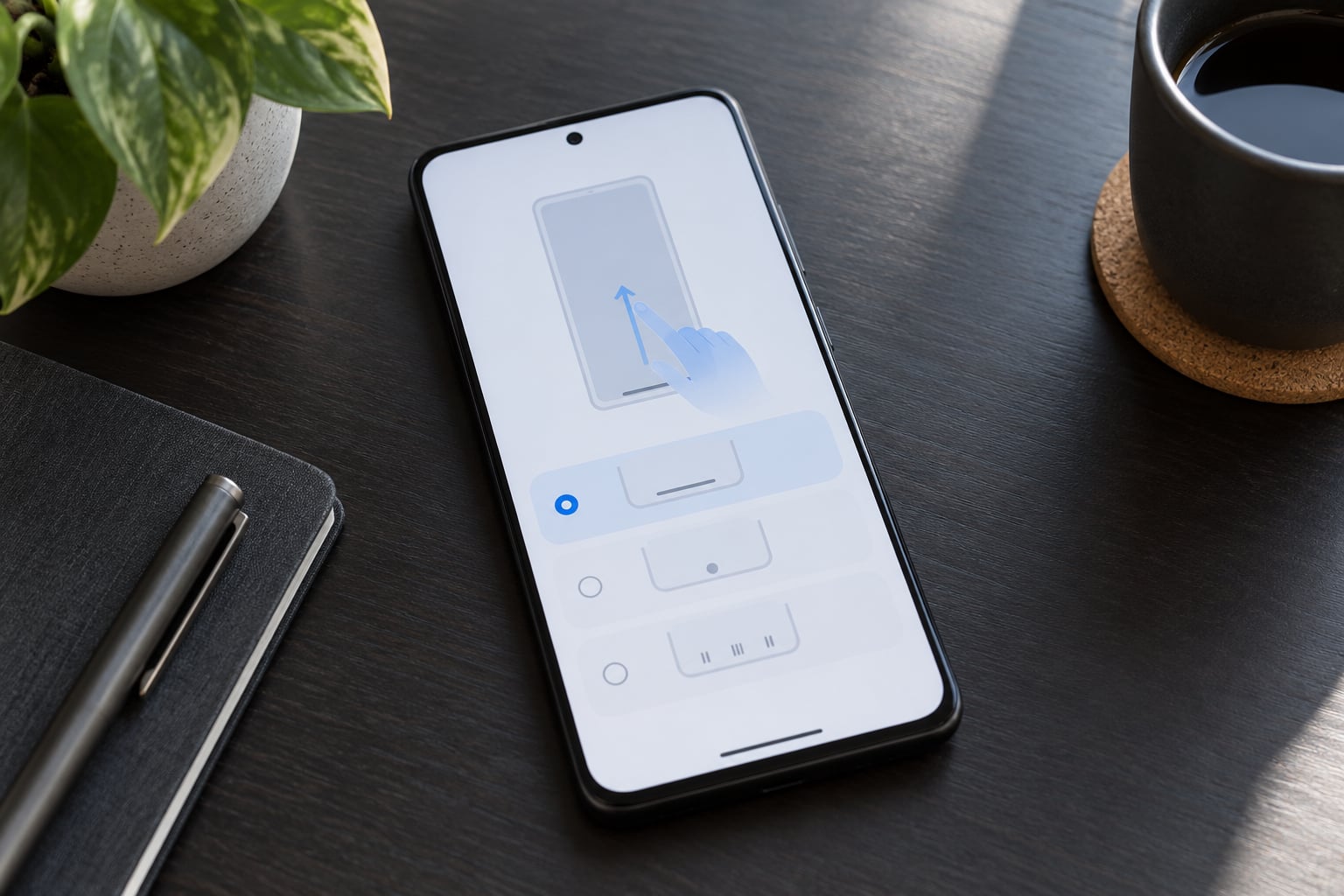
Gesture navigation is Android’s buttonless mode: you swipe from the bottom of the screen to go home, swipe in from either side to go back, and swipe up and hold to open recent apps. On most phones you turn it on at Settings > System > Gestures > System navigation > Gesture navigation, or Settings > Display > Navigation bar on Samsung. It takes about a minute to switch, and most of the learning curve is remembering where each swipe starts.
Menu names shift with your Android version, phone maker and accessibility settings, so this guide covers the stock Android path plus the Samsung, Xiaomi and OnePlus variants. Menu paths here were checked against current Android versions in 2026; older builds move the same option under Display.
Table of Contents›
- What You Need
- Step-by-Step
- Turn On Gesture Navigation
- Learn the Three Core Gestures
- Use Gestures Inside Apps and the Keyboard
- Customize Gesture Navigation Options
- Switch Between Gesture and Button Navigation
- Fix Common Gesture Problems
- Common Mistakes
- Frequently Asked Questions
- How do I turn on gesture navigation on my Android phone?
- Why does my back gesture keep opening the wrong app?
- How do I open recent apps with gesture navigation?
- Can I use gesture navigation on a Samsung Galaxy phone?
- Why are some apps difficult to use with gesture navigation?
- How do I turn gesture navigation off if I do not like it?
What You Need
You need an Android phone running Android 9 or newer and about a minute. Nothing else, no app or accessory.
Two things change what you will see in Settings:
- Phone maker. Google Pixel and most stock builds use System > Gestures. Samsung One UI puts system navigation under Display. Xiaomi HyperOS and OnePlus OxygenOS each nest it differently again.
- Accessibility settings. If TalkBack, Switch Access or a large-screen mode is on, extra items appear in the Gestures menu and some default swipes change.
Worth checking your current mode first: swipe up from the very bottom edge of your screen. If you land on the home screen, you already have some form of gesture navigation running.
Step-by-Step
Turn On Gesture Navigation
Open Settings and follow the path for your phone. The setting name is almost always “System navigation” once you find it.
- Open Settings.
- On Pixel and most stock Android: tap System > Gestures > System navigation. On Samsung: tap Display > Navigation bar. On Xiaomi HyperOS: Settings > Home screen > System navigation gestures. On OnePlus OxygenOS: Settings > Additional settings > Navigation bar & gestures.
- Tap System navigation (Samsung calls this step “Navigation bar”).
- Choose Gestures.
- Read the brief animation showing a swipe from each edge, then tap Done or Got it.
- Swipe up from the bottom centre of the screen. If you land on your home screen, the change is live.
You should see the navigation bar shrink from three buttons or a pill down to a thin white bar, or disappear entirely once gesture hints are off. If your phone is recent, you may only find Gestures and 3-button options, since Google removed the 2-button and back-button modes on later Pixels; r/GooglePixel and r/AndroidQuestions threads from that change are still going strong.
Learn the Three Core Gestures
Everything else in gesture navigation is a variation on these three swipes. Getting the starting point right matters more than speed: the back gesture only fires from the outer few millimetres of the left or right edge, and the home gesture only fires from the bottom strip.
| Action | Gesture | Where to start | Notes |
|---|---|---|---|
| Go home | Swipe up | Bottom centre, any point along the bottom edge | Works from every app, including the home screen itself |
| Recent apps | Swipe up and hold | Same bottom strip | Release your finger on the card view, not at the top of the screen |
| Go back | Swipe in from the side | Left or right edge, about 5 mm in | Anywhere in an app, including the keyboard and most screens |
| Switch apps | Swipe left or right on the app card | On the recent apps card | Faster than closing and reopening an app |
| Close an app | Swipe up on the card | On the recent apps card | Removes it from the recent list |
| Notifications | Swipe down from the bottom edge | Bottom edge, either side of centre | Full shade; swipe again for Quick Settings |
| Assistant | Swipe up at roughly 45 degrees | Bottom edge, angled inward | The long-press-home shortcut is gone on current versions |
| Screenshot | Power + Volume down | Side buttons | The gesture equivalent varies by maker |
To go back without leaving a smudge near the screen edge, start the swipe just inside the bezel and drift inward as you move up. That path rarely registers as back, so it is useful in apps with side menus.
Use Gestures Inside Apps and the Keyboard
System gestures and app shortcuts are two different layers. The back gesture works at the system level, so it functions inside any app, including when the keyboard is up. Swipe in from either side and the current screen closes behind you; if the keyboard was the topmost layer, you may only dismiss the keyboard first.
Horizontal swipes are where it gets tricky. In photo galleries, carousels, story viewers and maps, a horizontal drag starting near the edge is read as “back” instead of scrolling. Peek first: press your finger at the very edge and hold without moving. Most apps draw a hint arrow, which tells you a back swipe is armed, so release before the hint fills and you get the scroll instead. Where an app offers no hint, drag the 45-degree angled swipe from the edge: start low on the edge, angle downward and inward, and the swipe registers as an in-app menu open rather than back. 9to5Google documented that trick in 2019 and it still holds on current builds.
The keyboard accepts the standard gestures. Swipe left on a suggestion strip deletes a word, swipe down on the keyboard hides it on several manufacturers’ keyboards, and the back gesture dismisses it when nothing else is layered on top. Swiping up from the very bottom while the keyboard is open usually goes home and closes the keyboard along with the app’s view of it, which surprises people the first time.
Customize Gesture Navigation Options
Gesture navigation is not a single on-or-off switch. The same menu that turned it on holds the options that decide how it behaves, and it is the first place to look when a swipe feels wrong.
- Gesture hints. The thin white bar at the bottom that shows where swipes start. Turning it off gives you a full screen but removes your aiming point, and plenty of users on XDA forums report that gestures start misfiring without it. Leave it on if you are new to this.
- Gesture navigation training. A short tutorial that replays each gesture. Run it any time a swipe feels unreliable; it is free and takes under a minute.
- Back gesture home arrow. Where the swipe ends. The option that ends near the start can be harder to trigger than one that carries across the screen.
- Swipe up to go home. Some versions let you set whether a quick flick or a longer drag is needed. A longer threshold means fewer accidental homes, at the cost of speed.
- Edge handling. A few skins let you disable back from one side, useful if you hold the phone in a case with a grip on one edge.
Options labelled Samsung, Xiaomi, Motorola or OnePlus vary by maker and by version, and some appear only after a system update. If a setting is not in your menu, your build does not expose it rather than you missing it.
Switch Between Gesture and Button Navigation
Going back is the same path in reverse, and nothing resets. Open the System navigation screen, choose 3-button navigation, then confirm. Your home, back and recents keys come straight back, and the layout is usually Back, Home and Recent Apps. Some builds also offer a 2-button or pill option between the two.
| Consideration | Gesture navigation | 3-button navigation |
|---|---|---|
| Learning curve | Two to three days of accidental swipes | None |
| Screen space | Full display, no bar | Bar takes a strip at the bottom |
| One-handed use on a large phone | Bottom edge is still a reach, but no aiming required | Centre button is easier to hit blind |
| App compatibility | Back edge can fight carousels and side menus | Back is always a fixed button |
| Assistive technology | Works with TalkBack, but fewer fixed targets | Fixed targets suit Switch Access better |
| Best for | Full-screen video, reading, one-handed browsing | Older users, motor accessibility needs, dense app work |
Switching both ways is also the fastest repair for a gesture system that has stopped responding, which is why it is the first step in the troubleshooting list below. Nothing on your phone moves or resets, so it is safe to try twice.
Fix Common Gesture Problems
Work down this list in order and stop when the swipe starts working.
- Restart the phone. An unresponsive swipe is usually a System UI process that has hung, and a restart clears it.
- Switch navigation modes and back. Go into System navigation, choose 3-button, wait a moment, then choose Gestures again. This is the single most repeated fix on r/GooglePixel and r/AndroidQuestions for intermittent swipe-up failures.
- Turn gesture hints on. If you hid the white bar, put it back. The bar is the aiming reference and removing it is a common cause of swipes that miss.
- Test without the case. Raised-edge screen protectors and thick cases are frequently blamed for a dead bottom strip. Take both off and try a swipe from a different spot along the bottom.
- Check for a third-party launcher. Nova, Lawnchair and Smart Launcher users report lag and misfires, and on some builds the gesture navigation option greys out entirely. Switch to the stock launcher for a minute and retest.
- Restart System UI without rebooting. On stock builds, enable Developer options in Settings > About phone > Build number (tap it seven times), then Developer options > Restart System UI. This reloads the interface and keeps your apps open.
- Update or roll back the software. Navigation bugs do get fixed by updates, and a few have shipped broken. Check Settings > System > System update.
If the back swipe fires when you meant to scroll sideways, raise your starting point a few millimetres further into the screen before adjusting any setting. If the bottom swipe simply does nothing, work down the list instead, because that is almost always a hardware-adjacent or process problem rather than a settings one.
Common Mistakes
Swiping from the middle of the screen. The back gesture only triggers from the outer edge, roughly the first 5 mm. Starting mid-screen scrolls or does nothing instead.
Confusing swipe up, swipe up and hold, and swipe up and pause. A quick flick goes home. Holding your finger down after the swipe opens recent apps. Pausing partway up and holding opens the app drawer on stock launchers. The three look identical until you release.
Dragging back at full speed. A fast flick from the edge registers as back almost every time, even when you meant to scroll a gallery. Peek first by pressing and holding at the edge.
Hiding the gesture hints and blaming the phone. Turning off gesture hints removes the visual start point, and several users on XDA forums trace misfires straight back to that toggle. Turn it back on before troubleshooting anything else.
Expecting long-press home to still open Assistant. That shortcut is gone on current versions. Swipe up at roughly 45 degrees instead, or say “Hey Google”, which works from the lock screen as well as the home screen.
Installing a gesture app before trying the reset. Apps such as Fluid Navigation Gestures or Ogesture add finer control, but they are step four, not step one. A navigation-mode toggle fixes most cases in under ten seconds.
A few habits make the mode stick. Keep the gesture hint bar visible while you learn, use the same starting point every time until the swipes feel automatic, and run gesture navigation training whenever something feels off rather than searching the web for it.
Frequently Asked Questions
How do I turn on gesture navigation on my Android phone?
Open Settings, then tap System Gestures System navigation on Pixel and most stock Android phones. Samsung users tap Display Navigation bar, then tap Navigation bar again inside that screen. Choose Gestures, confirm with Done, and swipe up from the bottom centre to test it. The whole switch takes under a minute and nothing on the phone resets.
Why does my back gesture keep opening the wrong app?
That usually means the back swipe is firing when you meant to scroll sideways. Start your swipe a few millimetres further into the screen, or press and hold at the very edge first: most apps show a hint arrow that tells you back is armed, so release before it fills. If it still misfires, try the same app with your case off, since raised edges add a centimetre of dead zone.
How do I open recent apps with gesture navigation?
Swipe up from the bottom edge of the screen and keep your finger down instead of letting go. The recent apps view opens under your finger, and you can slide left or right across cards to switch apps, or swipe a card upward to close it. Releasing your finger too early sends you to the home screen instead, which is the usual reason first-time users cannot find it.
Can I use gesture navigation on a Samsung Galaxy phone?
Yes, and it is a standard option on current One UI versions. Open Settings and tap Display, then Navigation bar, then tap Navigation bar again to reach the mode list, and choose Gestures. Samsung also adds its own extras alongside the switch, including the option to show the gesture hint bar and to reorder keys when you switch back to 3-button mode.
Why are some apps difficult to use with gesture navigation?
Apps built with older toolkits put carousels, galleries and side menus right at the screen edge, exactly where Android reads a back swipe. The system gives you two ways out: start the swipe further in, or angle it downward at about 45 degrees so it opens the app’s own menu instead. Apps that draw their own edge controls sometimes handle gestures less predictably than the stock ones.
How do I turn gesture navigation off if I do not like it?
Go back to the System navigation screen in Settings and choose 3-button navigation, then confirm. Your home, back and recent keys return immediately and no data is lost. You can also pick 2-button or a pill option on builds that offer them. Switching between modes is reversible at any time and is a useful first step whenever a gesture stops responding.
Start with three swipes: up from the bottom for home, up and hold for recent apps, in from either side for back. If one of them misbehaves, toggle to 3-button navigation and back again before changing anything else, because that alone fixes most reports of gestures going dead. Keep gesture hints on until the starting points feel automatic.