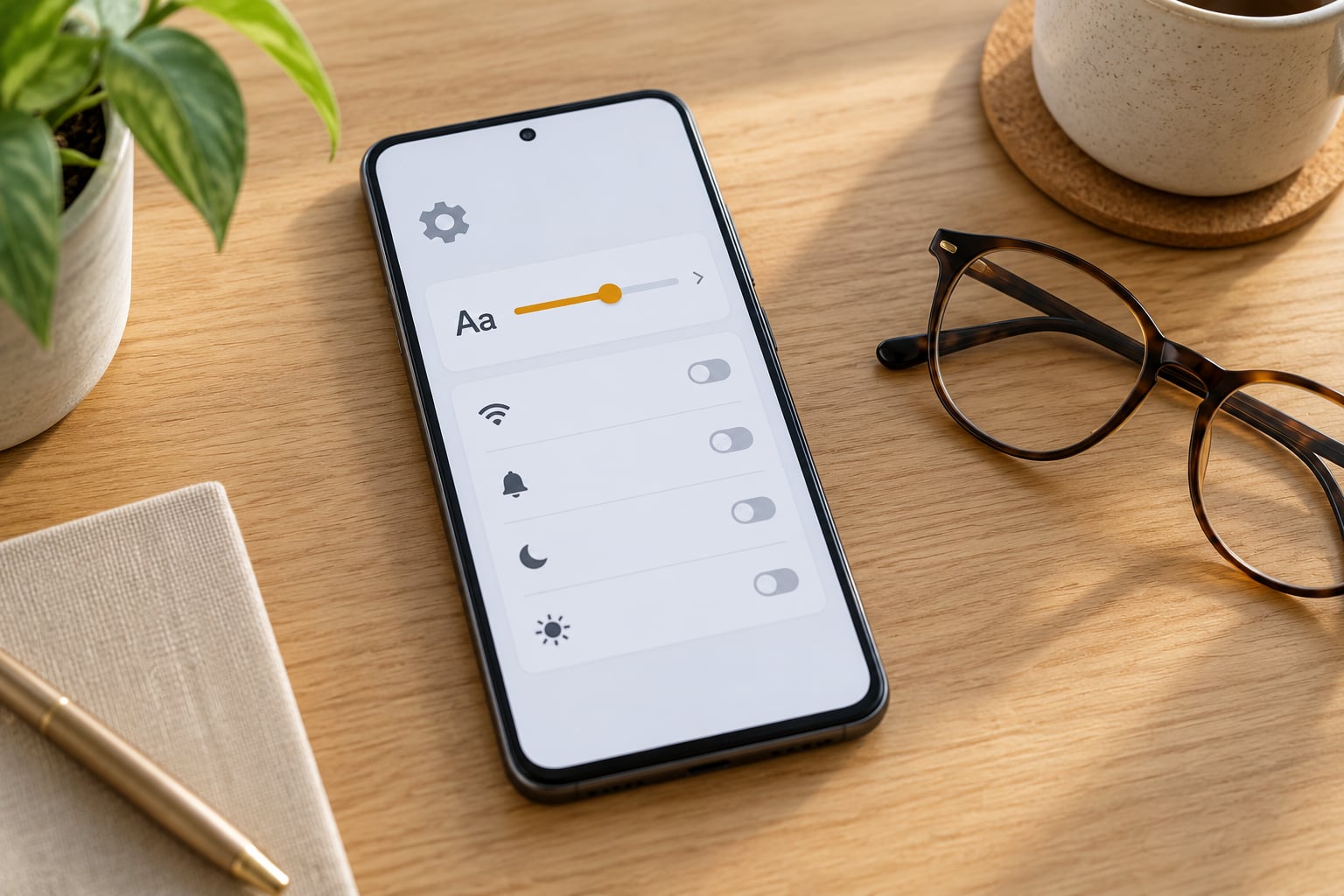
Open Settings, tap Display, then Font size and style, and drag the slider to the right. It takes about fifteen seconds and applies straight away, no restart needed. On most Samsung, Pixel and Motorola phones that path works as written, though each brand names the menus slightly differently.
Android gives you four separate dials rather than one: font size for the words, display size for everything including icons, bold text for a thicker stroke, and screen zoom for the magnifier. Picking the right one is the difference between text you can read comfortably and text that is huge but still awkward to use.
Below I’ll walk through each method, then the menu labels on other brands, then how to fix it when a setting seems to do nothing.
Table of Contents›
- What You Need
- Step-by-Step
- Change Display Size and Font Size
- Use Accessibility Text Settings
- Make Text Bigger in Specific Apps
- Check Common Mistakes
- Frequently Asked Questions
- Why can I not find the font size setting on my Android phone?
- Can I make text bigger on only one app?
- Should I change Display size or Font size on Android?
- How do I make text bigger without making every icon huge?
- How do I reset Android text size if it is too large?
- Does making Android text bigger affect screenshots?
What You Need
Nothing to buy and nothing to install. The controls are built into Android itself and work offline.
You do need your phone unlocked, because Settings will not open from the lock screen without your password. Pull the app drawer or swipe down from the top to find Settings if it is not on your home screen.
It also helps to know your brand, because the wording changes. Pixel and most stock Android builds say Font size and style. Samsung calls it Font size and style too, but the Display menu has more items stacked under Display options. Xiaomi, Oppo and a few others bury the control one level deeper or rename it Font size.
Here is the honest version of how it works: font size changes the text everywhere at once, including messages, settings menus and most apps. A handful of apps ignore it entirely. We will cover which ones later.
Step-by-Step
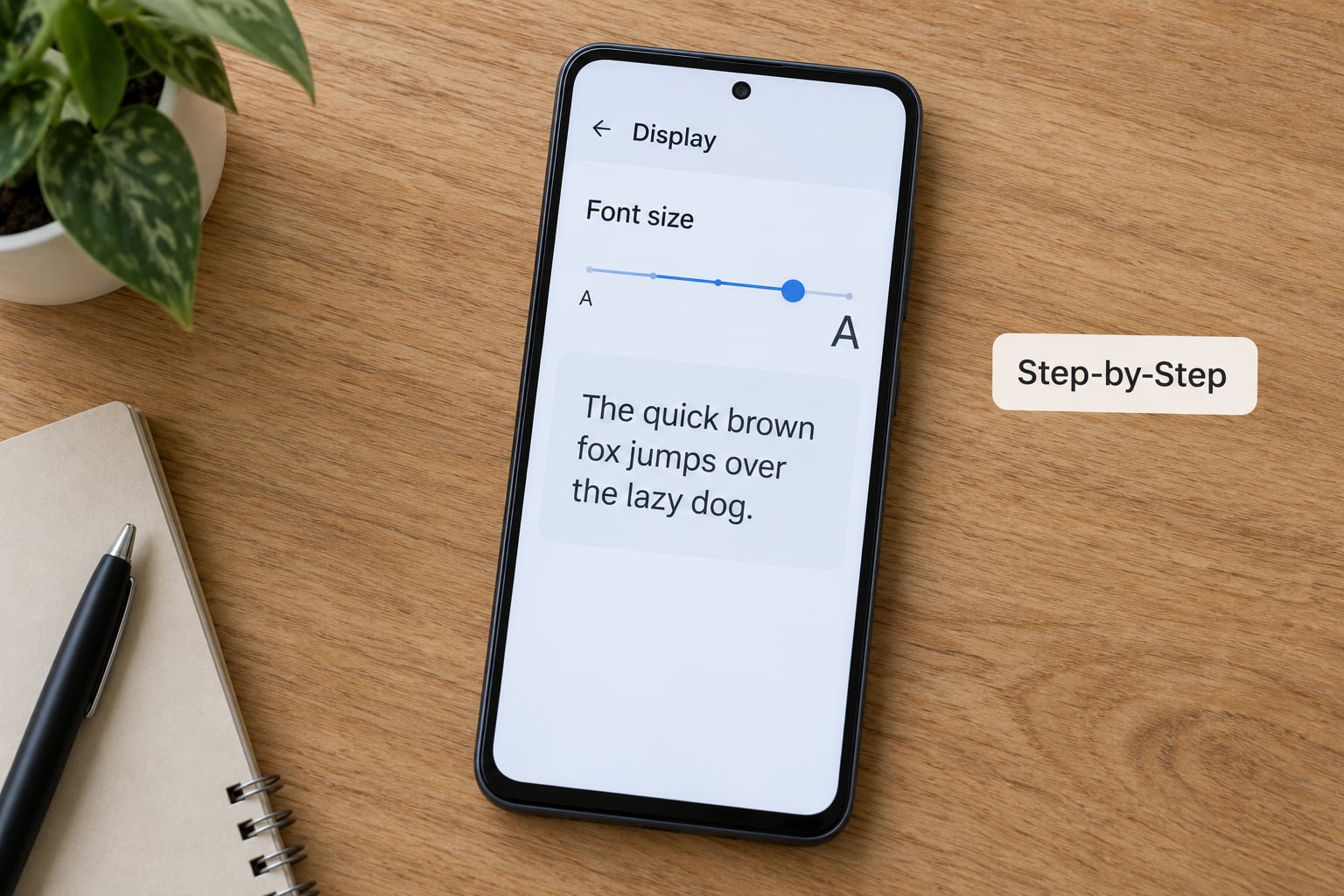
Change Display Size and Font Size
This is the quickest route and the one most people need.
- Open Settings.
- Tap Display, or Display options on Samsung phones.
- Tap Font size and style. Some builds call it simply Font size.
- Read the preview letters at the top of the screen. They scale live as you drag.
- Drag the slider right until the sample text is comfortable. You will see the change applied to the menus as you drag.
- Tap Done or the back arrow to keep it.
You will know it worked the moment the Settings menus themselves grow. No confirmation dialog, no reboot.
If you overshoot, drag it back left one notch at a time. The slider usually has around fourteen stops, and the jump between the last two is large, so go slowly.
Now the part that confuses most people. These four controls do different jobs, and picking the right one saves you a lot of fiddling.
| Control | Where it lives | What it changes | Best for |
|---|---|---|---|
| Font size | Display > Font size and style | The size of words in menus, messages and apps | Everyday reading comfort |
| Display size | Display > Display size | Everything on screen, icons and layout included | Making a small phone screen easier to reach |
| Bold text | Display > Bold text, or Accessibility | Stroke thickness, no change in height | Low vision and glare outdoors |
| Screen zoom | Accessibility > Magnification | A magnifier you swipe around the screen | Reading one small area at a time |
Start with font size alone and only add display size if the icons are still hard to hit. Raising both together is what makes layouts fall apart on some phones.
Use Accessibility Text Settings
The accessibility menu holds a second, parallel set of controls, and on some brands it is the only place the option exists.
- Open Settings and tap Accessibility.
- Look for Display size, then Text size, or on Pixel tap Display size and text size together. Older builds call the text option Larger text and it is a simple on or off switch rather than a slider.
- Adjust either control and check the preview.
On Pixel and most stock builds, this panel also carries Large text icon, which is the useful one to turn on. It scales icons and text together in a single step, which is handy when words alone are not enough.
Two other settings sit in the same menu and pair well with larger text. High contrast text adds a heavier outline, and Magnification turns on the pinch-and-pan zoom described in the table above. For anyone reading a phone in bright sunlight, high contrast text alone often does more than another slider notch.
Turn these off by following the same path and dragging back to the smallest position, or flipping the switch off. Both are reversible at any time and nothing is permanently altered.
You can also set an accessibility shortcut so these settings are one tap away. Go to Settings > Accessibility > Accessibility shortcut, choose an accessibility button, floating shortcut or holding the volume keys. This is the setting to configure when you are setting up a phone for a parent, since it puts the size controls on the lock screen and quick settings panel instead of buried four menus deep.
Make Text Bigger in Specific Apps
Sometimes the system setting moves everything except the app you actually care about. Browsers and messaging apps keep their own text size, so you control them from inside.
In Chrome, tap the three dots in the top right, then Appearance. A Text size slider sits at the top of that page with a preview box underneath. Drag it up until the preview reads well. Tap Done and every page reflects it, including ones you have not visited yet.
In WhatsApp, open Settings, tap Appearance, then Font size. Six options run from small to extra large, and the change shows up instantly in your chats.
Google Messages has no text size control of its own. It follows the system font, so if it stays small after you raise font size, the app has not refreshed yet. Force close it from the recent apps list and reopen it.
Two warnings worth taking seriously. Not every app offers a per-app control, and the ones that ignore the system font setting will keep rendering small no matter what you do in Android settings. Password managers and some banking and security apps are the usual offenders because they draw their own text. A handful of third-party apps promise per-app font scaling, though they cannot override an app that hardcodes its own text size.
Check Common Mistakes
Nothing changed after you dragged the slider. Confirm you tapped Done or the back arrow, then close and reopen the app. Apps already open sometimes redraw slowly, and force closing from the recent apps list fixes it in most cases.
Text is now too big to use. Drag the font size slider left one stop at a time. If icons are also oversized, drop display size back to default before touching font size again. That combination is the usual cause of clipped buttons and cut-off menus.
The setting is not where you expected. Search Settings for the word font. The search box at the top of Settings jumps straight to the matching page on every current Android version, and it sidesteps the brand naming problem entirely.
You cannot reach the controls. Raise display size in small steps, not all at once. Extreme settings can push buttons off screen. If you are already stuck, use the accessibility shortcut or ask someone to open Accessibility for you from the lock screen shortcut menu.
Your font size changed on its own. This one surprises people. Accessibility Scanner is the most common culprit, because it watches how you use the phone and offers to make things bigger, and it can apply the change without you noticing. Check Settings > Accessibility > Accessibility scanner, or Installed apps > Accessibility Scanner, and see whether a change is recorded there. A phone restored from backup or set up by a family member can also arrive with a font size you never chose. Phone updates and some app updates occasionally reset the value as well. Set the size you want after any of those, and check it again a week later.
Large text breaks an app you rely on. Some layouts simply were not designed for very large type. Drop font size one or two stops, or use the app’s own text setting instead of the system one if it offers one. On Pixel phones, clipping shows up with both settings maxed out, and zooming out inside Chrome is the usual workaround.
Frequently Asked Questions
Why can I not find the font size setting on my Android phone?
On Pixel and stock Android it sits at Settings Display Font size and style. Samsung keeps the same name under Display options, while Xiaomi, Oppo and some other skins place it at Settings Display Font size or Settings Accessibility Text size. If you still cannot see it, search for font in the Settings search box, which jumps straight to the right page on every current Android version.
Can I make text bigger on only one app?
Yes, for the apps that support it. Chrome has a text size slider under the three-dot menu and Appearance. WhatsApp offers six sizes under Settings and Appearance. Google Messages and most others follow the system font, so for those you have to change the whole phone or accept the current size. Apps that draw their own text ignore both options.
Should I change Display size or Font size on Android?
Start with Font size, since it changes words only and leaves layout intact. Add Display size when icons, buttons and navigation targets are still hard to hit. Raising both at once is what tends to break layouts and clip buttons on some phones. If you need more contrast rather than more height, Bold text or High contrast text is usually a better next step.
How do I make text bigger without making every icon huge?
Increase Font size and leave Display size at default. That combination enlarges every word across menus, messages and apps while icons, buttons and navigation bars keep their original footprint. For extra readability without extra height, turn on Bold text or High contrast text under Accessibility, which thickens the stroke of every character instead.
How do I reset Android text size if it is too large?
Open Settings, tap Display, then Font size and style, and drag the slider fully to the left. Do the same for Display size in the menu below it. Turn off Bold text if you switched it on, and check Accessibility Display size or Larger text as well. Nothing is permanently changed, so dragging back returns the phone to its default appearance.
Does making Android text bigger affect screenshots?
Yes. Screenshot dimensions stay the same, but labels, buttons, status bar text and app content appear larger in the image because the whole interface has been scaled. Anyone who relies on visual references for support, tutorials or bug reports will see your layout rendered differently from a default phone, so it is worth switching back to default before recording a walkthrough.
If you only do one thing, drag the font size slider under Display > Font size and style to about two thirds of the way along, then leave display size alone. From there, add bold text or high contrast text if contrast is the problem, and turn on the accessibility shortcut so you can get back to these controls instantly.