To export contacts from an Android phone, open the Contacts app, tap your profile icon, choose the account you want, and select Export, which saves everything as a vCard (.vcf) file you can keep or move anywhere. For most people, syncing to a Google account is the safer first move because it keeps working after a reset.
The whole job takes about five minutes, and the menu wording shifts a little between Samsung, Pixel, OnePlus and Xiaomi phones. Here is the process I use, plus what to do when the export comes out empty or missing half your list.
Table of Contents›
- What You Need
- Step-by-Step: How to Export Contacts from an Android Phone
- Step 1: Prepare and review your contacts
- Step 2: Sync contacts with Google
- Step 3: How to export contacts to a vCard file
- Step 4: How to export contacts to a new phone or computer
- Step 5: Verify the backup
- Common Mistakes
- Frequently Asked Questions
- Can I export contacts from Android without a Google account?
- Which format is best for moving contacts to another phone?
- How do I export only selected contacts instead of everyone?
- What do I do if the export option is missing?
- Is it better to save contacts to the phone or to Google?
- What does import mean on a phone?
- Conclusion
What You Need
Before you start, you need three things: the Contacts app that came with your phone, a Google account signed into that phone, and somewhere to put the finished file. That last one can be your computer, Google Drive, or an email message to yourself.
An internet connection matters for the sync method and for anything involving Google Contacts on the web. A vCard export straight from the phone app works offline, which is handy if you are travelling or setting the phone up in a new place.
Also know where your contacts currently live. People often have two copies: entries stored in the phone and entries already in Google. Opening the Contacts app and tapping a name shows you which account owns it, and you need to export both if both have entries you care about.
One heads-up on labels. Samsung calls its menu Manage contacts, OnePlus and Pixel use three-dot menus, and the Google Contacts app uses the profile picture at the top. The functions are the same; only the button names change.
Step-by-Step: How to Export Contacts from an Android Phone
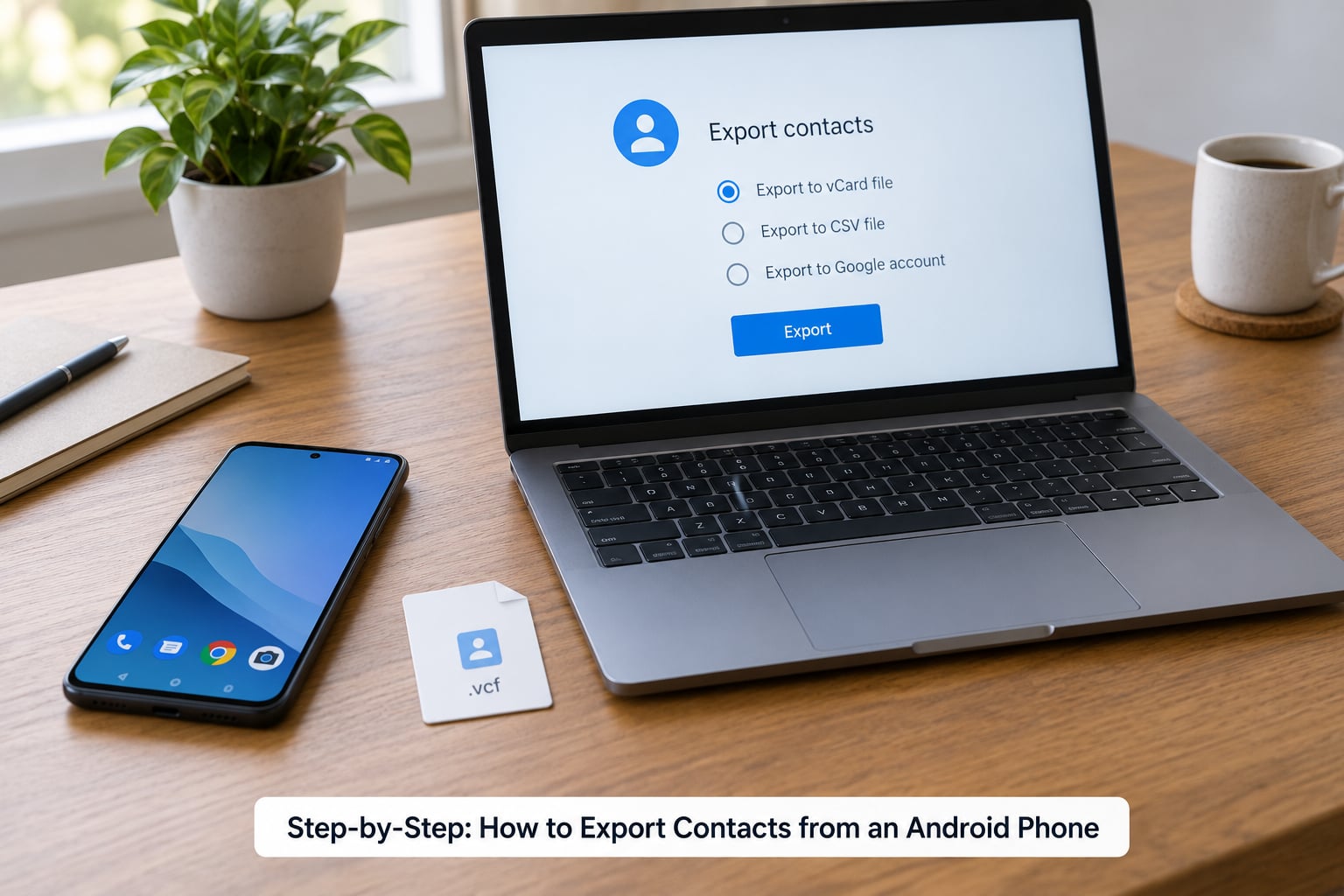
There are two sensible routes, and most readers want both: sync to Google for automatic backup, then a vCard file you physically own. The table below shows how the main options compare.
| Method | Format | Best for | Difficulty |
|---|---|---|---|
| Google account sync | Cloud, always current | Staying on Android, daily backup | Easy |
| vCard export from Contacts app | VCF (.vcf) | Moving to any phone, offline backup | Easy |
| Google Contacts on the web | VCF or CSV | Excel, CRM, spreadsheet work | Medium |
| Export from the SIM card | VCF | Contacts stored only on the SIM | Medium |
Step 1: Prepare and review your contacts
Open Contacts and look at the account list at the top. If you have never synced, you will usually see an entry for your Google account alongside the phone or device account.
Scroll through and delete anything you do not want carried to a new phone. Duplicate entries are the most common complaint I hear from people doing this, and merging them now takes ten minutes versus untangling two copies later. Google Contacts has a Find duplicates option under the three-dot menu on the web version that handles most of it in one pass.
Open three or four contacts you would be upset to lose and check that the phone number and email are actually filled in. A surprising number of entries are name-only, and an export will faithfully reproduce that emptiness.
Step 2: Sync contacts with Google
Open Settings, tap Accounts, then Google, then your account, and tap Contacts. Turn on Sync Contacts. On Samsung phones the same switch sits under Settings, Accounts and backup, Manage accounts, Google, your account, Sync contacts.
Give it a minute with Wi-Fi on, then return to the Contacts app and check the account label on a contact you recognise. It should now read Google rather than the phone account. That label is the quickest way to confirm the sync worked.
Two things to watch. If you have more than one Google account on the phone, each has its own sync switch, and the wrong one being on is a frequent reason contacts appear to have vanished. And contacts that live only on the SIM card do not sync at all, so the next step is where you catch them.
Worth knowing the size limits while you are here. A SIM card typically holds a couple of hundred contacts and no more, so anyone with thousands of entries has already been pushed to the phone or Google. Google Contacts handles far larger lists, and once a file is in the tens of thousands, the web version is the smoother place to merge and clean it.
If you want a complete copy of everything Google holds for your account rather than contacts alone, Google Takeout generates an archive of your account data that you can download once. It takes a while to prepare, so start it before a planned phone swap rather than on the morning of it.
Step 3: How to export contacts to a vCard file
In the Contacts app, tap your profile picture or the three-dot menu at the top right. Tap the account you want to export, then choose Export, then Export to file, then Save to Drive or Save to Downloads. Android writes a file called contacts.vcf into the folder you picked.
Contacts stored on the SIM show up as their own account in that same list. If you see it, export it separately, because those entries will not appear in the Google export.
To export only part of your list, open the group or label you want, enter it, then use the select-all control inside the group and repeat the same Export steps. The file then contains only those people, which is the tidy way to share a team list or a family group without handing over your entire address book.
For a spreadsheet, go to contacts.google.com in a browser instead. Sign in, open your account menu at the top, choose Export, then pick Google CSV, Outlook CSV, or vCard. The CSV route is the one to use if you need the data in Excel, though it drops profile photos and custom fields. It is a one-time download, not a recurring file.
Step 4: How to export contacts to a new phone or computer
Moving the file: connect the phone to a computer with a USB cable, set the phone to File transfer mode, and drag contacts.vcf into a folder on the computer. Google Drive, OneDrive and a message to your own email all work too, and each is more dependable than Bluetooth for a file of any size.
On the receiving device, open Contacts, tap the menu, choose Import, pick the vCard file from Downloads or Drive, and confirm the account you want the entries to land in. Android will ask whether to merge the new contacts with existing ones or keep them separate. Merging is usually what you want, and it will still create duplicates if the same person is already there under a slightly different name.
If the target is an iPhone, iCloud has no direct import button for Android vCard files on every setup. The reliable path is to install the Contacts app from the App Store on the iPhone, import the vCard there, then merge those entries into iCloud from Settings, Contacts, Accounts, iCloud, Manage Contacts.
To move from Android to Android and nothing else, the built-in transfer flow in Settings, System, Device Transfer, or Google, Devices and services, Set up device, often handles contacts without a file at all. Having the vCard saved regardless is still worth the two minutes.
Step 5: Verify the backup
Open the exported file on your computer with any text editor and search for a contact you know is in the list. If the name and number appear between the BEGIN:VCARD and END:VCARD lines, the export is genuinely good data rather than an empty shell.
Then compare counts. Note the number of contacts in each account on the phone, and check the same figures in Google Contacts on the web. A large gap usually means one account was never selected during export.
Keep a second copy in a different place than the phone until the new device is set up and confirmed working. Backups that live only on the device they came from are not backups.
Finally, a quick note for anyone planning to leave Android entirely. People moving to an iPhone report that groups and labels do not survive the trip, and custom fields often arrive blank even when the names and numbers come through fine. Re-check a few of your labelled entries after the switch rather than assuming the transfer was complete.
Common Mistakes
Exporting the wrong account. Open Contacts, check which account the names are attached to, and export each one that holds data. A Google-only export leaves your SIM entries behind.
Contacts missing after import on the new phone. Usually the file was imported into the device account rather than Google. Open Contacts, tap the three-dot menu, choose Move contacts, and move them to the Google account so they sync going forward.
An empty or tiny vCard. This happens when the export ran with the wrong account selected, or when the file was saved to Downloads and you opened a stale copy. Re-export and open the new file, checking the timestamp first.
Duplicates after import. Merge them in the source list before exporting next time, or clean up in Google Contacts on the web using Find duplicates. Importing twice from the same file doubles everything, so be careful running the import step more than once.
Losing the .vcf extension. Some messaging apps and cloud folders rename the file to something like contacts.vcf.txt, and the phone then refuses to import it. Rename it back to end in .vcf before moving it.
Treating a screenshot as a backup. A photo of a contact list cannot be searched, imported or restored. If you want a human-readable record alongside the file, a Google Contacts CSV serves that purpose better than a screenshot.
Two privacy notes. A vCard and a CSV are plain text files that anyone with access can read, so store them somewhere private rather than in a shared folder. And if you use a third-party app to convert contacts to CSV, check what account access it requests, since the more sensitive fields it can read, the more you should think before granting them.
Frequently Asked Questions
Can I export contacts from Android without a Google account?
Yes. Open the Contacts app, tap your profile picture or the three-dot menu, select the account you want, and choose Export, then Export to file. The vCard is created on the phone itself with no Google account involved. You can then move it to a computer with a USB cable or store it in your own Files folder. Google sync is only needed if you want the automatic cloud backup.
Which format is best for moving contacts to another phone?
Use a vCard file, the one ending in .vcf. Every phone reads it, including iPhone once the Google Contacts app is installed. CSV is built for spreadsheets and databases, so it flattens fields, drops profile photos and makes a poor import file. If you want both, export the vCard for the phone transfer and grab a Google CSV for your own records.
How do I export only selected contacts instead of everyone?
Open the group or label you want to export, tap it to see its members, then use the select-all control inside that group. Return to the menu, choose the account, and tap Export, then Export to file. The saved vCard contains just the people in that group. Doing it this way is much safer than deleting contacts temporarily to shrink the list, then trying to restore them.
What do I do if the export option is missing?
Check that you have opened the Contacts app rather than the dialer or your SIM manager, since the export menu only exists inside Contacts. Update the app from the Play Store, since Google has moved the option into the profile menu in recent versions. On Samsung, look under Manage contacts instead. If it is still absent, sign into contacts.google.com on a computer and download the vCard from there.
Is it better to save contacts to the phone or to Google?
Google, by a wide margin. Contacts stored on the phone are lost in a factory reset, a lost device or a failed update, and they do not follow you to a new handset. Google storage syncs continuously and works on Android, iPhone, iPad and the web. Keep a local copy too, but treat phone-only storage as the weaker option.
What does import mean on a phone?
Import reads a contact file you already have, such as a .vcf backup or the contacts from a SIM card, and copies those entries into the phone. It is the opposite of export, which writes your entries out to a file. Import lets you choose which account receives the contacts, which matters because entries that land on the device account will not sync to your other phones.
Conclusion
Start by turning on contact sync for your Google account and confirming your contacts show the Google label in the Contacts app. Then export a vCard and open the file once to be sure it holds real entries, before you trade in, reset, or hand over the phone.
Keep that file somewhere private and separate from the phone, and you will never have to rebuild an address book from memory.