A phone camera self timer counts down on screen and fires the shutter by itself; a shutter remote sends that same capture signal from a few feet away. Either one gets your hands out of the shot, so you can step into a group photo or leave the phone on a stand without touching the screen and smearing the image. This guide covers how to use the self timer and shutter remote on a phone, including the exact menu labels on iPhone, Samsung, Pixel and stock Android.
Neither takes long to set up. The timer is already installed on your phone and takes about ten seconds. Pairing a Bluetooth remote takes a minute the first time and about three seconds after that.
Table of Contents›
- What You Need
- Step-by-Step: How to Use the Self Timer and Shutter Remote on a Phone
- Use the Built-In Self Timer
- Pair and Use a Bluetooth Shutter Remote
- Use Wireless Earbuds, a Smartwatch, or a Camera App
- Common Mistakes
- Frequently Asked Questions
- Where is the timer on my phone camera?
- Can I use a Bluetooth remote to record video?
- Will any Bluetooth shutter remote work with my phone?
- Why does my Bluetooth remote take a burst of photos when I press it once?
- Do I need an app to use a Bluetooth shutter remote?
- Conclusion
What You Need
Everything below works with gear you probably already own, with one optional piece.
- A phone camera with a built-in timer. Every iPhone and every modern Android phone ships with one. You do not need to download anything.
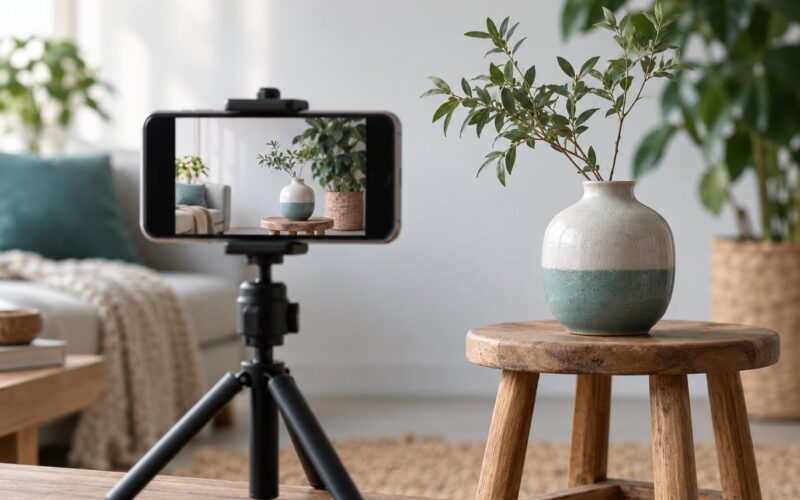
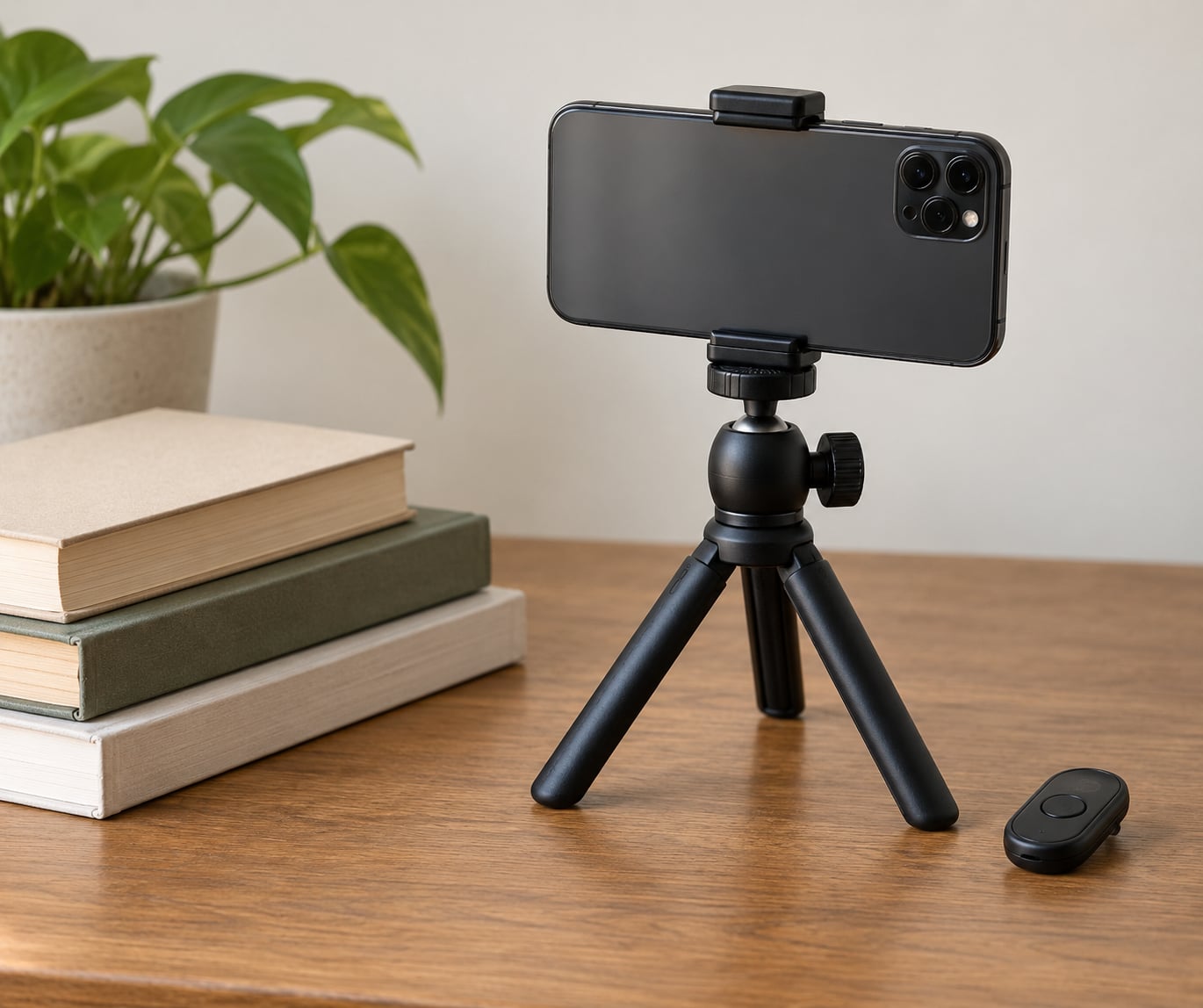
- Something to hold the phone steady. A tripod, a stack of books, a shelf, a wall or a glass door. The timer does not stop camera shake from a moving hand.
- Optionally, a Bluetooth shutter remote. Small remotes like the AB Shutter3 and its many lookalike clones cost a few dollars and add a physical button you can hold in your hand.
- Optionally, wireless earbuds or a smartwatch. Supported models take a photo when you squeeze the bud or raise a wrist.
- Optionally, a third-party camera app. Some apps add longer countdowns, interval shooting and manual controls the stock camera leaves out.
Menu labels change between phone brands, between Android skins and between iOS versions, so the path on your device may look slightly different from the ones below. As of 2026, the flow is still open camera, find the timer control, pick a delay, press the shutter.
Step-by-Step: How to Use the Self Timer and Shutter Remote on a Phone
Use the Built-In Self Timer
The timer is the fastest route to a hands-free shot. Here is the generic flow that works on almost every phone.
- Open the Camera app and switch to the camera you want, rear or front.
- Find the timer control. Look for a clock icon in the camera controls, usually across the top or above the shutter button. If you do not see it, tap the three-dot menu, the gear icon or swipe up into camera settings.
- Tap the timer and choose a delay. Common values are 3 seconds and 10 seconds on iPhone, and 3, 5 and 10 seconds on most Android phones.
- Frame the shot, then tap the on-screen shutter button once. The countdown appears on screen and beeps as it runs.
- Walk into position before the timer reaches zero. At zero the shutter fires automatically, for a photo or a video depending on the mode you were in.
If the timer is still set when you return to the camera, most phones keep it on so your next shot is hands-free too. Tap the clock icon again, or cycle past your chosen value, to switch it off.
| Phone | Where the timer lives | Countdown values |
|---|---|---|
| iPhone (recent iOS) | Tap the clock icon in the top menu bar of the Camera app. Tap once to turn the timer on, tap again to choose 3s or 10s, tap a third time to turn it off. Older iOS builds put it in the Live Photo control at the top. | 3 or 10 seconds |
| Samsung Galaxy (One UI) | Tap the clock icon in the top row of the camera viewfinder, or open the three-dot menu and pick Timer. | 3, 5 or 10 seconds |
| Google Pixel | Tap the clock icon at the top of the viewfinder. In Night Sight and Video modes the timer is reached from the same top bar. | 3 or 10 seconds |
| Generic or stock Android | Open the three-dot menu or gear icon, then Timer. Some launchers place a clock icon directly above the shutter button. | Usually 3, 5 and 10 seconds |
Pick the delay by how far you have to walk. Two or three seconds is enough if you are standing next to the phone. Five or ten seconds suits a shot where you cross a room, or a group that keeps shifting after the first attempt.
Pair and Use a Bluetooth Shutter Remote
A remote gives you a physical button, which means you choose the exact moment instead of guessing how fast you can cross the floor. Pairing takes three steps.
- Put the remote into pairing mode. Most coin-cell and button remotes need a long press on the power or shutter button until a small light blinks. A blinking light usually means pairing mode; a solid light usually means already connected.
- Open Bluetooth settings on your phone. On an iPhone, Settings, Bluetooth, then Other Devices. On Android, Settings, Connected devices or Connections, Bluetooth, then Pair new device.
- Tap the remote name and confirm. Common names include AB Shutter3, BT Remote and JX05. Once it shows as connected, open the Camera app and press the remote button.
If the button takes a photo in the Camera app, you are done. If nothing happens on Android, the remote is probably sending a volume-key signal rather than a shutter signal, and the camera app has to be told to listen for it. On most Android skins this is Volume keys control, Volume button action or Press volume keys, sitting in the camera app settings. Switch it from Zoom to Shutter, Take photo or Capture. This one setting causes most “it is connected but it does nothing” complaints.
On iPhone there is no equivalent setting, which is why volume-button remotes tend to work there and cause trouble on Android.
Some other behaviours worth knowing before you set up a shot.
- Single tap versus hold. A short press takes one photo. Holding the button down on many remotes triggers continuous capture, a burst of frames rather than the single shot you wanted. Tap, do not hold.
- Which button you press. Many two-button remotes send volume up and volume down, and only one of them is mapped to capture. Test both before the real photo.
- Range. Standard Bluetooth reaches roughly 10 metres without walls. Thick walls, a busy room or a phone in a pocket all shorten it.
- Reconnection. The phone sleeps the connection when you walk away. Pressing the remote button usually wakes it straight back up. If it does not, open the Bluetooth settings screen once and it will reconnect.
- Remote versus selfie stick. A stick with a Bluetooth button works only if that button is paired like any other remote. A stick with a plain wired cable needs the phone to recognise the cable as a shutter, which only some models do.
Compatibility is device-pair specific, not universal. Owners posting on r/GooglePixel report the same AB Shutter3 working on an iPhone while refusing to connect to a Pixel, and r/XiaomiGlobal threads describe a remote that shows up in the Bluetooth list but never finishes pairing. If that happens, work through the volume key setting first, forget the device and pair it again, and if it still fails move to an app-based remote rather than buying another coin-cell clone.
Use Wireless Earbuds, a Smartwatch, or a Camera App
Sometimes no hardware remote is the answer, because the one you own does not pair or you have mislaid it.
Wireless earbuds. Supported models can act as a shutter from the Camera app’s remote-shoot options, usually triggered by squeezing the bud. Check the earbuds’ companion app for a remote-shot or camera-control setting and allow Bluetooth and camera permissions when asked, or the feature stays hidden.
Smartwatch. Several watch apps can trigger the phone camera as a remote viewfinder or as a shutter button. These go further than a coin-cell remote: some show the phone’s viewfinder on the wrist and let you start and stop video, which is handy when you want the phone far from your body. The watch needs Bluetooth range to the phone and its own camera-remote app enabled.
Camera apps. A third-party camera app can replace the hardware entirely. Look for apps with a manual countdown, interval capture and remote-trigger support. Watch three things: how much storage and battery it uses while open, whether it asks for camera and microphone access every launch on some Android versions, and whether it holds the connection to a paired remote reliably. Native apps usually behave more predictably with a Bluetooth shutter.
Common Mistakes
Nearly every failure with these two features falls into one of a handful of buckets. Find your symptom below and work across the row.
| Symptom | Most likely cause | Fix |
|---|---|---|
| Cannot find the timer button | It is buried in the settings menu on that phone, or you are in a mode that hides it | Open the three-dot or gear menu and choose Timer, switch back to a standard Photo or Video mode, then look again |
| Remote never appears in the Bluetooth list | The remote is not in pairing mode, or its battery is flat | Hold the power button until the light blinks, replace the coin cell if needed, then scan again |
| Connected, but pressing it does nothing | Android camera app is set to use the volume keys for zoom | Change Volume keys control to Shutter or Take photo in the camera app settings |
| Remote fires several photos instead of one | The button is being held down | Use a quick tap rather than a press and hold |
| Remote works for photos but nothing happens in video mode | Video start and stop behaviour varies by phone and by camera app | Test on your own phone before a real recording. Many stock camera apps only map the remote to photo capture, while some third-party apps and watch remotes handle video start and stop |
| Remote stopped working after months unused | A lithium cell in a stored remote can discharge deeply and refuse to power on | Charge it on USB for an hour, or leave a fresh coin cell in for a day to recover it. If it never powers on, the cell is finished |
| Remote died during a video call | The remote is also sending volume and media keys, so it picked up a competing Bluetooth profile | Cancel the call, reconnect the remote, and check that the phone is not routing it to another app |
| Photo looks soft even with the timer | The phone is moving, or focus locked on the wrong spot | Rest the phone on something solid, tap the subject to lock focus and exposure, then step back |
| Timer countdown is too short to get in frame | Three seconds is not enough for the walk | Switch to 5 or 10 seconds, or use a remote and trigger it yourself |
A few habits prevent most of this. Test the whole setup before you need it, standing exactly where you will stand. Make sure the phone has a stable base rather than leaning against something. Give yourself more delay than you think you need. Keep the software on both phone and remote updated, and forget and re-pair a remote that has gone strange rather than fighting it.
The timer setting also applies to video. Pick Video mode, set your countdown, press the shutter once and the recording starts after the beep. On most phones the same press stops it, so run a short test clip before you record anything you want to keep.
Frequently Asked Questions
Where is the timer on my phone camera?
The timer is usually a clock icon in the camera controls. On iPhone it sits in the top menu bar of the Camera app, and tapping it cycles through off, 3 seconds and 10 seconds. Samsung and Pixel phones put a clock icon in the top row of the viewfinder. On other Android phones, open the three-dot or gear menu and choose Timer.
Can I use a Bluetooth remote to record video?
Sometimes. Many remotes are mapped only to photo capture, so the button does nothing once you switch to Video mode. Some Android camera apps, some third-party apps and most smartwatch remote apps will start and stop a recording. Test a short clip on your own phone and remote before relying on it, and keep the built-in timer as a backup.
Will any Bluetooth shutter remote work with my phone?
No, compatibility is device-pair specific rather than universal. The same AB Shutter3 that works on an iPhone is reported on r/GooglePixel and r/XiaomiGlobal as refusing to connect to certain Android phones. On Android, confirm the camera app volume key setting is set to Shutter before you assume the hardware is faulty. On iPhone, volume-button remotes generally connect without extra settings.
Why does my Bluetooth remote take a burst of photos when I press it once?
Most volume-button remotes send a continuous signal for as long as you hold them, and the camera app reads that as repeated captures. Use a quick tap and release instead of a press and hold. If bursts still happen on a fast tap, that model is not built for single-shot capture and a different remote or the built-in self timer will serve you better.
Do I need an app to use a Bluetooth shutter remote?
No. A standard Bluetooth remote pairs through your phone’s Bluetooth settings and then triggers capture in the stock Camera app. An app is only necessary for features the stock camera does not offer, such as interval shooting, longer countdowns or remote video start and stop, or as a fallback when a cheap remote will not pair with your specific phone.
Conclusion
Use the built-in self timer when you just need hands-free shots: open the camera, tap the clock icon, pick 5 or 10 seconds, press the shutter and walk into frame. Pair a Bluetooth shutter remote when you want to choose the exact moment, and on Android set the volume key control to Shutter before you blame the hardware. If a remote will not pair after that, switch to supported earbuds, a smartwatch remote app or a third-party camera app rather than buying another one. Then run the full setup once, standing where you will actually stand, before the photo you actually need.