To borrow library ebooks on a tablet, install OverDrive’s free Libby app, add your public library card with its number and PIN, search the catalogue, tap Borrow, and the book downloads straight to the tablet. No computer, no Amazon Prime, and no late fees. The whole flow takes about five minutes, and everything works offline once the file is on the device.
Libby is OverDrive’s consumer app for borrowing ebooks, audiobooks and digital magazines. OverDrive is the company that supplies digital lending collections to the majority of North American public libraries, and Libby is the free front end your library’s card works with. Updated for 2026, this guide covers the flow on current versions, because the older OverDrive Media Console app that many library pages still teach is long retired.
One more thing to clear up early: a r/kindle thread captures the frustration best. Borrowing from a phone, tablet or PC through OverDrive or Libby is “simple, streamlined and quick,” but not from the Kindle itself. That device split is the reason this guide walks through Android tablets, iPads and Kindle Fire tablets separately.
Table of Contents›
- What You Need
- Step-by-Step
- Step 1: Find Your Library and Its Ebook Service
- Step 2: Install the Right App and Sign In
- Step 3: Search for a Title and Check Its Loan Format
- Step 4: Borrow the Ebook and Download It
- Step 5: Read the Ebook and Manage the Loan
- Which App Goes on Which Tablet
- Libby vs OverDrive, and Other Lending Apps
- Reading Offline and on More Than One Device
- Common Mistakes
- Frequently Asked Questions
- Can I borrow library ebooks on any tablet?
- Do I need to be online to read a borrowed ebook?
- Why does a library ebook show as unavailable?
- Can I return a library ebook early from my tablet?
- What happens when a borrowed ebook reaches its due date?
- How do I move a library ebook from one tablet to another?
- Conclusion
What You Need
You need four things, and three of them you already have.
- The tablet itself. Any Android tablet, iPad or Kindle Fire running a reasonably current version of its operating system.
- Your library card number and PIN. Both are printed on the physical card. Some libraries issue cards with no PIN, and the app accepts an account without one.
- An email address. OverDrive attaches the lending account to it, so use an address you actually read.
- A few hundred megabytes of free storage. Audiobooks run much larger than ebooks, and a nearly full tablet is the most common cause of a download that never finishes.
What you don’t need matters too. A desktop PC is not part of any step below, Amazon Prime is not required, and you do not buy anything. Which ebook formats you can borrow depends on what your library licensed and on the tablet you own, so a title that reads beautifully on an iPad may only be offered as a PDF on a Kindle Fire.
Step-by-Step
Five steps cover it, and the first two are the only ones that take real effort. Once your card is in the app, borrowing a book is a single tap.
Step 1: Find Your Library and Its Ebook Service
Start at your library’s website, not at an app store. Search for your library’s name in a browser and open the official site. Look for a link labelled something like eBooks, Digital Media, OverDrive or Online Resources. That page tells you which vendor your library uses, which decides which app you install next.
Most libraries land on one of a few setups. Libby and OverDrive cover the large majority. Hoopla lends streaming video, music and comics rather than ebooks. Sora is the education platform that school and public libraries use for students, and it works on the same general principle with a different app. A handful of smaller libraries still point at a regional catalogue instead.
While you are on the library site, find the digital card login page. Some libraries publish the sign-in URL there, and bookmarking it saves typing a long card number into a phone keyboard later.
Step 2: Install the Right App and Sign In
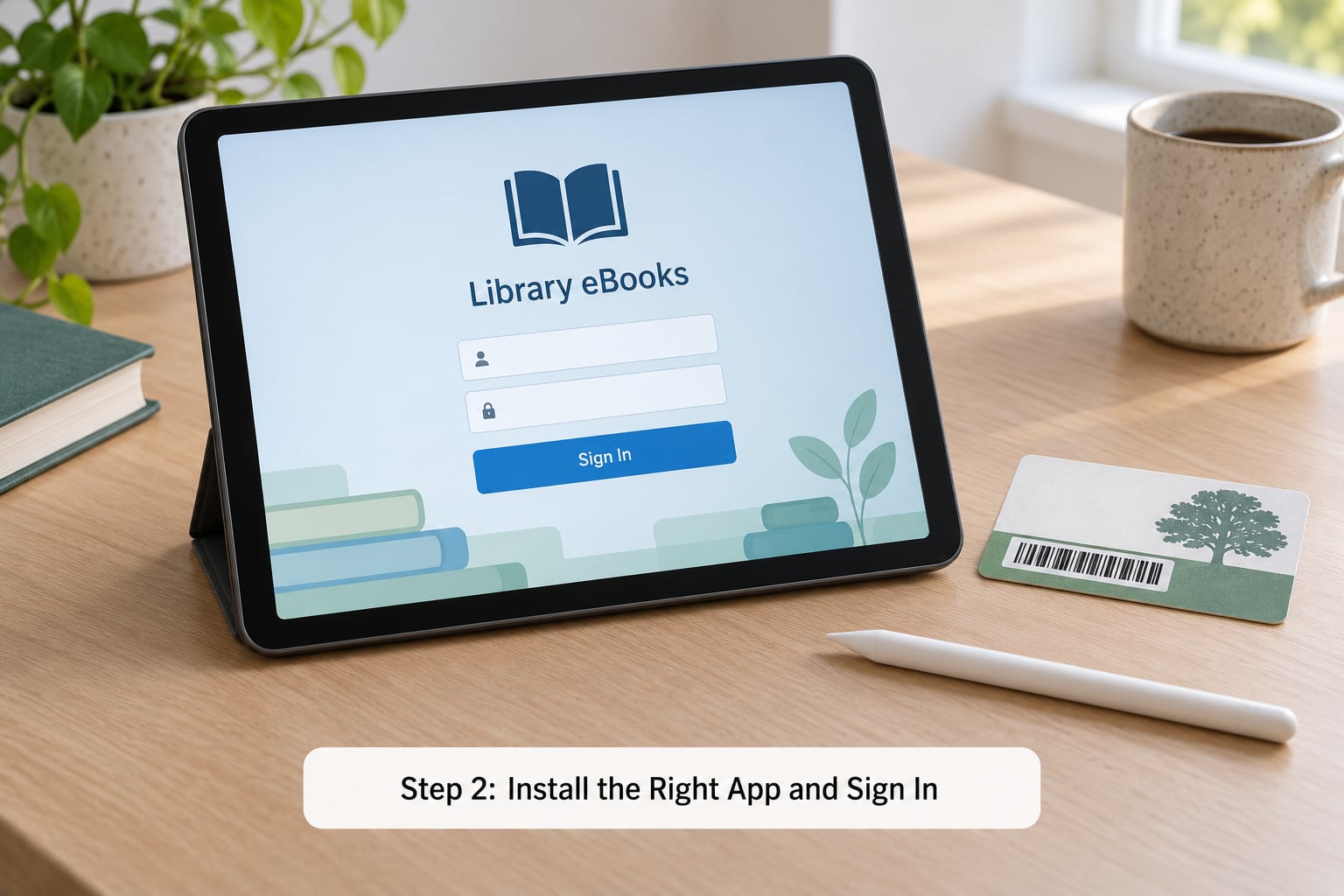
Libby installs from the official store on each platform. On an Android tablet, open the Play Store and search Libby, then tap Install. On an iPad, do the same in the App Store. On a Kindle Fire, the Amazon Appstore carries Libby too, and a Pima Library post confirms it runs on all Fire tablets, which makes the Fire a normal tablet path rather than a workaround.
On first launch, Libby asks how you want to find your library. Typing your library name works best because library systems in the same city can share a name and serve different counties. Some libraries also let you search by ZIP code, which is the fastest option if you are still in your own neighbourhood. If neither works, your library’s website lists the exact name to type.
After picking the library, choose the sign-in option for a library card. You enter the card number and PIN, pick a display name for the account, and Libby verifies it against your library’s records. Successful sign-in drops you onto the library’s shelves.
Menu names differ a little by platform, so here is where to look:
- Android: the three-dot menu at the top right holds Preferences, where added libraries and account settings live.
- iPadOS: the same settings sit behind a profile icon in the top corner rather than a three-dot menu.
- Kindle Fire: Libby installs and borrows like any other Amazon Appstore app, but Amazon’s own Kindle app cannot display EPUB lending library titles, so read them in Libby.
If the card is rejected, check for a leading zero on the number, try it without spaces or dashes, and make sure you picked the right branch. Cards issued with a barcode but no PIN usually work when you skip the PIN field.
Step 3: Search for a Title and Check Its Loan Format
Use the search icon in the app and type a title, an author, or an ISBN if you are matching a physical copy. Results show each format the library actually holds, and that list is the single most useful thing on the screen.
On a tablet, EPUB is the format you want. It reflows text to any screen size, lets you change font and size without pinch-zooming, and is the only lending format Libby can read in its built-in reader. A PDF lending copy behaves like a scanned page: fixed layout, small text on a large screen, and no font controls. Audiobooks stream or download as audio files and play through the audiobook tab. Digital magazines are usually browser-based and read inside the app rather than downloaded.
Check three details before you tap Borrow: the format list, the return date, and your lending limit. Limits are commonly a set number of books at once, and a hold queue sits in front of the title when every copy is out. Where an estimated wait time appears, it is a library estimate and shifts constantly, so treat it loosely.
A title that says unavailable is usually one your library never licensed digitally. That is different from a title that is borrowed out, and there is no trick that unlocks the first kind.
Step 4: Borrow the Ebook and Download It
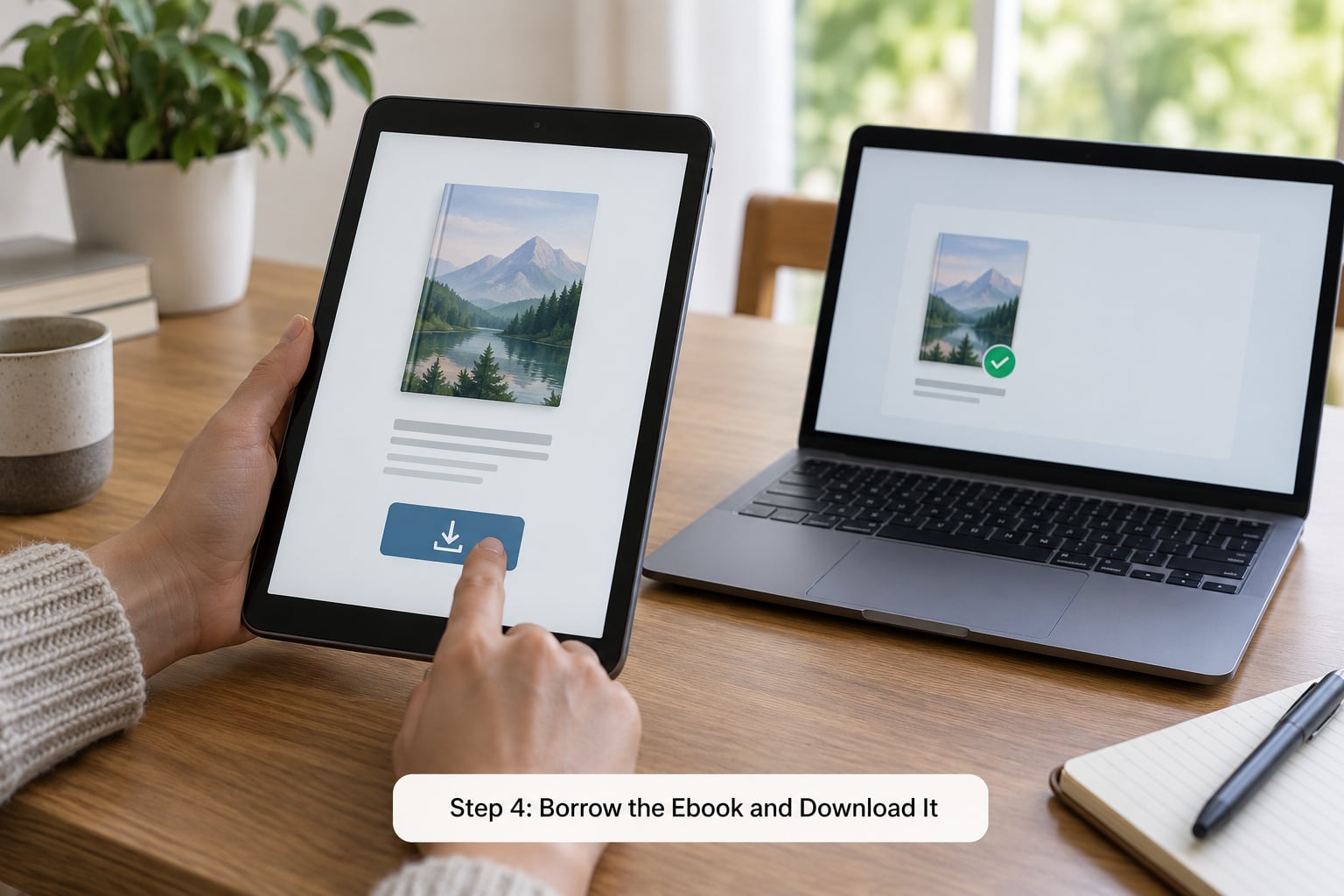
Open the title and tap Borrow. Your loan starts the moment you tap it, not when you open the book, and the return date on the loan screen counts down from that instant. Most loans run 21 days, though your library can set a different period.
After borrowing you get a choice of what to do with the file. Read now opens it in Libby’s reader straight away. Download saves it to the tablet so it works with no signal, which is the option most people want before a flight or a commute. Send to Kindle is offered on some titles for readers who own a Kindle e-reader rather than a tablet.
Two practical notes. Lending titles come with DRM, so the file is tied to your library account and your device authorisation, not a plain EPUB you can move around freely. And Send to Kindle from Libby works with US libraries only, which is a regional restriction that catches people who spot the button and then find it useless.
The download lives on the Shelf screen, under Loans. That Shelf is the answer to the question new users ask most, which is where the book went after borrowing. Opening the app and tapping the sync icon is what pulls newly borrowed titles onto the tablet, a step that trips up more beginners than anything else in the process.
Step 5: Read the Ebook and Manage the Loan
Tap any title on your Shelf to open it in the reader. Tap the middle of the screen for text controls: font family, size, line spacing, background colour and margins. A tablet’s bigger screen makes night mode and a warm sepia background genuinely easy on the eyes, and the settings stick to the book rather than resetting each session.
Progress syncs back to the library account, so you can start a chapter on the tablet at home and continue on a phone the next morning. Reading the same loan on two devices at once works too, with each device picking up where the other stopped.
Manage the loan from the same Shelf screen. Return now ends the loan early and hands the copy to the next person in the queue. Loans return on their own at the end of the period, so nothing is ever overdue and there is no late fee. Some libraries allow one renewal if nobody else is waiting, and the return button becomes a renew option when that applies. A Hacker News reader describes the habit plainly: borrow through Libby on a phone, then press sync and the book appears on the e-reader.
Which App Goes on Which Tablet
The app name is not the only difference between platforms. Where the app lives, how you sign in, and what the loan opens in all change, so here is the short version.
| Tablet | Where to get the app | Where the loan opens | Watch out for |
|---|---|---|---|
| Android tablet | Google Play Store | Libby’s built-in reader | Playback or compatibility errors on older models; check free storage first |
| iPad | Apple App Store | Libby’s built-in reader | Settings sit behind a profile icon rather than a three-dot menu |
| Kindle Fire | Amazon Appstore | Libby’s built-in reader | Amazon’s Kindle app cannot open lending EPUB titles |
| Kindle e-reader | Not an app | Kindle library, after sending the loan from Libby | Sending from Libby works with US libraries only |
| Windows computer | Microsoft Store or overdrive.com | Browser reader or OverDrive desktop app | Useful as a second screen, not required for any step |
One more platform case worth naming: Kobo and Android e-readers from other brands. Libby loans are tied to your library account rather than to a specific tablet, so a loan borrowed on an Android tablet can be delivered to a Kobo or Boox device from the loan’s options menu, provided your library supports the integration. Check with your librarian first, since support varies.
Libby vs OverDrive, and Other Lending Apps
OverDrive is the company. Libby is the app. Older library pages and PDFs still teach an app called OverDrive Media Console, which has been retired, so a guide that tells you to look for that name is out of date. OverDrive’s current website still works for borrowing in a browser, and it is a decent fallback when a tablet refuses to install an app.
Two other names come up for the same reason: Hoopla and Sora. Hoopla is a lending platform for streaming video, music and comics rather than reflowable ebooks. Sora is the education platform behind student access, and students who borrow through a school login use its own app rather than a personal library card. If your library’s digital page names one of these instead of OverDrive, follow that library’s instructions rather than anything written for OverDrive collections.
That is also the answer to “is there a better app than Libby.” For public library ebook lending there isn’t one that does the whole job, because the catalogue belongs to your library and the app is chosen by the vendor behind it.
Reading Offline and on More Than One Device
Downloading before you travel takes a minute and saves a trip to a library wifi hotspot. Before a flight or a long drive, open each title on the Shelf and tap Download rather than Read now, then put the tablet in airplane mode and confirm the book still opens. That single test catches downloads that never finished, which is the usual reason a book fails in the air.
Your page position syncs to the library account, so a loan follows you across tablets and phones. Two devices can hold the same active loan and each picks up where the other left off, and you can change the delivery device from the loan’s options. Highlights, notes and bookmarks also belong to the account, which means they survive a device change but disappear if you sign out of the wrong library card.
Accessibility options live in the reader and the text settings, not in a separate app. Font family, size, line spacing and margin controls are enough for most readers who need larger or wider-spaced text, and a tablet’s screen makes a night background or a sepia page an easy choice rather than a workaround.
Common Mistakes
Nearly every failure comes down to a card problem, a format surprise, or storage. Work through these in order.
- The app says the card is invalid. Re-pick the library from the menu, since a wrong branch produces this error. Then retype the number carefully and try it with no PIN.
- Sign-in loops back to the same screen. Your library may route some accounts through a separate OverDrive login. Use the library card option with your barcode rather than an email and password you never set.
- The title shows no formats at all. Your library licensed it in print only. Search the author for other titles, or ask a librarian, who can often order a digital copy.
- Only PDF shows up. That is all the library has. A PDF still works on a tablet, but expect fixed pages rather than reflowing text.
- The download starts and never finishes. Check free storage, then try again on WiFi. Large audiobooks fail most often on a weak mobile connection.
- The book is missing after borrowing. Open the Shelf and tap sync. If the loan exists in your account but not on the tablet, the app needs a refresh or the device authorisation expired.
- You hit the lending limit. Return a finished title from the Shelf, or wait for one to auto-return at the end of its loan period. Limits apply per card, so a second library card is a genuine workaround.
- The file vanishes mid-read. The loan ended. Extend it if your library permits renewals, otherwise borrow it again if a copy is free.
One more that deserves its own mention: highlights and notes stay with your library account rather than the device. Switching reading devices keeps them, but signing out and back in as a different account loses access to them.
Frequently Asked Questions
Can I borrow library ebooks on any tablet?
Mostly, yes. Libby runs on Android tablets, iPads, Kindle Fire tablets, phones and Windows computers, so nearly any modern tablet works. What changes by device is the format you can read: EPUB lending titles open in Libby’s own reader, while a Kindle Fire cannot open EPUB files in Amazon’s Kindle app. Some libraries also lend PDFs, which open anywhere.
Do I need to be online to read a borrowed ebook?
No, once the download finishes. Tap Download instead of Read now and the file is stored on the tablet, so it opens in a flight, on a subway or in a national park with no signal. You only need a connection to borrow, to renew, to place a hold, to sync your page and to return the title early.
Why does a library ebook show as unavailable?
There are two different reasons behind that message. If every digital copy is borrowed, you can place a hold and see an estimated wait, and you get a notification when a copy frees up. If your library never licensed the title for digital lending, there is no format to borrow and a librarian can tell you whether it can be ordered.
Can I return a library ebook early from my tablet?
Yes. Open the title on your Shelf screen in Libby and tap Return now. The copy goes back to the library immediately and the next reader in the queue gets it. Many lending loans last 21 days and return by themselves at the end, so an early return is useful when you finish a book early or want to clear a slot for something else.
What happens when a borrowed ebook reaches its due date?
The loan ends on its own and the file stops opening. There is no late fee and nothing to pay, because digital lending carries no penalty for an expired loan. If your library allows renewals and nobody else is waiting, the return control turns into a renew option. If you still want the book, borrow it again when a copy is free.
How do I move a library ebook from one tablet to another?
Sign in to Libby on the second device with the same library card and PIN, then tap sync on the Shelf. The loan is attached to your library account, so active loans appear on the new tablet automatically. You can also change which device a title is delivered to from the loan’s options, which is how you move a book between a tablet and a Kindle e-reader.
Conclusion
Start with one action: install Libby from your tablet’s official app store, add your library card with its number and PIN, and search the catalogue for a title you already know. Once that works, everything else is a variation on the same tap.
Two habits make the rest smooth. Check the format list before borrowing, so you know whether you are getting an EPUB you can resize or a fixed PDF. And check the return date, because the loan clock starts the moment you tap Borrow, not when you open the book. If a title looks wrong, place a hold instead and let the library notify you. Nothing about this flow has changed much since Libby replaced the older OverDrive app, and the steps above reflect how to borrow library ebooks on a tablet in 2026.