Yes, you can work from home on a tablet, as long as your job is mostly email, documents, spreadsheets, meetings, research, and note-taking. What learning how to use a tablet for working from home actually comes down to is a half-hour of setup: sign in to your work account, install the right apps, pair a keyboard, and lock the device down. It is a genuinely good setup for people who move around the house or work from a different table each morning.
A tablet covers roughly eighty percent of an office day and gives up on the other twenty. Knowing which twenty before you start saves a lot of frustration. This guide walks through that, plus the exact settings to change, the apps to install, and the mistakes that quietly break a tablet setup three weeks in.
Updated for October 2026.
Table of Contents›
- What You Need
- Step-by-Step: How to Use a Tablet for Working From Home
- How to Use a Tablet for Working from Home: 30-Minute Setup
- 1. Decide Whether the Tablet Is Your Main or Backup Device
- 2. Install and Configure Essential Work Apps
- 3. Set Up Video Calls and Audio
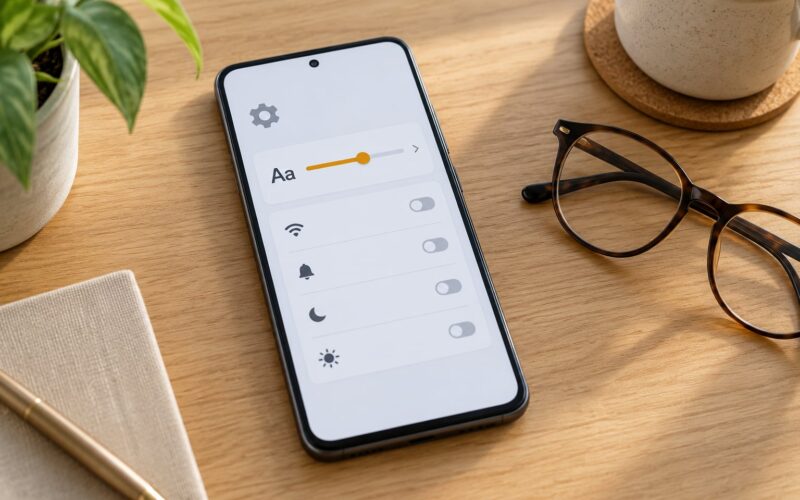
- 4. Configure Typing, Display, and Accessibility
- 5. Organize Files and Protect Access
- 6. Build a Distraction-Free Work Routine
- 7. Manage Battery, Connectivity, and Backups
- 8. Run a Full Workday Test
- Common Mistakes
- Frequently Asked Questions
- Can I use a tablet instead of a laptop for working from home?
- Do employers allow me to use a personal tablet for work?
- Which tablet is best for Microsoft Office and video calls?
- How do I keep work and personal files separate on a tablet?
- What should I do if my tablet cannot join a work video call?
- Conclusion
What You Need
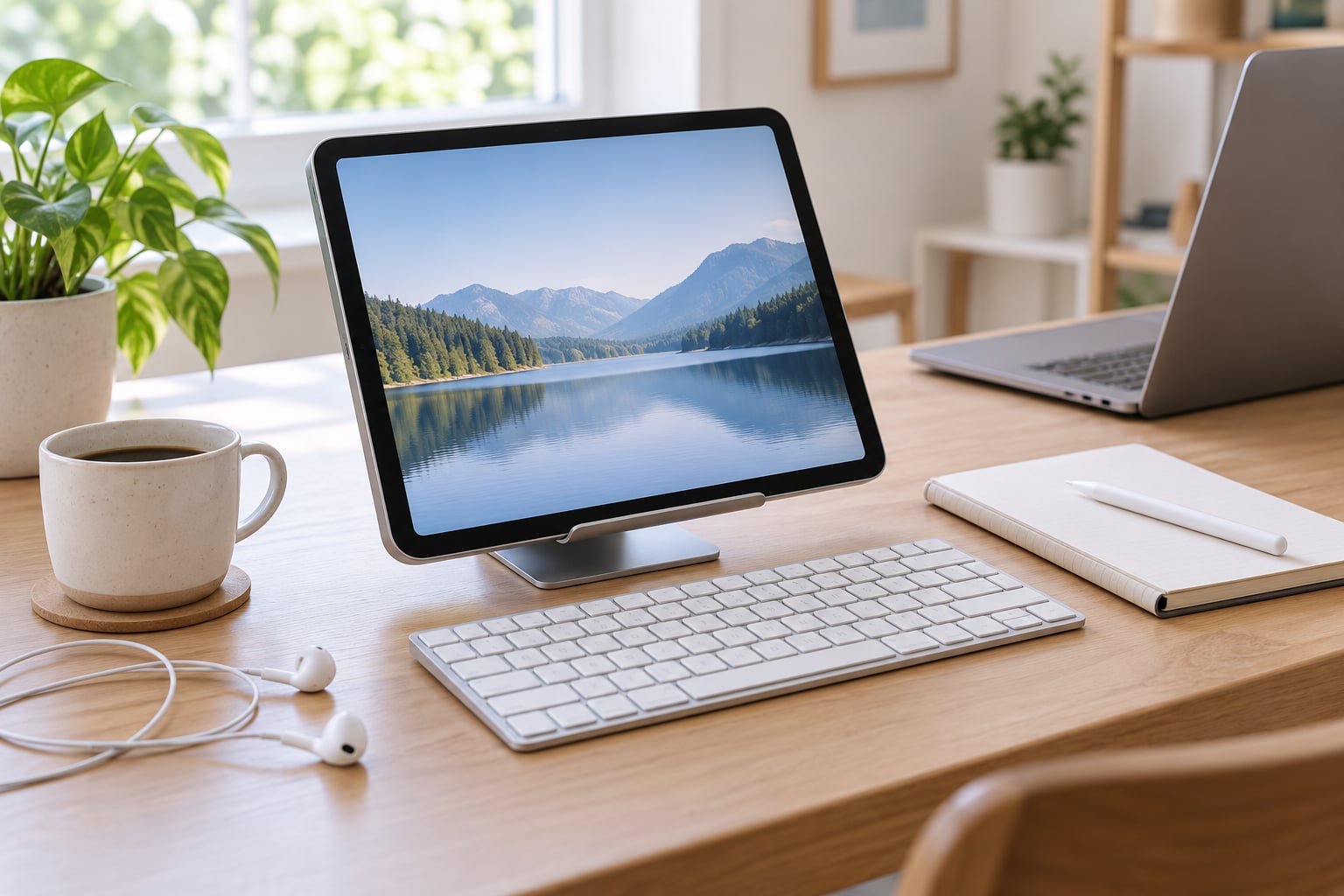
Before you touch a setting, gather what the job actually requires. Most people can get through a working week with a small, boring kit.
- The tablet itself. Roughly 10 inches or larger is the practical floor for work, and 11 to 13 inches is much better once you pair a keyboard.
- A keyboard. A keyboard case is the most portable option, a slim Bluetooth keyboard is better for typing quality at a fixed desk. You do not need the manufacturer’s own version.
- A stand or prop. Keeps the screen near eye level so you are not looking down all day.
- A mouse or trackpad, optional but worth it for spreadsheets and document editing.
- Wired earbuds or a headset for meetings, since laptop-style microphones pick up room noise.
- A stylus if you review or sign PDFs regularly.
- Your work account credentials, plus whatever security tools your employer requires (a VPN profile, an authenticator app, or a managed certificate).
- A second charging cable and, if your tablet supports it, a cellular plan as backup for bad home Wi-Fi.
On iPadOS these steps live in Settings, the Files app, and the App Store. On an Android tablet they live in Settings, Google apps, and the Play Store, and some security controls are nested one level deeper. Where the paths differ, both are spelled out below.
Step-by-Step: How to Use a Tablet for Working From Home
How to Use a Tablet for Working from Home: 30-Minute Setup
If you only have half an hour, do these six things in order. They cover the settings that cause most of the friction later.
- Update the operating system. On iPadOS open Settings, then General, then Software Update. On Android open Settings, then System, then System update. Install everything before you sign in to work.
- Sign in to your work account. Add the work email account under Settings, then Accounts on iPadOS, or Settings, then Accounts, then Add account on Android. If your employer uses single sign-on, finish it in a browser and approve from the mail app.
- Set the display and text size. Bigger text costs you workspace, so bump it one notch at a time. On both platforms, Settings, then Display and Brightness covers it.
- Turn on encryption and auto-lock. iPadOS encrypts by default; confirm with Settings, then Face ID and Passcode (or Touch ID and Passcode) and set the passcode. On Android, Settings, then Security, then Encryption, then Encrypt device, and set a screen lock under Security, then Screen lock.
- Install the core work apps. Email, calendar, documents, cloud storage, chat, meetings, and a password manager.
- Check your employer’s security rules before you start. If IT manages your work, ask whether the tablet needs to be enrolled before company data goes on it.
You can tell it worked if the tablet asks for your passcode on wake, your work files appear in the Files or Files by Google app, and a fresh email account syncs without errors.
1. Decide Whether the Tablet Is Your Main or Backup Device
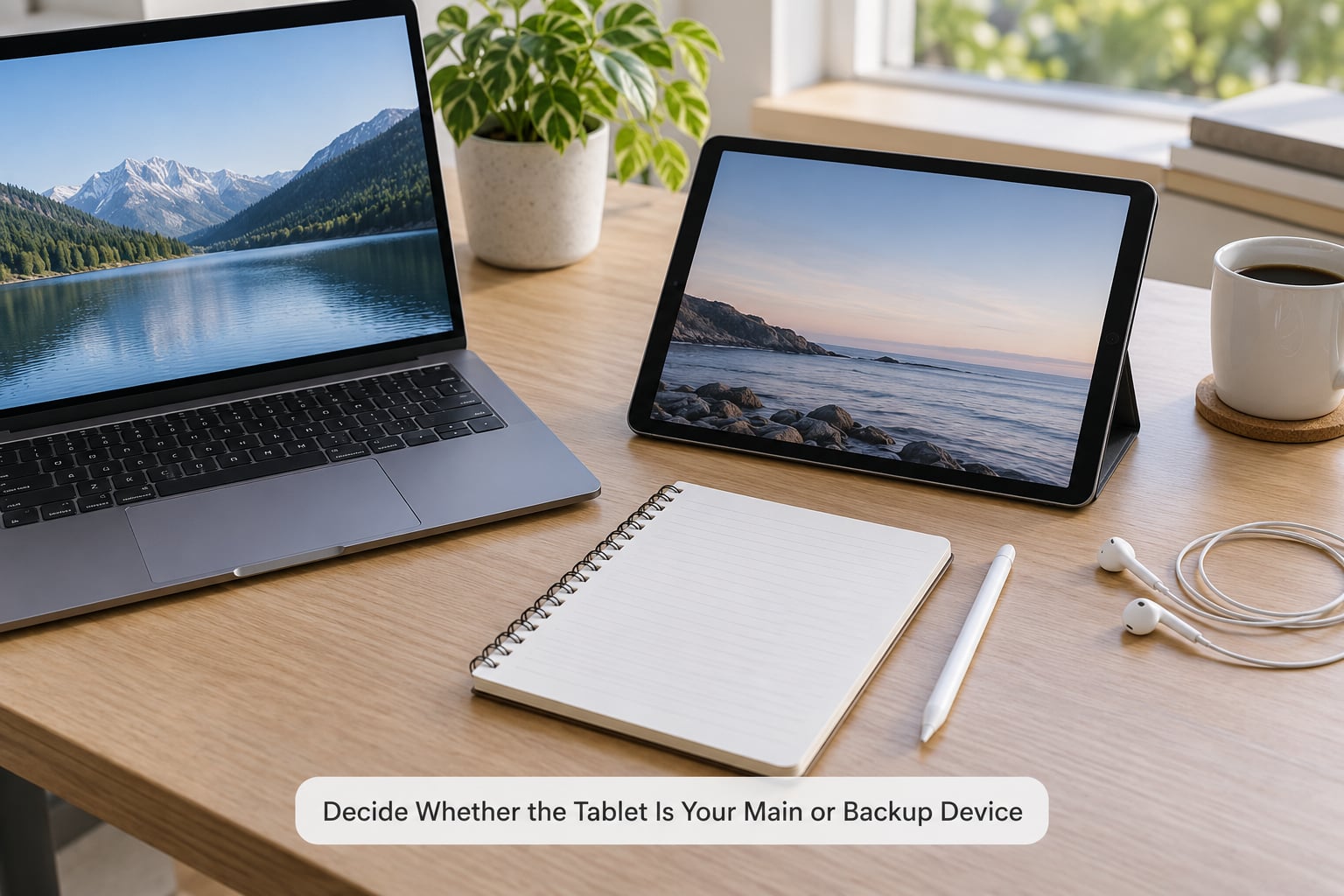
Be honest about your job before you commit. A tablet handles email, web-based tools, documents, PDFs, video meetings, and note-taking well. It struggles with heavy spreadsheet models that recalculate for seconds, professional video or photo editing, CAD, dense coding environments, and anything needing three monitors at once.
If your work is writing, coordination, review, and calls, the tablet can be primary. If it is production work, run it as a second device and keep the laptop for the heavy hours.
The cleanest test is one real day. Follow your actual schedule, from the first message to the last call, and note every point where you wanted a laptop keyboard or a bigger window. That list is your honest answer.
2. Install and Configure Essential Work Apps
Install in this order, and sign in as you go so you notice permission prompts early:
- Communication: Microsoft Outlook, Gmail, or Slack, depending on what your team actually uses.
- Documents: Microsoft 365 for Word, Excel, and PowerPoint, or Google Docs, Sheets, and Slides if your employer runs on Google Workspace.
- Cloud storage: OneDrive or Google Drive, so the same file is the same file everywhere.
- Tasks: Todoist or Notion for notes and project lists.
- Meetings: Zoom, Google Meet, or Microsoft Teams, plus the calendar app so invites open with one tap.
- Security: a password manager with autofill and an authenticator app.
On iPadOS, enable iCloud Drive under Settings, then your Apple Account, then iCloud, then Drive. On Android, open Files by Google and switch to the Drive or OneDrive tab. Either way, verify syncing by creating a test file in one app and confirming it appears on your laptop within a minute. Duplicate folders show up when you download a file that was already synced, so check that you are not viewing two copies of the same folder.
3. Set Up Video Calls and Audio
Test this before it matters. Join a short call with a colleague or use the built-in camera test, and check three things: whether the microphone picks you up clearly, whether the speakers echo when you switch on the microphone, and whether your face is well lit from the front.
Echo comes from two things: the microphone hearing the speakers, and the tablet’s microphone staying open when it should not. Wired earbuds solve both at once and are the single biggest upgrade to a tablet meeting setup. If you use built-in speakers, headphones, stay off mute when you talk, and keep the tablet at least an arm’s length away.
For lighting, face a window rather than sitting with it behind you. That is free, and it beats any ring light you would buy later.
On iPadOS, tap the participant initials in a call bar to blur the background or hide yourself. On Android, the camera preview has a background effect toggle. Test sharing a single app window too, not just the whole screen; it is the version you will actually present with, and finding out it fails live is avoidable.
4. Configure Typing, Display, and Accessibility
Pair the keyboard first. On iPadOS, open Settings, then Bluetooth, tap your keyboard in the list, then Accessories or General, then Keyboard. On Android, Settings, then Connected devices, then Pair new device. Pair a mouse the same way, and check the pointer options under Accessibility for a larger cursor or a right-click menu.
A useful trick: keep the on-screen keyboard available but hidden most of the time, so a shortcut or a form field still works. On iPadOS the small keyboard button in the corner toggles it. On Android the floating bar from the Gboard settings does the same job.
Now set text size and display scaling. Both platforms have a larger text option in the accessibility settings, and both let you enlarge the interface under the display settings. Go one step, use the tablet for twenty minutes, then decide. Bumping everything at once is how people end up with a screen where only the sidebar fits.
If your typing feels duplicated or dropouts appear, the usual culprit is a second Bluetooth input device competing for the same connection. Turn off the keyboard you are not using, then re-pair.
5. Organize Files and Protect Access
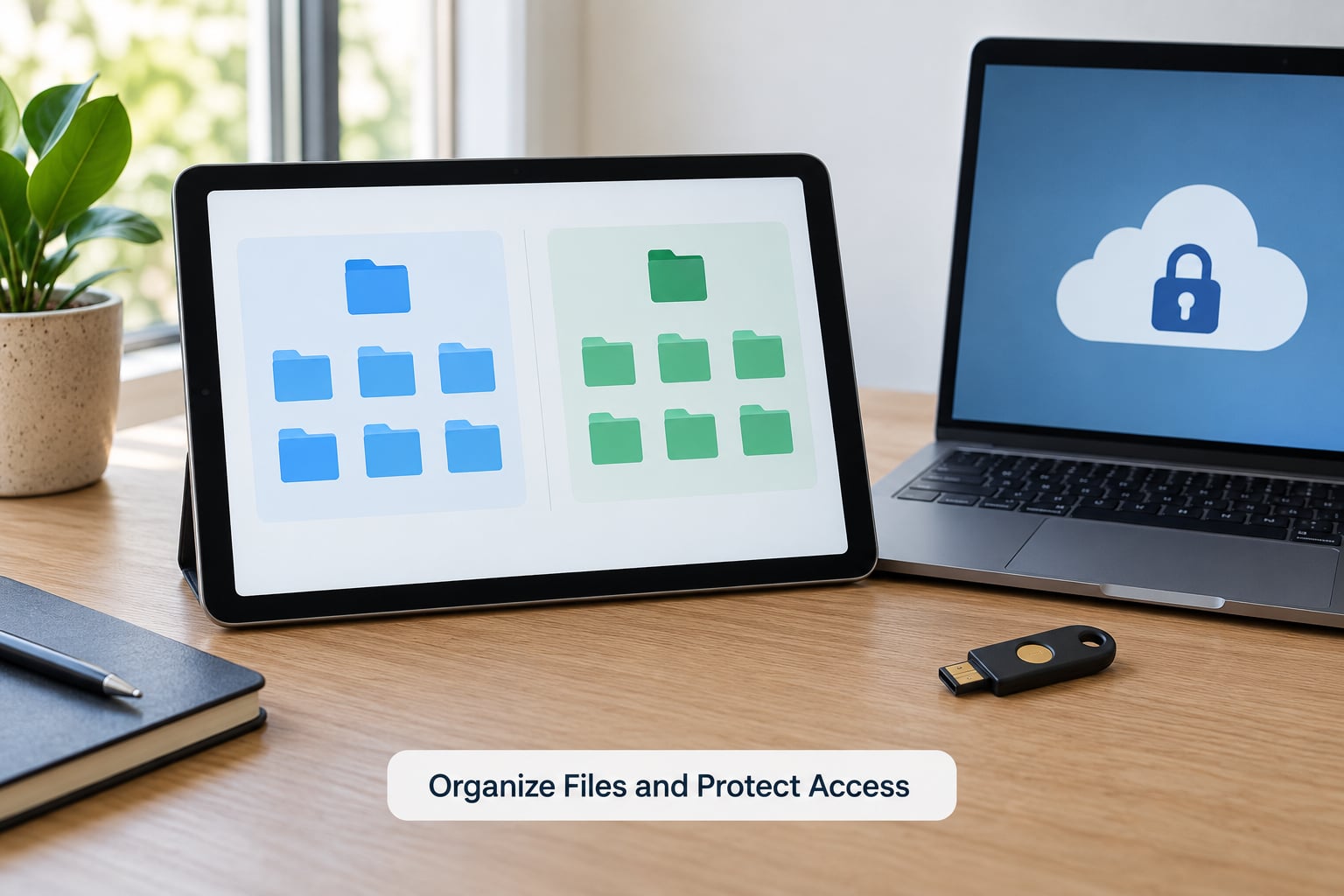
Keep it to three folders in your cloud drive: Work, Personal, and Archive. Everything work-related goes in Work. It sounds blunt, but mixing company files into a personal drive is the fastest way to run into trouble when you hand the tablet back or sell it.
On access, set a strong passcode, enable biometric unlock, and turn on two-factor authentication on the work accounts that offer it. On iPadOS check Settings, then Face ID and Passcode for the auto-lock delay and the Erase Data option after ten failed attempts. On Android, Settings, then Security, then Auto lock, and look for the remote wipe option under Find My Device or your work profile.
If your employer hands you a managed device, install their portal and let it profile the tablet before you add anything else. On Android that means a work profile alongside your personal one, with its own apps and its own storage. On iPadOS, managed apps install into their own guided folder.
Then verify: lock the screen, wait past your auto-lock delay, and confirm it asks for a passcode. That single check tells you the device is secured when you walk away.
6. Build a Distraction-Free Work Routine
A tablet sits one tap from every game and every shopping app you own, so the routine has to be deliberate rather than willpower-based.
Start with focus modes. iPadOS has Focus modes you can schedule per calendar event, and Android has Do Not Disturb with a schedule. Turn off badge counts for social apps so a red number never pulls your eye mid-sentence.
Keep two browser profiles or, better, two separate accounts: work and personal. It removes the temptation to open a personal tab beside a client document and stops you syncing personal files into a work folder.
A workable shape: a five-minute start where you check calendar and inbox and pick three tasks, one mid-morning block with notifications fully off, a short walk between calls, and a two-minute finish that saves and files everything. Tablet work goes wrong when calls stack up, not when typing is slow.
7. Manage Battery, Connectivity, and Backups
Lower the screen brightness a little and turn on battery saver when you are reading rather than presenting; video calls use far more than document work. Keep a top-up charge in the middle of the day, and treat the tablet as a device you can top up rather than one you must plan around.
For connectivity, use home Wi-Fi by default and keep cellular as the fallback for bad broadband rather than the primary connection. Download the documents and slides you will present before the meeting so a dropped Wi-Fi does not take the whole thing down.
Backups matter more on a tablet than on a laptop, because most of your files already live in someone else’s cloud. Confirm that iCloud Drive or Google Drive is switched on, that your calendar and mail accounts are syncing, and that download folders are not the only copy of anything. Files you downloaded for offline reading exist on the tablet and nowhere else until you upload them.
8. Run a Full Workday Test
One honest day tells you more than a week of guessing. Follow your normal schedule and record four things: the total time you reached for the laptop, the calls where the audio or framing went wrong, the moments you wanted more than two windows open, and the time your battery ran low.
Fix what shows up. Missed windows means the tablet is your backup, not your main machine. Bad call audio means buy the earbuds. Extra windows means learn split screen properly or add an external monitor over USB-C.
Keep the laptop as the primary computer when your day is split evenly between heavy production work and everything else. A tablet earns its place fastest when it is the device you always have with you.
Common Mistakes
Almost every failed tablet work setup comes down to one of these, and each has a tell you can spot early.
- Using the on-screen keyboard all day. Pair a Bluetooth keyboard or keyboard case before you start writing. Warning sign: you are typing long messages one-handed with a fingertip.
- Skipping multifactor authentication. Turn on two-factor on the work account and store the codes in the same app. Warning sign: your only recovery method is a code sent to the device you are locked out of.
- Never testing app permissions. Open each app once and answer the camera, mic, and files prompts deliberately. Warning sign: a call starts and nobody can hear you.
- Trusting unstable Wi-Fi. Download the day’s documents in advance and keep cellular as backup. Warning sign: presentations stall or drop files mid-meeting.
- Ignoring storage limits. Check used storage monthly and clear downloads. Warning sign: apps start closing tabs or refusing to save.
- Mixing personal and work data. Keep separate accounts and a single work folder in cloud storage. Warning sign: personal files sync into a shared company folder.
- Propping the tablet flat on the desk. Use a stand that raises the top of the screen toward eye level. Warning sign: you finish the day with a stiff neck and sore shoulders.
Two more worth naming. Screen sharing from a tablet is fussier than from a laptop, so test it once with the app you will actually present in. And if your employer issued you the tablet, none of these choices are yours to make; follow their policy rather than this guide.
Frequently Asked Questions
Can I use a tablet instead of a laptop for working from home?
For email, documents, spreadsheets, meetings, research, PDF review, and note-taking, yes, comfortably. A tablet paired with a keyboard and stand handles a normal office day and lasts longer on a charge than most laptops. It does not replace a laptop for heavy spreadsheet models, professional video or photo editing, CAD, dense coding work, or multi-monitor setups. If your day is mostly production work, run the tablet alongside your laptop rather than instead of it.
Do employers allow me to use a personal tablet for work?
It depends entirely on your employer’s policy, and asking IT is the only reliable answer. Many companies allow a personal device for email and calendar but not for storing company files outside their tools. Some require a managed work profile or a VPN before any work data goes on the device. Get the answer in writing, then follow it exactly rather than guessing.
Which tablet is best for Microsoft Office and video calls?
Any current iPad or Android tablet from a major maker runs Microsoft 365 and Zoom, Meet, or Teams without trouble. What matters more is screen size: 11 inches or larger makes split-screen work usable, and a device with cellular keeps you connected when your home internet is not. Budget for a keyboard and wired earbuds before upgrading the tablet itself, because those change the experience more.
How do I keep work and personal files separate on a tablet?
Use separate accounts and one dedicated work folder in your cloud storage. On iPadOS, add the work account in Settings, then Accounts and keep company files inside the work drive. On Android, ask IT to install a managed work profile so company apps and data sit alongside your personal ones without mixing. Never download company documents into your personal folder, because that is the copy that gets left behind.
What should I do if my tablet cannot join a work video call?
Work through it in order: confirm the tablet’s date and time are set automatically, since a wrong clock breaks meeting links; then update the meeting app; then close other apps holding the camera or microphone; then test on Wi-Fi with cellular off and the reverse. If audio fails but video works, use wired earbuds, which fix microphone echo immediately. If nothing works, join from your laptop and report it to IT the same day.
Conclusion
Start with step one: pick one realistic day, use the tablet for the whole of it, and write down everywhere it fell short. That list tells you whether to treat it as your main machine or your most portable one. Whatever the verdict, the next thirty minutes go to the setup checklist, the earbuds, and the passcode, in that order.