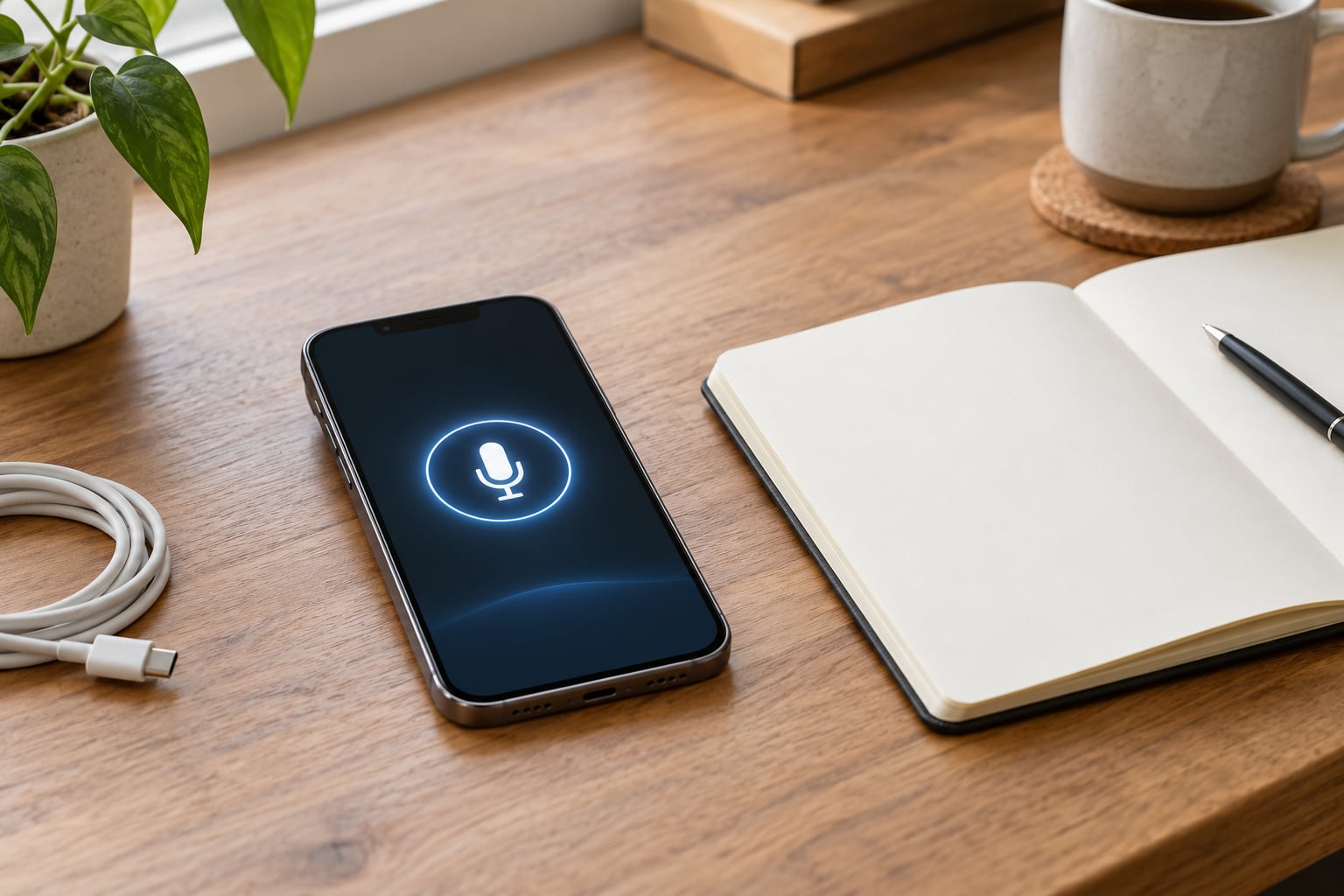
To use voice typing on Android, open any app, tap into a text field to bring up the on-screen keyboard, then tap the microphone icon and start talking. That is the whole sequence, and it works the same on Pixel phones and Galaxy phones once you know which keyboard is active.
One catch catches nearly everyone. Android does not have a single voice typing feature. It has three separate engines, and which one you get depends on your phone brand, your default keyboard, and sometimes the app you are typing into. That is why advice written for one device reads like nonsense on another.
By the end of this guide you will know where the mic key sits on your phone, how to grant it permission, how to add punctuation without shouting commands at your handset, and what to do when the button disappears.
Table of Contents›
- What You Need
- Check these before you start
- Step-by-Step
- Check That Voice Typing Is Available
- Start Voice Typing in Any Text Field
- Use Voice Typing in Android Apps
- Improve Recognition and Add Punctuation
- Change Voice Typing Language or Keyboard
- Common Mistakes
- The microphone icon is missing
- The mic is there but nothing is heard
- It stops after a word or a few seconds
- Wrong language or garbled output
- It is greyed out in one app only
- Accuracy dropped recently with no hardware change
- What about privacy
- Frequently Asked Questions
- Does voice typing on Android work without the internet?
- Why is the microphone button missing from my Android keyboard?
- Can I use Android voice typing with my phone locked?
- Is Android voice typing private, or are my recordings saved?
- How do I use voice typing on a Samsung phone?
- Conclusion
What You Need
A working microphone, which every phone has, and a text field open somewhere. Beyond that, the real prerequisites are permissions and an engine you have actually turned on.
Check these before you start
- Microphone access for your keyboard, granted as Allow only while using the app
- Google Play Services up to date, since it carries the speech recogniser
- A downloaded language pack if you want dictation without a connection
- Enough battery to keep the screen awake, roughly a third of a charge for a long note
- A keyboard or dictation app that includes a mic key
You have three ways to dictate, and they are not the same thing.
The built-in keyboard route means tapping the mic on whatever on-screen keyboard you already use. Samsung phones ship with Samsung Keyboard and usually Gboard as well, so you can have two installed at once. Only the active one gets your taps.
Google Voice typing is the recogniser inside Gboard, which also works on Samsung phones and most other Android devices. It has the widest language list and the most editing commands.
A third-party keyboard such as a privacy-focused offline keyboard swaps the engine entirely. That is a bigger change, and only worth it if accuracy is the actual problem.
Step-by-Step
Check That Voice Typing Is Available
The microphone key sits in the bottom row of the on-screen keyboard, usually beside the spacebar or on the far right. On Gboard it is a small microphone icon. On Samsung Keyboard it is a microphone too, but positioned differently and sometimes tucked under a toolbar.
If you cannot see it, look for a globe key on the left of the bottom row. Press and hold that to switch keyboards, and check which one has a mic.
Signs the feature is switched off rather than missing. Some keyboards grey the icon out until you grant microphone permission, and some hide it entirely in a secure field such as a password box or a banking app. There is no toggle that brings voice input back inside those secure fields.
Start Voice Typing in Any Text Field
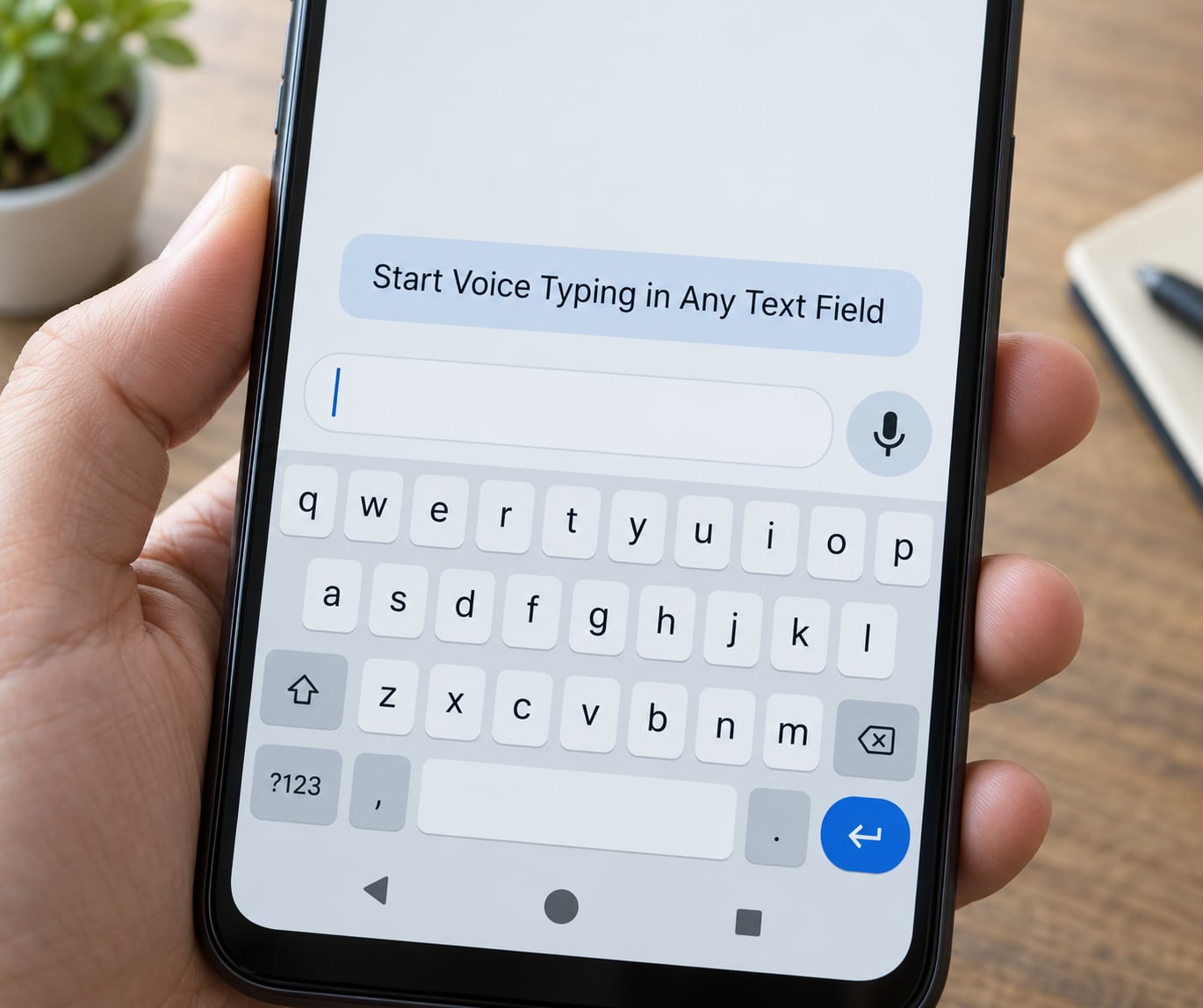
Tap the text field you want, then tap the microphone icon on the keyboard. The first time, Android shows a permission prompt asking for microphone access, so choose Allow only while using the app. The microphone tone plays, a red or blue waveform appears, and the words Speak now show above the keyboard.
Start talking immediately. Your words appear as you speak, which means you can read along and catch a mistake before it becomes a sentence.
To finish, tap the microphone icon again. Tapping pauses and resumes, which lets you think without deleting what you have already dictated.
If nothing appears after the tone, the engine may be waiting for a word it recognises as speech. Say a single clear word first, then continue. On Pixel 6 and newer, Assistant voice typing listens a little longer before it commits, so a short pause is fine there.
Use Voice Typing in Android Apps
The sequence is identical in Messages, Gmail, WhatsApp, Slack and Google Docs. Tap the field, tap the mic, talk, tap the mic again.
A few apps behave differently. WhatsApp has its own voice note button for audio recording, so make sure you tap the keyboard mic rather than the WhatsApp mic. Chrome and Gmail put dictation in the address bar the same way. Some apps that ship a custom keyboard, including Slack and several note apps, hide voice input behind their own settings.
For long notes, dictate into Google Keep or Samsung Notes and clean up afterwards. It is faster than typing a page of structure, and you can fix the awkward phrasing in one pass instead of character by character.
Improve Recognition and Add Punctuation
Recognition improves when you speak in short, complete phrases and pause at sentence ends. Do not slow down or exaggerate your delivery. A long pause makes the engine assume you finished, and some versions cut out after one.
Auto punctuation handles most of the work if it is on. You will find it under the keyboard’s settings, usually labelled Auto punctuation. With it enabled, a longer pause becomes a full stop.
When auto punctuation misses, say the punctuation word out loud. These work across most Android keyboards:
- Period, question mark, exclamation point, comma, semicolon, colon
- New line, next line, or new paragraph for a break
- Delete, delete last word, clear last sentence, clear all
- Send, for handing the finished message to the app
- Smiley face, heart, or any emoji name to insert it
For proper nouns, company names and acronyms, add them to Gboard text replacement. Create a shortcut such as wtk for your company name, and the engine writes it correctly every time instead of guessing.
Always read the transcript before sending. It is the only step that reliably catches a mangled name or a duplicated word.
Change Voice Typing Language or Keyboard
Open Settings, then search for keyboard to save hunting through menus. Menu labels shift with every Android release and with each manufacturer’s skin, so the Settings search bar is the shortest reliable route.
To change the dictation language, go to Settings, then System, then Languages and input, then On-screen keyboard, then Gboard, then Voice typing, then Languages. Pick the language you speak. On Samsung devices, the path is Settings, General management, Samsung Keyboard settings, then Voice input.
To change which keyboard is active, go to Settings, System, Languages and input, then On-screen keyboard, then pick from the list of installed keyboards.
To download an offline language pack, open the same Gboard voice typing settings, choose Offline speech recognition, then Download offline speech files and select your language. Samsung markets the same idea as faster voice typing. Offline works without signal, in a lift or a basement, and keeps your audio on the phone.
For Assistant voice typing on a Pixel 6 or newer, open the keyboard and long-press the globe key until the Assistant voice typing screen appears. It requires the Gboard language to match your phone language, so change it in Languages and input first if it refuses to open.
Common Mistakes
The microphone icon is missing
Usually the microphone was killed system-wide. Pull down Quick Settings and check the microphone tile, because turning that off disables voice typing everywhere, including the phone dialler. If the tile looks off, tap it once to restore access.
On Samsung phones, also check which keyboard is actually running. Users often configure Samsung Keyboard and then type into Gboard, so changes appear not to stick. Set it deliberately under Settings, General management, Keyboard list and default.
The mic is there but nothing is heard
Check microphone permission for the keyboard at Settings, Apps, then the keyboard name, then Permissions, then Microphone, and set it to Allow only while using the app. Android 15 and later can revoke this permission automatically after a restore from backup, so re-grant it after any device switch.
Background noise is the other half of this. A fan, a road, or music with lyrics will produce nonsense text because the engine cannot separate voices. Move somewhere quieter, or hold the phone closer to your mouth.
It stops after a word or a few seconds
A long silence makes the engine think the turn is over. Keep talking in shorter bursts, and tap the mic to resume rather than pausing for several seconds. If it still cuts out, an update or cache glitch is the usual culprit. Clearing the keyboard cache, not its data, and turning off multilingual typing fixes most stubborn cases reported by users.
Wrong language or garbled output
Two active input languages confuse recognition. Turn off multilingual typing, confirm the voice typing language matches what you are speaking, then try again. Garbled text that appears in the wrong language almost always traces back to multilingual typing being switched on.
It is greyed out in one app only
Password fields, PIN boxes and most banking apps are secure text fields. Android blocks microphone input in them by design, and no setting changes that. Type those by hand, then use dictation for everything around them.
Accuracy dropped recently with no hardware change
This is common after a recogniser update. Clear the keyboard cache, update Play Services, re-download your offline language pack, and run a short test in a quiet room to rule out noise. Users report long-standing setups turning less accurate without any hardware change, and the cache reset usually brings them back.
What about privacy
Two different answers. With offline speech recognition enabled, audio is processed on the phone. Without it, audio is sent to the cloud for recognition. You can review and delete anything stored by opening Google Account, then Data and privacy, then My Activity, and filtering for voice and audio activity.
Frequently Asked Questions
Does voice typing on Android work without the internet?
Yes, once you download an offline language pack. Open Gboard settings, choose Voice typing, then Offline speech recognition, and download the pack for your language. After that you can dictate in a lift or a basement with no signal. Offline packs take a while to download and use more phone storage. Accuracy is slightly lower than cloud recognition, so keep the online default for important messages.
Why is the microphone button missing from my Android keyboard?
Check the Quick Settings microphone tile first, because switching that off disables dictation across every app including the phone dialler. Next, confirm which keyboard is actually active, since Galaxy phones ship with Samsung Keyboard and Gboard both installed. Then check microphone permission under Settings, Apps, the keyboard name, Permissions, Microphone, and set it to Allow only while using the app.
Can I use Android voice typing with my phone locked?
Not while the screen is off or the phone is locked. Dictation runs inside the on-screen keyboard, so the phone must be unlocked and a text field open. What you can do instead is use a hands-free assistant command from the lock screen to send a message, or set a voice assistant shortcut in accessibility settings. That is separate from voice typing and works without unlocking.
Is Android voice typing private, or are my recordings saved?
It depends on which mode you use. With Offline speech recognition enabled, audio is processed on the device and does not leave the phone. Without it, audio goes to the cloud for recognition. Either way, listening only begins when you tap the microphone. To see and remove anything stored, open Google Account, Data and privacy, then My Activity, and filter for voice and audio entries.
How do I use voice typing on a Samsung phone?
Samsung Keyboard has its own voice input. Go to Settings, General management, Samsung Keyboard settings, then Voice input and turn it on, then tap the microphone key on the keyboard and start talking. If you would rather have Google’s recogniser instead, install Gboard and set it as the default under Settings, General management, Keyboard list and default. Do not configure both, or your changes will appear not to stick.
Conclusion
Voice typing is a four-step job: open a text field, tap the microphone, talk, tap again to stop. Beyond that, the only thing that really matters is knowing which engine your phone is running, because Gboard, Samsung Keyboard and Pixel Assistant each behave differently.
When recognition fails, work through it in order. Quick Settings microphone tile, then microphone permission, then the default keyboard choice, then a cache clear. Set the language to match what you are speaking, speak in short complete phrases with a pause at the end of each sentence, and read the transcript before you hit send.
Menu labels move around between Android releases, so search for the feature name in Settings rather than following a path from a different phone. It saves more time than any other trick here.