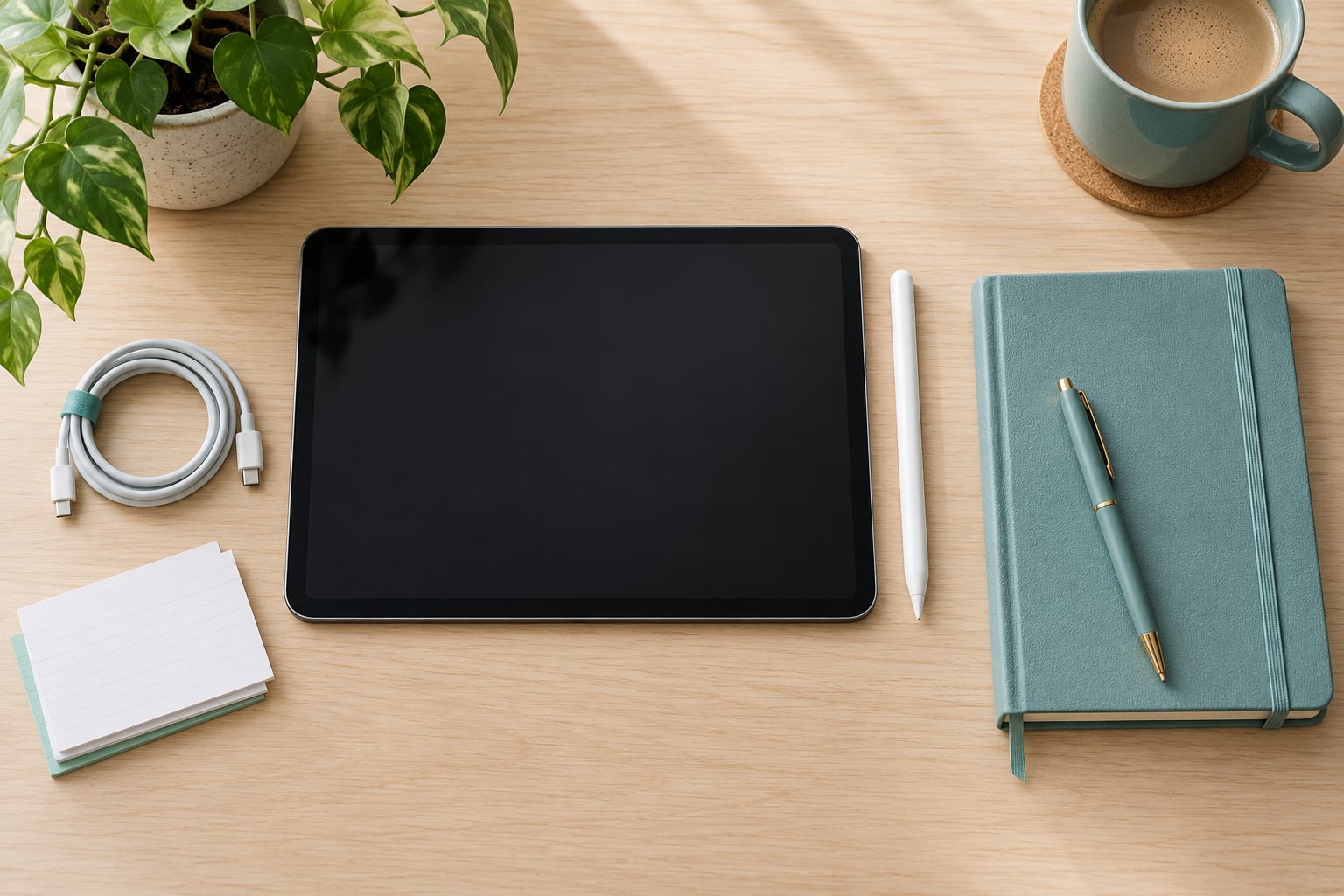
A new tablet takes about 45 to 90 minutes to set up properly, and it is not hard. This guide walks through how to set up a new tablet for a student: first boot and account sign-in, a passcode and two-factor authentication, the apps a term actually needs, cloud backup, and focus modes that survive a full lecture.
Do the security part on day one. A tablet set up casually turns into a distraction machine within a week, and one lost or stolen without activation lock and cloud sync can take a term of notes with it.
Menu names below match current iPadOS, Android and ChromeOS. Exact wording shifts a little between releases and manufacturers, so if a label differs, look for the closest match rather than backing out of setup.
Table of Contents›
- What You Need Before You Start
- How to Set Up a New Tablet for a Student: Step by Step
- Sign In and Complete the Basic Setup
- Install the Apps a Student Needs
- Set the Tablet Up for Focused Study
- Secure Accounts, Privacy, and Parental Controls
- Choose Accessories and Improve Comfort
- Test the Setup and Create a Backup Routine
- Common Setup Mistakes and How to Undo Them
- Frequently Asked Questions
- Do I need a tablet for school if I already have a laptop?
- What tablet storage capacity should a student choose?
- Can I use my tablet for taking notes in class?
- How do I keep school notifications separate from personal apps?
- What should I do if my tablet cannot connect to school Wi-Fi?
- How often should a student back up a tablet?
- Conclusion
What You Need Before You Start
Most setup sessions stall because one item is missing when the setup wizard asks for it. Gather these first and the whole process goes in one pass.
- The tablet and its charging cable. Some models ship with a low-wattage brick that charges painfully slowly overnight.
- An Apple ID or Google account you control, ideally one you have used before. Create it on a computer if you can, so recovery details are already saved.
- Your school email address and password, plus logins for the learning platform your school uses.
- Wi-Fi name and password for home. School Wi-Fi often needs a browser sign-in, which the setup wizard cannot do for you.
- A stylus and keyboard case if you plan to write notes or type essays.
- About 30 GB of free cloud storage or the school-provided equivalent, so backups have somewhere to land.
- A computer nearby if you are moving from an old tablet. Some transfers only start from a browser.
Write the account passwords down somewhere real, not in a notes app on the tablet you are setting up. Students have lost more time to forgotten passcodes than to any app problem.
How to Set Up a New Tablet for a Student: Step by Step
Sign In and Complete the Basic Setup
The first boot is a language and region wizard, then a Wi-Fi screen, then an account prompt. Choose a device name you will recognise on a crowded network later, something like Study iPad or Alex Tablet, not a default string of characters.
Sign in with the personal Apple ID or Google account you already own rather than a school account. School accounts are often wiped or reset each year, and anything tied to them goes with the reset. Add the school email as a secondary address once you are in.
Finish the wizard, then install the operating system update before anything else. On iPadOS it is Settings > General > Software Update; on Android, Settings > System > System update or Settings > About phone > System update; on ChromeOS, the update runs in the background and your device restarts on its own. First updates are large and slow, so plug in and leave it for 20 minutes.
Here is where the three platforms diverge most:
| Task | iPadOS | Android tablet | ChromeOS |
|---|---|---|---|
| Primary account | Apple ID | Google account | Google account |
| Passcode menu | Settings > Face ID & Passcode | Settings > Security > Screen lock | Settings > People |
| Lost-device tracking | Find My | Find My Device | Find My Device |
| Backup switch | Settings > [name] > iCloud > iCloud Backup | System > Backup, or Google backup | Settings > Backup and sync |
| Focus mode | Focus > Do Not Disturb | Digital Wellbeing > Focus mode | Do Not Disturb in quick settings |
| Best fit for | Note-taking and reading | Budget flexibility and stylus choice | Typed coursework on a keyboard |
Install the Apps a Student Needs
How to set up a new tablet for a student comes down less to app count and more to which categories are covered. Install by category rather than app by app, and you avoid the subscription trap of five note apps that each want a monthly plan.
- School email. Apple Mail or Gmail, signed in with the school address. Turn on the school account first so notifications are grouped separately.
- Cloud storage. iCloud Drive, Google Drive or OneDrive. Pick the one your school already uses; mixing three sync services is how duplicate-file confusion starts.
- Note-taking. One app, chosen for your platform: Notability or Goodnotes on iPad, Noteshelf or Samsung Notes on Android, or the built-in stylus notebook on ChromeOS. Its companion app on your laptop is what makes notes worth having.
- PDF reading and annotation. The system PDF viewer handles most coursework. Files from your browser go straight into it on every platform.
- Video calling. Zoom, Google Meet or Teams, depending on what your instructors schedule. Sign in and run a test call before term starts.
- The learning platform. Google Classroom, Canvas, Moodle or Blackboard. This often needs a school login plus a security key or Duo prompt on first use.
- Productivity. Microsoft 365 Education and Google Workspace for Education are free for enrolled students with a school email address. That covers Word, Excel, PowerPoint, Docs and Slides at no cost, which students consistently say is the first thing to check.
Then delete what you will never use. New Android tablets often arrive with a dozen pre-installed vendor apps that cannot be uninstalled; disabling them in Settings > Apps frees background work even when the icon stays. Streaming apps and games can go in a folder on the last page, not the home screen.
Set the Tablet Up for Focused Study
Organization is what separates a study tool from an entertainment device. Give every course a folder rather than scattering 40 icons across three pages.
Build one folder per term or per module, move each class’s apps into it, and put the two or three apps you use every single day in the dock. It is a small thing, but a student who opens lecture notes in two taps writes more than one hunting through pages.
Next, control notifications. On iPadOS open Settings > Notifications and give each app its own setting, so a group chat cannot interrupt a lecture while the calendar shows class times silently. On Android, Settings > Notifications does the same job, and Digital Wellbeing lets you set per-app quiet hours. On ChromeOS, right-click a notification to mute that app for the term.
Then schedule focus time instead of relying on willpower:
- Do Not Disturb during classes. Schedule it for your timetable rather than toggling it by hand.
- A downtime schedule overnight. iPadOS Screen Time and Android Digital Wellbeing both let you set a bedtime range where only calls and alarm apps work.
- An exam-week mode. One profile or Focus mode that hides social apps, keeps only notes, calendar and the LMS, and blocks web browsing except your school domains. Turn it on for the week and off after.
Reading and accessibility settings matter more than most guides admit. Bump text size one or two steps if you read PDFs at length, turn on captions for every video app, and use eye comfort or night shift settings in the evening so late revision does not wreck your sleep. Text-to-speech and dictation turn a lecture recording into something you can search later.
If you write left-handed, check the stylus settings for palm rejection before the first lecture and turn it on. A resting palm on the screen interrupting every word wastes class time in a way nothing else does.
Secure Accounts, Privacy, and Parental Controls
This is the layer most students skip, and it is the one that costs the most when something goes wrong.
Set a real passcode, not the four-digit PIN, because a four-digit PIN falls to a determined sibling in seconds. Then enable biometric unlock for convenience and two-factor authentication on the Apple ID or Google account for actual security. Two-factor means a code to a second device; set up the backup method before you need it, not during a lost-device panic.
Turn on device tracking right away. Find My on iPadOS and Find My Device on Android show the location, let you lock the tablet remotely, and allow a wipe. Note the serial number and IMEI in a safe place; insurers and police ask for it, and you cannot read it from a locked screen in a hurry.
Review app permissions next. Settings > Privacy & Security > Location Services (iPadOS) and Settings > Apps > Permissions (Android) list which apps can see your location, camera and microphone. Revoke the ones that have no reason to have them. Review web content filters and app restrictions at the same time.
For school-age and younger students, add the platform’s supervision layer: Screen Time with a parent passcode on iPadOS, or Family Link on Android. Set app categories by allowance rather than blocklisting, since students find workarounds to blocks and give up on them within days. Agree on a review point each term, and loosen limits as the student earns it.
School-issued tablets are a different case. If your tablet is managed through device management, restrictions, VPN profiles and app installs are set by the district. Do not fight those settings; read the school’s acceptable-use notes, and keep a personal device for anything blocked on it.
Choose Accessories and Improve Comfort
Buy accessories after the software is set up, not before, so you know which ports and pairing you actually need.
A keyboard case is the single biggest quality-of-life upgrade for essay writing, and on ChromeOS it turns a good tablet into something close to a laptop. A stylus matters if you handwrite; pair it, update its firmware, and confirm palm rejection works. A case with a folio stand saves your neck during long reading sessions. A screen protector costs little and removes the constant worry about a cracked screen in a bag full of textbooks.
Headphones with a microphone are essential for online classes in shared housing. A second charger or a power bank keeps a full lecture day from ending at 4 percent.
Test each one while you still have the box: type a full sentence on the keyboard case, write two lines with the stylus and check the palm rejection, confirm the headphones appear in the system output menu. Problems found in the first week are exchanges; problems found in week three are arguments.
Test the Setup and Create a Backup Routine
Treat the tablet like software and try to break it before class does. Work through this list in one sitting:
- Turn Wi-Fi off and on, then reconnect. Test at a cafe or a friend’s place, not just on home Wi-Fi.
- Play a video with sound, then record a short voice memo and a short video.
- Type a paragraph on the on-screen keyboard, then on the external one if you have it.
- Write two lines with the stylus and rest your palm on the screen.
- Sign into the LMS, open an assignment, and submit something testable.
- Download a PDF in airplane mode and confirm it opens offline.
- Split two apps side by side and check you can copy text between them.
- Lock the screen, then unlock it with the biometric you enrolled.
Then set up backup. Turn on automatic encrypted backup: iCloud Backup on iPadOS, Google backup on Android, or automatic sync on ChromeOS. Confirm the backup timestamp actually moves after you charge the tablet overnight, because a backup switch that is on but broken is worse than no backup at all.
For notes, sync matters more than backup. Whichever note app you chose should have a desktop or laptop counterpart signed into the same account, so a lost tablet means logging in on another machine rather than losing a term’s work. Test that restore path once, on purpose, before you need it.
Common Setup Mistakes and How to Undo Them
Restoring from a backup wiped the device and hit activation lock. An old backup can carry the previous owner’s Apple ID or Google sign-in, and the tablet then demands a password nobody has. Fix: erase all content and settings, then set up fresh from the wizard. This is the main reason to start new rather than restore.
The setup wizard will not skip an account sign-in. Tablets designed for cellular networks often require an account before finishing setup. Fix: connect to any working Wi-Fi, or on a cellular model complete the sign-in and remove the SIM tray app afterwards. There is no supported bypass.
Wi-Fi connects but shows no internet. That is a captive portal, common at schools, cafes and airports. Fix: open any browser and accept the terms page on the network you are already joined to, then reopen the app you needed.
Skipped the update, or set up everything before updating. An old build hides settings and breaks app installs. Fix: run the update, restart, then re-check the menus named in this guide.
Storage full within weeks. Lecture recordings and slide PDFs add up fast. Fix: check usage under iPadOS Storage or Android Storage, delete finished semesters, and enable automatic offload so unused apps free space while keeping their documents.
Battery dies mid-lecture. Fix: lower brightness, turn off background refresh and location for apps that do not need it, and keep a charger in the bag. A full day needs more headroom than the box suggests.
Focus settings got switched off within a week. Fix: schedule the Do Not Disturb window for your whole timetable, put the social apps in a folder on the last page, and make the exam-week mode a habit rather than a decision.
Notes did not transfer from the old tablet. App logins often do not move even when notes do, and chat histories usually do not move at all. Fix: open the note app on both devices and check what arrived, then export anything missing as PDF before wiping the old tablet.
Text too small to read comfortably. Fix: raise display text size one or two steps, turn on bold text, and use full-screen reading in split view rather than a squeezed PDF pane.
Frequently Asked Questions
Do I need a tablet for school if I already have a laptop?
Usually not, unless your courses need handwriting, a stylus or reading long PDFs. Most students end up doing typed coursework, spreadsheets and code on a laptop, and using a tablet for lecture notes, reading and video classes. If your program already assumes a laptop, buy the tablet only if you know which note-taking or reading task it replaces.
What tablet storage capacity should a student choose?
128 GB is workable if you lean on cloud storage and delete finished semesters. 256 GB removes the constant cleanup, which matters when lecture recordings, slides and scanned PDFs stack up in a term. Check whether the model supports microSD expansion, and treat free space as study space rather than somewhere to hoard downloads.
Can I use my tablet for taking notes in class?
Yes, and it is one of the strongest reasons to own one. Add a stylus, enable palm rejection, and choose a note app with a desktop counterpart so your notes sync to a computer. Practice for ten minutes before the first lecture so writing, erasing and page navigation feel automatic when the tutor is already talking.
How do I keep school notifications separate from personal apps?
Give each app its own notification permission instead of using one blanket setting. Then set a Do Not Disturb schedule that matches your class timetable, and put social apps in a folder on the last home screen page. On iPadOS use Focus modes; on Android use Digital Wellbeing quiet hours and per-app muting for the rest of the term.
What should I do if my tablet cannot connect to school Wi-Fi?
School networks usually use a captive portal, so the tablet shows as connected with no internet. Open a browser on that network and complete the sign-in page, then reopen the app you needed. If that fails, forget the network and rejoin, confirm the date and time are automatic, and ask IT whether the device needs to be registered on the network first.
How often should a student back up a tablet?
Turn on automatic backup and let it run daily, then confirm the timestamp moves after an overnight charge. For note apps, keep desktop sync active so a lost tablet means signing in on another machine rather than losing work. Test a restore once before exam season, because an untested backup is only a hopeful one.
Conclusion
Start with the boring part: update the tablet, sign in to your own account, set a real passcode, turn on two-factor authentication and Find My, and confirm the backup timestamp moves. Then install one app per category, including the free education-licensed Microsoft 365 and Google Workspace tiers, and build one folder per course.
Next, schedule Focus or Do Not Disturb for your timetable, set reading and caption preferences, and pair the stylus to check palm rejection. Run the self-test once, end to end, before classes begin. Twenty focused minutes now saves weeks of friction later. This guide is current as of 2026 and reads the same on iPadOS, Android and ChromeOS.