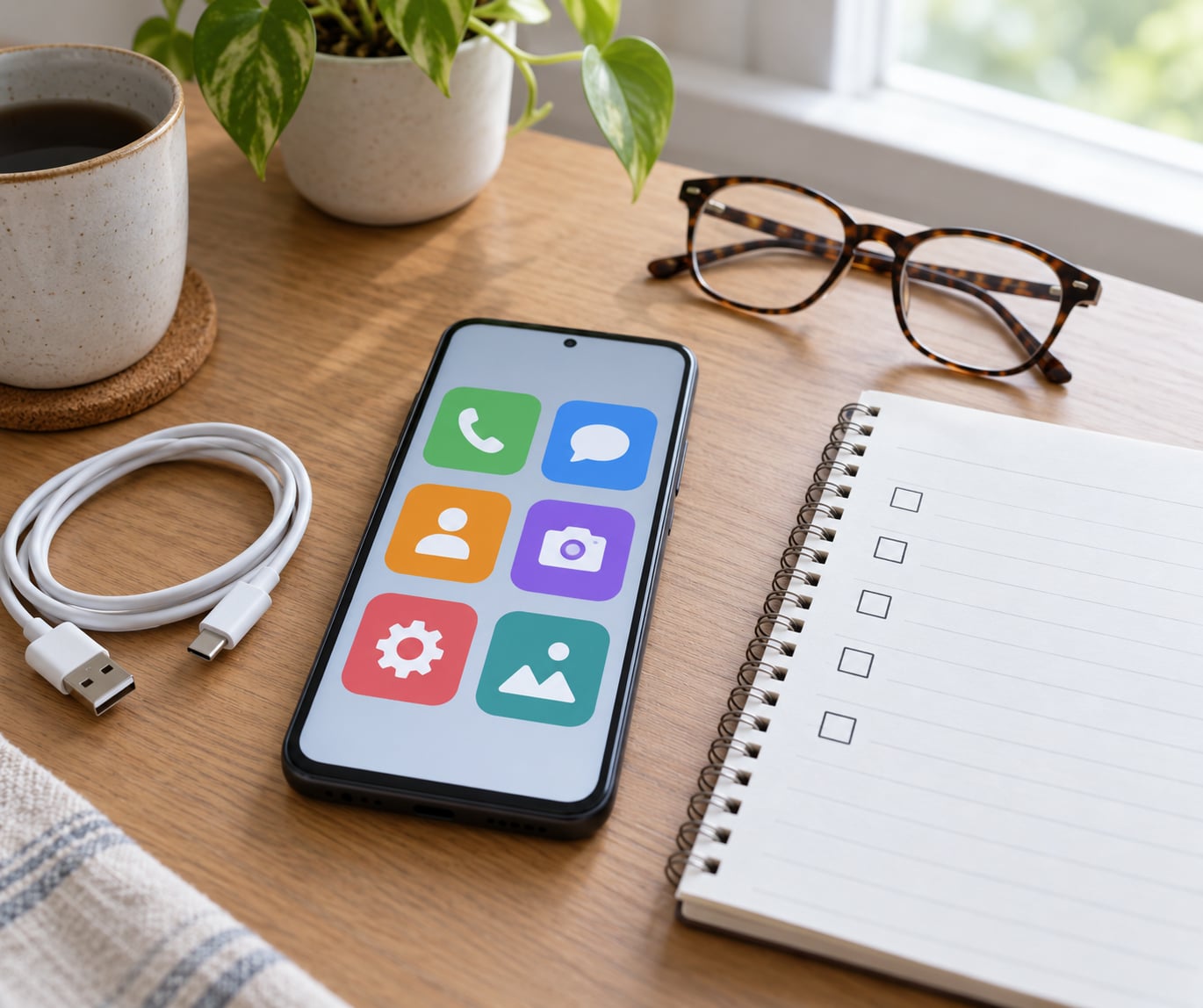
A simple home screen for seniors is one page holding six to eight very large buttons: phone, contacts, messages, camera, photos and a shortcut straight to you. Bigger text, higher contrast, no swipe gestures, and a lock that stops it all changing by accident. You set it up, they use it, and the job takes about half an hour on either an iPhone or an Android phone.
The screen size is rarely the real problem. A phone can have the largest icons available and still be unusable, because what confuses people is the number of choices and the fear that one wrong tap deletes something. Fix the choices first, then the size.
Do it in one sitting, on the phone, with the owner sitting next to you if that is possible. Menu names shift between software versions, so work from the phone in front of you rather than from a list on paper.
Table of Contents›
- What You Need
- Step-by-Step: Build a Simple Home Screen for Seniors
- Choose a Clean Starting Layout
- Increase Text and Touch Sizes
- Keep Only the Essential Apps
- Add a Simple Help Shortcut
- Test the Home Screen
- Common Mistakes When Setting Up a Simple Home Screen for Seniors
- Frequently Asked Questions
- Is Assistive Access the same as Guided Access on an iPhone?
- Is there a senior mode for Android?
- What is the best launcher for seniors?
- How do I make iPhone icons larger?
- Can I remove apps my parent never uses?
- How do I turn senior mode off later, and can I set it up remotely?
- Start With the Main Screen
What You Need
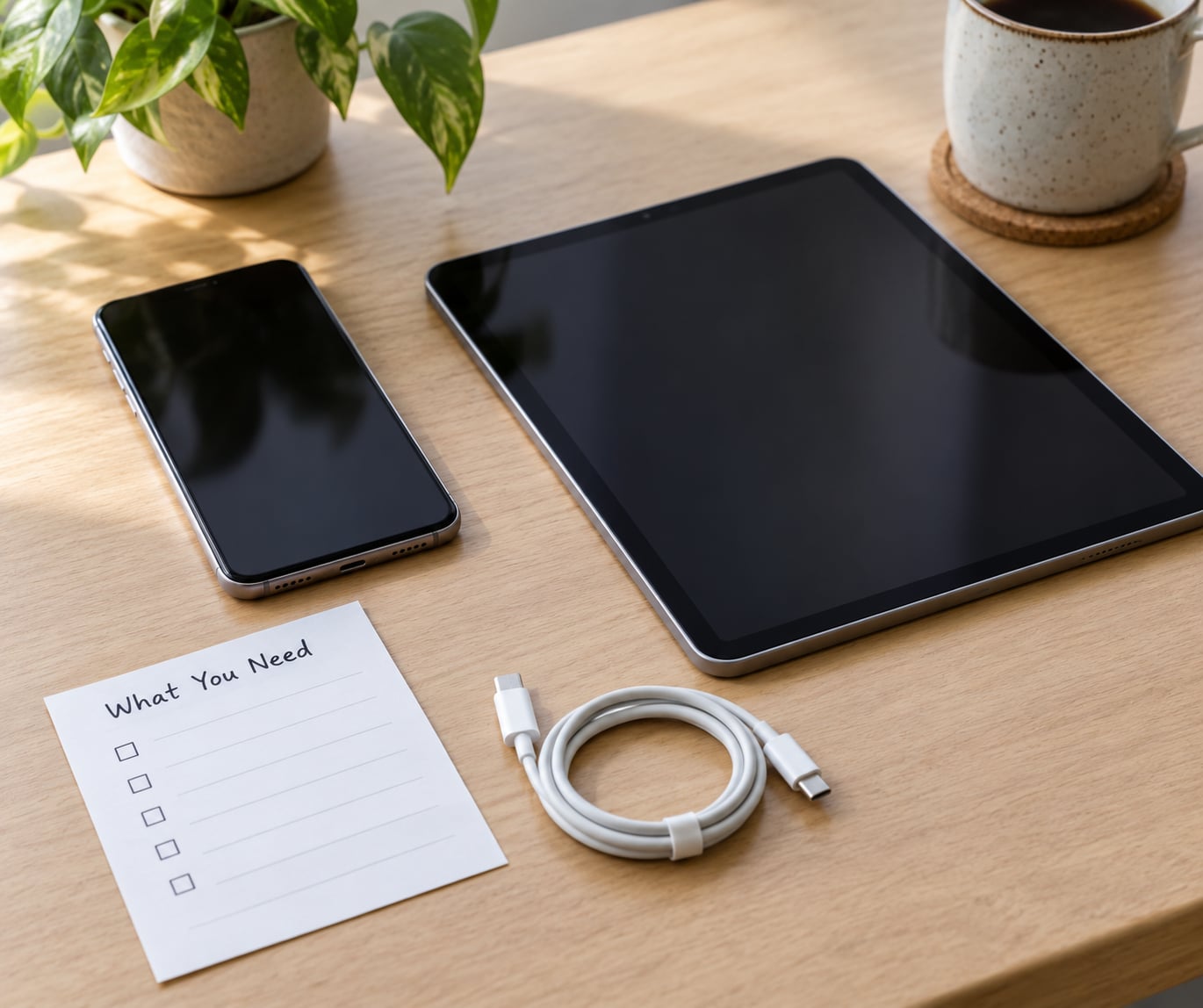
Gather these five things before you touch anything, because half the calls families get are about finding a password that was never written down.
- The phone and its passcode. You need the current passcode to change lock settings. If nobody knows it, that is the first problem to solve, and it is a bigger job than this guide.
- The Apple ID or Google account password and the email address it was made with. Required for guided access, a caregiver passcode, or anything that touches the account layer.
- A backup taken first. On iPhone, that is iCloud backup or a computer backup. On Android, it is Google backup, checked in Settings. This takes a few minutes and gives you a way back if a setting goes wrong.
- Thirty minutes, somewhere quiet, with the phone plugged into its charger.
- Optional: a second family member on a video call, so the person learning the new screen has someone else who knows how it works. If you are not in the same room, the video call is not optional in practice. It is how you confirm each change together instead of phoning afterwards to ask whether it worked.
Two things differ by platform and are worth deciding up front. iPhone has one native senior mode, Assistive Access, that changes the whole look of the phone, plus Guided Access, which is a single-screen lock. Android has no single equivalent; most people use Samsung Easy Mode on a Samsung phone, built-in display and font settings on a Pixel or other stock phone, and a launcher app for a deeper change.
Another early decision: whether to keep the phone the person already owns. Keep it if they video call on it, and if the family group chat lives there. Their contacts, photos and passwords are all tied to that phone, and a new device means redoing all of it.
Step-by-Step: Build a Simple Home Screen for Seniors
Choose a Clean Starting Layout
Start by cutting the first screen down to one page with nothing hidden, then decide whether the phone’s own settings are enough or whether you need a launcher app.
On an iPhone, the quickest route is a single page with no extra pages and no dock clutter. Open Settings, tap Home Screen and Dock, and look at what sits in the Dock. Phone, Safari, Messages and Camera are there by default. Leave Phone and Messages if you can, and move the rest off the page later. In the same menu, check that Search is set to off or filtered, because a search bar that opens on every swipe tends to swallow taps meant for the home screen.
On Android, open the app drawer and count what is installed. Most phones carry thirty apps the owner has never opened, several of them preloaded by the carrier or the manufacturer. The drawer is the thing that makes a stock phone feel busy, and hiding apps you cannot delete is often the single biggest improvement. On a Samsung phone, press the three-dot menu on the home screen and choose Hide Apps, then tick the ones to conceal. On a Pixel, long-press the app icon and choose Uninstall if it is removable, or use Settings and search for the app if the manufacturer blocks removal.
Widgets are the other half of the mess. A weather widget, a news feed and a calendar stack push everything else off the screen, and the news widget shows content the person did not ask for. Press and hold the widget, choose Remove, and delete each one. Leave nothing decorative on page one.
Now the honest comparison. The native modes are free, reversible and impossible to break. The launcher apps change the screen much more thoroughly, and most of them are Android only, which rules them out for an iPhone household.
| Option | Platform | What it changes | Lock-down | Reversible |
|---|---|---|---|---|
| Assistive Access (iPhone) | iPhone | The entire interface: five large buttons, one page, minimal system apps | Built in, with a passcode you control | Yes, one switch in Settings |
| Guided Access (iPhone) | iPhone | Nothing permanent; it locks the app or screen you are on | Very strong, triple-click to start | Yes, triple-click again |
| Samsung Easy Mode (One UI) | Samsung Android | Larger icons, larger text, higher contrast, simplified settings | Settings can be protected with a passcode | Yes, switch it off in Settings |
| Stock Android display settings | Android | Display size, font size and style, bold text | None of its own | Yes, drag the sliders back |
| Third-party senior launchers, such as BIG Launcher or Senior Launcher | Android only | Replaces the home screen with very large buttons, often with a photo contact list and an SOS button | Most include a caregiver PIN that locks the layout | Yes, uninstall and the stock screen returns |
One warning from people running these at home: an unlocked third-party launcher can leave someone more lost than before, because it is a layout they have never seen and nothing is where a phone habit tells them to look. Anyone on a Pixel forum will tell you the launchers they tried for an elderly relative seemed to confuse her more than the phone already did. If you install one, lock it with its caregiver PIN in the same sitting, or do not install it at all.
Increase Text and Touch Sizes
On an iPhone, open Settings, then Accessibility, then Display and Text Size. Turn on Larger Text, then Bold Text, and step through with the up arrows until the labels are readable at arm’s length in normal indoor light. Below that, Larger Accessibility Sizes stacks several size settings at once, which gets you further in fewer taps. Take the Magnifier off if it is on; it follows every tap and makes the screen jump around in a way that startles people. Zoom is worth leaving off until they ask for it.
Icon size lives somewhere else on iPhone. Go back to Settings, tap Home Screen and Dock, and under App Icons choose the larger option. That is the setting most guides bury, and it is the one that changes the picture rather than the words.
For hands that do not land accurately, go to Settings, Accessibility, Touch, then Touch Accommodations. Ignore Hold Duration and Vibration at first. Set Ignore Repeat to on so a shaky double tap does not register as two, and turn on Touch Explosion if taps keep missing. AssistiveTouch, also under Touch, adds a floating on-screen button for home, volume and other controls, which helps when the physical buttons have become hard to find.
On Android, the equivalent settings are split apart. Settings, Display, Display size and brightness handles icon size. Settings, Display, Font size and style handles text. On a Samsung phone you may also find Settings, Accessibility, Accessibility features, then Vision, where text size and contrast sliders sit together. Samsung users should check for Simple mode, sometimes labelled Easy mode in older One UI versions, under Settings and Accessibility. It enlarges icons and text, thickens the contrast and simplifies Settings in one move, which is why it is worth switching on before touching individual sliders.
Turn text bold wherever the phone offers it. Bold labels are the difference between a screen someone reads and a screen someone guesses at.
Keep Only the Essential Apps
Six to eight buttons is the target. Fewer than five and you are removing something they use; more than nine and you are back to the problem you started with.
- Phone. The button they will press fifty times a week. Put it top left, the same spot every time, so the muscle memory builds on one target.
- Contacts, with photographs. Names alone are useless for anyone with failing vision. A photo of the person is recognised faster than any text, and it survives memory loss better than a spelling. On iPhone, open the Phone app, tap Contacts, then add the contact, and put a photo in the contact card. On Android, you can add individual contacts to the home screen by opening Contacts, choosing a person, then Add to Home screen.
- Messages, and next to it the family group chat. If the family already coordinates on a group chat, it belongs on page one rather than buried three taps down.
- Camera, and a separate Photos button on Android. On iPhone the camera sits in the dock; on many Android phones it hides inside a swipe, which is one more thing to forget.
- Maps or the ride app they use. Leaving the house is one of the two things most people are still doing alone. Pin the one they actually use rather than the one you use.
- One button that reaches a person. That is the next section.
- Weather, if they ask for it daily. Otherwise it goes.
- A favourites folder, and nothing else. Put the browser bookmark, the medication reminder, the doctor portal, the newspaper. One folder, titled plainly, holds the rare things so page one stays quiet.
To move an app, press and hold its icon until it lifts, drag it to the position you want, and release. On Android, drag it to the top of the screen to move it out of the drawer onto the home screen. Delete anything nobody will admit to using, and take a screenshot of the finished page so you can rebuild it after a software update wipes it.
Add a Simple Help Shortcut
One button that reaches a person matters more than any icon size, and it should be the largest thing on the screen.
For a photo contact button, the cleanest method on an iPhone is to open the Photos app, find a clear picture of the person, tap Share, then Add to Home Screen, and give it their name. It opens a FaceTime call directly. On Android, open the contact, tap the video-call icon once so it offers Add to Home screen, or use a Shortcuts automation labelled Call Mum that triggers the call.
For a button that calls you, use a speed dial. On iPhone, open Phone, tap Favourites, add the number, and pull it to the home screen from there. On Android, add the number to a contact, open the contact, press the menu and choose Add to Home screen.
Label every button the way you would say it out loud: Call Anna, FaceTime Tom, Message Sarah. Avoid app names on the shortcut itself, so they see a person rather than an application.
Turn on a voice assistant as the hands-free fallback. On iPhone, say Hey Siri during setup and complete the setup prompts, then add a simple spoken contact name for you, like say Grandma to call Anna, in Settings, Accessibility, Voice Control, Customization. On Android, say Hey Google and make sure voice match is turned on for their voice specifically. Dictation also deserves a mention in their settings, since holding a button to type is hard work for anyone with a tremor.
Finish with the safety layer. On iPhone, open Health, tap the profile picture and Medical ID, and fill in the fields, including who to contact in an emergency. On Android, open Settings, Safety and emergency, and complete Emergency Information. Add two emergency contacts on both. Five minutes here is the best return on the whole half hour.
Test the Home Screen
Test it the way they will use it: hand them the phone cold, without explaining, and watch what they do first.
- Place a call. Without help, to the contact on the button you expect them to use. If they hesitate between two buttons, move the correct one to the top left and put the other one lower.
- Find a photo and send it to you. This tests the camera, the share sheet and the labelling all at once.
- Answer a message. The notification should read clearly at their reading size. If the preview is cut off, that is a sign to raise the text size once more.
- Open nothing else. The real test is whether they can get back to the home screen from wherever they end up, without you talking them through it.
- Try the help button and the voice assistant. Both should reach you the first time they are tried, not the third.
- Lock it. On iPhone, triple-click the side button to start Guided Access, and the same gesture to exit. That is the single most useful habit in this whole guide, because it is one gesture to protect the screen and one to undo it. On Android, Screen pinning is on by default: open the app they should stay in, tap the square in the navigation bar, then tap and hold the pin icon.
Write the passcode somewhere the family can find it, not on the phone itself. A lock the family cannot open is a locked phone, and a lost passcode is a factory reset.
Common Mistakes When Setting Up a Simple Home Screen for Seniors
Almost every problem here has the same cause, which is changing a setting without changing the habit that goes with it.
- Text is still too small. You turned on Larger Text but left Larger Accessibility Sizes off, and only scaled the icons. Fix it by turning on Bold Text as well, and check the reading size at night, in their own lighting, not in daylight on your screen.
- Twenty icons on page one. You moved the apps in but never hid the rest, so the screen looks the same as before and feels worse. Fix it by hiding apps in the drawer rather than uninstalling anything you are not certain about.
- A widget reappears after an update. System updates restore the home screen and add a news or weather widget back. Fix it by taking a screenshot of the finished layout and checking it once a month, which takes a minute.
- Buttons that cannot be found. A shortcut to a person only works if the photo is clear and the name is short. Fix it by renaming anything longer than two words, since a label they have to read is a label they will not match.
- Unfamiliar words on screen. Settings, Dock, Assistive Access and Magnifier all mean nothing to a new user. Fix it by removing the words from view wherever you can, using a plain label like Video Calls instead of an app name, and by refusing to describe a feature in setup that they will never use.
- Nothing is locked. The layout is simple until a stray swipe moves an icon, or they install an update and everything resets. Fix it with Guided Access for a session, a caregiver PIN in the launcher for good, or Settings, Security, Screen pinning on Android. Set the family to update apps and the system itself, and leave everything else to them.
One more that families hit: they hide the app drawer, and the person loses the calculator, the notes app and the weather. Put a folder on the screen called Useful with those three inside it, rather than leaving the whole drawer open again.
Frequently Asked Questions
Is Assistive Access the same as Guided Access on an iPhone?
No. They do completely different jobs. Assistive Access is a permanent change to the whole phone, giving five very large buttons and a single home page until you switch it off. Guided Access is temporary and locks whatever app or screen is open right now, so nothing can be swiped away. Families often use both: Assistive Access for daily use, Guided Access around video calls and appointments.
Is there a senior mode for Android?
Not one built-in mode that matches iPhone Assistive Access. Samsung phones have Simple mode, sometimes called Easy mode, under Settings and Accessibility, which enlarges icons and text and simplifies the settings app. Stock Android has no equivalent, so you combine display size, font size and bold text sliders with hidden apps. On a Pixel the hidden app drawer does more good than any single setting.
What is the best launcher for seniors?
BIG Launcher and Senior Launcher are the two most established Android options, both replacing the home screen with very large buttons, a photo contact list, a reminder button and an SOS button that sends a location by text message. They are Android only, so an iPhone household uses Assistive Access instead. Whatever you pick, install it and set the caregiver PIN in the same sitting, since an unlocked launcher confuses more people than it helps.
How do I make iPhone icons larger?
Open Settings, tap Home Screen and Dock, then find App Icons and choose the larger size option. That enlarges the icons themselves rather than the writing next to them. For the text, go to Settings, Accessibility, Display and Text Size, turn on Larger Text and Bold Text, and step the size up with the on-screen arrows until it is comfortable at arm’s length.
Can I remove apps my parent never uses?
Usually, yes, with care. Start by hiding rather than deleting, so nothing is lost if they do turn out to want it. On a Samsung phone, press the three-dot menu on the home screen, choose Hide Apps and tick the ones to conceal. On a Pixel, long-press the app icon and choose Uninstall if it is allowed. Carrier and manufacturer apps are often locked in place, which is fine, since hidden is nearly as good as gone.
How do I turn senior mode off later, and can I set it up remotely?
Every option here reverses cleanly. Leave Assistive Access in Settings, Accessibility, General, switch Samsung Simple mode off in Settings and Accessibility, or uninstall a launcher and the stock home screen comes straight back. Set up remotely, do it on a video call and talk them through each screen as you go, then ask them to repeat the three steps back to you before you hang up.
Start With the Main Screen
If you only have twenty minutes, do these three things in this order.
- Clear one page down to six or eight buttons. Hide everything else in the app drawer rather than deleting it, and remove every widget. A single quiet page is the foundation everything else sits on.
- Enlarge the text and the icons separately. Accessibility, Display and Text Size for the writing, Home Screen and Dock for the icons, plus Bold Text. Most families only do the first one.
- Put calling and messaging in the same place forever. Phone top left, contacts with photos next to it, messages beside that, and one large button labelled with a person’s name. Never rearrange it again unless they ask.
Then hand the phone over without a lecture. The setup only works if they believe they cannot break it, so lock the screen, write the passcode down for the family, and leave the backup screenshot somewhere you can find it.