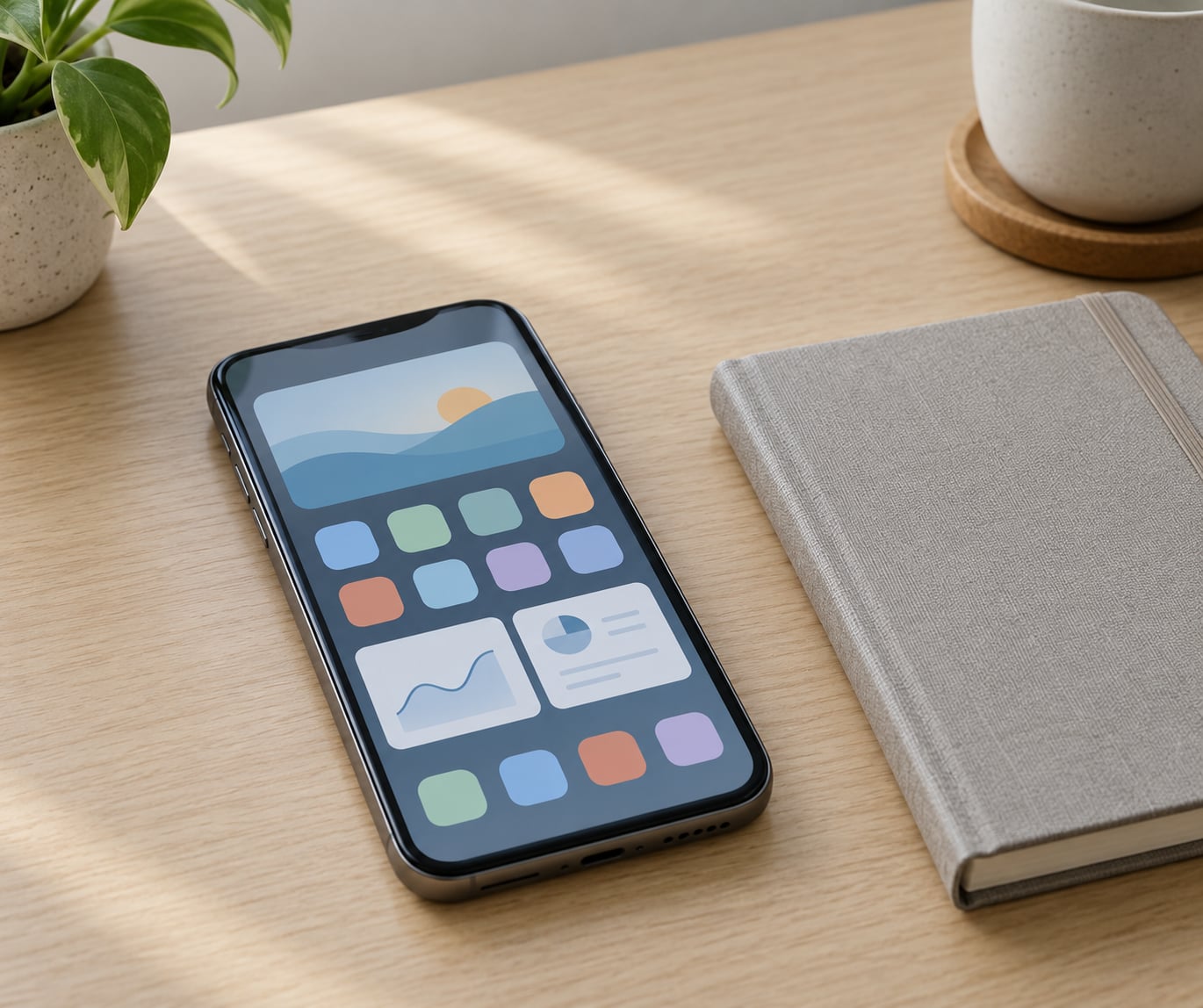
A widget is a small, interactive view of an app that sits on your home screen and shows live information without you opening the app. To use widgets on Android, long-press an empty spot on the home screen, tap Widgets, pick your app, then drag the widget where you want it. The whole job takes about a minute per widget.
Widgets are the most under-used feature on Android. Weather, the next calendar event, a timer, music controls — all of it can live one tap away instead of buried in an app. What makes them awkward is that almost nothing about the process is the same across manufacturers, and the older guides still online are a decade out of date.
So this guide covers the flow that works on a Google Pixel, a Samsung Galaxy running One UI, and a Motorola, then handles the parts nobody else writes about: resizing, changing a widget’s settings, stacking several into one slot, and what to do when a widget refuses to load. If you have never placed a widget, start at step 1 below and work down.
Table of Contents›
- What You Need
- Step-by-Step: How to Use Widgets on Android on Any Phone
- Step 1: Add a Widget to Your Home Screen
- Step 2: Move and Resize the Widget Where You Want It
- Step 3: Open Widget Settings and Customize Its Content
- Step 4: Add More Widgets or Create a Widget Stack
- Common Mistakes
- Frequently Asked Questions
- Where are widgets on my Android phone?
- Why is the Add Widgets option missing?
- How do I resize an Android widget?
- Why is my Android widget not updating?
- Can I move widgets between Android home screens?
- How do I remove a widget without uninstalling its app?
What You Need
Not much, honestly. You need an Android phone or tablet running Android 9 or newer, a home screen panel with some free space, and at least one app that ships widgets. Most phones come with a handful already installed: Google Weather, Google Calendar, Clock, and whatever the manufacturer bundled.
Two things catch people out before they even start. First, home screen space. A standard 4×6 panel holds roughly 24 app icons or folders, so a single 4×2 widget eats the room of eight icons. Decide where the widget will live before you make it.
Second, permissions. Weather and transit widgets need location access, and on Android that permission is granted to the app rather than to the widget. If the app has it, the widget usually works. If you switched phones recently and restored apps without permissions, that is often why a widget shows nothing.
One optional note: a recent Android backup. If you install a third-party launcher later to get extra widget options, your current home screen layout goes with it. The backup takes two minutes and saves an evening.
Step-by-Step: How to Use Widgets on Android on Any Phone
Here is the shortest version of how to use widgets on Android, then the detail for each manufacturer. If your phone behaves like a Pixel, follow the standard path and skip the brand notes.
Step 1: Add a Widget to Your Home Screen
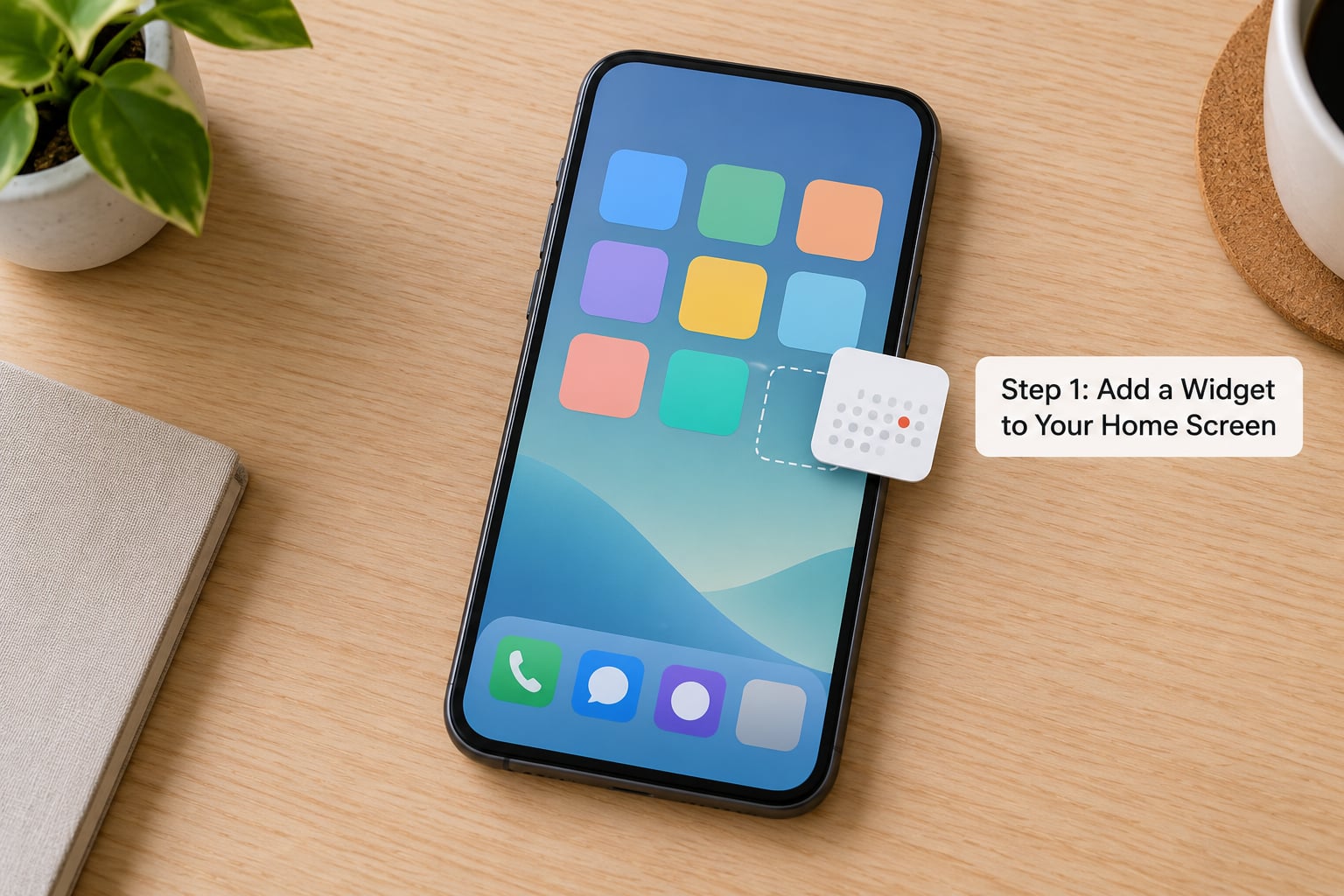
On a Pixel or any phone running close to standard Android, tap and hold an empty area of the home screen until the app icons shuffle slightly. Tap Widgets in the menu that appears, scroll or swipe through the list of apps, and long-press the widget preview you want. Keep your finger down and drag it to a position, then lift.
Samsung Galaxy phones work the same way but with two extras. You can also press and hold the Apps button (the outline of a square) at the bottom of the home screen to open the drawer, then tap Widgets at the top, or swipe up to the home screen and use the Widgets button that One UI adds. Motorola adds a search field at the top of the picker, so you can type an app name instead of scrolling an alphabetical list.
Two interface details explain most of the confusion here. On Android 9 and earlier, the picker opens with a search box you type into. From Android 10 onward it is an alphabetical list you swipe through, and each app entry carries a small number in its corner telling you how many widget styles that app offers. Tap the app name to see them.
You will know the widget landed correctly when it appears with live content rather than blank boxes — a temperature, a date, an album cover. Drag it slightly and the home screen grid appears underneath to show the footprint it needs.
Step 2: Move and Resize the Widget Where You Want It
Long-press the widget to pick it up, then drag it anywhere on the current panel. To reach another home screen page, drag the widget to the edge of the screen and hold it there; the panel slides over on its own after a second or so. That works in both directions, so you never need to unpin anything first.
For resizing, long-press until the widget lifts and look for a small handle at one corner — usually the lower right, drawn as a short diagonal line or a cluster of dots. Drag that handle inward to shrink the widget or outward to grow it. Most widgets snap to a grid and settle into fixed sizes such as 4×1, 4×2 or 2×2.
Samsung devices give you a clearer control. Lift the widget and a row of buttons appears beneath it: a resize toggle, a settings gear, and a stack button. Tap resize once to lock it to its current size, which stops accidental stretching from your next drag.
Not every widget resizes. Developers choose whether to support it, so a widget that ignores the corner handle is behaving correctly. Many offer several styles at the picker stage instead — a 2×2 clock and a 4×2 clock-clock from the same app. Go back to the picker and pick the other style.
Step 3: Open Widget Settings and Customize Its Content
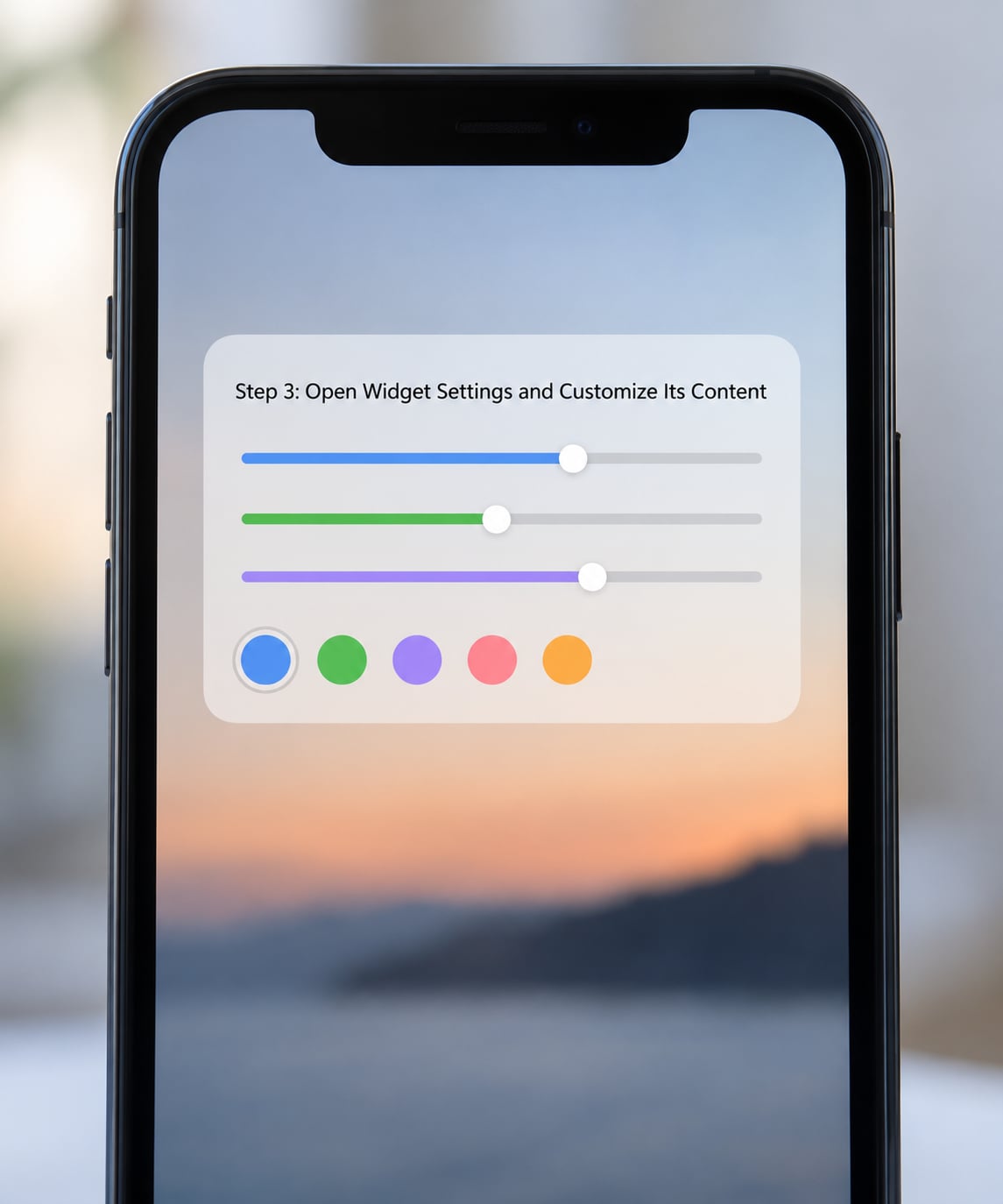
Tap the widget once and most widgets open their settings screen. Tap it in other ways and it behaves differently: a double tap on many calendar and task widgets creates a new entry straight from the home screen, and a tap on a weather widget shows the forecast rather than settings.
If you cannot find the settings, long-press the widget to select it, then look for a small W or ⋮ mark. On Samsung that button is a gear directly under the widget. The menu always lists Configure, plus Resize, Stack and Remove on phones that support them. Some widgets, including the plain Google Calendar one, have nothing to configure — the size is the only option.
What you can change depends entirely on the developer. Clock widgets typically offer a theme, a translucent background and 12-hour or 24-hour time. Weather widgets usually offer the temperature scale (Celsius or Fahrenheit), a refresh interval, and the forecast detail level. Smart home widgets often toggle a light or a lock from the home screen instead.
One thing that does not change: a widget cannot display anything its app does not collect. If the app has never recorded a location, the weather widget has nothing to draw no matter how you configure it.
Step 4: Add More Widgets or Create a Widget Stack
Adding more is just repetition — long-press a free spot, tap Widgets, drag the next one in. Repeat until the panel is full or you run out of uses.
A widget stack solves the crowding problem. It is a single space that holds several widgets and lets you swipe between them. On Samsung, drag a widget onto another widget of the same size and a prompt appears to create a stack; One UI allows up to seven widgets per stack. Or long-press a widget and tap Stack, then Add. Long-press the finished stack and choose Edit stack to add, remove or reorder the items.
Order matters here. Set the stack size before you add the widgets, because only widgets that fit that footprint can go in it. A 4×2 stack will not accept a 2×2 widget. Long-press the stack and swipe the items up or down to change which one shows first — the home screen remembers the last one you left on top.
Stock Android and Motorola do not ship a stack feature in the launcher. You can install a launcher such as Action Launcher, Smart Launcher or Nova Launcher to get them, and each has its own widget picker with its own options. Switching launchers also changes how the whole home screen behaves, so treat it as a deliberate change rather than a shortcut.
Common Mistakes
The Widgets option is missing from the long-press menu. You probably long-pressed an app icon instead of empty wallpaper. Press on a blank part of the panel, or on the wallpaper rather than between icons, and the menu will change. On Samsung, use the Widgets button at the bottom of the home screen instead of the gesture.
Nothing happens when you long-press. A password manager, banking app or launcher app may be locked over the home screen, which blocks widget changes. Unlock it or switch to another home screen page first.
The widget will not move or resize. Press for a slightly longer hold rather than a quick tap, and lift it clear of the screen before dragging. If a widget resists the corner handle, it simply does not support resizing — remove it and choose a different style from the same app.
The widget is blank, or stuck on a buffering circle. Open the parent app once. Widgets often do not populate until the app has run and synced. If that fixes it and it breaks again later, exclude the app from battery optimisation: open Settings, then Apps, pick the app, then Battery and set it to unrestricted.
It says it cannot load your location while the app works. This is the most reported widget complaint and the permissions fix does not always solve it. Check Settings, Apps, Permissions, Location and confirm the app is set to allow location at all times rather than only while in use. Widgets refresh in the background, and the “only while using the app” setting means there is no app in front to use. If it is already set correctly, clear the app’s storage and let it re-request permission.
Widgets vanished after a system update. A few manufacturers reset home screen layouts in a major update. Re-add them, and before your next upgrade, screenshot your current panel so rebuilding it takes a couple of minutes rather than half an hour.
Battery drain. Widgets that refresh every few minutes, especially weather and market widgets, do cost something. A longer refresh interval in the widget settings is usually the easiest fix, and pinning a few rather than a dozen makes a measurable difference.
My one suggestion: add three, use them for two weeks, then delete the ones you never glance at. Widgets that earn their space are worth the room they take. Ones that do not are just clutter between your apps.
Frequently Asked Questions
Where are widgets on my Android phone?
Widgets live in the picker you get from your home screen. Press and hold an empty spot on the wallpaper, then tap Widgets in the menu. On Samsung, you can also swipe up from the bottom and tap the Widgets button. Inside the picker, swipe or scroll to browse apps, or tap the search field on phones that have one.
Why is the Add Widgets option missing?
Usually you pressed on an app icon rather than empty wallpaper. Long-press a blank part of the panel and the menu changes to the one with Widgets. If it does not, a screen lock or a banking app may be covering the home screen, or you may be on a managed work profile that restricts changes.
How do I resize an Android widget?
Long-press the widget until it lifts off the screen and look for a small handle at one corner, usually the lower right. Drag it inward to shrink or outward to grow, and it will snap to the grid. If no handle appears, that widget does not support resizing, so remove it and pick a different style from the same app.
Why is my Android widget not updating?
Open the parent app once, because widgets often stay empty until the app has synced. Then set its battery use to unrestricted in Settings, Apps, Battery. Weather widgets also need location permission set to allow all the time, since only while using the app gives a background widget nothing to work with.
Can I move widgets between Android home screens?
Yes. Long-press the widget, drag it toward the edge of the display and hold it there. The current panel slides sideways on its own after a second, and you can drop the widget on the page that appears. Drag toward the opposite edge the same way when you want to move it back.
How do I remove a widget without uninstalling its app?
Long-press the widget and drag it to Remove, which usually appears at the bottom or top of the screen. Drop it there and the widget goes while the app stays installed and keeps working normally. You can add the same widget again later from the Widgets picker at any time.
Start with the weather widget and the calendar. Add them on the first home screen panel, drag them into place and set the refresh interval before you judge the feature. If your phone is a Samsung, try stacking the calendar views together; that is where the biggest gain in usable space comes from.