Split screen lets you run two apps on one Android screen at the same time, divided by a draggable bar. To turn it on, open the app you want, go to the Recents screen, tap the split-screen option on its app card, then pick a second app from the list. That is the whole trick, and the menu label changes slightly from brand to brand.
Samsung calls it Split screen, ASUS calls it Split top, and on Google phones it sits under the app icon on the card. The steps below cover four ways in, plus what to do when the option is simply missing from the menu.
Worth saying up front: if your phone runs Android 7.0 Nougat or later, you almost certainly have the feature. Before that release, phones were effectively single-app devices, which is why so many older how-tos online tell you it is not available.
Table of Contents›
- What You Need Before Split Screen Will Work
- How to Use Split Screen on an Android Phone: Step by Step
- How to use split screen on an Android phone with the recent apps gesture
- How to use split screen with Android navigation buttons
- How to use split screen on a Samsung Galaxy phone
- How to use split screen from the recent apps overview
- Common Mistakes and How to Fix Them
- Frequently Asked Questions
- Which Android phones support split screen?
- Can I use split screen on an Android tablet?
- Why is the split-screen option missing on my Android phone?
- How do I use three apps at once in split screen?
- Does split screen on Android use more battery?
- Conclusion
What You Need Before Split Screen Will Work
Three things decide whether split screen appears for you: the Android version, the phone maker, and the individual app. The manufacturer matters more than most guides admit.
Samsung, Google Pixel, Xiaomi, OnePlus, Motorola and ASUS all ship some form of multi window, though the menu wording and icons differ. Every Android phone from roughly 2017 onward has the underlying capability. Budget models from the last few years are fine too; the split screen software is not tied to flagship hardware.
You also need two apps that actually support multi window. Some apps refuse it outright and the split-screen option disappears from their card in Recents with no explanation. Banking, payment and many streaming apps are frequent offenders, as are some camera and video editors.
Give yourself a little free memory too. Two live apps plus a keyboard will run smoothly on 4GB of RAM or more, and anything tighter may close one of the panes on its own after a minute or two.
How to Use Split Screen on an Android Phone: Step by Step
Pick whichever of these matches how your phone is set up. The first two cover almost every device; the last two are for Samsung owners and for builds that support selecting several apps at once.
How to use split screen on an Android phone with the recent apps gesture
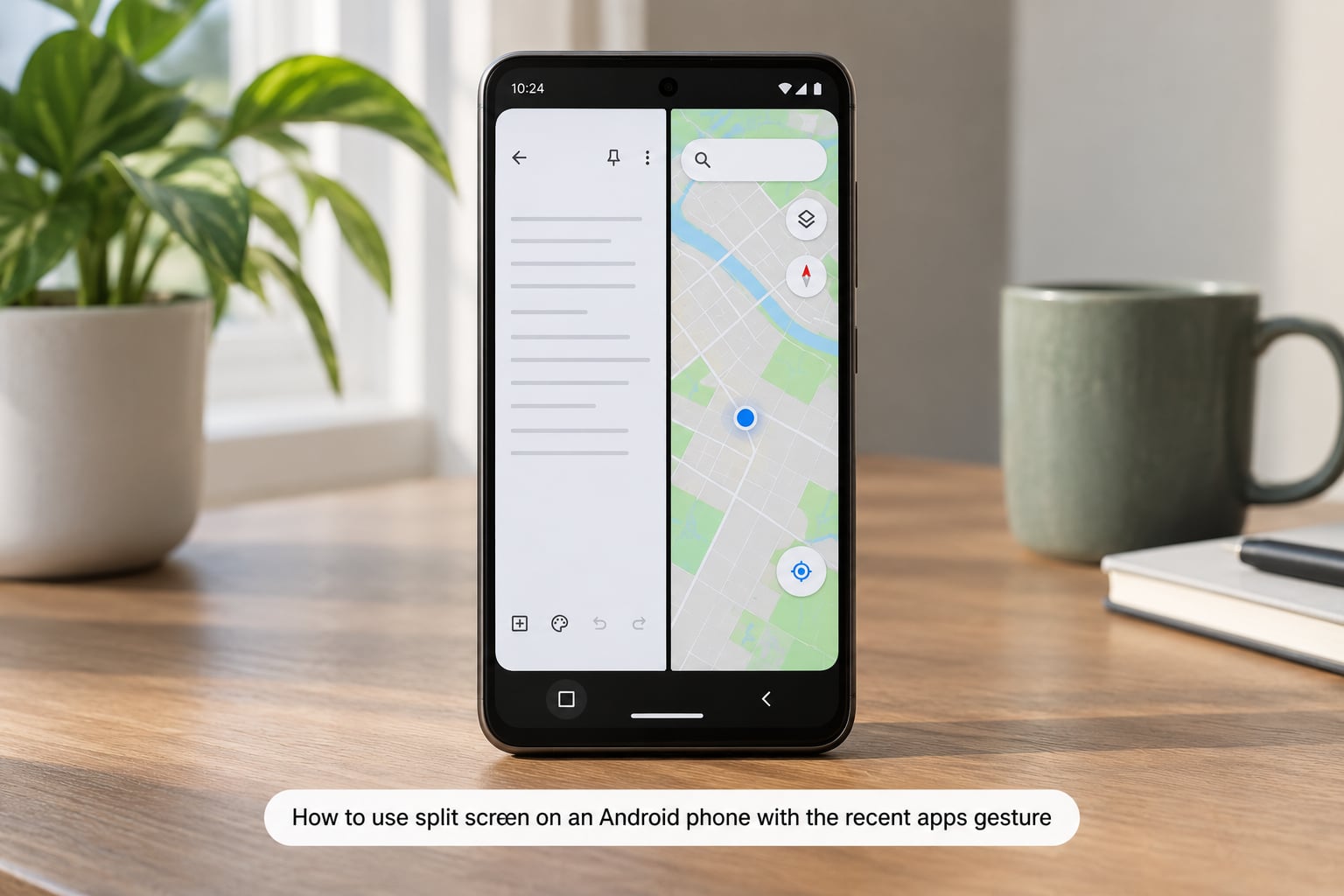
Swipe up from the bottom edge of the screen and hold for a moment, or tap the square Recents button if you have one. That opens your recent app cards.
Tap the app icon at the top of the card you want on one side. A small menu drops down with options such as Split screen or Open in split screen view. Tap it and your chosen app snaps to the top half of the display.
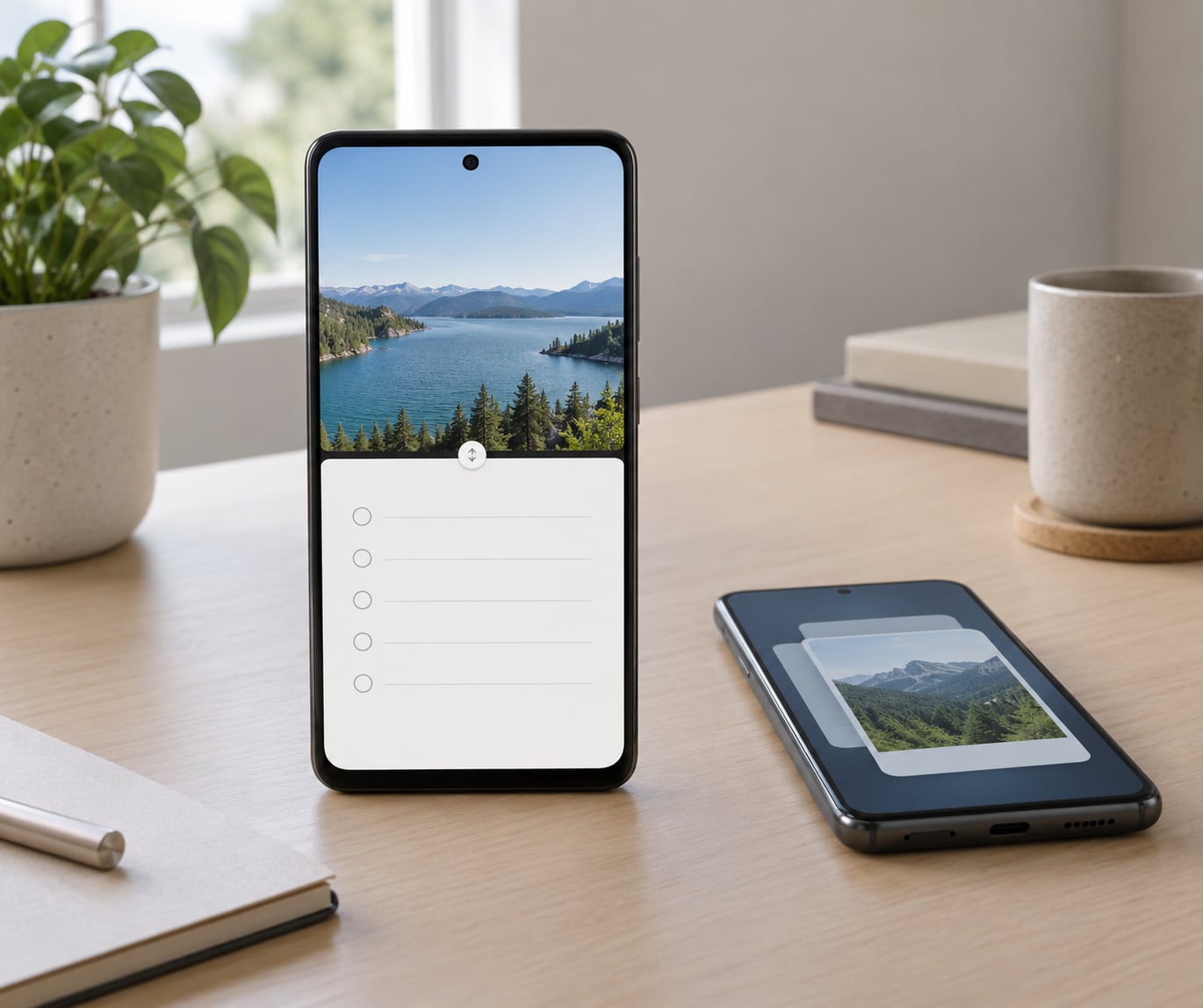
The bottom half shows a list of your other recent apps. Tap one and it fills the second pane. You will know it worked because a thin divider bar sits between the two apps and a swap button appears in the middle.
On phones with a Home button, a long press from the home screen straight into the app card gets you the same menu without leaving what you were doing.
How to use split screen with Android navigation buttons
Three-button phones are the easiest case. Open the first app, press the Recent button, then tap the app icon on its card and choose Split screen. The app moves to the top and you choose the second one from the picker.
To change which app is in the bottom pane, tap the divider or the swap icon in the middle. On most builds it behaves like a shuffle: the lower app moves up and the one above drops down.
Drag the divider bar up or down to resize. Most phones let you push it roughly 30/70 to 70/30, so you can give the reading app more room and keep a chat thread small.
To leave, drag the divider all the way to the top or bottom edge until the smaller pane disappears, or press Back with the lower app focused. The other app expands to fill the display again.
How to use split screen on a Samsung Galaxy phone
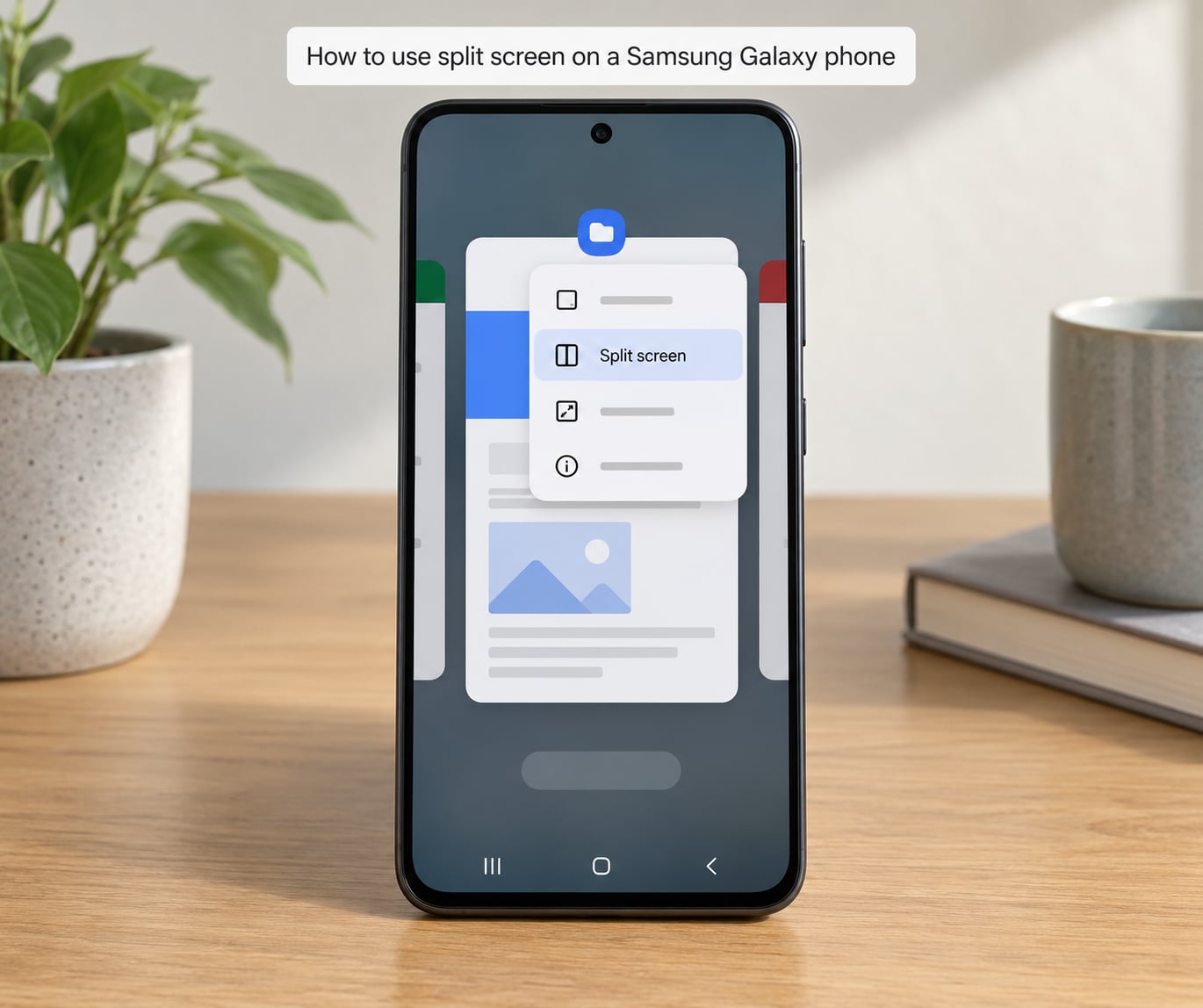
Samsung calls the feature Split screen and the shortcut Multi view, and it is the fastest route on Galaxy phones. Open your first app, press the Recent Apps key, and tap the split-screen icon on the app card. A Multi view strip appears along the bottom edge with your recent apps lined up.
Tap the second app and both open together. Owners on r/samsung consistently report this button is quicker than the long-press gesture, which is unreliable on some Galaxy models.
On older One UI versions the path runs through the three-dot menu instead: open the app, tap the three dots at the bottom of the screen, tap Split screen, then pick the second app. Same result, older layout.
The divider behaves the same way. Drag it to resize, tap the swap button in the middle to exchange the two apps, and drag it to the edge to close. Samsung also lets you drag text or an image from one pane straight into the other, which is genuinely useful for copying a line into a message.
How to use split screen from the recent apps overview
Some Android builds let you pick several cards at once instead of going through one app at a time. Long press the first app card in Recents until it shows a selection state, then tap the second card. Both get split across the display.
Once you are in, move between the panes by swiping up from the bottom or tapping the switch bar. Close it the same way as always, by dragging the divider to an edge.
If your phone does not offer multi-select, that is a build limitation rather than a mistake. Use the first method instead; the result is identical.
Common Mistakes and How to Fix Them
The split-screen option is missing from the menu. First, check that the app supports multi window at all. Some apps never appear with the option. If it is a system app such as Settings or Calculator, close every recent app, clear the Recents list, and try again; a stale card can hold on to an old menu state.
It worked, then the app went full screen. That usually means the pane shrank too far or the phone rotated and dropped the layout. Re-enter split screen and drag the divider to roughly the halfway mark before doing anything else.
The phone stutters or closes an app on its own. That is memory pressure. Close background apps you are not using and stick to lighter ones in the second pane, such as a browser or a notes app instead of a game.
The divider will not move. Some apps lock their pane size, and video players in particular sometimes hold a fixed ratio. Turn the phone sideways, or swap which app sits in which pane, and try again.
The keyboard behaves strangely. In split screen the keyboard often occupies part of the lower pane instead of sitting at the bottom, and it can push the layout around. This is the single most common reason people give up on split screen. The workaround is to tap the divider before typing, or to keep your second app wide.
Split screen disappears after you switch apps. Some heavy apps freeze the background pane and force the other app to take over. On Samsung, turning off the setting that keeps games and video apps from running in the background under Settings, Apps and Recent apps settings usually stops it.
Two more habits help. Keep your recent apps updated, because app developers add and remove multi-window support in updates without warning. And if you use split screen daily, look into app pairs on your phone, which launch both halves in one tap from your home screen.
Frequently Asked Questions
Which Android phones support split screen?
Almost every Android phone running Android 7.0 Nougat or later supports split screen, including budget models. Samsung, Google Pixel, Xiaomi, Motorola, OnePlus and ASUS all include it, though the menu label differs. The real limit is the app, not the phone: apps that do not support multi window simply hide the option.
Can I use split screen on an Android tablet?
Yes, and it is where split screen earns its keep. Tablets have the screen space for two full panes side by side, and Samsung tablets and newer Android builds can show three apps at once in a column. Phones are limited to two panes, so you get the same feature in a much smaller space.
Why is the split-screen option missing on my Android phone?
It is almost always one of three things. The app does not support multi window, so the option is hidden by design. Your manufacturer renamed or moved the control, which happens on Xiaomi and older One UI versions. Or a background app froze the Recents card, so clear recent apps and try again.
How do I use three apps at once in split screen?
Phones run two panes, and there is no supported third. You could shrink one pane to a thin sliver, but that is no more useful than switching. Tablets running recent Android versions can show three apps in separate columns, and for phones the better move is picture-in-picture or a floating window for the third item.
Does split screen on Android use more battery?
Somewhat, because two apps are drawing and processing at once instead of one. In practice the difference is small and most of the drain comes from what the apps are doing rather than the split itself. Two apps running all day will use more than one app running all day, so closing the second pane when you stop using it is enough.
Conclusion
Start simple: open the first app, enter Recents, tap the split-screen option on its app card, and choose the second app. If the option is not there, check whether that app supports multi window at all, then look for the manufacturer-specific path, which differs on Xiaomi, ASUS and older Samsung builds.