If you are wondering why does my phone say storage full when it is not, the short answer is that your phone counts bytes you cannot see. Cached app data, photos sitting in Recently Deleted, folders left behind by apps you uninstalled and a stale media index all keep occupying space the settings screen refuses to release. You can clear most of it yourself in about twenty minutes, and none of the steps need a computer.
Four causes account for nearly every case I have seen: the warning is counting data that is not really there, the storage index has not caught up with what you deleted, files are hidden in folders your storage screen does not list, or the flash memory is starting to fail. The steps below run from the cheapest fix to the most drastic one, so stop as soon as the warning disappears. Menu paths are given for iOS 18 and Android 15, and Samsung, Xiaomi and OnePlus sit close enough that the label differences are noted where they matter.
Before you delete anything, though, it helps to know which category is doing the accusing. Here are the usual reasons, and the last one is the only one that is genuinely a hardware problem.
Table of Contents›
- Why Your Phone Says Storage Is Full When It Isn’t
- What You Need Before You Start
- Step-by-Step: Fix a Wrong Storage Full Warning
- 1. Read the storage screen: why does my phone say storage full when it is not
- 2. Restart the phone, then empty Recently Deleted and Trash
- 3. Clear app caches, not app data
- 4. Find hidden files, media and temporary downloads
- 5. Move or back up files before you delete anything
- 6. Check cloud, app and system storage separately
- 7. Update the system and ignore the cleaner-app myths
- 8. Re-index the media database, then consider a reset
- Common Mistakes: Why Does My Phone Say Storage Full When It Is Not
- Frequently Asked Questions
- Why does a new phone say storage is full when I have barely used it?
- Why does my phone still show storage full after I deleted photos and videos?
- Can clearing the cache on my phone permanently delete photos or messages?
- Why does my phone say storage full even though my cloud backup has free space?
- Can a storage full error mean that the phone storage is failing?
- Conclusion
Why Your Phone Says Storage Is Full When It Isn’t
- Cloud space is not phone space. Buying an iCloud or Google One plan adds capacity to your account, not to the phone. Photos that live only in the cloud still show in your library while occupying local space on an iPhone that has Optimize iPhone Storage switched on.
- Recently Deleted and Trash are real folders. On an iPhone, deleted photos sit in Recently Deleted for 30 days. Android keeps a Trash folder per app, plus a system-wide one. You deleted them once already, which is why the number did not move.
- App cache grows invisibly. Browsers, messaging apps, video editors and games cache aggressively. Users report cache figures ranging from about 1.2 GB on a browser to roughly 4.7 GB on a short-video app, none of which appears as a file you can find.
- Orphaned folders. Uninstall an app on Android and its folder in Android/data or Android/media usually stays. It belongs to no app in the storage list, so the space is used with nothing showing it.
- System data and Other. On iPhone this bundles caches, logs, swap files and update downloads. On Android it includes fonts, system overlays and preinstalled apps that can be disabled but never truly removed.
- Virtual memory expansion. Android RAM expanders and virtual memory carve a slice of internal storage into swap. It counts as storage, and lowering or disabling it in Settings gives the space back.
- A stale media index. Deleting photos does not immediately update the database that tracks them. The files are gone but the accounting is not, which is exactly the scenario behind most “storage full but it is not” posts on the iPhone and Android forums.
- A failing storage chip. If the warning survives a restart, a cache purge and a full reset, suspect the flash memory. Errors climb, files refuse to save and read speeds collapse. That is a hardware ticket, not a settings problem.
What You Need Before You Start
Very little. Your phone, its passcode, and a working Wi-Fi or data connection so cloud and system checks can finish.
Know which platform you are on first, because the paths diverge sharply. On iPhone: Settings, then General, then iPhone Storage. On Android: Settings, then Storage, or Storage and performance on Samsung. Samsung, Xiaomi, OnePlus and Google Pixel rename a few labels but keep the same order. If you see a RAM expander, virtual memory or memory extension option, note its current value before changing it.
Budget roughly twenty minutes for a full pass, less if the cache is the obvious culprit. Set aside thirty minutes more if you intend to move photos off the phone, since transfers on older devices crawl.
Step-by-Step: Fix a Wrong Storage Full Warning
1. Read the storage screen: why does my phone say storage full when it is not
Most people read the coloured bar at the top of the screen. The bar is rounded, generous to itself, and on iPhone it deliberately holds back headroom for an operating system update. The real numbers are in the list below it, and that list is what decides your next move.
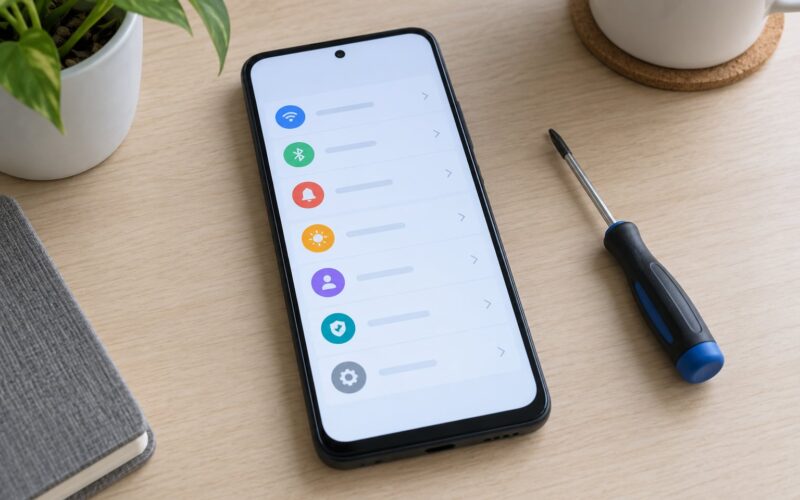
Open Settings, then General, then iPhone Storage, and switch to the list view rather than the bar. Sort by size. Compare Settings, Storage, then Storage used by on Android, where categories include Images, Videos, Apps, Documents, System and Cache.
| What you want to see | iPhone path | Android path |
|---|---|---|
| Full breakdown by category | Settings, General, iPhone Storage, then the list | Settings, Storage, Storage used by |
| Per-app size | Storage list, tap the app name | Storage used by, Apps, tap an app |
| Documents and Data figure | Storage list, tap app, view Documents and Data | Settings, Apps, tap app, Storage used |
| Cache only | No cache option exists on iOS | Settings, Apps, tap app, Clear cache |
| Recently Deleted photos | Photos, Recently Deleted, Delete | Photos, Trash, then empty it |
| System apps (Android) | Not applicable | Settings, Apps, three-dot menu, Show system apps |
You know it worked when the free figure at the top matches what the categories add up to. If System or Other is enormous while your apps and photos are small, move to step six and then step eight.
2. Restart the phone, then empty Recently Deleted and Trash
A restart releases temporary memory and forces the storage service to recalculate. Most warnings that survive a restart are genuine, so this step also tells you whether you have a real problem or a display problem.
Hold the side button plus the volume down button on an iPhone, or power plus volume down on most Android phones, and slide to power off. Wait thirty seconds, power it back on, then check storage again before you change anything else.
Then handle the folders that make deletes feel pointless. On iPhone, open Photos, swipe to Recently Deleted, select All, and delete again. On Android, open the Photos app, tap Trash, and empty it. Do the same inside WhatsApp, Telegram and Files, which each keep their own media cache separate from the system one.
Success looks like this: the used number drops by the size of what you removed, and the warning disappears on the next unlock.
3. Clear app caches, not app data
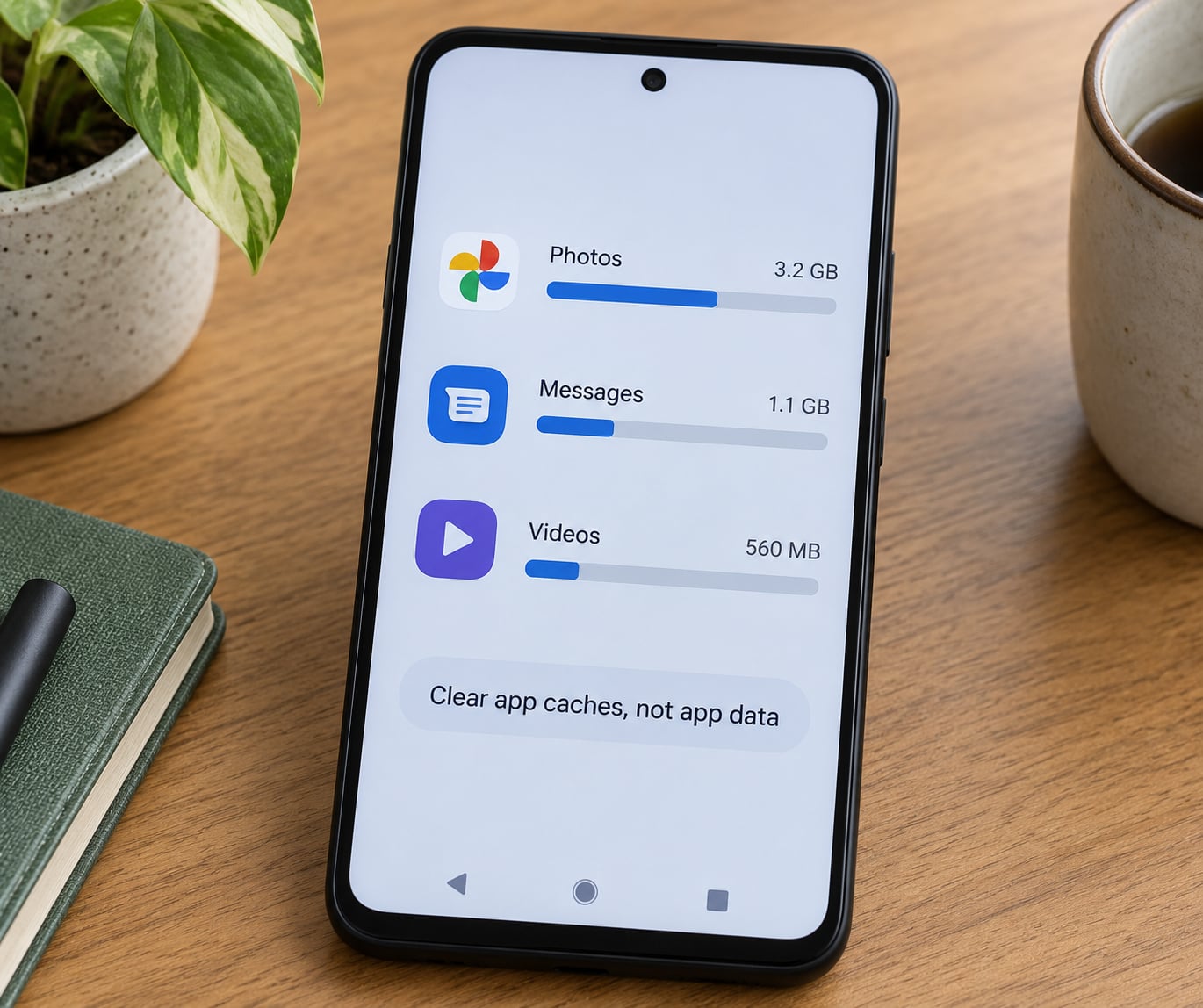
Sort apps by size on both platforms and look for anything above a gigabyte. Browsers, video editors, podcast players, map apps and games are the usual offenders. Cache is a copy of data the app keeps to load faster, and clearing it costs you nothing but a slightly slower first launch.
On Android, open Settings, then Apps, tap the app, and tap Clear cache. On Samsung, the path is Settings, then Apps, tap the app, then Storage, then Clear cache. On iOS there is no per-app cache button, so use Settings, General, iPhone Storage, tap the app, then Offload App, which keeps the documents and removes the app itself. Deleting the app outright is the step that actually frees space. On Pixel and stock Android, switch the storage list to sort by size so you are not guessing.
| Action | What it removes | What it costs you |
|---|---|---|
| Clear cache | Temporary copies used for speed | App reloads slower; you stay signed in |
| Clear storage or Clear data | Cache plus sign-in, settings and local data | You sign in again; offline maps and downloads vanish |
| Offload App (iOS) | The app binary, keeps documents | App re-downloads on next launch |
| Delete the app | Everything the app owned, if no cloud copy exists | Data gone unless it was synced |
Stay away from Clear storage unless you know exactly which app you are emptying. Losing the offline maps you downloaded for a trip, or the drafts inside a messaging app, is a common and avoidable regret.
4. Find hidden files, media and temporary downloads
Some space never shows up in a category list because it lives in a folder the system hides from casual browsing. On Android, open Files and check Internal storage, then Download, DCIM, Movies, Music, Podcast and Android, where data and media hold leftovers from apps you removed. On iPhone, check On My iPhone in the Files app, where any app that saved documents keeps them.
Duplicate media is the quiet culprit. A single clip exported from a video editor three times is 3 files, each roughly the length of the source. Work out the maths on a typical recording: a 4K clip runs close to 400 MB per minute, so a ten-minute video is about 4 GB. A season of a streaming download sits in the 5 to 8 GB range, and a phone operating system update can need 10 to 20 GB of headroom before it will even start.
Offline maps deserve their own mention. They are stored inside the map app’s data, so clearing that app’s cache wipes every route you downloaded. Delete the maps through the app’s own offline downloads screen instead.
You have succeeded when the file browser total and the settings screen total roughly agree. If they still disagree, the number is coming from somewhere you have not opened yet.
5. Move or back up files before you delete anything
Freeing space safely means moving, not deleting. Connect to a computer over USB, or use a microSD card on Android phones that still support one, or upload through Google Photos, iCloud Drive or OneDrive.
The distinction that saves people: copying leaves two copies, moving leaves one. After a transfer, open the file on the destination device before you delete the original. Check the count and the file sizes, not just the folder name.
If you use Google Photos or iCloud as your backup, confirm the backup actually completed. A full cloud quota silently stops backups months earlier, which leaves you with one local copy and no idea until the day you need the other one. Open the backup status inside the photos app and read the last successful date.
6. Check cloud, app and system storage separately
This is the number one cause of a false full warning, and it is worth reading twice. Buying more iCloud or Google One storage does not give your phone a single extra byte. It changes how much your account can hold.
iCloud is easy to check: log in to icloud.com, open Storage, and see the bar by category. If iCloud is full, the phone can neither upload nor offload, and local copies pile up. Google One works the same way, with the quota shown in the Google Photos or Drive app.
Then check what is still on the device. On an iPhone, Settings, General, iPhone Storage, then Photos tells you how many originals sit locally against how many have been optimised. On Android, Google Photos has a Free up space command that removes local copies of already-backed-up media, and you can set it to run automatically.
Never delete the only copy of cloud media from cloud alone. Optimise or remove the phone copy, not the account copy.
7. Update the system and ignore the cleaner-app myths
Pending system updates sit in a temporary folder until they install, and a partially downloaded update can hold several gigabytes. Check Settings, System Update or Software update on Android, and Settings, General, Software Update on iPhone, and either finish or cancel what is pending.
Storage-cleaner apps mostly rearrange internal storage into internal storage, so the total does not move. Some create a hidden duplicate folder in the process. Installing an SD card does not add capacity to the system partition either, which is where updates and system files live. And deleting unknown folders in Android, or anything labelled System in iPhone storage, is a good way to break a phone.
Keep at least 10 percent of capacity free. Below that, updates start failing with a not enough storage message even when a folder is technically free.
8. Re-index the media database, then consider a reset
On Android there is a fix that resolves the deleted-but-still-counted case, and it is rarely written down. Open Settings, Apps, tap the three-dot menu, turn on Show system apps, find Media Storage, tap Clear storage, then restart the phone. The database rebuilds on first boot and the count usually corrects itself within a few minutes.
On iPhone the equivalent is turning off Optimize iPhone Storage and letting photos go full-size, then switching it back on, which forces a fresh reconciliation. If System or Other stays stubbornly large after that, deleting an unused app and reinstalling it forces its data to rewrite cleanly.
Only after a verified backup and these steps should you consider erasing all content or resetting the phone. Expect to lose everything not synced, set the phone up from scratch and hope your logins are in a password manager.
Common Mistakes: Why Does My Phone Say Storage Full When It Is Not
Nearly every painful case I have seen came from one of these.
- Deleting downloads without checking the cloud copy. Files pulled from iCloud Drive or Google Drive re-download the moment you open the folder again. Clear the cache, not the source.
- Clearing app data on everything. One tap on the wrong app wipes offline maps, saved drafts and preferences you had not backed up.
- Assuming a microSD card fixes internal storage. It can hold photos and music on phones that allow it. It does not give the system partition anywhere to put an update.
- Running a cleaner that relocates rather than deletes. Watch the total before and after. If it barely moves, you bought a rearranger.
- Updating before backing up. An update that runs out of room midway can leave you restoring from backup, or from nothing.
- Resetting before checking the storage partition. If reads are failing, a reset destroys whatever was still readable. Get the device checked first.
Five habits prevent the whole problem returning. Turn off auto-download for messaging media and streaming apps. Sync photos to one cloud service and keep local copies off. Review storage every couple of months rather than when the warning appears. Keep that 10 percent headroom. And confirm your backup has completed before any delete.
Frequently Asked Questions
Why does a new phone say storage is full when I have barely used it?
On a new phone the space is usually system data, not your files. The operating system, preinstalled apps, language packs and a downloaded update take far more than buyers expect, and some models ship with bloatware that cannot be uninstalled. On an unused iPhone, iOS also reserves update headroom you cannot see. Check Settings, General, iPhone Storage or Settings, Storage to see the split before assuming anything is wrong.
Why does my phone still show storage full after I deleted photos and videos?
Three things usually explain it. First, deleted photos sit in Recently Deleted on iPhone for 30 days and in Trash on Android until you empty those folders. Second, the media database that tracks files may not have re-indexed, so the count stays frozen. Third, a cloud-synced album can re-download the files. Restart the phone, empty Recently Deleted, then on Android enable Show system apps and clear the Media Storage entry to force a re-index.
Can clearing the cache on my phone permanently delete photos or messages?
No. Clearing cache removes only the temporary copies an app makes to load faster. Your photos, chats, accounts and settings stay untouched, and you stay signed in. The action that deletes data is Clear storage or Clear data on Android, and Offload App on iPhone, which removes the app but keeps its documents. Never use those two on an app whose local data you have not backed up.
Why does my phone say storage full even though my cloud backup has free space?
Because cloud capacity and phone capacity are separate. iCloud and Google One hold files on a server; the phone needs free internal space to install apps, save new photos and stage updates. If you buy a bigger cloud plan, existing local files stay on the phone until you free them yourself. Use Free up space in Google Photos, or Optimize iPhone Storage on iOS, and clear the app caches first.
Can a storage full error mean that the phone storage is failing?
Yes, and it is worth ruling out early. Flash memory wears out, and the symptoms look like a software bug: storage that fills without a visible cause, photos that fail to save, errors when installing updates and noticeably slower app launches. A reset will not fix failing chips. If the warning returns after a full cleanup and a restart, back up what you can, then take the device to the manufacturer or a repair service for a storage health check.
Conclusion
Work through it in order: restart, read the storage list rather than the bar, empty Recently Deleted and Trash, clear caches on the largest apps, then hunt hidden folders and orphaned data. Back up before deleting, keep ten percent free, and confirm your cloud backup actually completed.
If the warning survives all of that, clear the Media Storage database on Android, and if it still returns, stop treating it as a settings issue. Back the phone up and contact the manufacturer or a repair service, because that pattern points to storage hardware rather than something you can free up.
Last updated October 2026. Menu paths checked on iOS 18 and Android 15; Samsung, Pixel, Xiaomi and OnePlus differ only in menu labels.