Screen time is the total time you spend actively looking at a phone, tablet or computer screen, and both iPhone and Android phones already track it for you in a built-in report. To reduce screen time on a phone, you do three things: set a realistic daily limit, add friction to the apps you over-use, and remove the prompts that pull you back in.
The whole setup takes about twenty minutes. Most of that is deciding what you are willing to give up, not fighting your willpower.
If your number is already climbing every month no matter what you try, the reason is usually one of two things: the limit is set at a level you hit on day two, or the phone still buzzes forty times a day. Both are fixable, and both are covered below.
Table of Contents›
- What You Need
- Step-by-Step: How to Reduce Screen Time on a Phone
- 1. Check Your Current Phone Usage
- 2. Set a Daily Screen-Time Limit
- 3. Use App Limits to Reduce Screen Time on a Phone
- 4. Turn Off Nonessential Notifications
- 5. Create Phone-Free Periods
- 6. Make the Phone Harder to Reach
- 7. Review Progress and Adjust
- Common Mistakes
- Frequently Asked Questions
- What is the best way to reduce screen time on a phone without blocking important calls?
- How much screen time is healthy for a phone?
- Will reducing screen time improve sleep and concentration immediately?
- How do I stop compulsive phone use when app limits are not enough?
- Can I use screen time controls for work calls and essential communication?
- How long does it take to see a reduction in daily phone use?
- Conclusion
What You Need
Almost nothing. Grab your phone, make sure it is charged, and set aside roughly twenty minutes. Spend five of those minutes looking at your current usage report before you change anything, because a limit set without a baseline is just a guess.
Write down two short lists while you are there:
- Essential apps you cannot cut back: maps, banking, your ride-hailing app, whatever you use for two-factor codes.
- Essential contacts and situations where the phone has to ring: work calls, family, school, emergencies.
On iPhone, everything lives in the Screen Time app under Settings. On Android, it is Digital Wellbeing, tucked inside Settings or the Google app depending on your phone maker. Menu names shift a little between models and software versions, so look for the closest match rather than assuming your phone is broken.
Step-by-Step: How to Reduce Screen Time on a Phone
1. Check Your Current Phone Usage
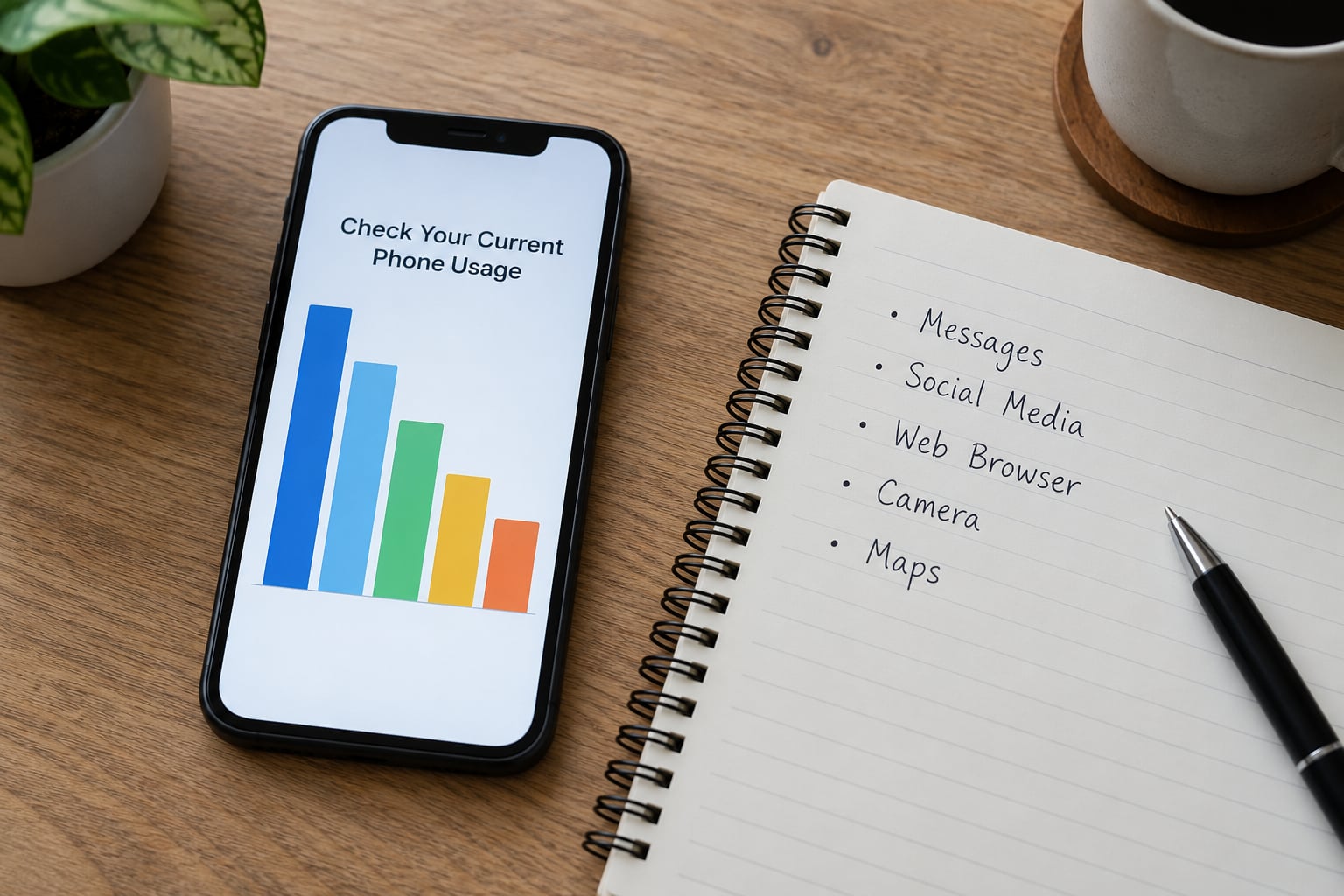
On an iPhone, open Settings, then Screen Time, then tap the chart or the pie icon to see your weekly average. The Daily and Weekly figures at the top are the ones that matter, not the App category breakdown further down.
On Android, open Digital Wellbeing, then the chart labelled Screen time. Tap See more for the per-app split and your pick-ups-per-day count, which is the number most people find uncomfortable.
Write your average on paper before you touch a setting. That baseline is the only way to tell later whether any of this worked.
For context, a widely used guideline is the 3-6-9-12 rule: no more than three hours a day for children under six, six hours for ages six to nine, nine hours for ages nine to twelve, and around twelve hours for teenagers and adults. Seven-plus hours is not automatically damaging, but if most of it is involuntary scrolling it is worth your attention.
How to tell it worked: you now have a real number, and you can name the three apps responsible for most of it.
2. Set a Daily Screen-Time Limit
A daily limit is a wall for everything. An app limit is a wall for one app. You almost always want both, and you want the app limits more than the daily one.
On iPhone, go to Settings, Screen Time, then App Limits, tap Add App Limit, and pick a category or an individual app. Set the time, then turn off Time Sensitive notifications unless the app is Messages, Phone or Maps. Below that, open Screen Time, App Limits, Daily Limits, and set your overall ceiling.
On Android, open Digital Wellbeing, then App timers, tap the plus icon to add an app, choose a time, and accept the warning that you can delete the app to regain the timer. For a total limit, use Digital Wellbeing, Focus mode or Wellbeing, then set a schedule with time ranges.
Cut by 10 to 15 percent from your baseline, not 50 percent. Forum users on r/digitalminimalism and r/productivity repeatedly report that reductions cluster around 8 to 10 percent a week; bigger jumps get abandoned inside a fortnight.
Expect one rude awakening: when the limit hits, the phone will tell you, and you will want the extra twenty minutes anyway. That is the moment the habit forms. Plan for it.
How to tell it worked: Settings, Screen Time, App Limits, Daily Limits shows a percentage next to your limit. On Android, Digital Wellbeing, App timers shows each app with its allowance and what is left.
3. Use App Limits to Reduce Screen Time on a Phone
Look at your per-app report and find the two or three apps eating the most minutes. For most people they are a short-form video app, a social feed, a game and a shopping app. Those four are the ones to wall off, not your weather app.
Do not delete them all without thinking. The single most reported failure on forums is deleting an app, feeling good for two days, then spending the same time in the mobile browser instead. If you remove something, decide what fills the gap before you remove it.
One option that works better than quitting is zoning. Move the junk apps onto a second home screen page, ideally a folder behind a long press, and leave the first page for things you actually chose to install. Access stays available when you want it and costs you a step when you do not.
How to tell it worked: reopen the per-app report a few days later. The same three apps should no longer be sitting at the top.
4. Turn Off Nonessential Notifications
Every buzz is a small decision, and most of those decisions are wasted. Silence everything except calls, direct messages, calendar alerts, and emergency and location alerts.
On iPhone, open Settings, Notifications, then per-app, and turn off Allow Notifications for everything on your junk list. For a quieter inbox, go to Settings, Notifications, Scheduled Summary and pick a time to batch the rest.
On Android, open Digital Wellbeing, then Notifications, and set each app to Off. Or go straight to Settings, Apps, Notifications and manage each one there.
Test it properly. Leave the phone face down for two hours and do not touch it. If you knew what was happening, notifications are doing their job. If you genuinely did not, turn off a second tier of apps.
5. Create Phone-Free Periods
Set times when the phone is off the table entirely, then automate them so you do not have to decide in the moment:
- Meals, for anyone who has picked up a phone at the table and regretted it.
- The first 30 minutes after waking, which is when the morning scroll habit is strongest.
- A work or study block, 45 to 90 minutes is usually enough to finish a task.
- The hour before bed, which is the single change most people notice most.
On iPhone, use Screen Time, Downtime, then Schedule to set a nightly window, or Focus, then Focus Filters for a custom mode. On Android, use Digital Wellbeing, Focus mode, then set a schedule and pick which apps get through.
Pick a physical alarm clock if the phone is leaving the bedside table. Otherwise the phone still wakes you, which quietly restarts the whole routine.
6. Make the Phone Harder to Reach
Settings remove the easy paths. Environment removes the impulse itself, and this is the part willpower-only plans leave out.
Move the charger to another room. Charge the phone in the kitchen and use it there in the evening. Keep it face down and slightly out of arm’s reach during work. Sit somewhere without a screen when you eat. Each of these is five seconds of effort against a habit you do not have to fight twice.
Two display tweaks are cheap and popular on digital minimalism forums: grayscale, which drains the colour out of an app built to hook you, and reducing whitepoint so the screen stops glowing at full brightness. On iPhone, that is Settings, Accessibility, Display and Text Size, Color Filters, then turn on Grayscale. On Android, look for Accessibility, Color and monochrome, or use a night light setting with warmer colours.
Finally, decide in advance what happens the moment a limit fires. Ten minutes of reading, a short walk, a call with a person. Without a replacement activity, the recovered time goes straight back into the browser.
7. Review Progress and Adjust
Give it a week, then look again. On iPhone, open Settings, Screen Time, then tap the weekly chart and scroll to See Weekly Activity Report. On Android, open Digital Wellbeing, then the chart, then Manage and See more for the week-by-week view.
Compare the new weekly average with the number you wrote down in step one. A drop of 8 to 10 percent is a good week, not a failure.
Then make one change at a time. If the total fell but sleep did not, move the bedtime window earlier. If calls started slipping through a Focus mode, widen its hours instead of abandoning it.
Your weekly check should take five minutes and cover six things:
- Total daily average, compared with last week.
- The top three apps, in order.
- Any essential contact or work task that got blocked.
- Bedtime, and how the last hour felt.
- Pick-ups per day, if your platform shows it.
- One small change to try next week.
A bad week is not a failed plan. It is data, and the fix is smaller, not larger.
Common Mistakes
Setting an unrealistic target. Cutting a seven-hour day to three in one step rarely holds. Most people land somewhere between 10 and 20 percent lower in the first week and call it a success.
Blocking calls and messages you actually need. Fix the exceptions before you set limits, not after the first missed call. On iPhone, Screen Time lets you allow calls, messages and Maps through even when a limit is active. On Android, Focus mode has a per-app allow list for the same reason.
Expecting one app to fix everything. Capping a short-form video app but leaving forty notifications a day, or greyscaling the screen while keeping the phone next to the pillow, addresses the smallest part of the problem.
Going strict during a hard week. A death in the family, a new baby, finals, a bad month. Do not delete limits that week. Loosen them deliberately so you can tighten them again on purpose.
Forgetting the other screens. Phone reports measure the phone. A laptop, a tablet and a TV run their own timers, and they are often where the hours quietly go.
Quitting after a relapse. The most common pattern on r/digitalminimalism is three good weeks, then landing back at exactly the starting number, with no plan for what happens next. Write down your recovery step before you need it: lower the limit by 10 percent, put the app back, and start again the following Monday.
Two habits keep it going. Review the report every Sunday, because what you do not measure drifts. And keep one visible reminder of the limit you set, either a note on the lock screen or a sticker on the charger, so the decision stays a decision instead of a negotiation.
Frequently Asked Questions
What is the best way to reduce screen time on a phone without blocking important calls?
Set app limits rather than one blanket daily limit, and use your platform’s exception list. On iPhone, Screen Time still allows Phone, Messages and Maps through even when a limit is active. On Android, Focus mode lets you name the apps that always get through, including your work calling app. Set the exceptions first, then turn on the limits, and test with a real call before you trust it.
How much screen time is healthy for a phone?
A common guideline is the 3-6-9-12 rule: three hours a day for children under six, six for ages six to nine, nine for ages nine to twelve, and roughly twelve for teenagers and adults. These are ceilings, not targets. The nature of the time matters more than the number. A six-hour day of messages, maps and video calls is different from three hours of short-form video on a loop.
Will reducing screen time improve sleep and concentration immediately?
Most people notice the sleep side within a week, because the change is usually the hour before bed rather than the daytime total. Fewer late-evening notifications and no phone under the pillow mean fewer wake-ups and less light before sleep. Concentration usually takes longer, often two to three weeks, because the first few days feel restless and your attention has to re-learn working without a task switch every ten minutes.
How do I stop compulsive phone use when app limits are not enough?
Add physical friction, because a timer is easy to override when you are bored. Charge the phone in another room, move the apps you compulsively open to a second home screen page, and decide what you will do in the ten minutes after a limit fires. On forums, the change that finally works for many people is a prompt that asks why you want to open the app, rather than a hard block. Expect a restless first week.
Can I use screen time controls for work calls and essential communication?
Yes, and you should. On iPhone, Screen Time, App Limits, Daily Limits has an option that always allows Phone, Messages and Maps, so a limit will not cut off an incoming call. On Android, Digital Wellbeing, Focus mode, then Notifications lets you pick which apps stay allowed. Test it with a real call the same day. If a limit blocks something essential, widen that limit rather than deleting the whole schedule.
How long does it take to see a reduction in daily phone use?
Plan on a week for the first honest data, and four to six weeks for the change to feel normal. If you cut 10 percent a week from a seven-hour baseline, that is about 40 minutes off in week one and closer to two hours by week four. You may see a spike in week two, which is normal, and it usually settles below your starting point rather than above it.
Conclusion
Start with the report, not with a limit. Open Screen Time or Digital Wellbeing, write down your weekly average, and find the two apps responsible for most of it.
Then set one realistic daily limit about 10 percent below that number, cap those two apps individually, and turn off the notifications that are not a call or a calendar reminder. Review the report a week later and adjust one thing at a time.
Sustainable reduction comes from four things working together: platform settings, fewer prompts, phone-free routines, and a weekly look at the numbers. Settings alone will not do it, and neither will motivation on a good day.