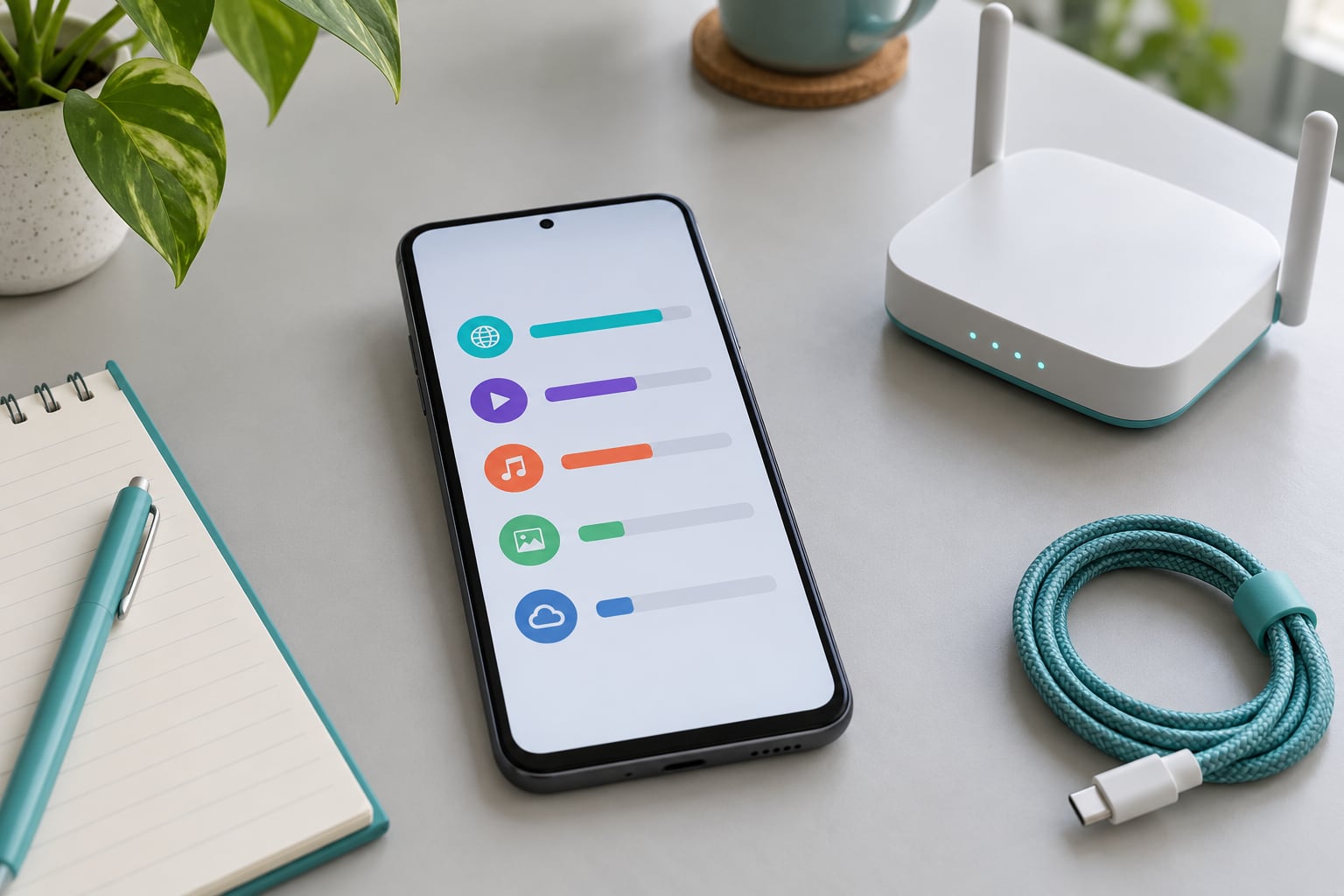
To check which app is using the most data, open your phone’s built-in data usage screen and sort the app list by amount used. On Android that is Settings > Network & internet > Data usage > App data usage. On iPhone it is Settings > Cellular, scrolled to the current period. Takes about 30 seconds.
I’m not going to hand you a third-party tracker app for this. Your operating system already logs every byte each app sends and receives, and the two menu paths above are all it takes to see the ranking. The steps below cover stock Android, Pixel, Samsung One UI, Xiaomi HyperOS and Honor skins, plus iPhone, and they work on Android 14, Android 15, iOS 18 and iOS 26.
One thing worth saying up front: menu names are the number one reason people give up on this. Samsung calls the same screen Connections. iPhone calls it Cellular and has no per-app Wi-Fi breakdown at all. If your phone is not matching the instructions word for word, the screen you want is still there under a different label.
Table of Contents›
- What You Need
- Step-by-Step: How to Check Which App Is Using the Most Data
- How to Check Which App Uses the Most Data on Android
- How to Check App Data Usage on iPhone
- Check Whether Wi-Fi or Mobile Data Is Causing the Usage
- Reduce or Remove the App Using the Most Data
- Common Mistakes
- Check the Carrier Total and Your Phone’s Share
- Frequently Asked Questions
- How do I find out which app is using the most data on my phone?
- Why does my app data total differ from my carrier bill?
- Does turning off cellular data for an app stop its Wi-Fi usage?
- How can I tell whether an app is using data in the background?
- How often should I check app data usage?
- Does clearing an app’s cache reduce mobile data use?
- Conclusion
What You Need
Nothing to buy and nothing to install. You need three things.
- Your phone, unlocked. The usage screen is in Settings, not behind a PIN. A screen lock on the settings app itself is unusual, but if you use a work profile or a device-management app, the data screen may be hidden.
- The Settings app that shipped with your phone. Third-party cleaners and battery apps often link to a stripped-down view. Stock Android, One UI and iOS Settings all show per-app numbers.
- A time period in mind. Every platform reports a rolling window, not a lifetime total. Knowing whether you’re looking at the current billing cycle or the last 30 days tells you whether a number is high or normal for you.
That’s the whole list. No cable, no PC, no account login.
Step-by-Step: How to Check Which App Is Using the Most Data
If you want to know how to check which app is using the most data, the process is the same shape on both platforms: find the screen, sort the list, open the top app, decide. The four steps below are the short version, and the sections after it fill in the exact taps for each phone.
- Open Settings and find the network or data usage entry.
- Choose Data usage (Android) or Cellular (iPhone).
- Sort or scroll to put the largest consumer at the top of the list.
- Tap that app to see the detail, then restrict or remove its mobile data.
How to Check Which App Uses the Most Data on Android
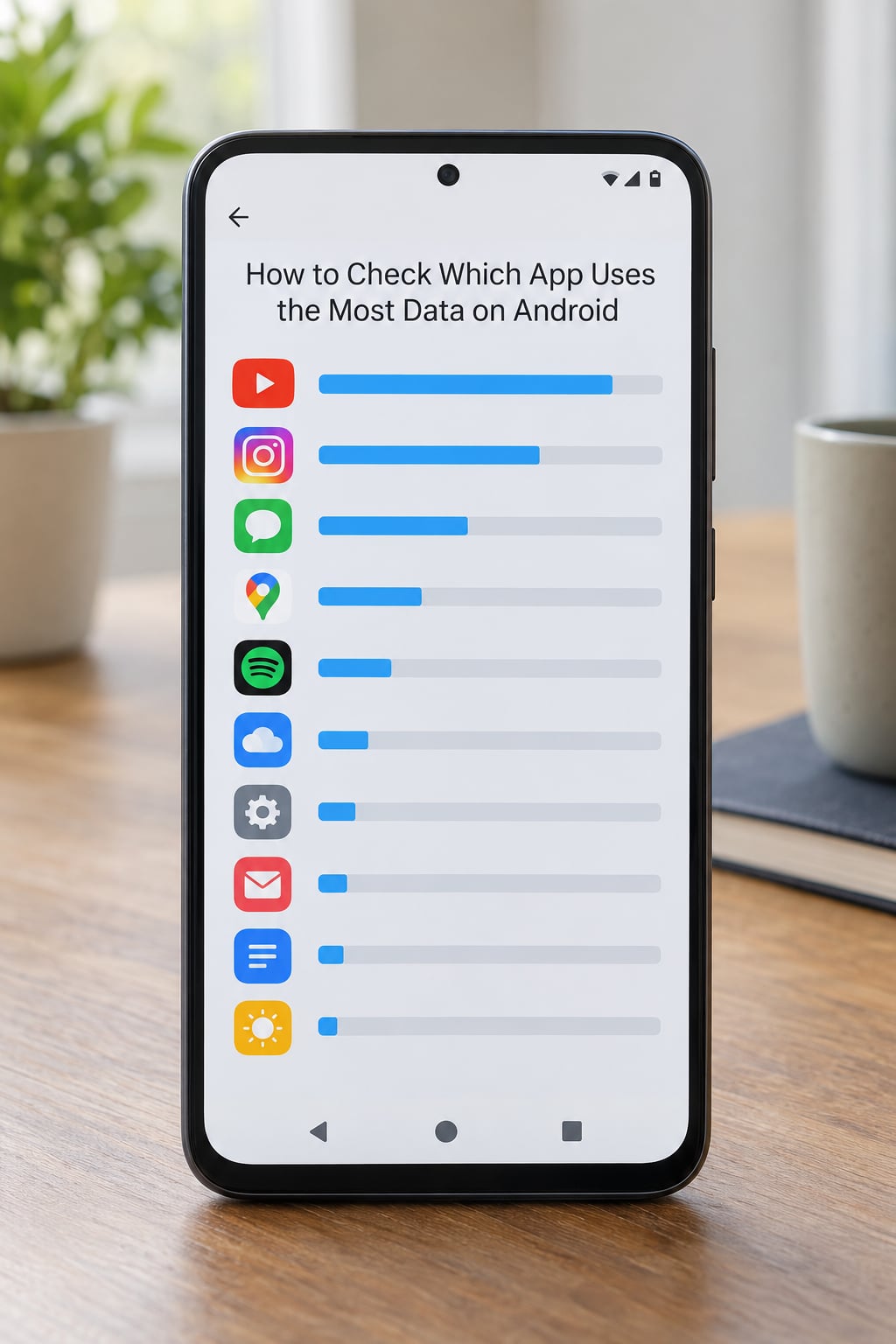
On stock Android and Google Pixel, open Settings > Network & internet > Data usage. You land on a summary screen with a bar showing total mobile data used since the last reset, and a line of totals underneath.
Tap App data usage and the full list appears. The list is usually already sorted largest first, but tap the Data usage column header to be sure. What you’re looking for is the top row, and the gap between it and the second row matters more than the absolute number.
Tap the top app and the detail screen splits its usage into Foreground and Background. This is the single most useful screen on Android and it’s the one most guides skip. A high foreground number means you were actively using the app. A high background number with near-zero foreground usually means syncing, backup, or an ad-supported feed refreshing itself.
On the same detail screen you’ll find Background data and Allow usage toggles. Turning background data off there is also your verification step: switch it off, come back in a day or two, and the number stops moving. That’s how you confirm the app was the source rather than just the biggest entry in a list.
Now the manufacturer skins, because this is where the instructions usually break:
- Samsung One UI: Settings > Connections > Data usage. Tap Mobile data at the top of the screen to isolate cellular from Wi-Fi, then tap App data usage. Samsung nests the whole list one level deeper than stock Android.
- Xiaomi HyperOS and Redmi: Settings > More connections > Usage stats for the full network history, or Settings > Apps > Manage apps for a per-app view with a Mobile data slider.
- OnePlus and Oppo: Settings > Network & internet > Data usage > App data usage, which matches stock Android closely.
- Honor: Settings > Mobile network > Data usage.
- Motorola: Settings > Network & internet > Data usage.
Two switches at the bottom of the Android data usage screen are worth knowing. Data Saver blocks background data for apps that aren’t on your priority list. A Set data limit warning, if you enable it, alerts you before you reach a threshold you care about.
How to Check App Data Usage on iPhone
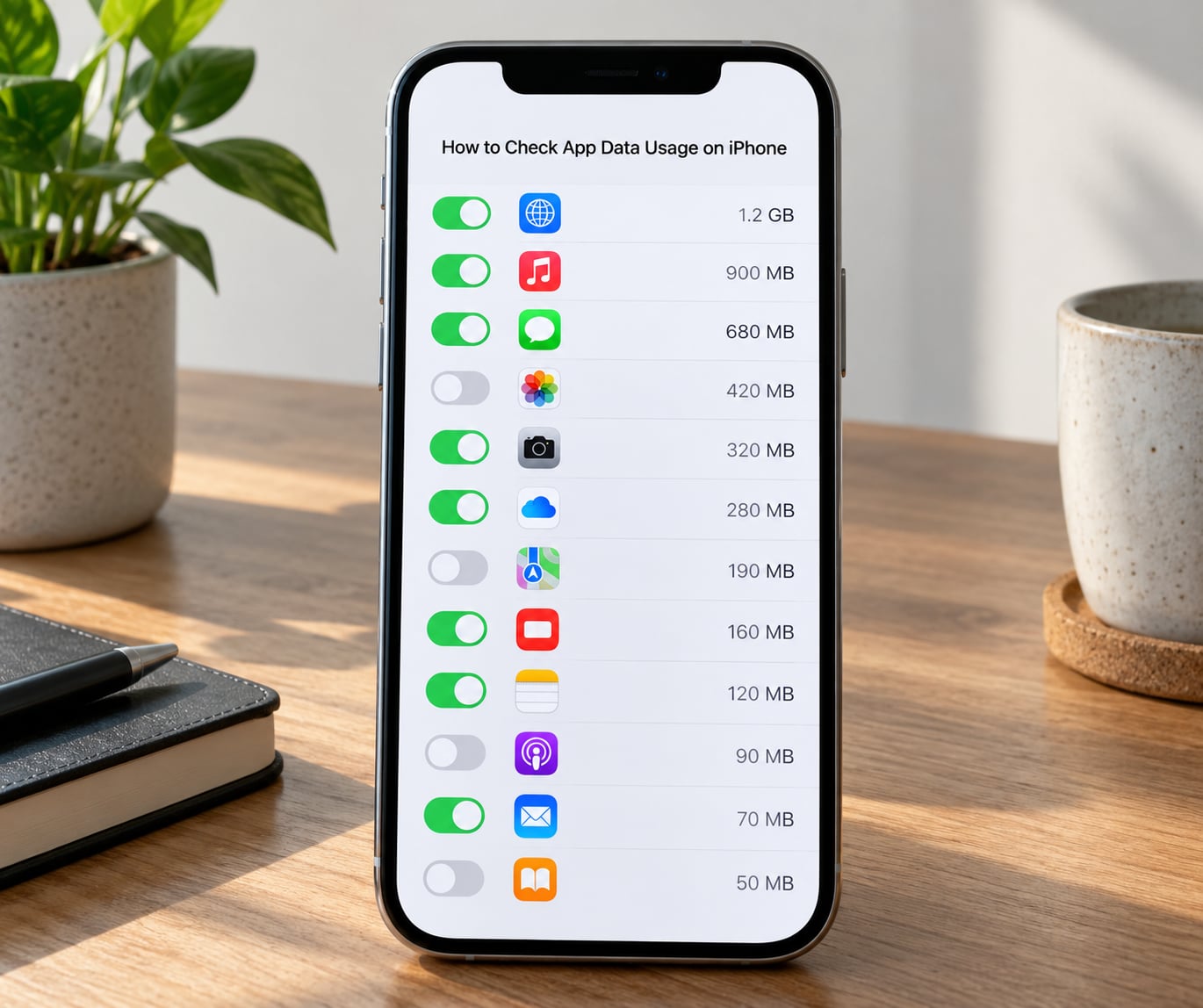
Open Settings > Cellular and scroll down. The top of that screen shows your current plan and the data used in the current period. Below that is an alphabetised list of every app with its own usage figure for the period.
There is no sort control on iPhone, so instead scroll to the bottom of the list. Apple lists apps alphabetically, not by volume, and the biggest consumers are scattered through the alphabet. It’s slower than Android and there is no quick way around it.
Tap any app to open its detail page. You’ll see the same period total, the time it was last updated, and a Cellular Data toggle. Sliding that toggle off is the iPhone equivalent of Android’s per-app mobile data switch, and it’s the single most useful control on the screen.
Just under the plan summary at the top of the Cellular screen you can switch the time window between Current Period and Last 30 Days. Current Period tracks your billing cycle, so it resets when your bill resets. Last 30 Days is a rolling window, which is more useful when you’re chasing a one-off spike.
Two honest limitations. First, iOS does not break usage down by app for Wi-Fi. That figure simply does not exist in the Settings app, and it is the most common reason people install a third-party tracker. Second, iOS has no manual reset button for this counter. Where Android offers Reset statistics at the bottom of the data usage screen, on iPhone the counter simply rolls over with the billing period.
Check Whether Wi-Fi or Mobile Data Is Causing the Usage
Mobile data and Wi-Fi are counted separately, and a phone that looks generous on paper can be burning your allowance for a reason you never considered.
On Android, the data usage screen has a network selector. On Samsung it’s a Mobile data vs Wi-Fi switch at the top; on stock Android the Wi-Fi figure is on the main data usage page itself. Tap into the Wi-Fi option and you get the same per-app breakdown, which is how you catch an app that’s quietly syncing over a connection you thought was free.
Android also has a Wi-Fi data usage entry in some skins that breaks the total down by access point, showing which network each byte went through. That’s useful when a coffee shop or hotel network shows unexpected usage.
On iPhone, per-app Wi-Fi does not exist. What you can do is confirm the network type for the period: the Cellular screen only counts cellular traffic, so a large Wi-Fi app will show a small number there by design. If you genuinely need per-app Wi-Fi figures on iOS, the only route is a network monitoring app, which requires its own VPN profile and gives you less than people expect for that trade.
Whichever platform you’re on, remember the limits of the carrier’s own numbers. A carrier total counts the whole line, including tethered devices, and it usually covers a billing period that doesn’t match your phone’s window. If you’re travelling or tethering, the two figures will diverge for reasons that have nothing to do with a rogue app.
Reduce or Remove the App Using the Most Data
Now the part most guides leave out. You’ve found the hog. These are the fixes, roughly in order of how reversible they are.
- Turn off mobile data for that app only. On Android, open the app’s data usage detail and switch off Background data, or set Allow usage to Wi-Fi only. On iPhone, use the Cellular Data toggle on the app’s Cellular page. The app still works on Wi-Fi.
- Restrict background activity. Android: Settings > Apps > [app] > Battery > Unrestricted, set to Optimized or Restricted. This slows syncing and stops the app waking itself in the background.
- Enable Data Saver or Low Data Mode. Android’s Data Saver lives on the data usage screen; iPhone’s Low Data Mode is at Settings > Cellular > Cellular Data Options. Both cut background transfers across every app at once.
- Clear the app’s cache. On Android this is Settings > Apps > [app] > Storage > Clear cache. It frees space and stops repeat downloads, though it won’t shrink your current period’s figure.
- Update the app, or uninstall it. A large post-update download and a runaway backup process are both real causes of a single spike. Update first; if the number keeps climbing afterwards, uninstall.
Whichever fix you choose, give it three days before deciding whether it worked. Data usage accumulates slowly, and a single evening of streaming will make a working change look like a failure. Take a second look at the same screen at the end of those three days and compare the pace, not just the total.
Common Mistakes
Five misreadings I see over and over, each with the fix.
Checking in the middle of a billing cycle. A 12 GB app figure on day 10 of a 30-day cycle is not alarming. Day 28 is the honest moment to judge, and switching the view to Last 30 Days gives you a rate you can compare month to month.
Mixing up Wi-Fi and mobile data. If you read the Wi-Fi list and assume it’s the cellular number, you will blame the wrong app. Check which network the screen is showing before you draw any conclusion.
Forgetting updates and system services. A single app update can move more data than a month of browsing. Google Play Services, iCloud, Google Photos and system updates sit near the top of most lists. If the spike lines up with an OS update or a photo backup, that is usually the explanation.
Assuming the biggest number is a problem. The top consumer on a heavy video user’s phone is a video app doing exactly what it was asked to do. Judge each figure against whether you use that app, not against an abstract idea of heavy use.
Changing settings without recording the original number. Screenshot the screen before you toggle anything. If you disable an app’s mobile data and the usage pattern doesn’t change, you’ll have no baseline to prove what did or didn’t work.
One more that’s worth naming: apps you don’t recognise in the list. Entries under Google Play Services or the system updater are normal and belong to the OS. Entries for apps you deleted can linger briefly before they clear. Neither is a reason to suspect anything, but if you want per-app visibility on both network types, a network monitor like GlassWire is the tool forum users recommend for Android.
Check the Carrier Total and Your Phone’s Share
Your phone and your carrier will rarely agree to the decimal place, and the gap is usually one of a handful of ordinary things.
- Reporting lag. Carriers process usage in batches. Your carrier’s figure can trail your phone’s by a day or two, so a number checked mid-period is always a rough comparison.
- Shared hotspots and tethering. Data used by a laptop or tablet connected to your phone is billed to your line but not attributed to any app on your phone’s own list.
- Family plans and line bundling. A family plan total may pool several lines or share a pool with add-on devices you don’t own.
- Device management and work profiles. A managed work profile can run its own traffic under a corporate allowance, and some configuration profiles report usage at a level you can’t inspect directly.
- Roaming and travel data. Roaming traffic often lands on the carrier’s bill and, on some devices, in a different bucket than your local mobile data.
- Usage outside the displayed window. If your phone is showing Current Period and the carrier’s cycle started on a different day, the two periods overlap unevenly.
When the difference is big enough to question, take a screenshot of your device figure with the date visible before you contact anyone. Forum users on billing forums who did that had far better luck disputing an overage than those who argued from memory.
If you want a rough sanity check on the scale, streaming video at 1080p commonly runs between 2 GB and 3 GB an hour, standard video calls sit far lower, and a full cloud photo backup can move tens of gigabytes in a single run. A spike in the tens of gigabytes that lines up with a photo library change is almost always a backup, not a mystery.
Frequently Asked Questions
How do I find out which app is using the most data on my phone?
Open Settings, then go to Network and internet, Data usage, and App data usage on Android, or to Cellular on iPhone. Sort or scroll to the largest consumer, then tap it to see the detail. Android shows a foreground and background split; iPhone shows a period total and a Cellular Data toggle you can switch off for that app alone.
Why does my app data total differ from my carrier bill?
Carriers report in batches, often a day or two behind your phone, and they count the whole line including tethered devices. Family plans pool several lines. Billing periods may not start on the same day as your phone’s current period, and roaming can be billed separately. Compare figures only after the cycle closes, and screenshot your device total before disputing anything.
Does turning off cellular data for an app stop its Wi-Fi usage?
No. The cellular toggle or the Android background data switch only affects mobile data. The same app will keep using Wi-Fi, which is usually what you want, since Wi-Fi traffic does not count against your allowance. If you want an app fully offline, set its network permission to none rather than relying on the mobile data switch alone.
How can I tell whether an app is using data in the background?
On Android, open the app’s entry in Data usage, App data usage and look at the background figure next to foreground. A large background number with almost no foreground means syncing or a stuck process. On iPhone there is no split view, so the closest signal is usage that climbs while you have not opened the app.
How often should I check app data usage?
Once a month, at the end of your billing cycle, is enough for most people. Check mid-cycle only if you are near a limit, tethering, or travelling. A quicker weekly glance on Android is fine if you enable a data limit warning, but there is nothing new to learn from checking daily.
Does clearing an app’s cache reduce mobile data use?
Not directly. Clearing cache frees storage and stops the app re-downloading the same files repeatedly, which prevents future traffic. It does not subtract anything already counted in the current period. For an app that is genuinely overusing data, restricting its mobile data is what changes the number.
Conclusion
Start in your own settings app rather than an app store tool. Find the data usage screen, put the largest consumer at the top of your attention, check which period and which network it covers, then switch off its mobile data or remove it. Give the change three days, look at the same screen again, and compare the pace of use rather than the total.