Installing F-Droid takes about ten minutes and needs no root access, no computer and no account. You download one APK from f-droid.org, temporarily allow your browser to install apps from other sources, open the file, and then browse a catalogue of open source apps that keeps its own copy of the listings and builds.
What follows is how to install F-Droid on Android and use it day to day: the settings path that actually applies to modern phones, what the first-run index download means, how to install and update apps, and how to check whether an open source app is worth trusting before it goes on your home screen.
One note on the wider picture in 2026. F-Droid is maintained by the Guardian Project, and the project has been running a public campaign about Google’s changes to how apps get installed on Android. Nothing about that has changed the basic install path below, but it is why more people are asking about sideloading than a couple of years ago.
Table of Contents›
- What You Need
- Step-by-Step: How to Install F-Droid and Use Open Source Apps
- How to Prepare Your Android Phone or Tablet
- How to Download and Install the F-Droid APK
- How to Set Up F-Droid and Find Open Source Apps
- How to Install, Update, and Remove an App
- Common Mistakes and How to Fix Them
- How to Use F-Droid Responsibly
- Frequently Asked Questions
- What is F-Droid?
- Is it safe to install apps from F-Droid?
- How do I allow apps to install from unknown sources on Android?
- What is F-Droid Basic?
- Can I install Google Play apps from F-Droid?
- Does F-Droid need root or affect my warranty?
- Conclusion
What You Need
You need four things, and three of them you already have.
- An Android phone or tablet running Android 8.0 or newer. That covers essentially every device still in daily use, since anything older has lost Play Store support and security patches.
- Around 200 MB of free storage. The client itself is small, but the repository index and downloaded APKs need room, and the index grows over time.
- A working browser — Chrome, Firefox, or whatever you already use — plus a way to open downloaded files afterwards, usually the browser itself or a file manager.
- Your existing account backups intact. Nothing in this process touches your Google account, and F-Droid needs no login of any kind.
If your phone is managed by a work or school account, the install-from-unknown-sources switch will usually be locked by policy. That is not a fault on your device, and no amount of retrying will change it.
Step-by-Step: How to Install F-Droid and Use Open Source Apps
How to Prepare Your Android Phone or Tablet
Prepare by backing up first, then loosen the install restriction only as far as you need.
Run your usual backup before anything else. If you are switching from iPhone or replacing a stock Samsung, copy photos and contacts across now, because it is much easier to restore a working phone than to debug a half-migrated one.
Check free space in Settings, then open Settings and search for the installer permission. On Android 8 and later the path is:
Settings > Apps > (Advanced) > Special app access > Install unknown apps
On this screen you see a list of apps, not a single global toggle. Tap your browser — the one you will download the F-Droid APK with — and turn on the permission for it. On some Samsung, Xiaomi and OnePlus builds the same setting sits under Settings > Security > Install unknown apps instead, with nearly identical wording.
Grant that permission to your browser only. Android 8 made this per-app for a reason, and widening it to every app is the one genuinely risky part of this whole process.
How to Download and Install the F-Droid APK
Download only from f-droid.org. Any other site is a copy of a copy, and there is no way for you to tell.
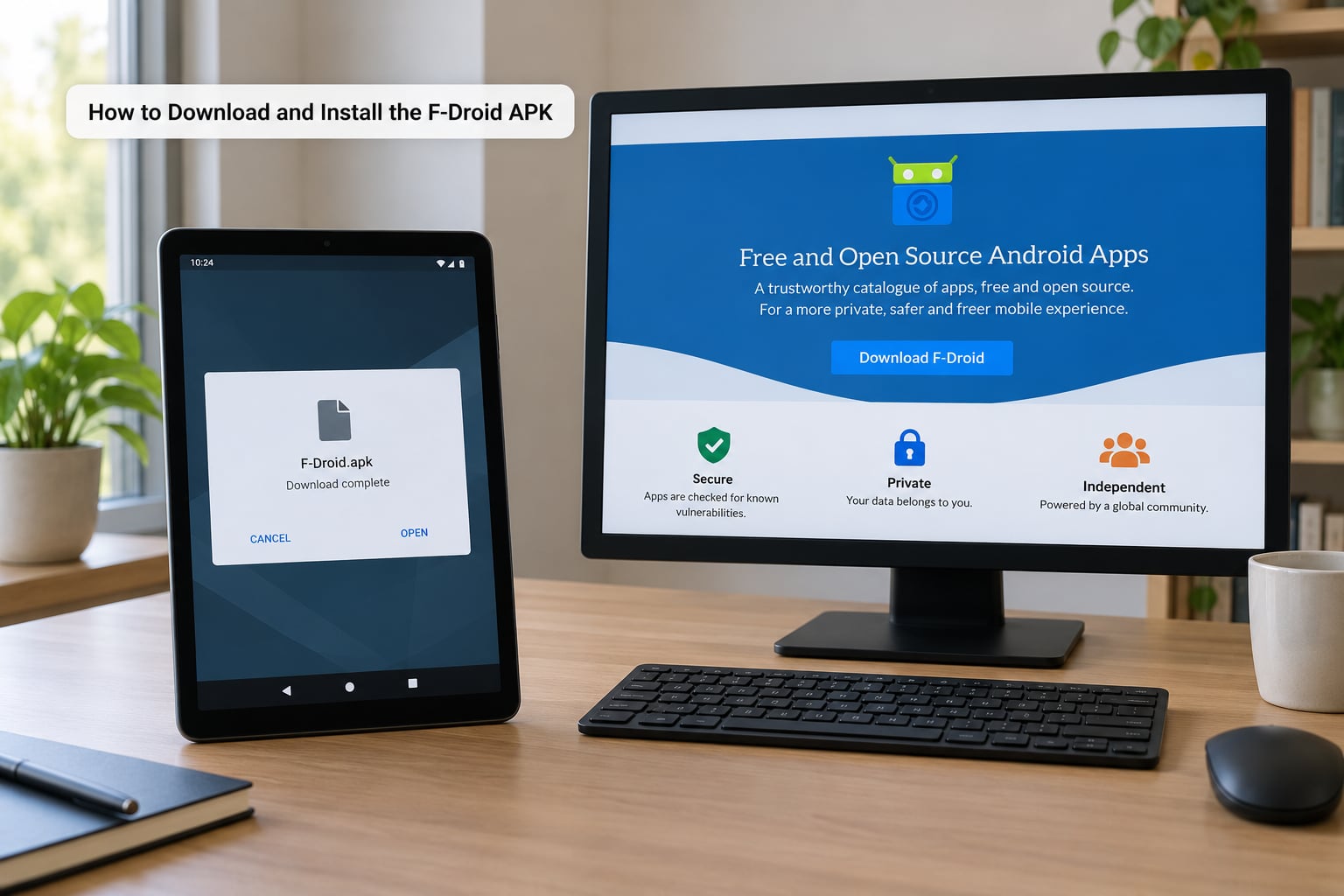
Open your browser, type f-droid.org into the address bar, and check the address carefully before you go further. Hit the download button for the F-Droid client, save the APK, and let it finish downloading.
Open your Downloads folder and tap the APK file. Android shows the app name and the permission being requested, and you tap Install. F-Droid itself asks for almost nothing — no contacts, no storage beyond what it needs, no phone permission — and if the install screen lists anything alarming, stop and re-check the download source.
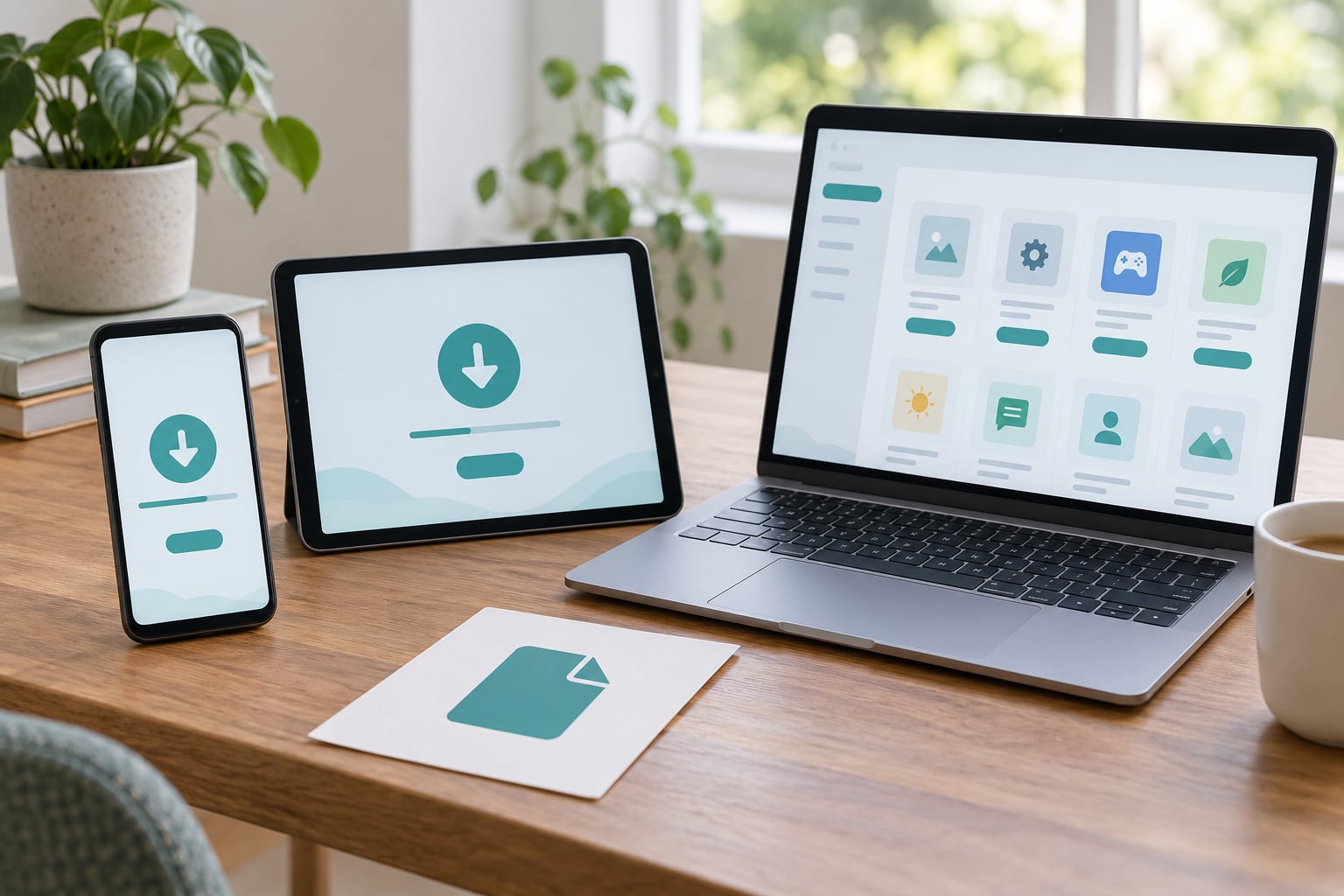
Open F-Droid from your app drawer. The first launch shows an empty-looking screen while it fetches the repository index, and this is the step that catches everyone out: nothing is broken, the client is downloading a few thousand app listings before it can show them. Give it a few minutes on a slow connection.
Once the index lands, revoke that browser permission straight away. Go back to Settings > Apps > Special app access > Install unknown apps and turn your browser off again. You will need it later only if you add a custom repository.
Never install the F-Droid APK from a third-party mirror, a file-sharing site or an APK bundle page. Those are the exact places malware gets distributed, and the real f-droid.org costs you nothing extra to use.
How to Set Up F-Droid and Find Open Source Apps
Finding apps means reading an app page closely, not just trusting the icon.
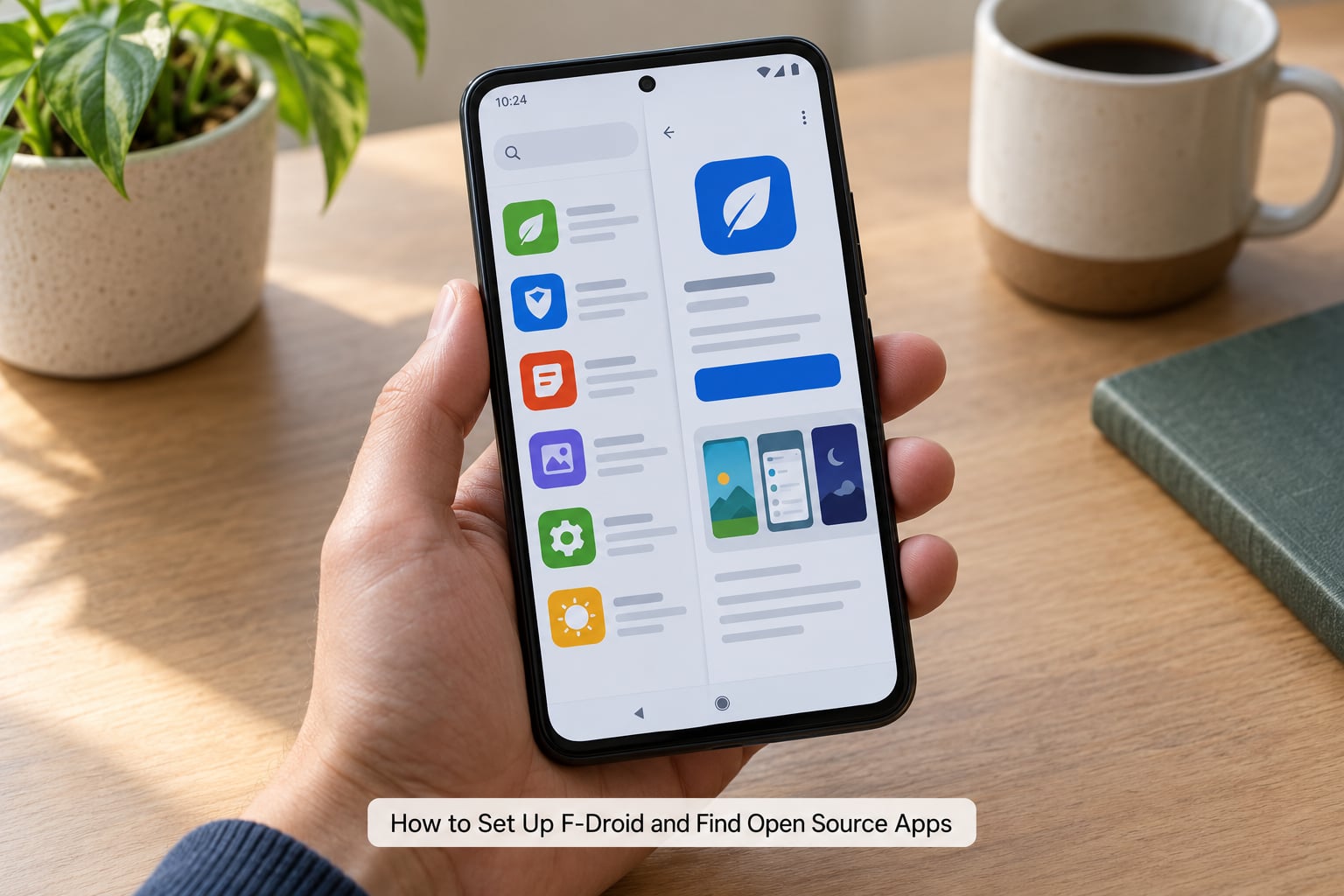
Tap the Explore tab to browse categories, or the search icon to look up a specific app by name. When you open an app page you get the details that actually matter:
- Anti-features. Labels such as Tracking, Ads, Known Vulnerabilities, Non-Free Code or Non-Free Network Services appear at the top when an app has them. This is F-Droid’s own warning system and it is more useful than any badge on the Play Store.
- Last updated and the current version. A build that has not been updated in three years is a red flag; a build that is one version behind the developer’s own site is normal and often intentional.
- Licence and source code link. Open source means the code is readable, and the page tells you where.
- Permissions the app requests, with the reason given for each one.
You will also see the same app twice for some titles: one entry is the Play Store version, the other is the F-Droid build made from source. They cannot be installed side by side, so pick one deliberately. The F-Droid build is the auditable one, and it is usually the one you want unless you need the Play version for a specific reason.
How to Install, Update, and Remove an App
Installing takes one tap; updating takes two settings changes.
Open the app page and tap Install. Watch the download bar under the app title. If nothing happens after the download finishes, Android is likely blocking the install in the background — see the fixes below.
Updates live on their own tab. Tap Updates to see everything with a newer build available, then tap Update all. To be honest about the biggest complaint here: the classic F-Droid client does not update itself automatically. You have to open it, or you have to set it up to check on a schedule.
For auto-updates, open Settings in F-Droid and turn on automatic updates for individual apps or for everything. On phones from Samsung, Xiaomi, Huawei and OnePlus, also set F-Droid to be exempt from battery optimisation, or the system will kill the download job partway through.
To remove something, open the app page and tap Uninstall, which removes it the same way it would from the Play Store. F-Droid also has a Privileged Extension you can install if you want to uninstall pre-installed apps you cannot otherwise remove — that needs root, and stock phones cannot do it.
Common Mistakes and How to Fix Them
Almost every F-Droid install problem has one of five causes.
“App not installed” when you tap Install. Android is blocking the install rather than the app being broken. Open Settings > Apps > Special app access > Install unknown apps and check that your file manager or browser has the permission, then install the app while that app is in the foreground so the prompt appears.
Installs fail every time with no message. Battery optimisation is cutting the background job off. Set F-Droid to unrestricted battery use in Settings > Apps > F-Droid > Battery, then retry.
You get a signature or version conflict. You are trying to replace an app that was installed from somewhere else, and Android will not install over a different signature. Uninstall the existing app first, accepting that its data goes with it.
A banking app stops working after installing from F-Droid. This is not F-Droid’s fault. Google Play Integrity checks device attestation, and some apps refuse to run on a device that no longer passes. Install those particular apps from the Play Store and leave everything else where it is.
F-Droid sits on “Fetching index” forever. Either the download is genuinely slow, or it stalled. Force stop F-Droid, switch to Wi-Fi if you are on mobile data, and reopen it. If it keeps happening, clear the app’s storage so it rebuilds the index from scratch.
The screen looks empty right after installing F-Droid. Nothing is wrong. The client is downloading the index before it can list anything.
How to Use F-Droid Responsibly
Use it the way you would use any other tool you did not build: check it first, keep it updated, and know what you are giving up.
Read the anti-features before installing anything. An app labelled Tracking or Non-Free Network Services still works, but you now know the trade you are making. Then read the permission list and ask whether a calculator really needs your location.
Check update recency as a health signal. The project being quiet for a year usually means it is abandoned, and an abandoned app with old vulnerabilities is worse than no app.
Compare against the developer’s own distribution when it exists. Some projects publish faster on their own site or on GitHub releases than F-Droid’s build pipeline does, and nothing stops you installing from the official source instead.
Two beginner worries come up constantly, and both are no. Installing F-Droid does not need root, because it is an ordinary app like any other. It also does not void your warranty, because you are not modifying the system partition or unlocking the bootloader — you are installing an APK, which is a supported Android feature.
The honest limit: F-Droid builds can lag upstream releases, sometimes by weeks. For a notes app that does not matter. For a password manager, an authenticator or a browser, check how current the build is and consider the official release instead.
There are other clients if the classic one frustrates you. Neo Store and Droid-ify sit on top of F-Droid’s repository and handle updates and installation differently, while Obtainium pulls apps straight from a developer’s GitHub page and keeps them updated without F-Droid at all.
Frequently Asked Questions
What is F-Droid?
F-Droid is a free, open source app store and catalogue for Android maintained by the Guardian Project. It ships only Free and Open Source Software apps, built from publicly auditable source code, with no tracking, no ads and no Google Play Services dependency. You install the client once, then browse, search, install and update apps from it the same way you would with the Play Store.
Is it safe to install apps from F-Droid?
Mostly yes, as long as the client itself came from f-droid.org and you read the app page before installing. Every app lists its anti-features, such as Tracking or Ads, and its requested permissions. The real limits are honesty ones: F-Droid builds can lag the developer’s own releases, and an open licence makes the code readable but does not guarantee it is well written.
How do I allow apps to install from unknown sources on Android?
Since Android 8 the permission is granted per app rather than through one global switch. Go to Settings, then Apps, then Special app access, then Install unknown apps. Choose the app that will open the APK, in most cases your browser or file manager, and enable it for that app only. Turn it off again as soon as the F-Droid client is installed.
What is F-Droid Basic?
F-Droid Basic is a lightweight version of the client with a reworked installation flow. Its background installer handles downloads in a way that is often more reliable on phones with aggressive battery management, where the standard client stalls partway through. You can run both, but you only need one, and the standard client is the better default for a first install.
Can I install Google Play apps from F-Droid?
No. F-Droid lists apps that are free and open source, so Play Store exclusives such as most banking apps, Google apps and commercial streaming clients are not there. It does list a Play version of some open source apps alongside its own build. When an app is genuinely Play-only, install it from the Play Store and keep everything else on F-Droid.
Does F-Droid need root or affect my warranty?
Neither applies. F-Droid installs as an ordinary app, with no bootloader unlock and no system partition changes, so there is nothing for a manufacturer to void your warranty over. The one feature that needs root is the Privileged Extension, which lets F-Droid remove pre-installed apps on stock phones. Skip it unless you specifically need to debloat.
Conclusion
Three things and you are done. Download the F-Droid APK from f-droid.org and install it, grant your browser the install-unknown-apps permission only for as long as the download takes. Open the client, let it finish fetching the index, and browse or search the catalogue. Then install one reputable open source app, read its anti-features and permissions before you tap through, and set up automatic updates inside F-Droid so it does not quietly fall behind.