Learning how to read an app privacy label before installing takes about a minute per app, and it is the only privacy disclosure you can see while the app is still off your phone. You open the store listing, find the App Privacy section on iPhone or the Data safety section on Google Play, and compare what the developer says they collect against what the app actually does. This guide was last reviewed in October 2026, and both stores update these labels whenever app behaviour changes.
The honest part first: these labels are written by the developers selling the apps, and the enforcement behind them is inconsistent. A developer who marked every one of their apps as Data Not Collected was describing their own portfolio on Hacker News, which tells you how loosely some developers treat the system. That is why the label is your first filter, not your last one.
What follows is the routine I use before I tap Install. It takes five minutes the first time, and about sixty seconds once you know what you are looking at.
Table of Contents›
- What You Need
- Step-by-Step: How to Read an App Privacy Label Before Installing
- 1. Find the privacy label and the privacy policy
- 2. Check what data the app says it collects
- 3. Work out whether data is shared, sold, or used to track you
- 4. Review permissions and data practices
- 5. Check security, deletion, and developer practices
- 6. Make the install-or-skip decision
- Common Mistakes
- Frequently Asked Questions
- What does an app privacy label tell me?
- Does a privacy label mean an app is completely safe?
- Why does an app need permissions unrelated to its main feature?
- How can I tell if an app shares my personal data?
- Should I install an app if its privacy policy is vague?
- Can I change an app’s privacy settings after installing it?
What You Need
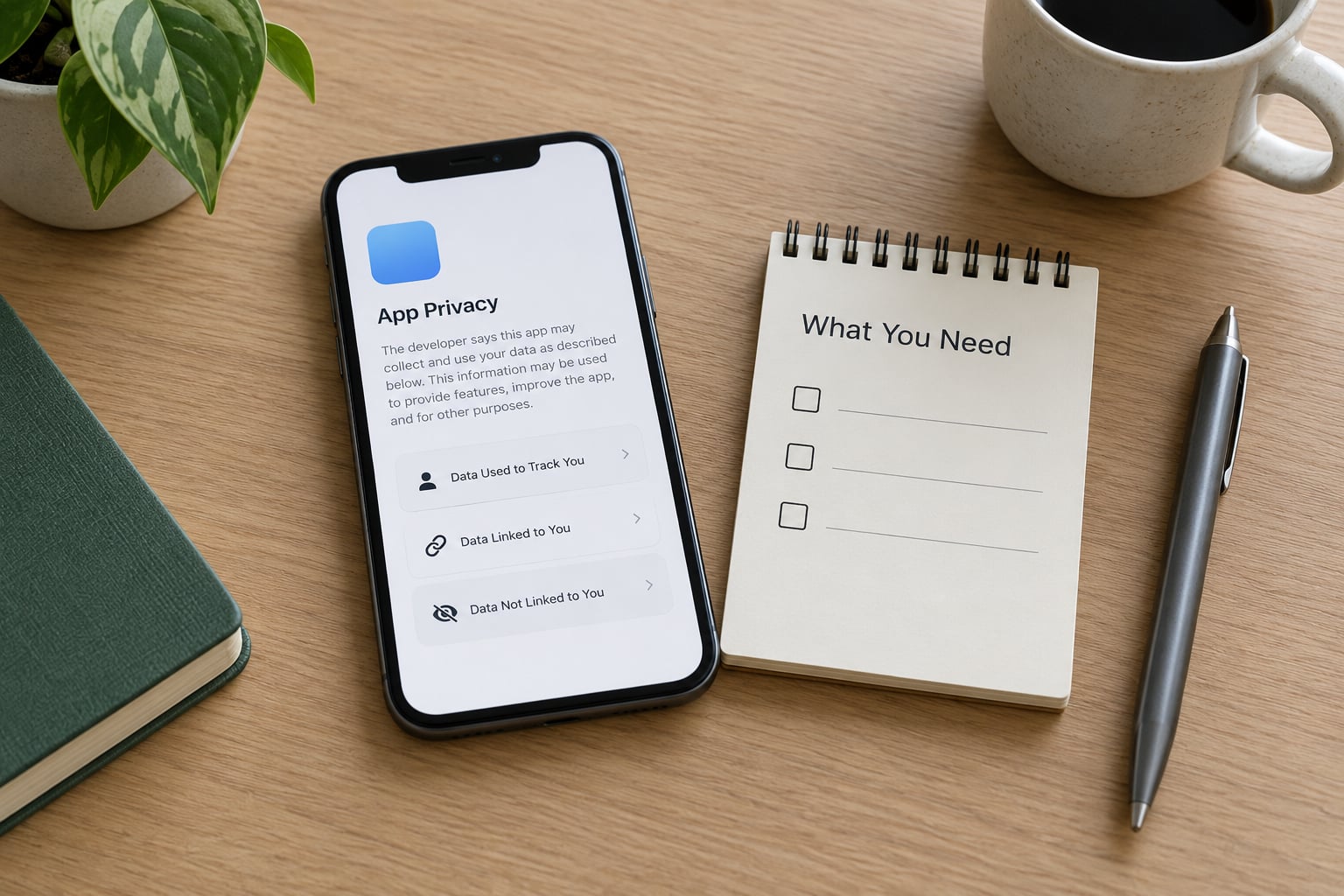
You need the app store listing open on the device you actually use, because the same app can show different disclosures on iOS and Android. Then you need four things side by side: the privacy label, the list of permissions the app requests, the developer’s privacy policy, and a rough sense of what the app is for.
That last one matters more than people expect. The label only becomes readable once you know the app is a flashlight, a banking client, or a dating app, because that tells you which data categories are plausible and which are strange.
You also want about five minutes for the first app you check. The third or fourth one takes a minute, because you stop reading the labels as a wall of icons and start comparing them.
Step-by-Step: How to Read an App Privacy Label Before Installing
1. Find the privacy label and the privacy policy
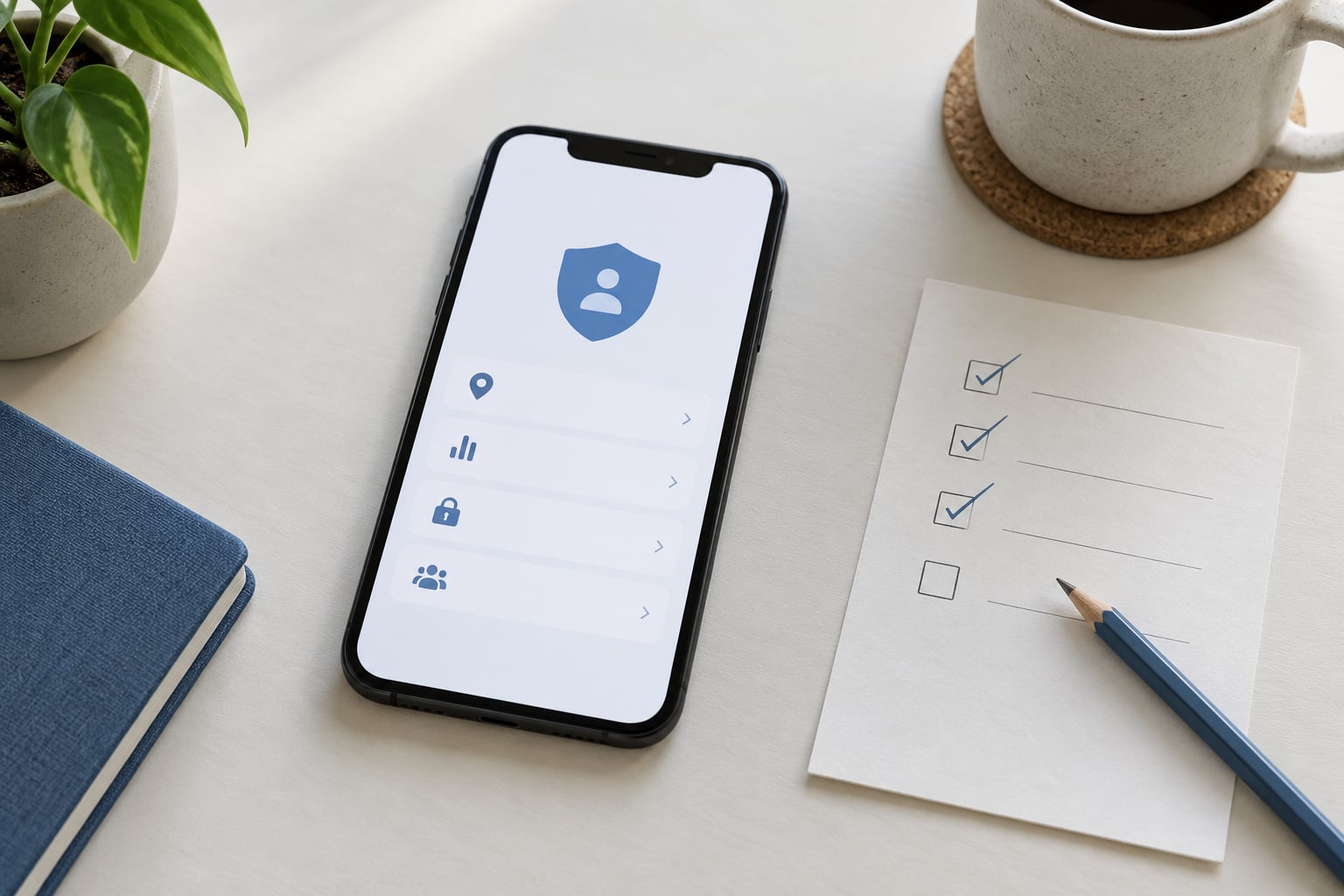
On an iPhone, open the App Store, tap the app, scroll down past the screenshots and the developer name, and look for App Privacy in the Information section. Tapping it expands the full list of data types, the purposes each one is used for, and whether the collection is optional. Apple first shipped this as the privacy nutrition label, and you will still see that name in older articles and support pages.
On Android, open the Google Play listing, scroll to About this app, and tap Safety. The Data safety section opens into a page with the data types the app collects, whether that data is shared, whether collection is optional, and whether the data is encrypted in transit. Some listings also show a Data safety form entry dated in the app’s developer profile, which tells you when the declaration was last edited.
The privacy policy link sits next to the label on both platforms. Read it after the label, not before. The label is the summary, and the policy is where the retention periods and the list of named third parties live.
2. Check what data the app says it collects
Both stores group data into roughly the same categories, and you will recognise most of them from the label without a glossary. The categories worth slowing down on are contact information, location, identifiers, usage data, diagnostics, user content, sensitive information, and purchases.
Contact information covers your name, email, phone number, and address book. Location means precise coordinates and, on Android, background location history. Identifiers is the quiet one: device IDs, advertising IDs, and anything that tags you across sessions.
Usage data covers taps, searches, and the pages you viewed inside the app. Diagnostics covers crash logs and performance data, which is usually harmless on its own but often rides along with a third-party SDK. User content covers photos, videos, audio, and messages, which is the most revealing category for anything with a camera or a microphone.
Sensitive information is its own category on both platforms, and it is the one to read twice. It covers health records, financial accounts, and other regulated categories. An app you would never describe as a health app that declares financial information is worth a second look.
The reason to read the categories is that the purpose matters as much as the data type. The same field can be declared for app functionality, analytics, product personalisation, or third-party advertising, and those four purposes land very differently. Apple’s label shows the purposes attached to each type, and so does Google’s. Ignore the purpose column and a flashlight app declaring location looks alarming. Read it and you find it uses location for analytics, which is a different conversation.
3. Work out whether data is shared, sold, or used to track you
Collection is the easy part, because it only means an app holds your data. Sharing means it passes data to a third party or lets a third party collect it on its own behalf, and sale means money changes hands for it. Apple’s label splits its answers into Data Linked to You, Data Used to Track You, and Data Not Linked to You, while Google asks you two separate questions: does the app collect data, and does it share data.
The mapping is not one-to-one, and that is the single most useful thing to understand before you compare the two stores.
| What you want to know | Apple App Privacy | Google Play Data safety |
|---|---|---|
| Does the app collect personal data | Anything listed under Data Linked to You or Data Used to Track You | Does the app collect or share this data |
| Is it used for tracking across apps | Data Used to Track You | No direct equivalent; look at the sharing answers and the purposes |
| Is the data leaving the device | Implied by the linked and tracking buckets | Is this data shared, with the sharing reasons listed |
| Is collection optional | Each data type is marked optional or required | Collection and sharing are marked optional or required per data type |
| Is data encrypted in transit | Not part of the label | Stated in the security practices section |
| Can you request deletion | Not part of the label | Stated in the security practices section |
| No data at all | Data Not Collected | No data collected and no data shared |
Both platforms have exemptions, and both of them hide real transfers from the label. Google does not count data as shared when it goes to a service provider acting on the developer’s instructions, when the transfer happens with your consent, when the data is encrypted end to end, or when it is only processed on your device. Apple assumes data is linked to you unless the developer can show it is de-identified.
Apple also counts a third-party SDK as tracking even when the developer never reads the data it collects. If a developer embeds a social login or an advertising library, that library’s behaviour lands in the developer’s label whether or not they use it.
And neither platform guarantees that a Data Not Collected claim is true. Treat it as a claim to spot-check, not as a clean bill of health. A recent investigative write-up in this space pointed at the Tea dating app, whose label did not reflect data that turned out to be exposed.
4. Review permissions and data practices
Permissions are the cross-check that catches a lazy or wrong label, because the operating system asks for them separately and developers cannot quietly rewrite a permission without updating the app.
On Android, the permission list usually appears in the listing before you install, under the data safety section and near the install button. On iPhone, you see the reasons screen at the moment of install, with each permission tied to a stated reason such as sending you notifications or finding nearby Bluetooth devices.
Compare the two lists against each other. If the label says the app collects usage data for analytics but the permission screen asks for your contacts, one of the two is out of date, and you should assume the worse one is right until you find out otherwise.
Some permissions exist only for optional features. A note-taking app asking for microphone access is usually a voice-memos feature you have not turned on yet. Denying a permission is rarely fatal: the app usually still runs, and the feature simply stays switched off until you grant it later from Settings.
Know when to walk away outright. A flashlight app that wants contacts, a wallpaper app that wants precise location in the background, or a banking app whose label covers no diagnostics at all but which embeds a social login SDK are all cases where the plausible explanation runs out.
5. Check security, deletion, and developer practices
Google puts encryption in transit and a data deletion request in the Data safety section, so read that part carefully on Android. Apple’s label carries no equivalent, which means you have to open the privacy policy to find any encryption or retention detail, and most policy pages are long and heavily hedged.
Look for four things. Encryption in transit protects data moving between your phone and a server. A stated deletion request tells you whether you can get your data removed after you stop using the app. A named deletion window beats a vague promise to delete on request. And a plain-language policy beats a legal wall, not because the legal version is wrong but because you can actually read it.
Then check the developer side. Who published the app, when was it last updated, and do they have a real support page or website? A developer with years of updates and an active support address is a different proposition from an account created last month with no responses in the reviews. And remember that the label can change silently between versions, so a date you checked six months ago tells you very little about the app on your phone now.
6. Make the install-or-skip decision
You can compress all of this into one test: does the data on the label fit the job the app does? Call it the category-plausibility check, and it is the fastest way to sort a list of apps.
A flashlight needs the camera and maybe nothing else. Contacts, location history, and purchases have no business appearing on its label.
A messaging app that declares contacts is reasonable because that is how you find people. The same app declaring purchases and sensitive information is not, unless it clearly explains a payment feature. When a messaging app does collect nothing beyond what the conversation requires, there are privacy-focused alternatives built on end-to-end encryption that are worth comparing first.
A shopping app declaring usage data and purchases is expected. Declaring contacts is not. Declaring user content, meaning photos and video, deserves an explanation tied to a specific feature rather than a general mention of improving the app.
A social app collecting contacts, location, usage data, and identifiers to track you is the common case, and at some point you accept it or you choose not to use that category of app. That is a personal line, not a rule anyone can set for you.
Bank, health, and VPN apps get the strictest test. A bank or insurer that shares data with third parties for advertising has no explanation that survives contact with its own customer base. If the label fails you there, an alternative exists or it does not, but you should not install it hoping it improves later.
When you have enough apps to compare, weigh the app against its alternatives rather than against a perfect score. An ad-supported weather app that collects usage data may still be the better option than a subscription one if you only plan to use it during a season, because the data it collects is bounded by how long you keep it.
Common Mistakes
The biggest mistake is reading Data Not Collected as a guarantee. It is a developer’s statement about their own app, made in a form with limited enforcement, and it says nothing about what their bundled libraries do. Spot-check it instead of trusting it.
The second mistake is treating the label as an audit. It is a summary written by the seller, covering the categories Apple and Google decided to ask about, and it inherits every exemption those platforms built in. Nothing in it confirms what happens to your data after you delete the app.
The third is ignoring permissions that only serve an optional feature. Read the reasons text, and decline anything you do not plan to use. You can grant it later from Settings if you change your mind.
The fourth is comparing an iOS label against an Android label as if they described the same collection. Apple groups by linkage and tracking, Google asks separate collection and sharing questions, and the exemption rules differ. Read each label on its own terms.
The fifth is skipping the privacy policy entirely. It is where retention, named third parties, and deletion timelines live, all of which the label leaves out.
The sixth is checking once and never again. Labels change with app versions, and a major update often introduces a new analytics library. Recheck after big updates and whenever an app asks you for a new permission.
The seventh is judging an app by its rating alone. High ratings measure how well the app works, not how it treats your data. Privacy complaints rarely make it into one-star reviews, so treat the absence of complaints as neutral.
A few habits that help more than any single check. Read the label on the device you will actually install on. Compare two apps in the same category side by side rather than one app against an idea. Recheck anything holding health, financial, or location data every couple of months. And when a label and a permission screen disagree, believe the permissions, because those come from the operating system rather than from marketing copy.
Frequently Asked Questions
What does an app privacy label tell me?
It is a store-page summary the developer fills in about what personal data their app collects, what it is used for, and whether that data is shared with third parties. Apple shows it under App Privacy on the listing, Google Play shows it under Data safety. It is your last look before the app can reach anything on your phone.
Does a privacy label mean an app is completely safe?
No. The label is self-reported, and enforcement varies, so a clean label means a developer claims not to collect much, not that nothing happens with your data. Bundled third-party libraries and Google’s exemptions for service providers and on-device processing can move data without it showing up. Use the label as a filter, then cross-check permissions and reviews.
Why does an app need permissions unrelated to its main feature?
Usually for a secondary feature. A note app asking for microphone access is often voice memos, and a photo editor asking for location may be geotagging. Deny those permissions and the app usually keeps working while that feature stays off. Read the reason text under each permission and only grant what you plan to use.
How can I tell if an app shares my personal data?
On iPhone, look at the Data Used to Track You bucket and the tracking purposes listed under each type. On Google Play, open Safety and read whether each data type is shared, plus the reasons given. Also check the privacy policy for named third parties, since exemptions can keep service-provider transfers off the label.
Should I install an app if its privacy policy is vague?
Be more careful, not automatically dismissive. Vague policies often mean a small developer working from a template. Check whether they still name concrete details like a deletion request, encryption in transit, and the third parties involved, and see whether the label and the policy even agree with each other. Disagreement is the stronger warning sign.
Can I change an app’s privacy settings after installing it?
Partly. You can revoke permissions, turn off background location, and reset or delete your advertising ID from system settings. You cannot undo data already shared or sold, which is why checking the label before installing matters. On iPhone you can also switch on App Tracking Transparency prompts to see what wants to follow you.
If you do one thing from this guide, make it the plausibility check: before you install, look at what the app says it collects and ask whether any of it makes sense for a job that app is meant to do. Scroll to the data types, read the purposes attached to the ones that look wrong, and skip the app outright when the developer cannot explain them. Everything else on the label is detail.