In-app purchases are digital items you buy inside an app — game coins, extra levels, an ad-free upgrade, or a monthly membership — even when the app itself downloads for free. When you tap buy, the App Store on iPhone or Google Play on Android charges the payment method already saved on your account, which is why a single mis-tap or a child holding your unlocked phone can complete a purchase in seconds. The good news is that both platforms ship built-in controls, and once you know how in-app purchases work, you can lock them down in a couple of minutes.
Menus change between OS versions and phone makers use different names for the same setting, so read the platform section that matches your device. Paths below follow current iOS and Android versions; if your phone shows something different, search your Settings app for “purchases” or “Screen Time” to jump straight to it.
Table of Contents›
- How In App Purchases Work on iPhone and Android
- What Happens When You Make an In-App Purchase?
- How to Control In-App Purchases on iPhone
- How to Control In-App Purchases on Android
- How to Set Spending Limits for Apps and Games
- How to Control Purchases Made by Children
- How to Review, Cancel, and Refund Purchases
- Simple Habits That Prevent Unexpected Charges
- Frequently Asked Questions
- Can I set a fixed spending limit for in-app purchases?
- Does canceling a free trial prevent the subscription from renewing?
- Why does an app ask for my password before every purchase?
- How do I request a refund for an app or in-app item?
- Can I block purchases in one app without disabling all app-store spending?
- Can I use the same app purchase on both my iPhone and Android phone?
- Conclusion: Set Your Limits Before Buying
How In App Purchases Work on iPhone and Android
The “In-App Purchases” label on a store listing is a warning, not a fee. It means the app can charge you for things inside it, not that you pay extra just to open it. Free-to-play games, photo editors, and fitness apps all carry it, and the arrow next to the label expands to show the price range of the top-ups they sell.
What you can buy falls into three types, and the type decides what happens after you pay:
| Purchase type | What you get | Does it charge again? |
|---|---|---|
| Consumable | Coins, gems, lives, boosters, an item used once | No, you buy it again when you run out |
| Non-consumable | Unlocked levels, a permanent ad-free upgrade, a filter pack | No, but it stays tied to your store account |
| Subscription | Ongoing access, often with a free trial | Yes, until you cancel |
The billing split differs slightly between the two stores. Apple bills through your Apple ID and takes a commission before the developer sees anything; Google does the same through your Google account. In both cases the charge appears on your card or carrier bill under the store’s name, which surprises people who see “APPLE.COM/BILL” or “Google Play” on a statement and cannot tell which app caused it. The receipt in your store account history is where the app name shows up.
What Happens When You Make an In-App Purchase?
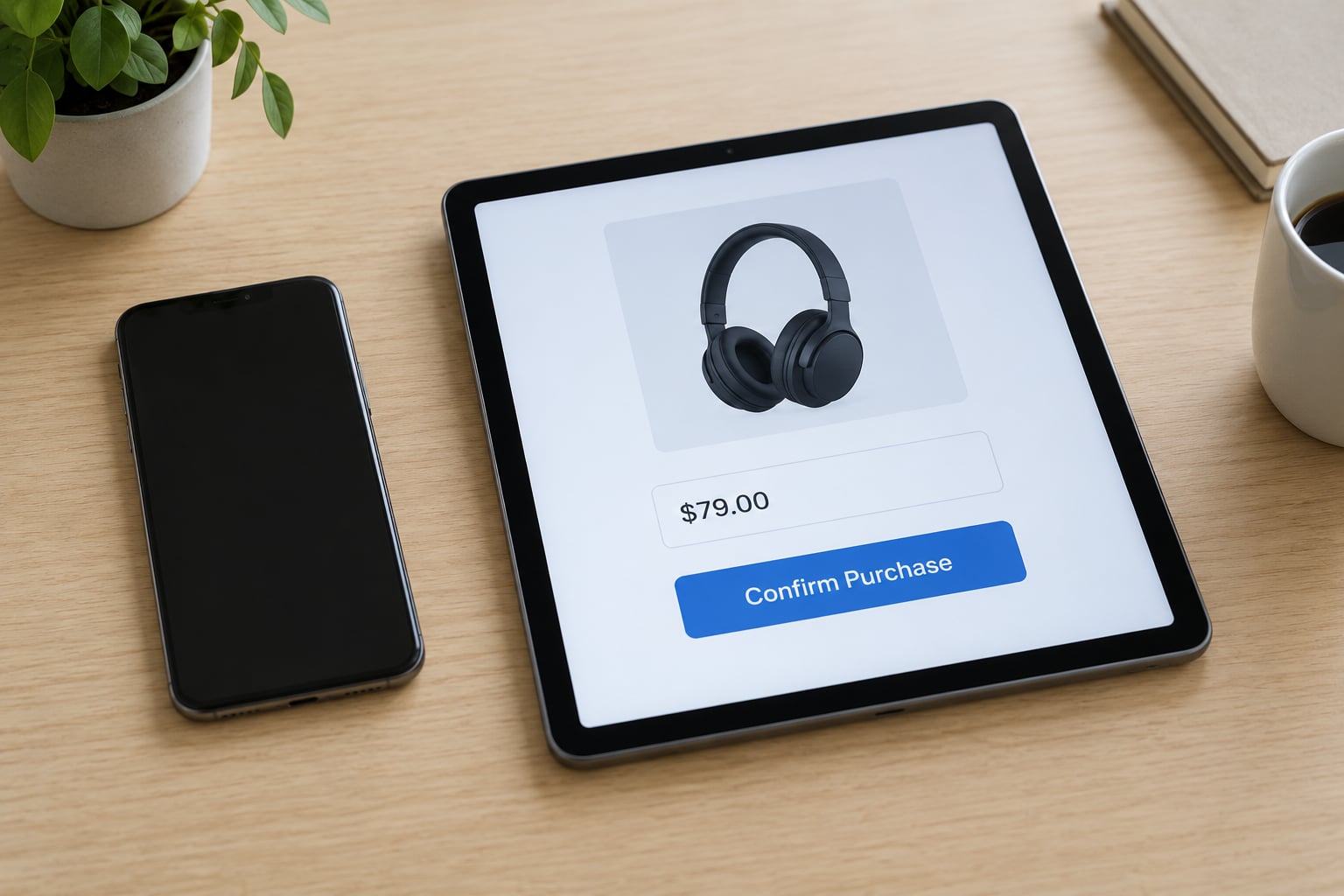
You tap a buy button in the app, the app hands the request to the store rather than billing you directly, and the store asks for authentication. If you have signed in to the App Store or Play Store with a payment method, the money moves within seconds and the item unlocks in the app.
After that you get an emailed receipt and a line in the store’s purchase history. If you delete the app and reinstall it later, non-consumable purchases are usually restored automatically or through a “Restore Purchases” button inside the app. Consumables are gone for good, since they were spent.
Subscriptions behave differently. A free trial starts a recurring charge, most trials run for a week before billing, and the cancel button lives in the store’s subscription list rather than inside the app. Miss the cancel window and you are charged again at the trial’s end price, which is how most surprise renewals happen.
How to Control In-App Purchases on iPhone
iOS gives you a real on/off switch for in-app purchases, which Android does not. To block them entirely:
- Open Settings, then Screen Time.
- Tap Content & Privacy Restrictions, then enable it and tap Continue.
- Choose iTunes & App Store Purchases.
- Tap In-app Purchases and select Don’t Allow.
- Set a Screen Time passcode so a child cannot undo it from the app.
Two softer options sit in the same screen. “Require Password” asks for the Apple ID password on a timer, and Always Require asks every single time. “Ask to Buy” routes each purchase to the Family Organizer for approval, which works well for a teen but stops working the day they turn 18.
One limitation worth knowing: iOS has no universal dollar cap across all apps. You can block categories, require approval, or restrict a single app, but if you want a hard ceiling, the store balance is the tool that actually enforces one.
How to Control In-App Purchases on Android
Android cannot fully disable in-app purchases, and the Google Play community threads on this say it plainly: there is no master switch. What you get is authentication, approval, and per-app restriction, which stop most accidental spending but rely on someone answering the prompt.
- Open the Play Store and tap your profile icon, then Settings.
- Tap Family, then Parental controls, or open the Google Family Link app directly.
- Turn on purchase approvals and create your family PIN.
- For a per-device block, open Play Store, tap Settings, then tap the app’s name and switch off In-app purchases.
- To require a password on every buy, use the family PIN you created and mark it required.
On a Samsung Galaxy, the same Play Store controls sit alongside Galaxy Store settings, and One UI adds its own spending limit and a separate Galaxy account. Amazon Fire tablets run a modified Android where Amazon controls the store, so the parental control you need lives in Fire settings rather than the Play Store. Both are one-tap switches inside their own settings apps, which is worth checking on any tablet you hand to a child.
One warning for adults: Family Link approvals restrict the account holder too, so you cannot buy an app for yourself without entering your PIN first. That friction is the point, but it surprises people who set it up in a hurry.
How to Set Spending Limits for Apps and Games
Neither store gives you a monthly spending cap you can dial to a number for all apps. What they do give you is a ceiling on the money the store can spend, and that ceiling is more reliable anyway because it runs out.
The clearest approach is a store gift card or account balance with a fixed amount on it. Apple gift cards and Google Play gift cards add credit to the account, and when the balance hits zero, purchases fail until you top it up. Set the balance to what you would have spent this month and the problem is solved without relying on willpower.
Other levers worth combining:
- Separate payment method. Remove the card from your store account and pay with a prepaid or secondary card with a low limit, so a rogue purchase cannot touch your main account.
- Budget warning. iOS sends a notification when a subscription renews or a purchase gets expensive; Android surfaces monthly totals in Play Store settings, and some carrier plans have their own text-based spending alerts.
- Carrier billing caps. If you pay through your mobile operator or the plan allows premium SMS charges, ask the carrier for a spending limit. This is a separate layer that still applies when the store account has a card on file.
- Per-app restriction. On both platforms you can disable purchases inside a single app’s store listing without touching anything else.
- Biometric approval. Requiring Face ID or a fingerprint for purchases adds a pause that stops most one-tap accidents, including a child poking at your phone.
How to Control Purchases Made by Children
The reliable setup is a separate child account on a device you control, with the approval workflow switched on. On Apple that means a child Apple ID in Family Sharing with Ask to Buy enabled; on Android it means a Google Family Link account with purchase approvals and a PIN the adult holds.
Ages differ across stores, and none of them block every kind of content — a rating tells you how the app describes itself, not whether the app is safe for a nine-year-old. Read the age rating, then read recent reviews yourself.
Set the approval step before handing over the device rather than after the first complaint. Parents also report purchases made on a child’s device not appearing in the parent’s list, so check the purchase history directly on the child’s store account now and then instead of trusting the feed alone.
Finally, re-check your settings after every major OS update. Parents on support forums describe restrictions quietly resetting after an update, which is exactly the kind of thing you only notice when a charge appears.
How to Review, Cancel, and Refund Purchases
Auditing is easier than most people think, and both stores show the same information in slightly different places.
On iPhone, open the App Store, tap your profile icon, then Subscriptions to see every active renewal with its next billing date. Tap any subscription and hit Cancel Subscription. Your purchase history sits under the same profile icon, and you can also find orders in the Settings app under your name.
On Android, open the Play Store, tap your profile icon, choose Payments & subscriptions, then Subscriptions to cancel and see the renewal date. Your full order history is under Payments & subscriptions > Budget and history, and Google’s subscriptions page is also reachable from Settings.
If something was charged by mistake, report it rather than just deleting the app. Apple handles refunds through reportaproblem.apple.com, where you pick the app and describe the issue. Google Play refunds go through the same profile menu under Payments & subscriptions, and the request is best raised within 48 hours of the charge. What you send with the request matters: the order number, the date, the amount, what you expected to receive, and a screenshot of the app’s purchase screen. For a child’s purchase, say so plainly in the description.
Neither store guarantees a refund. Apple decides case by case, and Google asks you to describe the problem in your own words. If both decline, the next step is a dispute with your card issuer, and for a genuinely fraudulent charge that is a different and usually stronger process. Report the app as well, because a pattern of complaints is what moves a developer off the platform.
Simple Habits That Prevent Unexpected Charges
A few habits do more work than any single setting:
- Expand the In-App Purchases label in the store listing before you download, so you know the price range before you are inside the app.
- Use a store gift card balance as the budget instead of trusting yourself mid-session.
- Keep one card out of your store account, so an accidental purchase has somewhere harmless to land.
- Add a free trial to your calendar the day you sign up, not the day you remember it.
- Sweep your bank or carrier statement once a month for the store names, then match anything odd to your purchase history.
- Re-check purchase restrictions after every OS update, since settings can reset.
Frequently Asked Questions
Can I set a fixed spending limit for in-app purchases?
Not as a monthly number across all apps. Apple and Google both cap spending effectively through the store balance: put a fixed amount on an App Store or Play Store gift card and purchases stop when it runs out. For everything else, use payment approvals, per-app restrictions, and a separate low-limit card.
Does canceling a free trial prevent the subscription from renewing?
Yes, canceling before the trial ends stops the next charge on both the App Store and Google Play. The catch is that the cancel button lives in the store’s subscription list, not inside the app, and the trial usually converts silently. Cancel the day you sign up if you only wanted to test it.
Why does an app ask for my password before every purchase?
The app never sees your password. When you buy something, the store steps in to verify the purchase, so your Apple ID or Google password, plus Face ID or a fingerprint if you enabled it, confirms the payment. The prompt is a security check from the store, and it is also what stops a child from spending from your account.
How do I request a refund for an app or in-app item?
On Apple, go to reportaproblem.apple.com, choose the app, and describe what went wrong. On Google Play, open the profile menu, tap Payments and subscriptions, and start a refund, which is best raised within 48 hours of the charge. Include the order number, date, amount, and screenshots. Refunds are decided case by case.
Can I block purchases in one app without disabling all app-store spending?
Yes on both platforms. On iPhone, open the app’s page in the App Store, tap the three dots, choose Share, then App Store, and switch off In-App Purchases, or use the App Store subscription settings. On Android, open the app in the Play Store, tap the three dots, then switch off In-app purchases or Uninstall.
Can I use the same app purchase on both my iPhone and Android phone?
It depends on the developer. A non-consumable purchase or subscription bought through the App Store is tied to your Apple ID and cannot be used in the same app on Google Play. Cross-platform support only works if the developer has built it and you sign into the matching in-app account, so check the app’s support page before paying twice.
Conclusion: Set Your Limits Before Buying
Start with the switch that takes the longest to regret: on iPhone set Screen Time to block in-app purchases, on Android turn on purchase approvals with a PIN you alone know. Add a store gift card balance if you want a real ceiling, then book a monthly ten minutes to read your subscription list and your statement.
Settings drift, updates reset things, and free trials convert quietly. A short check every few weeks is what keeps an in-app purchase from turning into a surprise on your card.