To stop accidental app purchases on iPhone, open Settings > Screen Time > Content & Privacy Restrictions > iTunes & App Store Purchases and choose Don’t Allow. On Android, open the Google Play Store, tap your profile icon, choose Settings > Authentication, and turn on Require authentication for purchases. Those two switches do most of the work.
The reason most people find this out the hard way is timing. A charge lands, the receipt arrives days later, and by then you are reading your bank statement rather than your settings. This guide covers the prevention settings first, then the cleanup: cancelling subscriptions and asking for a refund on anything already charged. Menu names below match current iOS and Android versions, updated for 2026.
Table of Contents›
- What You Need
- How to Stop Accidental App Purchases on iPhone and Android
- Turn On Purchase Confirmations to Stop Accidental App Purchases
- Restrict In-App Purchases on iPhone
- Set Google Play Purchase Controls on Android
- Use Family, Spending, and Account Safeguards
- Adopt Safer App and Payment Habits
- Common Mistakes
- Frequently Asked Questions
- Can you completely stop app purchases on a phone?
- Can a free app make accidental purchases?
- How do I cancel a subscription I bought by accident?
- Can I get a refund for an accidental app purchase?
- Does turning off in-app purchases cancel subscriptions I already have?
- Why did a child spend money without any password prompt?
- Conclusion
What You Need
You need three things: the phone unlocked in front of you, the device passcode, and roughly five minutes. Nothing else. The changes apply to the account signed in to that store, not the whole device, so check which account is active before you start.
Two small warnings before the steps. Apple and Google both move settings between major system updates, so label names can shift by a word or two. And on Android, the phone maker may rename or bury a setting that Google Play exposes directly. If a menu is not where this guide says it is, use the search box inside Settings and type “purchase” or “Screen Time.”
How to Stop Accidental App Purchases on iPhone and Android
Turn On Purchase Confirmations to Stop Accidental App Purchases
Purchase confirmation is the first line of defense, and it costs nothing to switch on.
On iPhone and iPad:
- Open Settings, then Face ID & Passcode (Touch ID & Passcode on older models).
- Scroll to the section that reads Require Passcode for Purchases.
- Change it from the timed setting to Always.
On Android:
- Open the Google Play Store and tap your profile picture in the top corner.
- Choose Settings, then Authentication.
- Turn on Require authentication for purchases.
- Set the Google Account password if it is not already active.
How do you know it worked? Try a paid app or a coin pack in a free game. A confirmation sheet should appear asking for your passcode or password instead of completing on the first tap.
One caveat: biometrics count as authentication. A Face ID or fingerprint scan can approve a purchase on its own, which is convenient and also fast. If the goal is friction, use a passcode rather than leaving Face ID enabled for payments.
Restrict In-App Purchases on iPhone
This is the setting most guides mean when they tell you to turn off in-app purchases on an iPhone.
On iPhone:
- Open Settings, then Screen Time.
- Tap Content & Privacy Restrictions and turn it on.
- If prompted, set a Screen Time passcode. Write it down somewhere other than the phone.
- Tap iTunes & App Store Purchases.
- Tap In-App Purchases and select Don’t Allow.
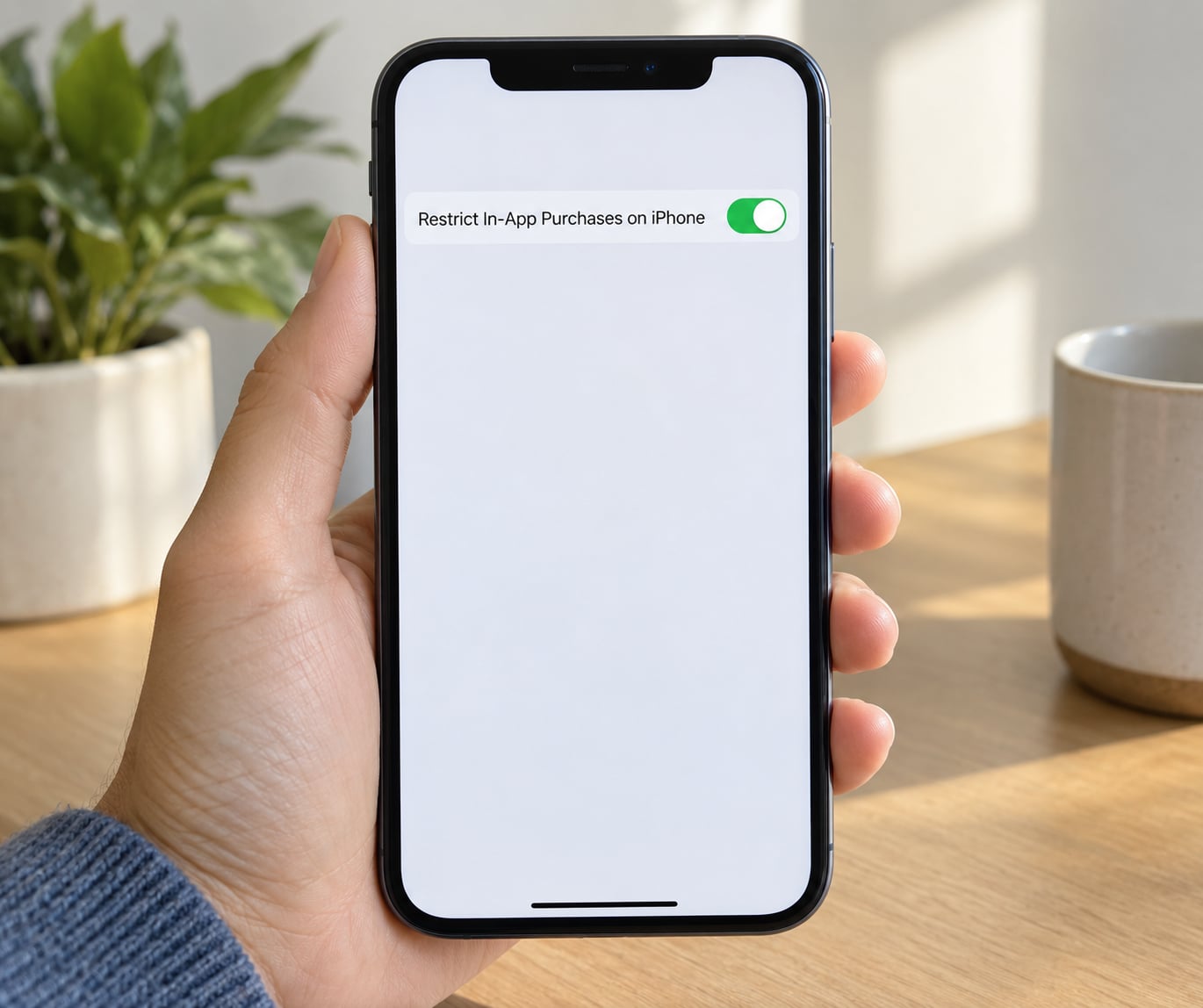
Note what this changes. You can still install free apps from the App Store. What you cannot do is buy coins, unlock levels, remove adverts, or start a subscription from inside an app.
To confirm, open a free game that sells currency and tap the buy button. Nothing should prompt and nothing should charge. If a sheet still opens, the restriction is not active, so go back and check that the Content & Privacy Restrictions switch itself is on, not just the purchases submenu.
Blocking purchases does not cancel anything you already own. Content you paid for stays unlocked, and any subscription already running keeps charging until you cancel it separately.
Set Google Play Purchase Controls on Android
Google Play is the reliable control point on Android. The hardware menu that mattered years ago has largely disappeared, so use the store rather than chasing a setting that is no longer there.
On Android:
- Open the Google Play Store and tap your profile picture.
- Choose Settings, then Family management.
- Set a family PIN and add your child’s account as supervised.
- Inside the child’s entry, turn off purchases and in-app purchases approval options as needed.
- Go back to Settings > Authentication and confirm Require authentication for purchases is on for your own account.
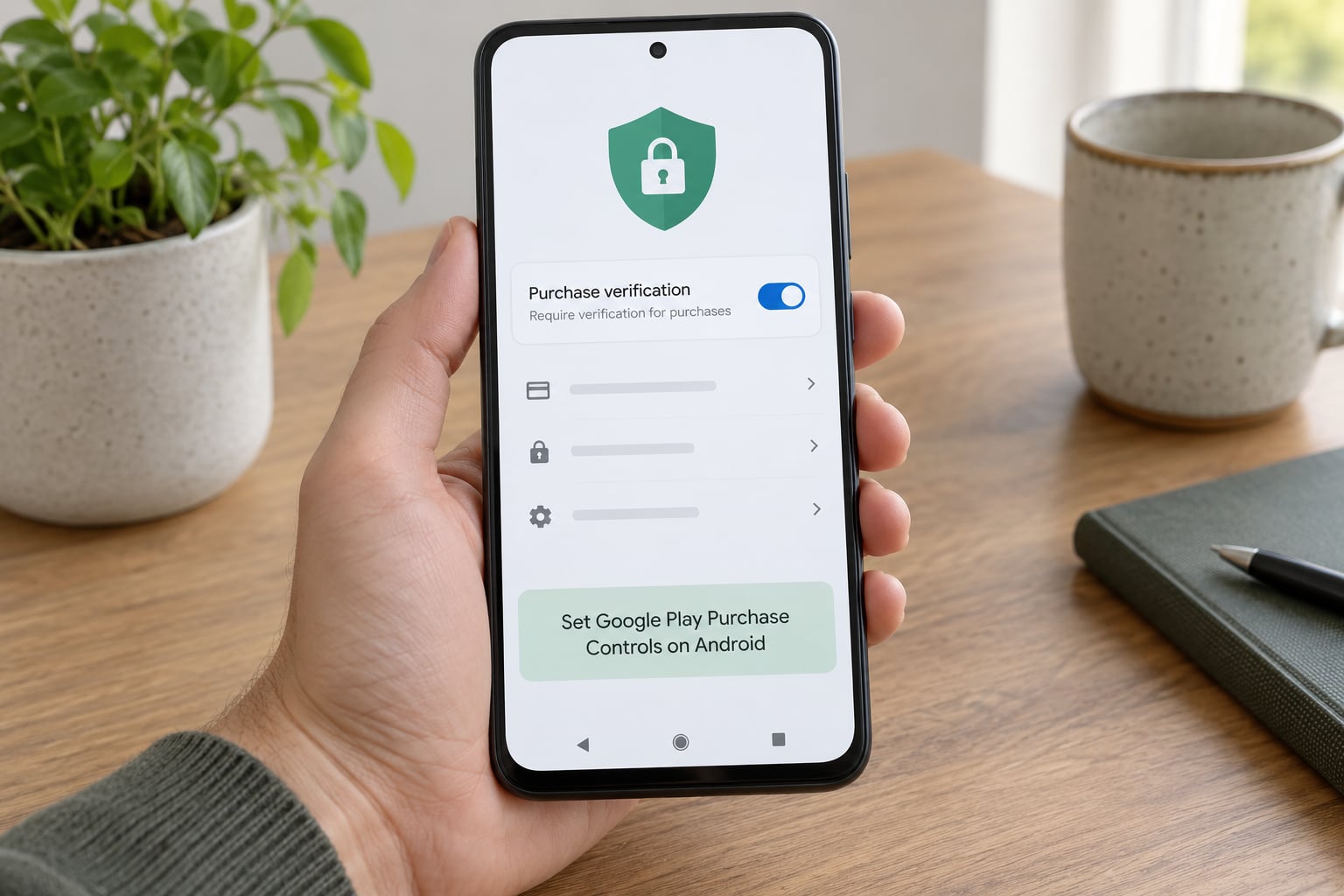
Menus differ by manufacturer. Some phone makers add a duplicate family controls area in their own settings app with different wording. If you find two versions of the same control, set both. They do not always sync.
The verification test is the same as on iPhone: attempt a small purchase and confirm you are stopped by a password prompt rather than by a charge.
Use Family, Spending, and Account Safeguards
These add a human to the loop, which is what makes them effective with kids.
Ask to Buy on Apple devices puts every app request and in-app purchase in front of a parent for approval. Turn it on from Settings > Screen Time > Ask to Buy while the device is nearby and connected to Wi-Fi and power. When a child taps something, the request arrives on the family member’s device instead of completing.
Family Sharing is what makes that approval possible, and what keeps children from signing into an adult’s account where nothing prompts. Set up a separate child Apple Account, then use Ask to Buy to approve only what you want.
Google Play family controls work the same way with a family PIN. The PIN is what stops a determined child from approving their own request.
Be honest about what these controls promise. They add steps and they create a record, but no setting guarantees prevention, and a parent who approves every pop-up has not really restricted anything.
Adopt Safer App and Payment Habits
Settings catch the mistakes you could have prevented. Habits catch the rest.
- Use the phone with two hands when money is involved. A lot of accidental purchases come from one-handed scrolling into a button that was already there.
- Pause before confirming. Promo banners and limited-time offers are built to look urgent, which is exactly the condition that skips your judgement.
- Keep one card for app spending and leave it with a low balance or a spending cap. Big mistake becomes a small mistake.
- Remove saved payment details from the store so nothing can charge without re-entering them.
Then run a quick audit, because prevention does nothing for what is already running. On iPhone, open Settings > Apple Account > Subscriptions, or the Subscriptions tab in the App Store. On Android, open the Play Store > profile icon > Payments & subscriptions > Subscriptions. Cancel anything you did not knowingly sign up for, and check your email for a free trial receipt you never noticed.
Common Mistakes
Assuming a free app cannot charge you. Free apps earn money from in-app purchases, which is why a free game is often the place a stray tap turns expensive. Installing an app and buying inside it are two different permissions.
Forgetting that subscriptions renew on their own. A purchase you meant once a year is billed again next month unless cancelled. Turning off in-app purchases stops new ones and leaves the current one untouched.
Using a child’s unrestricted account. Giving a kid a phone on your own Apple Account or Google account with no restrictions means their taps land on your payment method. A separate child account plus Ask to Buy or family controls is the whole point.
Relying on the screen lock alone. A passcode keeps the phone out of a pocket. It does not ask anything when a purchase button is tapped by whoever is holding the phone.
Changing the wrong Google account. The Play Store applies settings to the signed-in account, and families often have more than one on one device. Check the avatar in the corner before you start.
Expecting a refund after the item is used. Refund odds are much better when the app was never opened, the subscription was barely touched, or the purchase was clearly mistaken. Consumable items you already spent inside a game are the hardest to get back.
A few habits that pay off: turn on transaction alerts from your bank so a charge never takes days to surface. Screenshot the receipt when you do buy something, since order IDs make a refund request faster. And re-check the purchase settings after every major system update, because resets are common.
Frequently Asked Questions
Can you completely stop app purchases on a phone?
On iPhone, you can block purchases inside apps and set purchases to require a passcode. On Android, Google Play can require authentication for every purchase and restrict children’s accounts. Neither platform lets you fully delete the store or block everything on a personal adult account while keeping it usable, so the practical approach is to require authentication and remove saved payment details.
Can a free app make accidental purchases?
Yes, and it is the most common source of surprise charges. Free apps make money through in-app purchases such as coins, character upgrades, extra levels, or removing adverts. Buying those items happens inside the app, which is a separate permission from downloading the app itself. That is why restricting in-app purchases matters even when you never pay for the app.
How do I cancel a subscription I bought by accident?
On iPhone, open Settings, then your name at the top, then Subscriptions, choose the subscription, and tap Cancel Subscription. You keep access until the period ends. On Android, open the Play Store, tap your profile icon, choose Payments and subscriptions, open Subscriptions, and cancel there. Cancelling stops the renewal and does not delete the app or anything already downloaded.
Can I get a refund for an accidental app purchase?
Usually yes, especially for an app you never opened or a subscription you barely used. Go to reportaproblem.apple.com, sign in with your Apple Account, find the charge, and explain that it was accidental. For Google Play, open the order in your purchase history and request a refund from there. Report quickly and honestly; a long gap before reporting weakens the request.
Does turning off in-app purchases cancel subscriptions I already have?
No. Blocking in-app purchases stops new ones only. A subscription started earlier keeps billing until you cancel it in your account settings on iPhone or in the Play Store on Android. If you are reversing a purchase, do both jobs: switch off purchasing so it cannot happen again, then cancel or request a refund for what is already running.
Why did a child spend money without any password prompt?
A few things can cause it. Biometrics count as authentication, so a Face ID or fingerprint scan can approve a purchase on its own. A child signed into an adult’s account can buy inside a payment window with no extra step. Some subscriptions renew automatically, which looks like new spending on the statement. Check the signed-in account first, then set up a separate child account.
Conclusion
Start with the switch that costs you nothing: require authentication for purchases in Google Play, and set purchases to require a passcode on iPhone. Those two settings turn a one-tap mistake into a pause, which is the only thing standing between a scrolling thumb and a charge.
After that, decide how strict you want to be. Families usually want to block in-app purchases entirely and route every request through Ask to Buy or family controls. Adults who share a device usually just want the authentication step plus a card with a limit.
Then spend five minutes on the audit, because old charges do not cancel themselves. Check your subscriptions on both the iPhone and the Play Store, cancel what you did not sign up for, and look at your bank for anything unfamiliar. If a purchase already went through, report it at reportaproblem.apple.com or through the order page in Google Play while the details are still fresh, and turn the protection on today rather than after the next one.